# Upgrade Manager
The upgrade process for OpManager - installed servers across your network is simplified using the Upgrade Manager. It offers a centralised platform to manage and perform upgrades for **OpManager standalone servers, their Failover servers.** The enhanced smart upgrade feature helps to overcome the bottlenecks faced during the upgrade process.
**Note:**
- For service pack versions **12.8.344 and above**, manual backup prerequisites are optional as the Upgrade Manager takes the backup automatically.
- The **QPM**, designed to deliver targeted patches can be seamlessly applied across services using **Upgrade Manager**, following the same steps as a service pack.
- If you are encountering issues caused by AV/EDR interactions during the upgrade process, please follow this [exclusion guide](https://www.manageengine.com/products/firewall/pgsql-av-edr-exclusion.html#upgrade-manager).
- **Enterprise Edition:** For versions 12.8.344 and above, the steps for Enterprise Edition are the same as those for versions below 12.8.344. Kindly follow the steps provided [here](#enterprise-edition).
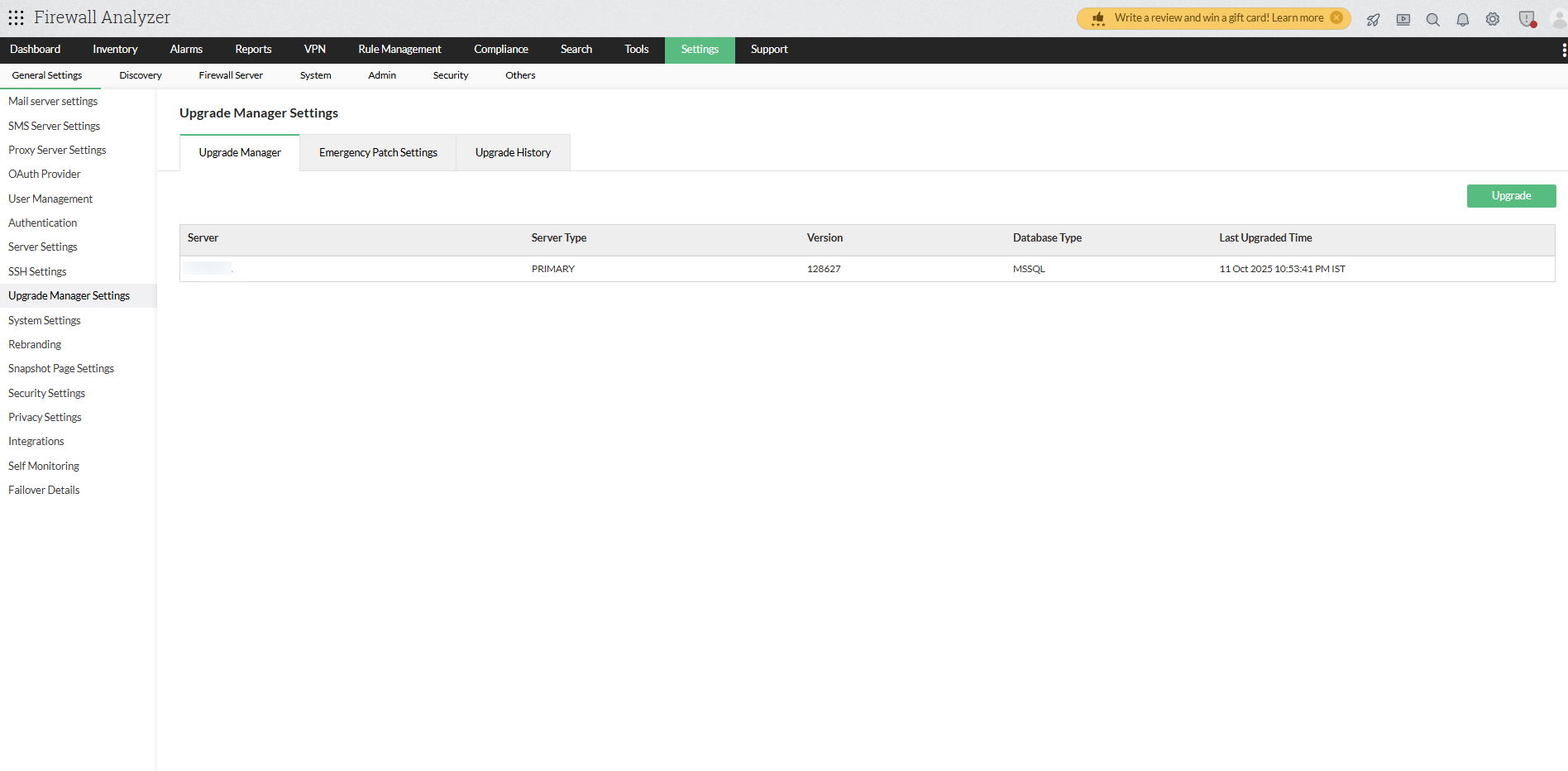
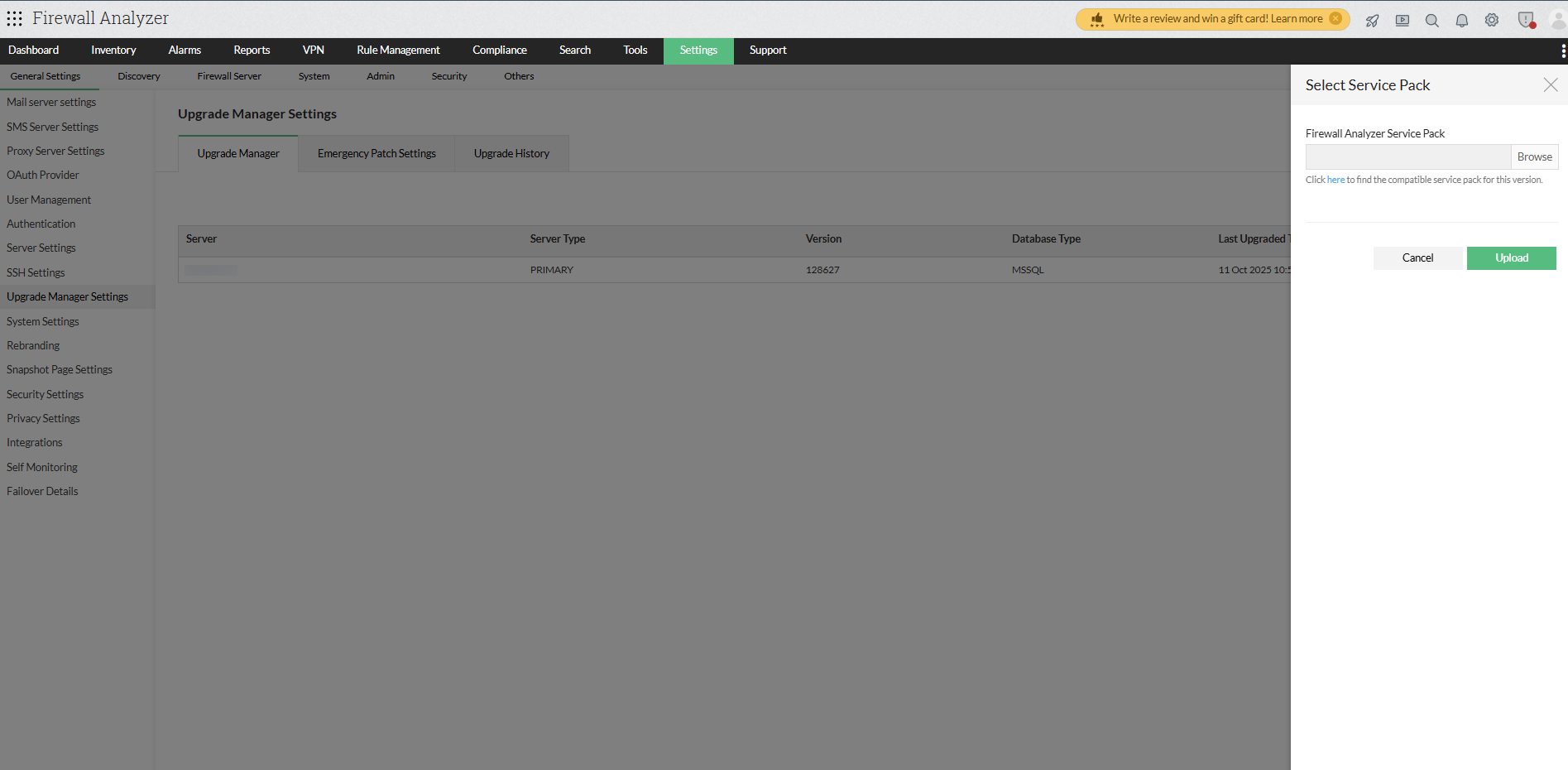
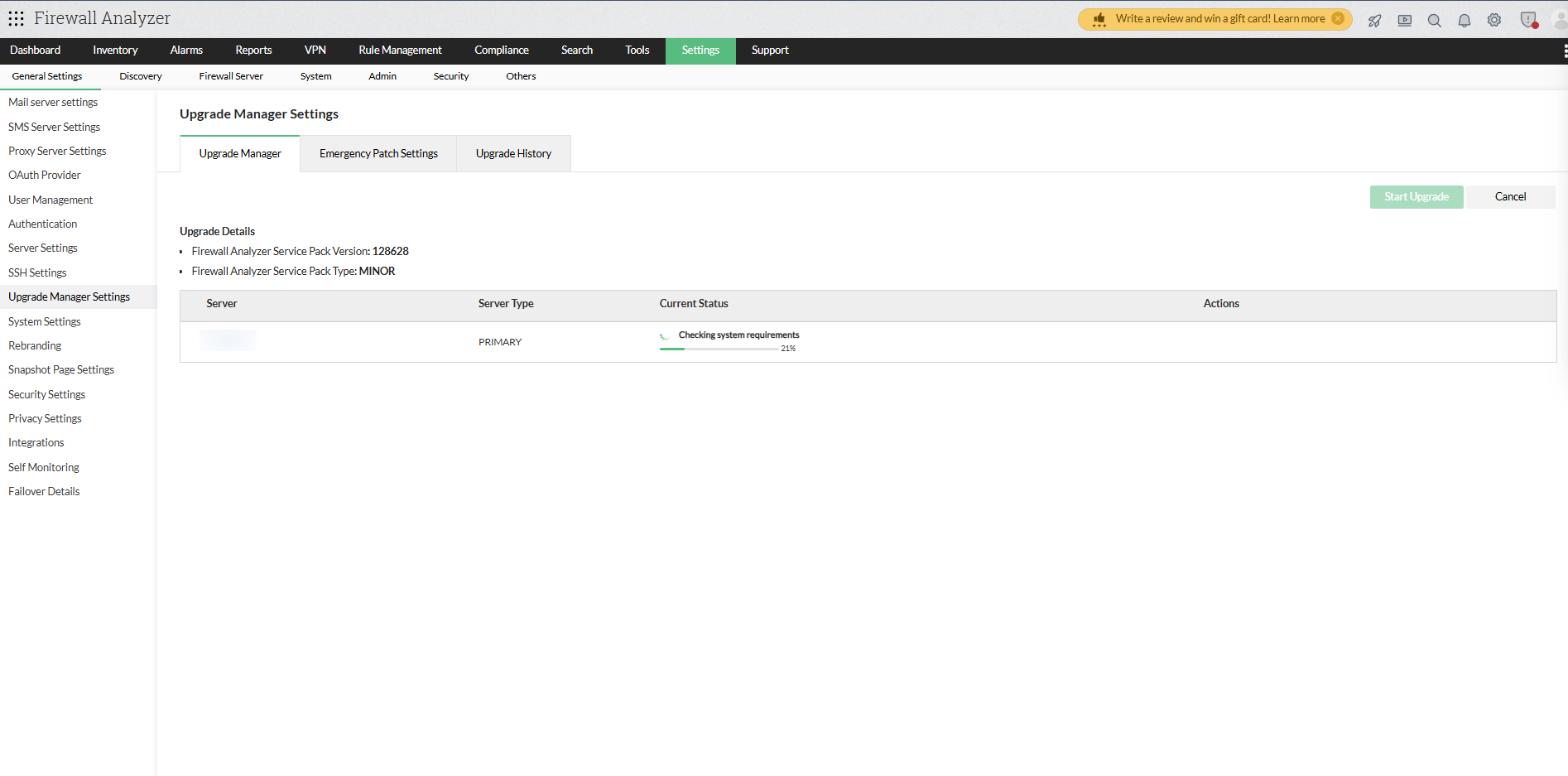
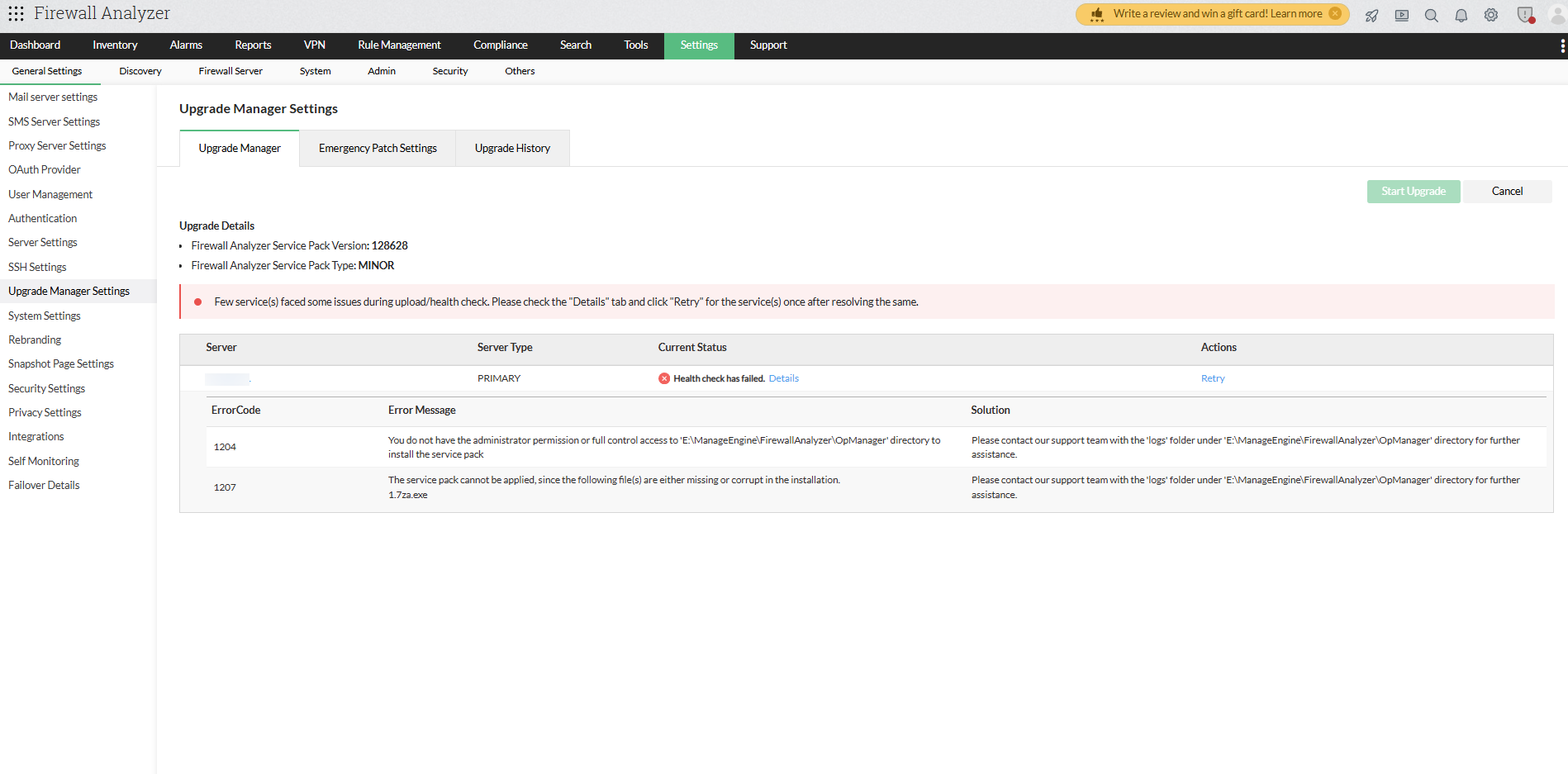
- With a successful health check, the product will now be ready for the upgrade.
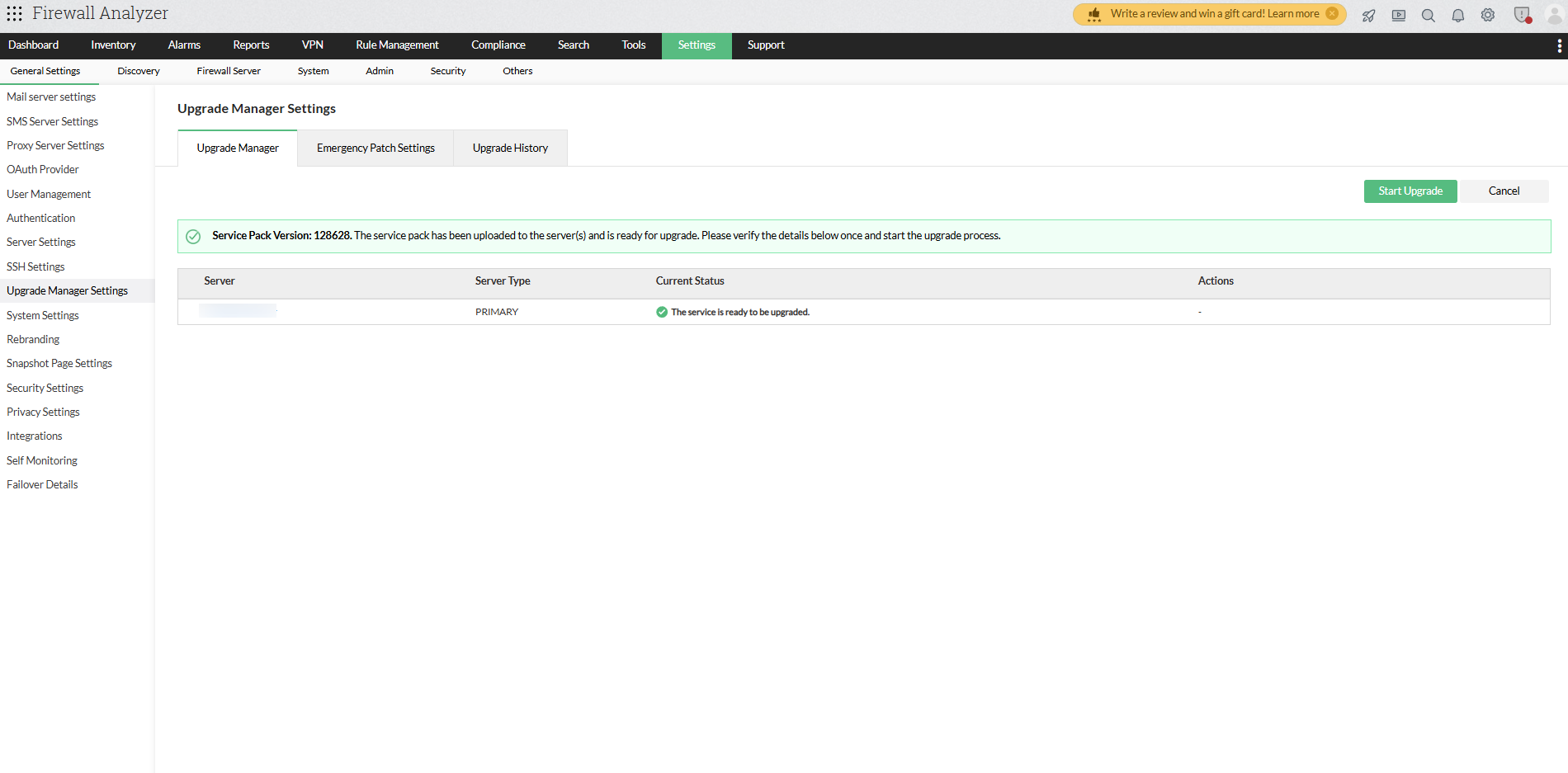
- For **Failover servers,** the upgrade will start automatically for both the active and the standby server.
- Upgrade details for individual servers will be automatically updated under the **Current Status** column.
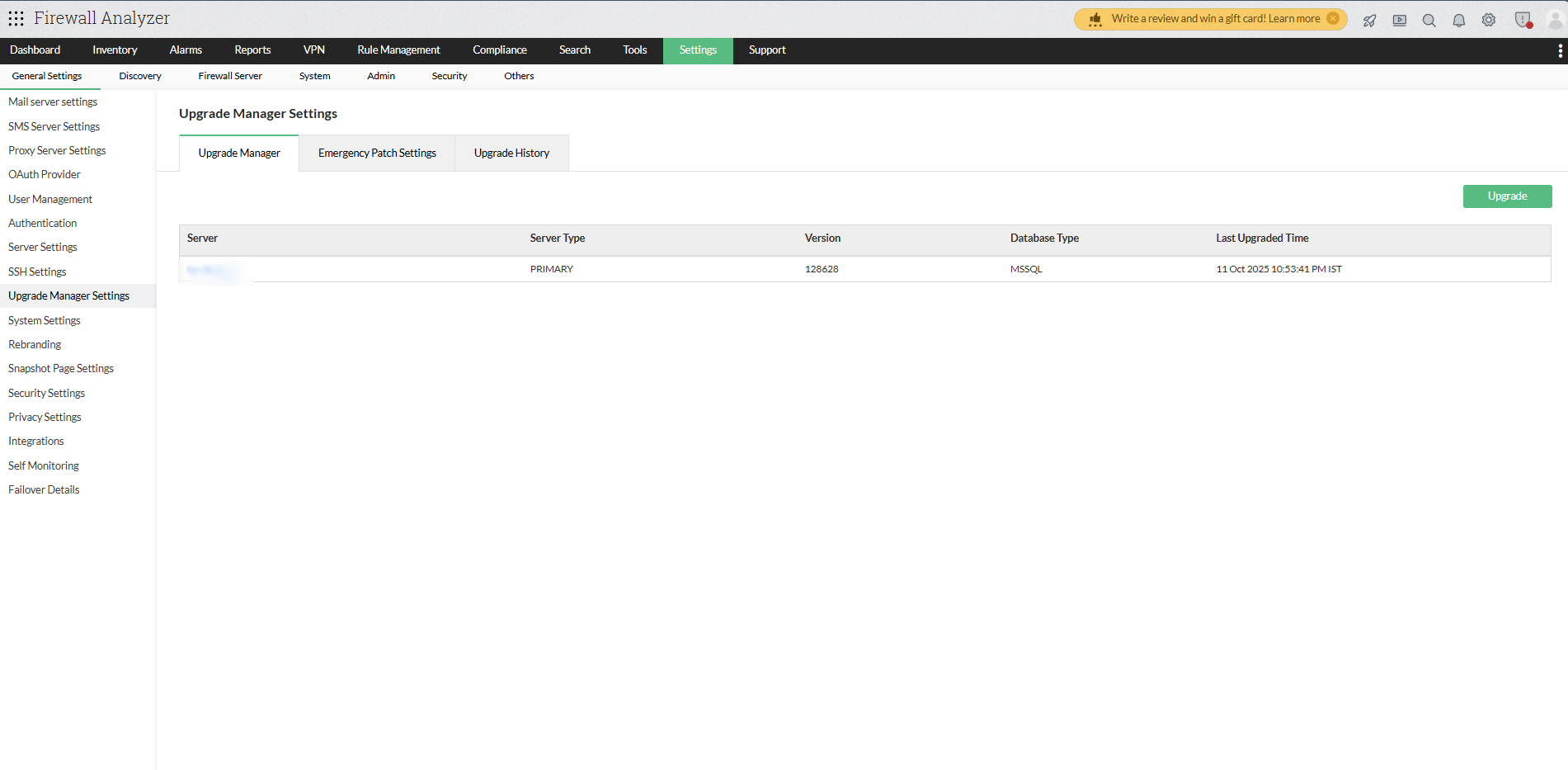
- [Upgrade Backup Pre-requisites](#backup)
- [Upgrade Pre-requisites](#pre)
- [Edition-specific Upgrade](#edition)
- [Upgrade OpManager using UpdateManager.bat and .sh file](#bat)
- If you are encountering issues caused by AV/EDR interactions during the upgrade process, please follow this [exclusion guide](https://www.manageengine.com/products/firewall/pgsql-av-edr-exclusion.html#upgrade-manager).
- Ensure that the user performing the upgrade has the required permissions for the OpManager folder.
## Edition-specific Upgrade
| Edition | Without Failover | New Failover | Old Failover |
|---|---|---|---|
| **Standard / Professional** | Upgrade the service using the [UpdateManager.bat /.sh file](#bat) and once the upgrade is completed start the service to continue monitoring. | - Stop both primary and secondary Failover service.
- Follow the steps provided under [UpdateManager.bat /.sh file](#bat) to upgrade the service.
- Then, start the secondary service once as master and stop the service.
- Now start the primary service followed by secondary service. | - Stop both primary and secondary service
- Begin with upgrading the primary service using [UpdateManager.bat /.sh file](#bat).
- Once primary service upgrade is successful, perform upgrade on secondary service using UpdateManager.bat /.sh file.
- After installing the ppm file, start the secondary service followed by the primary service.
- The secondary service will automatically switch to standby mode once primary service is started completely. |
| **Enterprise Edition** | - Stop the Firewall Analyzer Central and all the Probe services.
- Upgrade using [UpdateManager.bat /.sh file](#bat).
- Once the upgrade is completed, start the Central service.
- Then, the Probes will detect the upgrade, perform it in all the Probes and start the services on its own.
- If the probe fails to upgrade automatically, perform the upgrade manually using [UpdateManager.bat /.sh](#bat) file. | - Stop both primary and secondary service in Firewall Analyzer Central.
- Stop the secondary service and ensure only the primary service in running in all Probes.
- Follow the steps provides under [UpdateManager.bat /.sh file](#bat) to perform upgrade in Central.
- Once upgrade is completed start the Firewall Analyzer Central service.
- Then, the Probes will detect the upgrade, perform automatically in all the Probe services.
- Start and stop the Standby service once as master across Central and Probe, then start the primary followed by the Standby service.
- If the probe fails to upgrade automatically, perform the upgrade manually using [UpdateManager.bat /.sh](#bat) file. | - Download the appropriate version
- Stop all primary services and secondary service across Central and all Probes.
- Perform upgrade on Primary service and followed by secondary service in Central and all Probes using [UpdateManager.bat /.sh file](#bat).
- Start the secondary service first, then followed by the Primary Service.
- The secondary will switch to standby mode automatically once primary service is started completely.
- If the probe fails to upgrade automatically, perform the upgrade manually using [UpdateManager.bat /.sh](#bat) file. |