Self-Service Approval Workflow
Overview
The Self-Service Approval Workflow feature routes end users' self-service requests through your IT help desk for approval. A request is applied to Active Directory only after a help desk technician approves it, so you keep control over which changes reach the directory. Approvals are handled in an integrated workflow provider, ManageEngine ADManager Plus.
Note:This feature applies only to Active Directory. Approval Workflow is not available in Microsoft Entra ID mode, and the option does not appear while the console is in that mode.
How it works
When Approval Workflow is enabled, the self-service actions you select no longer write to Active Directory directly. Instead, ADSelfService Plus creates a request and hands it to the integrated workflow provider, where a help desk technician reviews it. The change is applied to Active Directory only after the technician approves it; rejected requests are discarded. For password reset and account unlock, the user's answers to the configured AD questions are checked against their Active Directory attribute values before the request proceeds. Click Show Flow Chart on the page to see a diagram of this flow.
Configuration instructions
Step 1: Integrating ADManager Plus
- Download, install, and launch ManageEngine ADManager Plus.
- Log in to the ADSelfService Plus admin portal as an administrator.
- Navigate to Admin > Product Settings > Integration Settings.
- Select the ADManager Plus tile.
- Enter the Server Name / IP Address and Port number, then select the protocol (http or https) used by ADManager Plus.
- Click Save.
Step 2: Enabling the workflow and selecting actions
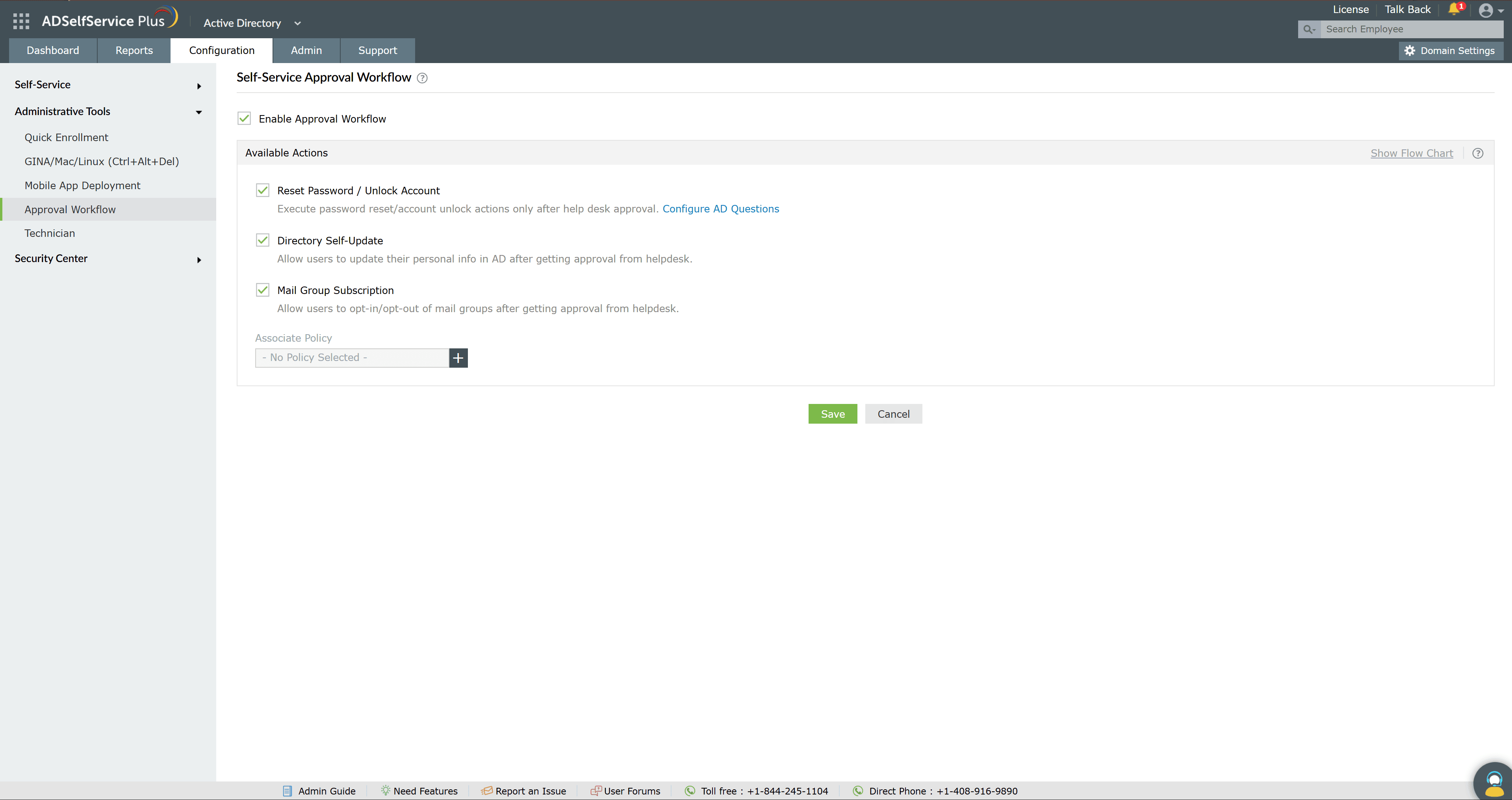
- Navigate to Configuration > Administrative Tools > Approval Workflow.
- Select Enable Approval Workflow.
- Under Available Actions, select the self-service actions that should require approval.
- Click Save.
The available actions are:
| Action | What approval covers |
|---|---|
| Reset Password / Unlock Account | Runs password reset and account unlock only after help desk approval. |
| Directory Self-Update | Lets users update their personal information in Active Directory only after help desk approval. |
| Mail Group Subscription | Lets users opt in to or out of mail groups only after help desk approval. |
Step 3: (Optional)Configuring AD questions for password reset and unlock
For the Reset Password / Unlock Account action, click Configure AD Questions to define the questions that verify a user's identity before a request is approved.
- In the dialog, review the security questions configured by default. You can add, edit, delete, enable, or disable them.
- To add a question, click Add Question at the bottom of the dialog.
- Enter the security question, then select the corresponding LDAP attribute. The value of that attribute serves as the answer to the question.
- Click Save.
Step 4: Associating policies
Use Associate Policy to choose which ADSelfService Plus policies the approval workflow applies to. Click the add (+) control, select the policies, and click Save.
Tips
- Run the All Users Report in ADManager Plus after enabling, and refresh it periodically, so technicians always review current attribute values.
- Associate the workflow with specific policies to apply approval only to the users who need it.
- Use Show Flow Chart to explain the approval path to your help desk team.