Mobile App Deployment
Overview
Mobile App Deployment lets you remotely roll out the ADSelfService Plus mobile app to your users' iOS devices, so they can reset passwords and unlock accounts on the go. You first notify users to install a mobile device management (MDM) profile, then push the app to the enrolled devices, and you can automate both steps with schedulers. You configure it under Configuration > Administrative Tools > Mobile App Deployment.
Prerequisites
Confirm the following before you deploy the app:
- Mobile App Deployment targets iOS devices. It relies on an MDM profile and Apple Push Notification service (APNs).
- Either trial mode is enabled or APNs is configured. Use APNs Configuration for a production deployment; the banner's Click here to register link starts trial mode.
- The ADSelfService Plus server is reachable from users' iOS devices during profile installation.
- You are in Active Directory mode and signed in to the admin portal as an administrator.
How it works
Deployment happens in two stages. First, users install an MDM profile: ADSelfService Plus emails them a registration link, which they open in Safari on the iOS device to enroll it. In trial mode, the email also includes a one-time password (OTP) that Safari prompts for. Once the profile is installed, the device appears under the Configured Devices tab, where you push the ADSelfService Plus app to it. The app and the server details are then delivered to the device; for users who enroll with their Active Directory credentials, this happens automatically. Schedulers can run the whole cycle for you, periodically checking for new users and devices.
Configuration instructions
Notifying users to install the MDM profile
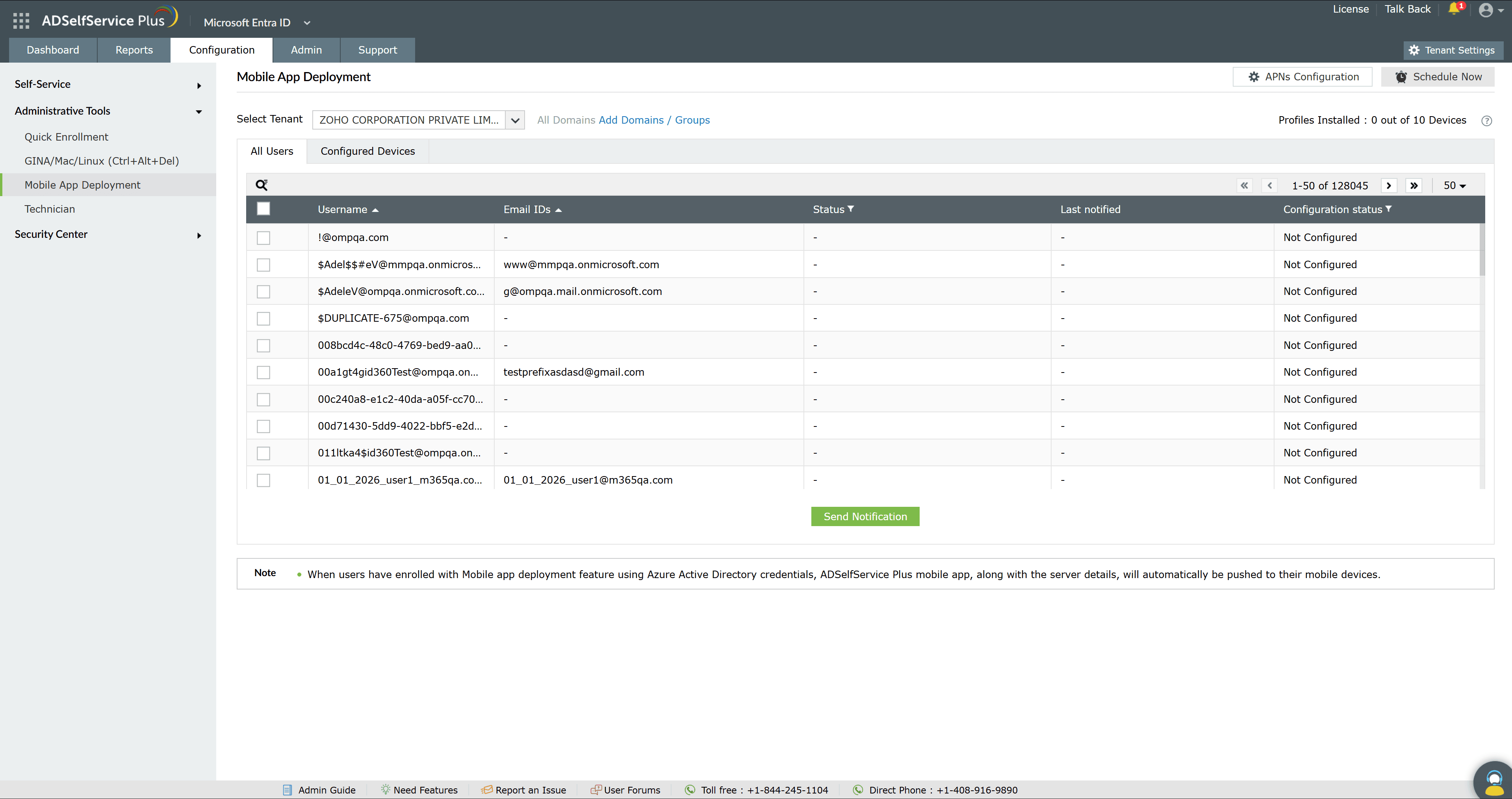
- Navigate to Configuration > Administrative Tools > Mobile App Deployment.
- From the Select Domain drop-down, choose a domain.
- To target specific users, click Add OU / Groups and select the OUs or groups. Their users appear under the All Users tab.
- In the All Users tab, select users by checking the box beside each Username.
- Click Send Notification. Each selected user receives an email with a registration link.
- The user opens the link in Safari on their iOS device to install the profile and enroll the device for MDM.
The All Users tab lists users with the following columns:
| Column | What it shows |
|---|---|
| Username | The user's Active Directory logon name. |
| Email IDs | The email address the registration link is sent to. |
| Status | The notification and enrollment state for the user. |
| Last notified | When the user was last sent a notification. |
| Configuration status | Whether the user's device is configured, for example Not Configured. |
Installing the app on configured devices
Devices on which the MDM profile is installed appear under the Configured Devices tab.
- Open the Configured Devices tab.
- Select the devices on which you want to install the app.
- Click Install.
- Click Update Status to refresh the app-installation details. The status takes some time to update.
- Use the Status column to filter devices by installation state, including installed, not installed, uninstalled, queued, cancelled, failed, and all.
Configuring APNs
Click APNs Configuration to set up the Apple Push Notification service certificate used for production deployments. For an evaluation, use the Click here to register link in the trial banner instead. Refer to the ManageEngine mobile app deployment guide for the full APNs setup.
Automating with schedulers
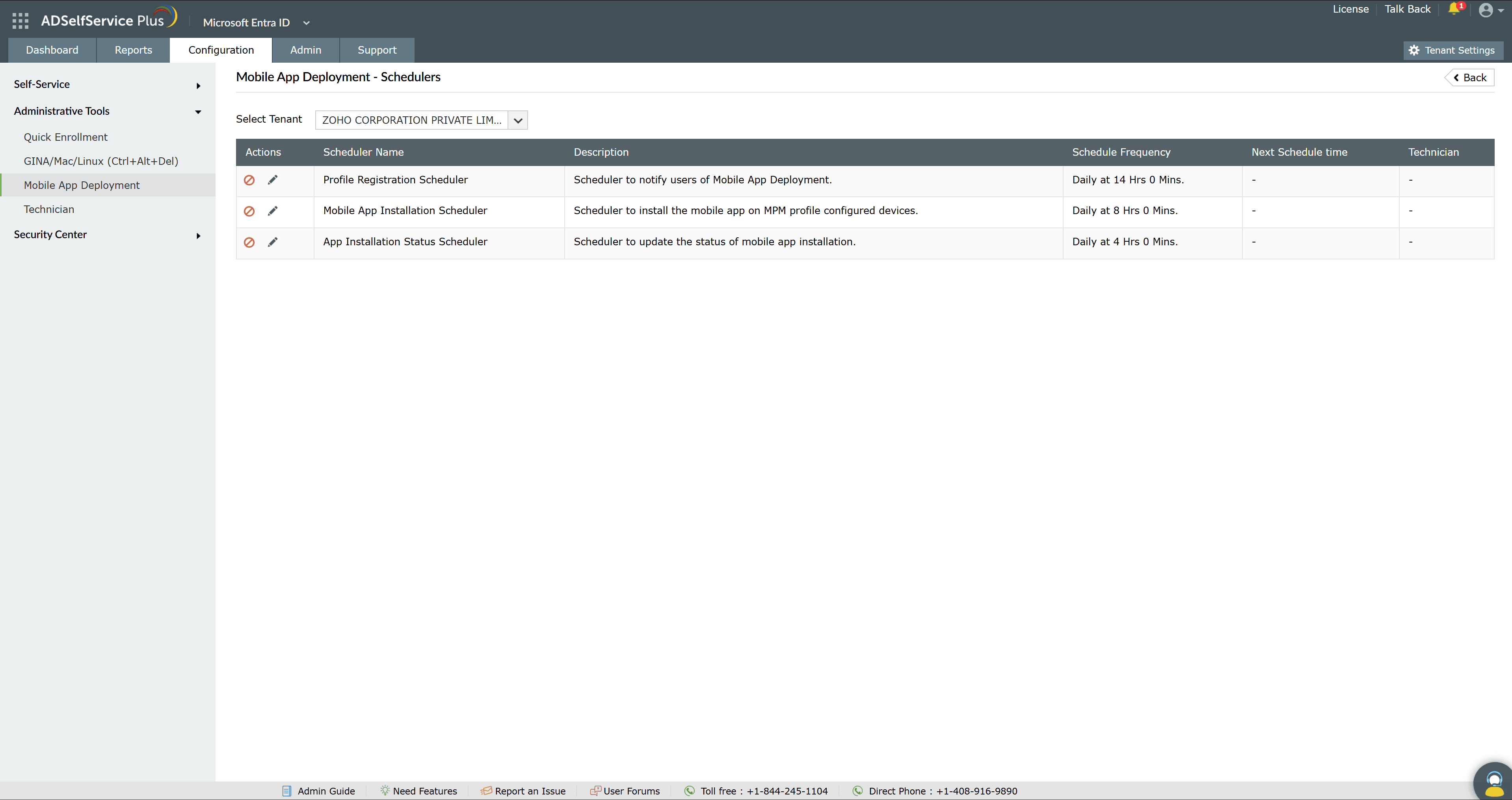
Click Schedule Now to automate the deployment cycle. Three schedulers are available:
| Scheduler | What it does |
|---|---|
| Profile Registration Scheduler | Automatically notifies users to install the MDM profile. |
| App Installation Scheduler | Automatically installs the app on profile-installed devices. |
| App Installation Status Scheduler | Automatically updates each device's app-installation status in the console. |
For each scheduler, you can use Enable/Disable to turn it on or off. Click Edit to change it, then select the Domain, click Add OU / Groups to narrow the selection, set the Scheduler Frequency, and click Save.
Limitations
- Mobile App Deployment supports iOS devices and relies on an MDM profile, Safari, and Apple Push Notification service (APNs).
- Users must open the registration link in Safari, and the ADSelfService Plus server must be reachable from the device during profile installation.
- The feature is available in Active Directory mode, under Administrative Tools.
Tips
- Use the schedulers so new users and devices are enrolled and updated without manual steps.
- Target OUs or groups with Add OU / Groups to roll out in phases rather than to the whole domain at once.
- After clicking Install, use Update Status to confirm the app reached each device; the status updates after a short delay.
- Configure APNs for production use. Trial mode is for evaluation and adds an OTP step to enrollment.