Identity verification process
ADSelfService Plus uses multi-factor authentication (MFA) to help protect your organization's resources. Before accessing protected resources, you may be required to verify your identity using one or more authentication methods configured by your administrator.
After enrolling in the required authentication methods, you can use them whenever identity verification is required.
Available identity verification methods
The following authentication methods may be available based on your organization's configuration:
Here is a list of authentication techniques available in ADSelfService Plus:
- Security Questions and Answers: Verify your identity by providing the answers to the security questions configured during enrollment.
- Verification Codesr: Verify your identity using a one-time passcode (OTP) sent to your registered mobile number (SMS Verification) or email address (Email Verification).
- Google Authenticator: Verify your identity using the six-digit code generated by the Google Authenticator app.
- Microsoft Authenticator: Verify your identity using the six-digit code generated by the Microsoft Authenticator app.
- Microsoft Entra ID MFA: Verify your identity using any Microsoft Entra ID (Azure AD) MFA method configured by your organization, such as a verification code, push notification, authentication phone call, SMS, or hardware token.
Note: This authentication method is available only for AD accounts.
- Duo Security: Verify your identity using a Duo Push notification, phone call, or passcode.
- RSA SecurID: Verify your identity using a passcode generated by an RSA SecurID token or authenticator.
- RADIUS Authentication: Verify your identity using your RADIUS password. Depending on your organization's configuration, you may also be required to complete an additional authentication challenge using a one-time passcode (OTP).
Note: This authentication method is available only for AD accounts.
- ADSelfService Plus Mobile App: Verify your identity using any of the following authentication methods available in the ADSelfService Plus mobile app:
- Push Notification Authentication: Approve a sign-in request sent to your mobile device.
- Biometric Authentication: Verify your identity using your device's fingerprint, Face ID, or other supported biometric method.
- QR Code Based Authentication: Scan a QR code displayed during sign-in to complete verification.
- TOTP Authentication: Enter a time-based one-time passcode (TOTP) generated by the ADSelfService Plus mobile app.
- SAML Authentication: You will be automatically redirected to your identity provider to verify your identity. Once you verify your identity successfully, you will be logged in.
- AD Security Questions: Verify your identity by answering security questions based on information stored in your Active Directory profile, such as your registered mobile number or email address. Your administrator may also require you to provide a secret answer.
Note: This authentication method is available only for AD accounts.
- YubiKey Authenticator: Verify your identity using a one-time passcode (OTP) generated by your YubiKey device.
- Zoho OneAuth TOTP: Verify your identity using the TOTP generated by the Zoho OneAuth app.
- Smart Card Authentication: Verify your identity using a smart card issued by your organization.
- Web-Based Logins: Use your smart card and, if required, the associated PIN to access protected web applications and resources.
- Machine Logins: Use your smart card and, if required, the associated PIN to verify your identity during Windows machine sign-in.
Note: This authentication method is available only for AD accounts. - Custom TOTP Authenticator: Verify your identity using a code generated by your custom hardware or software TOTP authenticator.
- FIDO2 Passkeys: Verify your identity using your device's built-in authenticator, such as Windows Hello, Touch ID, Face ID, or Android Biometrics, or by using a supported external security key such as YubiKey or Google Titan Security Key.
How to verify your identity with ADSelfService Plus
Security Questions and Answers
- A set of security questions defined by you or your administrator during enrollment will be displayed on the verification page.
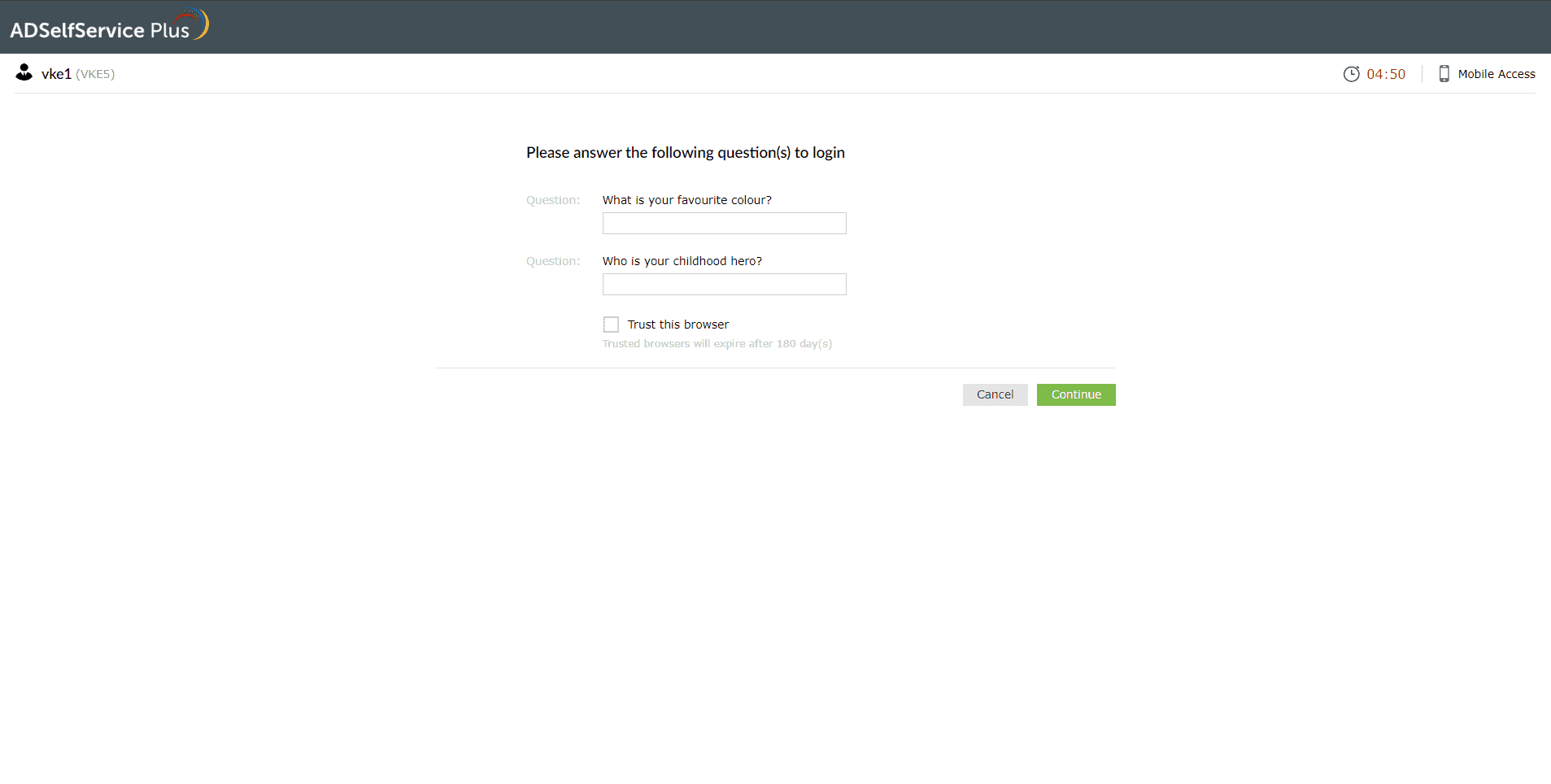
Fig 1: Answering your security questions to verify your identity.
- Provide the appropriate answers and click Continue to verify your identity.
Verification codes
a. Get a verification code on your mobile (SMS verification)
- On the SMS Verification page, select the mobile number to which you want the OTP sent.
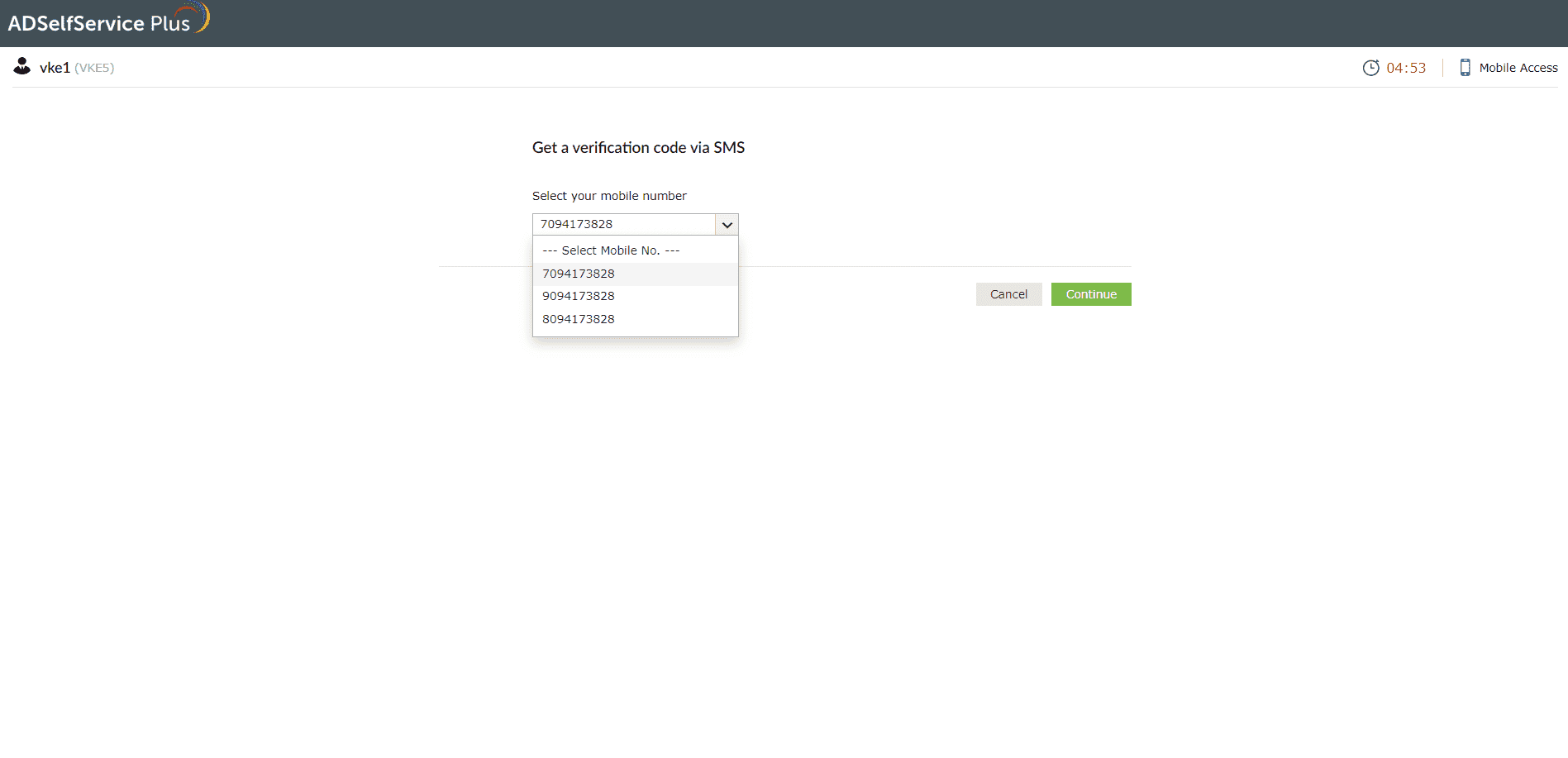
Fig 2: Selecting the mobile number to receive the SMS verification code.
- An OTP will be sent to the number you select.
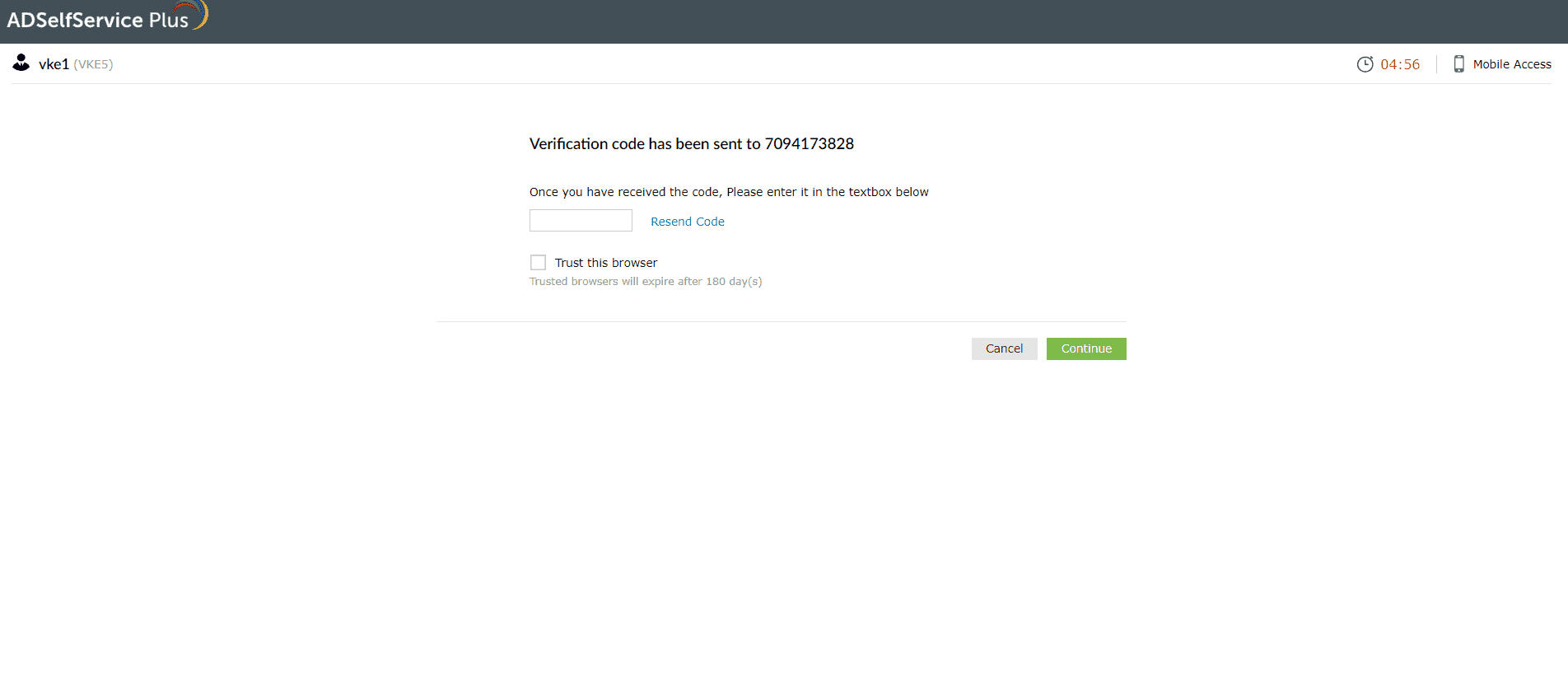
Fig 3: Entering the verification code sent to your mobile.
- Enter the code in the textbox displayed by ADSelfService Plus and click Continue to verify your identity.
b. Get a verification code sent to your email address (Email verification)
- On the Email verification page, select the email address to which you want the code to be sent.
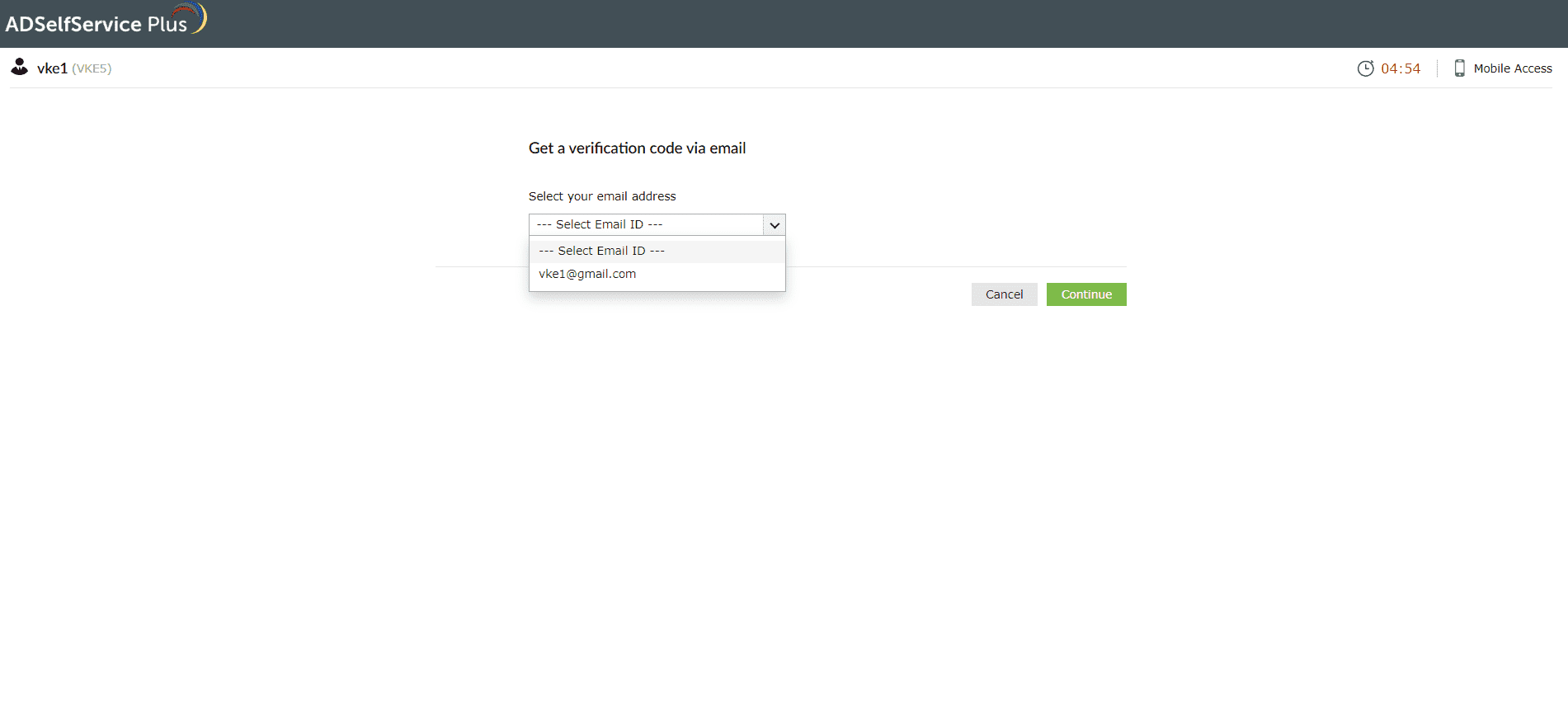
Fig 4: Selecting the email address to receive the verification code.
- An OTP will be sent to the email address you select.
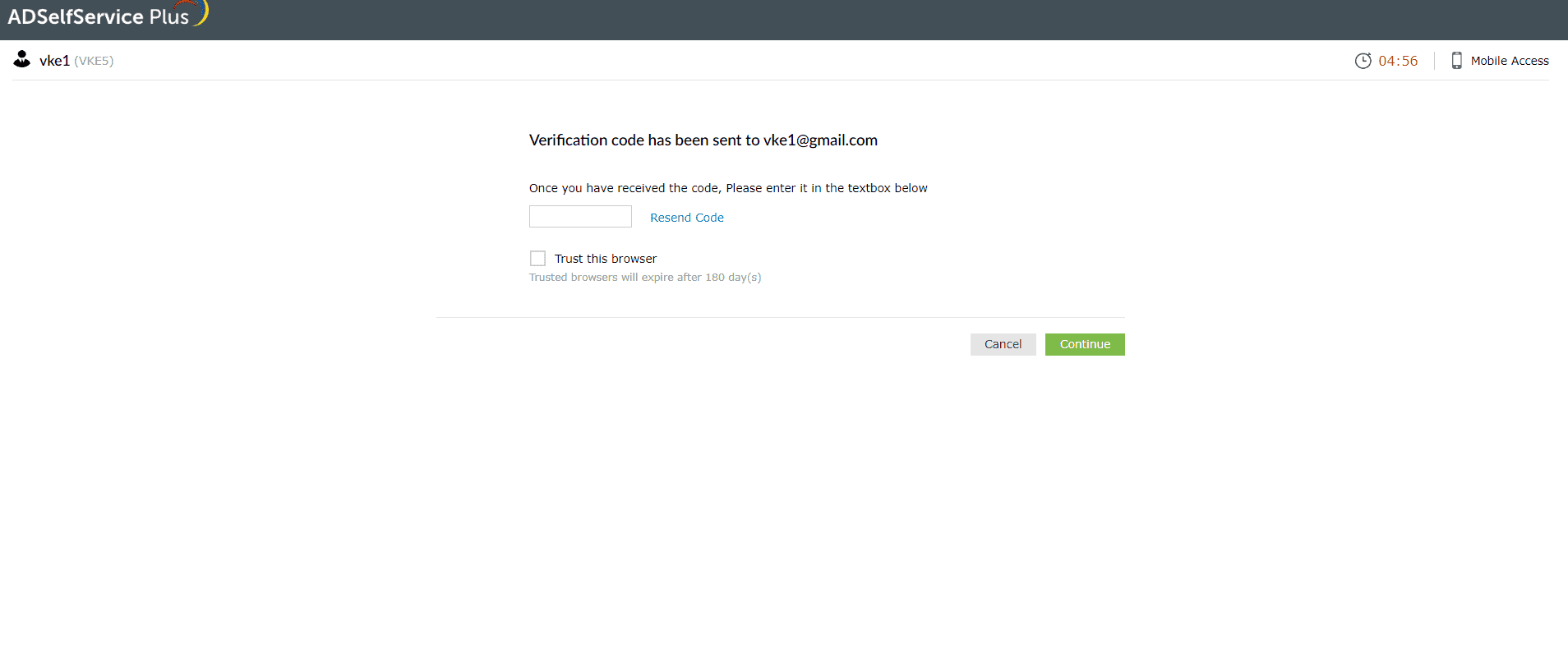
Fig 5: Entering the verification code sent to your email.
- Enter the code in the textbox displayed by ADSelfService Plus and click Continue to verify your identity.
Google Authenticator
- Open your Google Authenticator app. It will display a six-digit TOTP generated for your account.
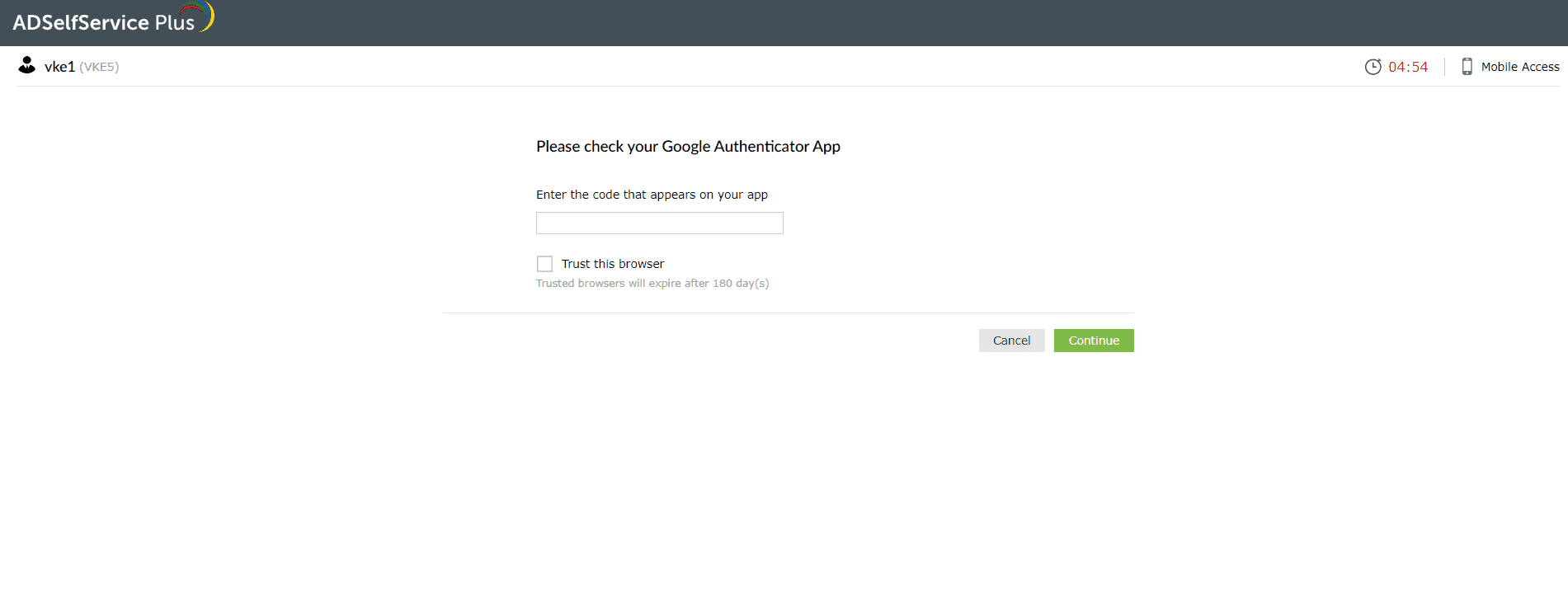
Fig 6: Entering the code from the Google Authenticator app to verify your identity.
- Enter the TOTP in the textbox displayed by ADSelfService Plus and click Continue to verify your identity.
Microsoft Authenticator
- Open your Microsoft Authenticator app. It will display a six-digit TOTP generated for your account.
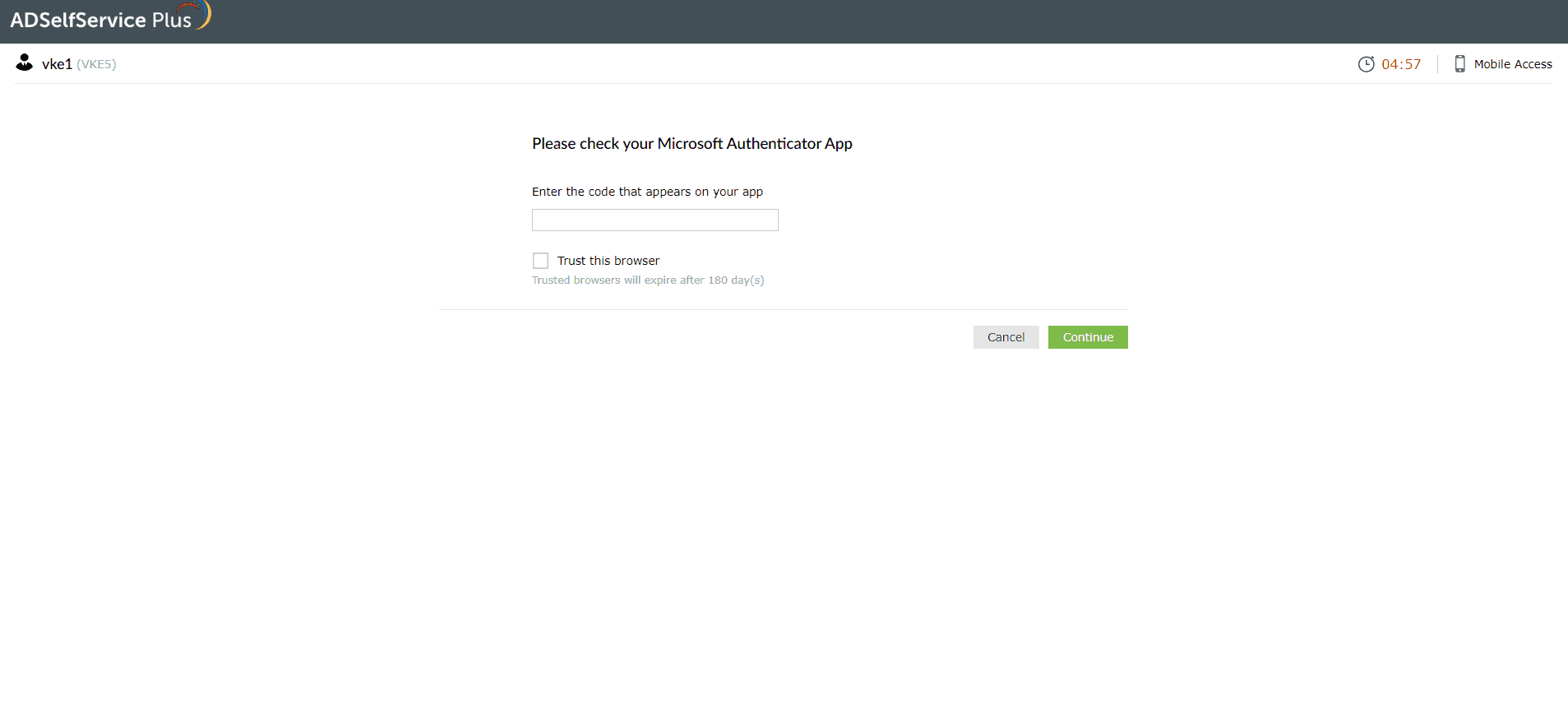
Fig 7: Entering the code from the Microsoft Authenticator app to verify your identity.
- Enter the TOTP in the textbox displayed by ADSelfService Plus and click Continue to verify your identity.
Microsoft Entra ID MFA
- On the Microsoft Entra ID MFA verification page, click Continue to proceed with verifying your identity.
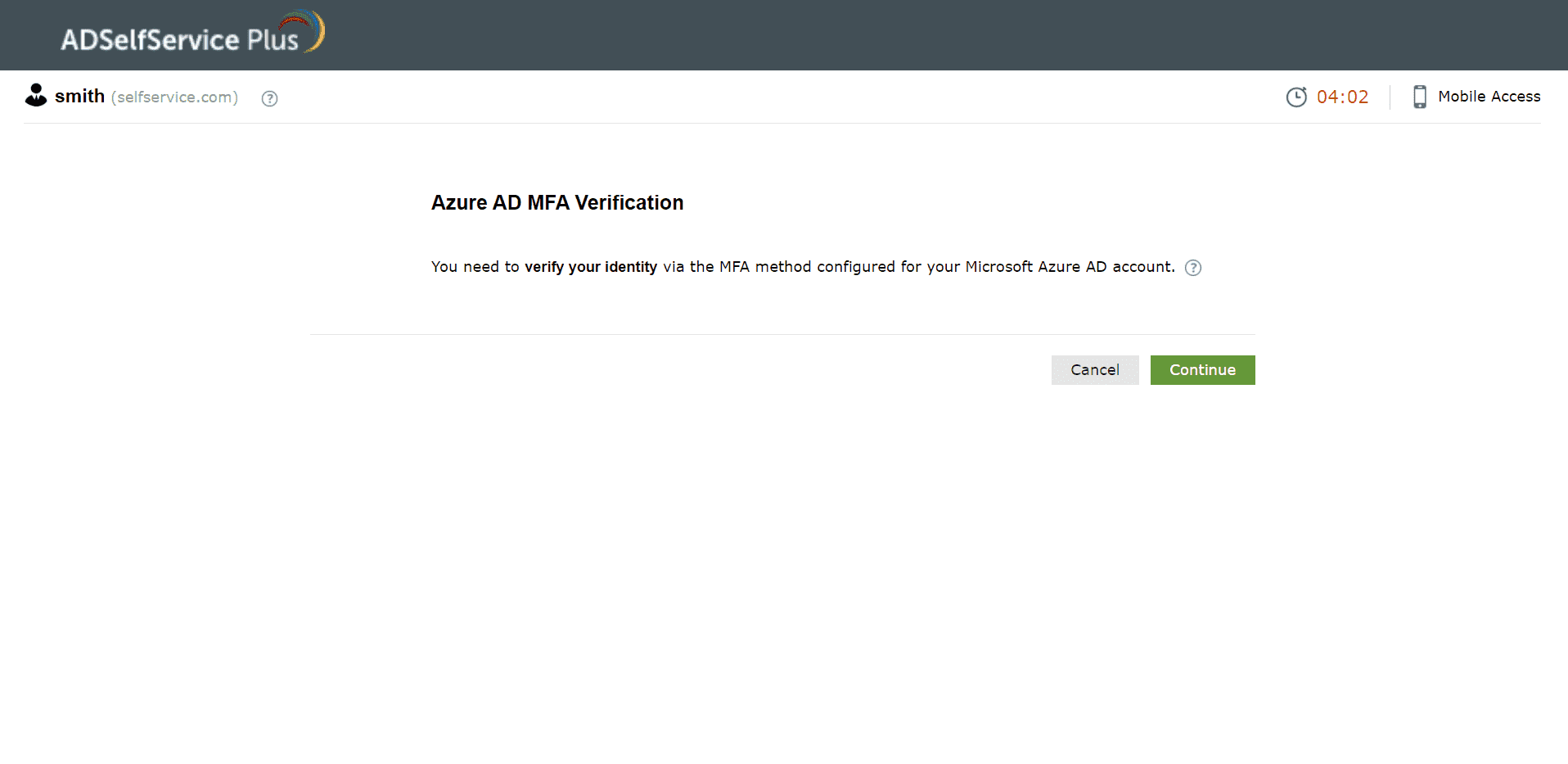
Fig 8: The Microsoft Entra ID MFA verification page.
- Depending on the enrolled authentication method, you might:
- Receive the verification code via Microsoft Authenticator, hardware token, or SMS.
- Receive a push notification via Microsoft Authenticator or an authentication phone call.
- Identity verification:
- If you've enrolled in push notifications or a phone call, you'll be notified via your mobile device. Complete the verification by accepting the push notification or by following the instructions given in the call.
- If you've enrolled in a verification code-based method, enter the code in the field that appears.
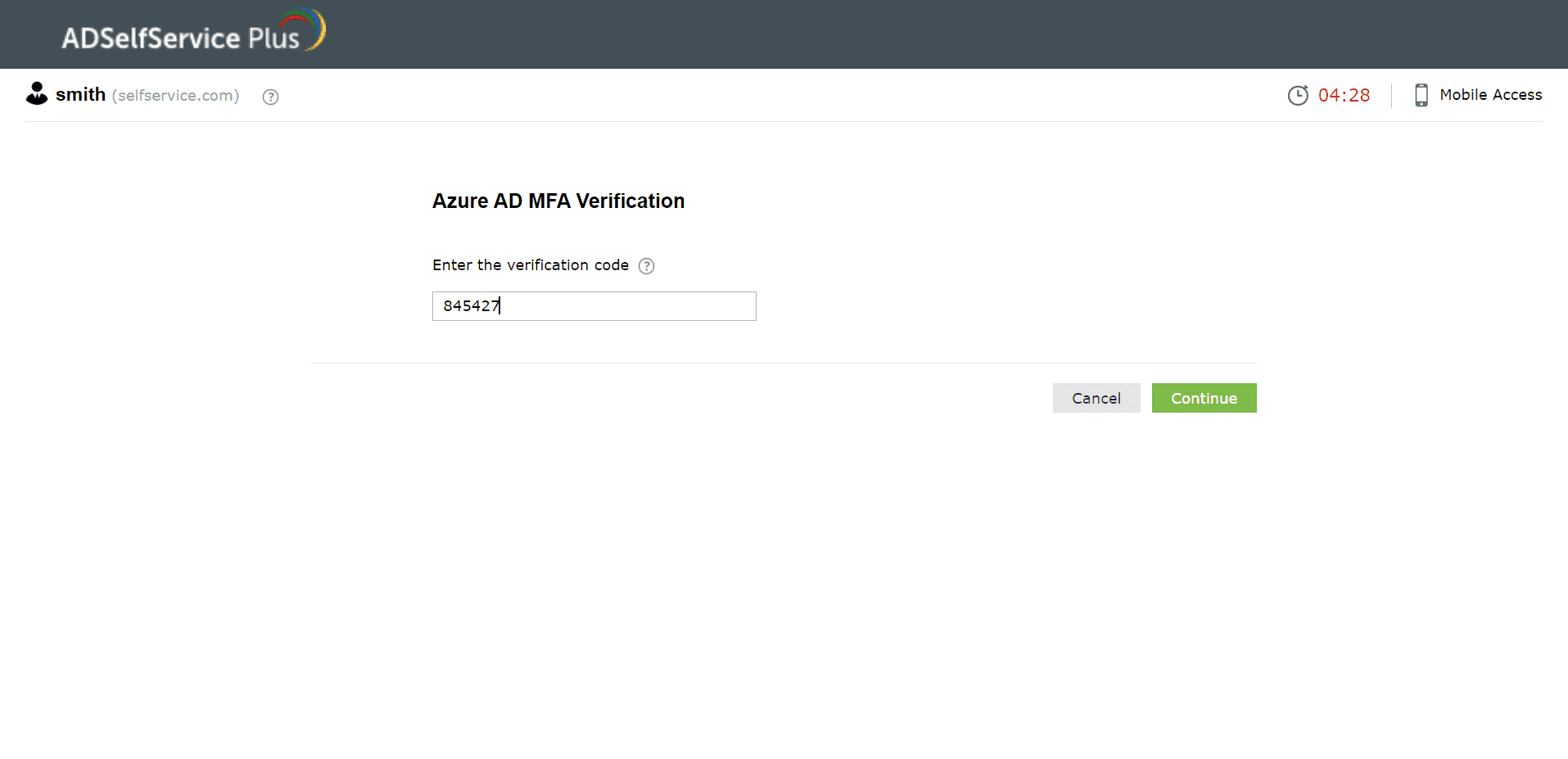
Fig 9: Entering the Microsoft Entra ID MFA verification code.
- Click Continue to verify your identity.
Duo Security
- On the Duo Security verification page, choose your preferred authentication method to proceed with verifying your identity.
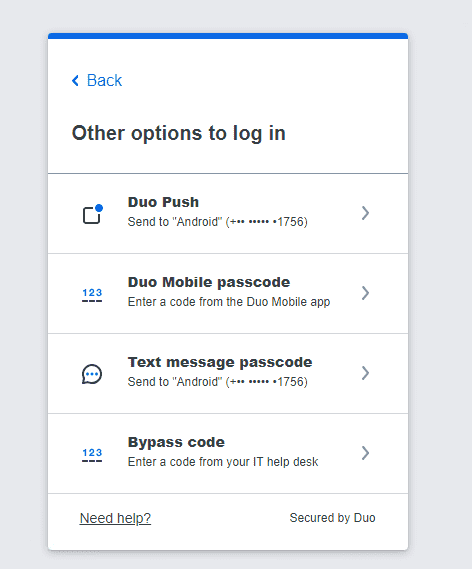
Fig 10: Choosing a Duo Security authentication option.
- Depending on how Duo is configured in your organization, you will either be shown a field to enter this code or TOTP, or be directed to Duo Security's site to enter the code or TOTP.
- Enter the code and click Next to verify your identity.
RSA SecurID
- On the RSA verification page, enter the passcode provided to you by your administrator.
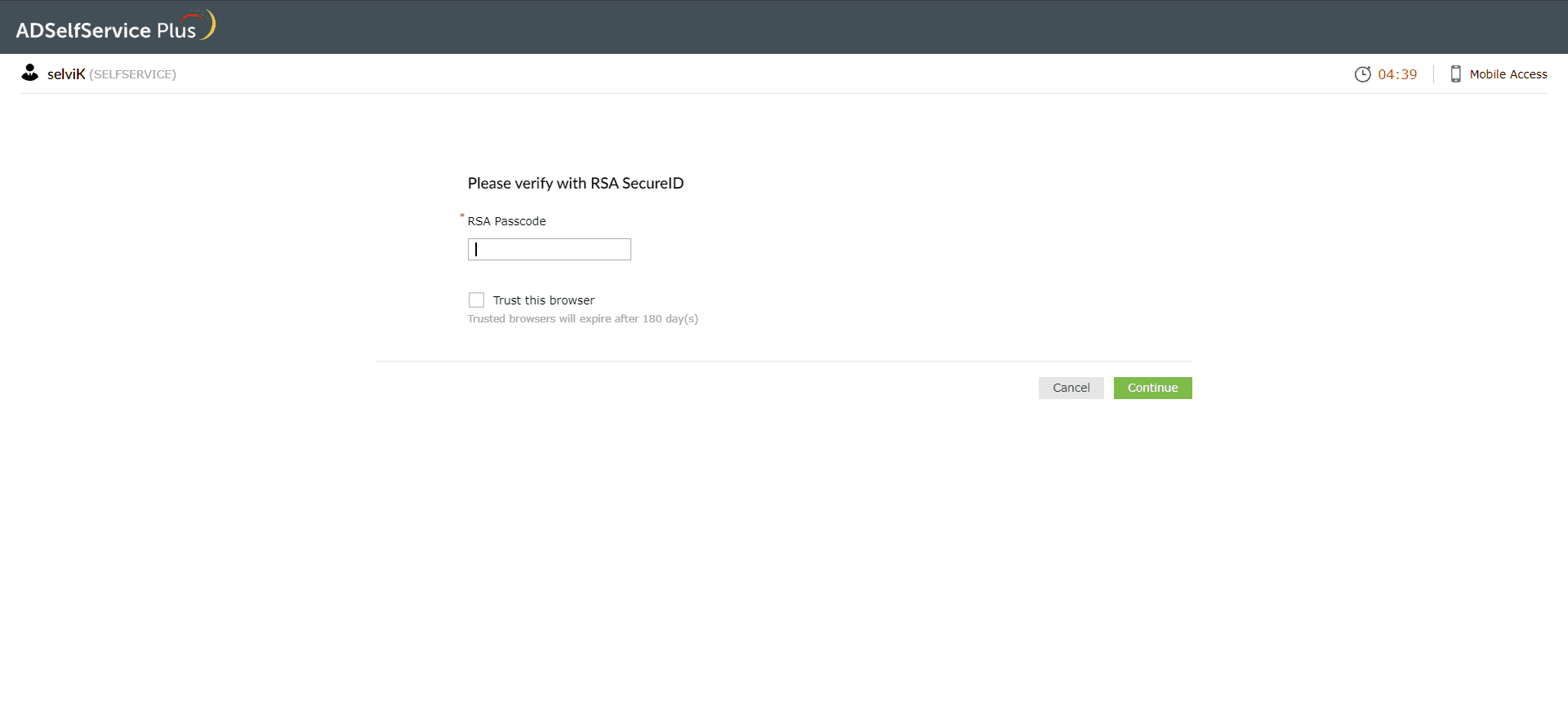
Fig 11: Entering your RSA SecurID passcode to verify your identity.
- Depending on the configuration in your organization, you will either be verified or required to enter a security code for further authentication. This security code can be generated by your RSA SecurID mobile app, hardware tokens, or received by email or SMS.
- Enter the code in the textbox displayed by ADSelfService Plus, and click Continue to verify your identity.
RADIUS Authentication
- Enter the RADIUS password in the text field displayed in ADSelfService Plus.
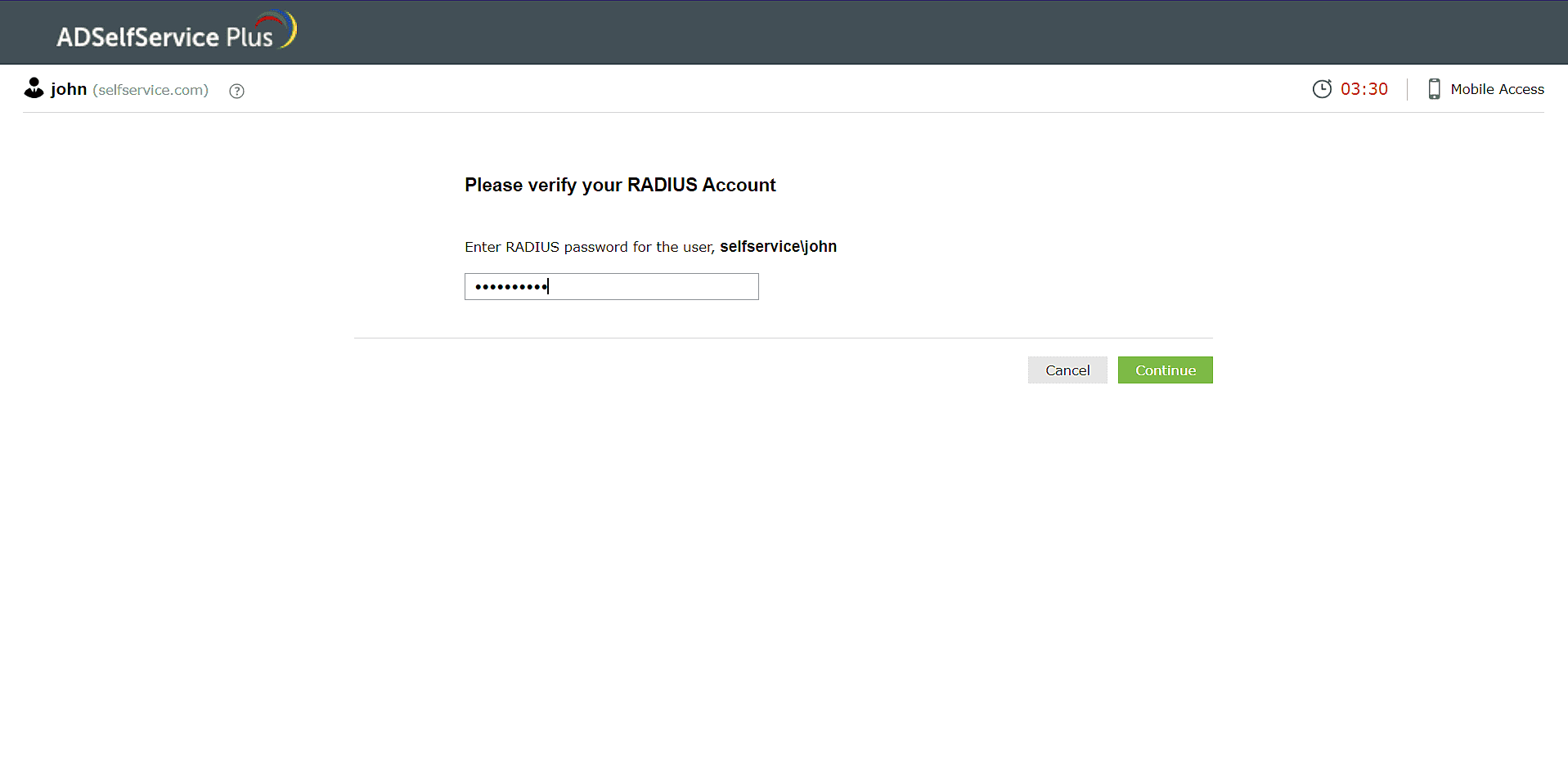
Fig 12: Entering your RADIUS password to verify your identity.
Note: Please contact your administrator for the RADIUS password linked to your account. - If your RADIUS admin has configured challenge-based authentication, you will need to further enter a one-time passcode generated via a hardware token or the RSA SecurID mobile app, or tokens received by email or SMS to complete RADIUS authentication.
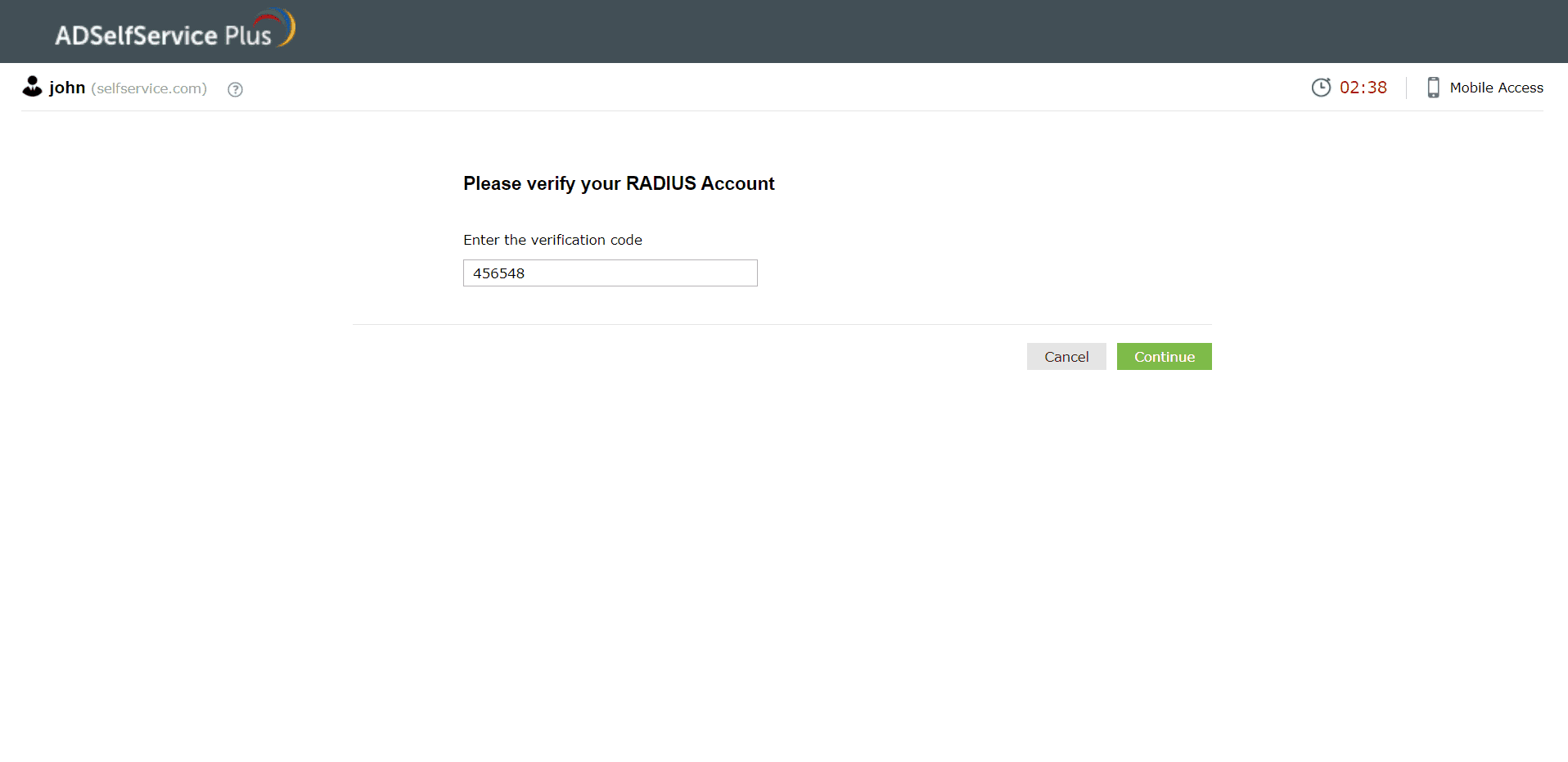
Fig 13: Entering the RADIUS challenge verification code.
- Click Continue to verify your identity.
Authentication using the ADSelfService Plus app
Push Notification Authentication
- You will be sent a push notification with a request ID asking you to click Accept on the login notification to confirm your identity.
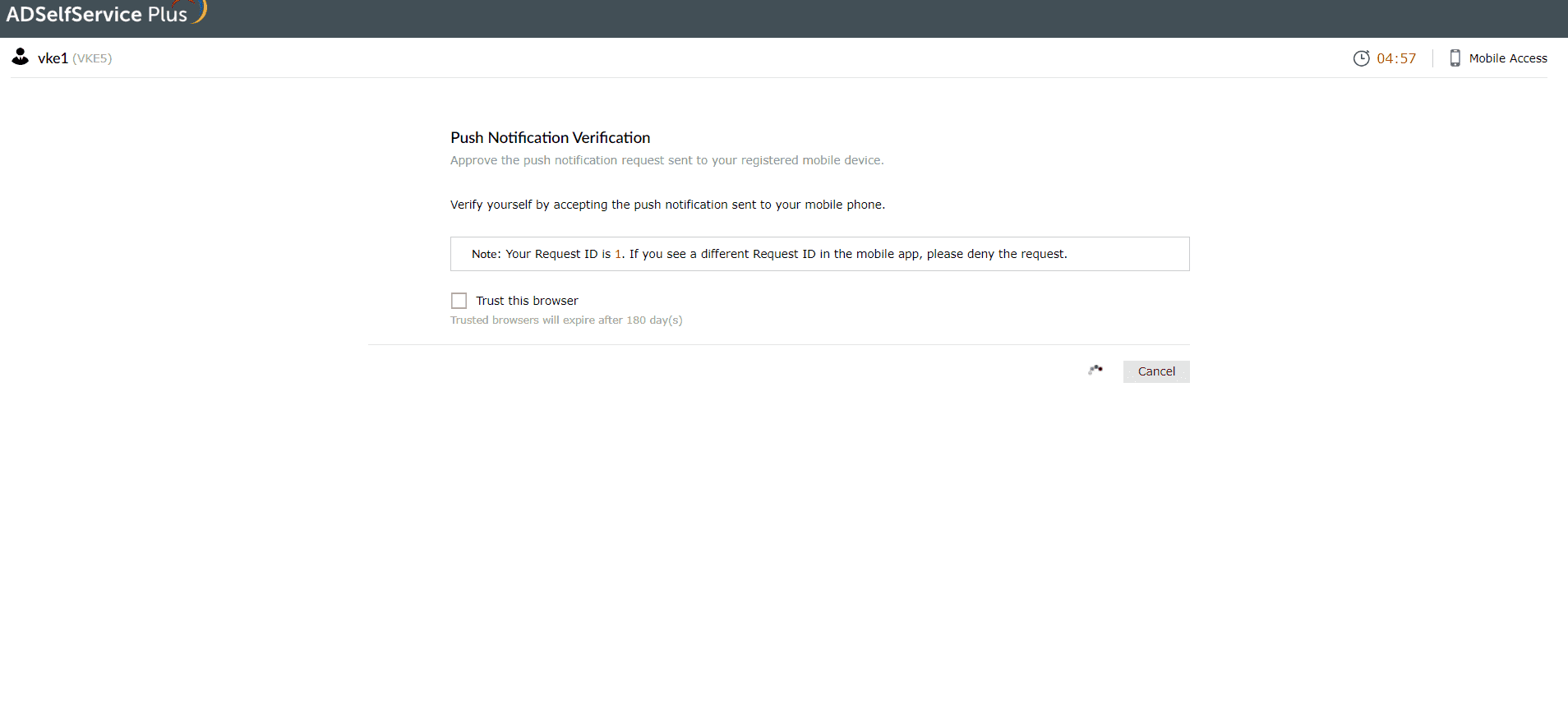
Fig 14: Approving the push notification to confirm your identity.
- Tap the Accept button on the notification to confirm your identity.
Biometric Authentication
- Open the ADSelfService Plus mobile app.
- Follow the steps displayed on the ADSelfService Plus webpage.
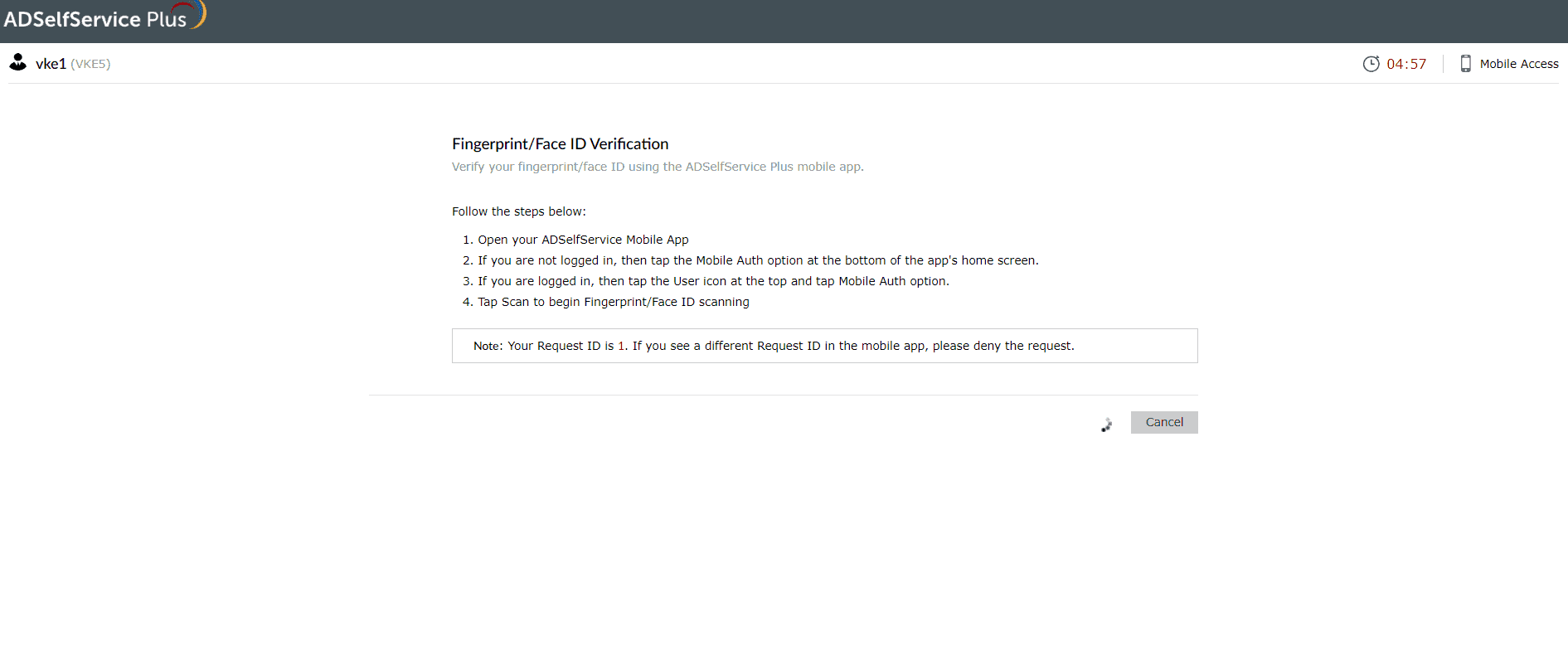
Fig 15: Verifying your identity with Fingerprint or Face ID through the mobile app.
- You will be logged in once your identity is verified.
QR Code Based Authentication
- Open the ADSelfService Plus mobile app.
- Follow the steps given on the webpage.
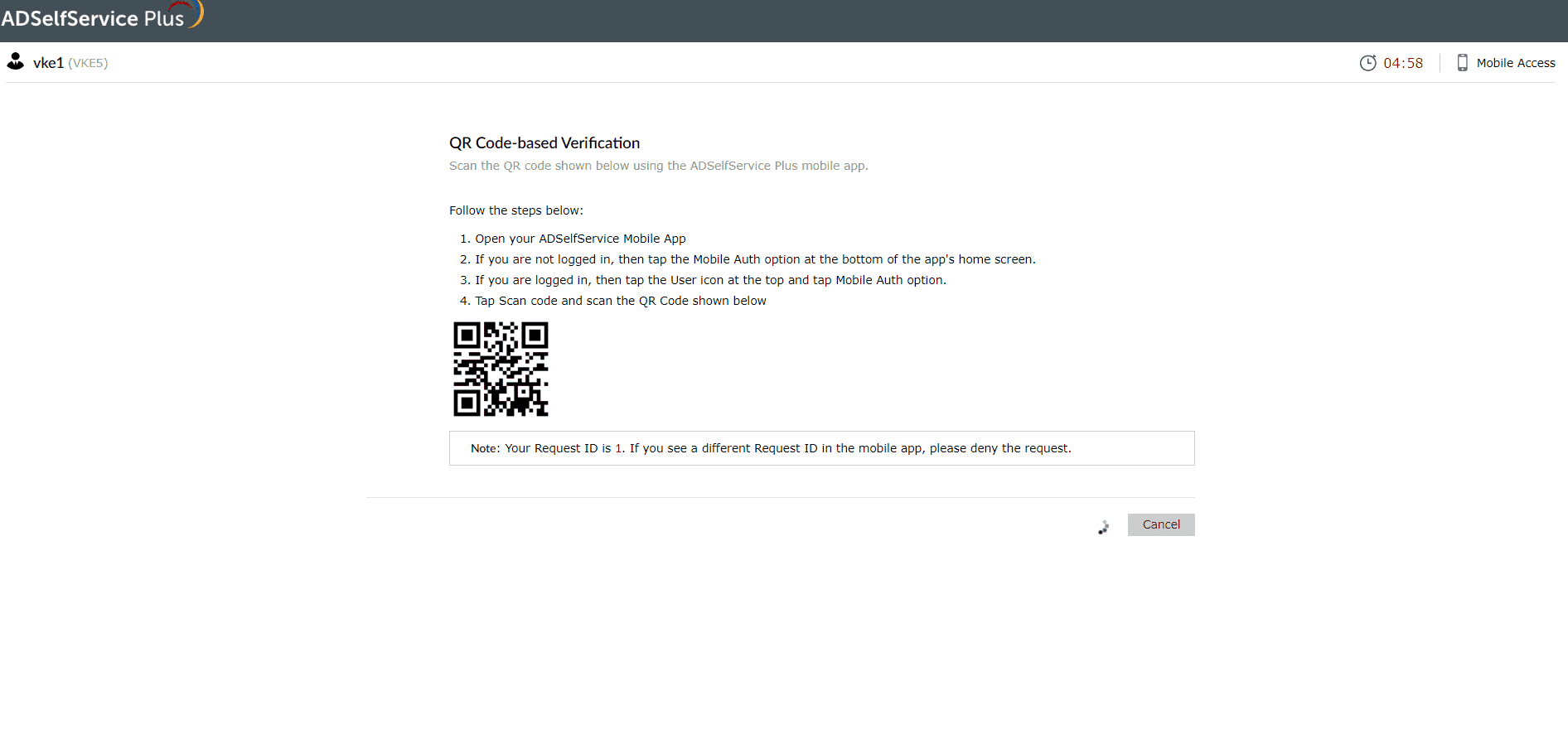
Fig 16: Verifying your identity by scanning the QR code through the mobile app.
- Click Next.
TOTP Authentication
- Log in to the ADSelfService Plus mobile app and click Enrollment > TOTP Authenticator.
- Follow the steps given on the webpage.
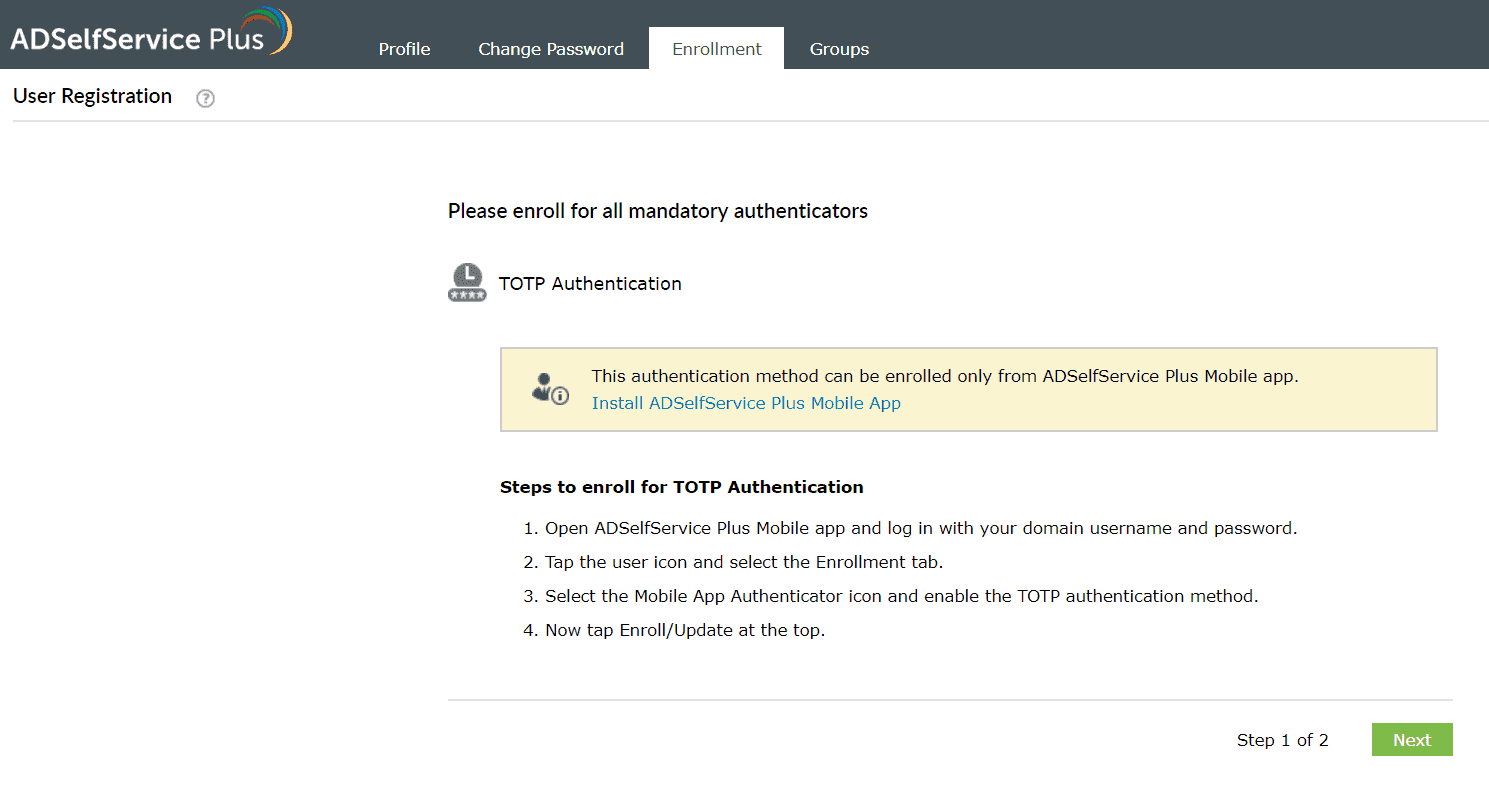
Fig 17: Verifying your identity with TOTP authentication through the mobile app.
- You will be logged in once your identity is verified.
Yubikey Authenticator
- Log in to the ADSelfService Plus user portal on your workstation or open the ADSelfService Plus mobile app on your phone and go to Enrollment > Yubikey Authenticator.
- Plug in the Yubikey device to your workstation or mobile app. You can also connect using near-field communication (NFC) or Bluetooth Low Energy (BLE).
- If using a workstation, place the cursor in the field below and press/hold the button on the plugged-in Yubikey device depending on the slot configured.
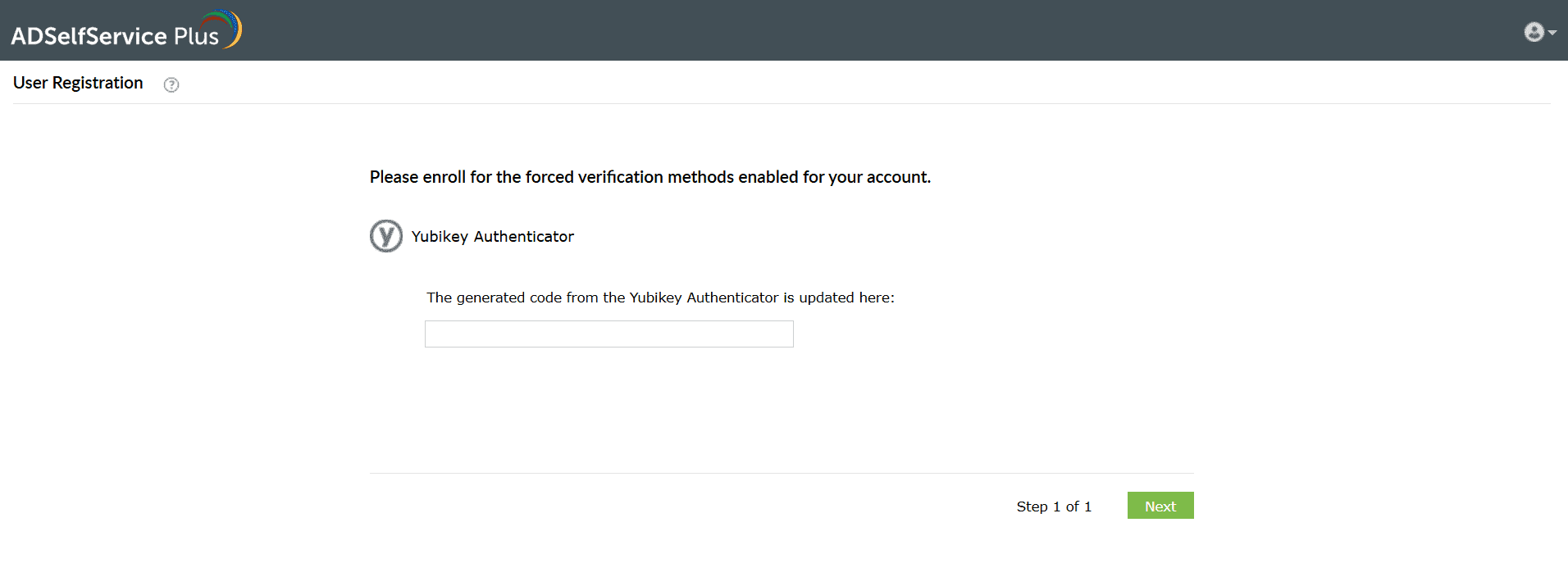
Fig 18: Entering the YubiKey-generated code to verify your identity.
- The code is automatically updated.
- Click Next to verify your identity.
Zoho OneAuth TOTP
- In the ADSelfService Plus user portal, select the Zoho OneAuth TOTP authentication method.
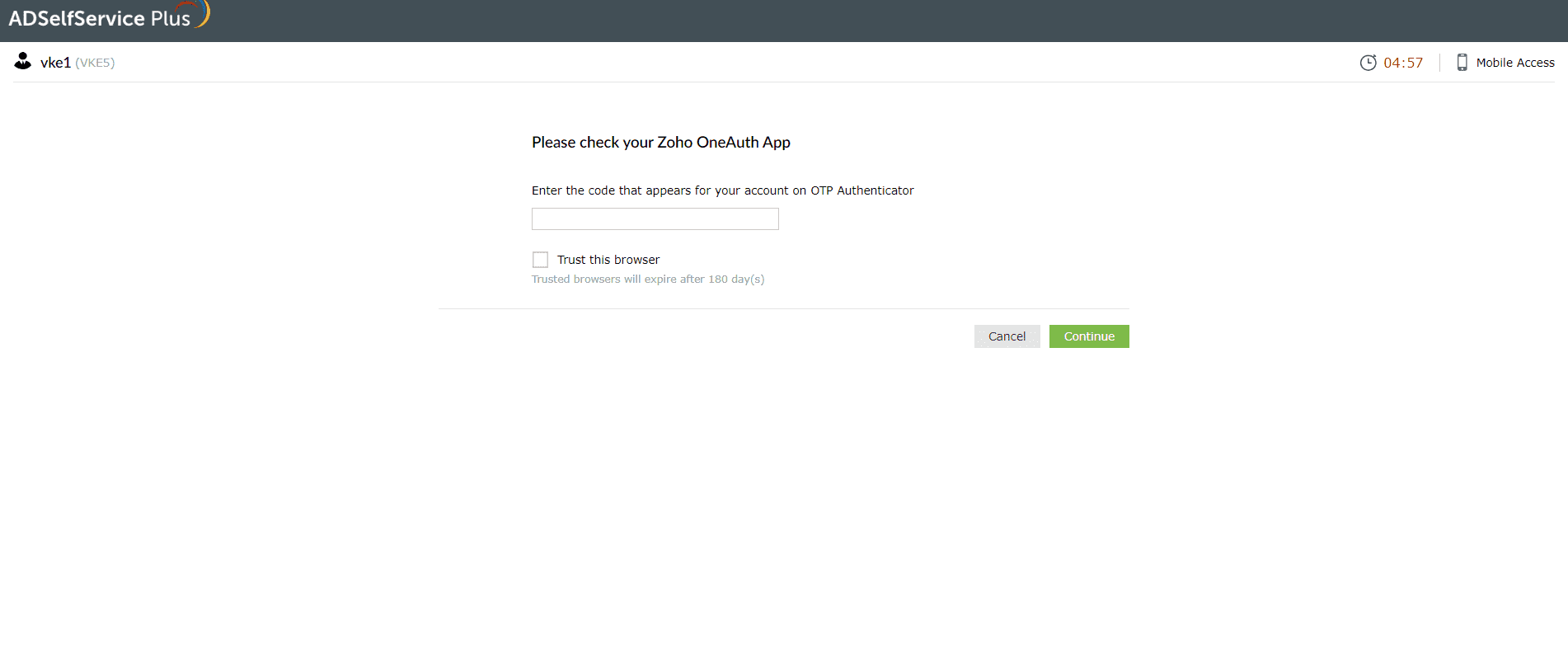
Fig 19: The Zoho OneAuth TOTP verification screen.
- Enter the code generated by the Zoho OneAuth app in the ADSelfService Plus user portal.
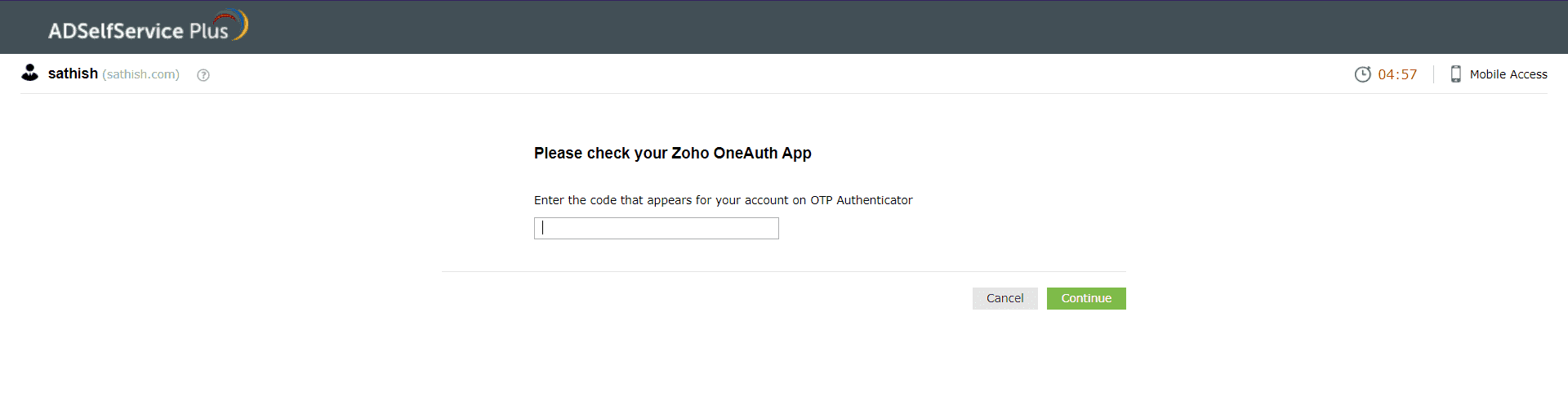
Fig 20: Entering the Zoho OneAuth TOTP to verify your identity.
- Click Continue.
Smart Card Authentication
Smart Card Authentication in ADSelfService Plus can be used to protect resources accessed using the browser (web-based logins) as well as machine logins.
Web-based logins:
- Insert the smart card device into the machine or place it against the card reader.
- Access the URL to log into your web resource.
- The browser displays a list of all the available certificates on the smart card.
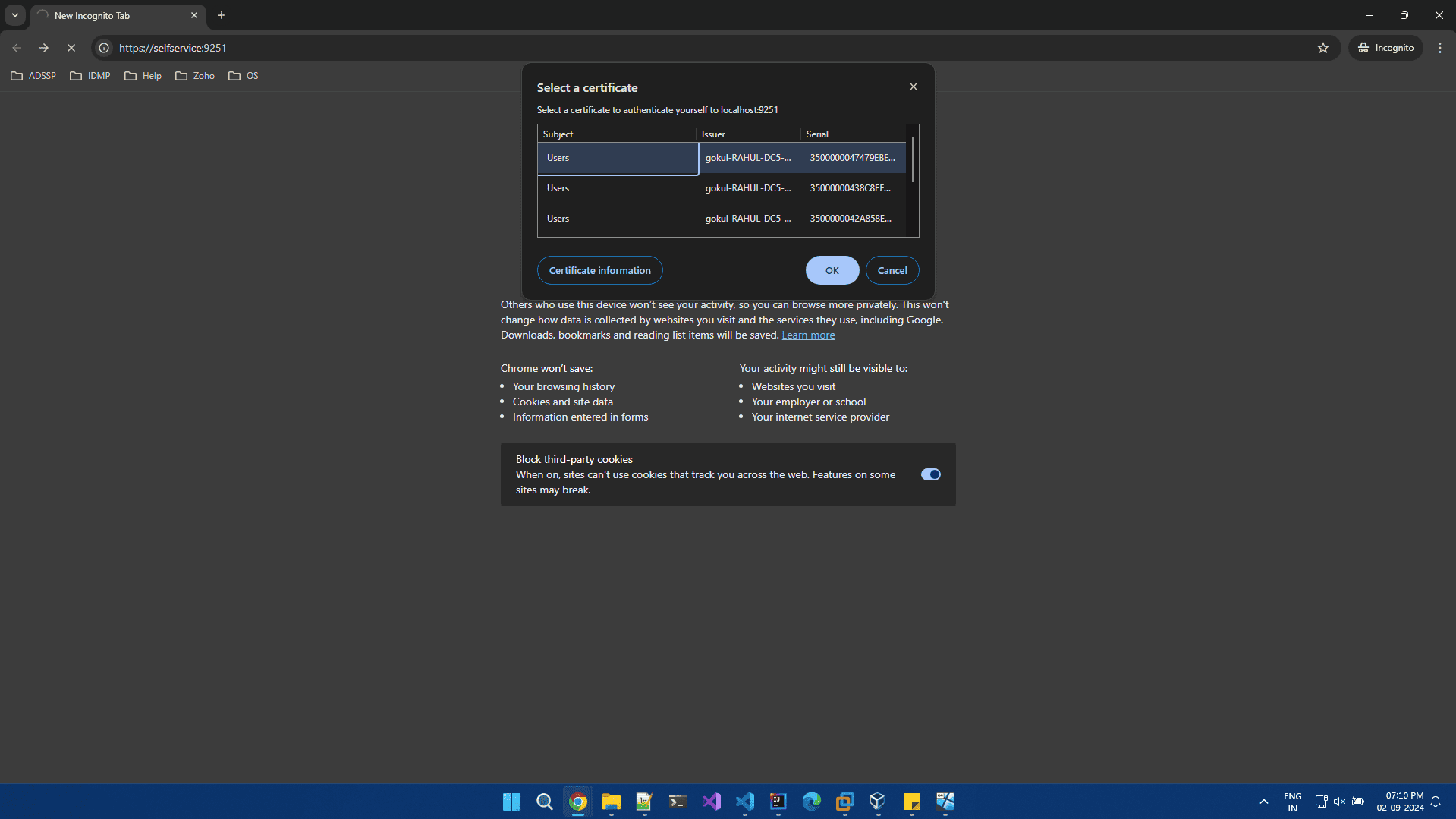
Fig 21: Choosing a smart card certificate during a web-based login.
- Choose the appropriate certificate and enter the PIN, if the smart card is PIN-protected.
- Once done, the browser displays the login screen.
- Select Smart Card Authentication for MFA.
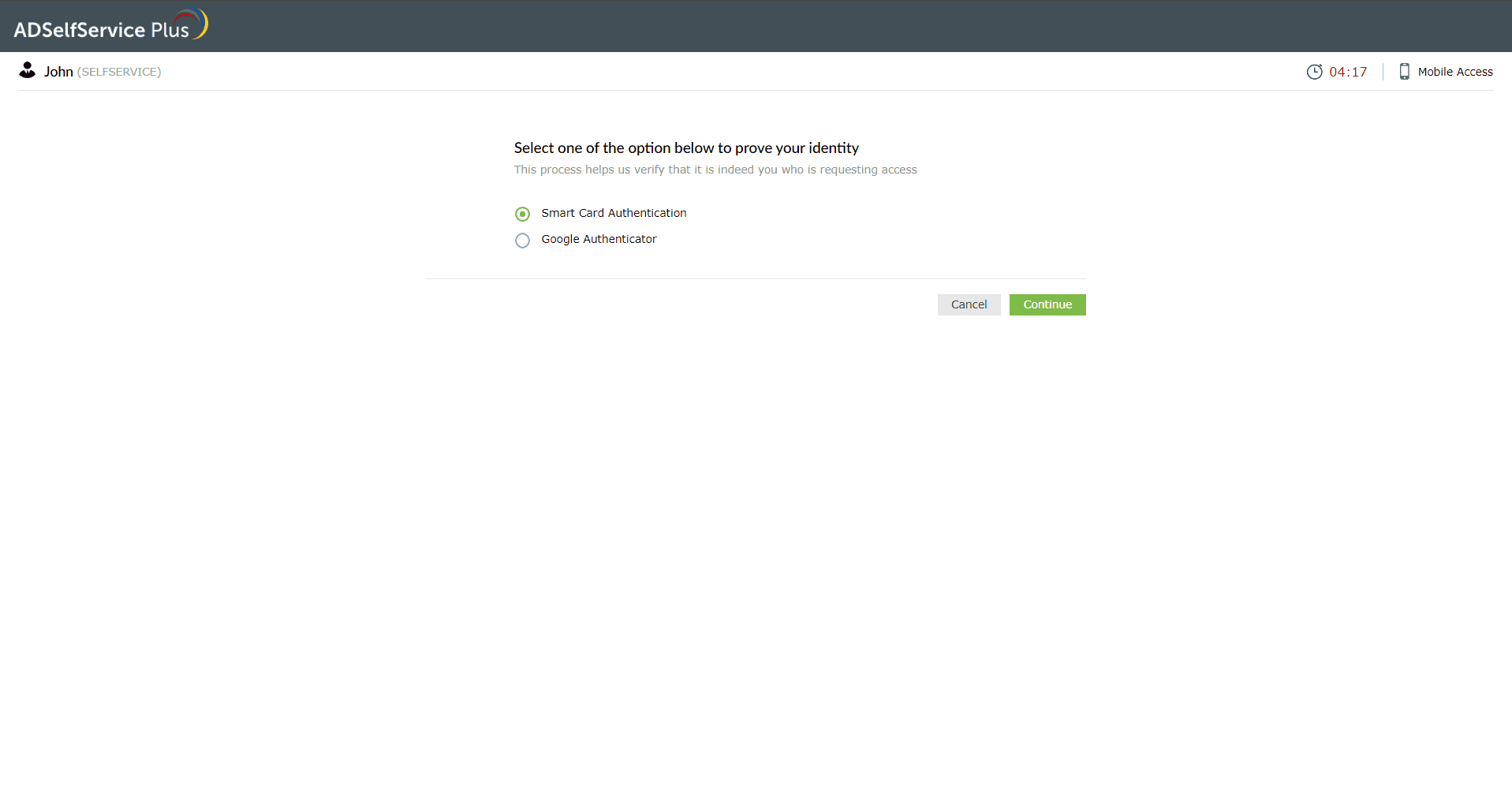
Fig 22: Selecting Smart Card Authentication for MFA on the login screen.
- ADSelfService Plus automatically verifies the information of the certificate you selected in step 4.
- You will be logged in upon successful verification.
Machine logins:
- Insert the smart card device into the machine or place it against the card reader.
- Initiate the machine login process.
- When prompted, choose Smart Card Authentication for MFA from the machine login screen.
- If there are multiple certificates on the smart card, you need to choose the appropriate one.
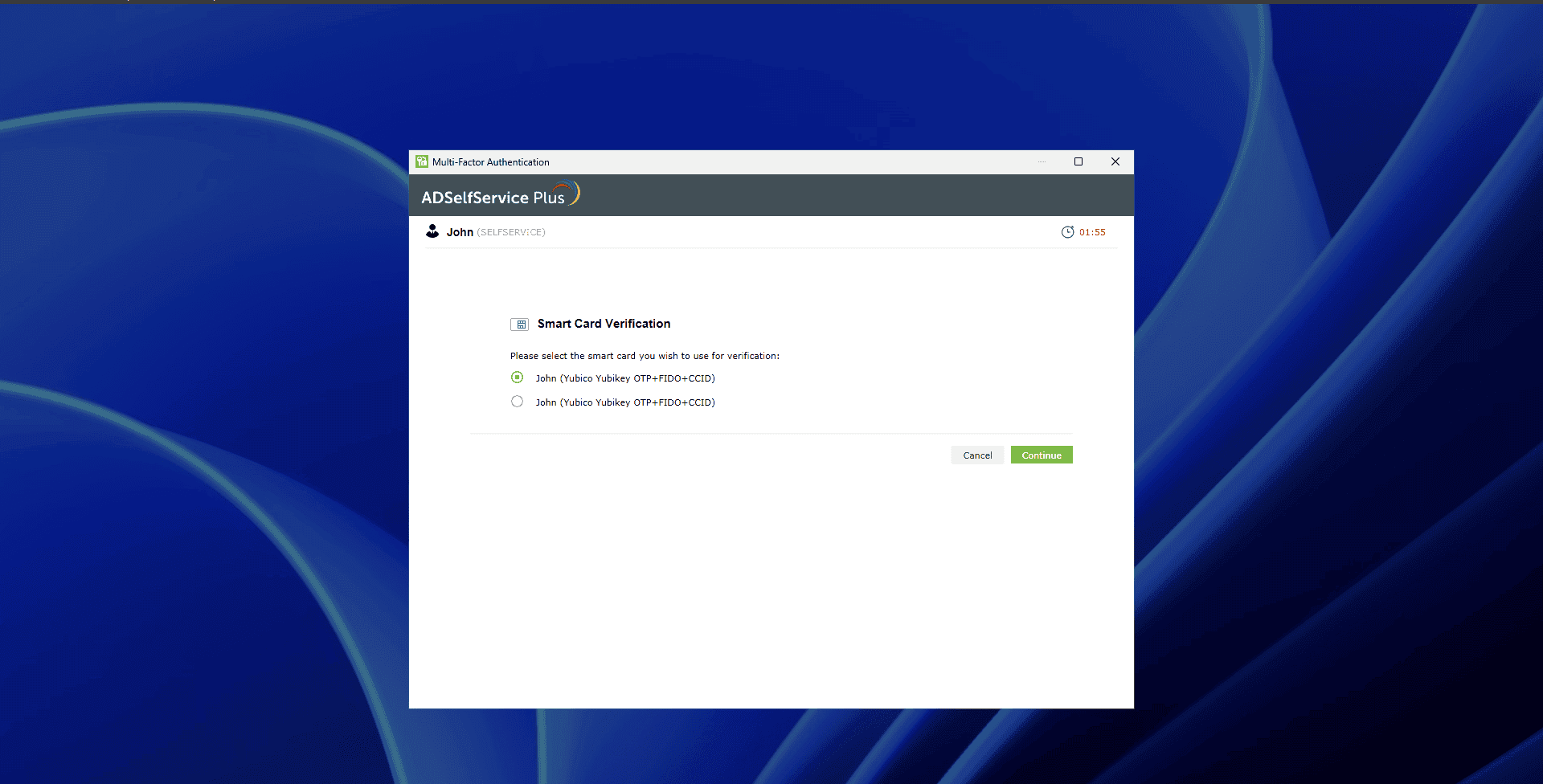
Fig 23: Choosing the smart card certificate at the machine login screen.
- If the smart card is PIN-protected, ADSelfService Plus will prompt for the PIN. Enter it and click Continue.
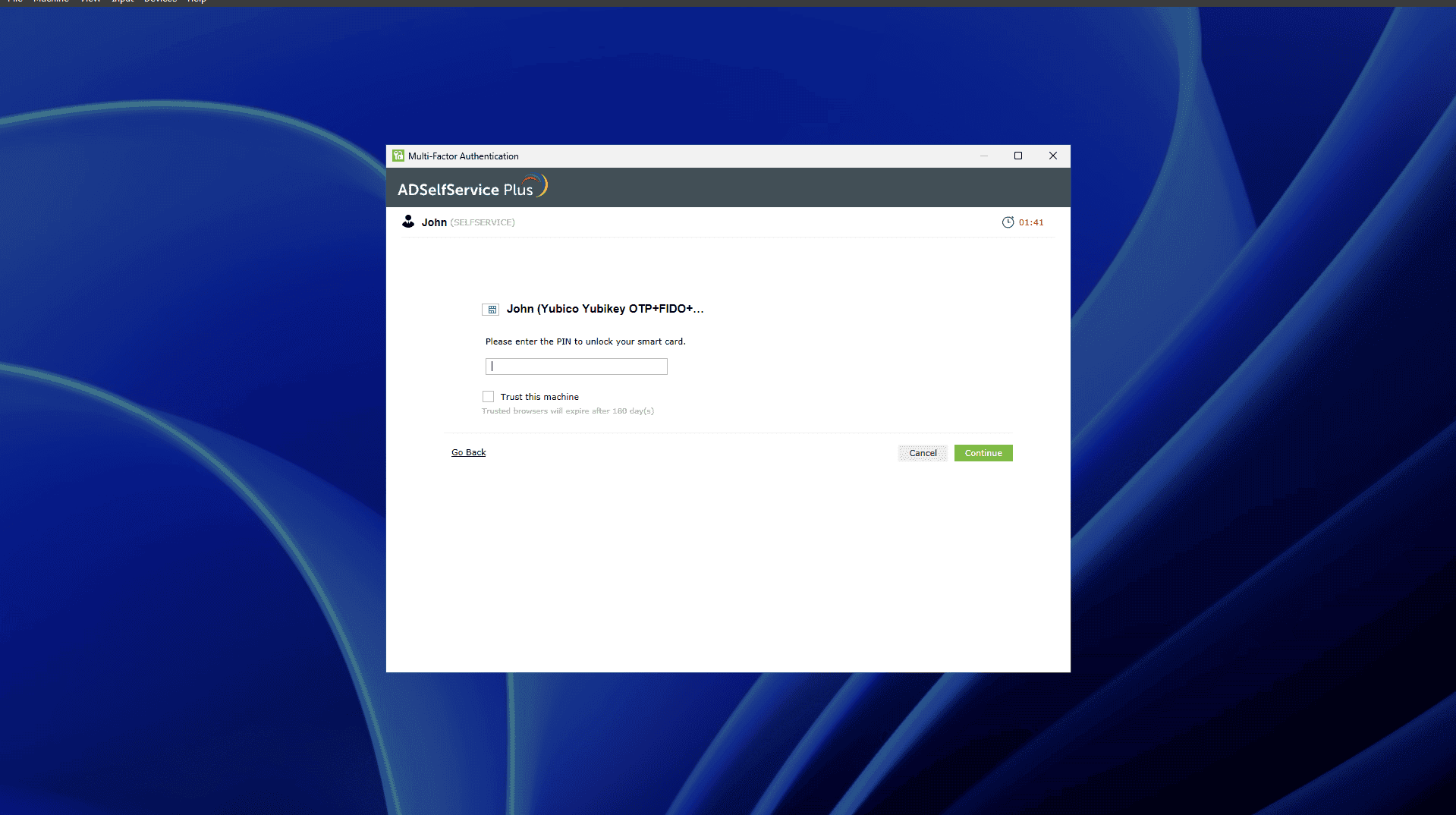
Fig 24: Entering the smart card PIN at the machine login screen.
- ADSelfService Plus verifies the information of the certificate you selected and you will be logged in upon successful verification.
FIDO2 Passkeys
- On the MFA verification page, select Passkeys as your authentication method.
- When prompted, select the type of passkey you would like to use:
- Device's Built-in Authenticator: Use this if you're signing in from the same device you're enrolling (like your laptop or phone). You'll be prompted to verify using your device’s built-in method—such as Windows Hello, Face ID, Touch ID, or Android biometrics.
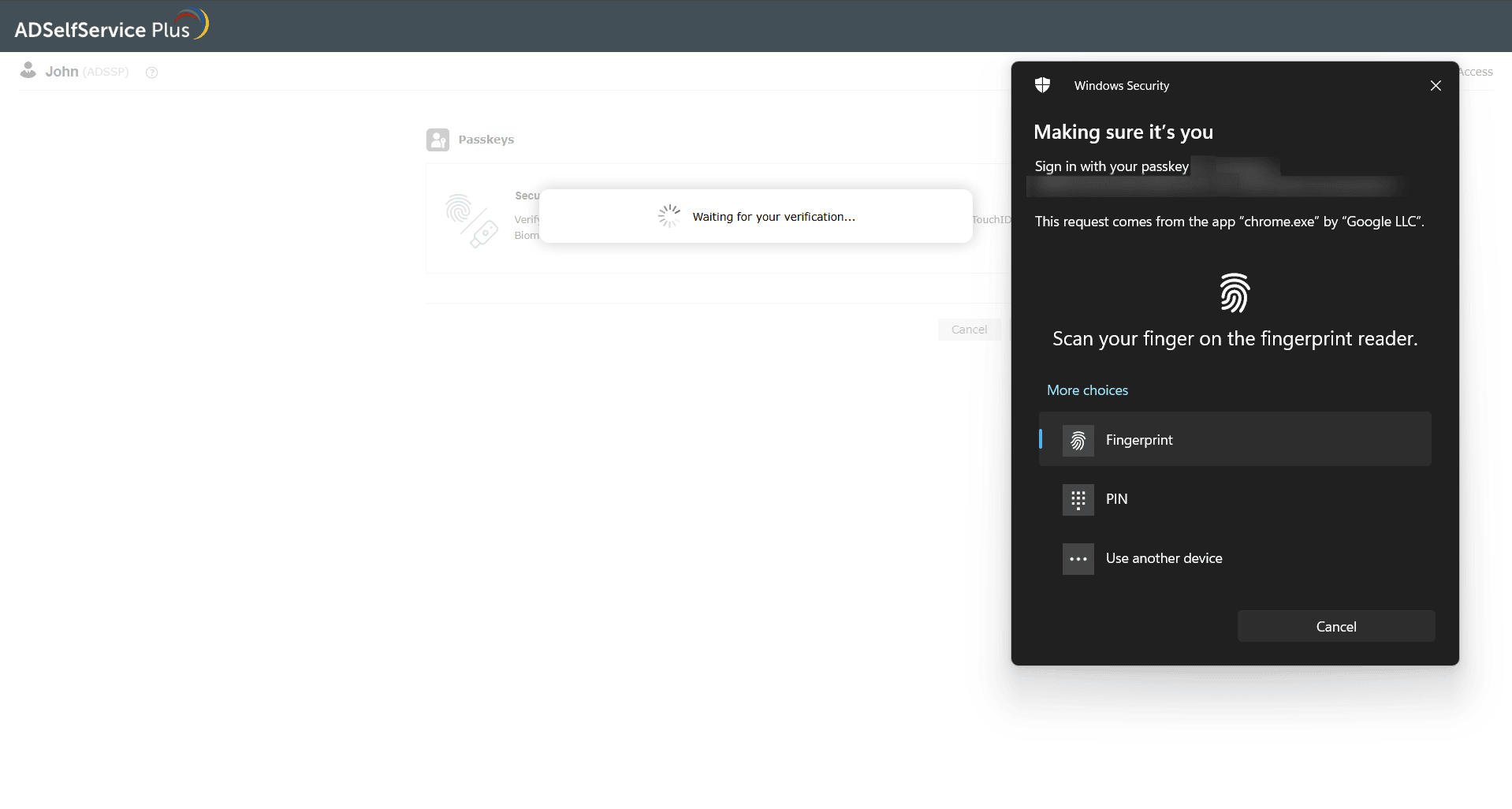
Fig 25: Verifying with a passkey using your device’s built-in authenticator.
- Security Key: Choose this if you're using an external security key (like a YubiKey or Google Titan Key). Insert or tap your key to verify.
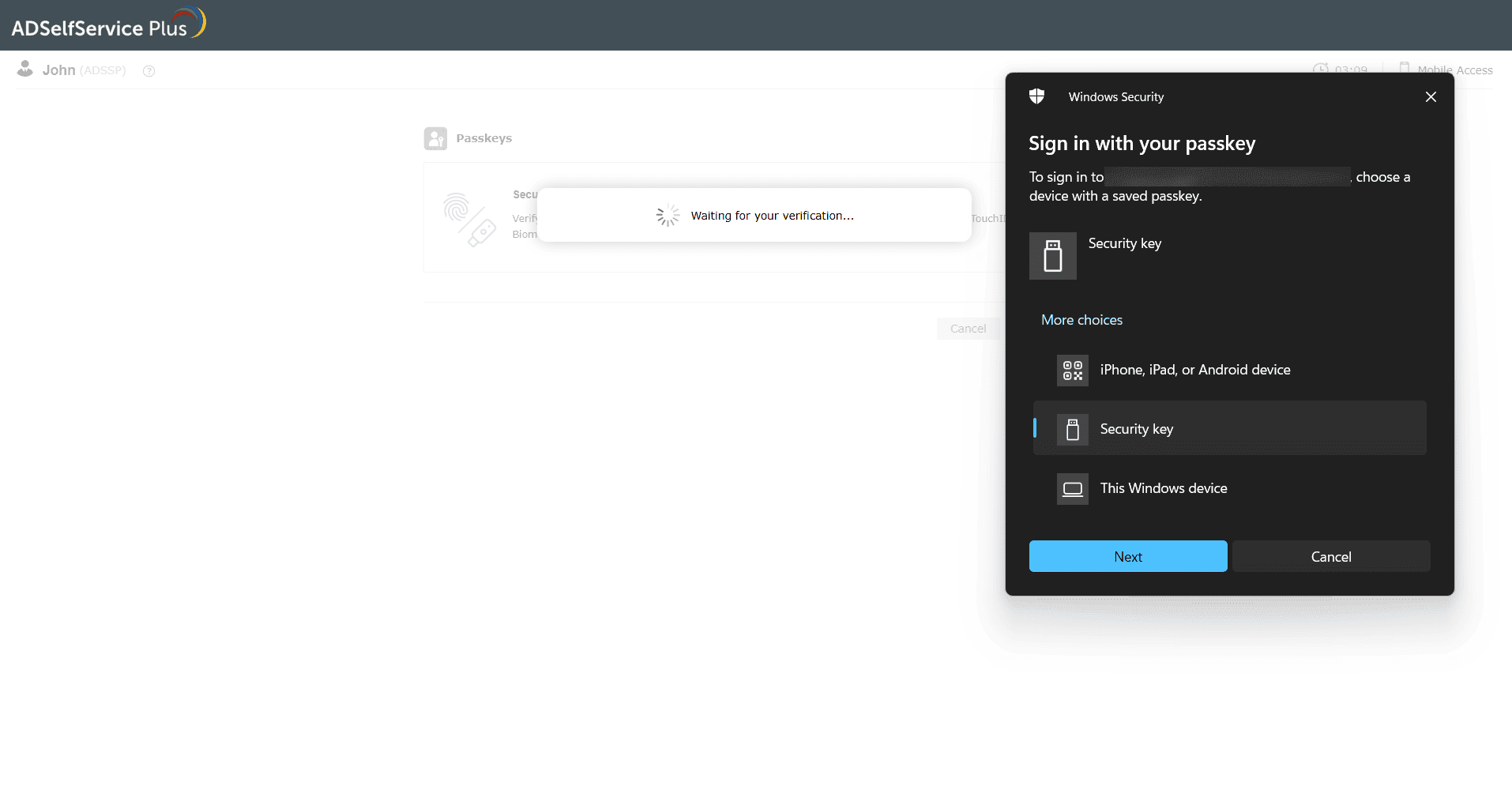
Fig 26: Verifying with a passkey using an external security key.
- Device's Built-in Authenticator: Use this if you're signing in from the same device you're enrolling (like your laptop or phone). You'll be prompted to verify using your device’s built-in method—such as Windows Hello, Face ID, Touch ID, or Android biometrics.
- You will be logged in upon successful identity verification.