Microsoft Entra ID's (formerly Azure Active Directory) password expiration policy determines how long a user’s password remains valid before it must be changed. In many environments, frequent password resets can lead to operational disruptions, broken integrations, and increased help desk requests, especially for service accounts, automation workflows, and critical access accounts.
Due to this, organizations often choose to set an Entra ID password to never expire for specific accounts. This helps maintain continuity by eliminating forced password changes that could interrupt business processes.
This approach is also supported by guidance from the NIST SP 800-63B, which no longer recommends periodic password changes unless there is evidence of compromise.
To implement this, administrators can use the DisablePasswordExpiration policy value, which allows an Entra ID user password to never expire and remain valid indefinitely.
Setting Entra ID passwords to never expire can be appropriate in scenarios such as:
However, removing password expiration shouldn’t mean relaxing security. At a minimum, it should be paired with MFA to reduce risk.
The methods discussed in this document apply only to cloud-only user accounts in Entra ID. If your environment uses password hash synchronization on-premises, then:
This distinction is critical to avoid misconfiguration in hybrid identity environments.
The recommended modern approach uses the Microsoft Graph PowerShell module.
Connect-MgGraphUpdate-MgUser -UserId <user ID> -PasswordPolicies DisablePasswordExpirationReplace <user ID>with the user’s User Principal Name (UPN) or Object ID.
This command updates the user’s password expiration policy so their password will no longer expire.
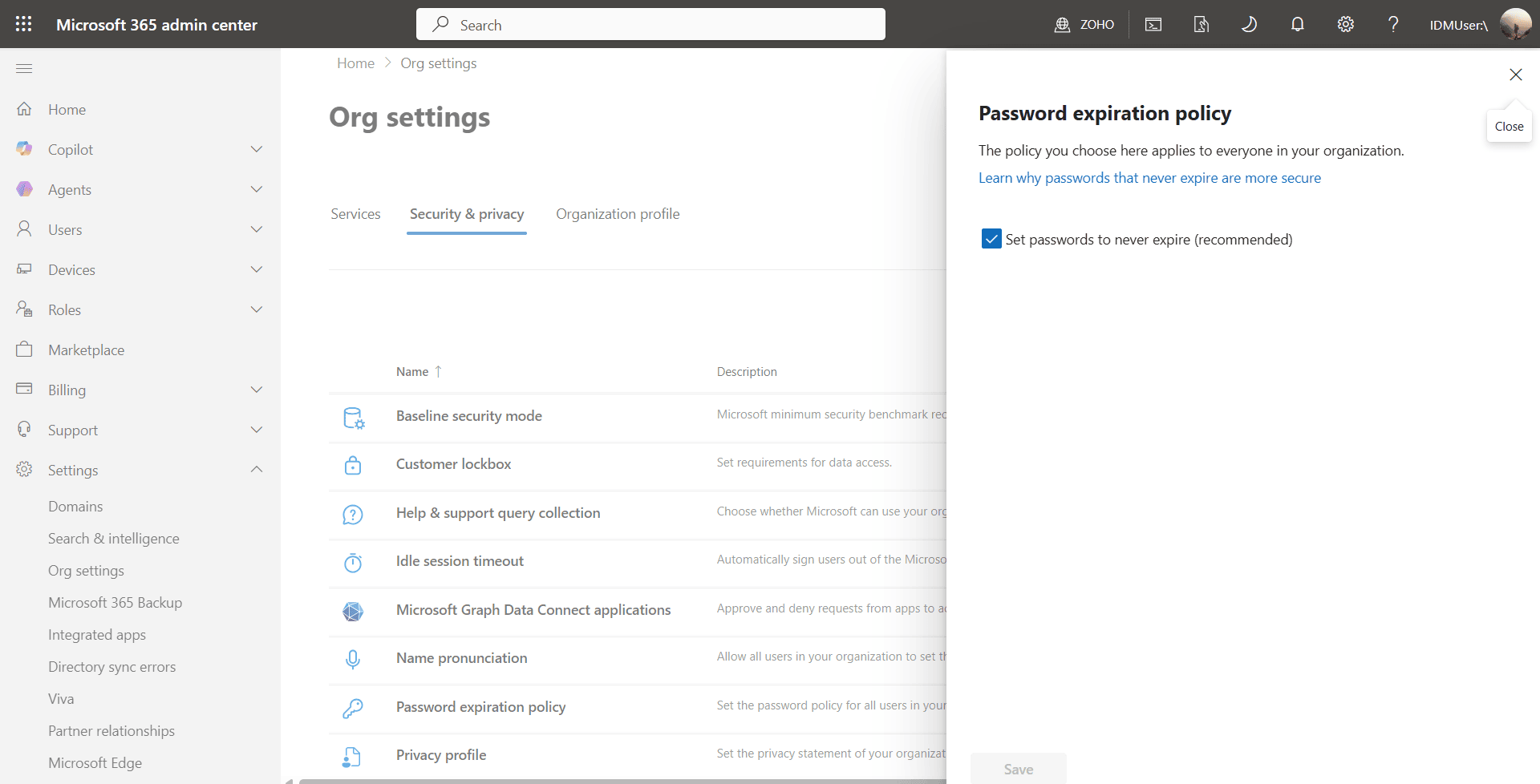
Fig 1. Microsoft 365 Admin Center password expiration policy settings
This applies a tenant-wide password expiration policy for all cloud-only users.
Note: This method does not allow per-user control. Use PowerShell for granular configuration.
To confirm the configuration, you can query user settings using PowerShell:
Get-MgUser -UserId <user ID> | Select-Object PasswordPoliciesIf DisablePasswordExpiration is present, the setting has been applied successfully.
For tenant-wide audits, admins can run queries to identify all users with non-expiring passwords and review them periodically.
While disabling expiration can improve usability, it must be implemented carefully. The following practices are recommended:
ADSelfService Plus helps organizations enforce strong password policies even when expiration is disabled.
With ADSelfService Plus, you can:
ADSelfService Plus lets admins define granular password policies beyond native Entra ID limits, such as dictionary checks, banned patterns, and passphrase enforcement, ensuring stronger, more resilient credentials. Also, the Have I Been Pwned? integration helps users stick to uncompromised, secure passwords.
Users can reset forgotten passwords or change passwords on their own after verifying their identity using advanced authenticators such as FIDO2 passkeys, biometrics, and TOTP.
Through a unified portal, users can quickly reset passwords anytime, anywhere, improving productivity and minimizing downtime caused by account lockouts.
Password changes are automatically synced across connected systems, ensuring consistency and eliminating multiple credentials across enterprise applications.
This ensures strong security without compromising user experience, even when passwords are set to never expire.