Notifying AD users on account expiration using PowerShell
PowerShell scripts to notify Active Directory domain users on account expiration
The account expiration notification PowerShell script sends email reminders to Active Directory (AD) users about their expiring user accounts. ADSelfService Plus, a password and account expiration notification solution, also supports sending account expiration notification to AD users. Here is a comparison of sending AD account expiration notification using PowerShell and ADSelfService Plus.
PowerShell
ADSelfService Plus
Enter and run the following PowerShell script for account expiration notification for domain users whose accounts will be expiring in 31 days:
$options = @{
'To' = $userobj.EmailAddress
'From' = 'administrator@domain.org'
'Subject' = "Account is Expiring on $($userobj.AccountExpirationDate)"
'SMTPServer' = 'svr.domain.local'
'Body' = "Account is Expiring on $($userobj.AccountExpirationDate)"
}
Send-MailMessage @options
}
Open the ADSelfService Plus admin portal.
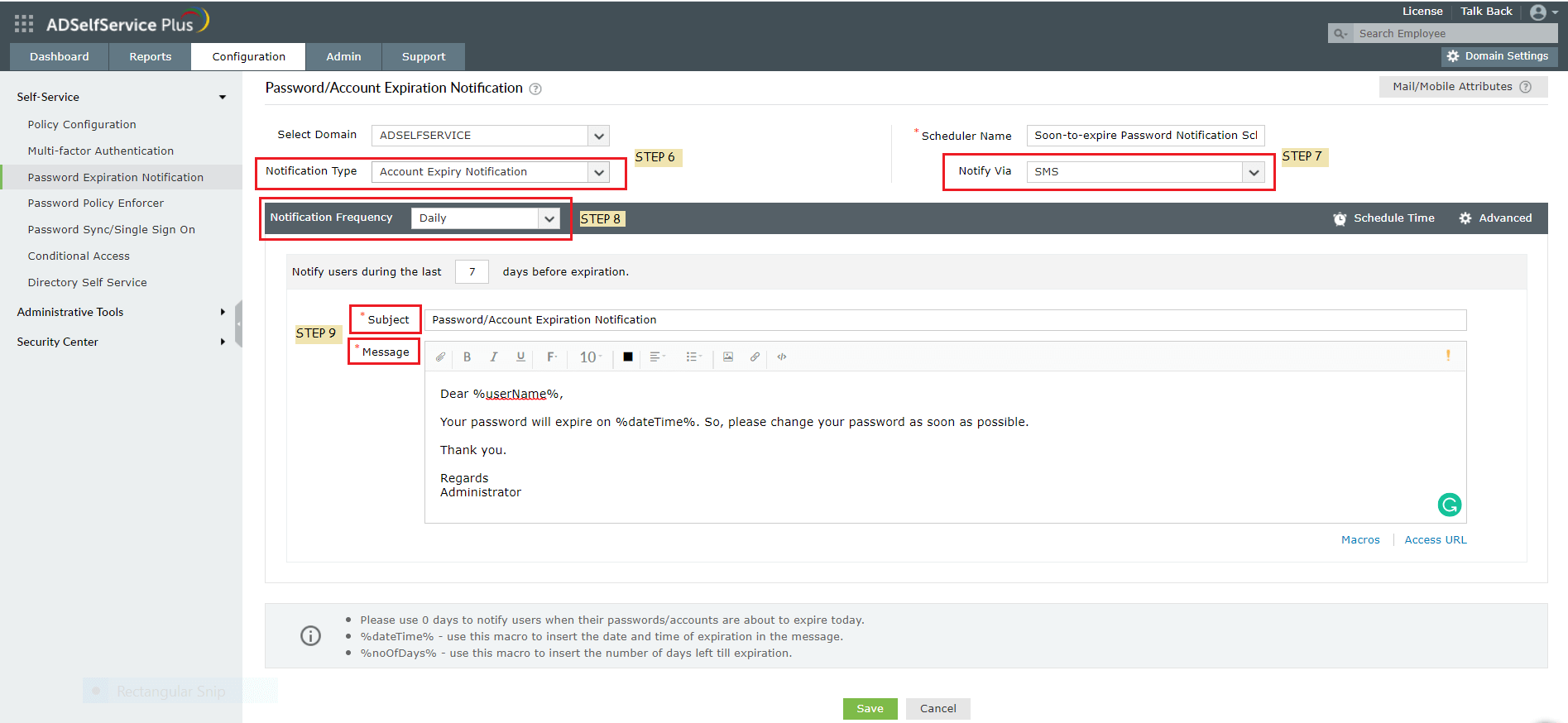
Go to Configuration > Password Expiration Notification
In the Password/Account Expiration Notification section that opens, click on Add New Notifcation.
Use the Select Domain option to specify the domain whose users should receive the notifications.
Provide a Scheduler Name.
Set the Notification Type to Account Expiration Notification.
Use the Notify via option to specify the notification medium (mail, SMS, or push notification)
Select the Notification Frequency (Daily, Weekly or On Specific Days) and use the Schedule Time option to specify the date and time of the notification delivery.
Edit the Subject and the Message of the notification, if required.
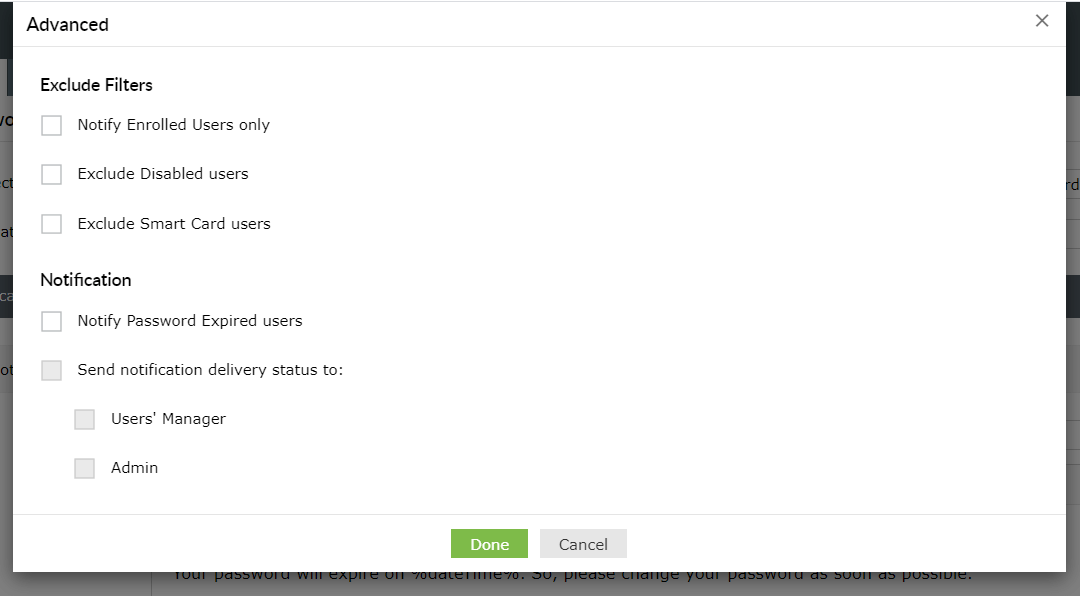
Click on the Advanced option and in the pop-up window that opens, use the options for excluding disabled users or smart card users from receiving expiration notifications, and sending notification delivery status messages to users' managers or anyone with an admin account if necessary.
Click Save.
Notifying AD users on account expiration using PowerShell
Step 1: Retrieve users with expiring accounts
Find users whose accounts will expire in the next 30 days using the command below. This fetches accounts expiring within 30 days.
Define the subject and body of the email. Replace admin@yourdomain.com with your actual sender email.
$subject = "Account Expiry Notification"

$body = "Your Active Directory account is set to expire soon. Please contact IT support to renew your access." $from = "admin@yourdomain.com"
Step 3: Send notifications to expiring users
Send an email to each user whose account is expiring. Replace smtp.yourdomain.com with your SMTP server.
2. How can I send email notifications for expiring accounts?
You can send email notifications for expiring accounts using the PowerShell script below.
Send-MailMessage -To user@domain.com -From admin@domain.com -Subject "Account Expiry Notification" -Body "Your AD account will expire soon." -SmtpServer "smtp.yourdomain.com"
3. How can I automate the expiry notification process?
Create a script and schedule it using Task Scheduler to run daily.
Limitations of using PowerShell for AD account expiration notifications
While PowerShell scripts provide flexibility, they come with several drawbacks when used for account expiration notifications:
High dependency on scripting skills: Administrators must be proficient in PowerShell to write, test, and debug scripts. A single error can break the notification process.
Limited notification channels: By default, PowerShell supports only email notifications. Adding SMS or push notifications requires complex custom scripting and integration with third-party APIs.
Lack of advanced customization: Customizing messages, creating HTML templates, or scheduling multiple notifications requires significant manual coding effort.
No built-in reporting or auditing: PowerShell doesn't provide out-of-the-box reports on who received notifications or whether delivery was successful. Tracking requires additional logging and script modifications.
Scalability issues: Managing and maintaining scripts for large organizations with multiple domains and thousands of users becomes difficult and error-prone.
Advantages to notifying users of AD account expiration
With ADSelfService Plus, you are just a few clicks away from configuring Active Directory account expiration notifications for users. If you're using PowerShell, you need to create, debug, and run scripts. Using ADSelfService Plus, without writing a single script, you can:
Notify users via mail, SMS and push notification
Choose between sending email, SMS, and push account expiration notifications with just a click. PowerShell can also be used to send SMS and push notifications, but requires compiling an extensive and complex script.
Notify users' managers
Send the notification delivery status automatically to the users' managers and the organization's administrators via email. You can also choose to exclude disabled users and smart card users from receiving the notifications.
Customizable and powerful email notifications
Draft account expiration notifications in HTML to grab the attention of users, or send different messages on different days leading up to account expiration. PowerShell does allow sending HTML-formatted emails, but the process can be quite lengthy.
GUI based configuration
Edit a configured account expiration notification simply by selecting it and changing the values of the settings as required. With PowerShell, while making changes to the notification script, typos and other human errors are bound to occur.
Highlights of ADSelfService Plus:
Password self-service: Unburden users from lengthy help desk calls by empowering them with self-service password reset and account unlocking capabilities.
Multi-factor authentication: Enable context-based multi-factor authentication (MFA) with 20 different authentication factors for endpoint, application, VPN, OWA, and RDP logins.
One identity with single sign-on: Get seamless one-click access to more than 100 cloud applications. With enterprise single sign-on (SSO), users can access all their cloud applications including Microsoft 365 using their Windows AD credentials.
Password synchronization: Synchronize Windows AD user passwords and account changes across multiple systems automatically, including Microsoft 365.
Custom password policy enforcer: Prevent users from setting weak and breached passwords for their accounts with an advanced password policy and its integration with Have I Been Pwned?