Data Back up and Restore
Patch Connect Plus stores data like configuration details, status of deployed configurations, and details about reports, like User Logon reports and Active Directory reports, in a database. Creating a backup of this database and certain important files like configuration files is necessary to prevent loss of data.
You can back up data automatically, by scheduling a back up using Patch Connect Plus, or taking a back up manually. You can also restore this data when required. For example, assume that your hard disk crashes and you have to re-install Patch Connect Plus. You can use the last back up you took to restore all the required information. Note that this is possible only if the backup file is stored in a computer other than yours.
Best practices for Back up and restore
These are the few best practices recommended for Back Up and Restore option.
- Ensure that you add the exclusion list for Antivirus. When directories containing the PGSQL data are scanned by Antivirus software, they misidentify the files content as spam and does not allow to back up that data. Refer the following links which will guide you, how to exclude the Antivirus.
McAfee : https://kc.mcafee.com/corporate/index?page=content&id=KB50998
Symantec : http://www.symantec.com/business/support/index?page=content&id=TECH99955
Kaspersky : https://support.kaspersky.com/help/Kaspersky/Win21.5/en-US/227390.htm
- It is always recommended to schedule the back up during non-office hours.
- Ensure that you have a minimum of 5 GB space to store the back up data.
- Ensure that you specify a valid destination folder.
- Build below 90150
- Build 90150 and above
Data Backup
Scheduling Data Backup
You can use Patch Connect Plus to take a back up of the database regularly. For example, if you want to take a back up of the database every Friday at 5 p.m., you can schedule the same using Patch Connect Plus.
To schedule back up of data, follow the steps given below:
- Select the Admin tab.
- In the Database settings section, click Database Backup.
- Specify the time at which you want the back up to be taken, in hour:minute:second (hh:mm:ss) format.
Note:The database backup will happen every 24 hours and the time should be specified in the 24-hour format. For example, if you want the database back up to be taken at 6 p.m., the time should be specified as 18:00:00.
- Select the number of backup files that you want Patch Connect Plus to save.
Note: Using this option you can select how many database backup files should be saved. The older backup files will be deleted. For example, if you want only 7 backup files saved, select 7. This will ensure that at all times only 7 backup files are saved.
- Specify the location where you want the backup files to be stored.
- Check the Notify when the database backup fails checkbox.
- Specify the email address (es) to which you want an e-mail message sent, if the database backup fails note that you should have configured your mail server settings to get notified.
Note: Ensure that you have configured your mail server settings to receive notifications.
- Click Save Changes.
- Stop the Patch Connect Plus service.
- Right click Start -->Explore --> directory where PCP server folder is present -->bin. For example, right click Start -->Explore -->Local Disk (C:) -->Program Files -->ManageEngine -->PatchConnectPlus -->bin.
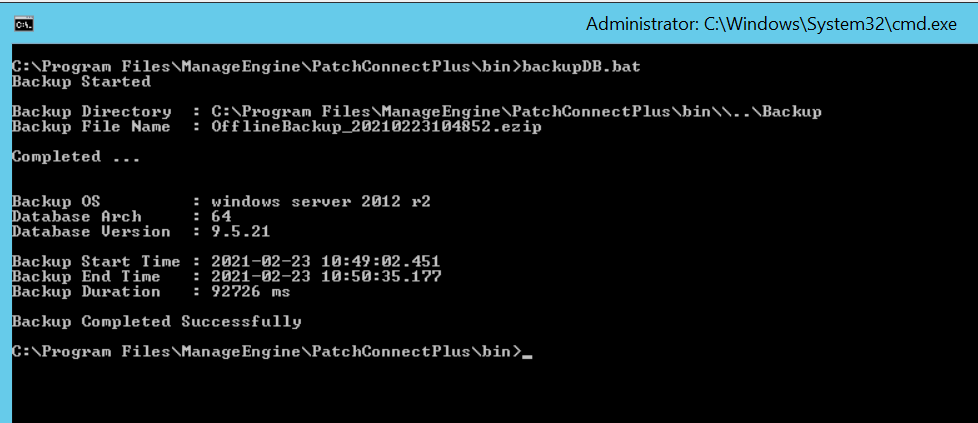
- Run this bat in admin mode backupDB.bat
- Stop the Patch Connect Plus service.
- Right click Start -->Explore --> directory where PCP server folder is present -->bin. For example, right click Start -->Explore -->Local Disk (C:) -->Program Files -->ManageEngine -->PatchConnectPlus -->bin.
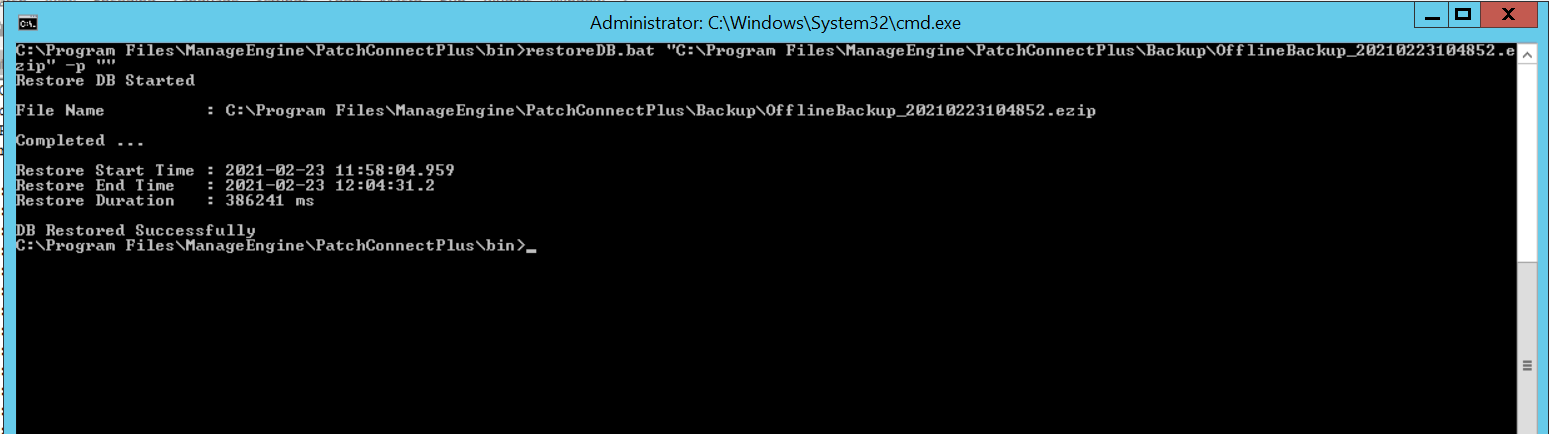
- Run this bat in admin mode restoreDB.bat. For example, restoreDB.bat "C:\Program Files\ManageEngine\PatchConnectPlus\Backup\OfflineBackup_20210223104852.ezip" -p ""
- Database Permissions
- "CREATE ANY DATABASE"
- This access is required in order to restore databases. For further information, please refer this Microsoft document.
- Microsoft suggests executing the following query to grant this access. Run these queries as a super admin:
"Use master;
GRANT CREATE ANY DATABASE TO user_name;
GO"
Example :
Use master;
GRANT CREATE ANY DATABASE TO dcuser;
GO - This CREATE ANY DATABASE privilege allows the user to create a database and the user has authorization over only the databases created by it and if they are db_owner of the database.
- An alternative would be to provide user with db_creator role but that user will a have access to alter any database.
- "db_owner"
- This permission is required to backup and restore an already existing database. Kindly refer to this Microsoft document to know more.
- Microsoft suggests executing the following query to grant this access. Run these queries as a super admin:
"Use master;
ALTER AUTHORIZATION ON DATABASE::database_name TO user_name;
GO" - Example :
Use master
ALTER AUTHORIZATION ON DATABASE::patchconnectplus TO pcpuser;
GO - This permission gives db_owner access to the user.
- "CREATE ANY DATABASE"
- Folder Permissions
Follow the procedures below to grant write permission to the ScheduledDBBackup folder in the sql server's application server installation location.
Note: We can provide permissions to a particular user or computer only when both the machines are in the same domain.- Open the application server installation directory.
- For example, right click
Start -->Explore -->Local Disk (C:) -->Program Files -->ManageEngine -->PatchConnectPlus. - Right click on ScheduledDBBackup.
- Navigate to the Security tab, click Edit to change permissions and click add.
- Click on Object types and check computers on and click OK.
- Click on Locations, choose Entire Directory and click OK.
- Enter the object names, the SQL Server Service logon user if it is a user or the machine name if the logon user is not an actual user eg: SYSTEM or NT Service\SQLSERVER. Click on CheckNames.
- Select the required objects and click OK.
- Click OK to navigate to the Permissions for ScheduledDBBackup window.
- Choose the respective users or computers added before and grant access for full control and modify.
- Click apply and then OK.
- In the scheduleDBBackup properties window, navigate to the sharing tab and click Share under Network File and Folder Sharing.
- Choose the respective users or computers and provide write access and click Share.
- Ensure the share path is host-name/ScheduledDBBackup and click Done and Close.
You have scheduled an automatic data backup to take place at a specified time.
Steps involved in creating manual data backup
Backup File is created in below location
How to restore a backup file
VM Back up
In case you are using Endpoint Central in bundled PGSQL DB, you can restore Endpoint Central with the server machine via VM snapshot and start the server. Even then, Endpoint Central's scheduled backup is the primary backup and cannot be stopped.
Note: If you are using MSSQL or remote PGSQL you should not use this VM restore as the database will be in another machine. If you do so, the server will not start due to data inconsistency.
MSSQL BAK Backup
Follow the steps below to grant the necessary permissions for MSSQL BAK backup:
Data Backup
Scheduling Data Backup
- Navigate to Admin > Database Settings > Database Backup
- Backup Details
- Enter the time you want the backup to occur in the format: hour:minute:second (hh:mm:ss).Make sure to use the 24-hour format. For example, if you want the backup to happen at 6:00 PM, enter 18:00
- Choose the Number of Backup Files to Keep. Select how many backup files you want to retain. The system will automatically delete older files to maintain this number. For instance, if you choose 7, the system will keep only the 7 most recent backup files and remove any older ones.
- Specify Backup File Storage Location. Ensure Proper Permissions for Network Share. If you are saving backups to a network location, ensure that the server has write permissions to this location.
Follow the appropriate steps to configure write permissions for the network share.
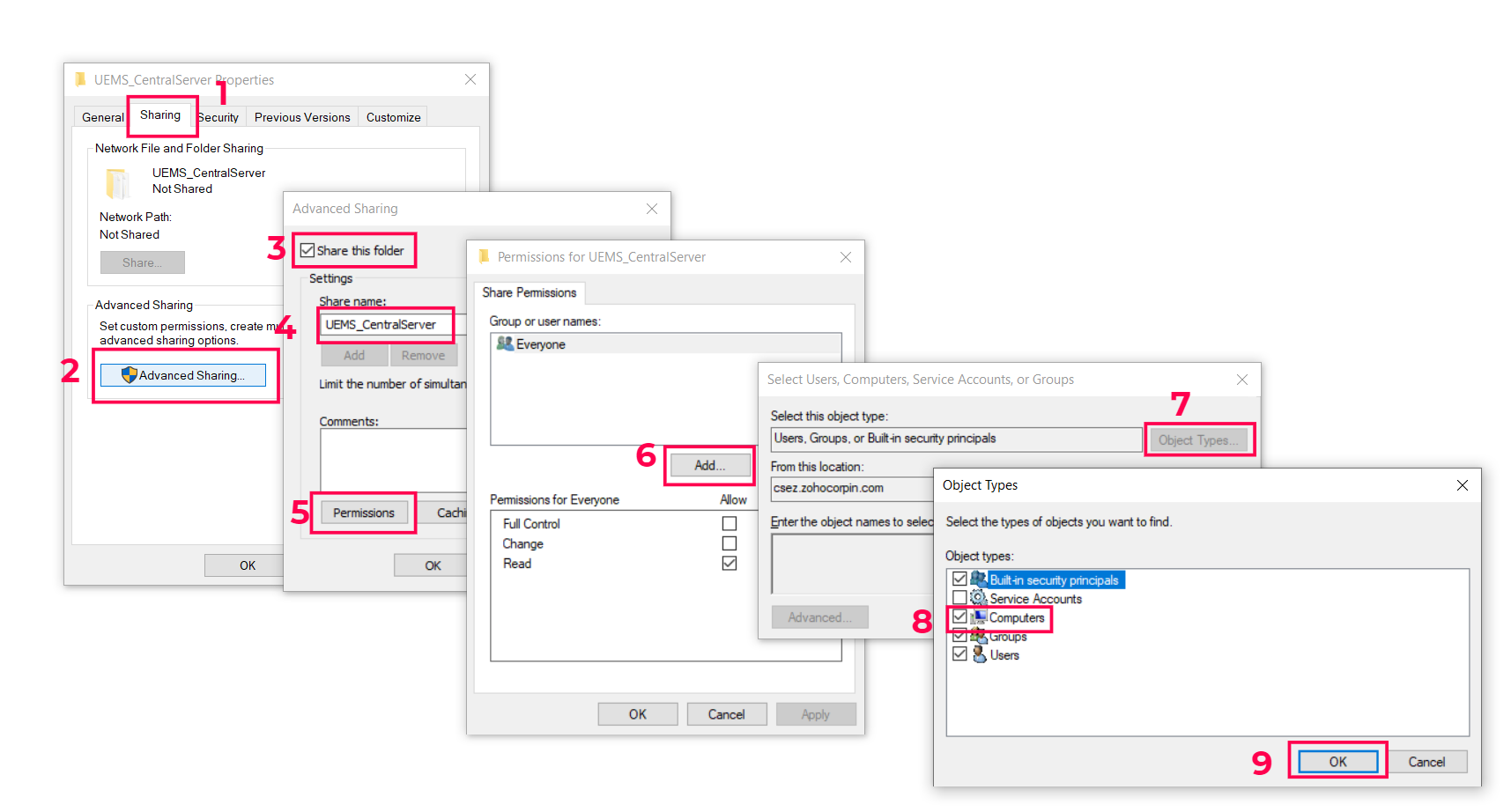
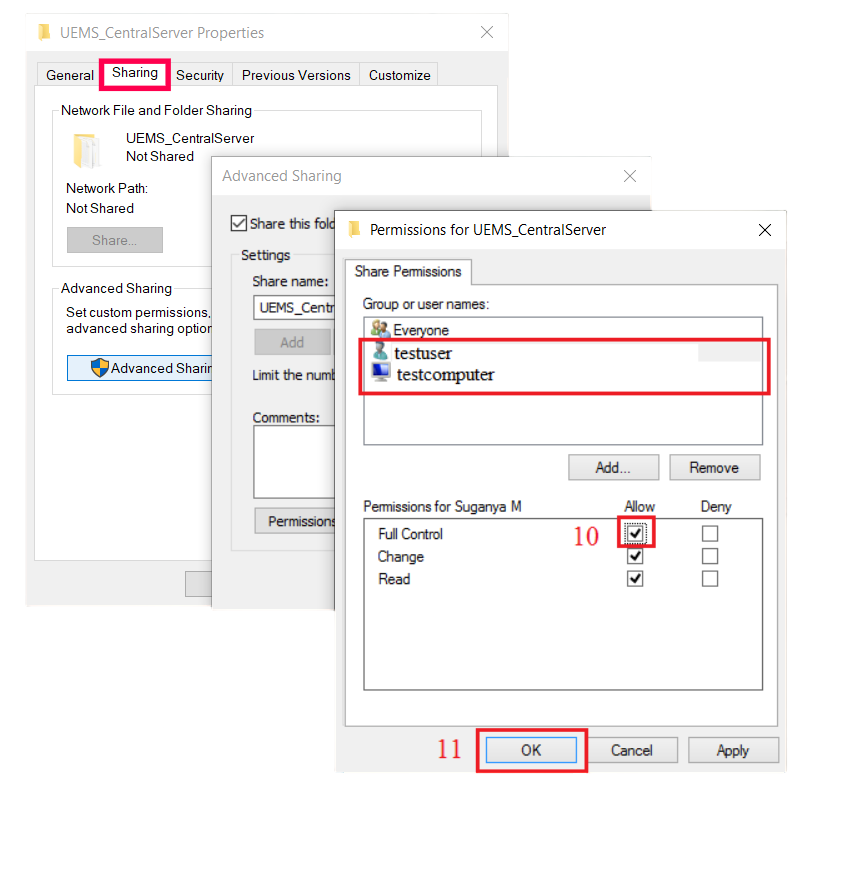
Note: It is recommended to configure the shared path in the same domain and to not provide write permission for Everyone to the shared path.
- Backup Protection
- Set a new backup password
- Backup Failure Notifications
- Locate the checkbox labeled "Notify when the database backup fails" and ensure it is checked.
- Provide the email address (or addresses) where you want to receive notifications if a backup fails. Make sure you separate multiple email addresses with commas.
Note: All administrators will receive a notification mail once in 45 days along with a recovery key of the latest backup. This recovery key can be used to restore the backup in case the backup password is forgotten. - Click the "Save Changes" button to apply your settings.
Ensure that your mail server settings are properly configured. This setup is necessary to send and receive email alerts. If you haven't set this up yet, please refer to your mail server documentation or contact your IT support for assistance.
Note: You have scheduled an automatic data backup to take place automatically at a specified time.
Manual Data Backup
You can manually back up and restore the database. You can do this using the Backup-Restore Utility GUI.
Opening the Backup-Restore Utility Graphical User Interface (GUI)
To open the Backup-Restore Utility GUI, follow the steps given below:
Right click Start >Explore > directory where Patch Connect Plus folder is present >bin.
(For example, right click Start >Explore >Local Disk (C:) >Program Files -->ManageEngine -->PatchConnectPlus-->binDouble-click backuprestore.bat
You've opened the Backup-Restore Utility GUI.
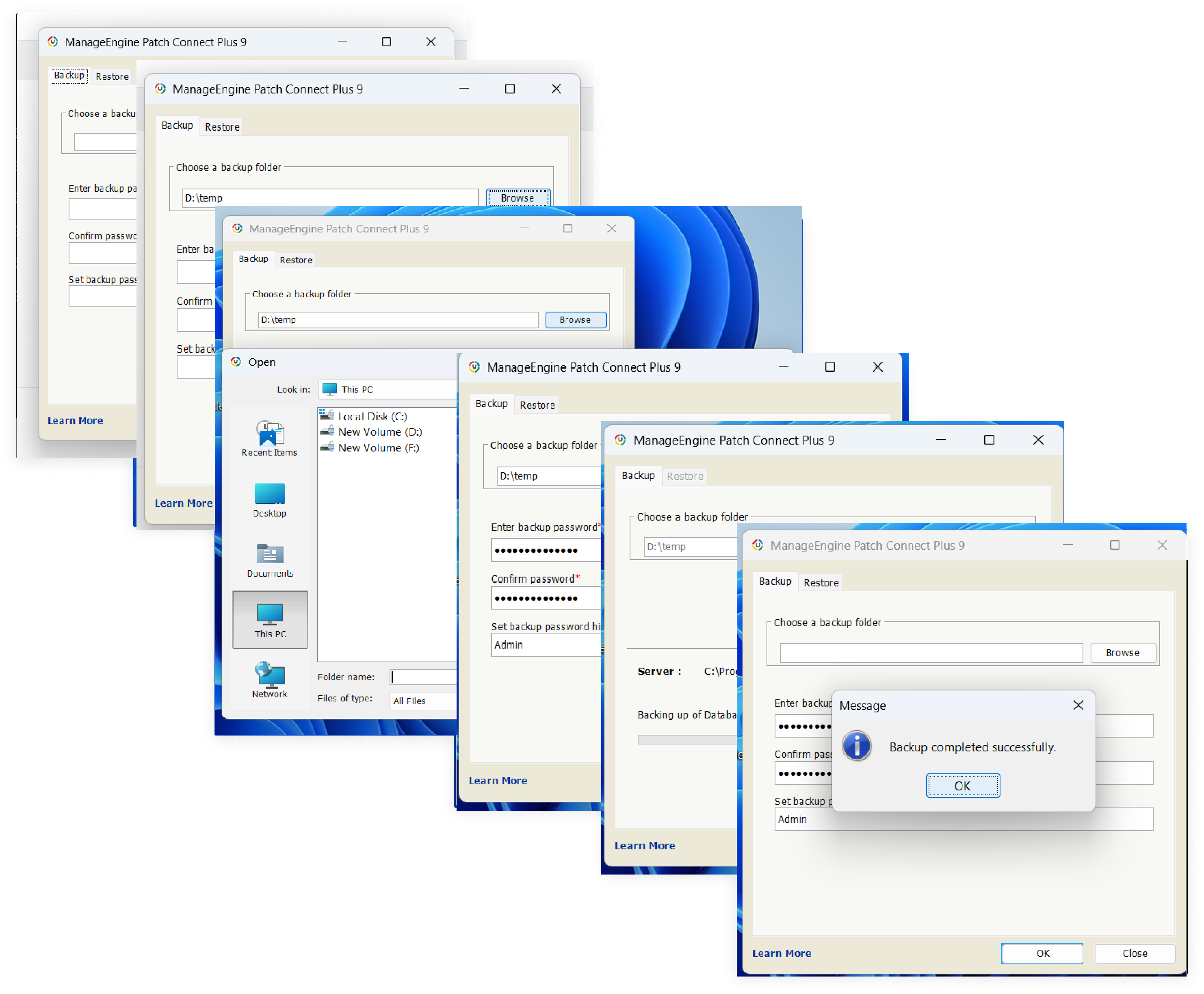
On the Backup-Restore Utility GUI, click the Backup tab
Select the location where you want to save the backup file
Click Backup
You can choose to encrypt the backup file by providing a password.
A backup file is created and saved in the specified location. The file will be named using the buildnumber-date-time.zip format.
VM Backup
In case you are using the PatchConnectPlus Server in bundled PGSQL DB, you can restore it with the server machine via VM snapshot and start the server. Even then, the PatchConnectPlus Server's scheduled backup is the primary backup and cannot be stopped.
Note: If you are using MSSQL or remote PGSQL you should not use this VM restore as the database will be in another machine. If you do so, the server will not start due to data inconsistency.
MSSQL BAK Backup
Follow the steps below to grant the necessary permissions for MSSQL BAK backup:
Database Permissions
- "Create any Database"
- This access is required in order to restore databases. For further information, please refer this Microsoft document.
- Microsoft suggests executing the following query to grant this access. Run these queries as a super admin:
"Use master;
GRANT CREATE ANY DATABASE TO user_name;
GO"
Example :
Use master;
GRANT CREATE ANY DATABASE TO pcpuser;
GO - This CREATE ANY DATABASE privilege allows the user to create a database and the user has authorization over only the databases created by it and if they are db_owner of the database.
- An alternative would be to provide user with db_creator role but that user will a have access to alter any database.
- "db_owner"
- This permission is required to backup and restore an already existing database. Kindly refer to this Microsoft document to know more.
- Microsoft suggests executing the following query to grant this access. Run these queries as a super admin:
"Use master;
ALTER AUTHORIZATION ON DATABASE::database_name TO user_name;
GO" - Example :
Use master
ALTER AUTHORIZATION ON DATABASE::desktopcentral TO pcpuser;
GO - This permission gives db_owner access to the user.
Folder Permissions
The backup process will be automatically handled by the server and it includes the following steps:
- Temporary Directory Creation
- A temporary directory will be created to store the initial .BAK backup files. This temporary directory is necessary to generate the full backup.
- Full Backup Generation
- After placing the .BAK backup files in the temporary directory, the complete backup will be created and saved in the directory you have configured for scheduled database backups (scheduledDBBackup).
- Permissions Management
- Permissions and network share for the temporary directory will be automatically adjusted based on the mssql logOnUser settings. This ensures that only the necessary permissions are granted for the backup process.
- If the mssql logOnUser is not accessible (e.g., the user cannot be found in the domain), the system will temporarily grant access to the "Everyone" group. Once the backup is completed, these temporary permissions will be automatically removed.
Note: To ensure a smooth backup process, verify that the network path from the MSSQL machine to the server is accessible. It is a good practice to create a temporary network share to confirm that the server machine's network path is reachable from the MSSQL machine.
Restoring a backup file
You can manually back up and restore the database. You can do this using the Backup-Restore Utility GUI.
Opening the Backup-Restore Utility Graphical User Interface (GUI)
To open the Backup-Restore Utility GUI, follow the steps given below:
Right click Start > Explore > Directory where PatchConnectPlus folder is present > bin
(For example, right click Start > Explore > Local Disk (C:) > Program Files > ManageEngine > PatchConnectPlus > binDouble-click backuprestore.bat
You've opened the Backup-Restore Utility GUI.
Note: Ensure that you have stopped the PatchConnectPlus Server service before restoring a backup file.
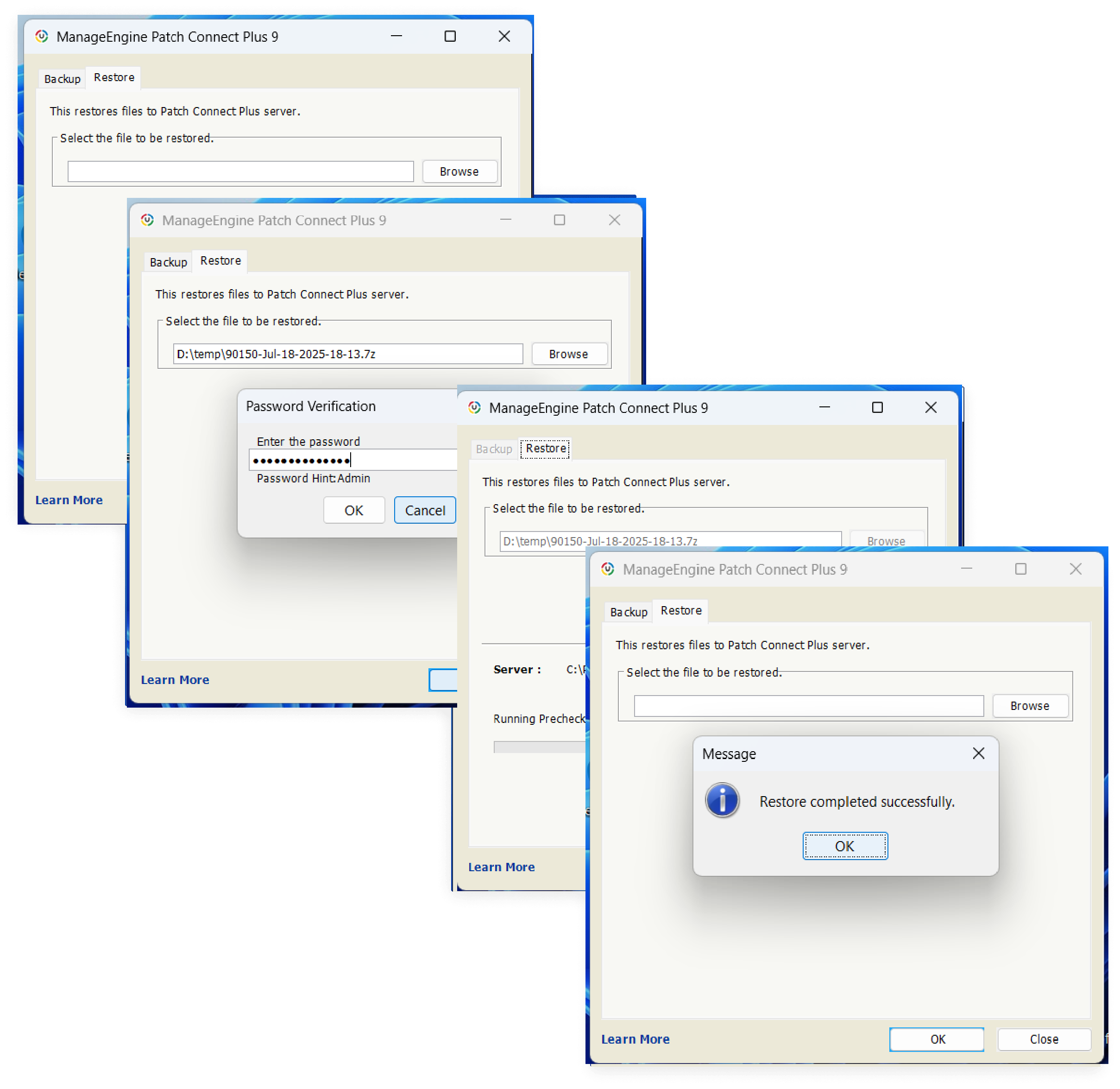
On the Backup-Restore Utility GUI, click the Restore tab
Browse and select the required backup file.
Click Restore
In case you have opted for encrypting the backup file, you will have to provide the password for restoring the backup.
Note: The build number of the PatchConnectPlus Server should match the build number of the backup file you are restoring. The restoration time depends on the data stored on the database. The progress bar will provide the restoration status. In case of any errors in the restoration, an error message will be notified to the user.
- This will restore the specified data to the PatchConnectPlus Server.