SCCM Right Click Tools | 28 Admin Tools for MECM & ConfigMgr
Add 28 admin and troubleshooting tools to your SCCM, MECM, or ConfigMgr console with ManageEngine Patch Connect Plus. Trigger on-demand client actions, remote troubleshoot, and manage systems from the right-click menu—no extra agent, no console switching.
SCCM Right Click Tools by Patch Connect Plus
IT administrators perform a wide range of administrative actions on managed systems to keep their network infrastructure healthy. Microsoft System Center Configuration Manager (SCCM, rebranded to MECM/ConfigMgr in 2019) ships with a limited set of client administrative options, so most teams need a way to extend the console without adding complexity.
Patch Connect Plus supports SCCM Right Click Tools as a refined approach to managing end user systems through SCCM, MECM, or ConfigMgr. The feature adds 28 administrative and troubleshooting tools to the console, letting you carry out essential systems management operations from the right-click menu you already use.
Patch Connect Plus combines third-party application management, patch management, and systems management into one solution. That keeps day-to-day administration simpler and reduces licensing overhead in the long run. A free 30-day trial gives you the full feature set, including all 28 Admin Tools, with no commitment.
What are SCCM Right Click Tools?
SCCM Right Click Tools is the collective term for the various administrative actions you can perform on managed endpoints through the SCCM, MECM, or ConfigMgr framework. These actions cover client diagnostics and client troubleshooting operations that are crucial to keeping endpoints and the broader network healthy.
Patch Connect Plus implements this concept as Admin Tools: 28 actions across on-demand client cycles, client troubleshooting, and system management. The tools install into the existing SCCM/MECM console, so admins don't switch contexts to do basic operational work.
Admin Tools at a glance:
- On-demand client actions
- Client troubleshooting
- System management
- Remote Software Center
- No extra endpoint agent
- Console-native execution
On-demand client operations native SCCM misses
SCCM is a great solution for managing endpoints, patching Windows machines, and deploying operating systems. User-friendly isn't always one of its strengths. Mastering SCCM is a genuine effort, and Microsoft leaves out some basic administrator functions along the way.
Limited client actions
Native SCCM exposes only a handful of client actions, and most of them don't trigger directly from a device's right-click menu.No on-demand evaluation
Forcing an evaluation cycle, update scan, or inventory refresh usually means waiting for the next scheduled cycle or scripting it manually.Remote troubleshooting gaps
Repairing a client, opening its log folder, or running PowerShell on a remote device requires multiple tools and console switches.Patch Connect Plus closes these gaps.
The Admin Tools feature bundles 28 administrator actions into the SCCM console, so you can act on a client without leaving the screen you're already on.
How to use SCCM Right Click Tools in Patch Connect Plus
Patch Connect Plus bundles the most essential administrator actions into a single feature called Admin Tools. Once installed, these actions appear in the right-click menu of the SCCM console, so you avoid switching tabs to perform them.
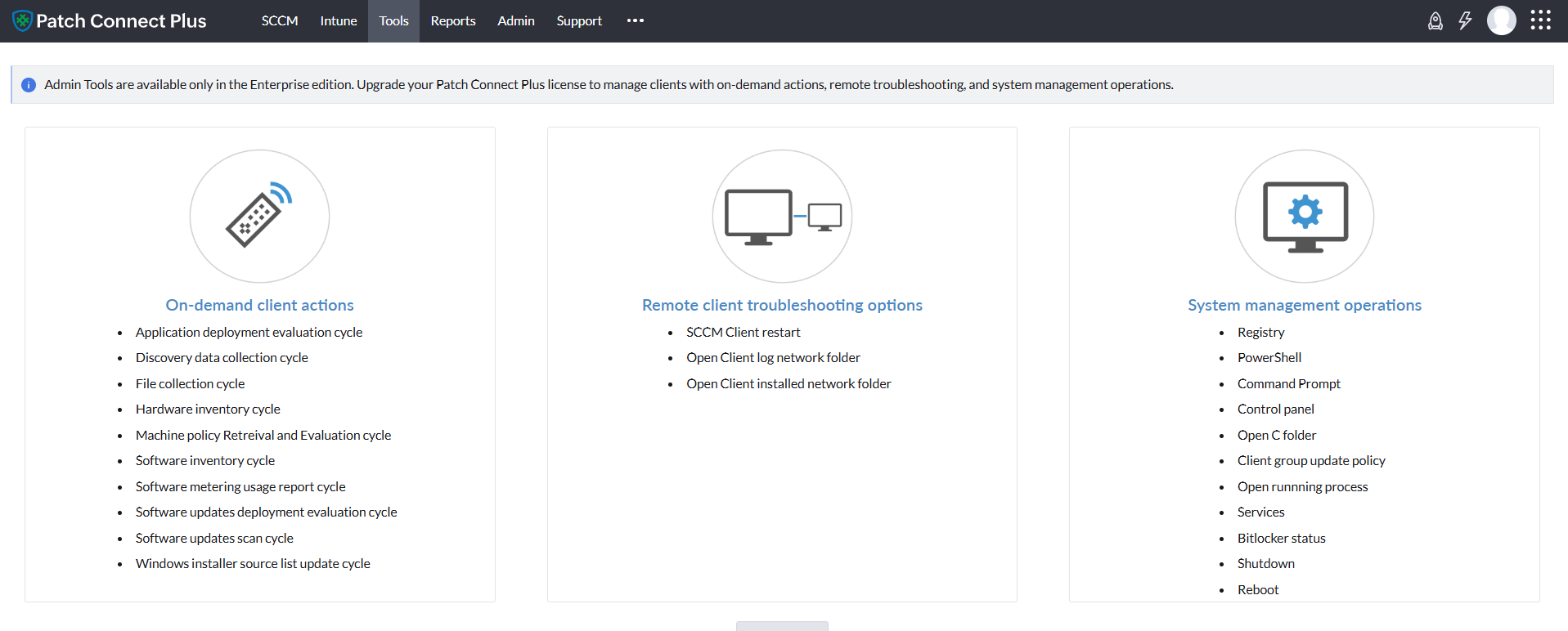
Admin Tools organises 28 actions into three categories: on-demand client actions for cycle operations, client troubleshooting options for diagnostics, and system management operations for hands-on device control.
Category 1: On-demand client actions
Trigger client cycles without waiting for the schedule. As an administrator, certain actions can't be performed directly from the native SCCM console. Things like requesting an evaluation cycle or update scan cycle from a client machine usually need either a wait or a workaround. Admin Tools lets you trigger these on demand and pull the full results back into the console.
- Application Deployment Evaluation Cycle
- Discovery Data Collection Cycle
- File Collection Cycle
- Hardware Inventory Cycle
- Machine Policy Retrieval and Evaluation Cycle
- Software Inventory Cycle
- Software Metering Usage Report Cycle
- Software Updates Deployment Evaluation Cycle
- Software Updates Scan Cycle
- Windows Installer Source List Update Cycle
Category 2: Client troubleshooting options
Diagnose and recover clients without visiting the device. These are the basic diagnostic actions you reach for when a client machine isn't behaving. Each one runs from the SCCM console, so you don't need physical or remote-desktop access to the endpoint. Useful when you're troubleshooting at scale or working with users in different time zones.
- SCCM Client Restart
- Open Client Log Network Folder
- Open Client Installed Network Folder
- Repair SCCM Client
- Uninstall SCCM Client
Category 3: System management operations
Hands-on control of managed client computers. System management operations round out Admin Tools as a complete package. These give IT administrators direct control over managed client computers without leaving the SCCM console, covering everything from registry edits to remote application installs.
- Registry
- PowerShell
- Computer Management
- Command Prompt
- Control Panel
- Open C Folder
- Client Group Update Policy
- Open Running Process
- Services
- BitLocker Status
- Shutdown
- Reboot
- Remote Software Center
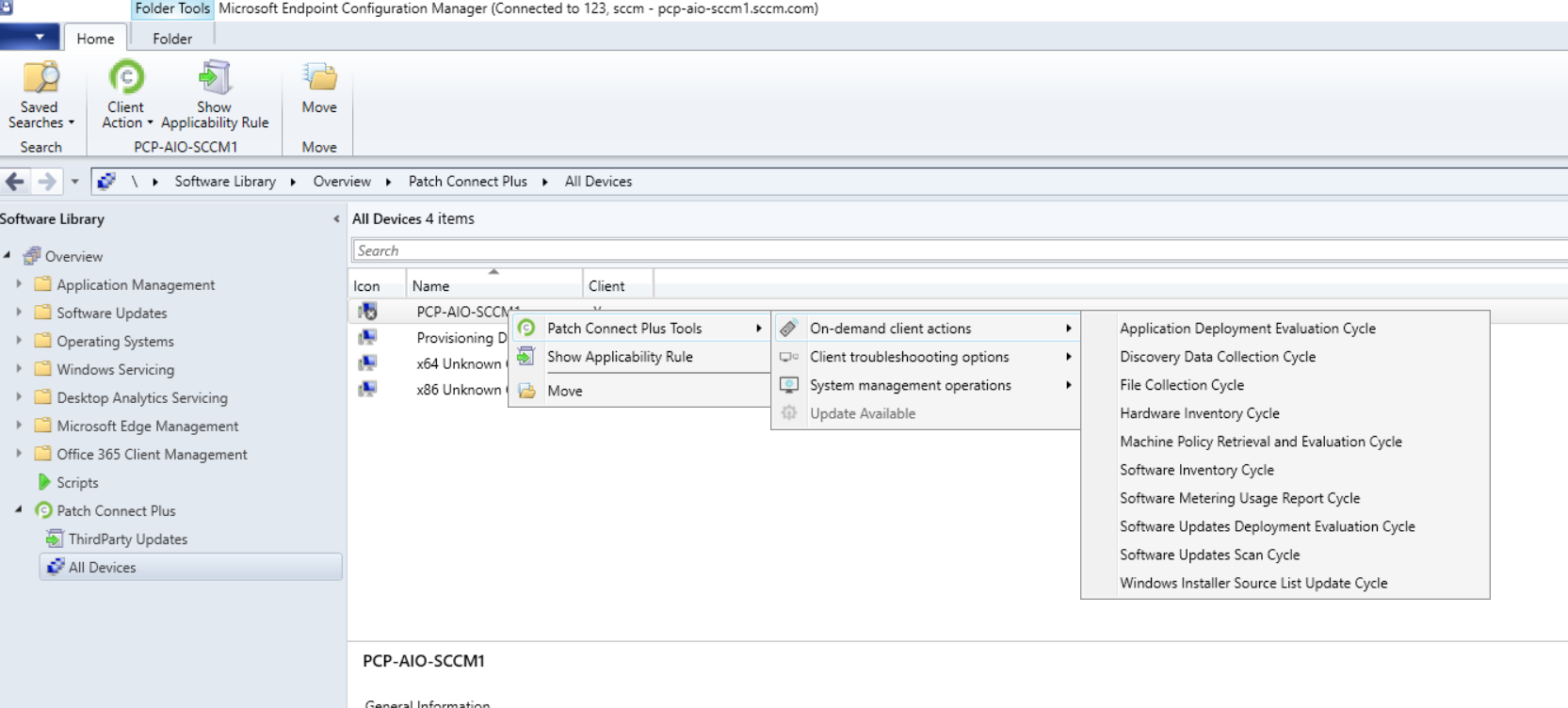
Admin Tools in the SCCM right-click menu
Once installed, Admin Tools appears in the SCCM device right-click menu under a single grouped submenu. Select a device or a collection, right-click, choose the action. No separate portal. No context switching.
How to install SCCM Right Click Tools in Patch Connect Plus
Setup runs from the Patch Connect Plus web console and takes a few minutes. Admin Tools installs into your existing SCCM/MECM console without disturbing other extensions, scripts, or your existing right-click menu.
Step 1 : Download Patch Connect Plus
Grab the installer from the Patch Connect Plus download page. Free 30-day trial includes full Admin Tools access.Step 2 : Install on the SCCM/MECM server
Run the installer on the same machine as your Configuration Manager primary site server or admin console.Step 3 : Configure SCCM credentials
Patch Connect Plus needs Configuration Manager admin credentials to register the Admin Tools extension.Step 4 : Restart the SCCM console
The 28 Admin Tools appear in the right-click menu once you reopen the console. No client-side install needed.
Full prerequisites and permissions are in the how to install Admin Tools in the SCCM console KB. Need the installer? Download Patch Connect Plus free trial.
Is Patch Connect Plus Right Click Tools free?
Yes, you can try it free. Patch Connect Plus offers a 30-day free trial with full access to all 28 Admin Tools, including on-demand client actions, troubleshooting options, and system management operations. No credit card required.
After the trial, Admin Tools is included with the Patch Connect Plus Enterprise editions, along with third-party patch management and custom application deployment. Pricing scales by endpoint count. A 30 day free trial supports testing in a production environment before you commit to a paid edition..
Can you use SCCM Right Click Tools without admin rights?
A reasonable concern for enterprise environments. The short answer: you need standard SCCM administrative permissions to use Admin Tools, but you do not need elevated rights beyond what your role already grants.
RBAC respected
Admin Tools honours your existing SCCM Role-Based Administration. You only see actions your SCCM role allows you to perform.No extra endpoint privileges
Actions run through the existing SCCM client and your standard administrative protocols. There are no new privilege escalation paths to manage.Audit-friendly
Every Admin Tools action is logged in Configuration Manager status messages, so your security team can audit who ran what.
The bottom line If you can use the SCCM console today with your current rights, you can use Admin Tools with the same rights. Patch Connect Plus does not bypass or add to your existing permission model.