SharePoint Manager Plus enables automatic archiving of audit and IIS log data to optimize storage, maintain performance, and meet compliance requirements. By offloading older, less frequently accessed audit data from the Live Tier to the Archive Tier, the product remains efficient and performant while still retaining a complete history of audit events.
In SharePoint Manager Plus, data flows through different storage states to balance performance and storage efficiency. The table below describes each term and how data is managed at each stage.
| Storage tier | Data source | Data state | Description | Searchability | Storage usage |
|---|---|---|---|---|---|
| Live Tier | Audit data | Hot data | Recent audit logs that are stored in the database and actively used. | Searchable | Occupies maximum disk space. |
| IIS log data | Hot data | IIS logs collected and stored in the live environment prior to archival. | Searchable | Occupies maximum disk space. | |
| Archive Tier | Audit data (Compressed raw data) | Frozen data | Audit data older than the archive period and stored as compressed raw files. Retained for compliance. | Not searchable | Occupies 80% less disk space than hot data. |
| IIS log data(Compressed indexed data) | Cold data | Older IIS logs moved based on archival interval. Data is compressed and indexed. | Not searchable | Occupies about 50% less disk space than hot data. |
By default, audit data older than 10 days will be archived in SharePoint Manager Plus. You can modify this setting to meet your organization's data retention policies. The archived logs can be re-indexed and made searchable whenever needed.
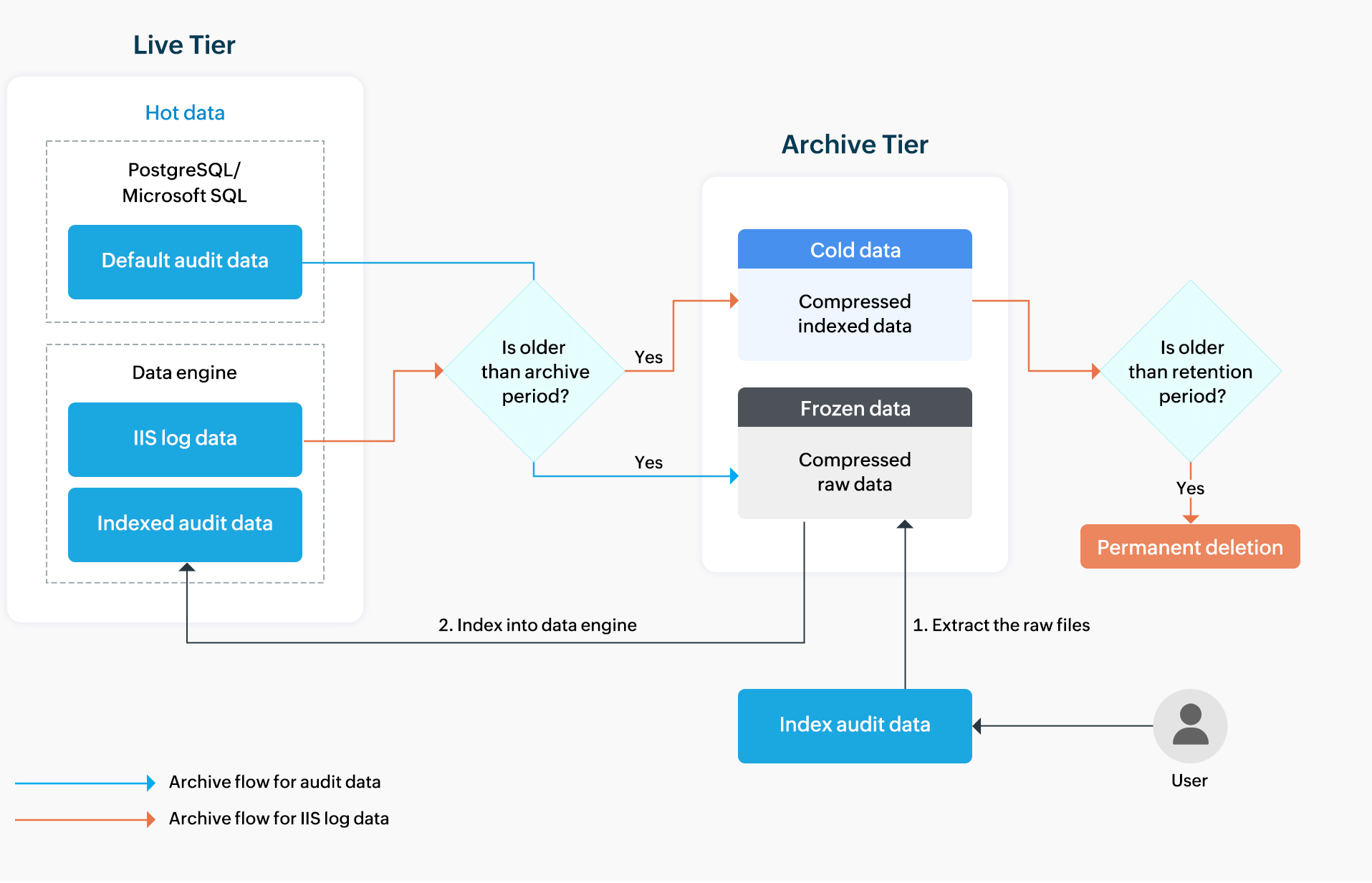
Figure 1: Flow of audit data archiving in SharePoint Manager Plus.
Example: The archive frequency is set to 10 days, and the product is installed on August 26.
The archive process runs everyday, and only data older than 10 days will be archived. When the archive process runs on September 5, it will move the audit data of August 26 to the Archive Tier. Audit logs can be re-indexed at any time for viewing, and a retention period can be configured for indexed data to manage how long it remains searchable. Once the retention period for indexed data expires, it is automatically unindexed and returned to frozen storage, ensuring efficient management without manual intervention.
You can configure archive settings in SharePoint Manager Plus by defining how long audit logs and IIS logs are archived, indexed, and retained.
To archive audit data:
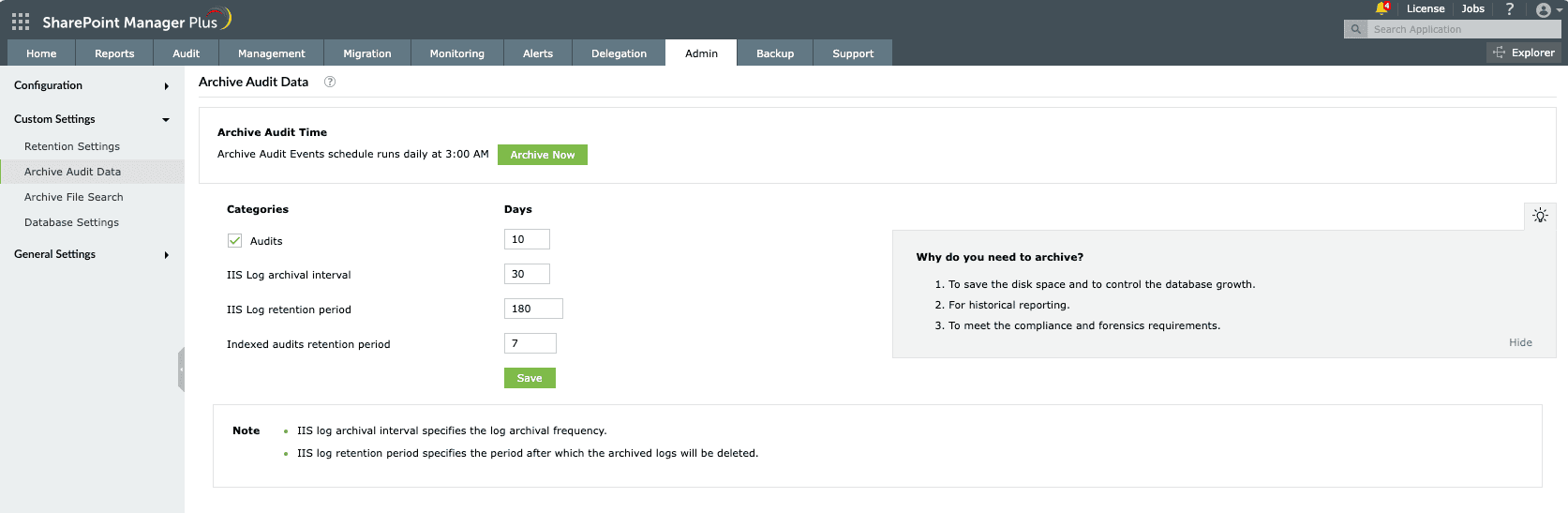
Figure 2: Audit data archiving in SharePoint Manager Plus.
Copyright © 2025, ZOHO Corp. All Rights Reserved.
 ADManager Plus
 ADAudit Plus
 ADSelfService Plus
 SharePoint Manager Plus
 Previous Topic