Windows 10 to Windows 11 Upgrade
Overview
Windows 10 has reached end of support on October 14, 2025. Microsoft will no longer provide free software updates from Windows Update, technical assistance, or security fixes for Windows 10. If your pc is still on Windows 10, Microsoft recommends updating to Windows 11 for it enhanced security features, improved performance, and a modernized user interface. To learn more about Windows 10 EOL refer to this page.
Windows 10 22H2 will be the final version of Windows 10, and all editions will remain in support with monthly security update releases through that date. Existing LTSC releases will continue to receive updates beyond that date based on their specific life cycles.
If your PC meets the minimum requirements to upgrade from Windows 10 to Windows 11, it is recommended to upgrade to Windows 11 using Vulnerability Manager Plus as soon as possible. Check the pre-requisites to upgrade.
Windows 11 Compatibility using Zia's Analysis
You can check the compatibility for upgrading to Windows 11 of your Windows 10 device using Vulnerability Manager Plus's Zia's Analysis.
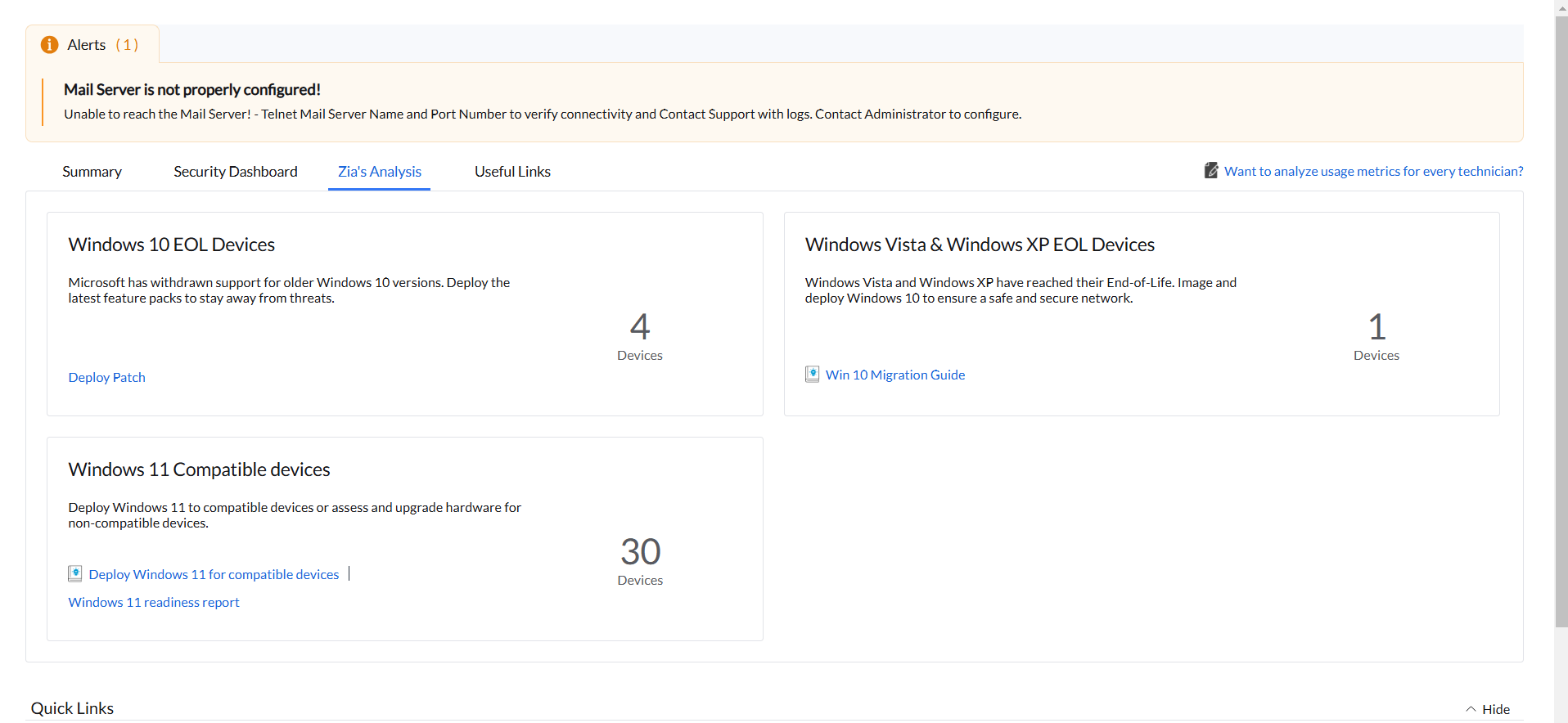
Click on Home → Zia's Analysis, you can see the number of devices compatible under Windows 11 Compatible Devices.
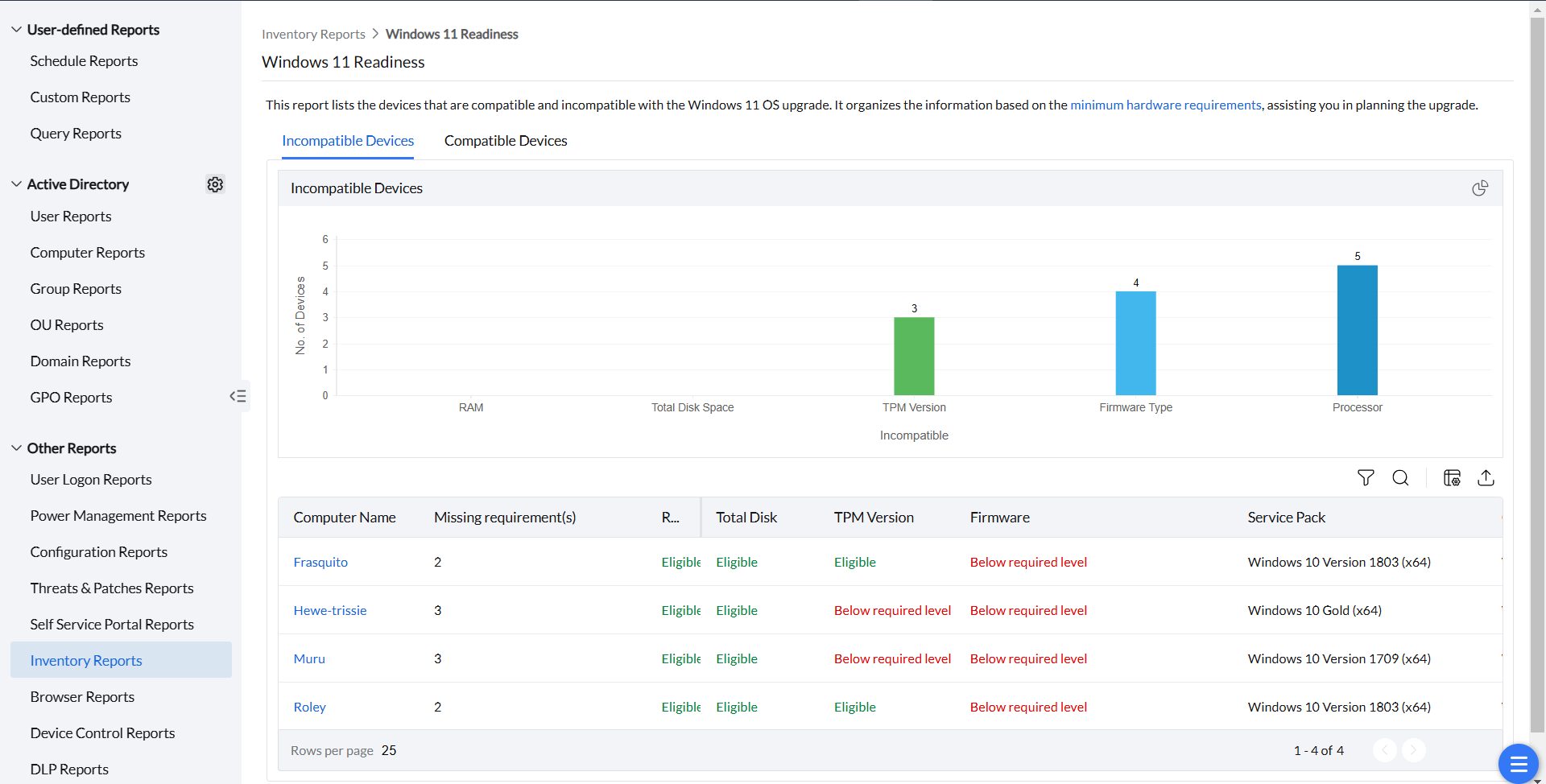
By clicking on those number of devices, you will be redirected to the Windows 11 Readiness window; where you can see the detailed analysis of the requirements of each Windows 10 device. If that particular requirement is met, it will be marked as Eligible; if all requirements are met for that device, that device will be listed under Compatible Devices, and you can upgrade them to Windows 11. If the requirements are not met, it will be listed under Incompatible Devices, and you cannot upgrade these to Windows 11. You can see the number of Missing requirement(s) under the same section and the requirements that are Below required level. You can also export this readiness report by choosing the necessary columns about the computer and clicking the export button present in the right corner.
Update to Windows 11 Latest Version
Prerequisites for upgrading to Windows 11 25H2
If the applicable feature pack has already been declined, identify the exact patch and decline group, remove the applicable decline with Remove Patches, then run a fresh patch scan before checking Missing Patches. Removing a decline is different from uninstalling an update. See Decline Patches.
- Before deployment, run through the Compatibility Check available towards the end of the page, to find if you meet all the minimum requirements that impact upgradeability.
- Ensure that feature pack option is enabled under Patch database settings.
Navigate to: Patch Mgmt -> Settings -> Patch Database Settings (or) Threats & Patches -> Settings -> Patch Database Settings click on the Windows tab and enable the Feature Pack option. - Enabling Feature Pack management does not automatically select Feature Packs in existing APD tasks. For a selective rollout, keep Feature Packs unchecked in APD and deploy the applicable patch manually. For details, see Automate Patch Deployment.
- Install the latest applicable cumulative update and restart the computer before deploying the Feature Pack.
- Ensure that you have not declined the feature pack updates under Decline Patches.
- You cannot copy the ISO onto the target computer and have Vulnerability Manager Plus treat it as already present. Upload the ISO to the server. The agent or Distribution Server then obtains the ISO from the console.
Applicable from build 2605 and above: Manual ISO upload is not mandatory for Feature Pack deployment.
- Dependency patches do not appear in the Uploaded Patches view by default.
- The system automatically handles ISO download and deployment during Feature Pack deployment.
- If the ISO download fails, the corresponding dependency patch appears in the Uploaded Patches view for manual intervention.
- If a previously uploaded ISO is available, deployment continues using that file.
- If an uploaded dependency patch is deleted, it does not appear in Uploaded Patches by default; the ISO is downloaded again during the next deployment attempt.
- To replace a previously uploaded ISO, delete the dependency patch and deploy the main Feature Pack patch so the ISO is downloaded automatically.
Steps to Download and Deploy Windows 11 25H2
If a listed patch is not found, use the complete numeric Patch ID rather than a partial value, run Patch DB Sync and a fresh endpoint patch scan, and search again. You can also search using the Patch Description column. See Patch Issues for the validation workflow.
Main Patch ID
112732 - Feature Pack Update for Windows 11 (25H2) Enterprise (x64) (Windows 10 to Windows 11) (Deployment-Only).
Dependency Patch ID
112734 - Dependency Patch for Windows 11 (25H2) Enterprise (x64) (Manual Upload Required)
The above patch is upgraded only to Windows 11 25H2 Enterprise edition.
To download ISO files,
Enterprise Edition refer to this page Microsoft 365 Admin Center
After the ISO dependency is available, deploy the matching main Feature Pack from Supported Patches. Match the operating-system transition, edition, architecture and language. The dependency entry is used for the ISO upload; it is not the main upgrade task. See Manual Deployment.
To Upload the ISO files
Applicable from build 2605 and above:
Starting from build 2605, manual upload of the ISO file is not mandatory for Feature Pack deployment.
Key Points:
- Dependency patches will not appear in the "Uploaded Patches" view by default.
- The system will automatically handle ISO download and deployment during the Feature Pack deployment process.
- If the ISO download fails, the corresponding dependency patch will appear in the Uploaded Patches view, allowing manual intervention.
- If a previously uploaded ISO is available, the deployment will continue using the manually uploaded file.
- If patches were previously uploaded and later deleted for any reason, the dependency patch will not appear in the "Uploaded Patches" view but will be automatically re-downloaded during the next deployment attempt.
- To replace a previously uploaded ISO, delete the dependency patch, then from build 2605 deploy the main Feature Pack patch so the ISO is downloaded automatically.
- Navigate to Patch Mgmt -> Download patches -> Upload patches (or) Threats & Patches -> Patches -> Download patches -> Upload patches and apply All Patches filter.
- In the Upload pop-up window, browse and select the downloaded ISO file to upload.
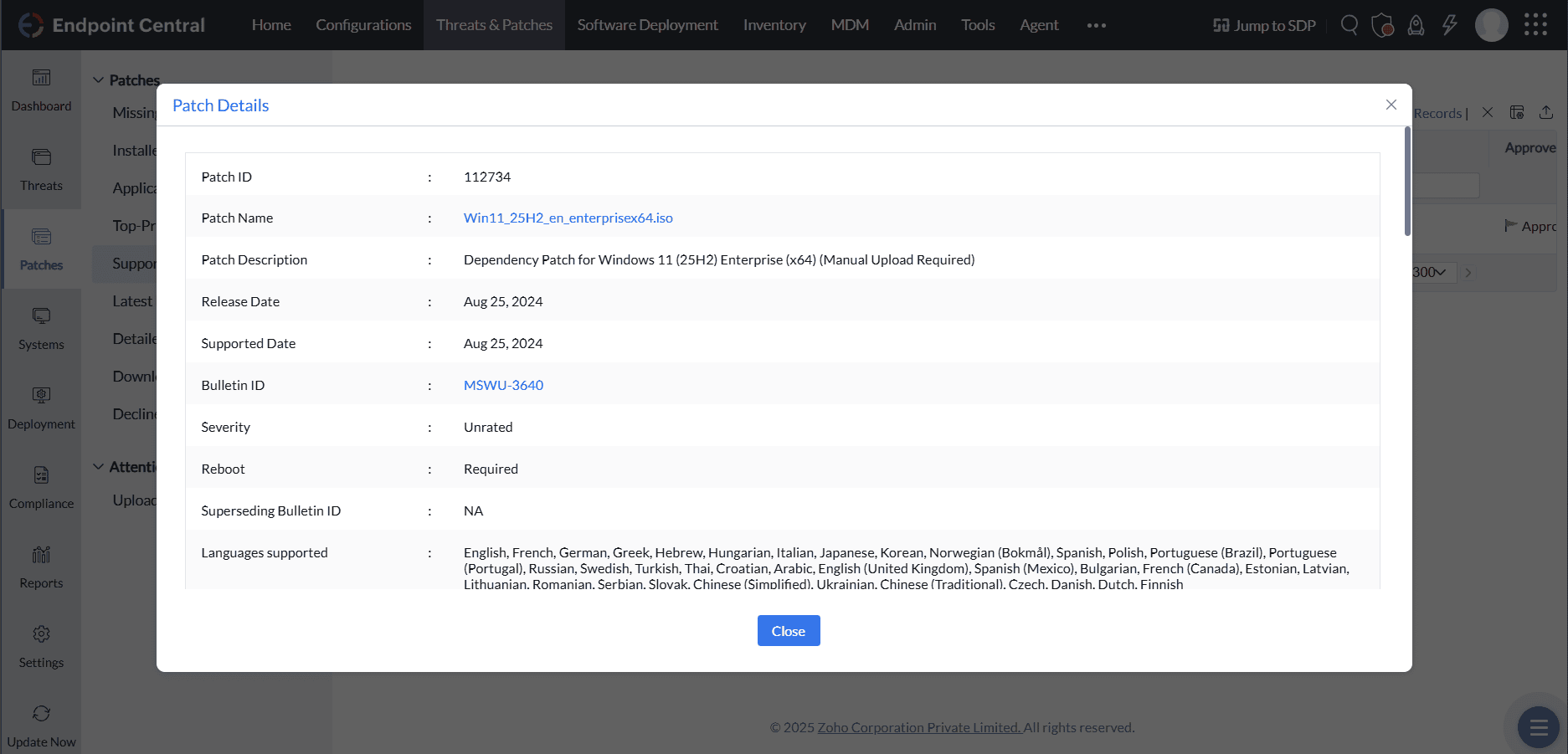
Once the ISO file has been uploaded in the dependency patch, the main patch should be deployed from the Missing Patch view. Deploy the main Feature Pack. Do not deploy the ISO dependency patch; it is for ISO upload only.
Main Patch ID
112731 - Feature Pack Update for Windows 11 (25H2) (x64) (Windows 10 to Windows 11) (Deployment-Only)
Dependency Patch ID
112733 - Dependency Patch for Windows 11 (25H2) (x64) (Manual Upload Required)
The above patch is upgrade only to all Windows 11 25H2 editions except the Enterprise edition.
To download ISO files,
Pro or other Edition refer to this page link
To Upload the ISO files
Applicable from build 2605 and above:
Starting from build 2605, manual upload of the ISO file is not mandatory for Feature Pack deployment.
Key Points:
1. Dependency patches will not appear in the "Uploaded Patches" view by default.
2. The system will automatically handle ISO download and deployment during the Feature Pack deployment process.
3. If the ISO download fails, the corresponding dependency patch will appear in the Uploaded Patches view, allowing manual intervention.
4. If a previously uploaded ISO is available, the deployment will continue using the manually uploaded file.
5. If patches were previously uploaded and later deleted for any reason, the dependency patch will not appear in the "Uploaded Patches" view but will be automatically re-downloaded during the next deployment attempt.
6. To replace a previously uploaded ISO, delete the dependency patch, then from build 2605 deploy the main Feature Pack patch so the ISO is downloaded automatically.
- Navigate to Patch Mgmt -> Download patches -> Upload patches (or) Threats & Patches -> Patches -> Download patches -> Upload patches and apply All Patches filter
- In the Upload pop-up window, browse and select the downloaded ISO file to upload
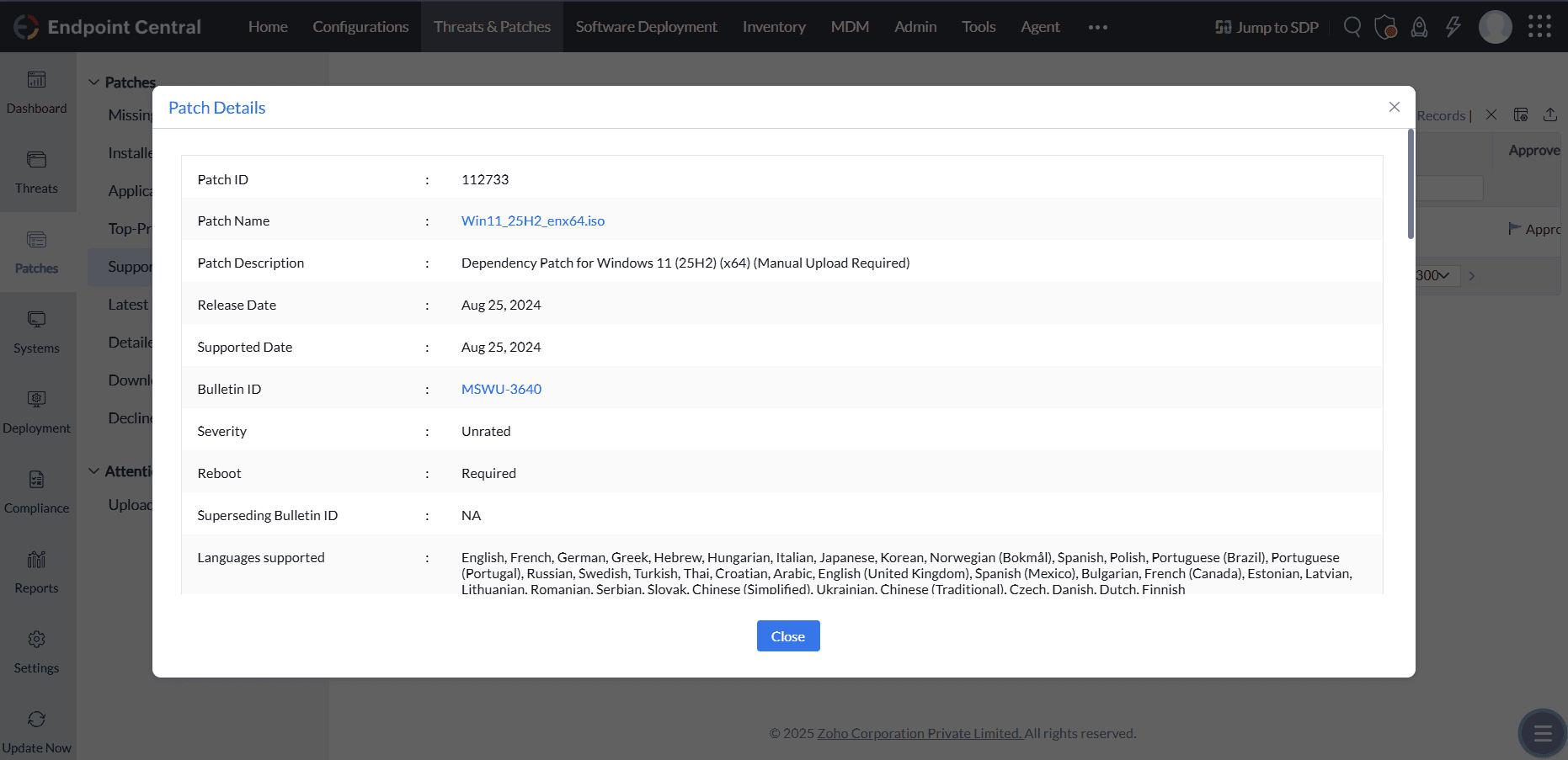
Once the ISO file has been uploaded in the dependency patch, the main patch should be deployed from the Missing Patch view. Deploy the main Feature Pack. Do not deploy the ISO dependency patch; it is for ISO upload only.
Main Patch ID
112730 - Feature Pack Update for Windows 11 (25H2) Enterprise (x64) (Windows 11 to Windows 11)
Dependency Patch ID
112734 - Dependency Patch for Windows 11 (25H2) Enterprise (x64) (Manual Upload Required)
The above patch is upgraded only to Windows 11 25H2 Enterprise edition.
To download ISO files,
Enterprise Edition refer to this page Microsoft 365 Admin Center
To Upload the ISO files
Applicable from build 2605 and above:
Starting from build 2605, manual upload of the ISO file is not mandatory for Feature Pack deployment.
Key Points:
1. Dependency patches will not appear in the "Uploaded Patches" view by default.
2. The system will automatically handle ISO download and deployment during the Feature Pack deployment process.
3. If the ISO download fails, the corresponding dependency patch will appear in the Uploaded Patches view, allowing manual intervention.
4. If a previously uploaded ISO is available, the deployment will continue using the manually uploaded file.
5. If patches were previously uploaded and later deleted for any reason, the dependency patch will not appear in the "Uploaded Patches" view but will be automatically re-downloaded during the next deployment attempt.
6. To replace a previously uploaded ISO, delete the dependency patch, then from build 2605 deploy the main Feature Pack patch so the ISO is downloaded automatically.
- Navigate to Patch Mgmt -> Download patches -> Upload patches (or) Threats & Patches -> Patches -> Download patches -> Upload patches and apply All Patches filter.
- In the Upload pop-up window, browse and select the downloaded ISO file to upload
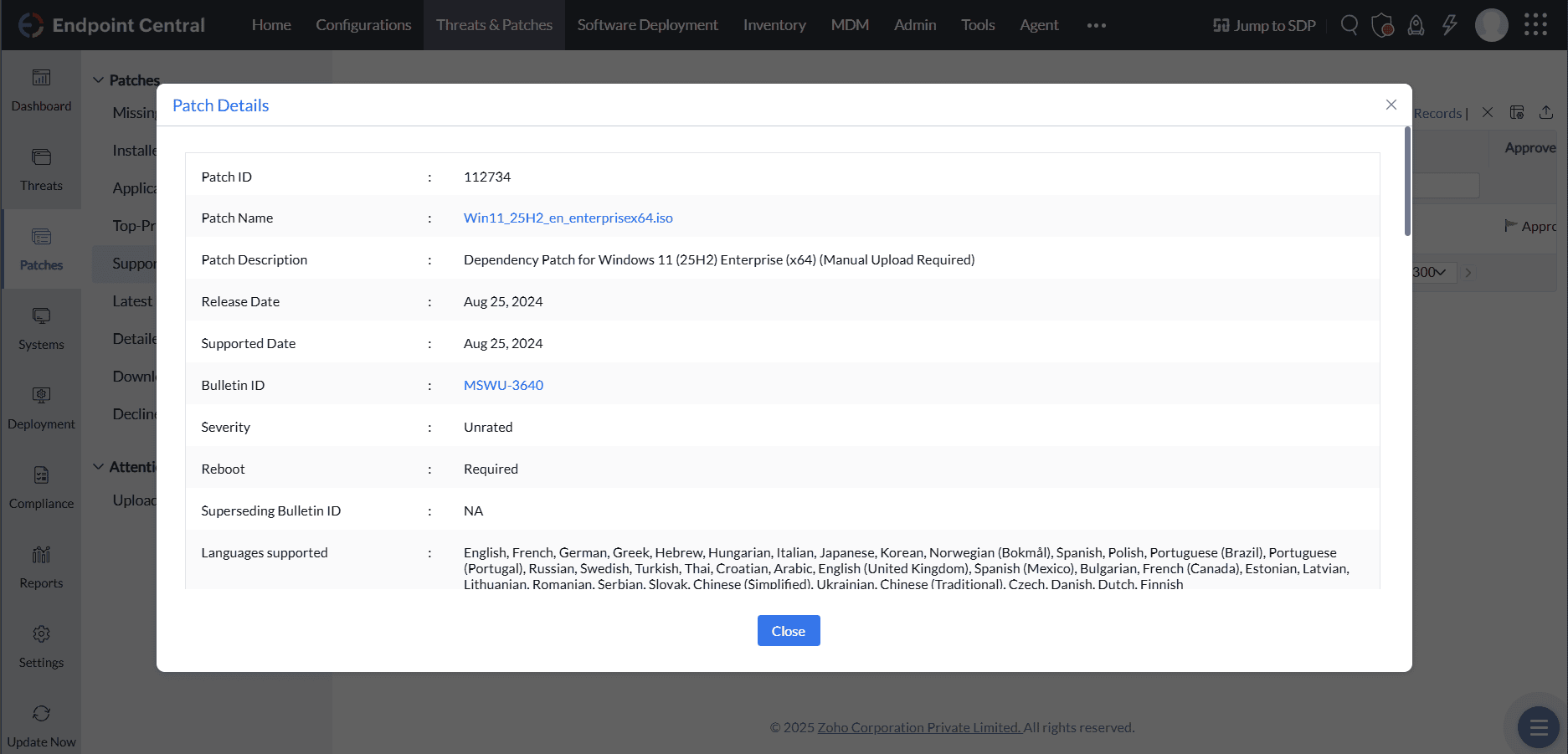
Once the ISO file has been uploaded in the dependency patch, the main patch should be deployed from the Missing Patch view. Deploy the main Feature Pack. Do not deploy the ISO dependency patch; it is for ISO upload only.
Main Patch ID
112729 - Feature Pack Update for Windows 11 (25H2) (x64) (Windows 11 to Windows 11)
Dependency Patch ID
112733 - Dependency Patch for Windows 11 (25H2) (x64) (Manual Upload Required)
The above patch is upgrade only to all Windows 11 25H2 editions except the Enterprise edition.
To download ISO files,
Pro or other Edition refer to this page link
To Upload the ISO files
Applicable from build 2605 and above:
Starting from build 2605, manual upload of the ISO file is not mandatory for Feature Pack deployment.
Key Points:
1. Dependency patches will not appear in the "Uploaded Patches" view by default.
2. The system will automatically handle ISO download and deployment during the Feature Pack deployment process.
3. If the ISO download fails, the corresponding dependency patch will appear in the Uploaded Patches view, allowing manual intervention.
4. If a previously uploaded ISO is available, the deployment will continue using the manually uploaded file.
5. If patches were previously uploaded and later deleted for any reason, the dependency patch will not appear in the "Uploaded Patches" view but will be automatically re-downloaded during the next deployment attempt.
6. To replace a previously uploaded ISO, delete the dependency patch, then from build 2605 deploy the main Feature Pack patch so the ISO is downloaded automatically.
- Navigate to Patch Mgmt -> Download patches -> Upload Patches (or) Threats & Patches -> Patches -> Download patches -> Upload Patches and apply All Patches filter
- In the Upload pop-up window, browse and select the downloaded ISO file to upload
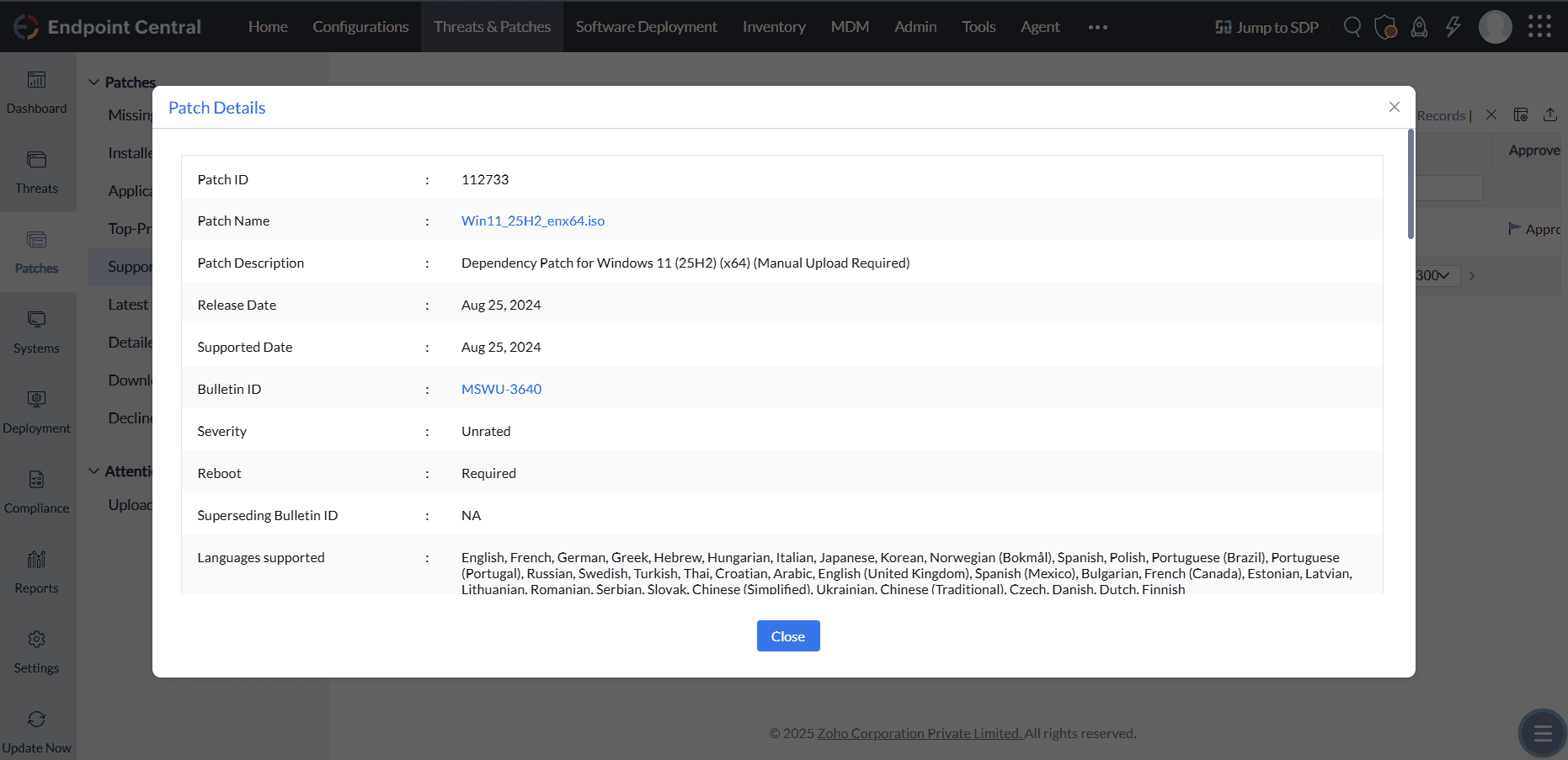
Once the ISO file has been uploaded in the dependency patch, the main patch should be deployed from the Missing Patch view. Deploy the main Feature Pack. Do not deploy the ISO dependency patch; it is for ISO upload only.
Enablement Package patch ID details:
| Current version | Version to upgrade to | Patch ID |
|---|---|---|
| Windows 11, version 24H2 | Windows 11, version 25H2 | 112754 (x64) |
Before deploying the Windows 11 25H2 enablement package, ensure that the Windows 11 24H2 computer has KB5064081 or a later cumulative update installed. If the prerequisite update is missing, deploy it, reboot the computer, and run a patch scan before checking for the enablement package. See Microsoft's enablement package prerequisites.
The Enablement Package, Patch ID 112754, applies only to computers already running Windows 11 24H2. Do not deploy it to computers running 23H2 or earlier, and do not combine it with a Windows 11-to-Windows 11 Feature Pack intended for computers below 24H2 in the same deployment.
You can select multiple edition-specific Main Patch IDs for computers running different Windows editions. Each computer receives only its applicable patch, while the other selected patches are marked Not Applicable. Separate deployments by edition and source version are recommended for clearer targeting and status reporting.
For error code 50031 caused by selecting a patch that does not support the endpoint's current source version, see Windows Feature Pack Errors.
Feature pack patches cannot be used to upgrade ARM systems. There is no supported Main Patch ID for a Windows 11 24H2 to 25H2 ARM64 enablement package.