
Ticketing tool configuration
Last updated on:
With Log360 Cloud, you can efficiently manage security incidents by raising tickets for alerts that are generated. You can easily manage the incident within the Log360 Cloud console or use an external help desk software for raising tickets. Popular ticketing tools such as ManageEngine ServiceDesk Plus, ManageEngine AlarmsOne, ServiceNow, Zendesk, Jira Cloud, Freshservice and Kayako are supported by Log360 Cloud.
Manage Ticketing Tool Configuration
To configure incident management with an external ticketing tool, follow the steps given below:
- Under the Alerts tab, click on the
 icon and choose Ticketing Tool Integration.
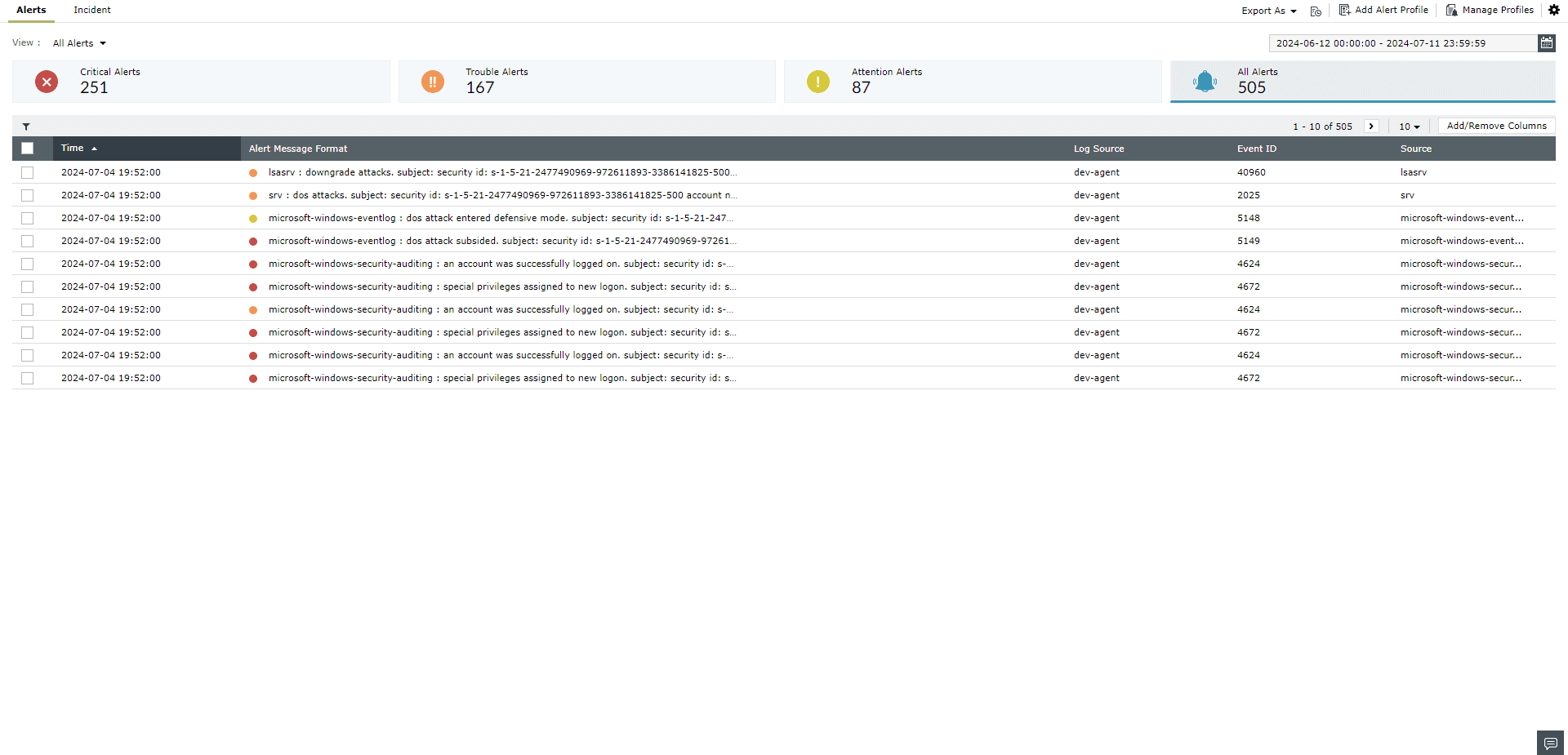
- In the window that appears, select the desired ticketing tool from the available options in the Ticketing Tool field.
- The steps to configure the different ticketing tools are explained below. Please follow the steps of the ticketing tool that you are using.
For ManageEngine ServiceDesk Plus:
Note Only users with permissions to view and edit requests can configure this integration.
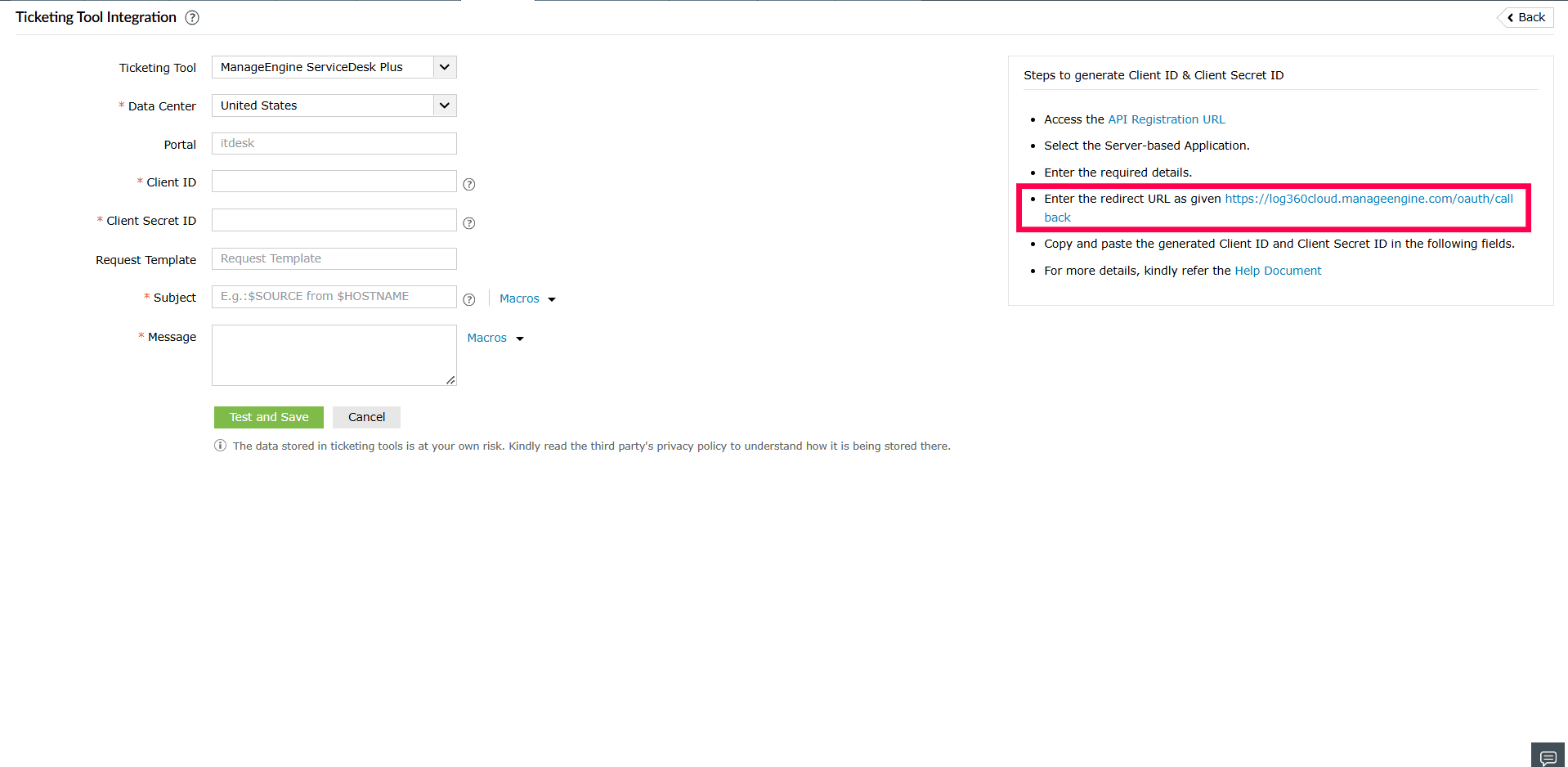
- Choose ManageEngine ServiceDesk Plus in the Ticketing Tool field. Choose the Data Center where your ServiceDesk Plus account is hosted. Kindly refer to the table below to find the Data Center corresponding to your ServiceDesk Plus account.
ServiceDesk Plus URL Region Data Center to be selected https://sdpondemand.manageengine.com United States US https://sdpondemand.manageengine.eu Europe EU https://sdpondemand.manageengine.in India IN https://servicedeskplus.cn China CN https://servicedeskplus.net.au Australia AU https://servicedeskplus.jp Japan JP https://servicedeskplus.ca Canada CA https://servicedeskplus.uk United Kingdom UK https://servicedeskplus.sa Saudi Arabia SA 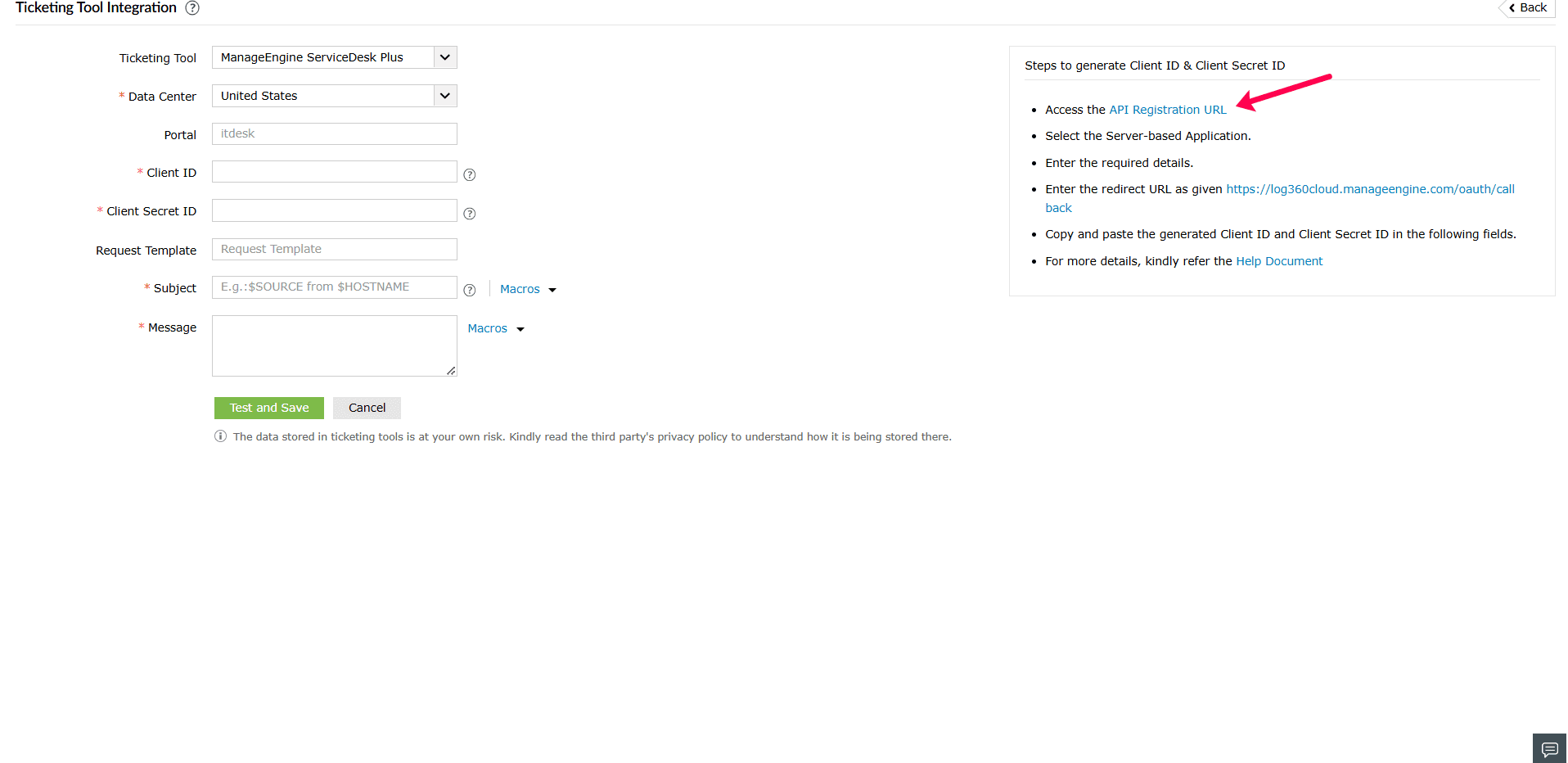
- Click the API Registration URL to generate the Client ID and Client Secret ID.
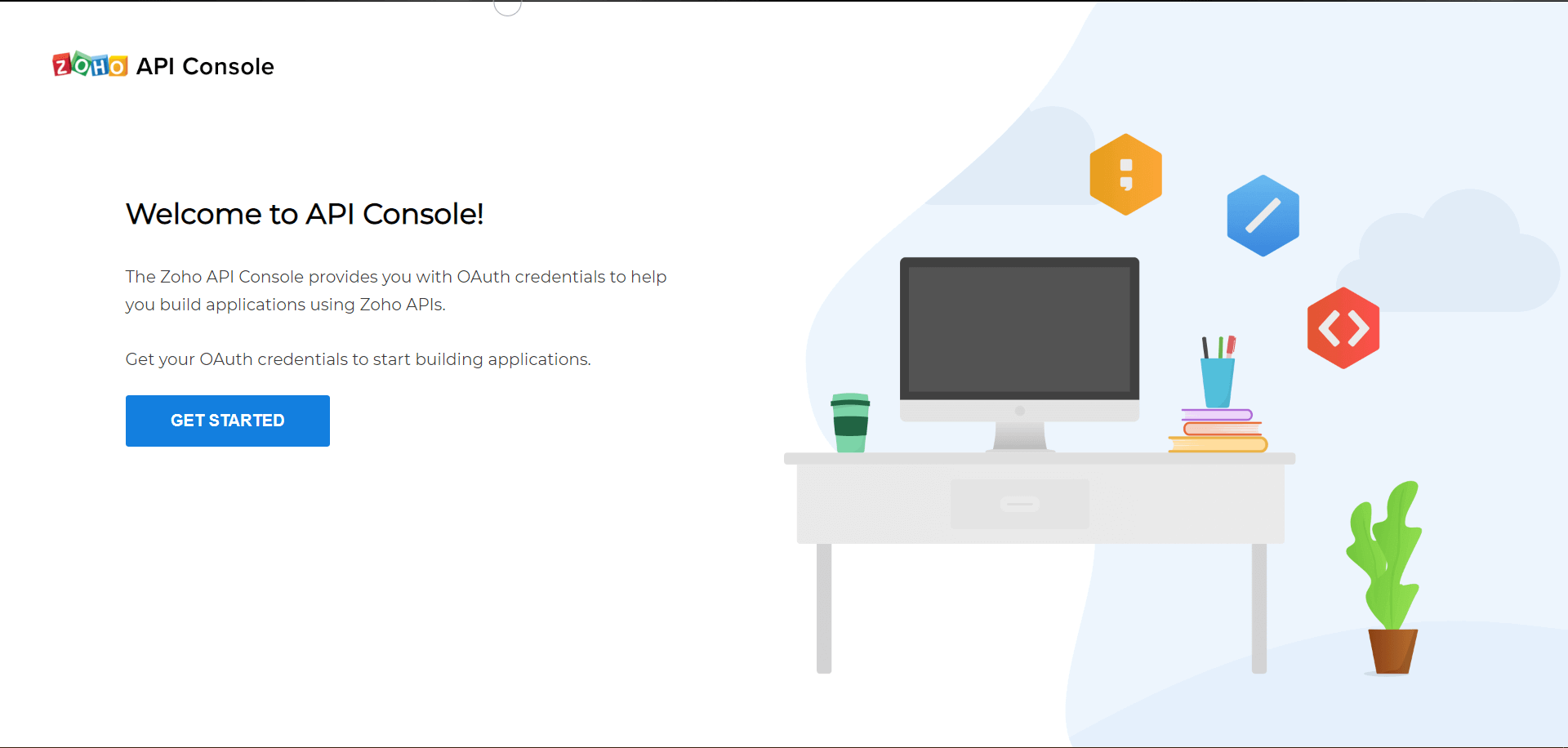
- Once the Zoho API Console is opened, click on GET STARTED.
- Select the Server-based Applications tile.
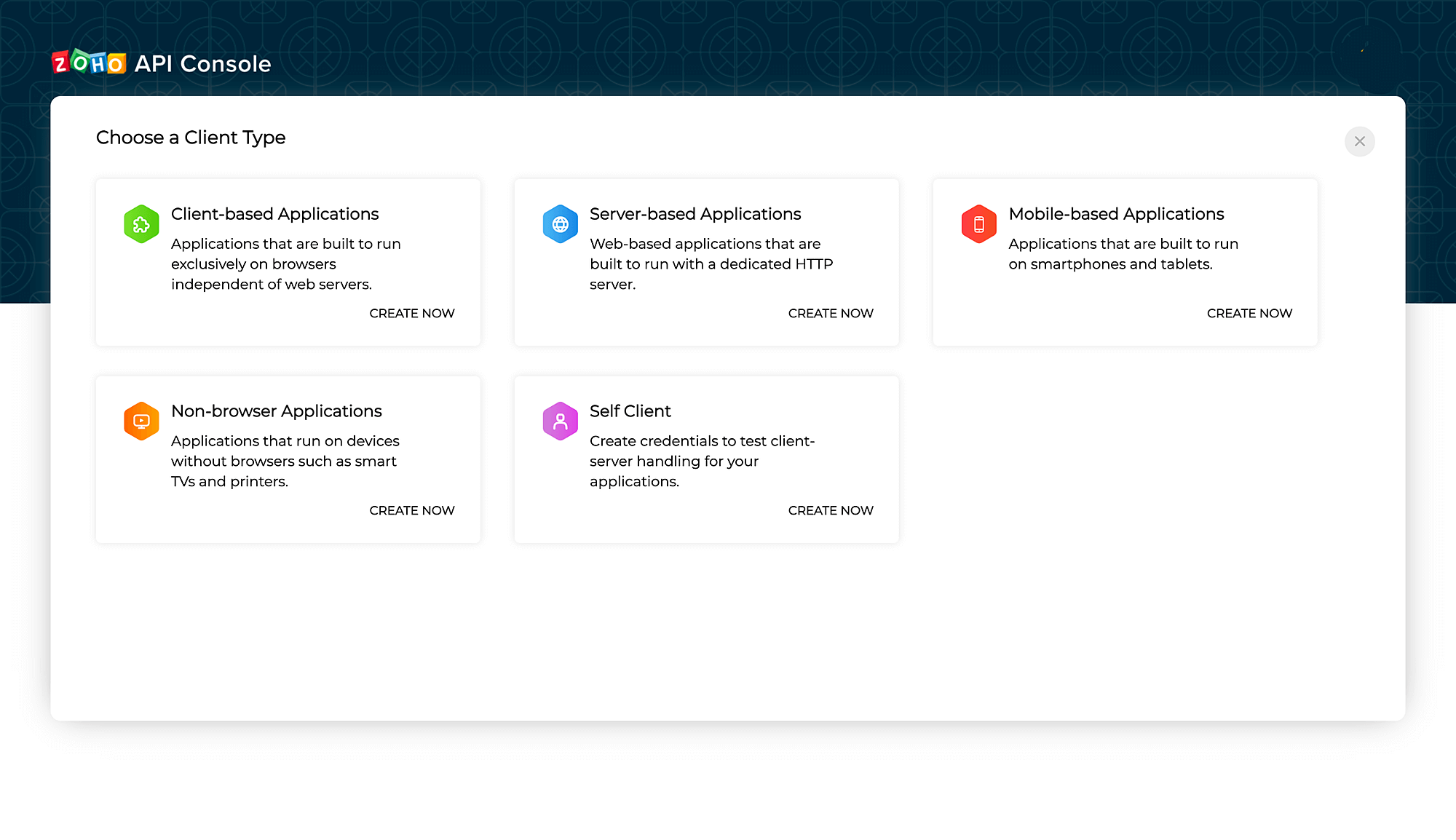
- To create a new client, enter the required details. Enter the redirect URL as given in the Log360 Cloud console and click Create.
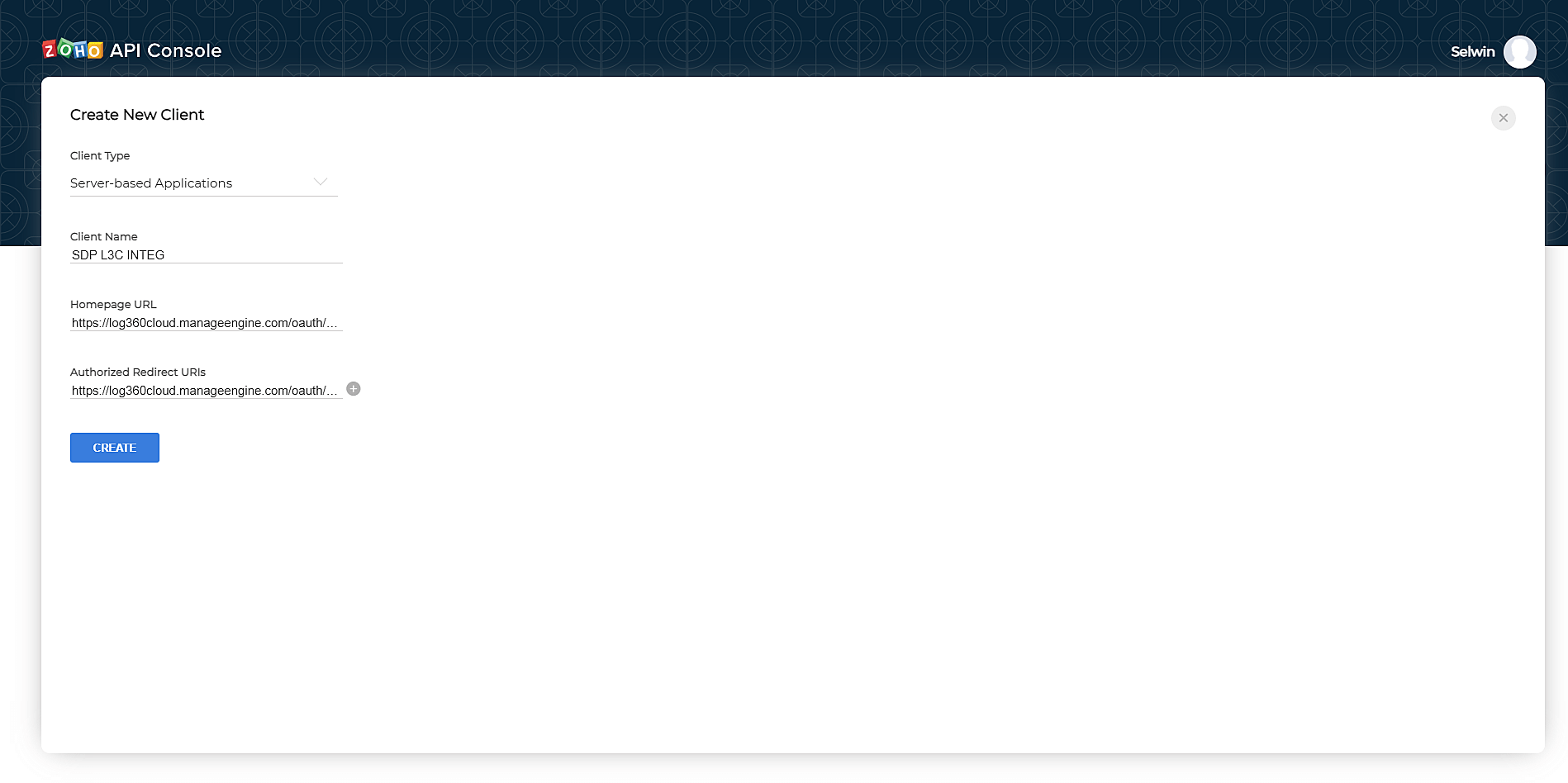
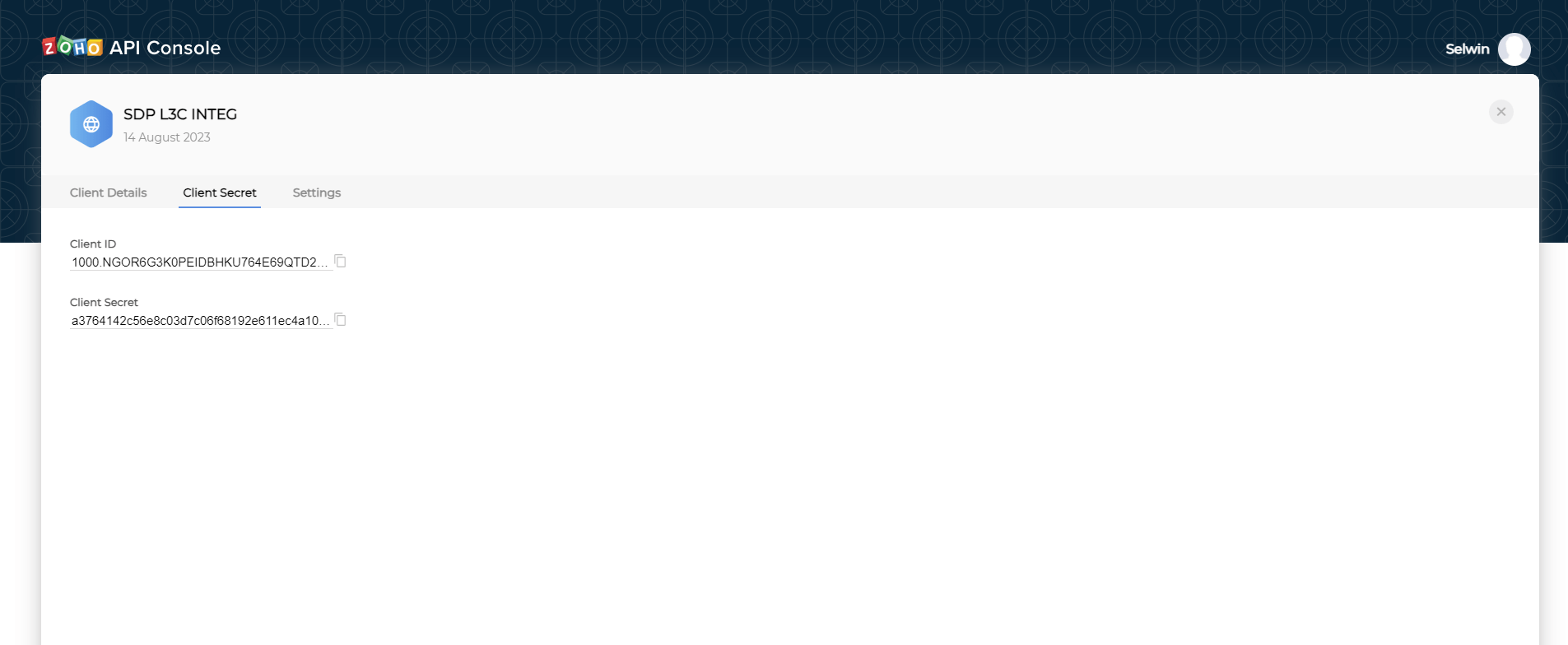
- Copy the generated Client ID and Client Secret ID.
- Back in the Log360 Cloud console, paste the Client ID and Client Secret ID in the required fields.
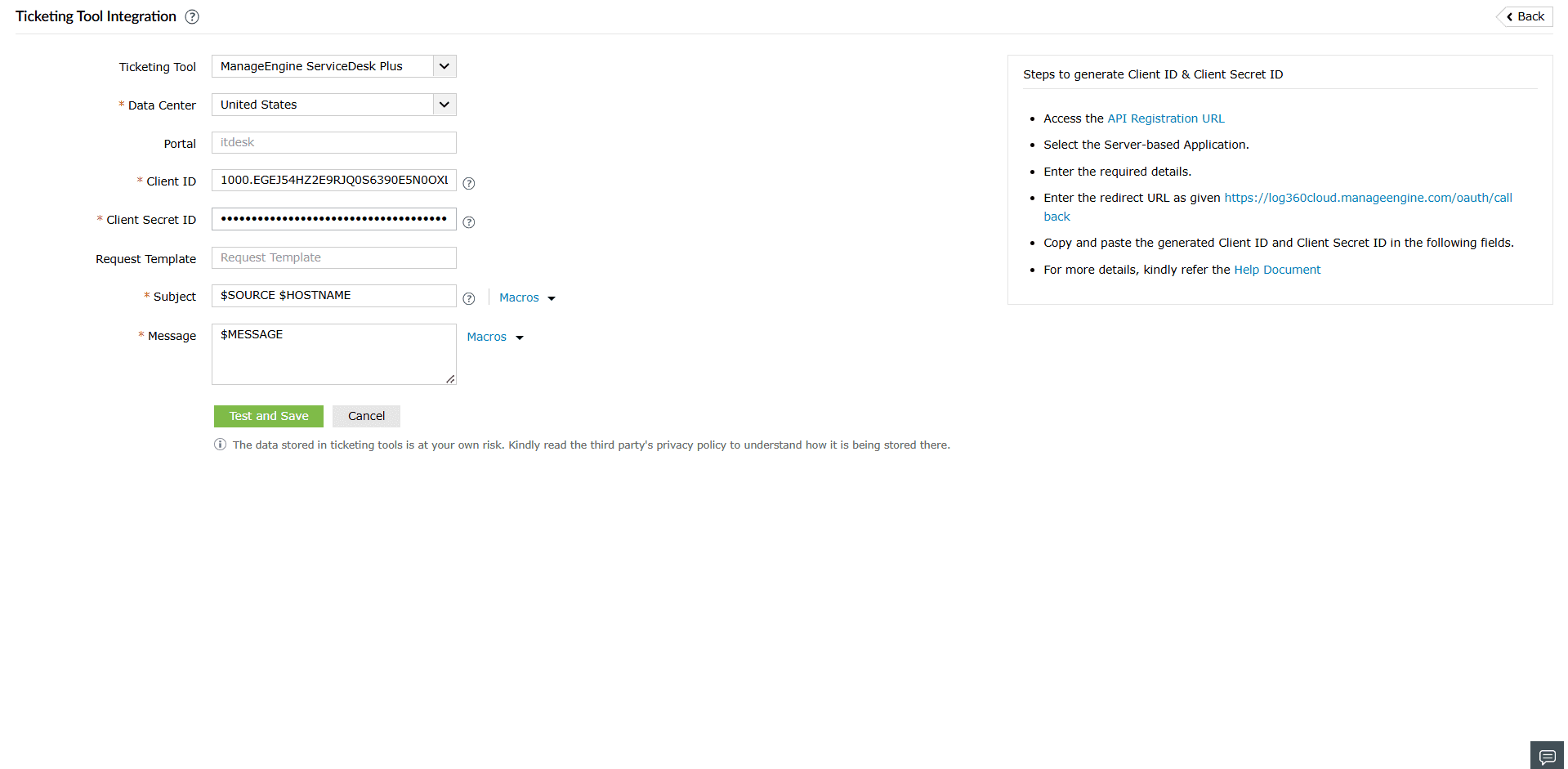
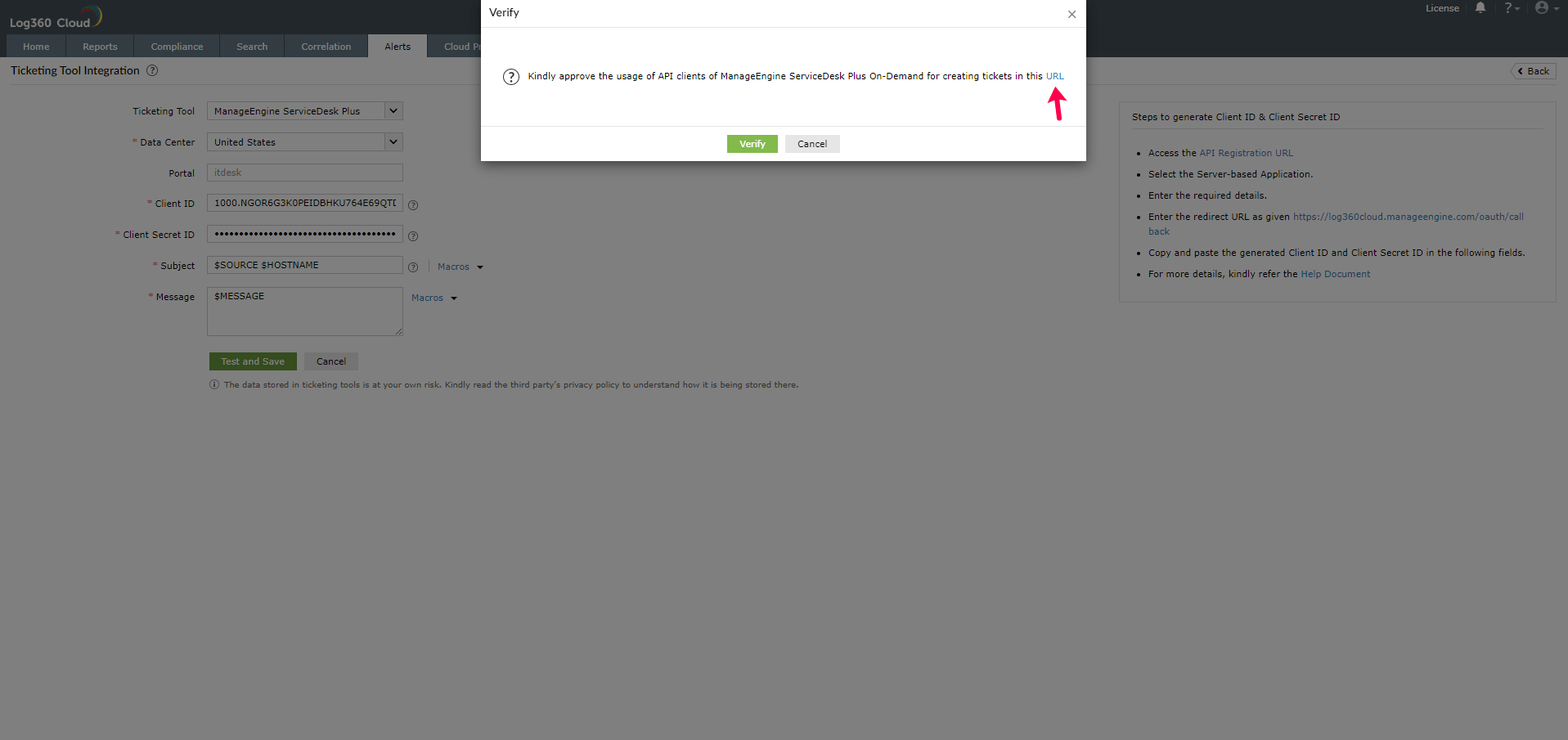
- Please specify the Request Template you want to use for creating tickets in ServiceDeskPlus. Leaving it empty would create a ticket using the Default Template. Provide the Subject and Message for the alert—these can be selected from a predefined list under Macros or entered manually as per your requirements. Click the Test and Save button to proceed. Upon clicking, a verification popup will appear—click the URL provided to approve the integration with ServiceDesk Plus On-Demand clients.
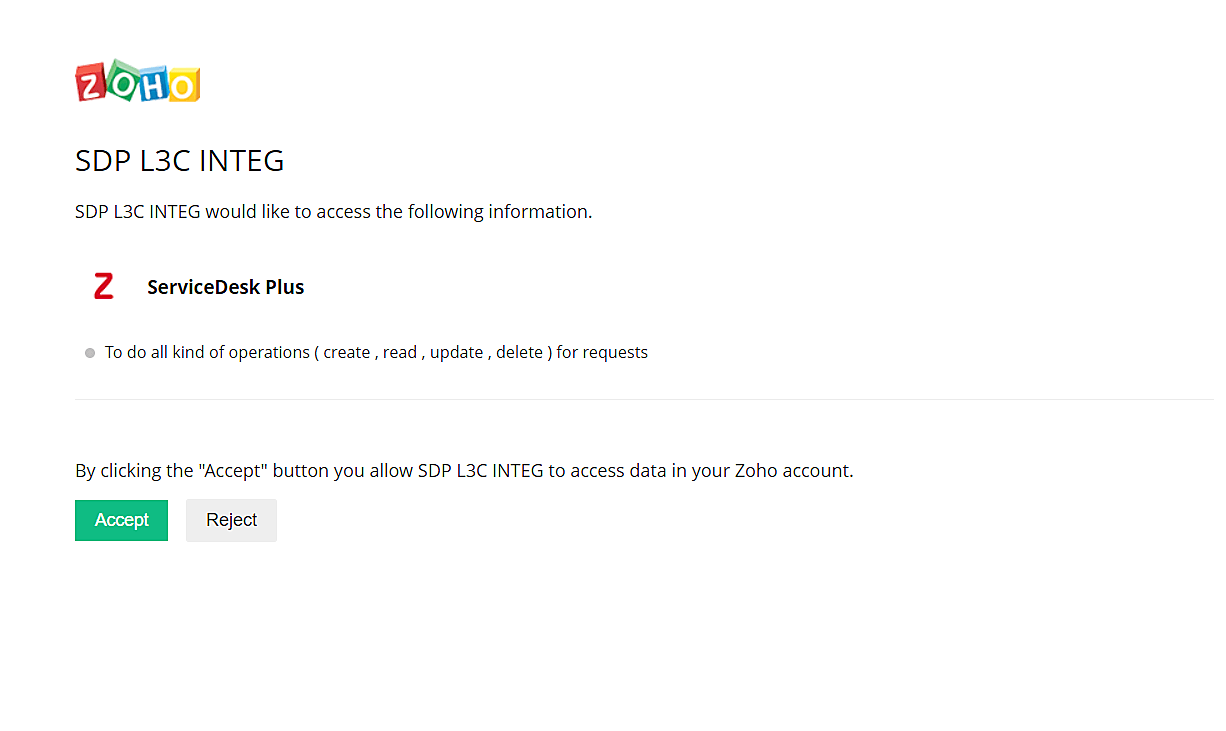
- Click Accept for API approval.
- Click the Verify button in Log360 Cloud console.. The ticketing tool will now be configured successfully.
For ManageEngine AlarmsOne
Note Only users with the super admin or the alarm admin role can proceed with the configuration.
In Log360 Cloud, navigate to the Alerts tab and click Ticketing Tool Integration under Alert Configuration. From the Ticketing Tool drop-down list, select ManageEngine AlarmsOne.
- Open ManageEngine AlarmsOne and click the Applications icon, then click Applications(+) button in the left panel. From the list displayed, select Custom API Integration.
- Enter an Application Label and Application Name. If a notification profile is already configured, select it. Click Add. You can also associate a notification profile later.
- A Webhook URL specific to your custom app is generated.
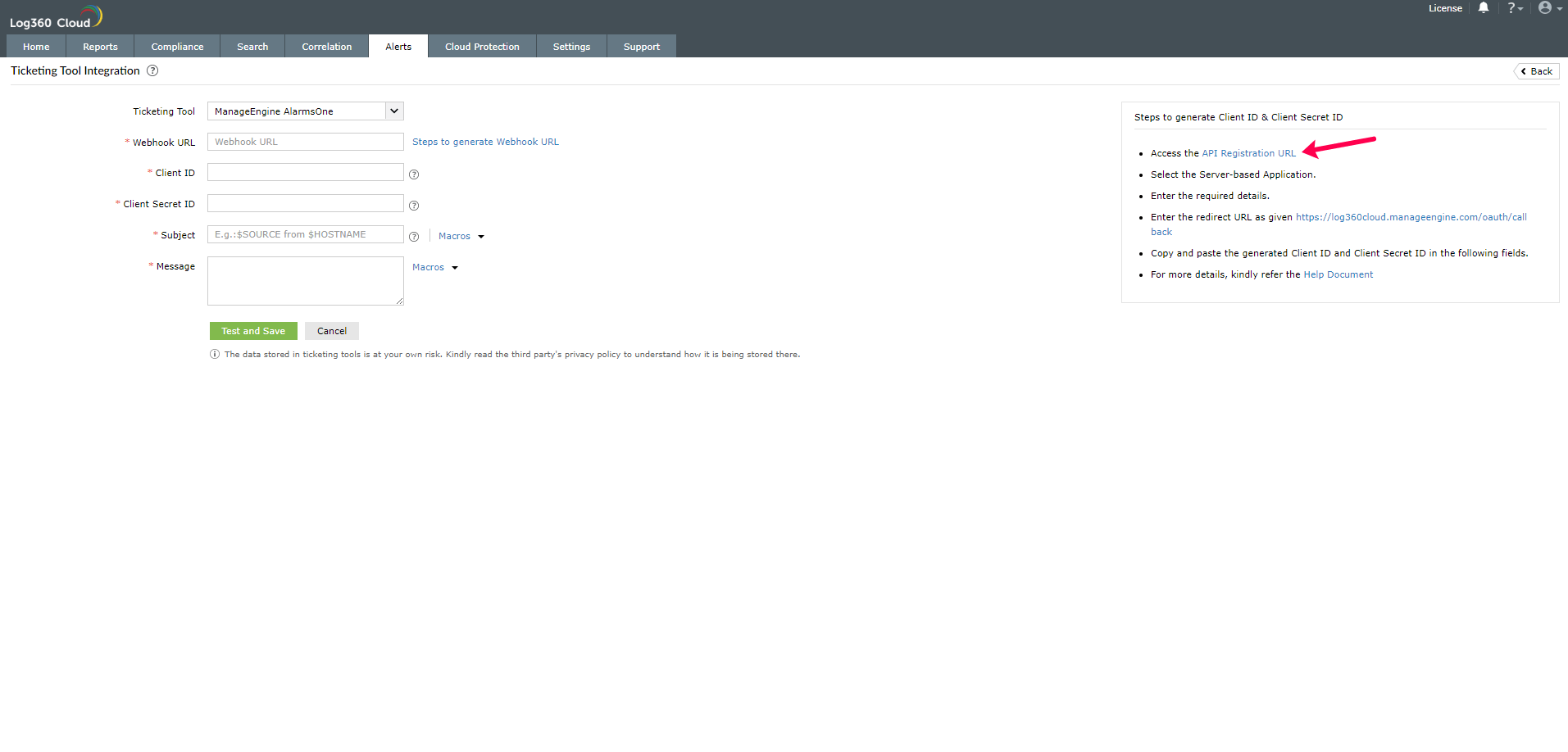
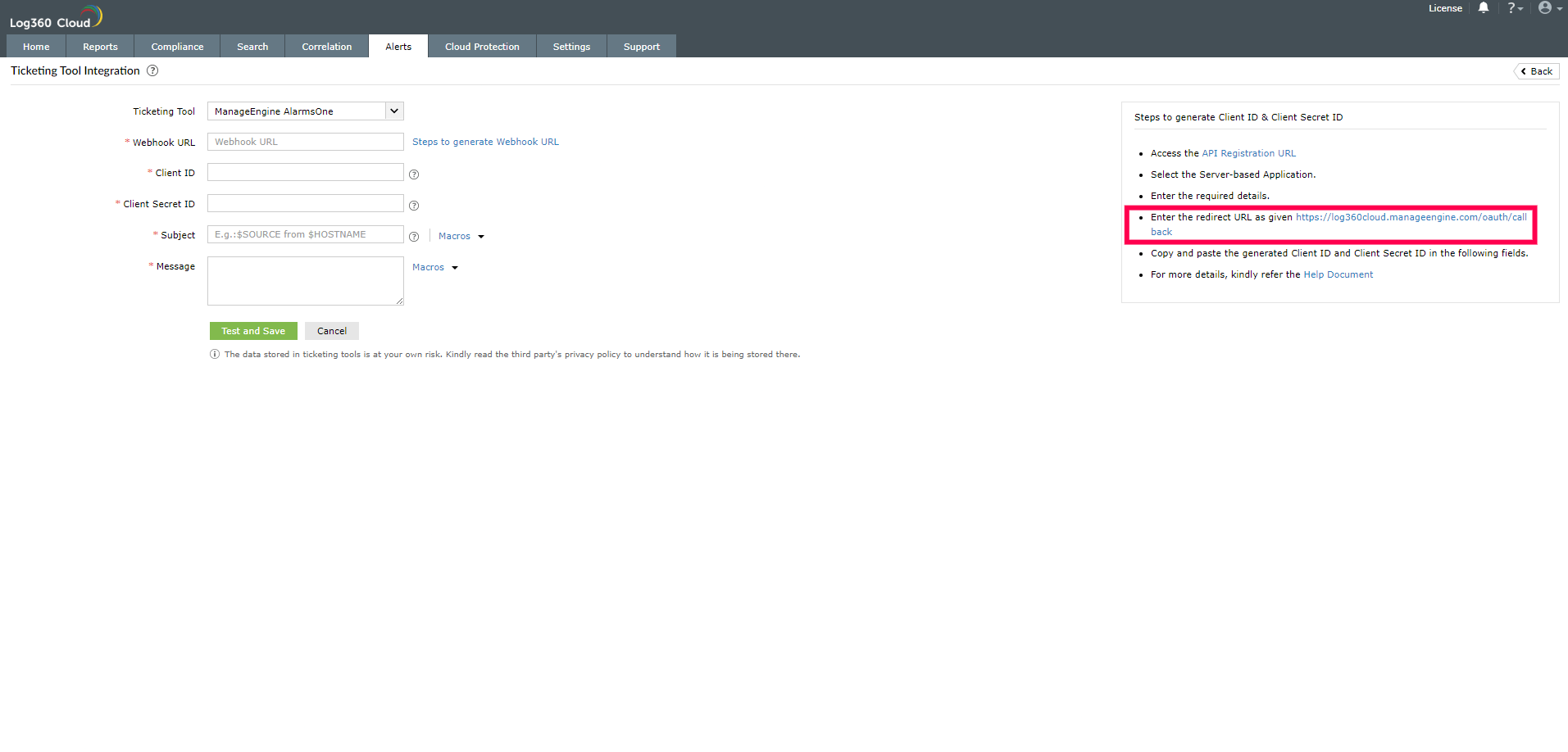
- Click API Registration URL in Log360 Cloud, to generate a Client ID and Client Secret ID.
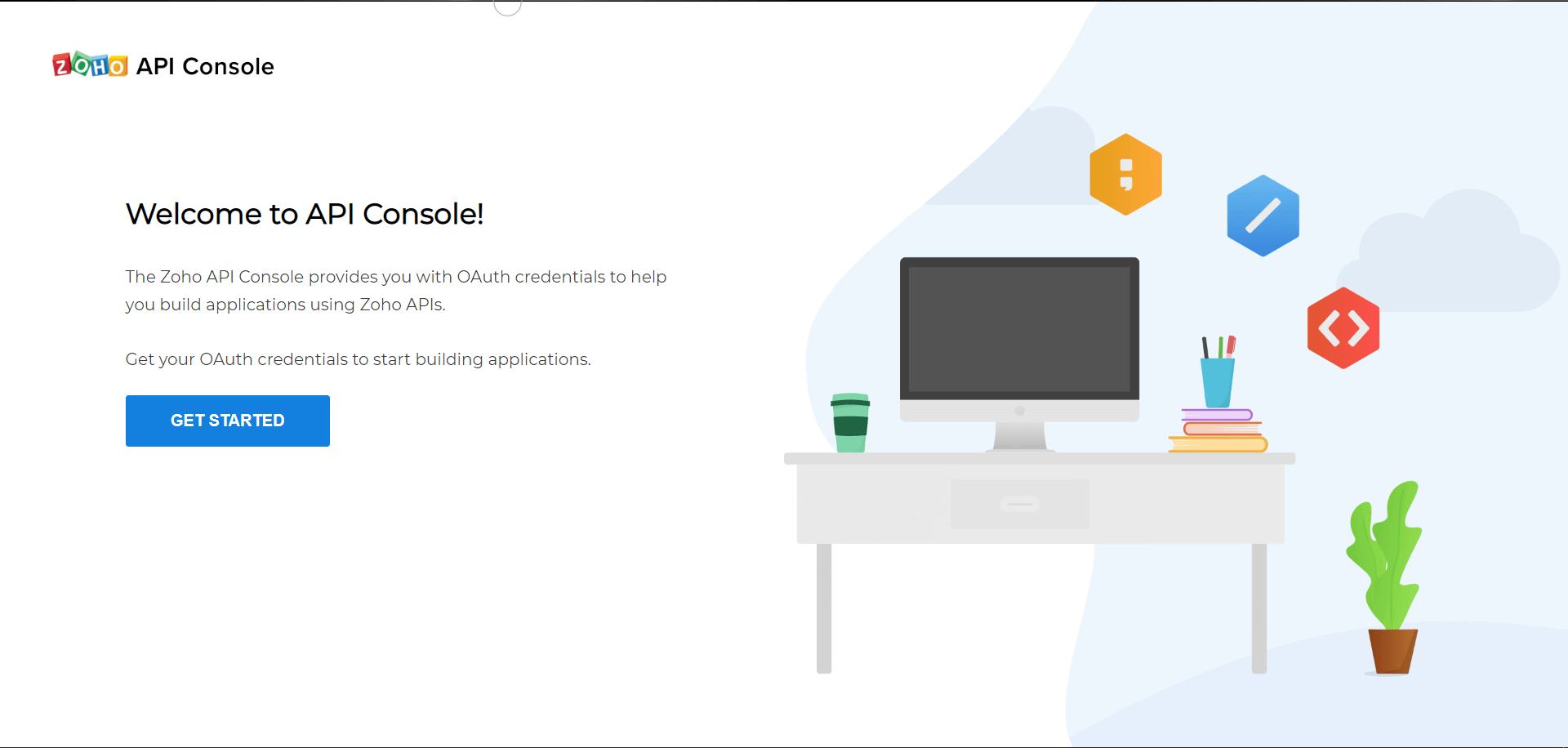
- Once the Zoho API Console is opened, click GET STARTED.
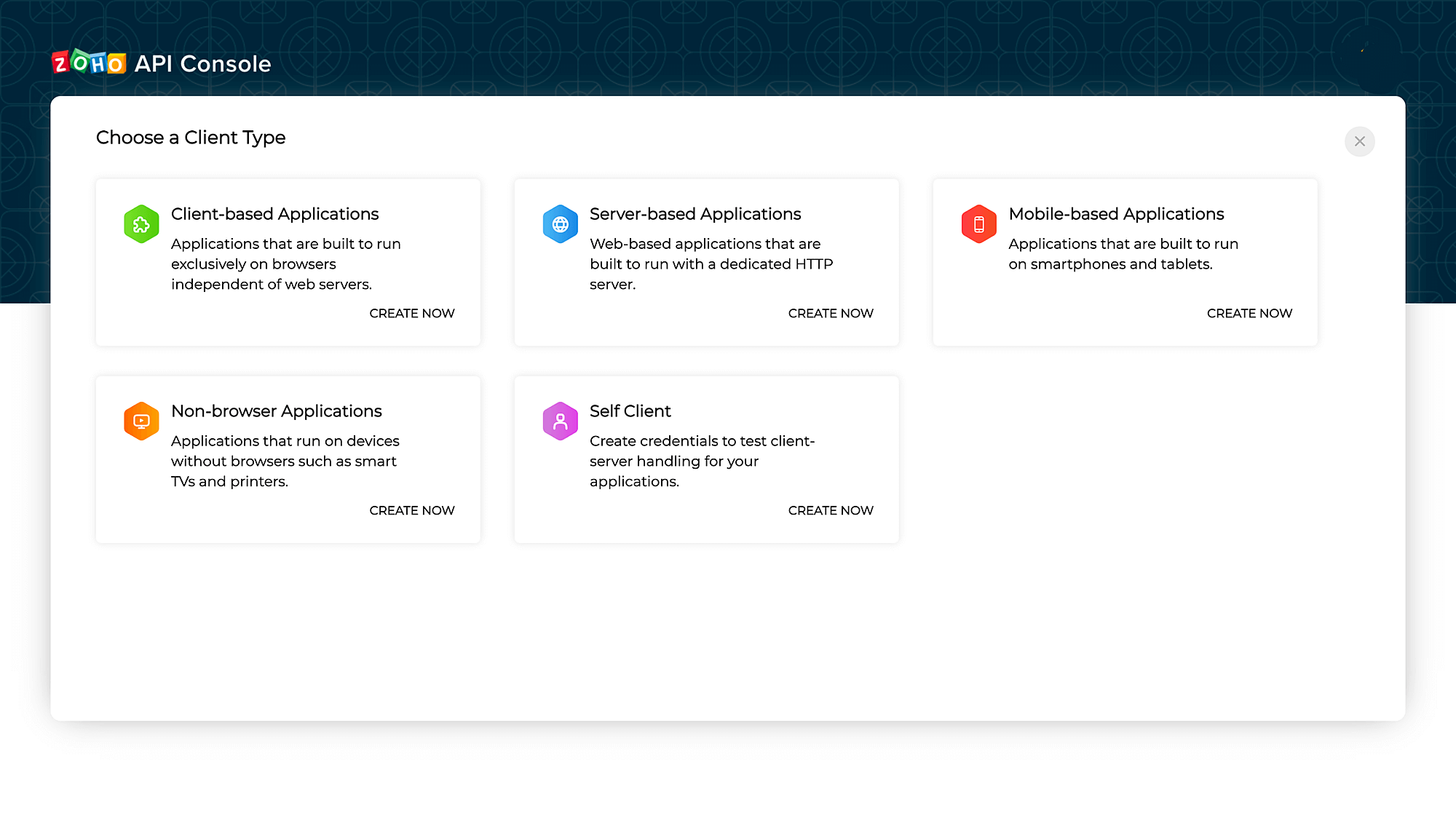
- Select the Server-based Applications tile.
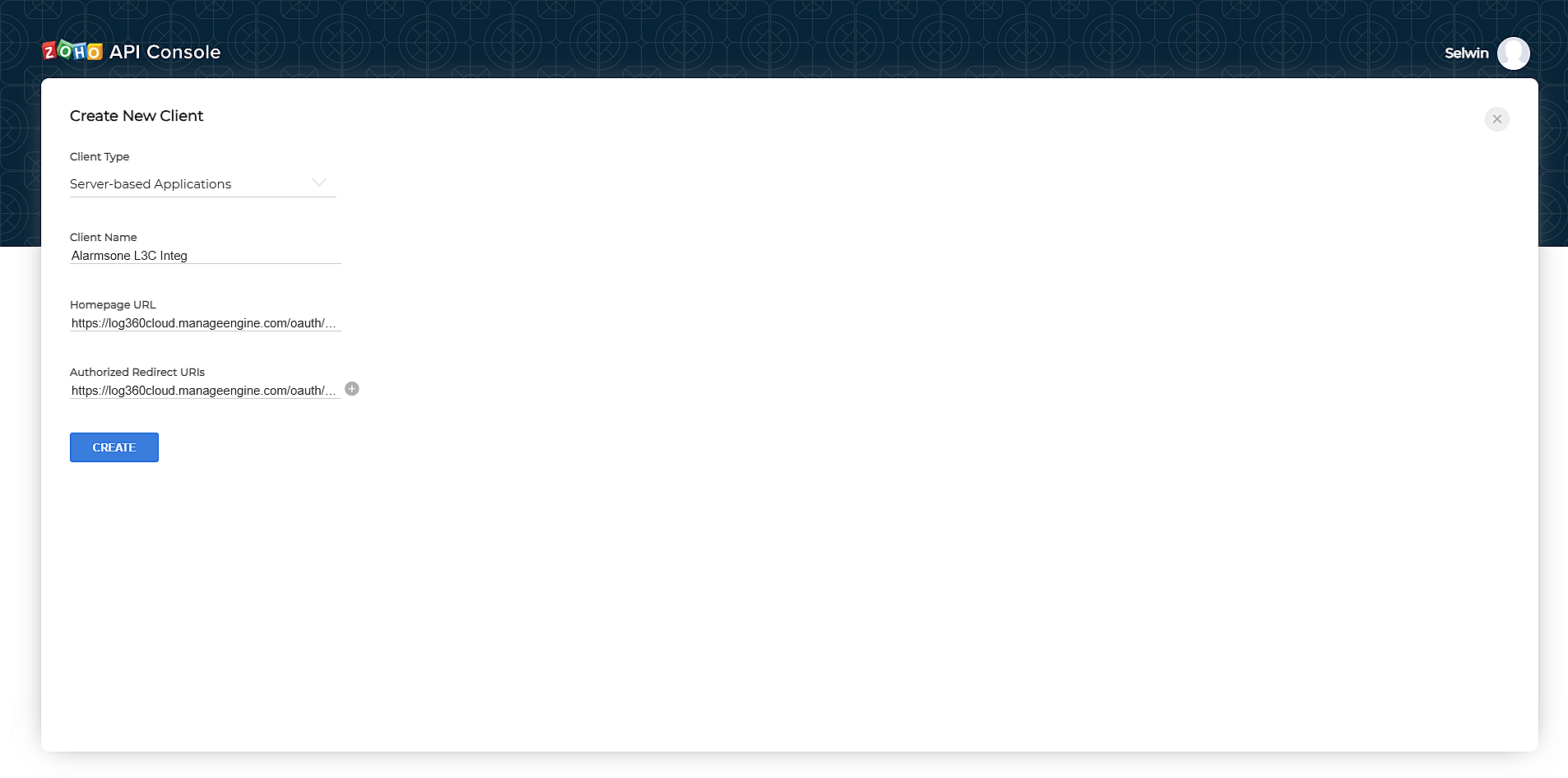
- To create a new client, enter the required details. Enter the redirect URL as given in the Log360 Cloud console and click Create.
- Copy the generated Client ID and Client Secret ID.
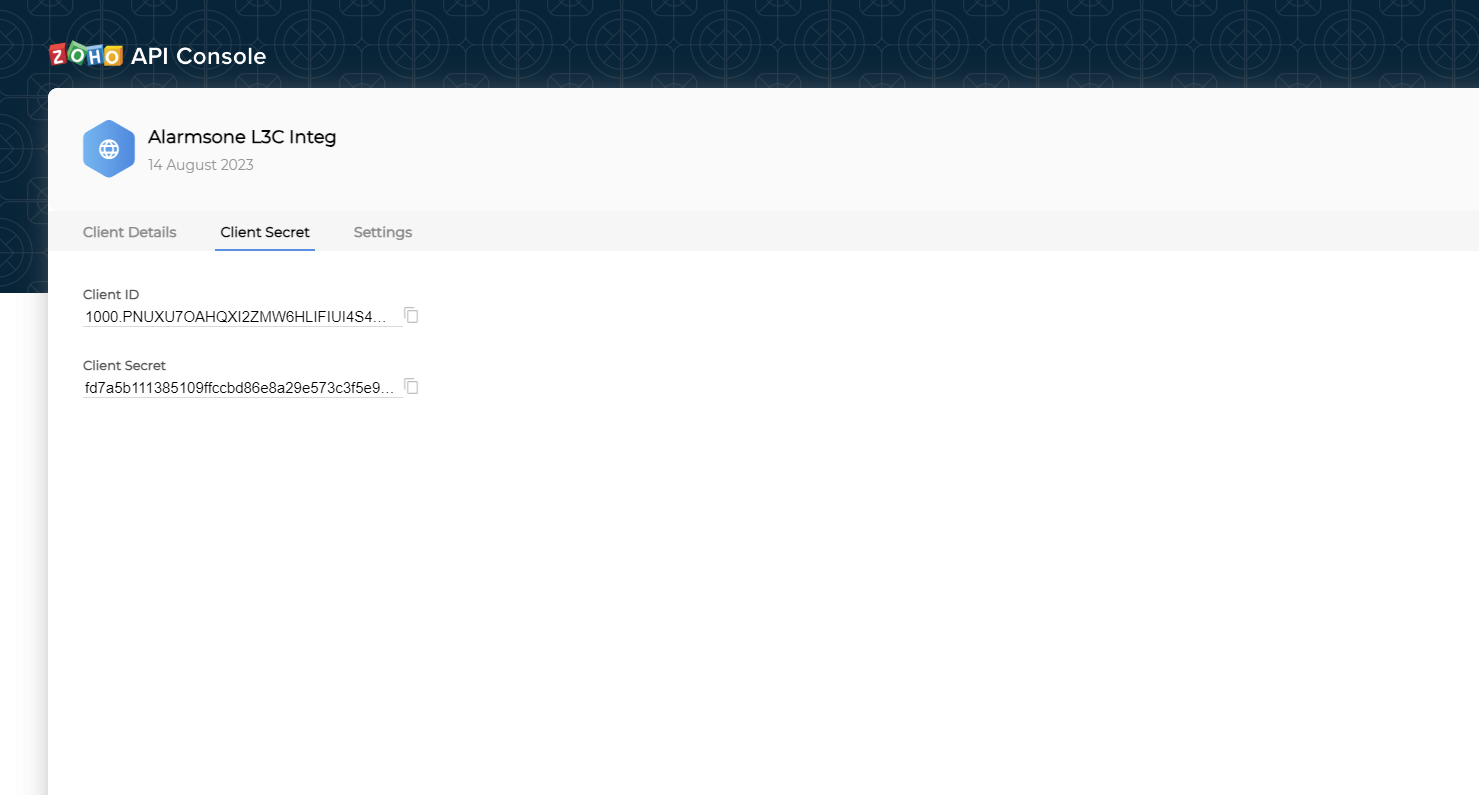
- Back in the Log360 Cloud console, paste the Webhooks URL, Client ID, and Client Secret ID in the required fields.
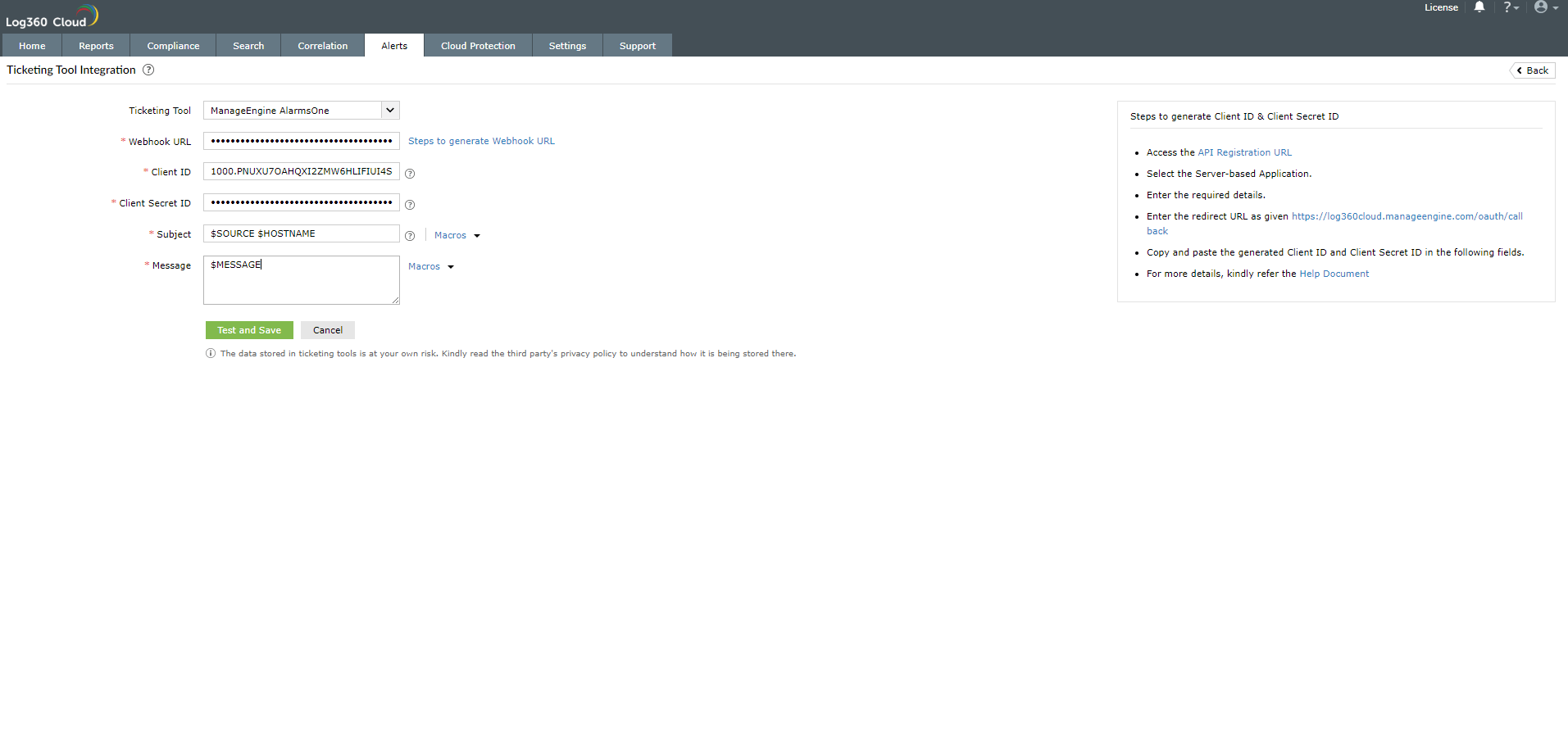
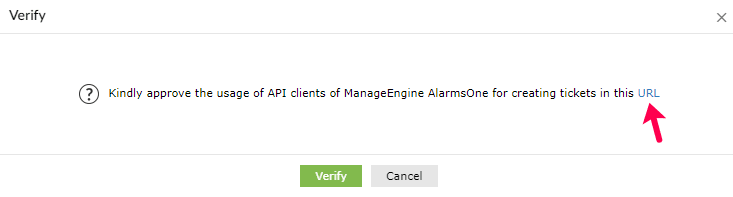
- Enter the Subject and the Message for the alert. You can select them from the predefined list available under Macros or type your own. Click the Test and Save button. On clicking the Test and Save button, a verify popup will be displayed. Click the URL to approve the usage of the clients of ManageEngine AlarmsOne.
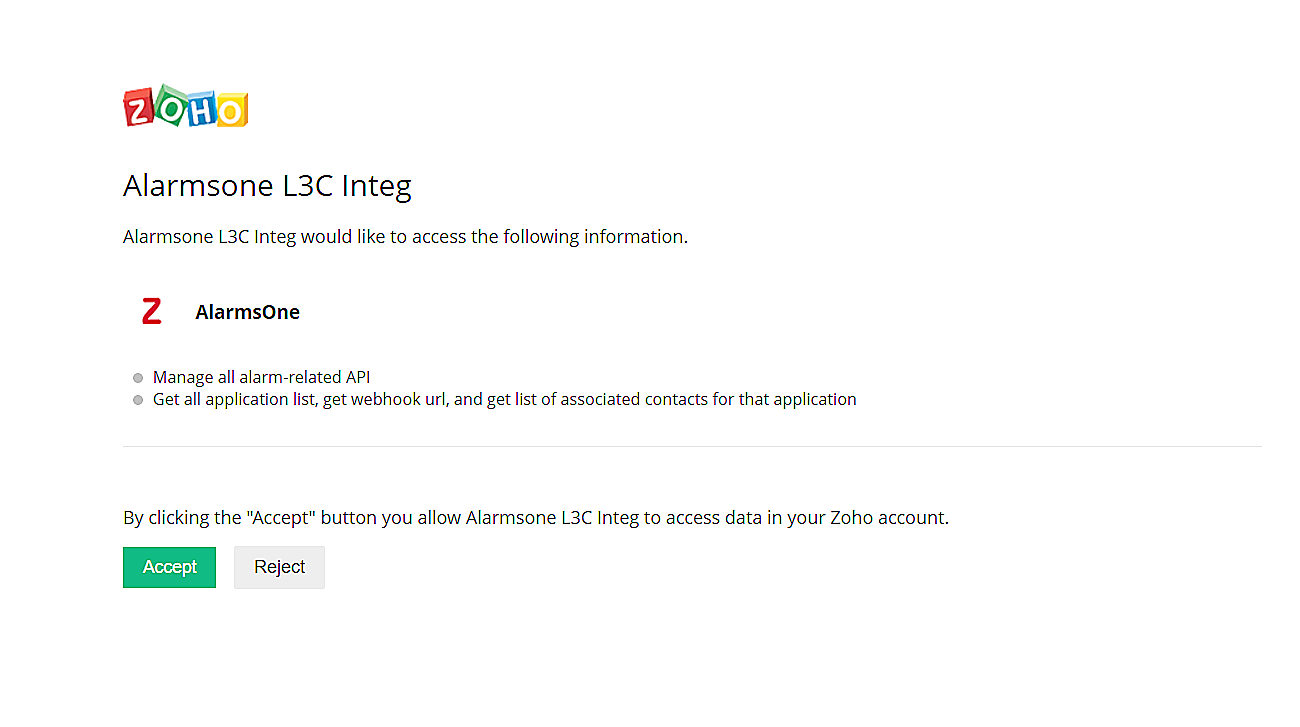
- Click Accept for API approval.
- Click Verify button in Log360 Cloud. The ticketing tool will now be configured successfully.
For ServiceNow:
In Log360 Cloud, navigate to the Alerts tab and click Ticketing Tool Integration under Alert Configuration. From the Ticketing Tool drop-down list, select ServiceNow.
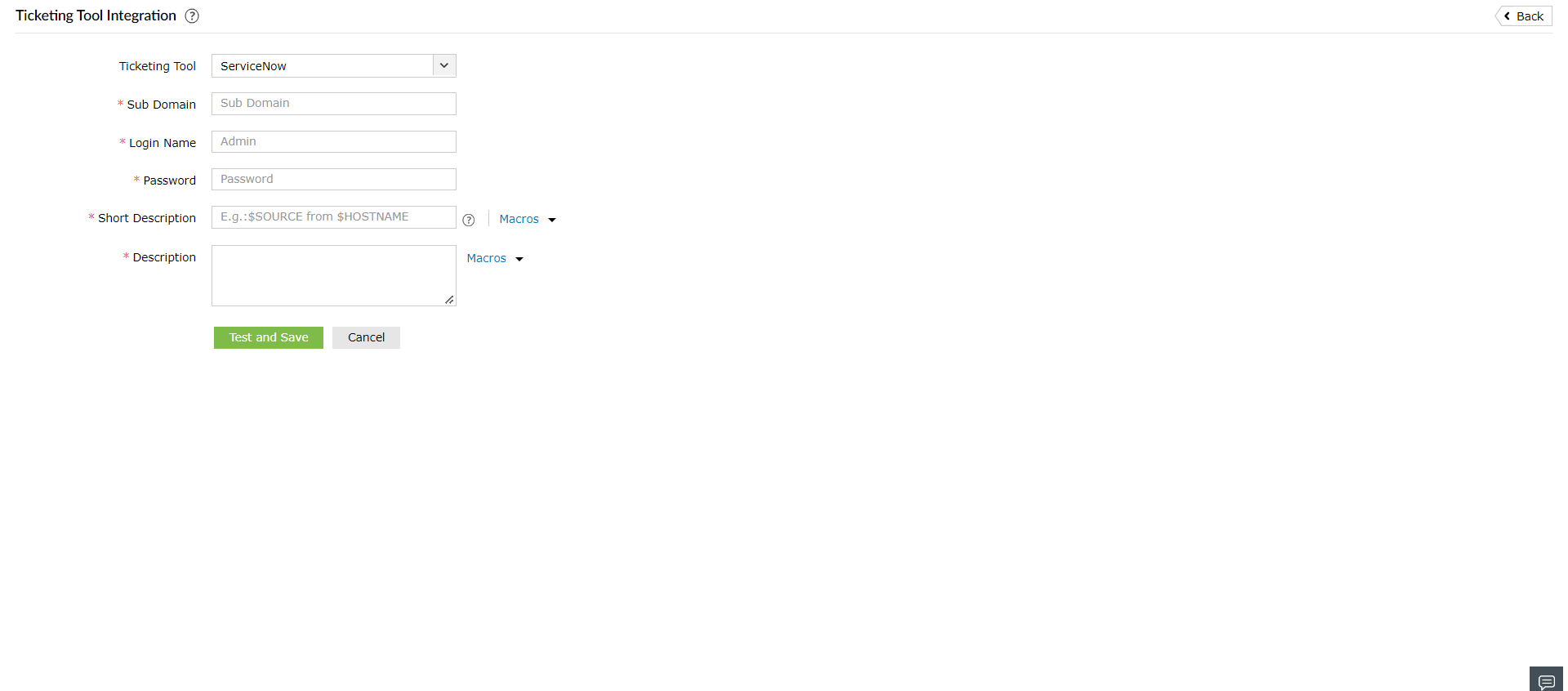
- Enter the ServiceNow Sub Domain name or IP address.
- Enter the Login Name and Password of a valid account in the ticketing tool.
- Enter the Short Description and the Description for the alert. You can select them from a predefined list available under Macros or type your own descriptions.
- Click the Test and Save button to establish communication and complete the configuration.
For Zendesk:
To configure Log360 Cloud with Zendesk, you will need to retrieve some information from your Zendesk ticketing tool.
Configuring Zendesk with OneAuth authentication:
To configure Log360 Cloud with Zendesk, you will need to retrieve some information from your Zendesk ticketing tool:
- After logging into your Zendesk account, click the tray icon in the top bar and click Admin Center.
- In Admin Center, click Apps and integrations in the sidebar > select APIs > Zendesk API > OAuth Clients.
- Click the
 icon to create a new OAuth Client.
 - Enter the client name, description, and name of the company. Select a logo.
- In the Client Kind field, select Confidential.
- In the Redirect URLs field, enter the URL provided in the Log360 Cloud console.
- Copy the Unique Identifier value that appears and save it securely.
- After clicking Save, a secret code will appear above the Save button. Click Copy and store it in a secure document. This code will be needed for configuring Zendesk in Log360 Cloud.
- Click Close and return to Log360 Cloud to finish the configuration.
Configuring Zendesk with Basic API authentication:
- Click the Admin icon in the sidebar, then select Channels → API.
- Click the Settings tab, and make sure Token Access is enabled.
- Click the button to the right of Active API Tokens.
- Optionally, enter a description under API Token Description. The token is generated, and displayed.
- Copy the token, and paste it somewhere secure. Once you close this window, the full token will never be displayed again.
- Click Save to return to the API page. A truncated version of the token is displayed.
Configuration in Log360 Cloud for Zendesk integration
In Log360 Cloud, navigate to the Alerts tab and click Ticketing Tool Integration under Alert Configuration. From the Ticketing Tool drop-down list, select Zendesk.
- Enter the Zendesk subdomain name in the given field.
- Under Authentication, you can choose either OneAuth or Basic API.
- If you choose OneAuth under Authentication, follow the steps given below.
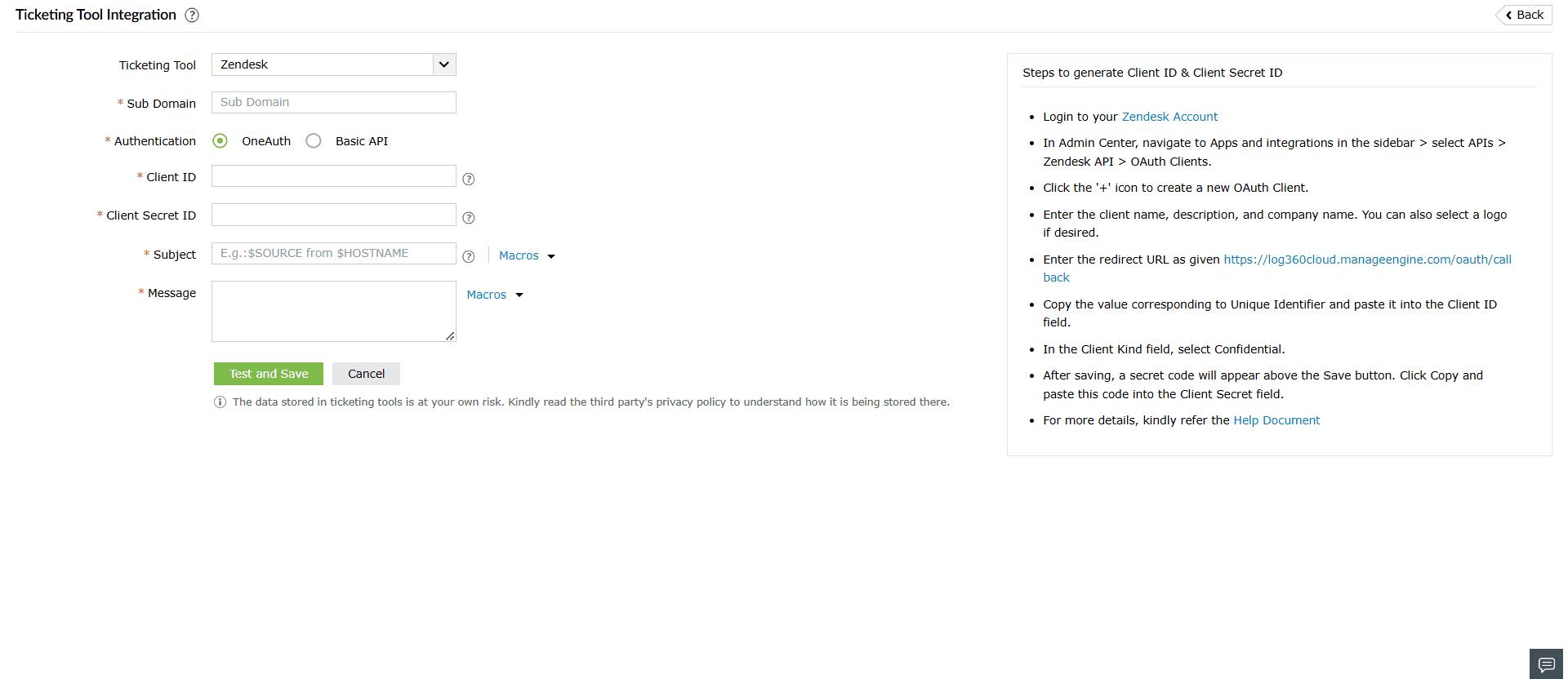
- Enter the Client ID (the value of the Unique Identifier noted from the ticketing tool).
- Enter the Client Secret ID (the value of the Secret Code obtained from the ticketing tool).
- Enter the Subject and Message for the alert. Select from the predefined Macros list or add custom text.
- Click Test and Save. A verification popup will appear. Click the URL to approve Zendesk client usage.

- Click Allow to approve API access.

- Click Verify in the Log360 Cloud console. The Zendesk integration is now complete.
- If you choose Basic API under Authentication, follow the steps given below:
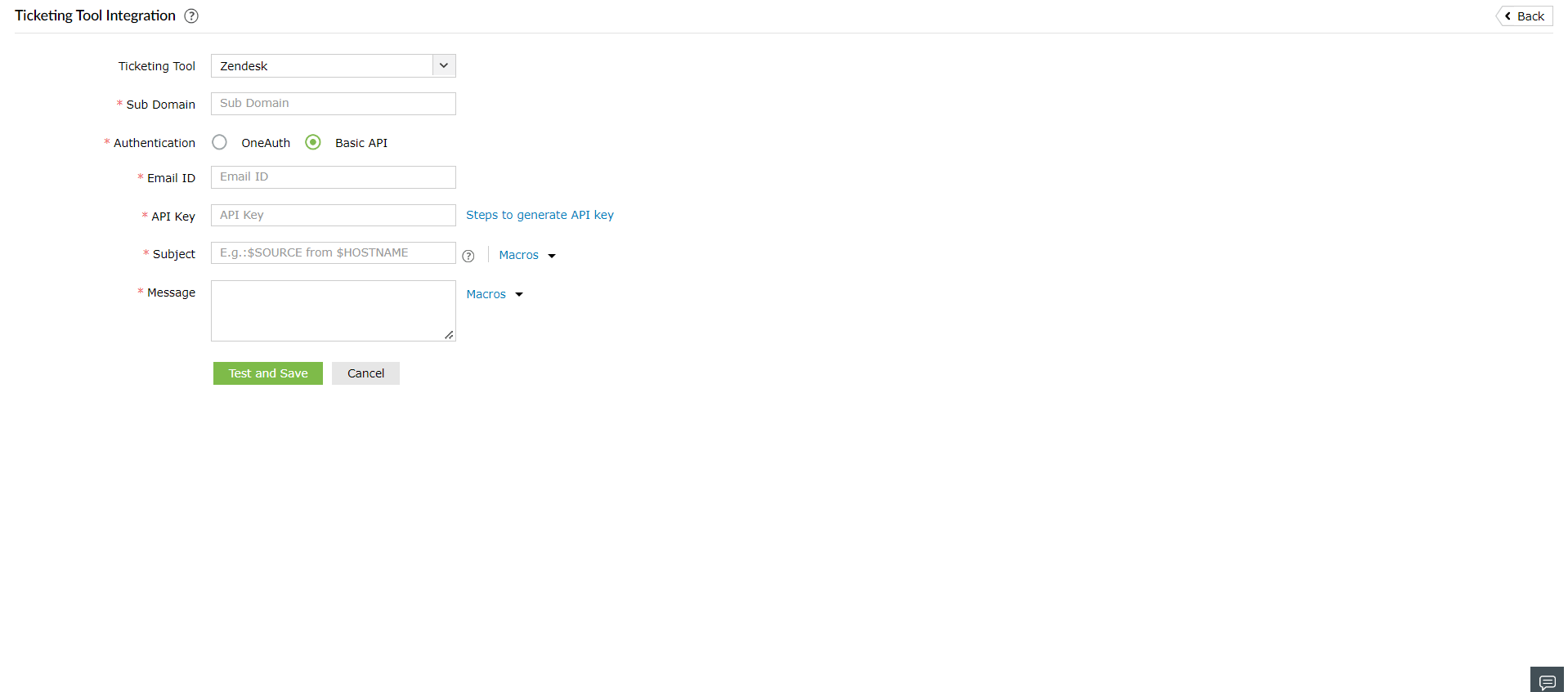
- Provide the Email ID in the given field.
- Click on Steps to Generate API Key for steps to generate an API key.
- Follow the given steps to generate the API key. After generation, provide the API key in the corresponding field.
- Enter the Subject and the Message for the alert. You can select them from the predefined list available under Macros or provide your own.
- Click the Test and Save button to establish communication and complete configuration.
For Jira Service Desk
- To configure Log360 Cloud with Jira Service Desk, you need to get a few details from your Jira ticketing tool. Go to the Official Jira Cloud Doc to get the API Token.
- After logging into your Jira Service Desk account, click the settings icon on the top right corner and select Projects.
- In the project list, note down the Key corresponding to the project in which you want your tickets to be raised.
- Click the settings icon on the top right corner and select Issues.
- Note down the type of issues that the particular project can hold. The issues raised from Log360 Cloud should have the same type for a ticket to be successfully raised in Jira Service Desk.
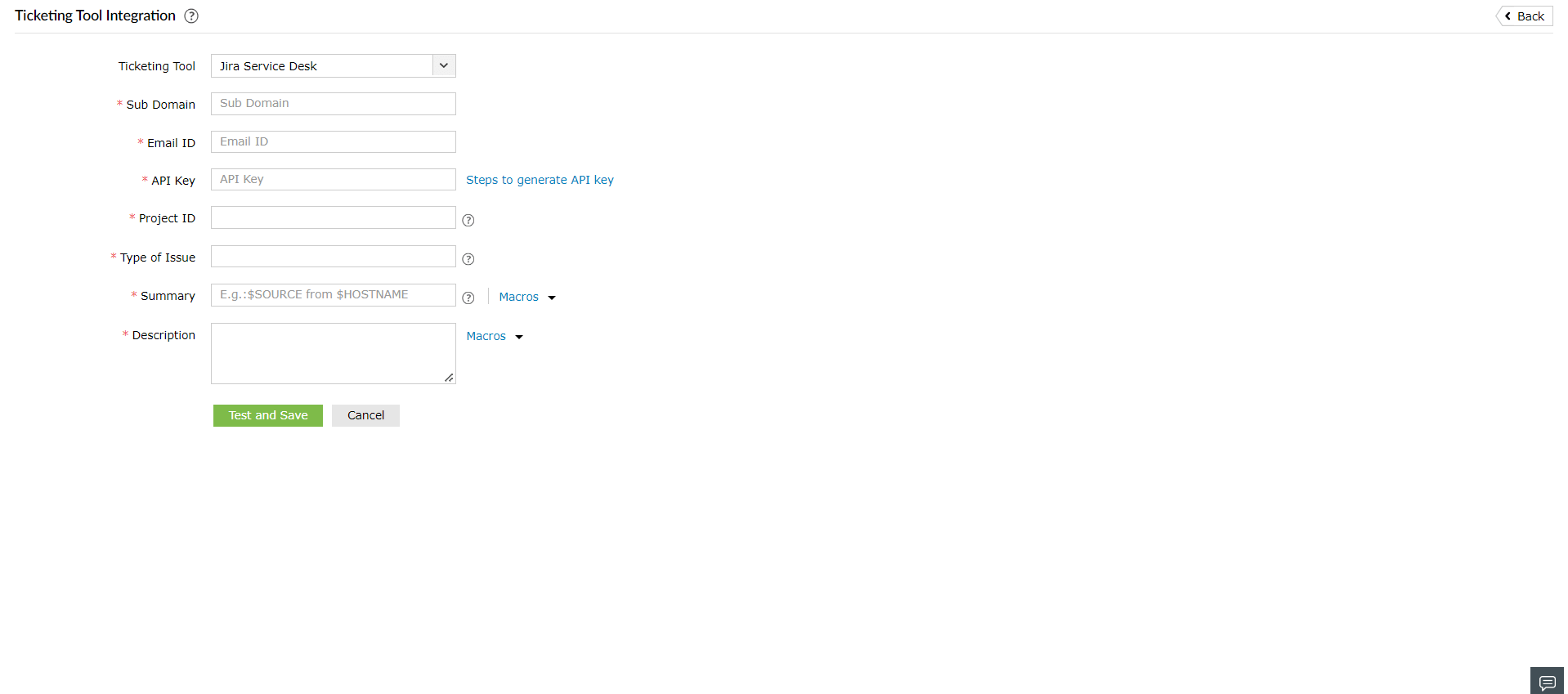
In Log360 Cloud, navigate to the Alerts tab and click on ticketing tool integration under Alert Configuration. From the Ticketing Tool drop-down list, select Jira Service Desk.
- Enter the Jira Service Desk Subdomain.
- Enter your Jira Account Email ID.
- Enter the API key that we got in the previous step.
- Enter the Project ID. This is the Key of the particular project noted from the ticketing tool.
- Enter the type of issue. This has to be the same issue type that the project has been configured to hold.
- Enter the Summary and the Description for the alert. You can select them from the predefined list available under Macros or type your own.
- Click the Test and Save button to establish communication and complete configuration.
For Freshservice
- Permissions to create, reply, edit, and delete tickets.
- SD Agent, SD Supervisor, Admin, or Account admin role.
Or
To configure Log360 Cloud with FreshService, you need to first get some details from your FreshService ticketing tool. Go to the official Freshservice Doc to get the API Token.
In Log360 Cloud, navigate to the Alerts tab and click Ticketing Tool Integration under Alert Configuration. From the Ticketing Tool drop-down list, select Freshservice.
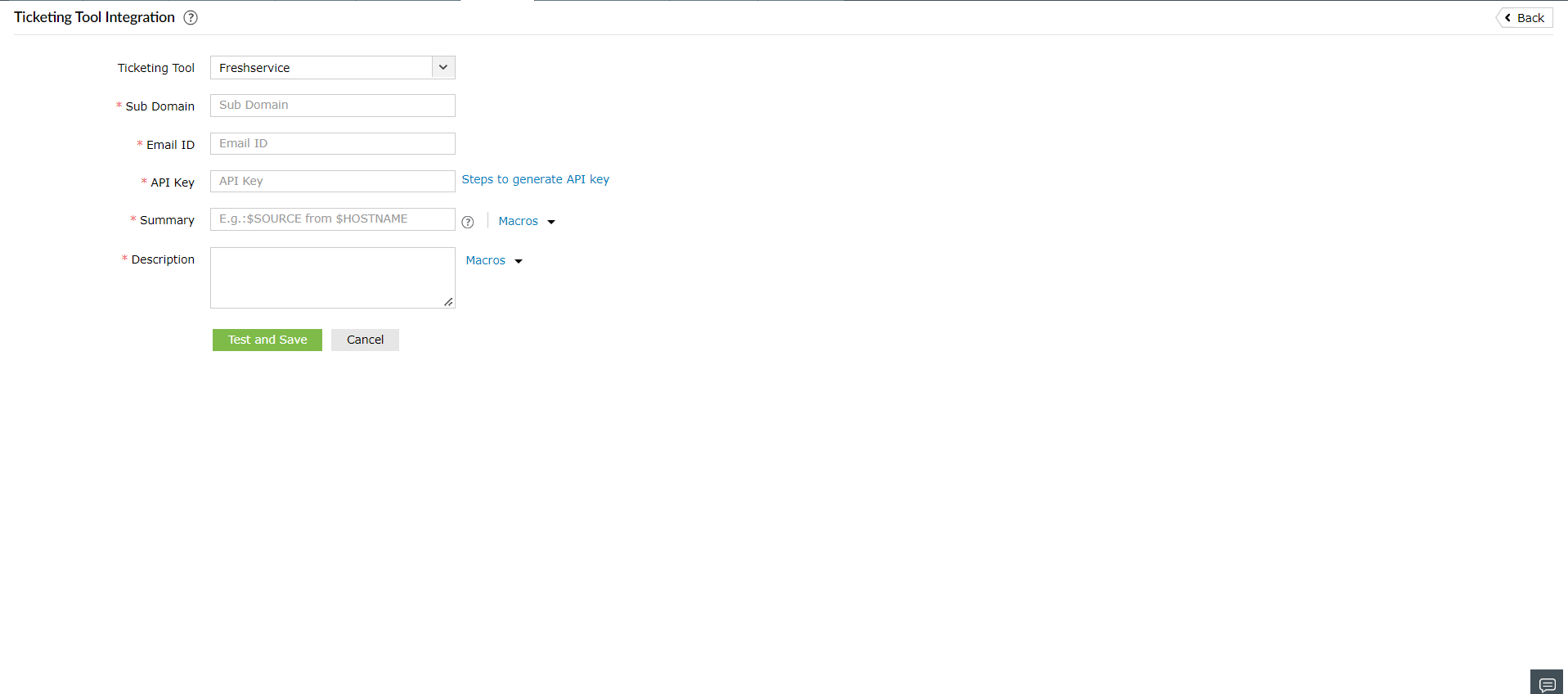
- Enter the Freshservice Subdomain.
- Enter Freshservice account Email ID.
- Enter the API key that we got in the previous step.
- Enter the Summary and the Description for the alert. You can select them from the predefined list available under Macros or type your own.
- Click the Test and Save button to establish communication and complete configuration.
For Kayako:
In Log360 Cloud, navigate to the Alerts tab and click Ticketing Tool Integration under Alert Configuration. From the Ticketing Tool drop-down list, select Kayako.
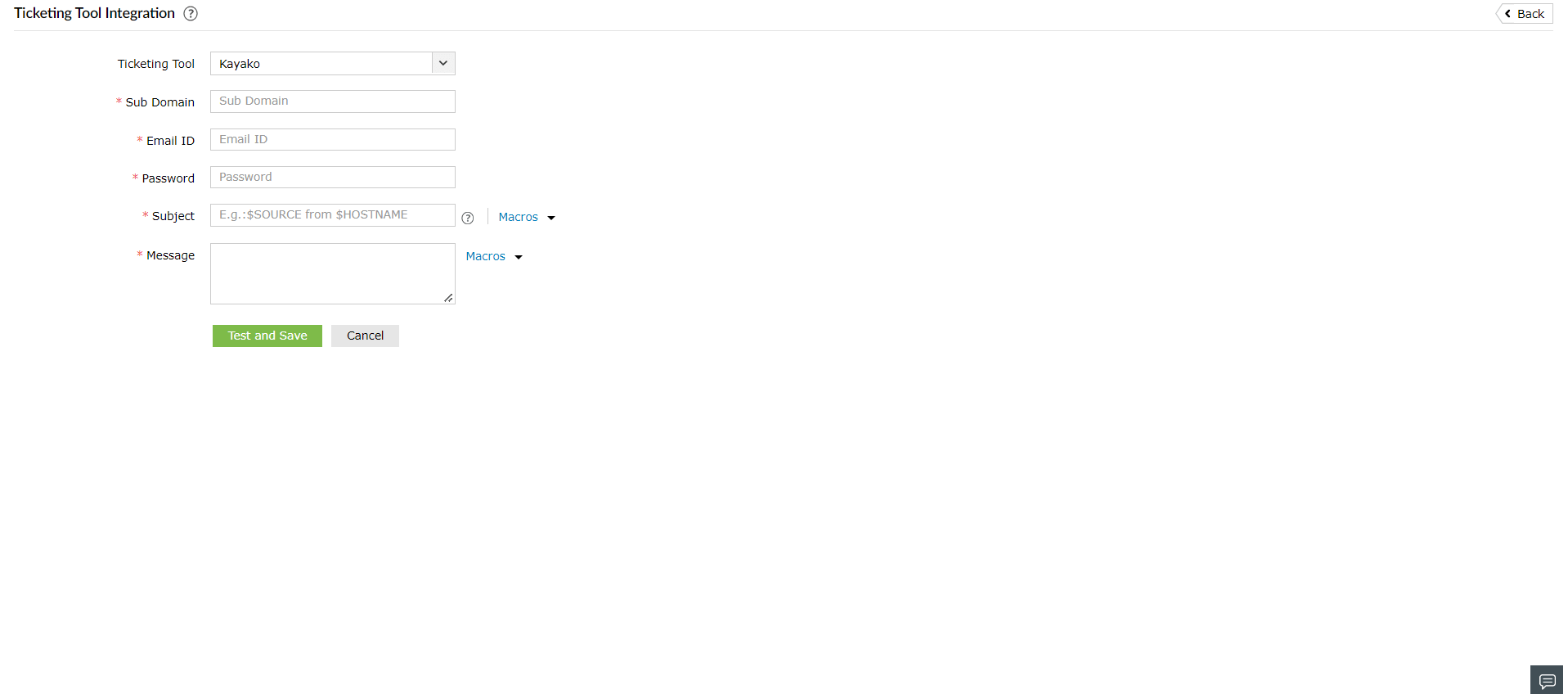
- Enter the Kayako subdomain name.
- Enter the Email ID and password of a valid user in the ticketing tool.
- Enter the subject and the message for the alert. You can select the subject and message from a predefined list available under Macros or type your own descriptions.
- Click the Test and Save button to establish communication and complete configuration.
Mapping Alert Profiles with Configured Ticketing Tools
After configuring Log360 Cloud with the ticketing software, you can select the alert profiles for which tickets need to be raised.
In the ticketing tool integration page, you will have a list of existing alert profiles. Select the ones for which you want a ticket to be raised. You can search for specific alert profiles using the search box. You can also select all the alert profiles by ticking the Select All check box. If Select All is checked, all the alert profiles added in the future will be automatically selected and tickets will be raised for them as well. Once you have completed selecting the alert profiles, click Update.
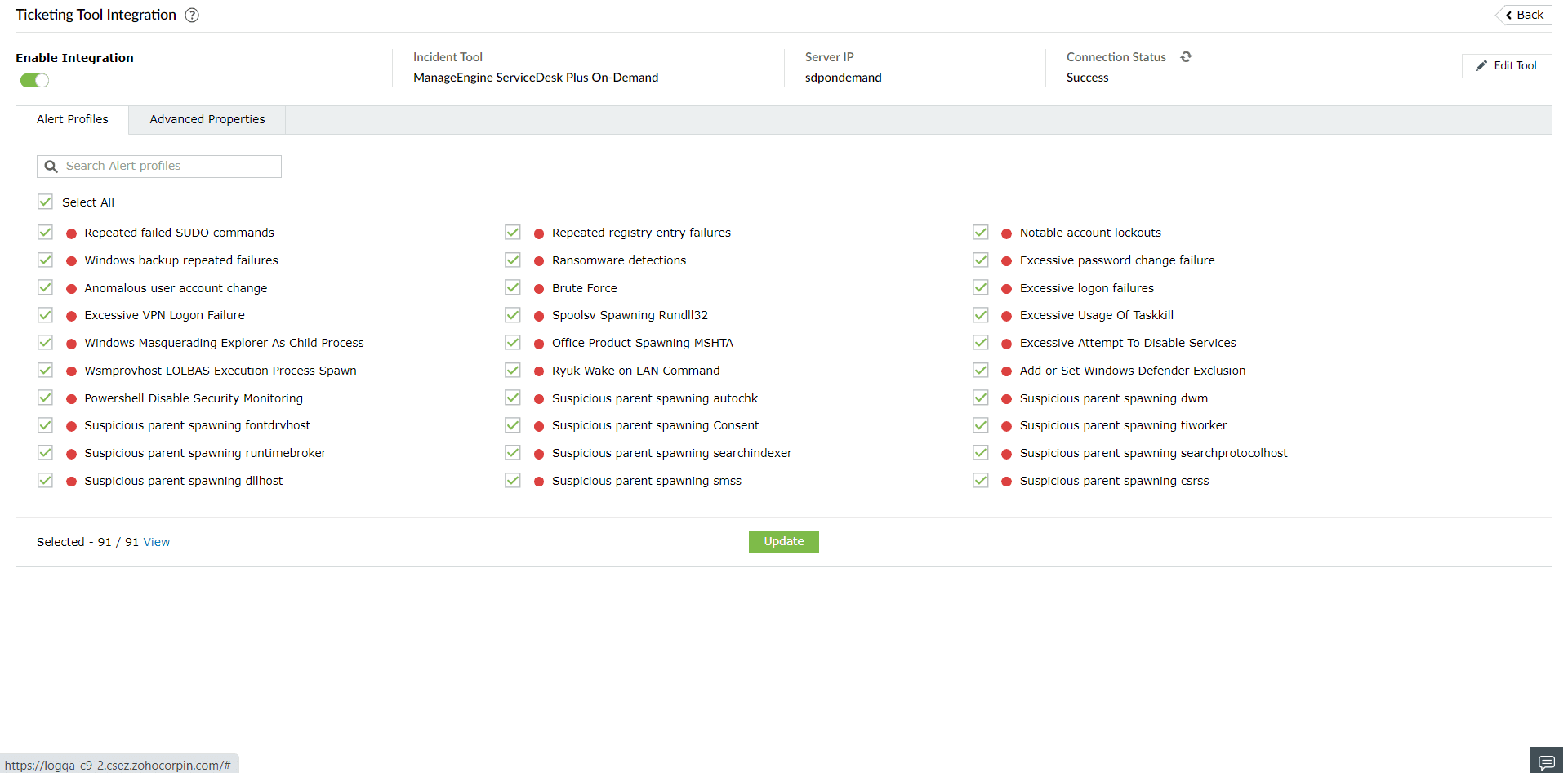
After configuring Log360 Cloud with the ticketing tool, you can select specific alert profiles from where tickets have to be created.
- Go to the Ticketing Tool Integration page, and you will find a list of all the existing alert profiles.
- To select alert profiles, choose the specific profiles for which tickets should be raised by using the search box to find them.
- To select all alert profiles, check the Select All box. Any future profiles will also be automatically selected.
- Once you have selected the alert profiles, click on Update to apply the changes.
- After the changes have been updated, you can use the toggle button to enable/disable the integration as and when needed.
Advanced Properties Configuration
After configuring Log360 Cloud with the ticketing tool, go to the Advanced Properties tab and set the desired values for each property. This will ensure that the tickets created in the configured ticketing tool will have these values.
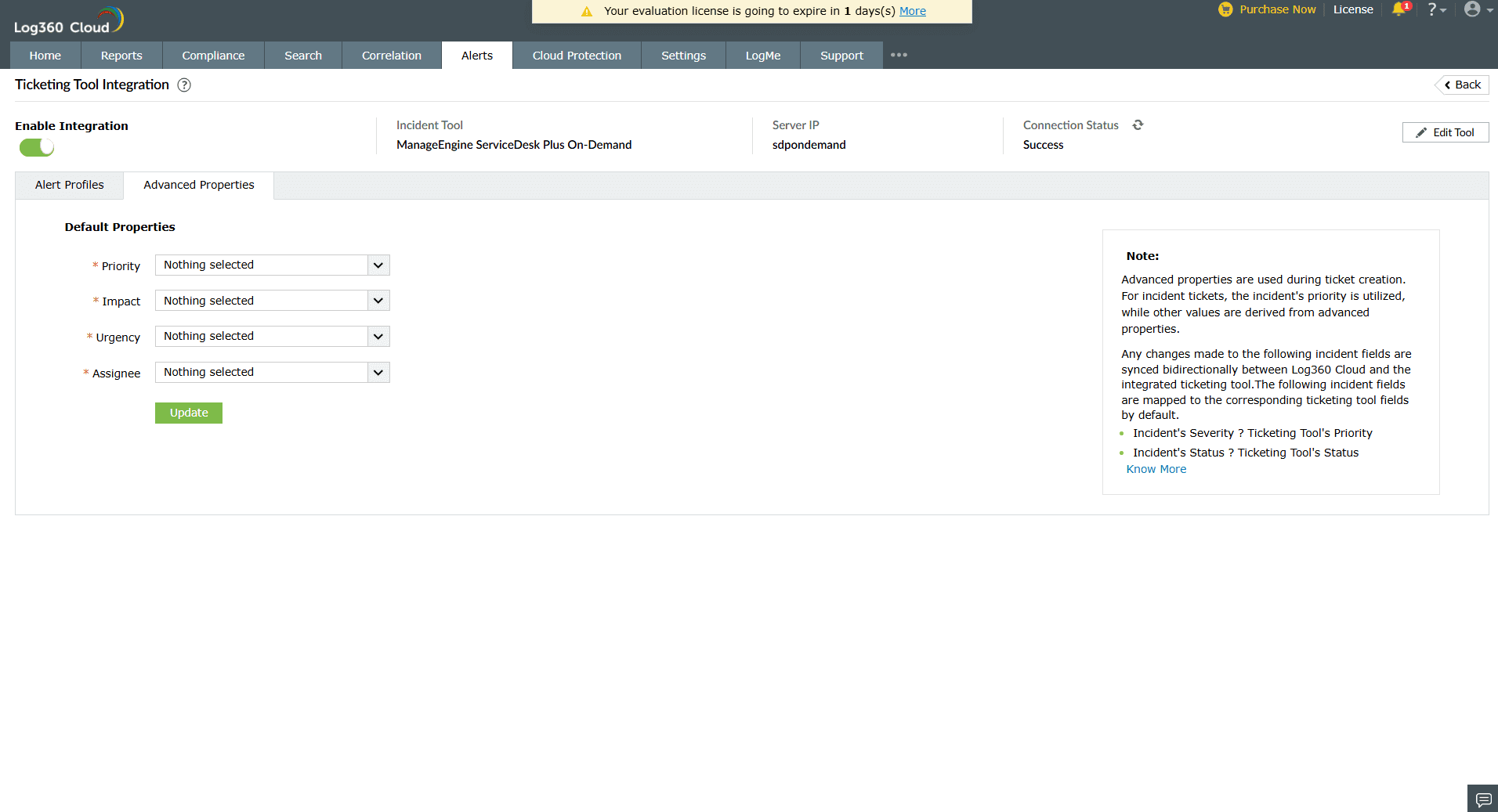
- The Priority selected in Advanced Properties will not apply to tickets created from Incidents.
- For seamless functioning of Advanced Properties, users integrating with Freshservice must disable the Priority Matrix in their Freshservice account.
Ticketing Tool Status
With Log360 Cloud, you can efficiently manage security incidents by raising tickets and assigning them to administrators for alerts that are generated. After successfully configuring the ticketing tool, the ticket details can be viewed in Alerts tab by clicking the specific alert.
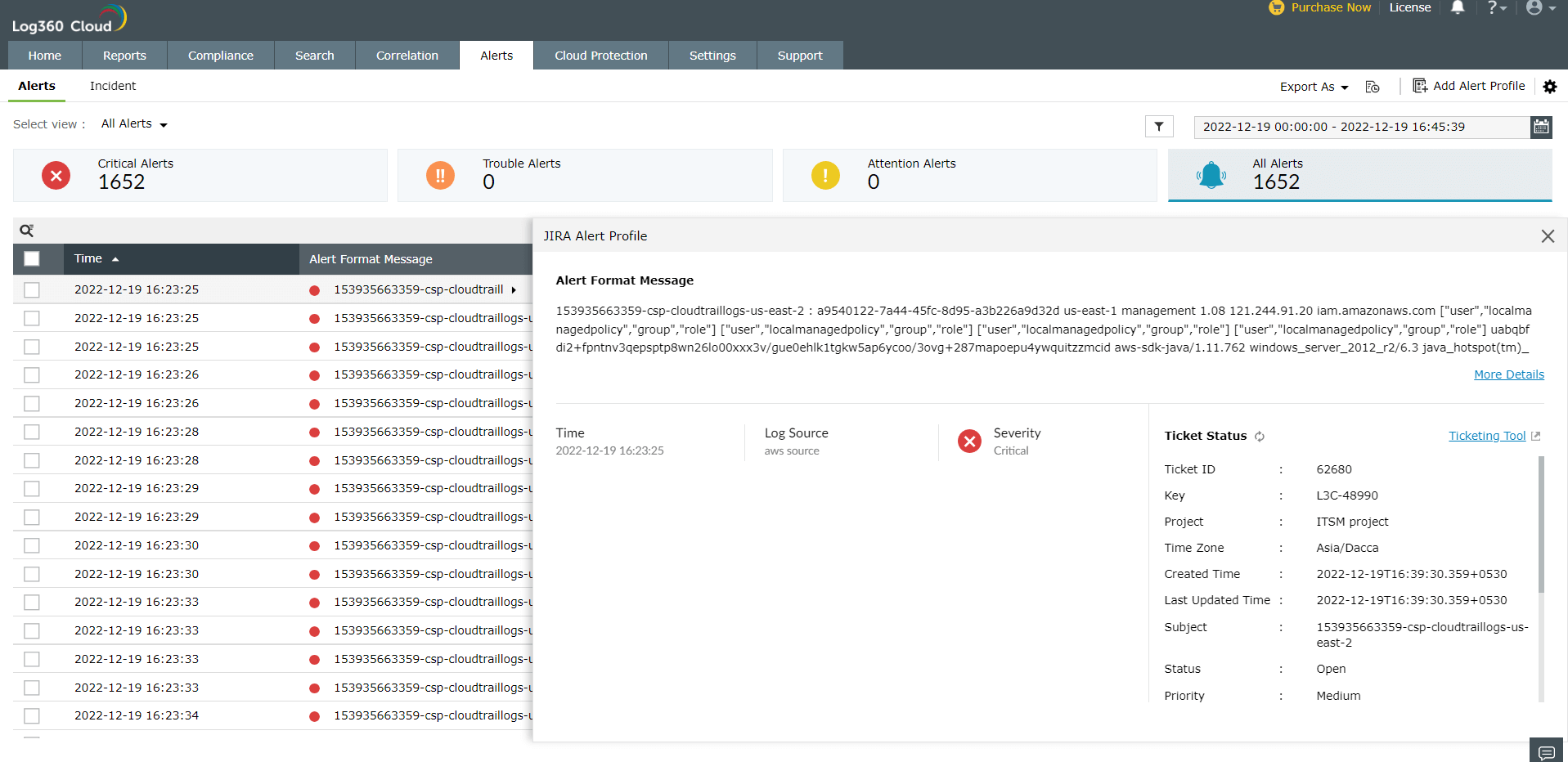
The pop-up will only be shown when the organization has enabled GDPR in Log360 Cloud.