Accounts
The Accounts dashboard in CloudSpend provides a consolidated view of your cloud spending across different cost accounts. It shows real-time and historical cost insights, usage trends, and forecasts, helping you track and manage costs at an account level. This dashboard is especially useful for organizations managing multiple cloud accounts across teams or projects.
Benefits of the Accounts dashboard
The Accounts dashboard offers more than just a view of your cloud spending. It brings together cost, usage, and forecast data across all linked accounts, subscriptions, or projects, helping teams make informed decisions quickly. Below are some key benefits:
- Centralized visibility:View and compare costs from multiple cloud accounts in a single place. This is useful for organizations managing cloud usage across different teams or departments.
- Granular cost tracking:Break down costs by the account, service, region, and business entity. This helps you assign accountability and track usage at a detailed level.
- Trend analysis:Use mini bar charts and month-to-date comparisons to identify unusual cost patterns early. Teams can act on trends before costs escalate.
- Forecasting:Get spending projections based on historical usage. This helps teams monitor budget thresholds and take corrective action if needed.
- Resource awareness:Track the number of resources over time to understand infrastructure changes. A decrease may indicate a cleanup, while an increase could result from business growth, scaling activities, or possible over-provisioning.
- Optimization opportunities:Identify high-cost services and regions. Teams can reduce spending in a region or service by optimizing utilization or by adjusting reservations or savings plans.
- Team-level accountability:Use linked accounts, subscriptions, or projects and entity-level data to track which teams or projects are driving costs. This supports internal chargeback and budget planning.
- Simplified reporting and actions:Automate cost reporting with the Schedule Report feature. Add new accounts quickly using the Integrate Account option.
The Accounts view
The List view
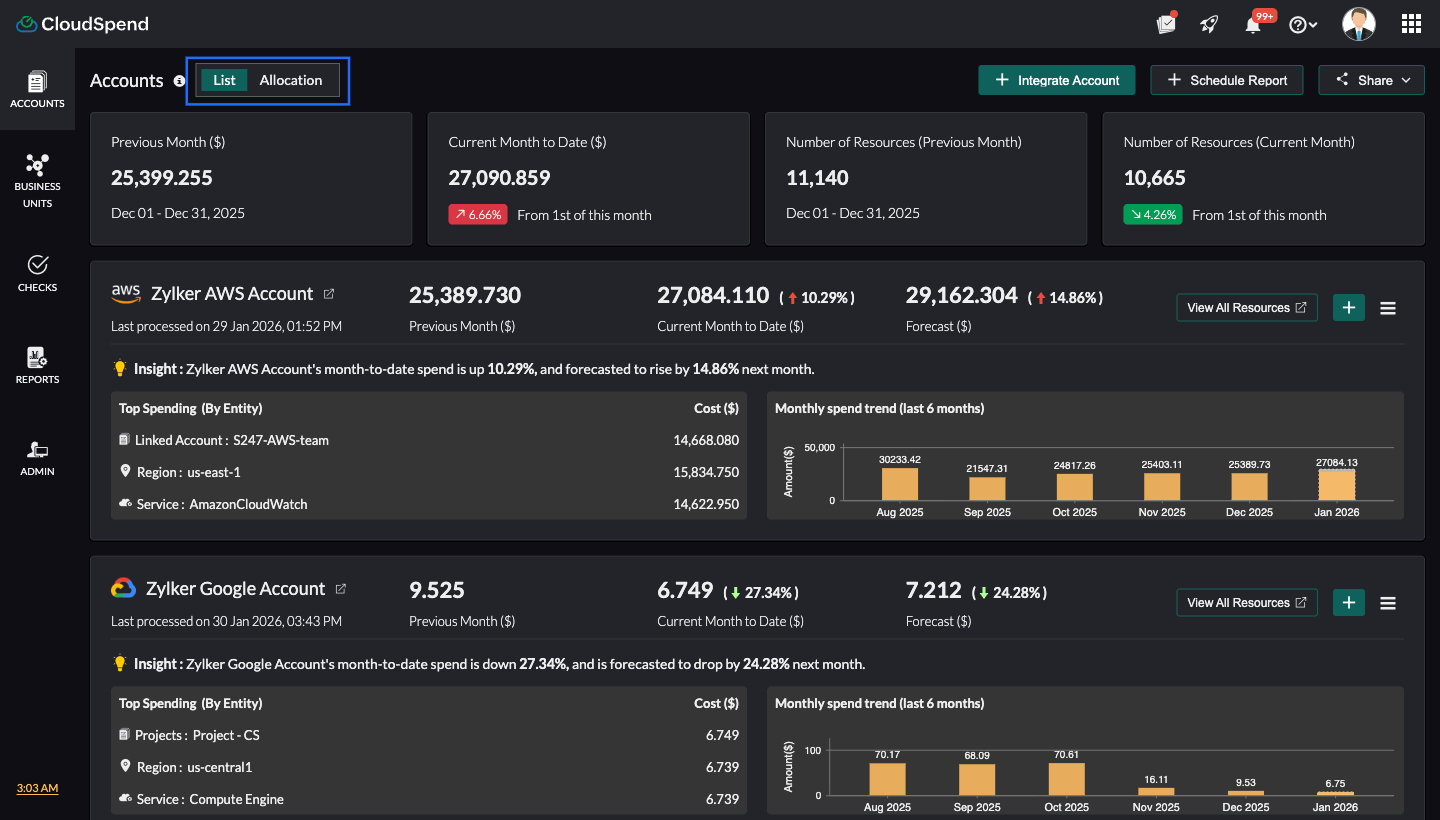
The List view provides the list of accounts in your CloudSpend account. This is the default view.
The Allocation view
The Allocation view on the Accounts dashboard provides a comprehensive breakdown of your organization’s cloud expenses, helping you track and optimize spending across multiple hierarchical levels. With flexible visualization options, you can analyze costs in a way that best suits your business needs.
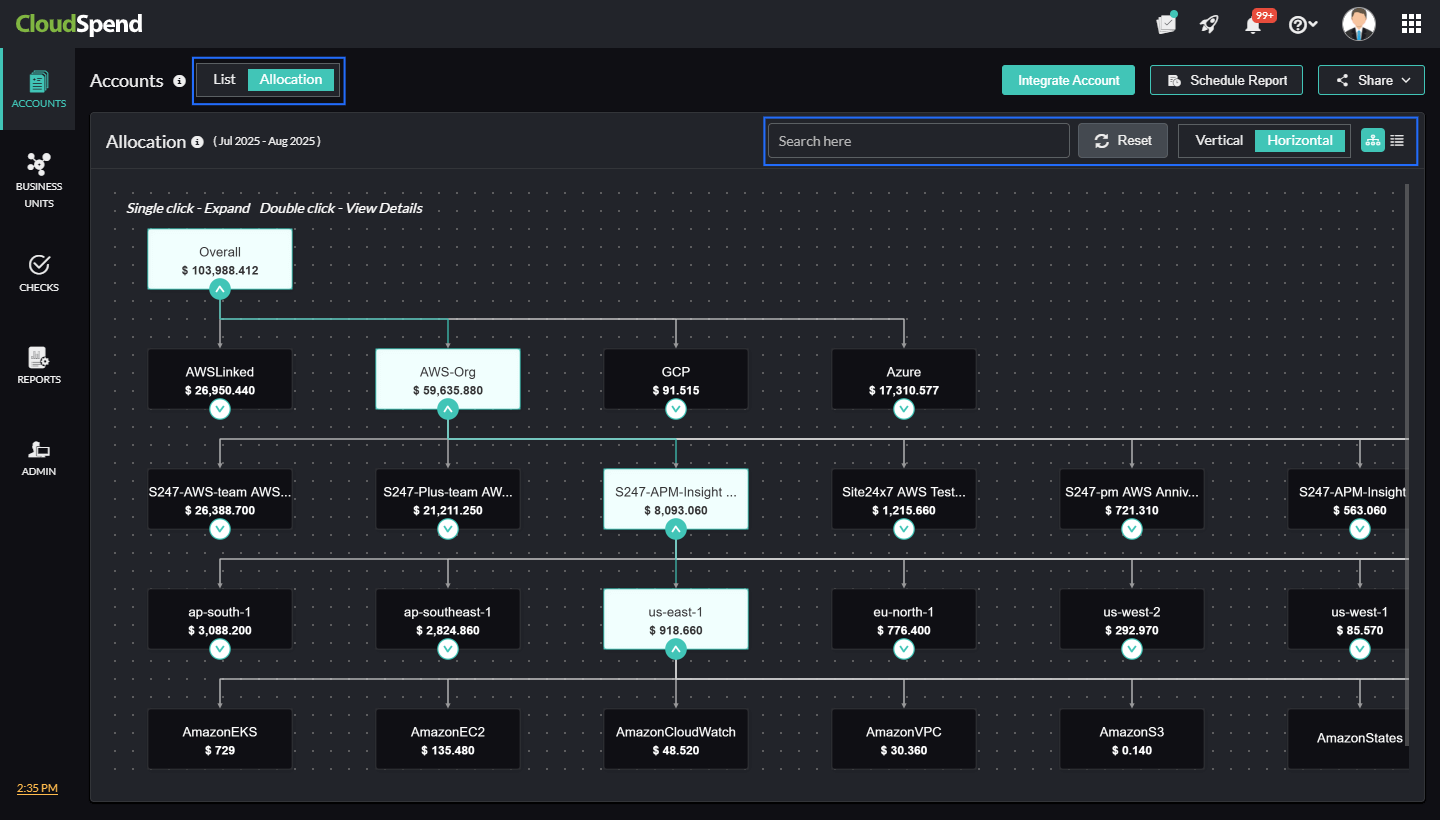
The hierarchy levels typically include the overall cost, account, linked account, region, and service, with each level providing a more detailed cost split. Additionally, you can dive deeper into the spending details of individual accounts by clicking any cost allocation level, such as the account, linked account, region, and service. This enables you to view these details about the account:
- Overview: This shows a summary of the selected account’s cloud spending. You can view details such as the Cost, Resource Count , and Contribution % from child accounts as well as the Savings %, Anomaly (Count), and Forecast value of the selected account.
- Splitup: This shows a breakdown of the costs for each resource.
- Top N Resources: This highlights the top resources contributing to your account's costs.
You can also create custom Cost Allocation reports to segment your cloud expenses using specific tags. Arrange these tags in the order that fits your analysis to get detailed visibility into costs based on your organizational structure, business priorities, or cost centers. With its detailed drill-down capability, the Cost Allocation report enables you to identify cost drivers, allocate expenses accurately, and implement effective cost-saving measures.
To access the Allocation view:
- Navigate to the Accounts dashboard.
- Select the Allocation tab.
- Choose your preferred view (Hierarchical View or Table View ) and orientation (Horizontal or Vertical ).
A detailed breakdown of the Accounts dashboard
The summary panel
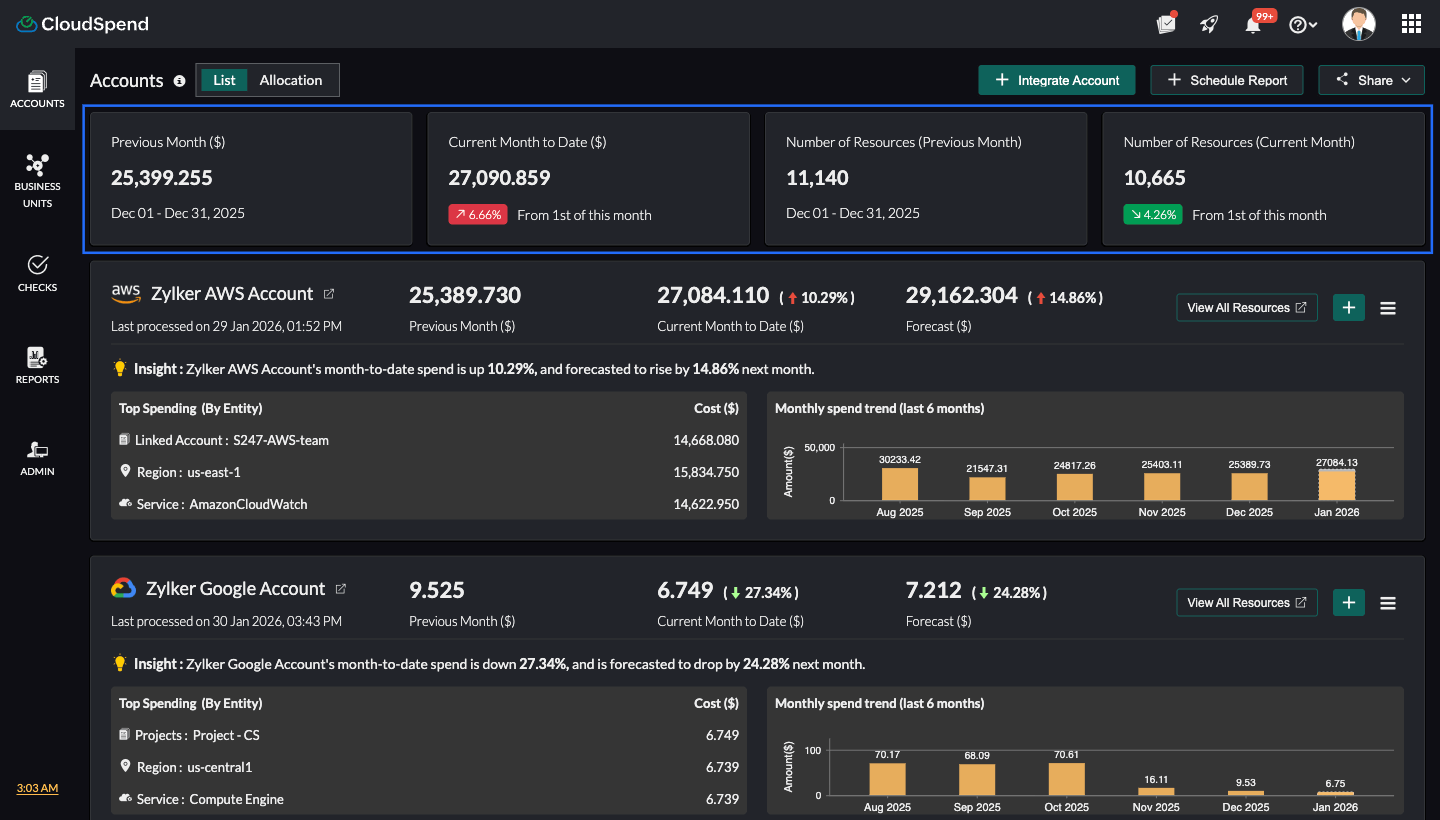
The top banner of the Accounts dashboard provides an at-a-glance view of key financial and usage metrics for all linked accounts:
- Previous Month ($): The total cloud spending across accounts in the last full billing cycle.
- Current Month to Date ($): The total spending so far in the current month, updated in near real time.
- Number of Resources (Previous Month): The total number of active resources that were running last month.
- Number of Resources (Current Month): The current active resources this month, with a trend indicator (e.g., a green down arrow with a percentage value means a drop from last month).
These metrics help teams compare past and present usage and costs quickly, enabling faster analysis.
Account cards
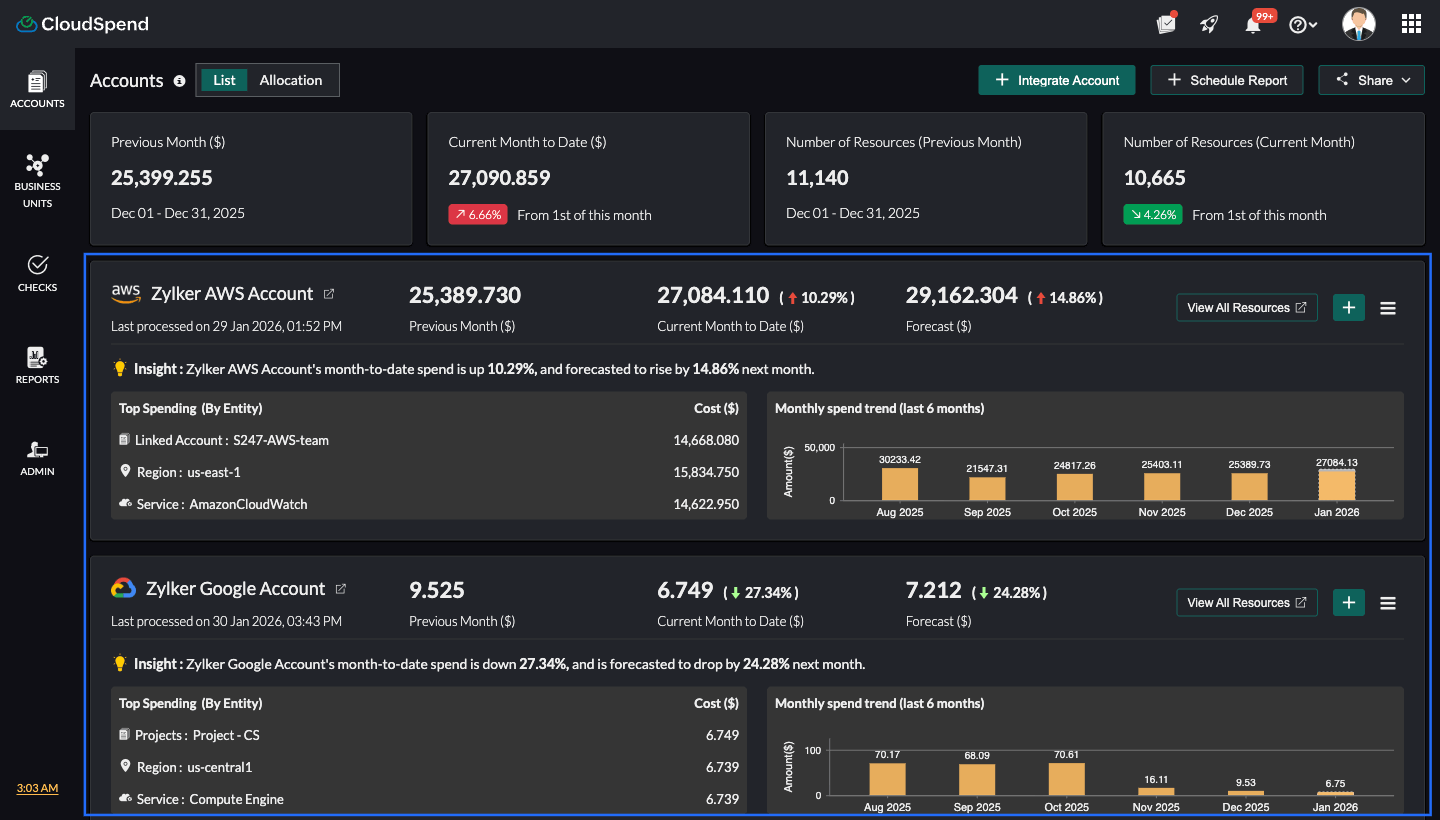
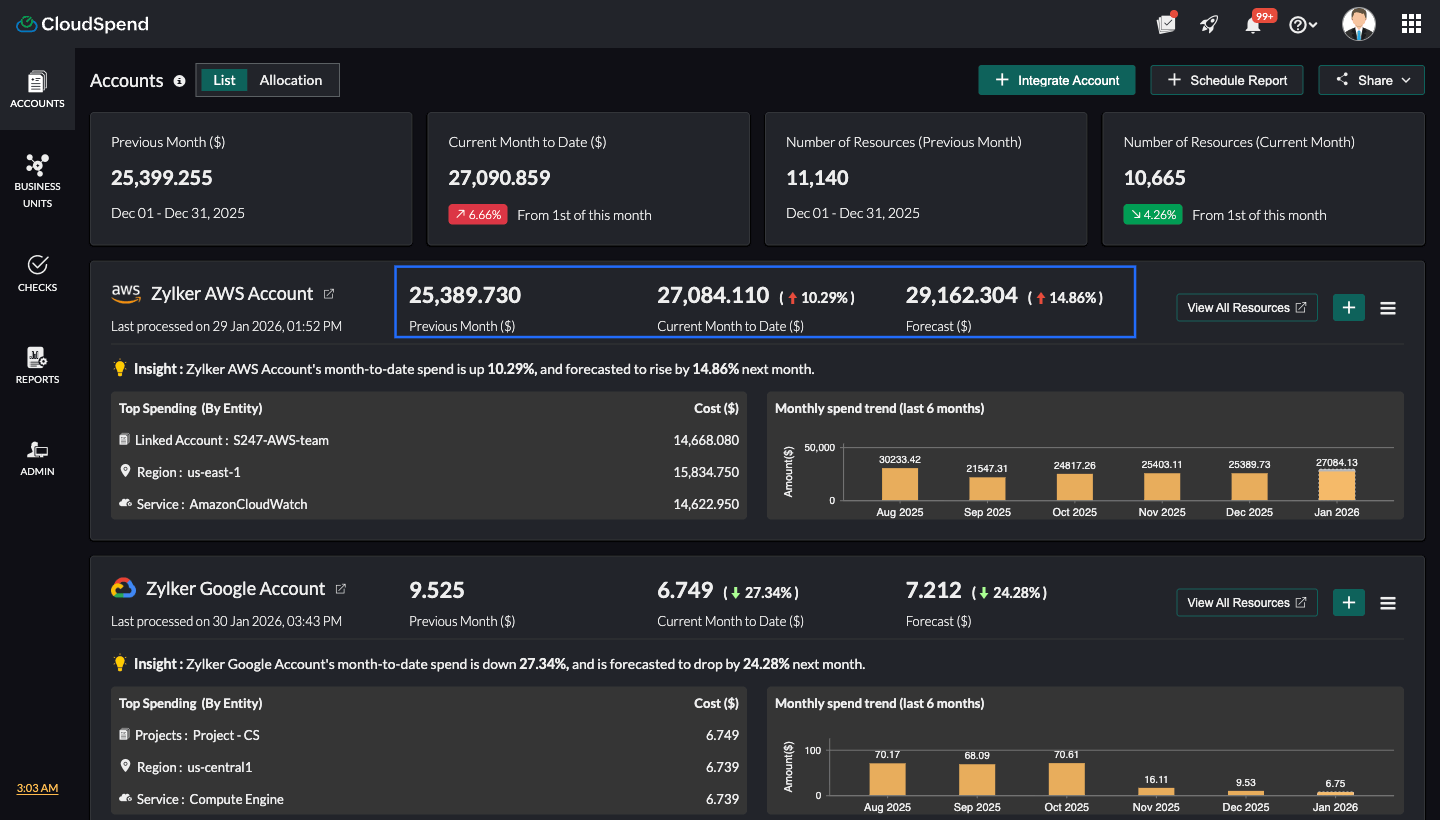
Each card shows detailed information about a specific linked cloud account.
Key fields for each account
- Name (e.g., AWS-Org or AWSLinked): Helps identify which business unit or team owns the account.
- Previous Month($): Shows last month’s total spending for the account.
- Current Month to Date ($): Shows the cost so far this month, with a percentage trend compared to the previous month; a red up arrow indicates an increase.
- Forecast ($): Represents the estimated bill for the current month, predicted based on historical spending and usage patterns.
Mini bar charts
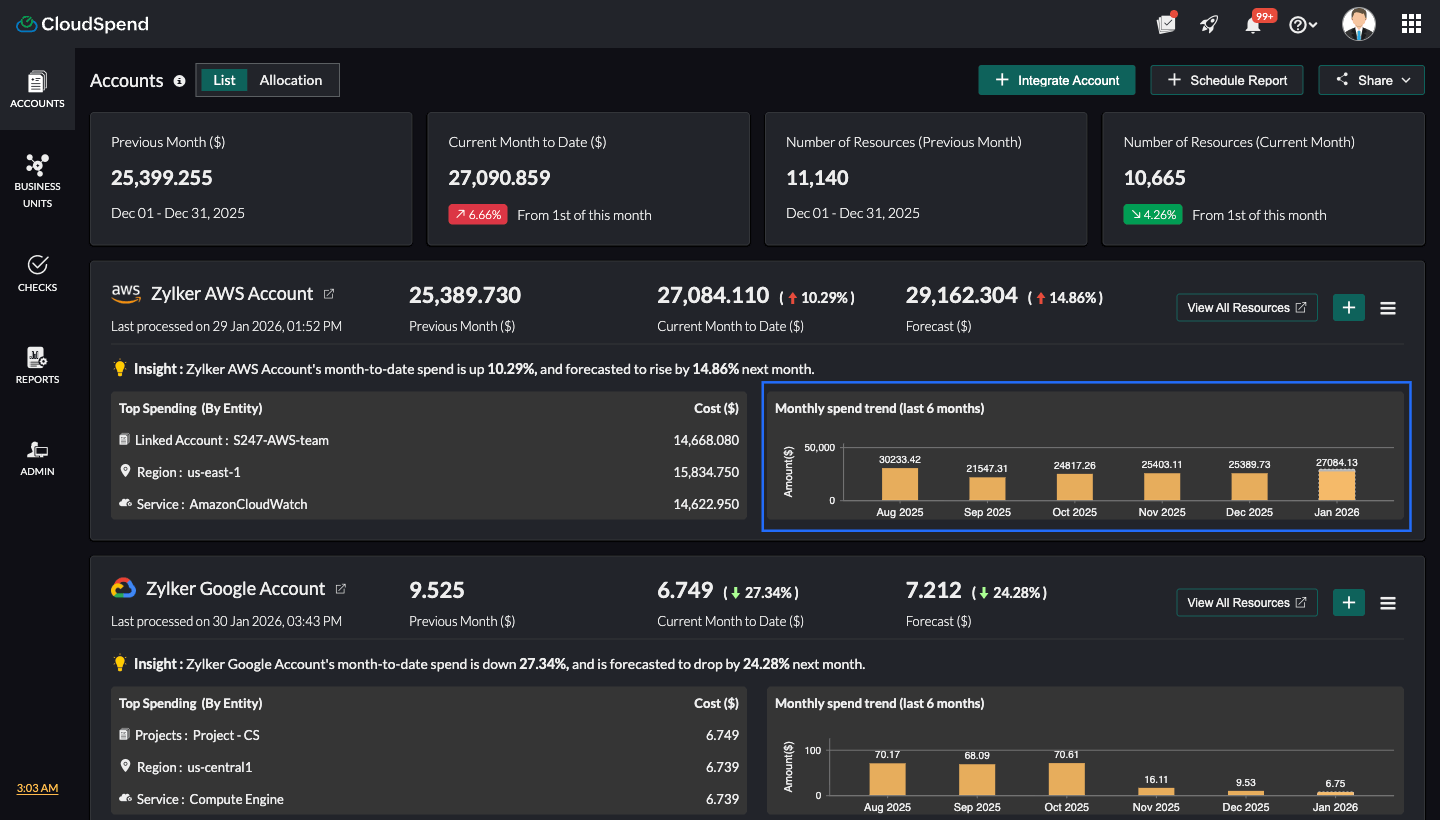
The mini bar chart displays the historical spending for the selected date range. This visual lets you easily spot:
- Gradual increases or decreases in monthly costs.
- Seasonal or campaign-related spikes.
- Consistent high spending that may require optimization.
The cost breakdown panel
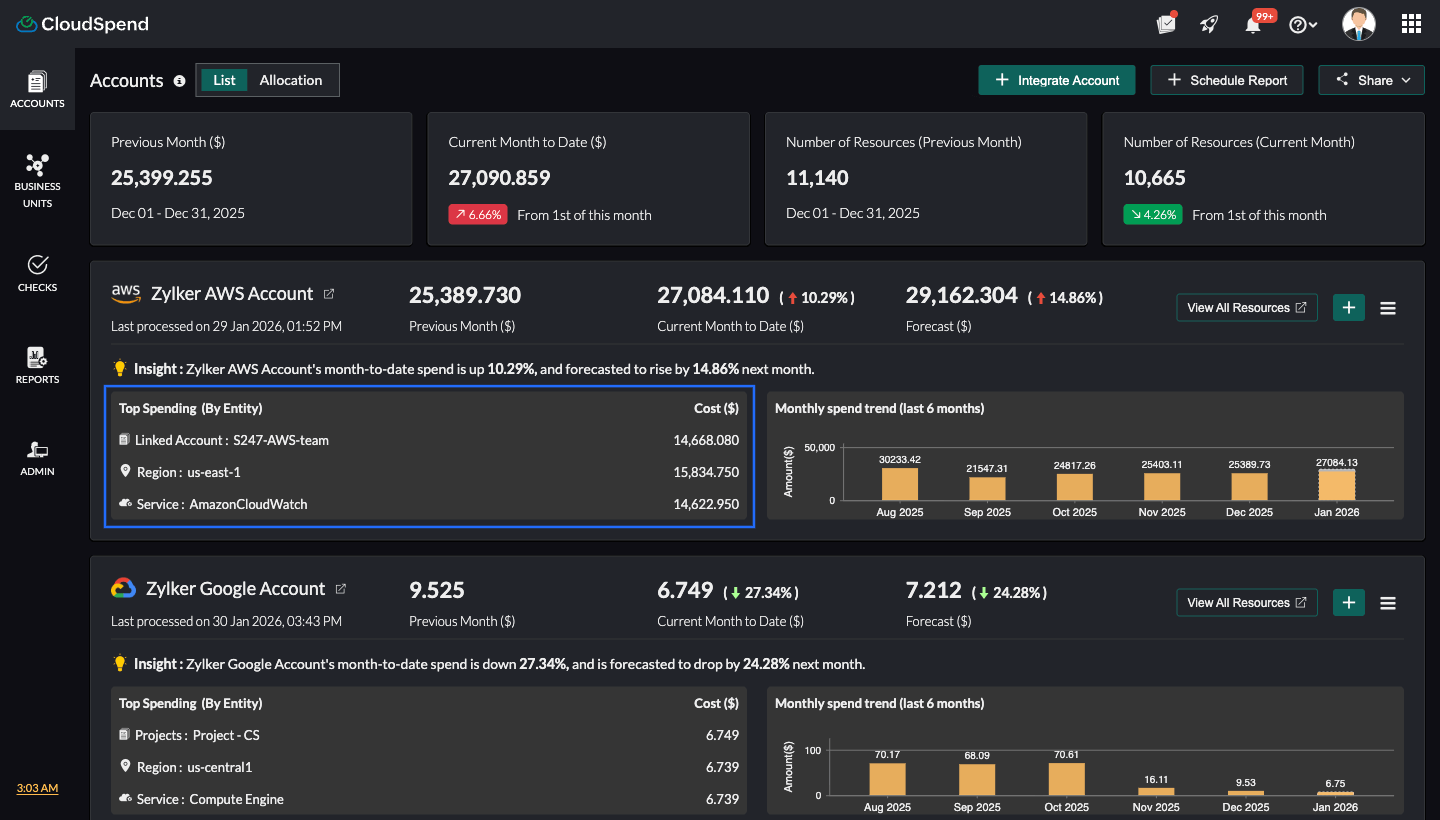
Each account card also shows a contextual breakdown:
- Top Spending (By Entity): Identifies the cost center or team incurring the most charges.
- Linked Account: Shows the internal identifier or name for the linked AWS account.
- Region: Identifies the region with the highest cost (e.g., us-east-1).
- Service: Identifies the specific service (e.g., Elastic Compute Cloud or CloudWatch) contributing to the cost.
- Cost ($): Shows the actual cost value accrued for each linked account, region, and service.
Quick actions
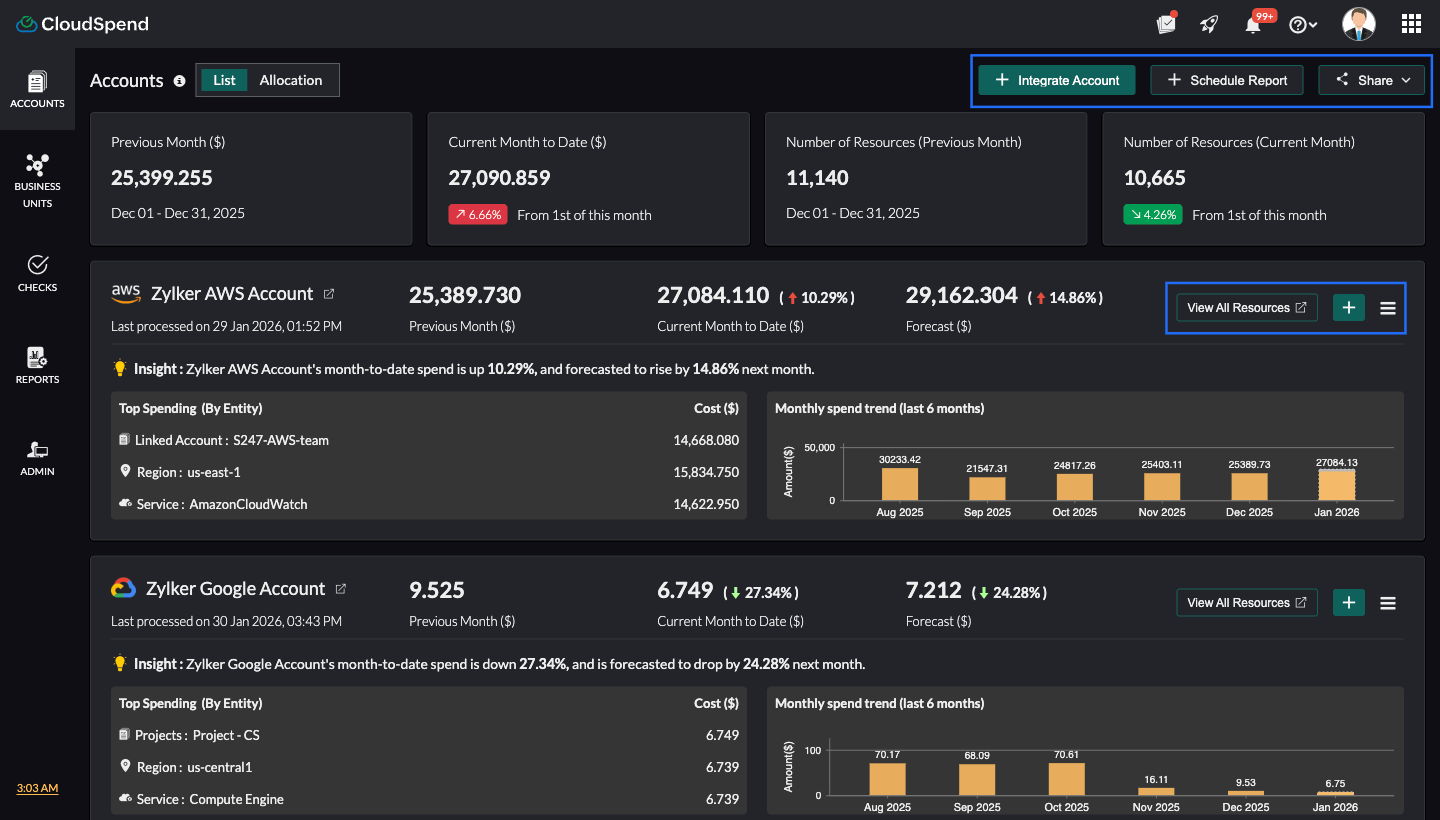
- Integrate Account: Click this button to add new cloud accounts (AWS, Azure, or GCP) to CloudSpend.
- Schedule Report: Click this button to create automated reports based on account-level spending and usage. You can set the frequency, format, and recipients to keep teams updated without manual effort.
- Share: Click this button to export or share the current view. This includes options such as downloading the current view in PDF format or sharing cost data with stakeholders through email.
- Resources: Click this button to open a detailed view of all cloud resources tied to the account.
- + button: Click the + button to schedule a report, or add tags.
- Hamburger icon: Click the hamburger icon to edit, suspend, or delete the account.
Access cost account insights through AI
Instead of opening the Accounts dashboard, you can retrieve the same account level insights through your AI assistant when Zoho MCP is connected. Ask about costs, compare accounts, explore breakdowns, and identify trends using a single conversational prompt. Here is what you can pull through the AI:
- Overall spend summaries: Ask for total cloud spend across all accounts for the current month or any custom period. The AI pulls data from the summary panel, including current month-to-date and previous month figures.
- Account-level comparisons: Compare costs across multiple linked accounts side by side which is useful when you need to understand which account is driving overall spend growth.
- Top cost drivers by service, region, and linked account: The cost breakdown panel in each account card shows the highest-spending entity, region, and service. The AI can surface these details without you clicking through each account.
- Forecast values: Get projected billing estimates for the current month based on historical patterns, helping finance teams validate whether spend will stay within budget.
- Resource count trends: Track how active resource counts are changing month over month.
- Trend analysis: The AI can interpret historical spending bar charts by describing spend patterns such as gradual climbs, seasonal spikes, or consistent high usage in natural language.
Sample prompt: What is my total cloud spend across all accounts for this month, and which account has the highest spend?
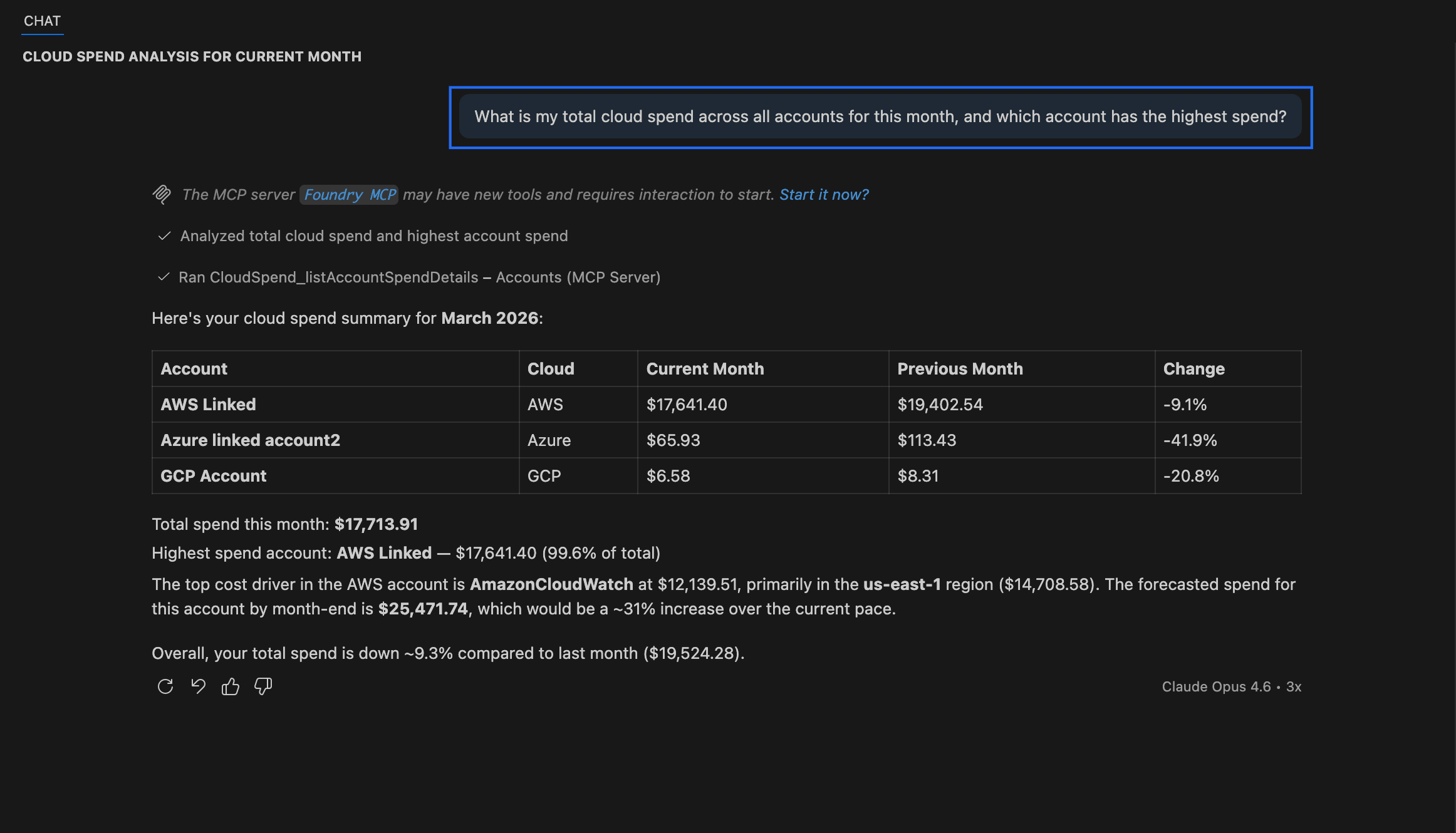
What AI returns: The AI retrieves spend data across all linked accounts and presents a summary table with account name, cloud provider, current month spend, previous month spend, and percentage change. It shows the total spend for the selected period and identifies the account with the highest contribution, including its share of overall spend. It also highlights month over month changes in total spend. In addition, the AI provides context such as top cost driving services, regions, and forecasted month end spend where available, along with a brief summary of the overall spend trend.
Configuration Error Account(s)
These are cloud accounts that were added to CloudSpend but are not processing data correctly due to misconfigurations. This could be caused by missing permissions, incorrect credential setups, or invalid data sources. You need to review and fix these accounts to start receiving cost and usage data.
To delete an account, click Delete. To activate an account, click Activate. To edit an account, click Edit.
Suspended Account(s)
These are cloud accounts that were previously integrated with CloudSpend but have been suspended due to inactivity or data processing failures. No new cost data will be processed for these accounts unless they are reactivated.
To delete an account, click Delete. To activate an account, click Activate.