Bitlocker Policy Association & Deployment
Associate a BitLocker policy with a target group, deploy it, and confirm devices actually encrypt.
Overview
Associating a policy with targets
Associate a policy with a target group before deployment.
How association works
A policy created in the BitLocker module (see policy creation) must be associated with a target before deployment.
BitLocker policies can be deployed to:
- Static computer groups
- Static unique computer groups
- Dynamic computer groups
New computers that join a dynamic group and match its criteria become policy targets. Encryption still requires add-on eligibility, completed prerequisites and policy processing. More on configuring custom groups.
Unlike Software Deployment, BitLocker policies do NOT support selecting Remote Offices as a direct deployment target. To deploy BitLocker to machines in a specific remote office:
- Create a Custom Computer Group containing the remote office's machines (Admin > Custom Group > Create New Computer Group)
- If you need to identify remote office machines, create a Custom Report (Reports > Create Report) with filters for the Remote Office field
- Export the machine list from the report and use it to build the custom group - In Policy Deployment, select the custom group as the target
- Deploy the policy to the custom group
Deployment
Deploying the policy
Select a target group, associate one policy with it, and deploy.
Before association, confirm that each target computer is managed by Endpoint Central MSP, included in the applicable Endpoint Security add-on scope, and accessible to the deploying technician. Custom-group targeting does not itself add computers to the security add-on scope.
Dynamic groups used as BitLocker policy targets do not enroll their members into the Endpoint Security managed-computer list. In the selected-computer add-on workflow, enroll the intended computers individually or through the available static computer groups. The managed-scope group selector does not offer dynamic groups. Check add-on eligibility when new computers enter a dynamic policy group, then verify policy and drive status. See BitLocker managed-scope guidance.
Associate and deploy a policy
- Go to Policy Deployment under the BitLocker Management module in the Endpoint Central MSP web console.
- Click Associate Policy.
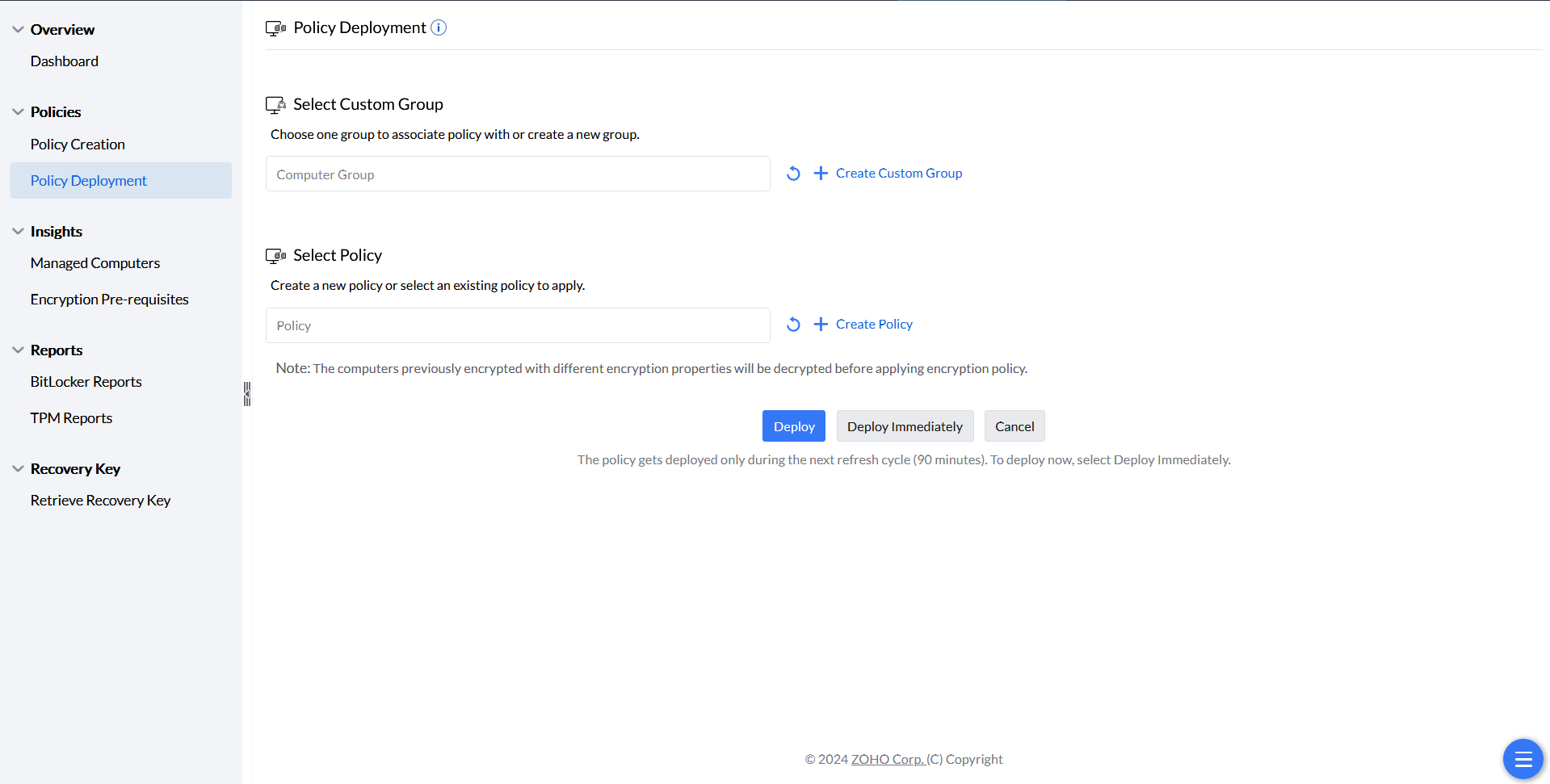
Starting policy association. - Select the custom group to deploy the policy to. To automate deployment for every new device, select All Computers Group — new computers join this group automatically. Encryption still requires add-on eligibility, completed prerequisites and policy processing.
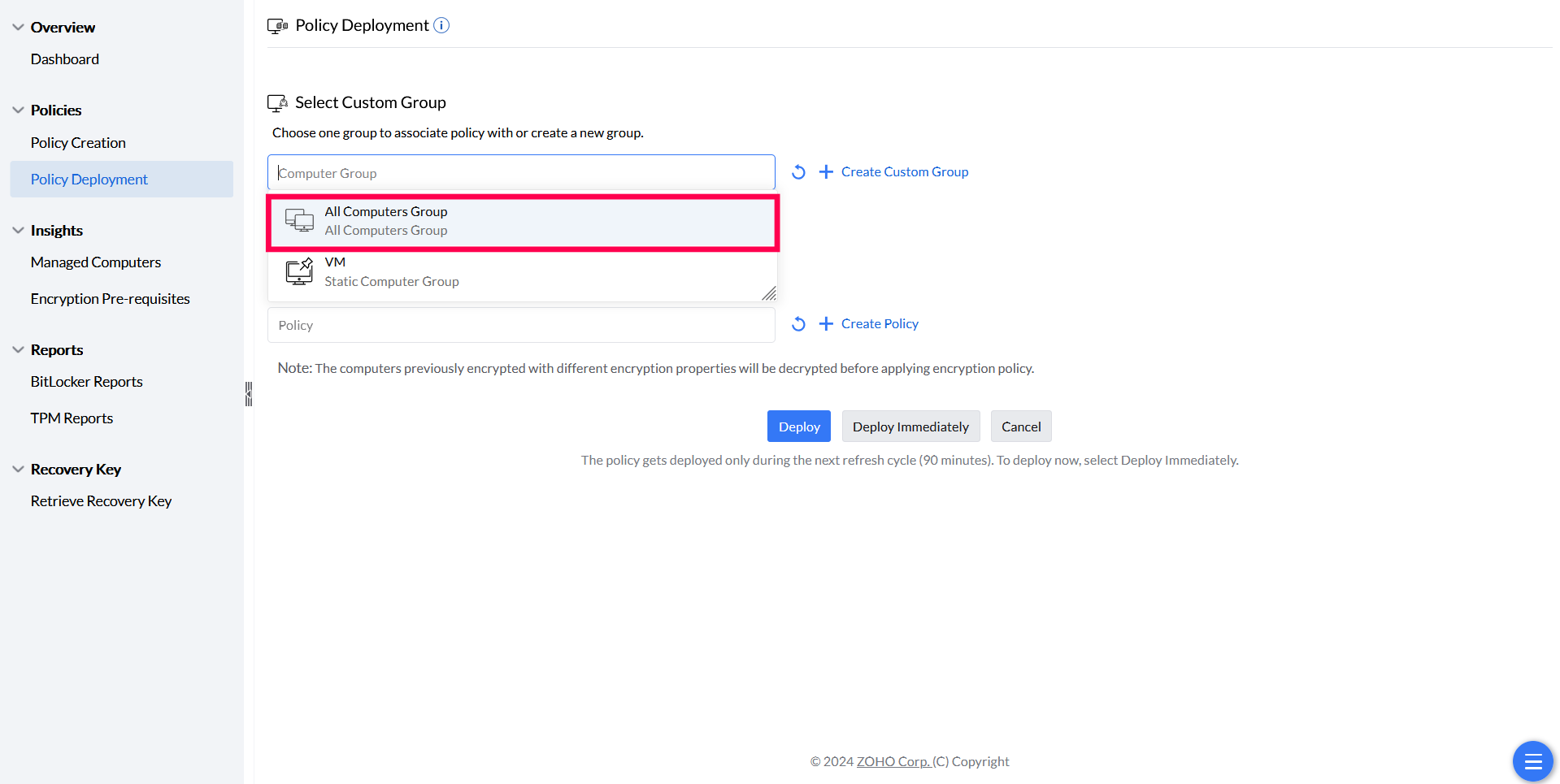
Selecting a target group for automatic deployment. - Choose the BitLocker policy to associate with the group (only one policy per group is allowed).
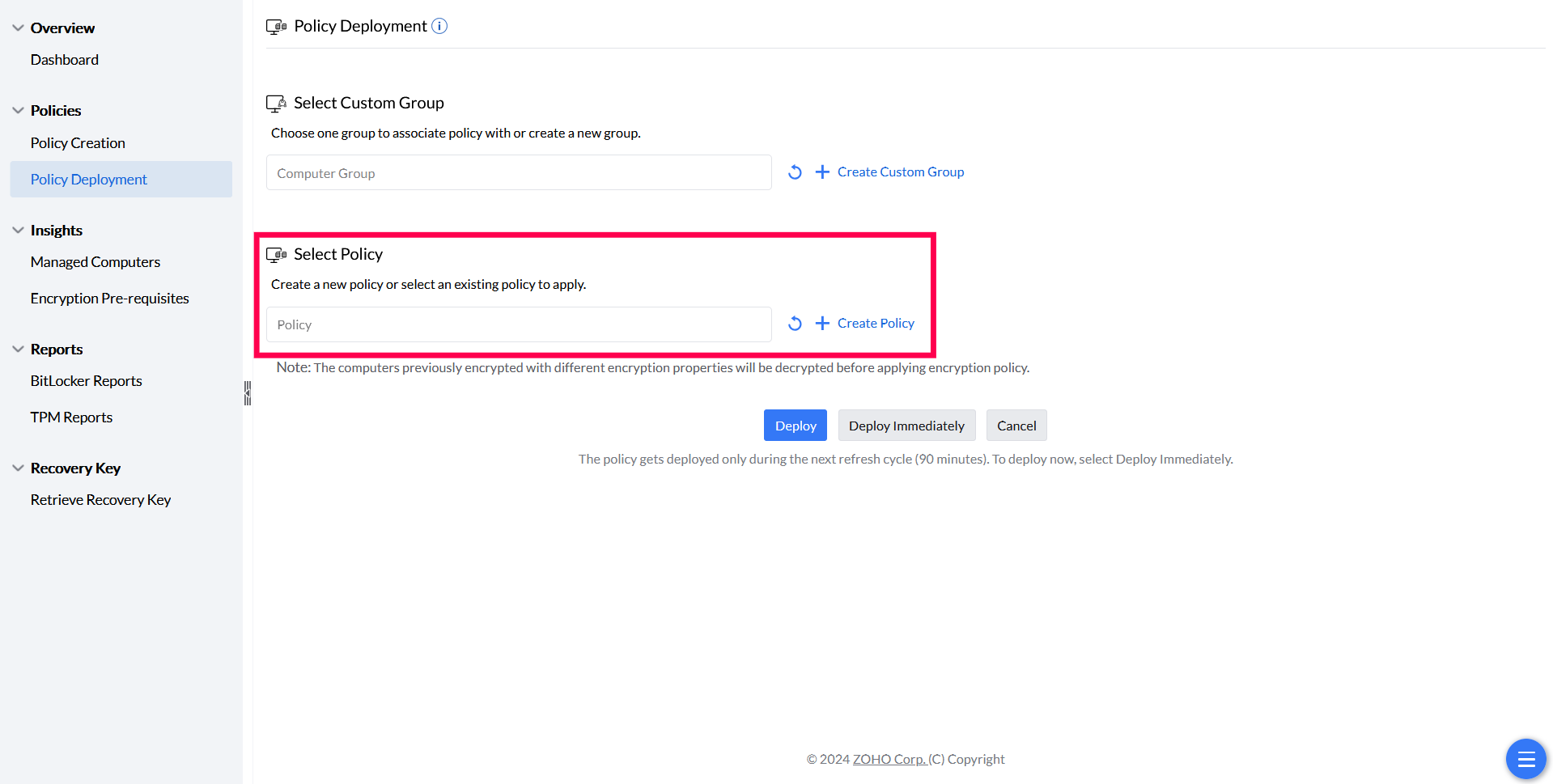
Selecting the policy to associate. - Click Deploy.
A deployed policy applies on the next refresh cycle (90 minutes) unless you choose Deploy Immediately, which applies it right away — but Deploy Immediately is capped at 200 computers. Learn More
Monitoring
Confirming devices actually encrypted
Deployment status and encryption status are two different things to check.
Checking deployment and encryption status
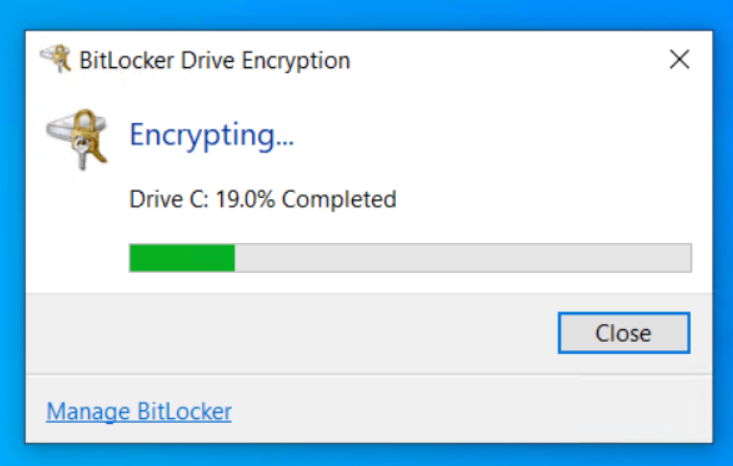
After deployment, the associated-computers list under Managed Computers shows each device's policy deployment status, along with remarks or reasons for any failures. Confirm encryption is either in progress or complete — a successful deployment does not by itself confirm that the device is encrypted.
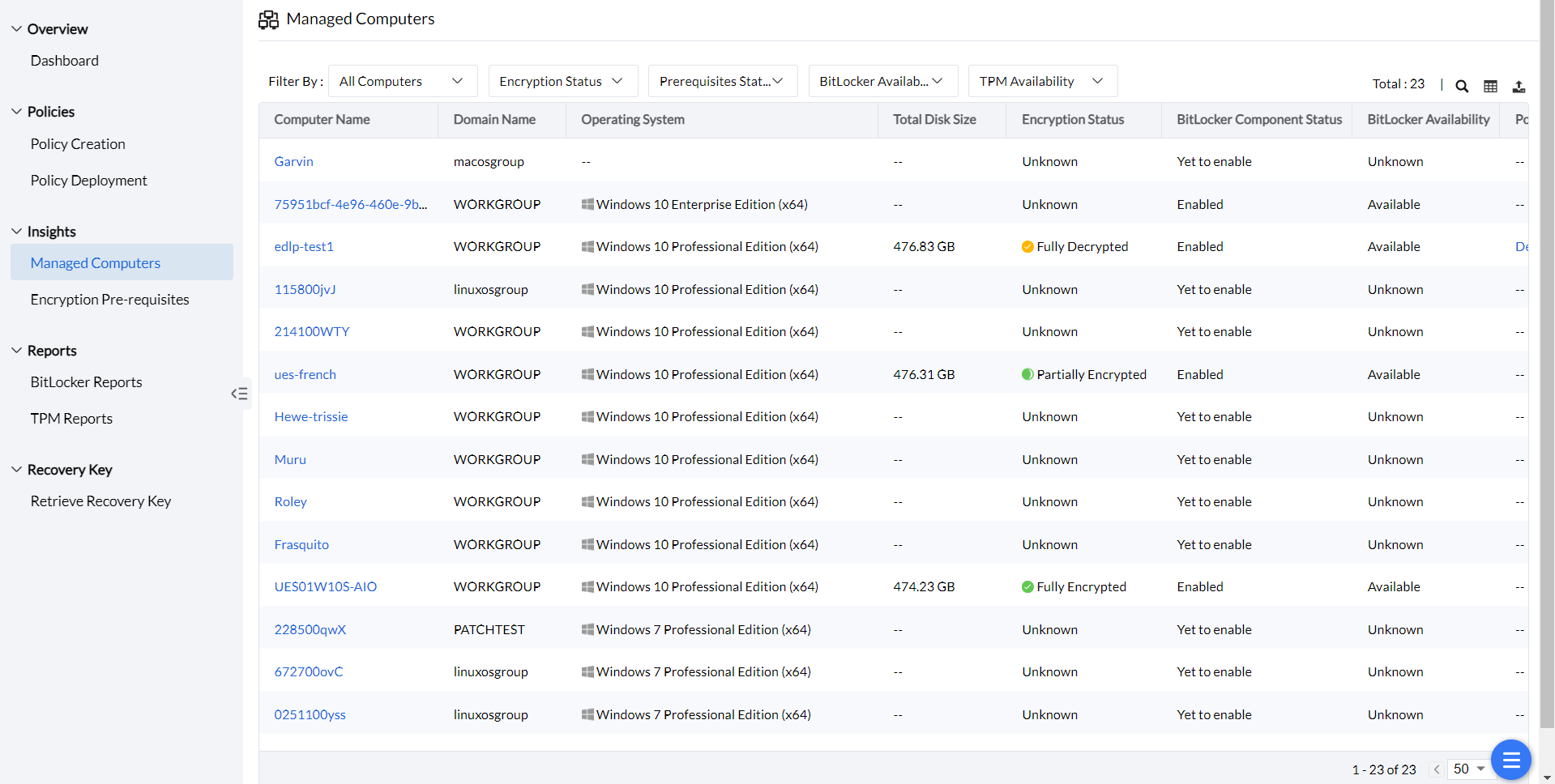
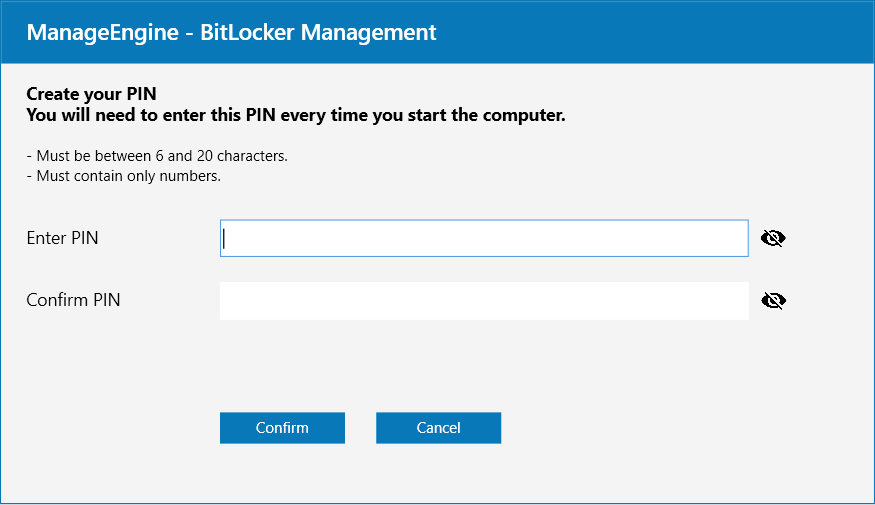
A machine can stay fully decrypted even after a successful deployment for two common reasons: the policy needs a user-entered PIN or passphrase, or it's a non-TPM machine where a passphrase is mandatory. Environmental issues can also cause failures — check encryption prerequisites for machines blocked by BIOS mode incompatibility, WMI failures, or TPM ownership issues, each documented with remediation steps.
Deployment shows Access Denied or computers outside your scope
Ask an administrator to check the deploying user’s computer scope and the membership of the selected group. Correct the scope or target group before retrying. Creating a policy and permission to deploy it are separate checks.
An administrator must review both the technician’s role and assigned computers. See Scope of the User in User Management Lifecycle. Correct the technician’s scope or the target group, then retry deployment. Creating a policy does not by itself grant access to every target computer.
Deployment remains Yet to apply or the agent has not contacted the server
Check the device’s latest agent contact, Distribution Server communication where applicable, policy association and deployment remarks. Follow the pending-policy FAQ and encryption-failure checks. A healthy connectivity test does not prove the BitLocker policy ran.
A device can already be encrypted before this deployment. For encryption observed without an Endpoint Central MSP policy, see the no-policy encryption FAQ. Review existing encryption settings before applying a new policy.
Passwords
Password requirements before encryption starts
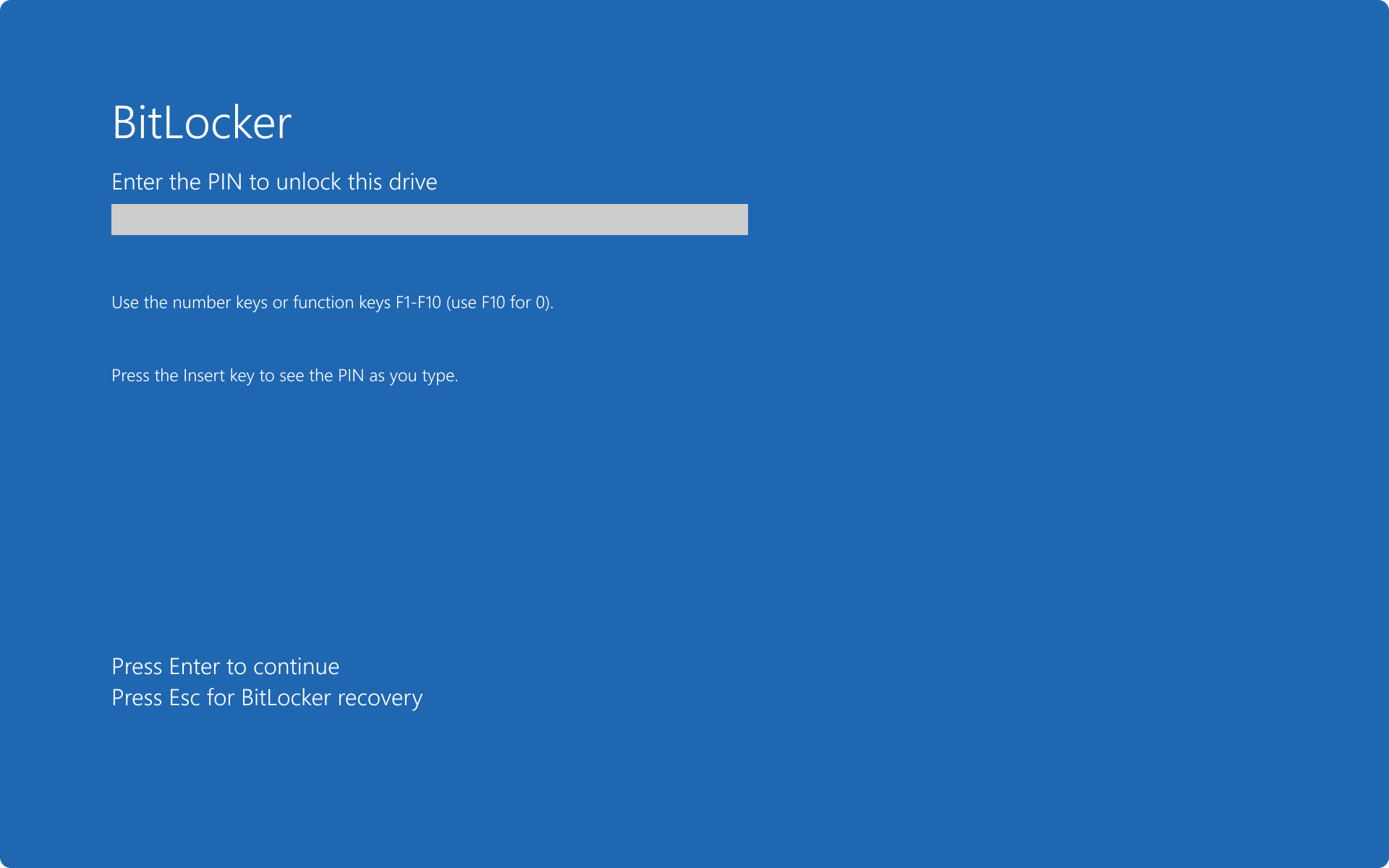
Password-based policies first ask the user to create a compliant PIN or passphrase in Windows. Encryption waits for required setup and server recovery-key storage. At later startup, Windows uses the configured protector to unlock the OS drive. TPM-only unlock does not require a PIN. Do not confuse the one-time setup dialog with the preboot unlock screen.
Password criteria by authentication type
If the initial PIN/passphrase dialog does not require immediate action, check Allow users to skip the password request. During the configured grace period the user can defer setup. Also check whether TPM-only protection is selected or the drive was encrypted before the policy; these are different from a failed prompt.
Troubleshooting
Troubleshooting Encryption Failures
For comprehensive troubleshooting of encryption failures, see BitLocker Encryption Troubleshooting.