Browser Visibility and Insights
Get granular visibility into every browser, extension, and website across your network so you can spot risks before they become incidents.
Overview
About Browser Insights
A diverse browser and add-on landscape makes IT's job harder. Insights gives admins the visibility to stay ahead of it.
What Insights covers
The diverse landscape of web browsers, each with its own unique add-on ecosystem, presents a complex challenge for IT administrators. Endpoint Central MSP addresses this through Insights, giving granular visibility into your browser environment so admins can proactively address security vulnerabilities and safeguard their browser environment from potential attacks.
- Browser Inventory — a comprehensive record of browsers in use
- Update Compliance — adherence to browser update policies
- Inactive Device Identification — computers inactive for extended periods
- Popular Add-on Analysis — commonly used add-ons and their security risk
- Harmful Add-on Detection — proactive detection of malicious add-ons
- Web Activity Monitoring — website access tracking for Internet Explorer, Edge, and Chrome
- Add-on Discovery — computers with specific add-ons, for risk assessment
- Browser Security Scoring — a security posture score to identify vulnerabilities
Views
Exploring the Insights tab
Insights is organized into focused views, each surfacing a different slice of your browser environment.
Dashboard view
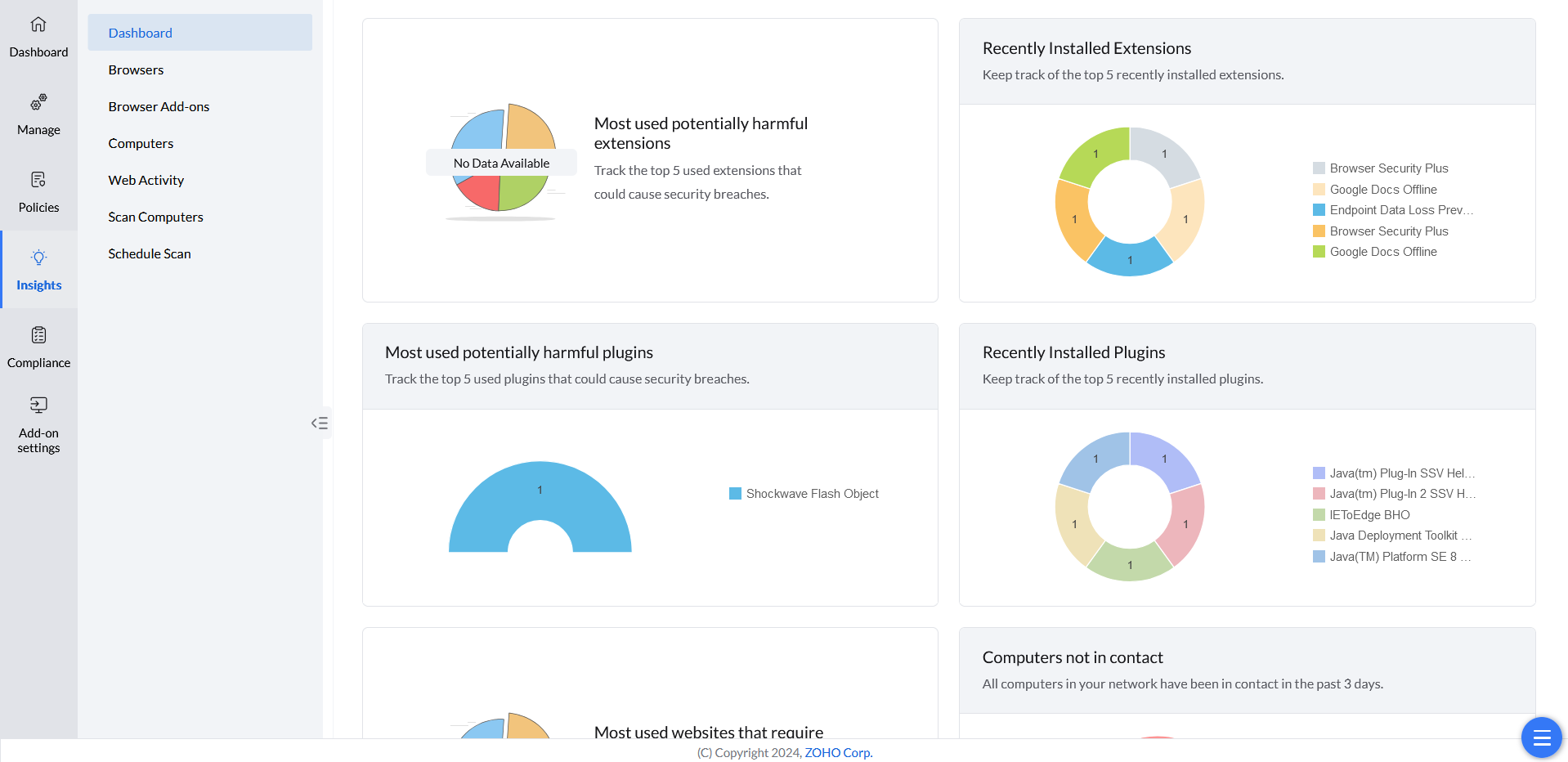
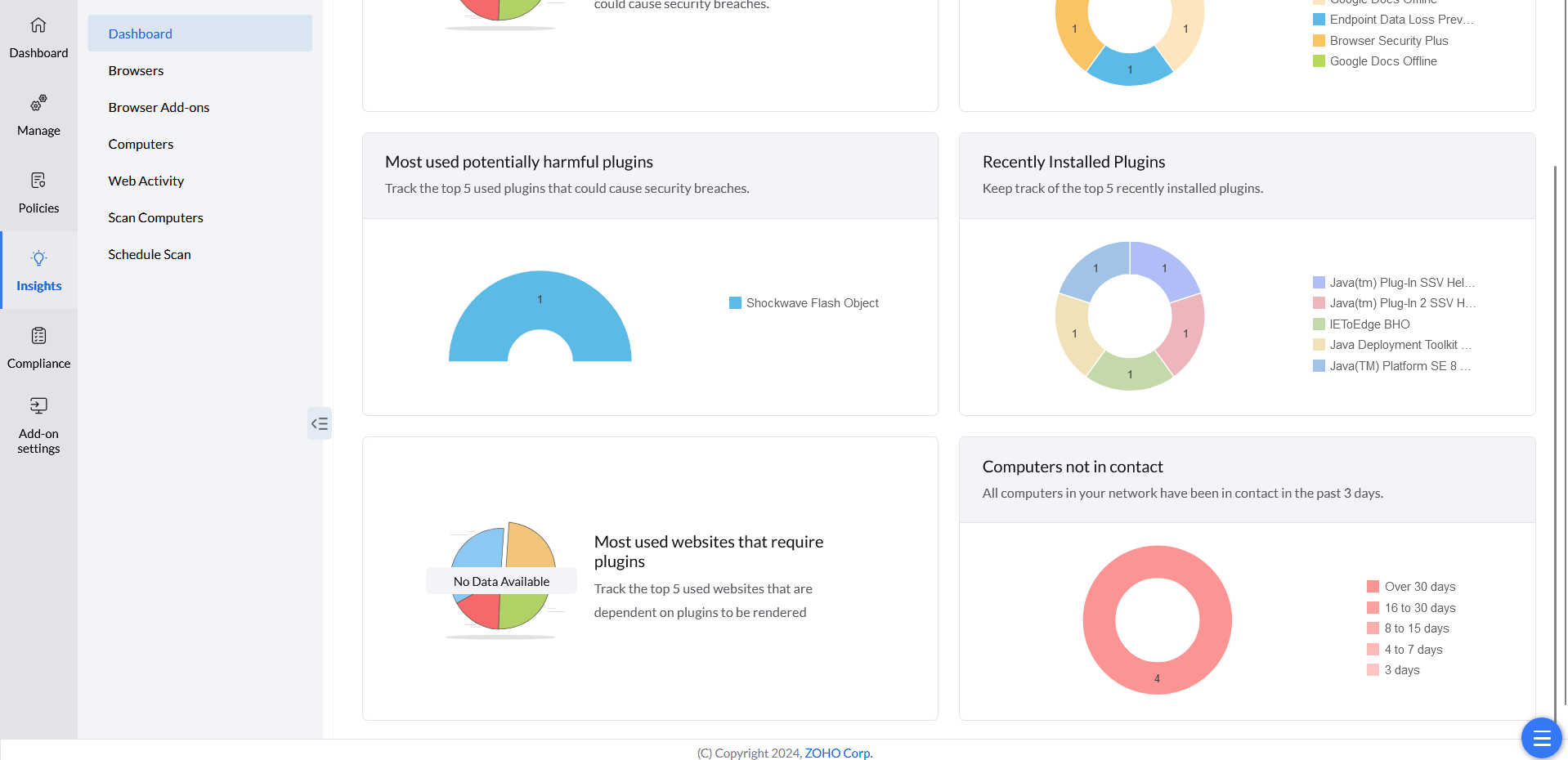
The Dashboard view summarizes key browser security risks: the most-used harmful extensions and plugins, recently added ones, disconnected network computers, and the most-used websites needing plugins.
Browsers view
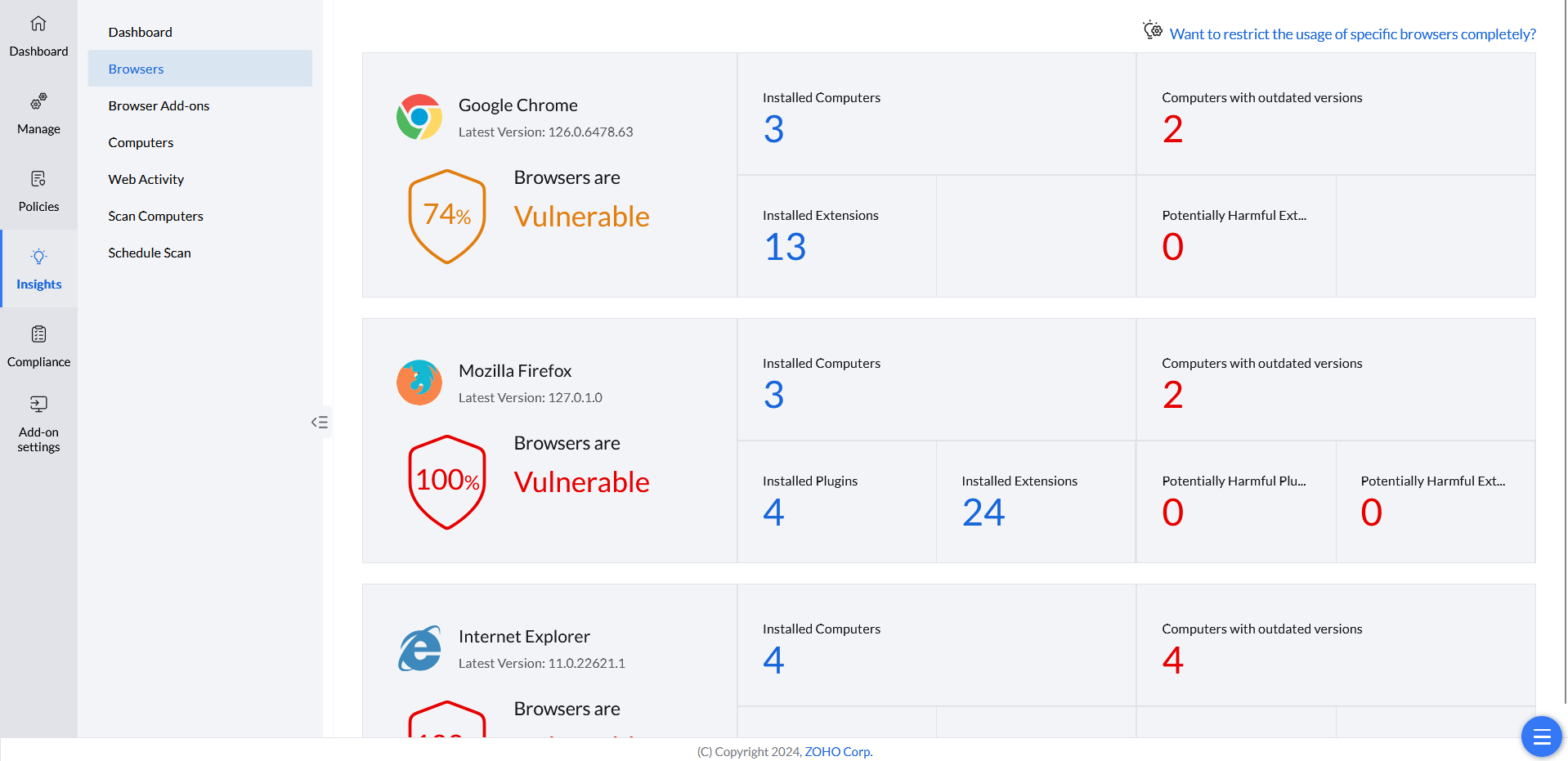
The Browsers view lists all browsers and their details, including the number of computers using each browser, those with outdated versions, the number of installed extensions, and potentially harmful extensions.
Add-ons view
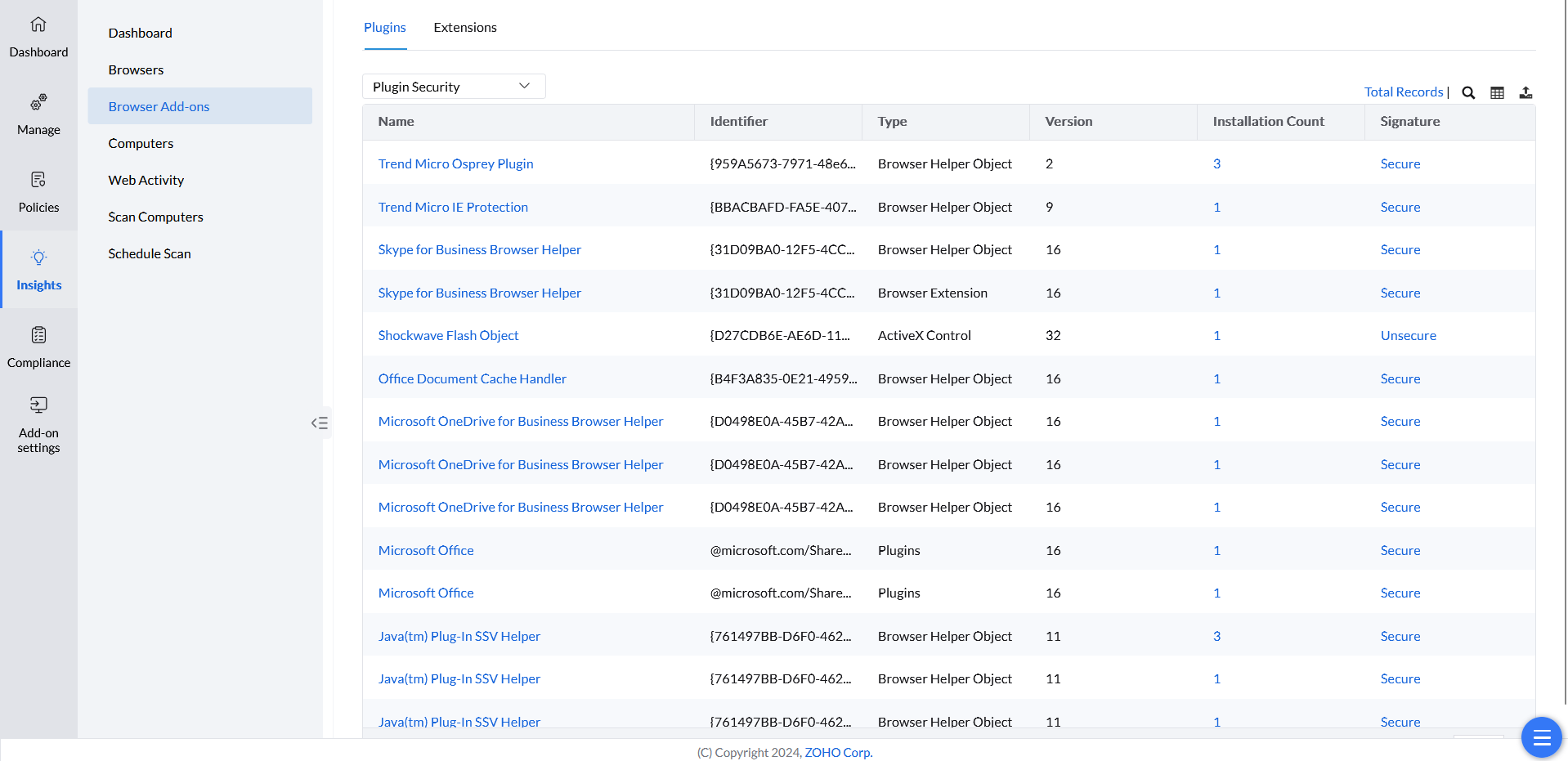
The Browser Add-ons view shows detailed information about all plugins and extensions, helping you identify computers with specific add-ons and assess potential security risks.
Computers view
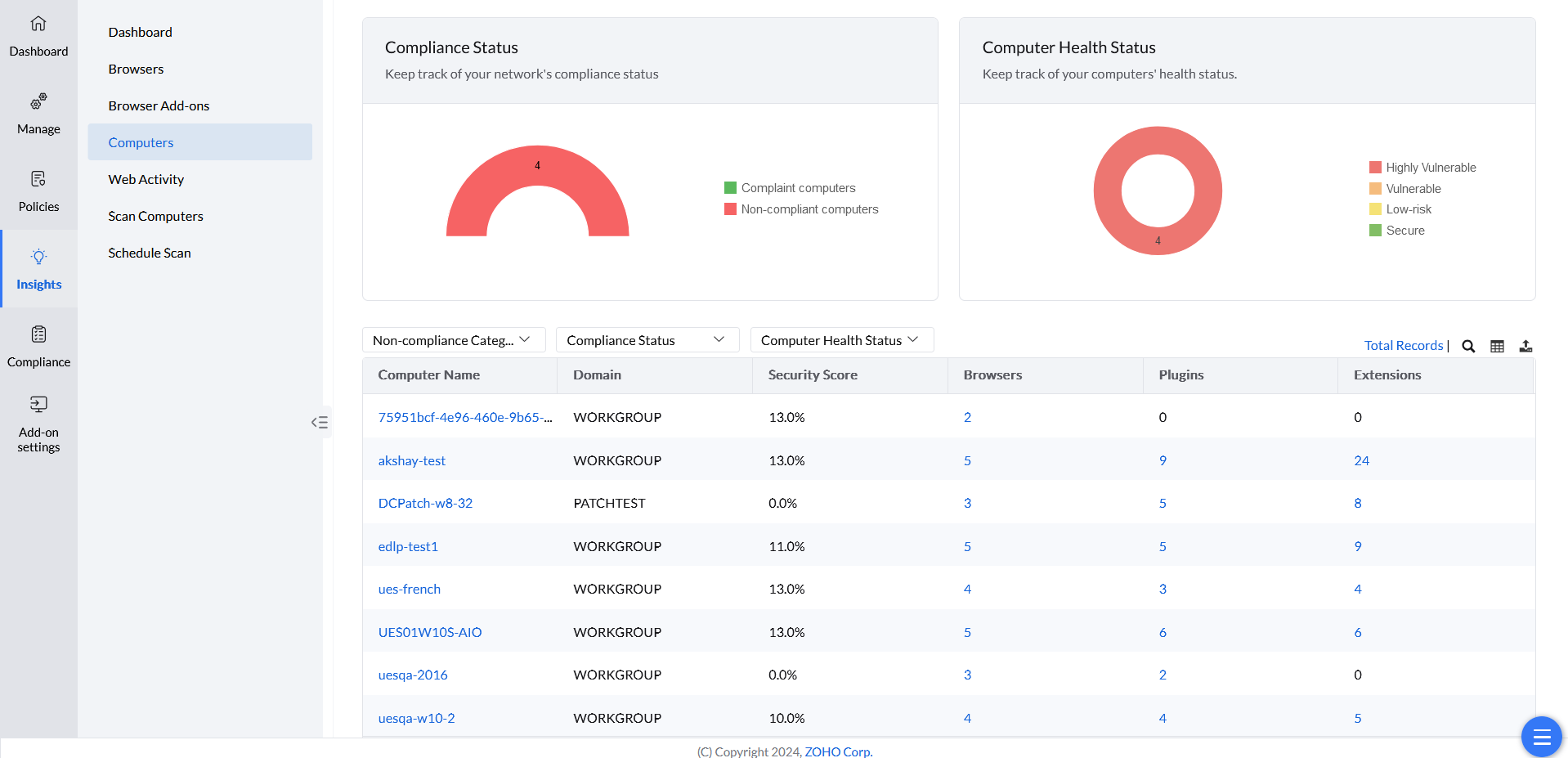
The Computers view lists all computers in your network with comprehensive information on their security score and installed web applications, so you can track network compliance and computer health status.
Web Activity
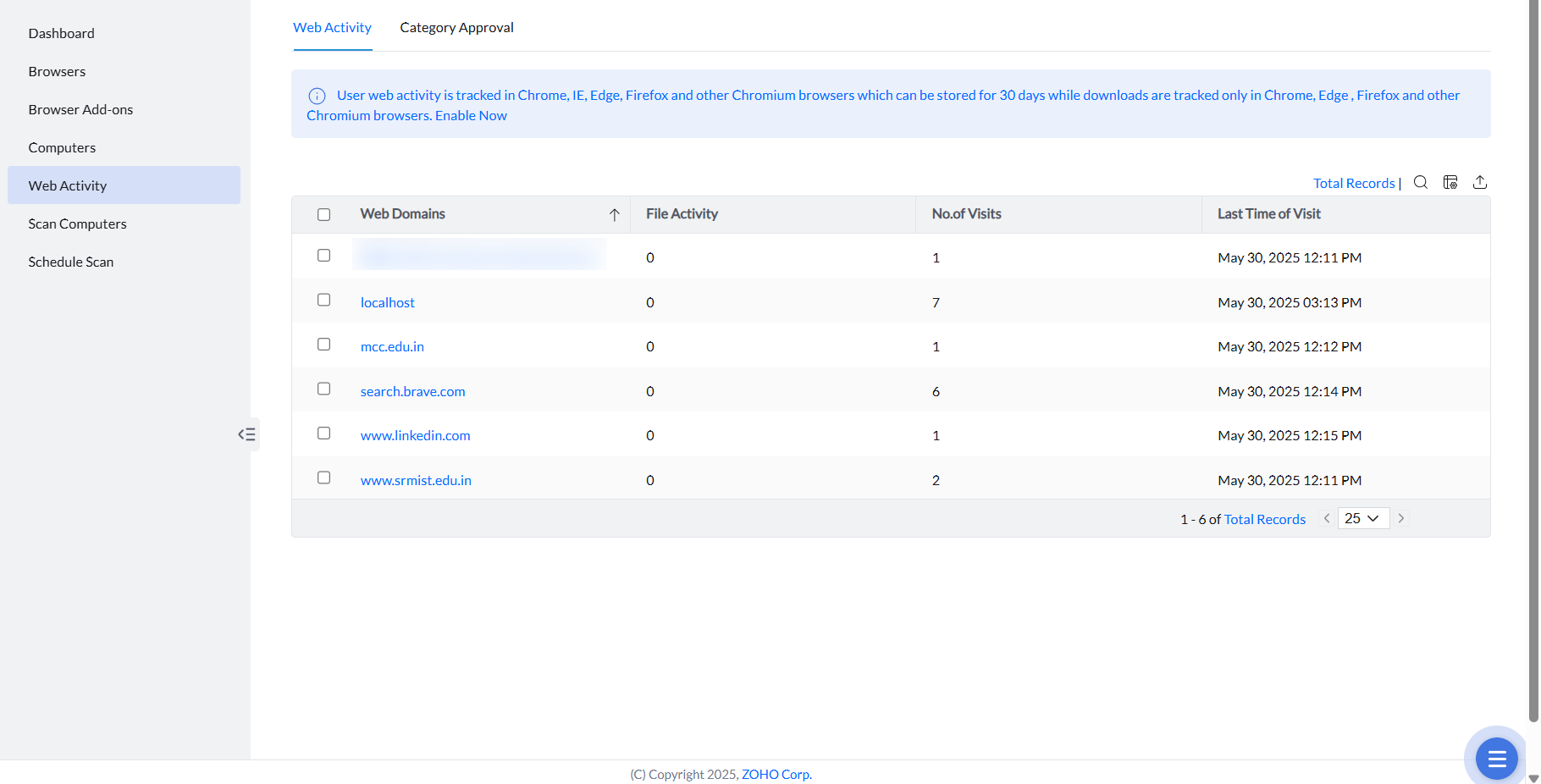
Web Activity shows the web domains visited by users, file upload and download activity, and when each was visited.
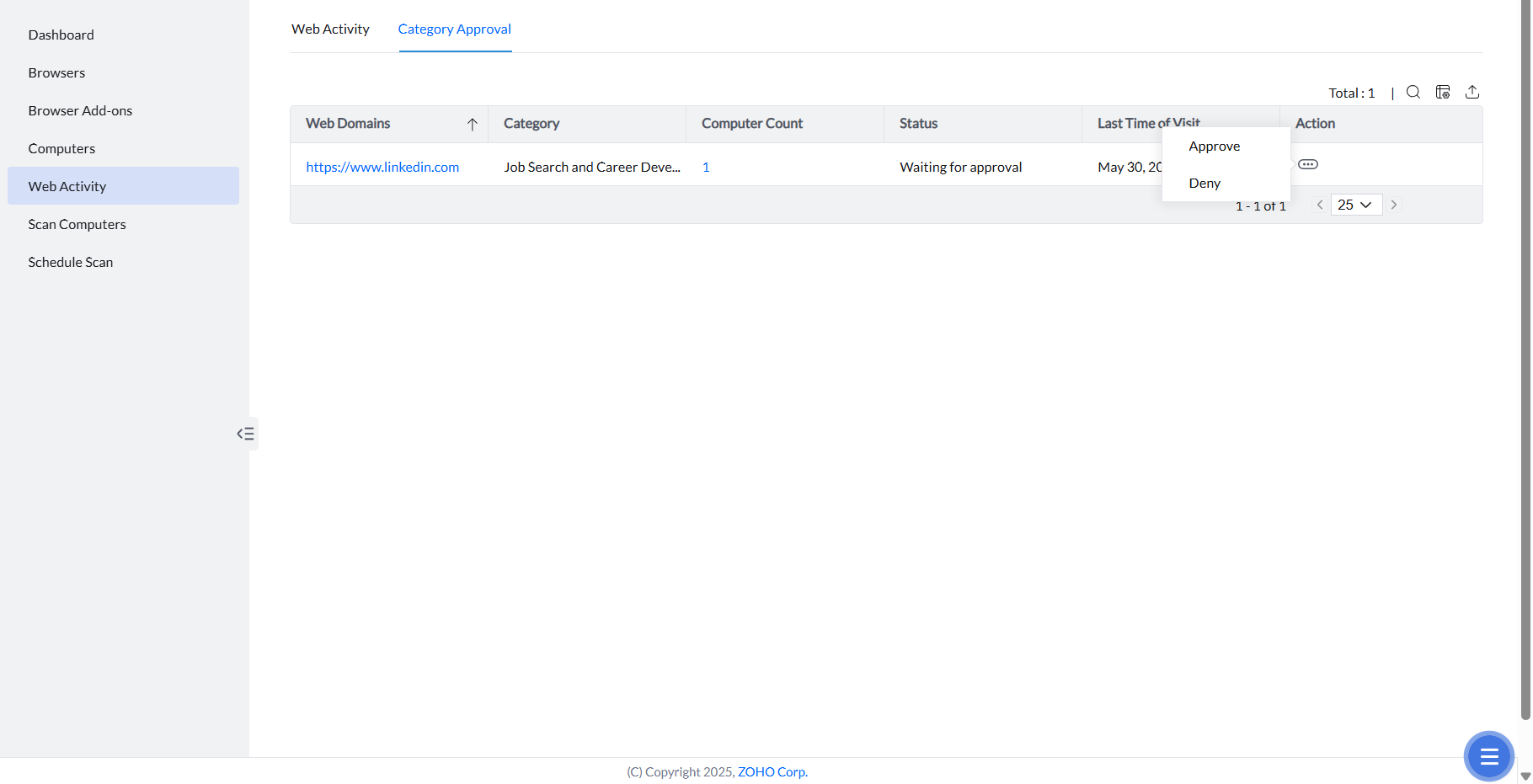
Category Approval for URL Filter: requests made using the override option for blocked web categories in the URL Filter are recorded here. Administrators can review these requests and choose to approve or deny them.
Web Activity Report Details and Limitations
The Web Activity report shows websites visited by users on managed endpoints. Understand what data is captured and its limitations.
What Web Activity Captures
- Visited Domains: The domain (e.g., google.com, example.com) visited by users
- Visit Count: The number of times each domain was visited (aggregated, not individual visits)
- Last Visit Time: The timestamp of the most recent visit
- File Upload/Download Activity: Files transferred through the browser
What Web Activity Does NOT Capture
- Individual Visit Timestamps: Each separate visit is NOT recorded with its own timestamp. Only aggregated visit counts and last-visit time are available
- Complete Access History: No per-visit history or timeline of every access
- Specific Pages/URLs: Only the domain is tracked, not specific paths (e.g., google.com/search is recorded as google.com)
- Query Parameters: Search queries and URL parameters are not captured
- Browsing in Incognito/Guest Mode: Private browsing sessions are not tracked
Supported Browsers
Web Activity tracking is supported in: Google Chrome, Microsoft Edge, and Internet Explorer. Mozilla Firefox web activity tracking is limited.
Data Retention
Web Activity data is retained for 30 days by default. Older data is automatically purged.
Scan Setup
Scan of Computers and Scheduling Scan
Keep visibility current by regularly scanning your computers for potential security threats.
Scan status
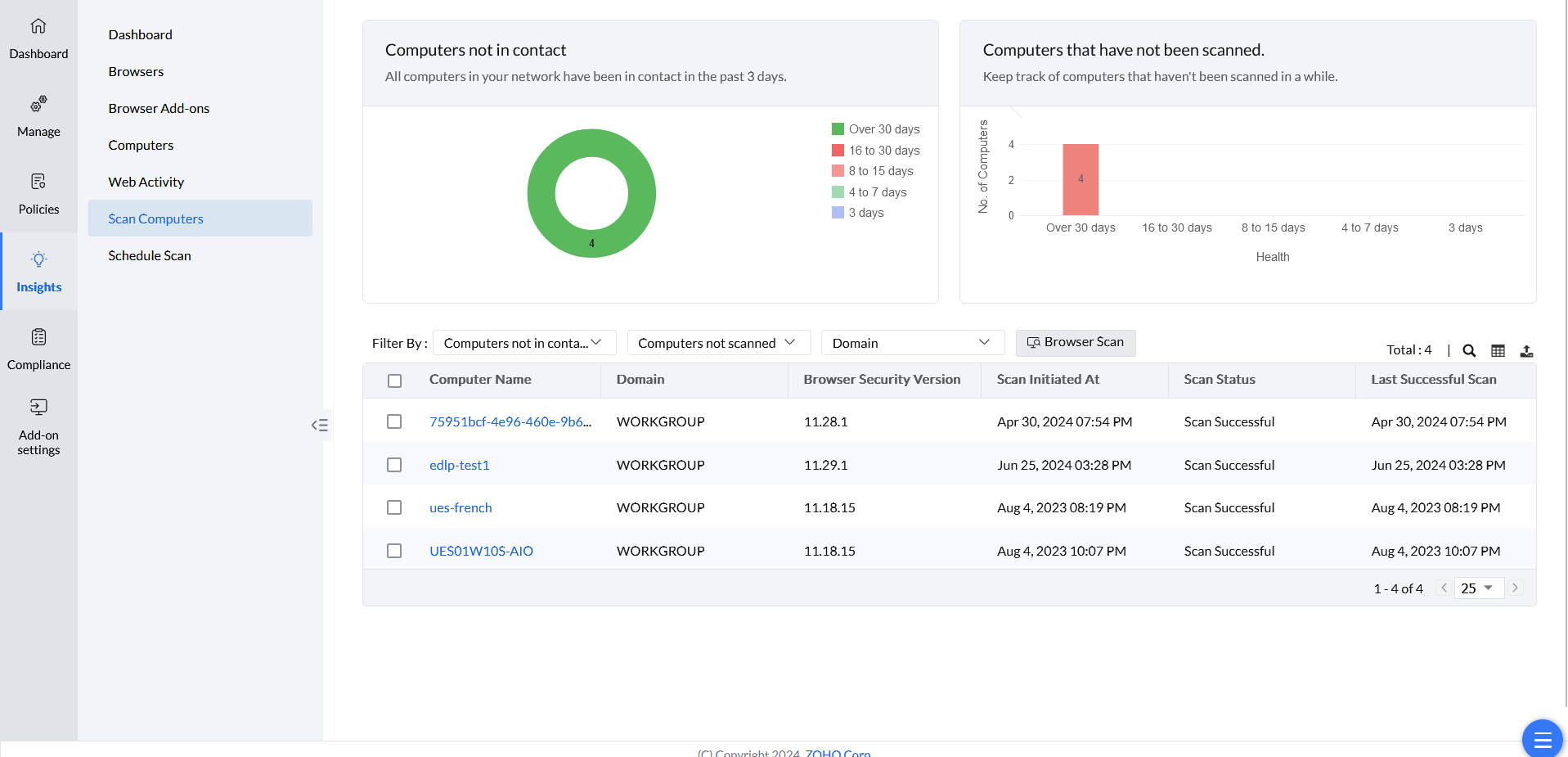
Scan Computers provides information on the scan status of computers, showing which ones are not in contact and which have not yet been scanned.
Schedule Scan of Computers
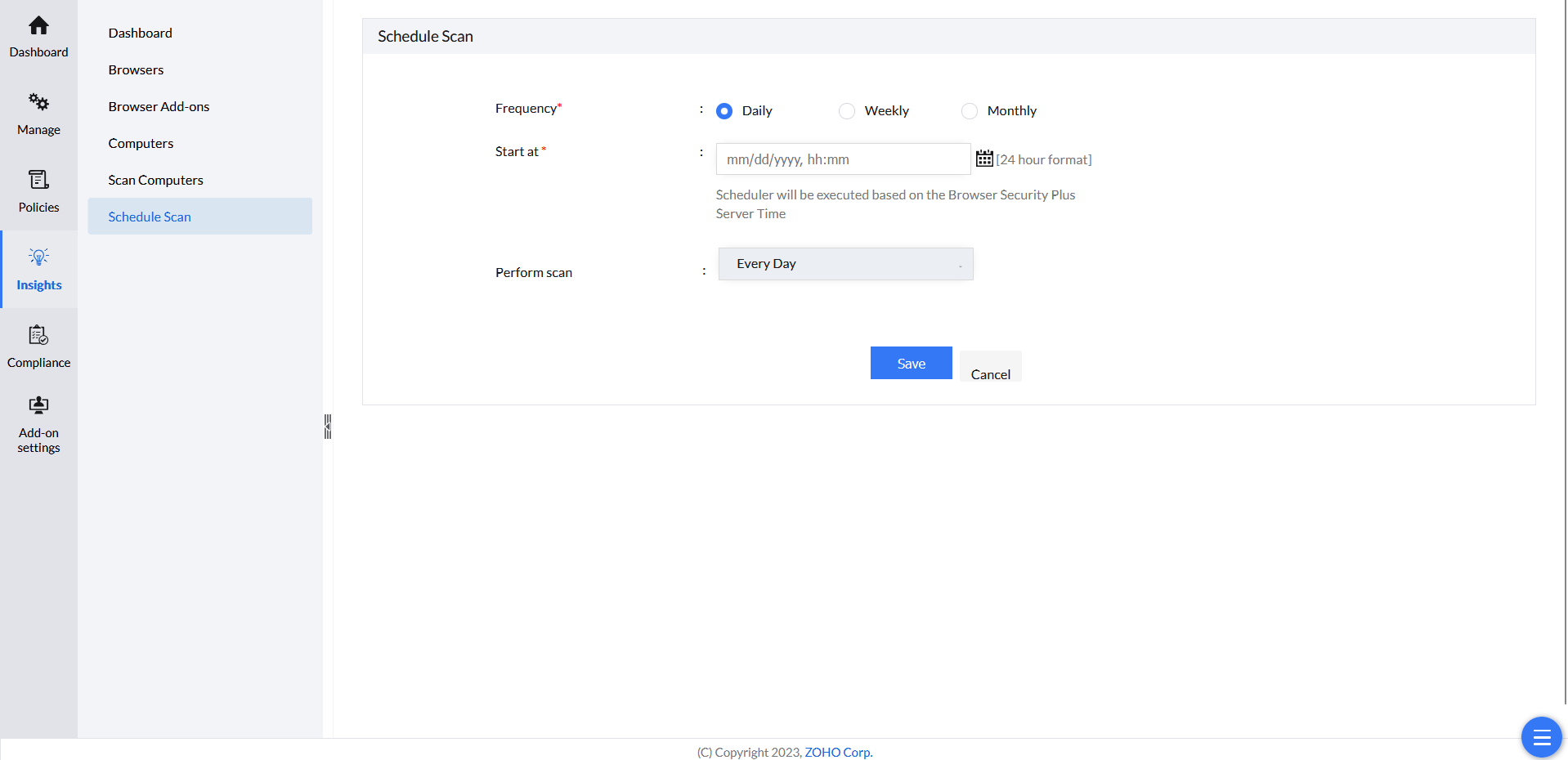
To stay updated on potential security threats, it's recommended to schedule regular computer scans.
- In the Endpoint Central MSP console, go to Insights → Schedule Scan.
- Choose the scan frequency and select the start time of the scan.
- Choose the day(s) or times of week or month to perform the scan.
- Click Save.