N-1 Patches
Patch management requirements vary across environments. The operating systems, software versions, and business-critical applications you run all influence the type of patching strategy you need. Some applications require frequent updates, while others only support specific software versions. To support these scenarios, we’ve introduced N-1 patching, which lets you deploy older, superseded patches when needed.
This document explains what the feature does, how to enable it, and what to expect once it’s configured.
What is N-1 patching?
In IT, N-1 patching refers to installing a version of software that is one release behind the latest update. Depending on your requirements, this may extend to N-2, N-3, and so on.
What are superseded patches?
When a vendor releases an update that includes or replaces an earlier patch, the new patch is called the superseding patch, and the older one becomes a superseded patch.
How to identify superseded patches
In Endpoint Central MSP’s patch management products, go to Threats & Patches → Patches → Supported patches. Create a filter where Status = Superseded to view all supported superseded patches.
Uses for N-1 patching
Server patching
Admins who patch servers sequentially may not complete deployment before a new update is released. As a result, servers may run different patch versions. N-1 patching allows you to install superseded patches to maintain consistency.
Organizational policies
Some organizations intentionally deploy older patches, waiting a few weeks to ensure new releases are stable. The N-1 patching option supports this workflow.
Compatibility requirements
If the latest application version causes a compatibility issue and you need to install an older version, use N-1 patching to review eligible superseded patches. This can help when an application must remain on a stable version rather than the latest release. Availability depends on the configured retention period and applicability to the target computer.
Endpoint Central MSP N-1 patch settings
These are examples of requirements addressed by Endpoint Central MSP through N-1 patch settings. N-1 patching is available for Windows and Linux platforms (Red Hat and Debian).
N-1 patching does not use a separate patch-scan schedule. After changing N-1 settings, allow database synchronization and the endpoint patch scan to complete before checking the patch views. If a patch is still listed but deployment rejects it as superseded, provide support with the patch IDs, the affected view, the deployment remark and the completed sync and scan times. For scan behavior and manual scan options, see Patch Scan.
Viewing and managing schedules
Enable N-1 patching (Windows)
For Microsoft 365 Apps, select an applicable update for the installed edition, architecture and channel. To become current, use the latest applicable missing update. Do not assume that every skipped monthly package must be installed. N-1 settings control retained superseded-patch availability. They do not make an inapplicable channel or a withdrawn vendor package deployable. See Microsoft 365 patch deployment.
Enable N-1 patching only when your organization intentionally deploys superseded patches or delays deployment by one or more release cycles. Newly released patches continue to appear while this option is enabled. If your organization does not follow this strategy, you can disable the option without affecting normal latest-patch deployment.
Enabling N-1 patching adds retained superseded patches to applicable patch views and can reduce the current compliance percentage. It does not recreate an earlier compliance snapshot or recover deployment records that were not retained. For historical reporting, use the available records in Detailed View and select the date field required for the report. Check the report scope and retained data before interpreting an empty result. Enable N-1 only when you need supported superseded patches.
If you cannot select a patch checkbox to approve, download, or install it, the patch has been superseded by a newer version. It is generally not recommended to deploy superseded patches. If you still need to deploy that KB, enable N-1 patching for Windows.
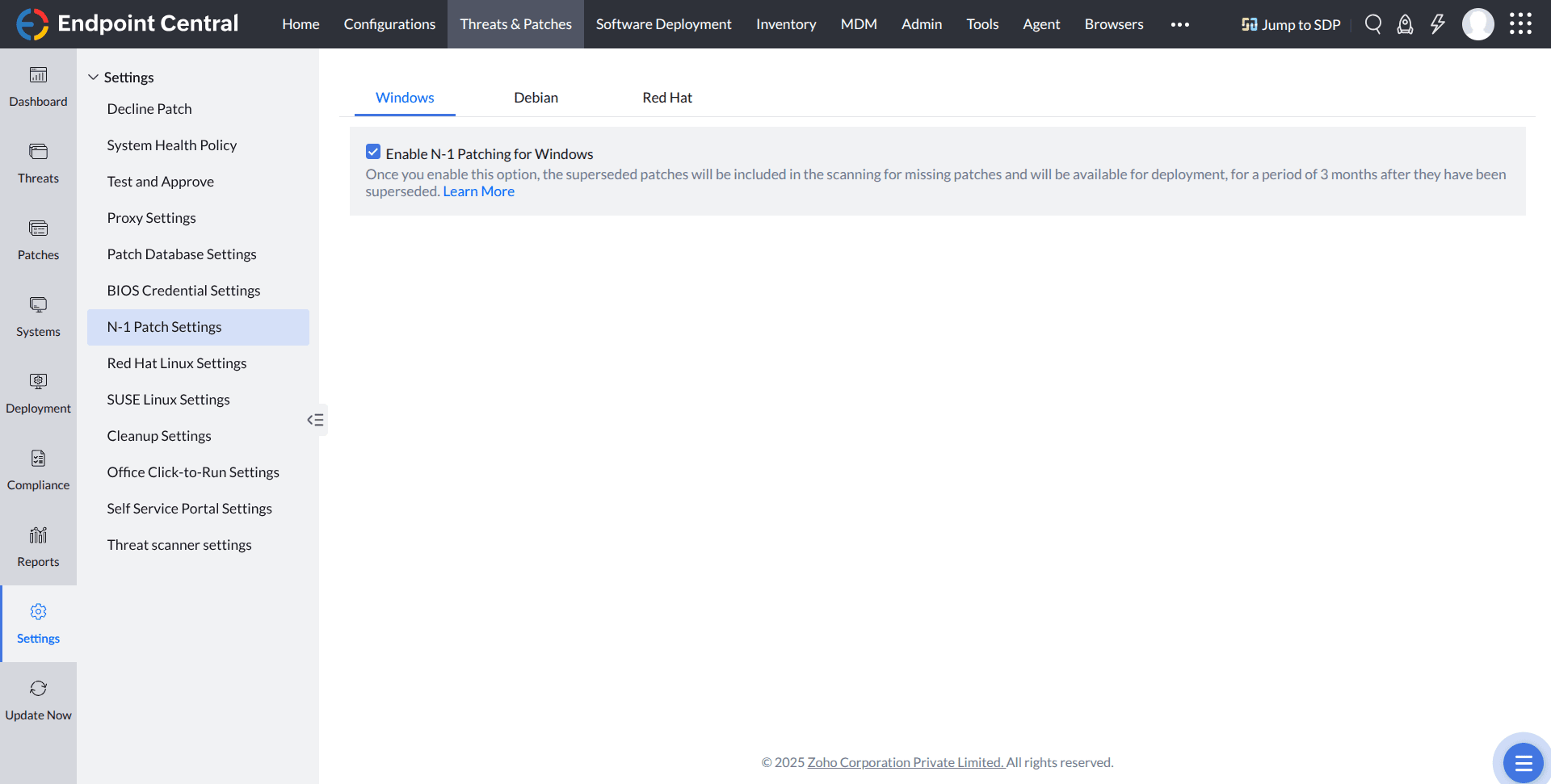
- Navigate to Threats & Patches → Settings → N-1 patch settings.
- Select Enable N-1 patching for Windows to retain superseded patches for 3 months.
- After enabling the feature, superseded patches appear across patch views once the Central Patch Repository synchronizes with the Central Server. You can deploy superseded patches from the Missing patches view.
Best practices for N-1 patching (Windows)
- Enable Download the patches missing in the network under Patches → Settings → Cleanup settings → Patch download settings.
- Disable Remove superseded patches under Patches → Settings → Cleanup settings → Patch cleanup.
- Adjust the cleanup schedule under Patches → Settings → Cleanup settings → Patch cleanup → Remove the patches that are older than to suit your N-1 patching needs.
Enable N-1 patching (Linux)
For detailed steps and management instructions, see:
FAQ
What happens when this option is enabled?
For Windows, superseded OS and third-party patches from the past 3 months appear under Missing patches, Installed patches, Applicable patches, and Supported patches.
For Linux, superseded patches from the past 6 months are shown.
What happens if I deploy all patches from previous months at once?
The agent does not install the oldest patches first. It installs the latest patch and leaves the remaining patches.
How are third-party patches with dynamic URLs handled?
Some vendors host the latest patch version at the same download URL. If you enable N-1 patching, download older patches before they are replaced by the latest version.
How does this option affect the Decline patches feature?
When enabled, both superseded and latest patches appear under Missing patches. You can decline superseded patches individually based on your requirements.
When N-1 patching is disabled, superseded patches are not retained for deployment. If a declined patch is superseded, the superseded patch is removed from the Decline Patch view and only the latest applicable update is retained.
Enabling N-1 patching expands the patches evaluated in the Missing, Installed, Applicable, and Supported views. Superseded patches can therefore be evaluated as missing and reduce the displayed compliance percentage. Consider this effect before changing the setting; do not enable N-1 solely to generate historical compliance reports.