General GPO Reports
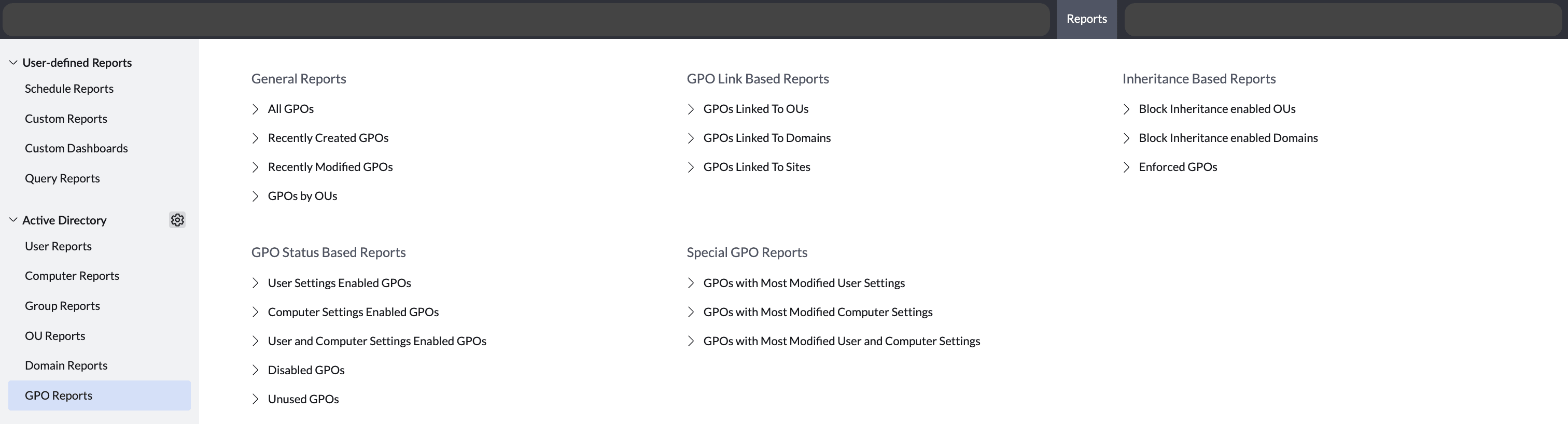
General GPO Reports provides administrators with a consolidated view of all Group Policy Objects (GPOs) configured within their domain. These reports cover all existing GPOs, recently created and modified GPOs, as well as GPOs linked to specific Organizational Units (OUs), enabling effective tracking and auditing of policy configurations. Each report supports custom time period selection and allows drill-down into individual GPO details for deeper analysis.
All GPOs
Provides the total list of GPOs that are present in the domain. Follow the steps below to access the report:
- In the top navigation bar, click on Reports.
- In the left sidebar under the Active Directory section, click on GPO Reports.
- Click the "All GPOs" report under General Reports.
- Clicking a GPO from the report displays the complete information about that GPO.
Recently Created GPOs
Provides the list of GPOs that were recently created in the domain. This is determined based on the value contained in the createTimeStamp attribute. Follow the steps below to access the report:
- In the top navigation bar, click on Reports.
- In the left sidebar under the Active Directory section, click on GPO Reports.
- Click the "Recently Created GPOs" report under General Reports.
- By default, the report displays the GPOs created in the previous week. You can choose a different period or generate a report for a custom period. Clicking a GPO from the report displays the complete information about that GPO.
Recently Modified GPOs
Provides the list of GPOs that are recently modified in the domain. This is determined based on the value contained in the ModifyTimeStamp attribute. Follow the steps below to access the report:
- In the top navigation bar, click on Reports.
- In the left sidebar under the Active Directory section, click on GPO Reports.
- Click the "Recently Modified GPOs" report under General Reports.
- By default, the report displays the GPOs modified in the previous week. You can choose a different period or generate a report for a custom period. Clicking a GPO from the report displays the complete information about that GPO.
GPOs by OUs
Provides the list of OUs and their linked GPOs. Follow the steps below to access the report:
- In the top navigation bar, click on Reports.
- In the left sidebar under the Active Directory section, click on GPO Reports.
- Click the "GPOs by OUs" report under General Reports.
- Clicking a GPO from the report displays the complete information about that GPO.