How to Choose an AD Connector?
Description
A major challenge that MSPs face is the inability to leverage the complete functionalities of an AD based setup to perform day-today management activities as the product server is outside the network. This complicates even simple tasks that needs to be accomplished. To bridge this gap, Endpoint Central MSP has come up with a component called the AD Connector which acts as a communicator between the product server and the Domain Controller of an organisation. It is mandatory for the AD connector to be one of the Distribution Servers (DS) within the organisation.
Steps to Configure Remote Office
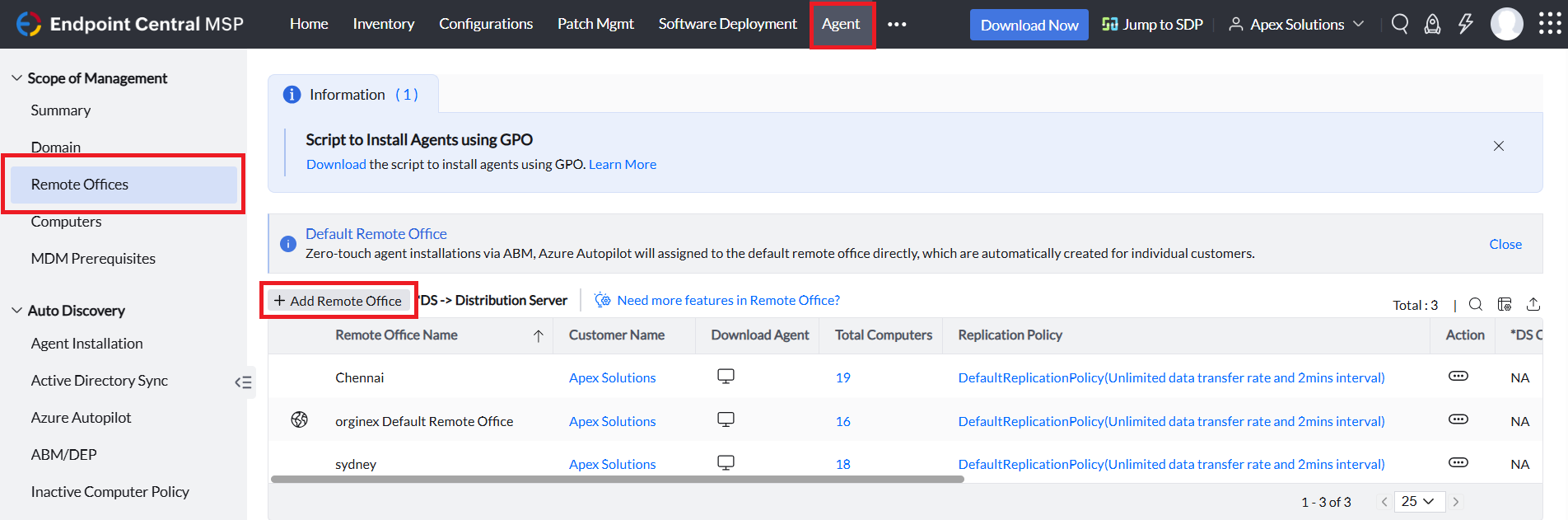
- In the Server console, navigate to the Agent > Remote Office
- Click Add Remote Office and fill in the ncessary details
- Choose the communication type as through a distribution server. To know more, click here
- Set up a distribution server in the required device in the selected remote office.
Steps to set up an AD connector in Endpoint Central MSP
- AD Connector must be able to reach both Domain Controller and Central Server.
- Once AD Connector is configured, AD Sync will be initiated automatically for that specific domain.
- Navigate to Agent > Domain > Add Domain
- Click Active Directory from the drop down
- If the domain controller will not be reachable from Central Server, enable Domain controller is not directly reachable and select AD Connector from drop down.
Note: If you want to configure AD Connector for existing domain, Navigate to the actions menu and select Modify Domain
You have now successfully selected an AD connector for an organization.