Disk Contention
The Disk Contention insight identifies devices where storage requests are queuing up faster than the disk can process them. When this happens, applications wait for the disk to respond — causing slow application launches, delayed file operations, sluggish system behavior, and longer boot and login times.
Unlike CPU and Memory insights which measure how much of a resource is being used, this insight measures how long storage requests are waiting to be processed. A device can have a lightly loaded CPU and plenty of free memory but still be severely impacted if its disk cannot keep up with demand.
This insight helps administrators:
- Identify which devices are experiencing storage bottlenecks and how severe the queue buildup is
- Determine whether the issue is tied to a specific disk model or storage technology (HDD vs SSD vs NVMe)
- Identify whether the problem is concentrated in a specific vendor's hardware
- Prioritize storage upgrades or remediation actions based on queue severity
Trigger Conditions
The Disk Contention insight is generated when:
- Disk queue length exceeds 1. This means more than one storage request is waiting to be processed at any given time.
- Threshold values can be customized based on organizational workload requirements and storage performance expectations.
Accessing the Insight
- In DEX Manager Plus, click DEX in the top navigation bar.
- Select Insights from the left sidebar.
- Locate the insight: Slow disk response is affecting application performance.
- Click the insight name to open the detail view.
Interpreting the Insight Metrics
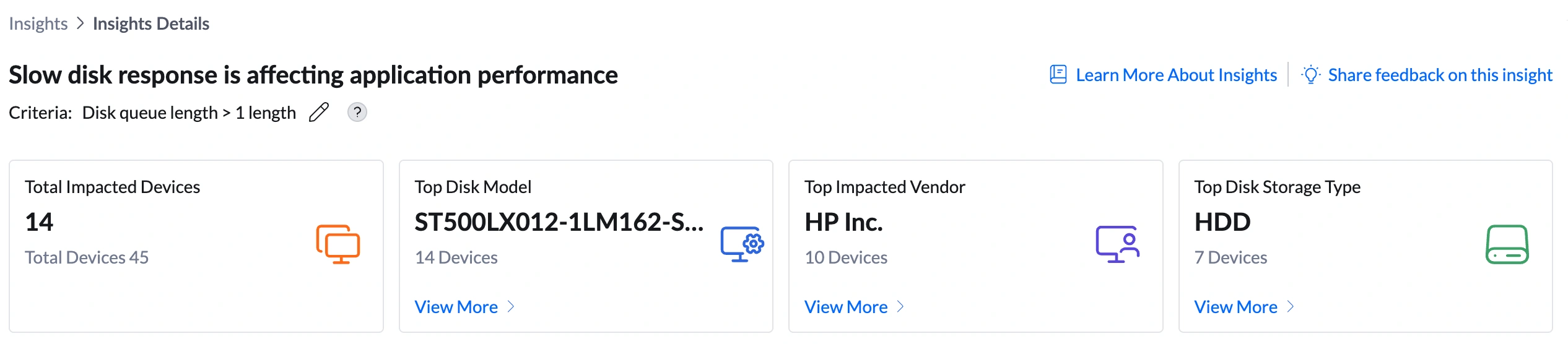
The insight details page provides information that helps determine whether the issue is linked to a specific disk model, storage technology, or hardware vendor.
| Metric | What it shows | How to use it |
|---|---|---|
| Total Impacted Devices | Number of devices currently exceeding the disk queue length threshold (e.g., 14 out of 45 total) | Assess the scale. If all 14 devices became affected simultaneously, a recent software deployment, OS update, or antivirus schedule change may have introduced a heavy background disk workload. If the count has grown gradually, it points to aging storage hardware across the fleet. |
| Top Disk Model | The disk model most commonly found in impacted devices (e.g., ST500LX012-1LM162-SSHD) | Click View More to open the Impacted Disk Models Summary showing Disk Model, Total Devices with Disk Model, Affected Devices, % of Devices Affected, and Insight Contribution %. If one disk model accounts for 100% of insight contribution, all affected devices share that same disk model — making it the primary suspect for the storage bottleneck. |
| Top Impacted Vendor | The device manufacturer most frequently associated with impacted devices (e.g., HP Inc. — 10 devices) | Click View More to see vendor-level device counts and Insight Contribution %. If one vendor contributes 71% of the insight (e.g., HP Inc.), check whether that vendor has published firmware or driver updates for the affected disk model. |
| Top Disk Storage Type | The storage technology most commonly associated with impacted devices (e.g., HDD — 7 devices) | This is a critical diagnostic signal. Click View More to see the full breakdown across HDD, SSD, and NVMe. HDD dominance indicates aging mechanical drives are the bottleneck — an HDD-to-SSD upgrade is the most effective long-term fix. SSD contention points to a driver, firmware, or capacity issue. NVMe contention is rare and almost always indicates a driver or firmware problem. |
Analyzing Affected Devices
The device table lists every machine currently exceeding the disk queue threshold. This is where you move from insight to investigation.
Understanding the columns
| Column | What to look for | What it means for remediation |
|---|---|---|
| Avg Disk Queue Length | The average number of pending storage requests during the monitoring period (e.g., AnneRoy: 4.98, BerniceBlackwell: 5.93) | Sort descending to prioritize devices with the worst bottleneck. As a guide: 1—2 = moderate, investigate. 3—5 = severe, act soon. 5+ = critical, act immediately. |
| Disk Type | Whether the device uses HDD, SSD, or NVMe (e.g., AnneRoy: HDD, BerniceBlackwell: SSD) | HDD devices with high queue length are strong candidates for an SSD upgrade. SSD devices with high queue length need driver or firmware investigation first — an SSD should not ordinarily queue requests under standard workloads. |
| Disk Model | The exact model identifier of the storage drive (e.g., ST500LX012-1LM162-SSHD) | Cross-reference with the Top Disk Model drill-down. If all affected devices share the same model, check the manufacturer's website for known performance issues, driver updates, or firmware patches for that specific model. |
| Collected Time | The timestamp when disk queue data was collected (e.g., Jun 9, 2026 11:51 AM) | Use this to identify time-of-day patterns. If all devices show high queue at the same time each day, a scheduled task — such as antivirus scanning, backup, or Windows Update — is likely the trigger. Reschedule that task to off-peak hours. |
Sorting and filtering the table
- Sort by Avg Disk Queue Length descending — immediately surfaces the most severely impacted devices.
- Use the Disk Type column to group HDD and SSD devices and identify whether one storage technology is disproportionately affected.
- Use the filter icon to scope by device group, branch office, or OS version.
Root Cause Investigation
Disk contention is a hardware-level issue — there is no top process to investigate. The investigation follows the storage hardware and activity patterns.
Remediation
Use the table below to match what you observe to the right remediation path. Always verify the issue has resolved using the Disk Usage Report after taking action.
Post-Remediation Monitoring
- Return to DEX > Insights. The device count on the Disk Contention insight should have decreased. If it has not, the root cause has not been addressed.
- Open DEX > Reports > Disk Usage Report and filter by the previously impacted devices. Confirm Avg Disk Queue Length has returned to 0 or 1.
- If the issue was triggered by a scheduled task, verify the rescheduled task runs at the new time without causing a queue spike.
- Set up an Alert (DEX > Alerts) targeting the affected devices with a disk queue threshold notification so you are informed immediately if the issue recurs.
Frequently Asked Questions
Why is there no Top Process shown in this insight?
Disk contention is a hardware-level bottleneck — it reflects the storage device's inability to keep up with demand, not a single application consuming excessive disk. Multiple processes may all be contributing to the queue simultaneously. Identifying and prioritizing by disk model, storage type, and queue length is more actionable than pointing to a single process.
What is disk queue length and why does it matter?
Disk queue length is the number of read/write requests waiting to be processed by the storage device. A value of 0 means the disk is keeping up perfectly. A value above 1 means requests are stacking up faster than the disk can handle them — and every application waiting for those requests is slowing down. The higher the queue, the worse the user experience.
Why are HDD devices more commonly affected than SSDs?
HDDs use a physical mechanical arm to read and write data on a spinning platter — they can only process one request at a time in a given location. SSDs have no moving parts and can handle many simultaneous requests much faster. Any workload involving many small, random read/write operations — typical in multitasking environments — will cause queue buildup on an HDD much sooner than on an SSD.
My SSD devices are appearing in this insight. Why?
SSDs can show disk contention if the drive is more than 80% full (SSDs slow significantly as free space decreases), the disk driver or firmware is outdated, or the workload is genuinely I/O-intensive (large databases, video editing, virtual machines). Check available space first — this resolves the majority of SSD-based contention cases.
How is disk contention related to memory utilization?
They are directly connected. When a device runs out of physical RAM, the OS begins moving data between RAM and the hard drive — a process called paging or swapping. This creates a large volume of additional disk read/write requests, rapidly filling the disk queue. If the same devices appear in both the High Memory Utilization and Disk Contention insights, resolving the memory shortage will also reduce disk contention.
Should I review this insight alongside other insights?
Yes. Disk contention, high memory swap activity, slow boot time, and slow application launch are frequently caused by the same underlying issue — a device whose hardware can no longer meet its workload demands. Review the High Memory Utilization, Slow Boot Time, and Slow User Logon insights together with Disk Contention for the same devices to get a complete picture before deciding on remediation.