Input Response Delay
The Input Response Delay insight identifies devices where users experience noticeable lag between pressing a key or moving the mouse and seeing the system respond. This is one of the most user-perceptible forms of performance degradation — users feel it immediately as a sluggish, unresponsive device, even when applications appear to be running normally.
What makes this insight uniquely valuable is that the device table does not just show that input delay occurred — it captures the exact system resource state at the moment the delay happened. CPU usage, available memory, and disk queue length are all recorded during the delay event itself, giving you forensic-level data to identify what was causing the system to be unresponsive.
This insight helps administrators:
- Identify devices where users are experiencing real, felt performance degradation — not just threshold breaches
- Determine which resource — CPU, memory, or disk — was under pressure at the exact moment of input lag
- Distinguish between isolated single-resource bottlenecks and compound resource pressure (multiple resources stressed simultaneously)
- Prioritize remediation on devices where input delay is most severe and most frequent
Trigger Conditions
The Input Response Delay insight is generated when:
- User input delay exceeds 500 milliseconds. This represents the point at which keyboard or mouse lag becomes perceptible and disruptive to normal work.
- Threshold values can be customized based on organizational requirements.
Accessing the Insight
- In DEX Manager Plus, click DEX in the top navigation bar.
- Select Insights from the left sidebar.
- Locate the insight: Devices experiencing slow keyboard and mouse response.
- Click the insight name to open the detail view.
Interpreting the Insight Metrics
The insight details page shows four summary cards identifying scale, hardware model, vendor, and office location. Unlike performance utilization insights, there is no process or storage type card — because input delay is caused by compound resource pressure, not a single identifiable source.
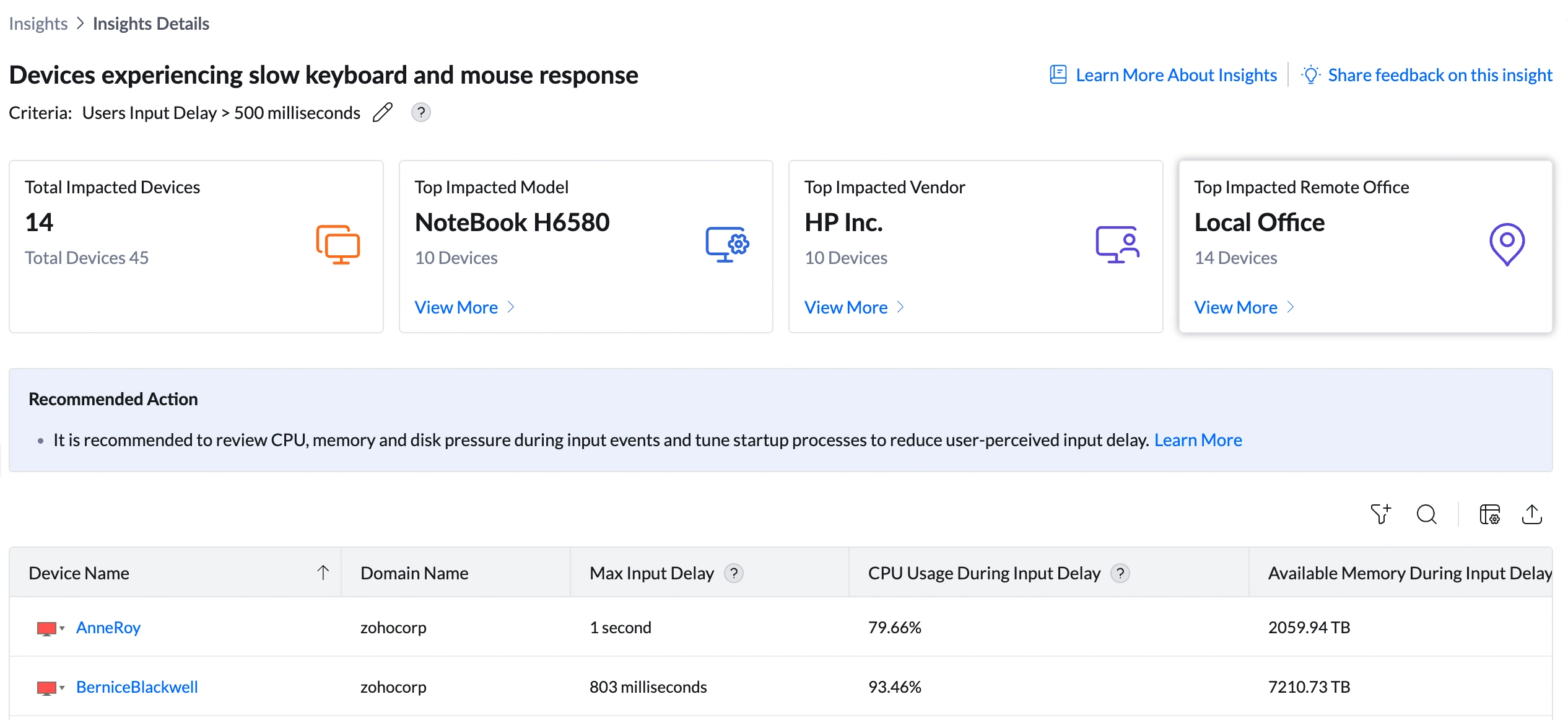
| Metric | What it shows | How to use it |
|---|---|---|
| Total Impacted Devices | Number of devices where input delay exceeded 500ms (e.g., 14 out of 45 total) | Assess scale. A large proportion of devices affected simultaneously may indicate a fleet-wide workload change, a recent software deployment adding background load, or a time-of-day pattern. Isolated devices point to device-specific resource constraints. |
| Top Impacted Model | The device model most commonly experiencing input delays (e.g., NoteBook H6580 — 10 devices, 71%) | Click View More to open the Impacted Models Summary. If one model accounts for 71% contribution, that hardware model's specs may be insufficient for the user workloads assigned to it. Cross-reference with the CPU, memory, and disk values in the device table — if all NoteBook H6580 devices show high CPU and high disk queue during delay events, the model is under-spec for its workload. |
| Top Impacted Vendor | The hardware manufacturer most frequently associated with input delays (e.g., HP Inc. — 10 devices, 71%) | Click View More for vendor-level breakdown. HP Inc. at 71% combined with NoteBook H6580 at 71% confirms this is a model-specific issue within the HP fleet — not a fleet-wide configuration problem. |
| Top Impacted Remote Office | The office location with the most devices experiencing input delays (e.g., Local Office — 14 devices, 100%) | Click View More to see the Impacted Remote Offices Summary. All affected devices being in Local Office could indicate a location-specific factor — such as a site-wide shared storage or network resource that is adding disk queue or latency during peak hours. |
Analyzing Affected Devices
The device table is the most important section of this insight. It records not just the delay duration, but the exact resource state of the device at the moment the input delay occurred. This is forensic performance data.
Understanding the columns
| Column | What it shows | Reference values | What it means for remediation |
|---|---|---|---|
| Max Input Delay | The longest single input delay recorded for that device during the monitoring period (e.g., AnneRoy: 1 second, FrancisOmersa: 2 seconds, BerniceBlackwell: 803ms) | 500ms—1s: Noticeable, disruptive. 1—2s: Severe — users actively complaining. Above 2s: Critical — device feels frozen | Sort this column descending to prioritize the worst-affected devices. A 2-second input delay means the user experienced their device appearing completely frozen for 2 full seconds mid-task. |
| CPU Usage During Input Delay | The CPU utilization percentage at the exact moment the input delay occurred (e.g., AnneRoy: 79.66%, BerniceBlackwell: 93.46%, FrancisOmersa: 79.39%) | Below 70%: CPU is not the primary cause. 70—85%: CPU contributing. Above 85%: CPU is a primary cause | BerniceBlackwell at 93.46% CPU during delay confirms CPU overload as a direct contributor to input lag on that device. All three visible devices show CPU above 79% during delay — combined with high disk queue, this is compound resource pressure. |
| Available Memory During Input Delay | Memory available at the moment of input delay | Note: These values appear in TB range due to cumulative measurement methodology. The relative values across devices are what matter for comparison. | If Available Memory During Input Delay is very low on a device compared to similar devices, memory pressure is contributing to the lag — the OS may have been paging to disk, compounding the disk queue. |
| Disk Queue Length During Input Delay | The disk queue length at the moment of input delay (e.g., AnneRoy: 6.24, BerniceBlackwell: 9.73, FrancisOmersa: 7.28) | 0—1: Normal. 1—3: Elevated. 3—5: High. Above 5: Severe — strong contributor to input lag | All three visible devices have disk queue lengths above 6 during delay — this is severe. High disk queue combined with high CPU is the most common pattern in this insight — the two compound each other. |
Sorting and filtering the table
- Sort by Max Input Delay descending — prioritizes devices with the worst user-experienced lag first.
- Sort by CPU Usage During Input Delay descending — identifies devices where CPU overload is the primary driver.
- Sort by Disk Queue Length During Input Delay descending — identifies devices where storage bottleneck is the primary driver.
- Use the filter icon to scope by model, domain, or remote office.
Root Cause Investigation
Because this insight captures resource state at the moment of delay, root cause identification is more direct than in other insights. Look at the three resource columns together — the pattern tells you which resource to address first.
Step 1 — Identify the resource pattern
| Resource pattern at time of delay | Root cause | Primary remediation |
|---|---|---|
| High CPU (>85%) + High Disk Queue (>5) + Low Memory — all three simultaneously | Compound resource exhaustion — the device is overloaded across all major subsystems at the same time. No single fix will resolve this — the device hardware spec is insufficient for its workload. | Escalate to hardware review. The device needs more RAM, an SSD upgrade (if HDD), and possibly a faster processor. Software optimizations will help marginally but cannot resolve compound hardware insufficiency. |
| High CPU only (>85%), disk queue normal (<2), memory adequate | CPU overload is the sole cause. A specific process is consuming excessive CPU at the time of the input event. | Investigate the High CPU Utilization insight for the same device. Identify the top CPU process and reduce its load (update, policy, or user guidance). |
| High Disk Queue (>5) only, CPU normal (<70%), memory adequate | Disk contention is the sole cause. Storage requests are queuing up and the system cannot respond to input while waiting. | Investigate the Disk Contention insight for the same device. If the device has an HDD, an SSD upgrade is the most effective fix. |
| Low Memory only, CPU normal, disk queue normal (<2) | Memory exhaustion is the sole cause. The OS is swapping to disk in response to insufficient RAM, causing brief hangs during input processing. | Check the High Memory Utilization insight for the same device. Review the Used Slots column — if a RAM slot is free, add a RAM module. |
| All three resources moderate (not severely elevated on any single metric) | Background process accumulation — no single resource is critically overloaded but cumulative load across all three is causing the system to miss input events. | Reduce startup apps, set background services to delayed start, and review scheduled tasks that may run during business hours. |
Step 2 — Cross-reference with related insights
Because Input Response Delay captures resource state at the moment of delay, it often reveals the same underlying issue as other performance insights. For each affected device, check:
- High CPU Utilization insight — if the same device appears there, CPU is a confirmed recurring problem, not just a spike at delay time
- Disk Contention insight — if the same device appears there with high Avg Disk Queue Length, disk is a confirmed bottleneck
- High Memory Utilization insight — if the same device appears there with high Memory Swap Rate, memory exhaustion is confirmed
A device appearing in Input Response Delay AND High CPU AND Disk Contention simultaneously is a device whose hardware cannot handle its current workload. The three insights together confirm what the Input Response Delay insight hints at through its compound resource columns.
Step 3 — Check model drill-down for hardware pattern
Click View More under Top Impacted Model. If the device table shows consistently high CPU and disk queue across all affected devices during delay events, the model's hardware spec is the root cause — not a configuration issue.
Remediation
| If you see this... | Do this |
|---|---|
| High CPU (>85%) AND high disk queue (>5) on the same device simultaneously — compound pressure | Hardware is the root cause. Short-term: reduce startup apps and background processes via Configurations > Windows > Startup Programs. Long-term: upgrade storage to SSD (resolves disk queue), add RAM if slots available (reduces memory paging that compounds disk queue), and review whether CPU is adequate for the user's workload. Create a hardware upgrade ticket for the device. |
| CPU During Input Delay above 85% on multiple devices — CPU-driven delay | Cross-reference with High CPU Utilization insight. Identify the top CPU process on those devices and apply the same remediation: update the application, restrict background activity via policy, or advise user on workload management. If the same process appears across devices, one fleet-wide policy change resolves multiple devices. |
| Disk Queue During Input Delay above 5 on HDD devices | The mechanical drive cannot keep up with I/O demand during active use. An HDD-to-SSD upgrade is the most effective fix. As an interim measure, schedule heavy background tasks (antivirus, backup, updates) to off-peak hours to reduce disk competition during working hours. |
| NoteBook H6580 accounts for 71% of insight contribution with compound resource pressure | This specific model is under-spec for the current workload. Create a prioritized hardware upgrade plan for all NoteBook H6580 devices in the fleet — specifically: SSD replacement and RAM addition where slots are available. Track improvement via the Max Input Delay column after upgrades. |
| Max Input Delay is 2+ seconds on a specific device | The user is experiencing severe, near-freeze conditions. Prioritize this device above others. Connect via Remote Actions > Remote Desktop during the user's working hours to observe resource usage in real time. Identify the specific process or task creating the peak load. Take immediate action: kill non-essential background processes, apply a configuration policy, or escalate to hardware replacement. |
| All affected devices are in Local Office (100% Remote Office contribution) | A location-specific factor may be contributing — for example, a shared network drive or storage server that all Local Office devices access during peak hours, creating disk queue pressure simultaneously. Investigate whether all affected devices share a common infrastructure resource. Speak to the network team about peak-hour load on site-local servers. |
Post-Remediation Monitoring
- Return to DEX > Insights. The device count on the Input Response Delay insight should have decreased. If it has not, the resource pressure is continuing — verify the configuration change or hardware upgrade has been applied.
- Open the device table and check Max Input Delay for the previously impacted devices. Confirm it has dropped below 500ms.
- Check CPU Usage During Input Delay and Disk Queue Length During Input Delay for the same devices. Confirm both have reduced. If Max Input Delay has dropped but resource usage during delay is still high, the threshold was raised rather than the root cause resolved.
- Set up an Alert (DEX > Alerts) targeting the affected devices for input delay threshold notifications so you are informed if the issue returns after future software deployments or workload changes.
Configuring the Input Delay Threshold
- Navigate to DEX > Insights.
- Locate the Input Response Delay insight row.
- Click the edit icon (pencil) next to the criteria description.
- Update the input delay threshold and save.
Frequently Asked Questions
Why does this insight show CPU, memory, and disk columns — not just input delay?
Because input delay is almost never caused by a single isolated factor — it is caused by the combined resource state of the device at the moment the user pressed a key or moved the mouse. Showing resource state at the time of delay makes root cause identification immediate: you can see exactly which resource was under pressure when the user experienced lag, rather than having to correlate separate insights after the fact.
A device shows low average CPU in the High CPU Utilization insight but appears here. Why?
High CPU Utilization measures sustained average CPU usage over a monitoring period — it only fires when CPU stays above 75% consistently. Input Response Delay captures CPU at the exact moment a half-second lag occurred — which could be a brief spike that never triggered the High CPU threshold. A device with average CPU of 60% can still experience CPU spikes to 90% during specific operations, causing input delay without ever appearing in the High CPU insight.
The Available Memory During Input Delay values are showing TB-range numbers. Is this correct?
The TB-range values in the Available Memory column reflect the cumulative measurement methodology used for this metric rather than actual installed RAM. The absolute values should not be interpreted as gigabytes of RAM. What matters is the relative comparison across devices — a device showing significantly lower available memory than its peers during a delay event was experiencing greater memory pressure.
Is this the same as the Slow Boot Time or Slow User Logon insight?
No — they measure different phases of the device experience. Slow Boot Time measures startup duration before the user logs in. Slow User Logon measures the delay after authentication before the desktop is usable. Input Response Delay measures mid-session responsiveness — the lag a user experiences while actively working, long after startup is complete.
Should I review this insight alongside other insights?
Yes — Input Response Delay is the user-experience lens on the same underlying resource problems that High CPU Utilization, High Memory Utilization, and Disk Contention surface separately. If the same device appears in Input Response Delay AND one or more of those insights, you have both the resource evidence (from the utilization insights) and the user impact evidence (from this insight) needed to build a strong case for hardware investment or remediation priority.