Wifi Degradation Insight
The Wi-Fi Degradation insight identifies devices experiencing poor wireless network connectivity. Unlike hardware performance insights, this insight monitors the quality of the network connection itself — measuring signal strength, interference, packet loss, and latency in real time across all managed endpoints.
Poor Wi-Fi connectivity directly impacts user productivity: video calls freeze, cloud applications time out, file transfers stall, and collaboration tools become unreliable. Because users often attribute these problems to the application rather than the network, Wi-Fi degradation is one of the most frequently misdiagnosed performance issues in a managed endpoint environment.
This insight helps administrators:
- Identify which devices are experiencing poor wireless connectivity and which network metrics are triggering the issue
- Determine whether the problem is device-specific, SSID-specific, or location-wide
- Distinguish between signal strength problems (physical/coverage issues) and latency or packet loss problems (infrastructure or congestion issues)
- Prioritize remediation — whether that means repositioning access points, changing Wi-Fi channels, updating drivers, or escalating to network infrastructure teams
Trigger Conditions
The Wi-Fi Degradation insight is generated when any one of the following conditions is detected on a device — this is an OR condition across four network quality indicators:
| Condition | Default Threshold | What it indicates |
|---|---|---|
| Signal Strength + SNR (combined) | Signal strength < -75 dBm AND Signal-to-Noise Ratio < 20 dB | The device is too far from an access point or experiencing significant wireless interference — both conditions must be true simultaneously. |
| Packet Loss | Packet loss > 3% | Data packets are being dropped in transit — indicating network congestion, interference, or infrastructure instability. |
| Gateway Latency | Gateway latency > 100 milliseconds | The time to reach the network gateway is excessive — indicating network congestion, routing issues, or overloaded infrastructure. |
Accessing the Insight
- In DEX Manager Plus, click DEX in the top navigation bar.
- Select Insights from the left sidebar.
- Locate the insight: Devices are experiencing degraded Wi-Fi connectivity.
- Click the insight name to open the detail view.
Interpreting the Insight Metrics
The insight details page shows four summary cards focused entirely on network and location context — there are no hardware model or storage type cards. This reflects that Wi-Fi degradation is a network infrastructure problem, not a device hardware problem.
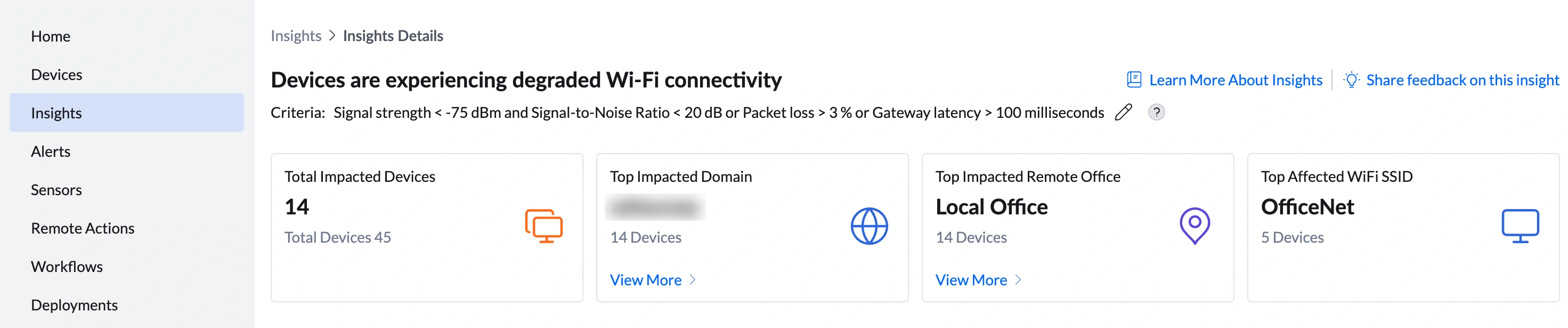
| Metric | What it shows | How to use it |
|---|---|---|
| Total Impacted Devices | Number of devices currently experiencing degraded Wi-Fi connectivity (e.g., 14 out of 45 total) | Assess scale. 14 out of 45 devices affected, all in the same domain and office, points to an infrastructure problem rather than individual device issues. A single device affected while others in the same location are fine suggests a device-level cause. |
| Top Impacted Domain | The network domain with the most affected devices (e.g., zohocorp — 14 devices) | Click View More to open the Impacted Domains Summary showing Domain Name, Total Devices in Domain, Affected Devices, % of Devices Affected, and Insight Contribution %. In this example, zohocorp shows 14 out of 14 total devices affected — 100% of devices in the domain with 100% Insight Contribution %. All affected devices are on the same corporate network. Use the Remote Office and SSID cards to narrow down the specific location within that network. |
| Top Impacted Remote Office | The office location with the most affected devices (e.g., Local Office — 14 devices) | Click View More to open the Impacted Remote Offices Summary showing Remote Office, Total Devices in Remote Office, Affected Devices, % of Devices Affected, and Insight Contribution %. In this example, Local Office shows 14 out of 14 total devices affected — 100% of devices in the office with 100% Insight Contribution %. The Wi-Fi degradation is entirely localized to this site, strongly pointing to an access point or infrastructure problem at the Local Office location. |
| Top Affected WiFi SSID | The wireless network name most commonly associated with degraded devices (e.g., OfficeNet — 5 devices) | This is your most actionable card. OfficeNet appearing with 5 of the 14 affected devices means the access points broadcasting OfficeNet are the primary investigation target. Note: this card does not have a View More drill-down in the current version. Use the Remote Office drill-down in combination to confirm whether the SSID issue is localized to one site. |
Analyzing Affected Devices
The device table shows six Wi-Fi performance metrics per device — the most technical column set across all DEX insights. Understanding what each metric measures and what its values mean is essential for accurate diagnosis.

Understanding the columns
| Column | What it measures | Reference values | What it means for remediation |
|---|---|---|---|
| WiFi Signal Strength (%) | Signal strength expressed as a percentage for easier reading (e.g., AnneRoy: 35%, FrancisOmersa: 38%) | Above 70%: Excellent. 50—70%: Good. 30—50%: Fair. Below 30%: Poor | Low percentage confirms the device is receiving a weak signal. The cause is almost always physical — distance from access point, walls or obstructions, or a coverage gap. |
| WiFi Signal Strength (dBm) | The raw signal power measurement in decibels per milliwatt (e.g., AnneRoy: -92.91 dBm, FrancisOmersa: -92.05 dBm) | -50 dBm: Excellent. -60 dBm: Good. -70 dBm: Fair. -75 dBm: Threshold. -80 dBm+: Poor | Values around -92 dBm are well below the -75 dBm threshold — these devices are receiving a very weak signal. They need to be physically closer to an access point or an additional access point needs to be installed. |
| WiFi Signal to Noise Ratio (dB) | The ratio of signal strength to background wireless interference (e.g., AnneRoy: 15.61 dB, BerniceBlackwell: 5.41 dB) | Above 40 dB: Excellent. 25—40 dB: Good. 15—25 dB: Fair. Below 15 dB: Poor. Below 10 dB: Very poor | Low SNR means significant wireless interference. BerniceBlackwell at 5.41 dB is in a very noisy RF environment. Causes include other Wi-Fi networks, Bluetooth devices, microwave ovens, cordless phones, or channel congestion. |
| Packet Loss (%) | The percentage of data packets that fail to reach their destination (e.g., AnneRoy: 6.85%, BerniceBlackwell: 4.50%) | 0—1%: Normal. 1—2.5%: Acceptable. 2.5—5%: Noticeable. Above 5%: Significant | AnneRoy at 6.85% packet loss will experience dropped audio in calls, buffering in video, and timeout errors in cloud apps. This metric can be high even with good signal strength — indicating congestion rather than coverage gaps. |
| Gateway Latency | The time in milliseconds to reach the network gateway (e.g., AnneRoy: 118ms, BerniceBlackwell: 172ms, FrancisOmersa: 372ms) | Under 20ms: Excellent. 20—50ms: Good. 50—100ms: Acceptable. 100—200ms: High. Above 200ms: Very high | FrancisOmersa at 372ms will experience severe degradation in video conferencing, VoIP, and real-time applications. High latency with good signal often points to a network infrastructure problem — overloaded router, congested uplink, or ISP issue — not a coverage problem. |
| WiFi Rx Rate (Kbps) | The data reception speed of the device's wireless connection (e.g., AnneRoy: 680 Kbps, BerniceBlackwell: 728 Kbps, FrancisOmersa: 651 Kbps) | Above 10,000 Kbps (10 Mbps): Good. 1,000—10,000 Kbps: Marginal. Below 1,000 Kbps: Poor | All three visible devices are below 1,000 Kbps. At 680 Kbps, a device will struggle to sustain a video call (which typically requires 1,500—3,500 Kbps). Low Rx Rate combined with poor signal confirms a coverage issue rather than network congestion. |
Sorting and filtering the table
- Sort by Packet Loss (%) descending — surfaces devices with the worst data loss first, prioritizing those experiencing application failures.
- Sort by Gateway Latency descending — identifies devices with the worst latency, particularly relevant for video conferencing users.
- Sort by WiFi Signal Strength (dBm) ascending — most negative values first — identifies devices with the weakest physical signal.
- Use the filter icon to scope by Remote Office or domain to isolate a specific site's devices.
Root Cause Investigation
Wi-Fi degradation has three distinct root cause types, each requiring a different investigation path. Identifying which type applies before taking action prevents misdiagnosis.
Step 1 — Identify which metric is triggering the insight
| Primary metric triggering insight | Root cause type | Where to investigate |
|---|---|---|
| Low Signal Strength (dBm) + Low SNR | Physical coverage problem — device is too far from an access point or experiencing RF interference | Access point placement, coverage map, physical environment (walls, floors, distance) |
| High Packet Loss with adequate signal | Interference or channel congestion — signal is present but data is being corrupted or dropped | Wi-Fi channel assignment, neighboring SSIDs, Bluetooth interference, microwave/cordless phone interference |
| High Gateway Latency with adequate signal and low packet loss | Network infrastructure problem — the wireless link is fine but the network path to the gateway is congested | Router load, uplink capacity, ISP connection, VPN or proxy latency |
| Low WiFi Rx Rate with all other metrics fair | Driver, adapter, or negotiation issue — the device is connected but negotiating a low data rate | Wi-Fi driver version, adapter capability, access point 802.11 compatibility (a/b/g/n/ac/ax) |
Step 2 — Determine scope: device-specific or location-wide
| Pattern in device table | Scope | Action |
|---|---|---|
| Multiple devices in the same Remote Office and SSID show similar metric values | Location-wide — access point or infrastructure issue at that site | Escalate to network infrastructure team with: office name, SSID, affected device count, and the specific metrics triggering the insight. |
| One device is affected while others in the same location are fine | Device-specific — adapter, driver, or placement issue on that device | Investigate the individual device: check driver version, Wi-Fi adapter health, and physical position relative to access points. |
| Multiple devices across different locations show high latency but good signal | Network infrastructure — upstream congestion or ISP issue | Investigate the shared network path: router load, WAN connection capacity, ISP performance at the time of data collection. |
Step 3 — Check SSID and Remote Office drill-downs
Click View More under Top Impacted Remote Office to confirm which sites are affected. If one office accounts for 100%, all affected devices are at one site — this strongly points to a site-specific access point or infrastructure issue.
Use the Top Affected WiFi SSID card to identify the specific wireless network. If one SSID is disproportionately represented, check: whether that SSID's access points are overloaded, whether the SSID is broadcasting on a congested channel (2.4 GHz is more prone to congestion than 5 GHz), and whether the access points for that SSID have pending firmware updates.
Step 4 — Validate with the Wi-Fi Performance Report
Click View Wi-Fi Performance Report at the top right of the device table for historical context:
- Signal strength trend — confirms whether the signal has degraded over time or has always been weak
- Packet loss history — identifies whether packet loss is constant or spikes at specific times
- Gateway latency over time — shows whether latency is consistently high or appears at peak usage times
Remediation
| If you see this... | Do this |
|---|---|
| Signal Strength below -75 dBm on multiple devices in the same area | Coverage gap — the access point is too far or blocked. Escalate to your network team to review access point placement and coverage map for that area. Consider deploying an additional access point or a Wi-Fi extender in the affected zone. As a temporary measure, advise users to move closer to the access point. |
| Low SNR (below 15 dB) on multiple devices | Wireless interference in that area. Ask your network team to run a Wi-Fi spectrum analysis to identify interfering sources. Common culprits: neighboring Wi-Fi networks on the same channel, Bluetooth devices, microwave ovens in break rooms, or cordless phones. If the SSID is on the 2.4 GHz band, consider migrating devices to 5 GHz, which is less congested. |
| High Packet Loss (above 3%) with adequate signal strength | Channel congestion or interference. Ask your network team to change the Wi-Fi channel for the affected SSID's access points. On 2.4 GHz, use non-overlapping channels (1, 6, or 11). On 5 GHz, enable automatic channel selection if available. Also check whether Wi-Fi drivers on affected devices are current via Software Deployment. |
| High Gateway Latency (above 100ms) with good signal and low packet loss | Network infrastructure or ISP issue — not a wireless problem. Escalate to your network team with the gateway latency values and timestamps. They should investigate router load, uplink bandwidth utilization, and ISP performance. If affected devices use a VPN, check whether VPN routing is adding latency. |
| Low WiFi Rx Rate (below 1,000 Kbps) despite adequate signal | Driver or adapter negotiation issue. Update the Wi-Fi driver on affected devices via Software Deployment. If the driver is current, check whether the access point supports the device's Wi-Fi standard (802.11ac/ax devices connected to older 802.11n access points will negotiate lower speeds). |
| One SSID (OfficeNet) accounts for most affected devices | The access points broadcasting that SSID are the likely cause. Check the number of devices connected to those access points — if overloaded (more than 30—40 devices per AP), the AP is saturated. Ask your network team to add additional access points for that SSID or enable load balancing if available on the wireless controller. |
| A single device is affected while similar nearby devices are fine | Device-specific issue. First update the Wi-Fi driver via Software Deployment. If that does not resolve it, connect via Remote Actions > Remote Desktop and run: netsh wlan show interfaces to review the current connection details. Check whether the device is connecting to the correct SSID and band. Consider physically repositioning the device closer to an access point. |
Post-Remediation Monitoring
- Return to DEX > Insights. The device count on the Wi-Fi Degradation insight should have decreased. If it has not, the remediation has not taken effect — verify with the network team that the access point changes were applied.
- Open DEX > Reports > Wi-Fi Performance Report and filter by the previously impacted devices. Confirm that Signal Strength (dBm), Packet Loss (%), and Gateway Latency have all returned to acceptable levels.
- Verify that the Top Affected WiFi SSID card no longer shows the same SSID dominating the insight, or that the device count associated with it has reduced.
- Set up an Alert (DEX > Alerts) for the affected devices targeting the specific metric that was triggering the insight — packet loss, gateway latency, or signal strength — so you are notified immediately if the issue recurs.
Configuring Wi-Fi Thresholds
All three trigger thresholds can be customized to match your organization's network performance requirements.
- Navigate to DEX > Insights.
- Locate the Wi-Fi Degradation insight row.
- Click the edit icon (pencil) next to the criteria description.
- Update the signal strength, packet loss, and/or gateway latency threshold values and save.
Frequently Asked Questions
Why is a device flagged even though its signal strength looks acceptable?
Because this insight uses an OR condition — any one of the four trigger criteria can flag a device. A device with -65 dBm signal (adequate) can still appear if its packet loss exceeds 3% or its gateway latency exceeds 100ms. Always check all six metric columns to identify which specific condition triggered the insight for each device.
What is the difference between Signal Strength (%) and Signal Strength (dBm)?
They measure the same thing — wireless signal power — expressed in different units. The percentage is a simplified scale (0—100%) for ease of reading. The dBm value is the raw technical measurement: it is a negative number where values closer to zero are stronger (-50 dBm is excellent, -92 dBm is very poor). When sharing data with network infrastructure teams, use the dBm value — it is the standard unit they work with.
What is Signal-to-Noise Ratio and why does it matter?
Signal-to-Noise Ratio (SNR) measures the strength of the Wi-Fi signal relative to background wireless interference in the environment. A device can have adequate signal strength but very poor SNR if there is heavy interference from other devices — neighboring Wi-Fi networks, Bluetooth, or other RF sources. Low SNR causes packet corruption and retransmissions even when the signal level is technically sufficient. This is why both Signal Strength and SNR are evaluated together in the trigger condition.
Can Wi-Fi degradation affect a device even when the user is not actively using the network?
Yes. DEX measures Wi-Fi performance continuously in the background. A device can show packet loss and high latency even during light usage if the underlying wireless connection is unstable. Background processes — cloud sync, antivirus updates, telemetry — still consume network resources and are affected by poor connectivity.
Should I review this insight alongside other insights?
Yes. Wi-Fi degradation frequently co-occurs with High CPU Utilization and application crashes. When a network connection is unstable, applications that depend on network resources — particularly Teams, Outlook, and browser-based tools — may crash or consume excessive CPU while retrying failed requests. If the same devices appear in both Wi-Fi Degradation and Application Crashes or High CPU Utilization, resolving the network issue may also reduce the application instability.