Configuring database in DDI Central Linux
Network admins need to configure the database by providing the remote IP address of the postgres server, the port number of the postgres service, the name of the postgres database, and the dedicated postgres username and password.
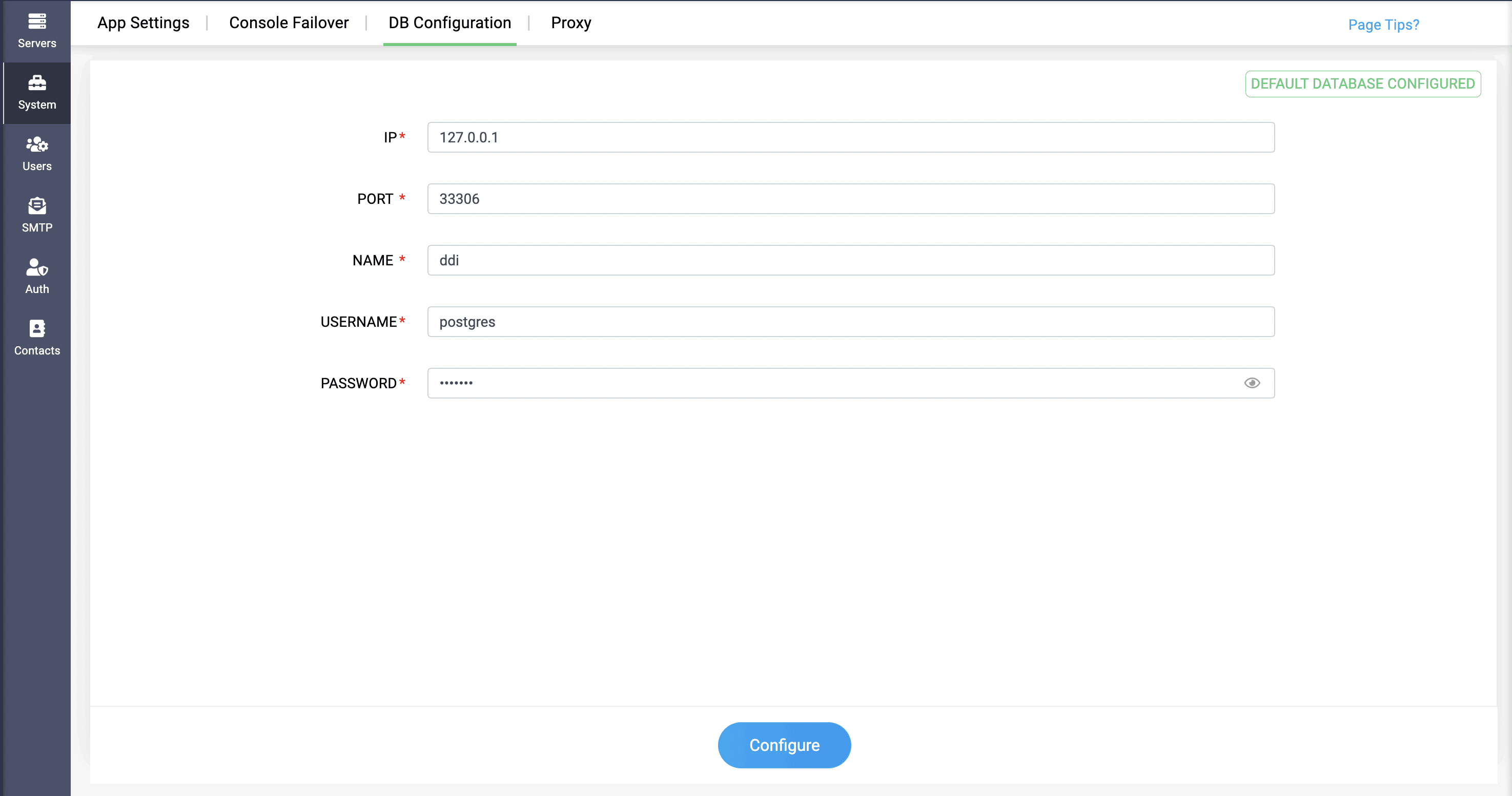
When DDI Central's default database details are predefined in those fields, it will be indicated as Default Database Configured on the top right of the page. When external database details have been configured, it'll be shown as External Database Configured.
After configuration, DDI Central should be restarted, then the following migrate command should be executed:
One successful configuration, you will be redirected to the login page. The remote server will not have any data. Now, to bring the local database's data to the remote database server, execute the following commands:
pg_dump command to be executed at the source machine. This creates a .SQL file. Subsequently, this file should be specified in a file path through the PG restore command.
pg_restore command should be executed at the targeted remote machine to transfer data from the local server to the remote server in order to configure the Database in the remote server.
Database user requirements for configuring Remote DB in DDI Central
When connecting DDI Central to a remote PostgreSQL database, you must create a dedicated role with the following custom privileges:
- Login rights (rolcanlogin = true) — enabling the user to successfully can authenticate.
- Database creation (rolcreatedb = true) — to enable schema or database initialization if needed.
- Schema‑level CREATE — to issue CREATE TABLE and related DDL in the chosen schema.
- Table‑level DML (SELECT, INSERT, UPDATE, DELETE) — so the user can read and modify the relevant tables.
The command process can also be implemented in reverse when transferring data from a remote database server to a default database server.