Configuring Failover for Linux App Console in DDI Central

DDI Central offers failover for the Management UI console, helping ensure service continuity during the console server downtime. The application console can be installed on both primary and secondary servers to enable a complete failover mechanism. If the primary server goes down, the secondary server takes over and assumes full control of all managed DNS and DHCP servers in the network.
To configure failover in DDI Central application,
- Two installations are required. The DDI Central app console must be installed in both primary and secondary servers.
- The primary and secondary servers can be in different time zones. However, ensure that both servers are configured to run on the correct local time.
- Both primary or secondary servers should run on the same HTTPS port.
- Both servers should be in sync, and they should have consistent connectivity.
- Both servers should run on the same version of the app console.
High Availability via Keepalived
High availability for the DDI Central app console is implemented using Keepalived, a Linux package commonly used to provide high availability (HA) between a primary and secondary server. Keepalived monitors the health of key services such as PostgreSQL and httpd and manages a shared Virtual IP (VIP) between the servers.
The Virtual IP (VIP) is the common IP address used by clients to access the DDI Central app console. During normal operation, the VIP is assigned to the primary console server. Keepalived ensures that the VIP is held by only one active console server at any given time.
If the primary server becomes unavailable, or if the monitored services fail continuously for the configured failover window of 10 mins, Keepalived allows the secondary server to take over the VIP. This ensures that users can continue accessing the app console through the same IP address, even if the underlying active server changes. HA can be enabled or disabled for the app console based on deployment requirements.
How Keepalived works

- Keepalived maintains one console server: Primary in the active state and the other console server: Secondary in the standby state.
- During normal operation, the active server owns the Virtual IP (VIP), and clients use this VIP to access the DDI Central app console.
- The standby server continuously monitors the health of the active server and the required services, such as PostgreSQL and httpd.
- Health check heartbeats are sent at regular intervals, such as every 30 seconds, to verify whether the active Primary server is reachable and functioning properly.
- If the secondary server detects continuous heartbeat failures for the configured failover window of 10 minutes, it promotes itself as the Primary server and takes over the VIP.
- After failover, clients continue to access the app console using the same VIP, without needing to change the console URL or IP address.
Note: The Virtual IP, primary server IP, and secondary server IP must be configured in the same subnet. The Virtual IP must be free and unused before configuration.
The VIP and the IP addresses of both the primary and secondary servers must be added to the DHCP exclusion range. They should not be assigned through static or dynamic DHCP leases.
Ensure that the IP addresses used for the primary and secondary servers are maintained in a fixed or reserved state in DDI Central.
When the Primary server fails, the standby server takes over the VIP after the configured failover condition is met. This allows clients to continue reaching the DDI Central app console through the same IP address, even though the active server has changed from the primary server to the secondary server.
VRRP (Virtual Router Redundancy Protocol) is the protocol used by Keepalived to determine which server owns the VIP. It works by exchanging heartbeat packets between the HA pair. Based on the health of the servers and the configured priority, Keepalived decides which server should remain active and which server should stay in standby mode.
Note: Keepalived manages VIP ownership and failover behavior. Database replication is handled separately and must be configured properly to ensure that the secondary server has the required data before it takes over as the active server.
Intially before setting up the Console Failover, you can see the NOT CONFIGURED status in the top right corner clearly indicating theres no console failover configuration in place.
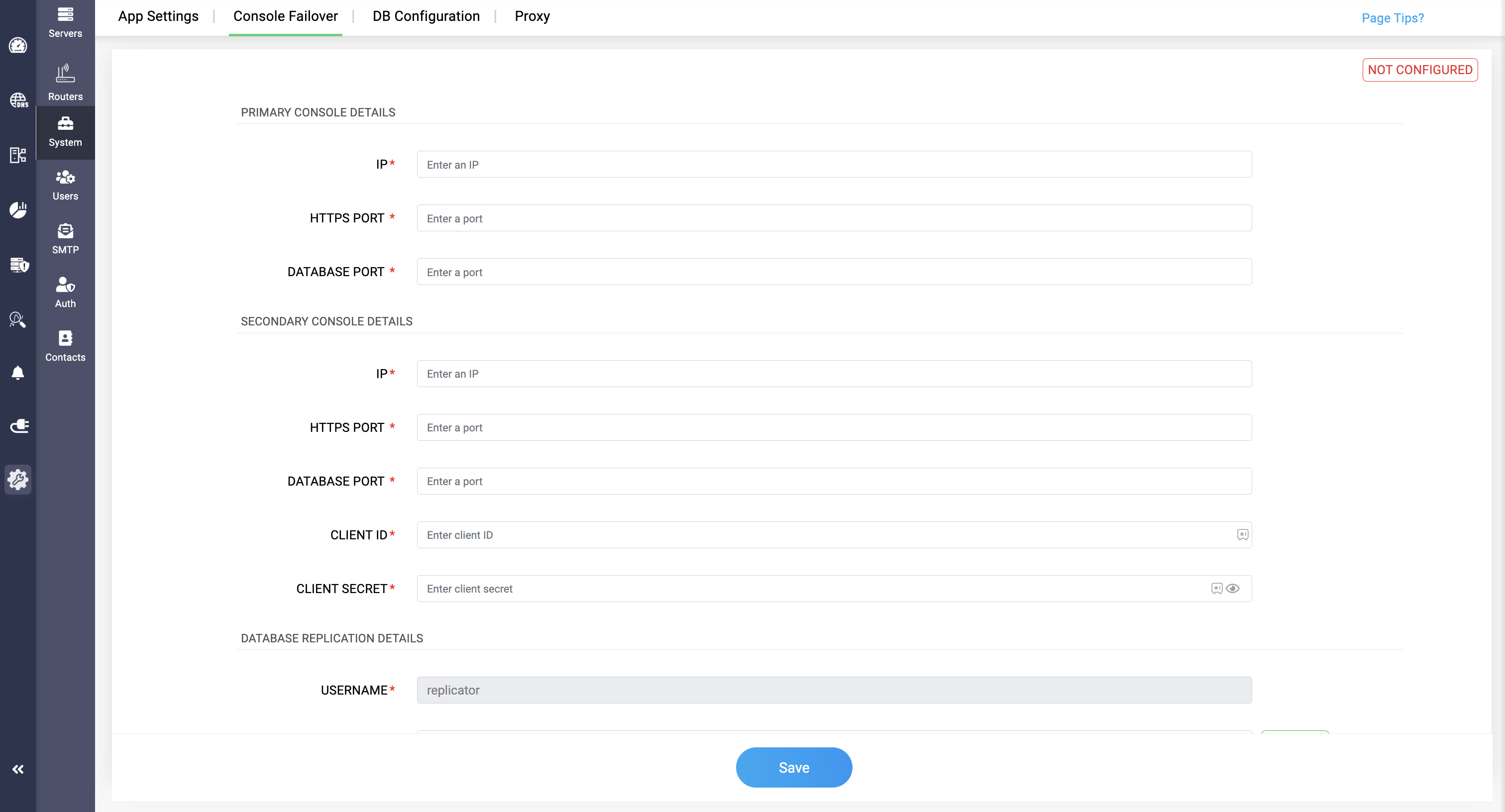
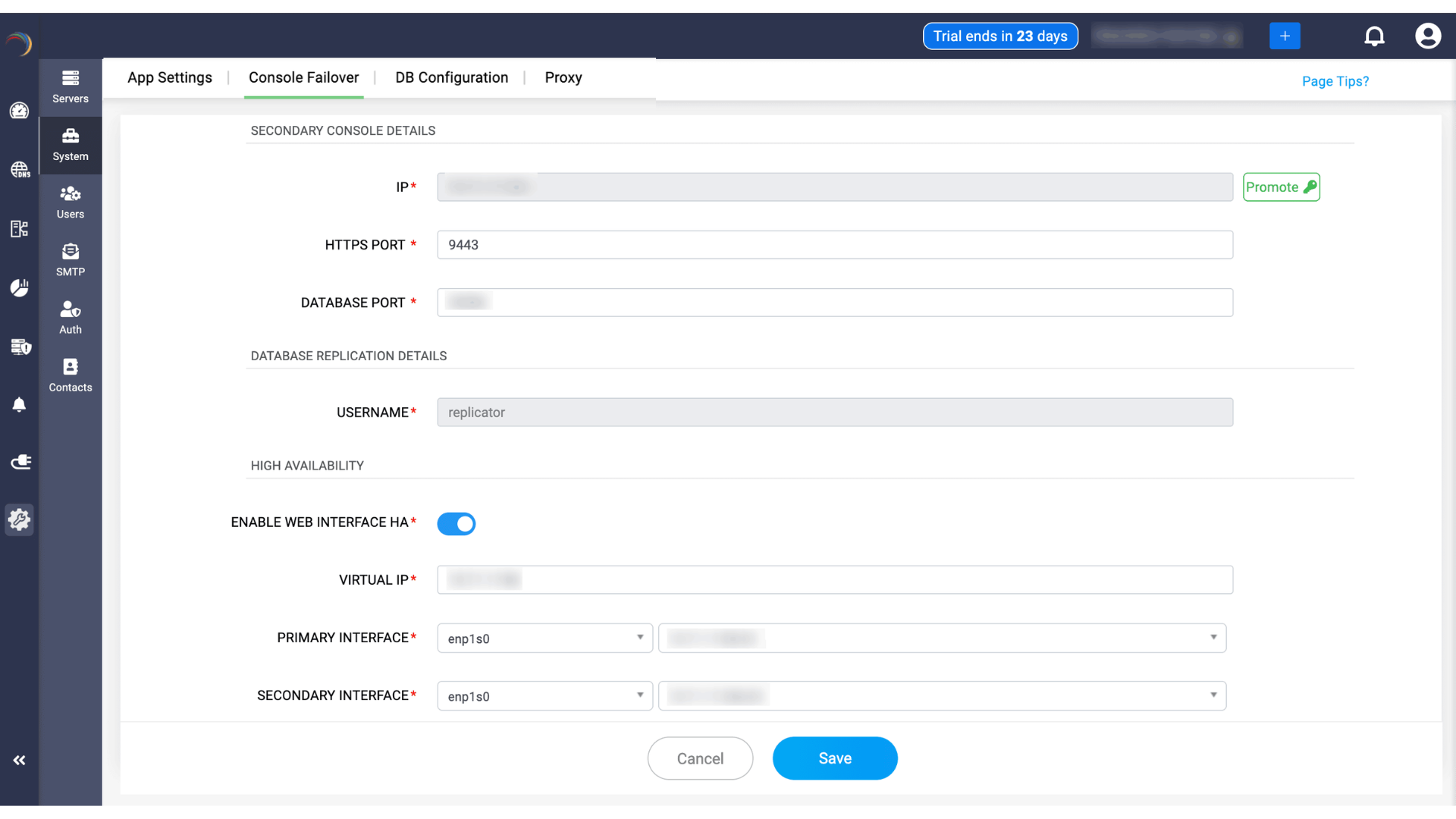
To start with Go to Settings->System->Console Failover. Now Enter the Primary Server details like: Server IP, HTTPS Port, and DB Port.

Similarly enter the same details for the secondary server as well. When entering the secondary server details, users need to provide secondary server's client ID and client secret in the fields.

To get the client ID and client secret, Log in to the secondary server.
Click on the Profile, where you can find the Client credentials section. Select View option would display the client ID and client secret.

Database Replication
In this section, users need to provide the password for the replication process, as the username field will be auto-filled with a constant username called "replicator" and cannot be changed.
You can provide any secure password or you can generate a random one on DDI Central's suggestion by clicking on the Suggest button.
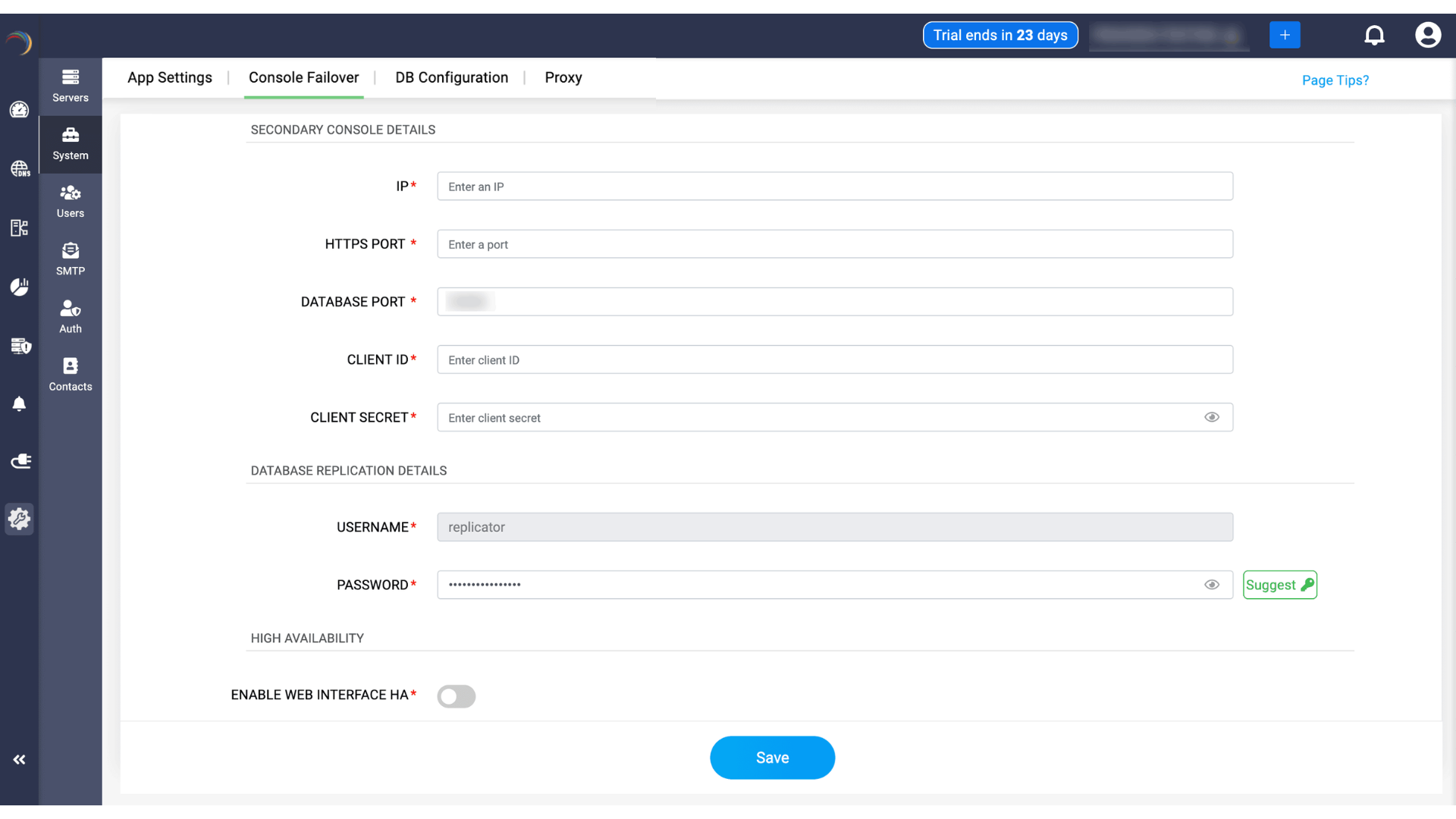
Once the password is added, admins cannot edit or change the password, as it would cut-down the connectivity between the servers.
The main purpose for the data replication section is to keep both database servers in sync and enable data reflection, i.e., changes made in primary server reflects in secondary server.
When the primary server fails, the secondary server gets promoted as the primary after 10 mins.
High Availability
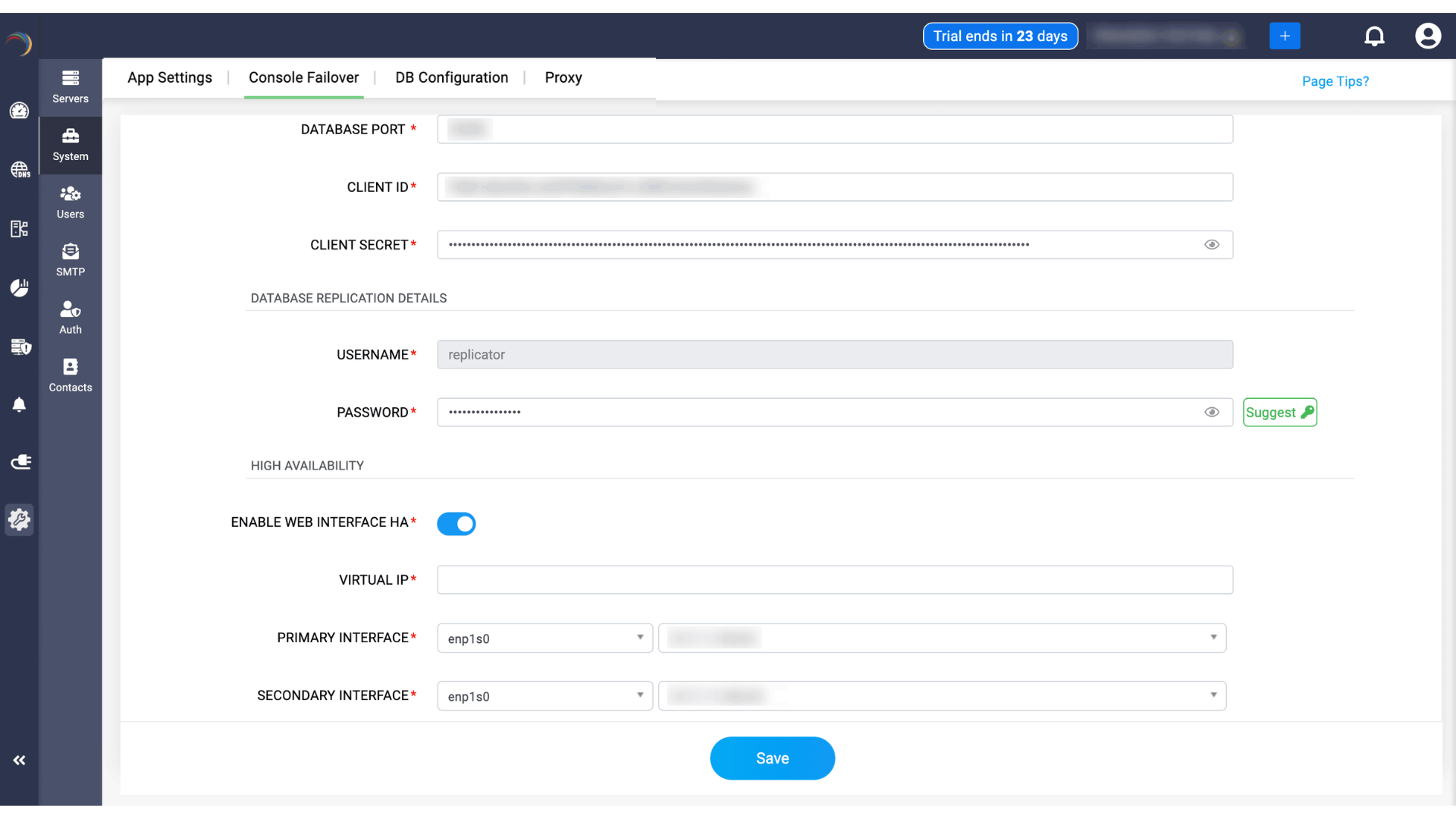
Enable Web Interface HA: Toggle to enable high availability for the DDI Central web interface.
When enabled, users can access the console through a common Virtual IP instead of depending only on the primary server’s actual IP.
Enter theVirtual IP: A floating IP address shared between the primary and secondary console servers.
During normal operation, this IP points to the primary server. If the primary fails, the secondary takes over this IP so users can continue accessing the console.
Primary Interface: The network interface and IP address of the primary console server. DDI Central needs to know which interface on the primary server should bind to the Virtual IP.
Secondary Interface: The network interface and IP address of the secondary console server. During failover, this interface on the secondary server takes over the Virtual IP.
Once all fields are entered, clicking Save starts the console failover configuration process.
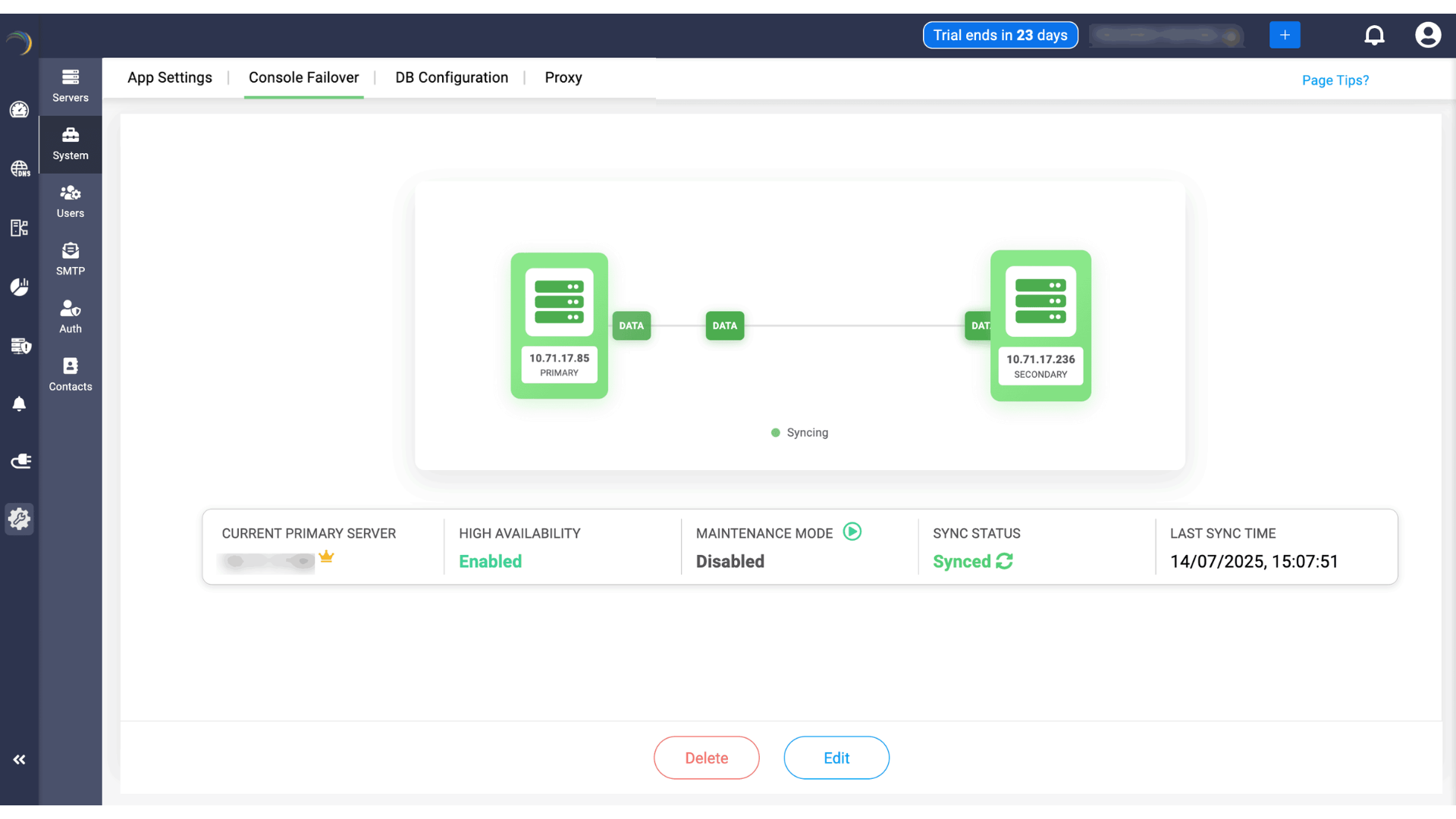

Before Failover occurs, Web login for the secondary server will be restricted when the primary is up. The secondary server will be available only in a "read only" mode, and no configurations or data changes can be implemented through the secondary server.
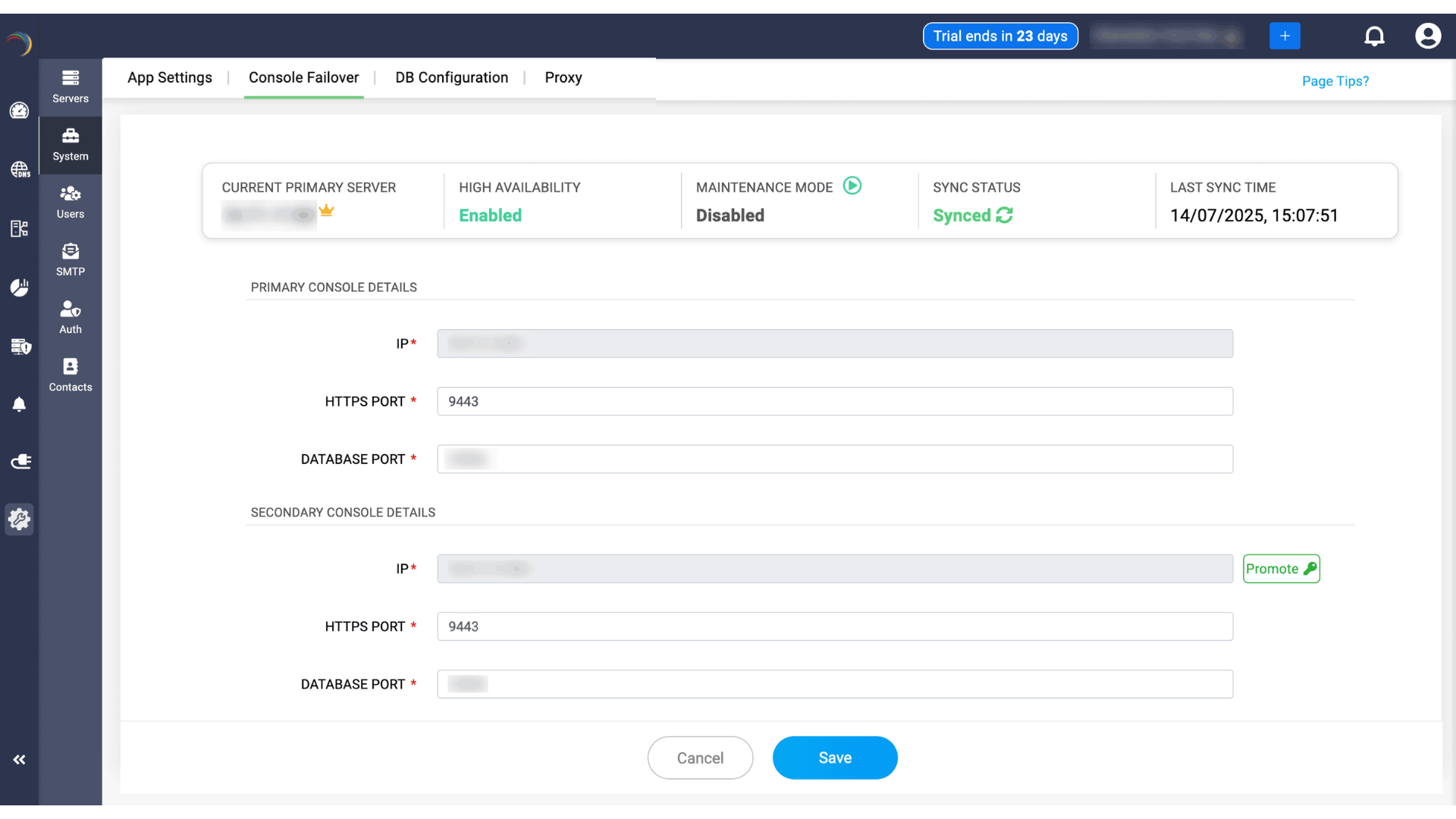
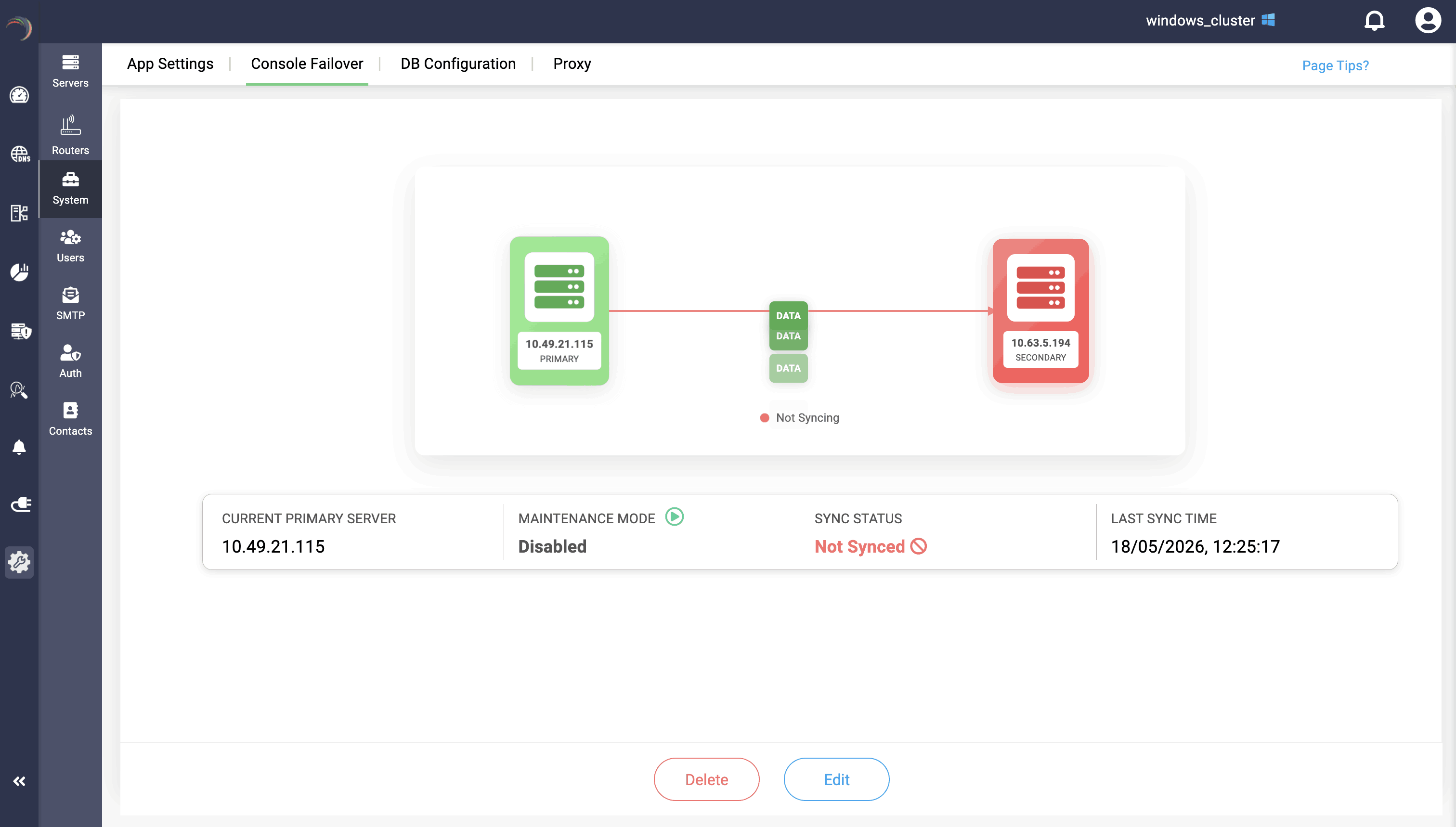
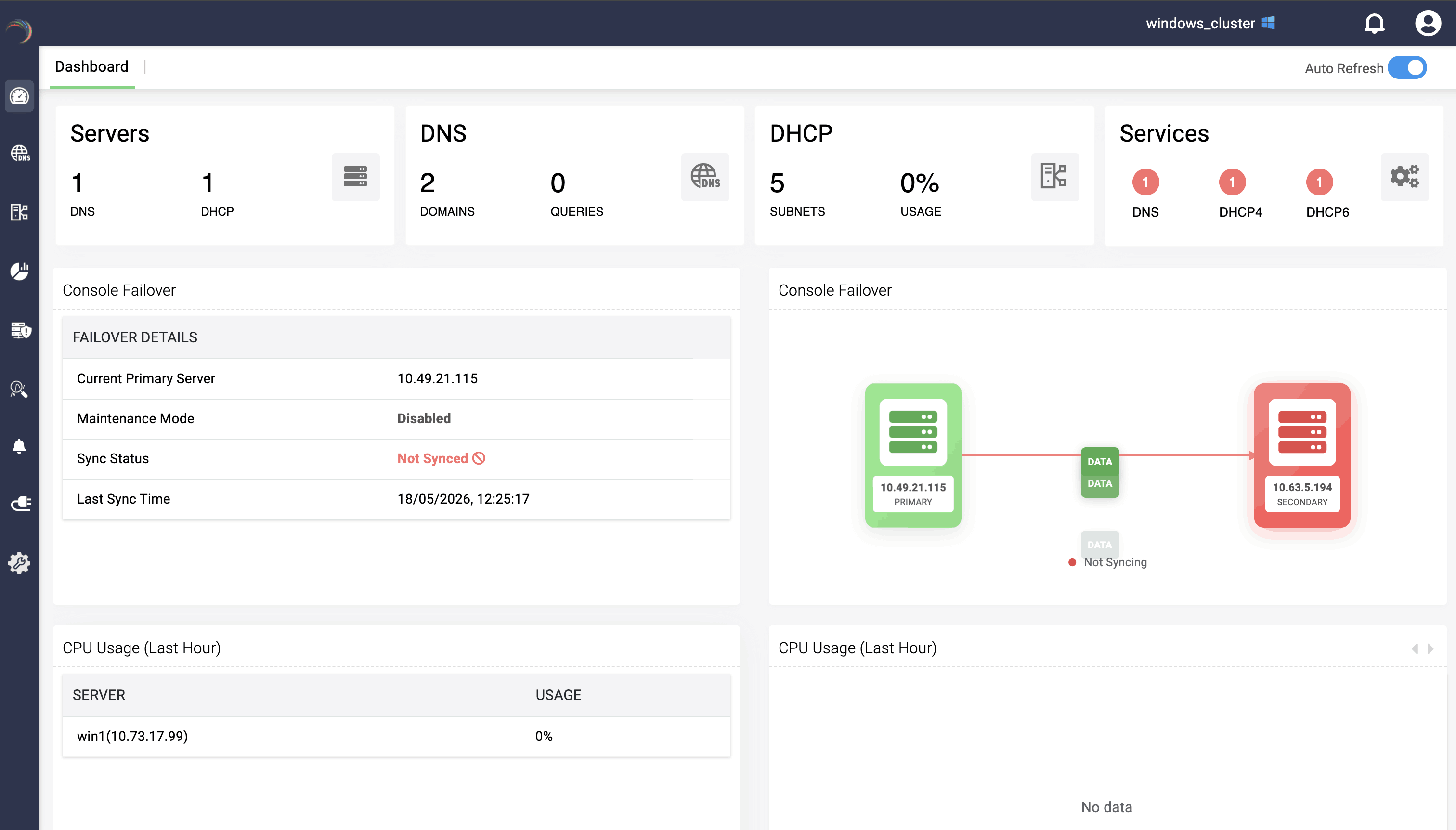
Once the failover configuration is saved successfully,you can see the CONFIGURED status in the top right corner. The failover setup is initiated in the background and may take some time to complete. The duration depends on factors such as database volume and network latency. During this period, the console failover status appears with aNot Synced status on both the main dashboard and under Settings > System > App Failover as shown below.
Once the setup is complete, Now the secondary server begins sending health-monitoring heartbeats every 30 seconds to check the status of the primary server.

When the failover setup is live, the secondary server continuously monitors the primary server through heartbeat health checks (sent every 30 seconds). If the secondary server does not receive heartbeats from the primary server continuously for 10 minutes, it treats this 10-minute period as the deciding window and determines that the primary server has failed. After this "10 minute time window", the secondary server is automatically promoted as the primary server.
DDI Central does not promote the secondary server immediately after one missed heartbeat. The secondary server waits and checks whether the primary server continues to miss heartbeats for a full 10 minutes.
Maintenance mode:
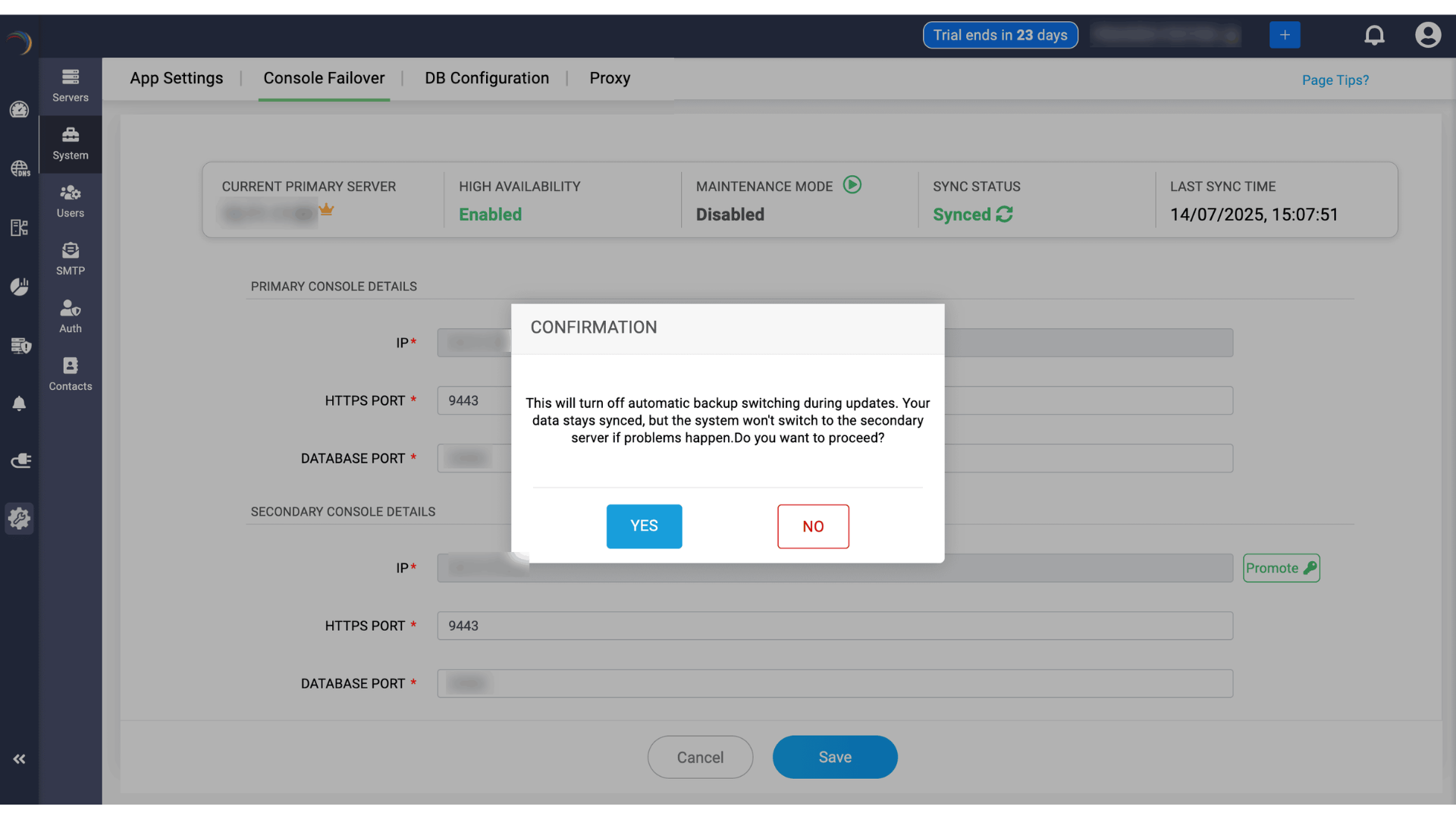
While upgrading a service pack or PPM, or starting a service, network admins must enable the maintenance mode in the primary server. Maintenance mode pauses the data replication process between primary and secondary servers, which allows admins to do configurations and changes in the servers, such as upgrading PPM.
Enabling maintenance mode in the primary server will reflect in secondary server.
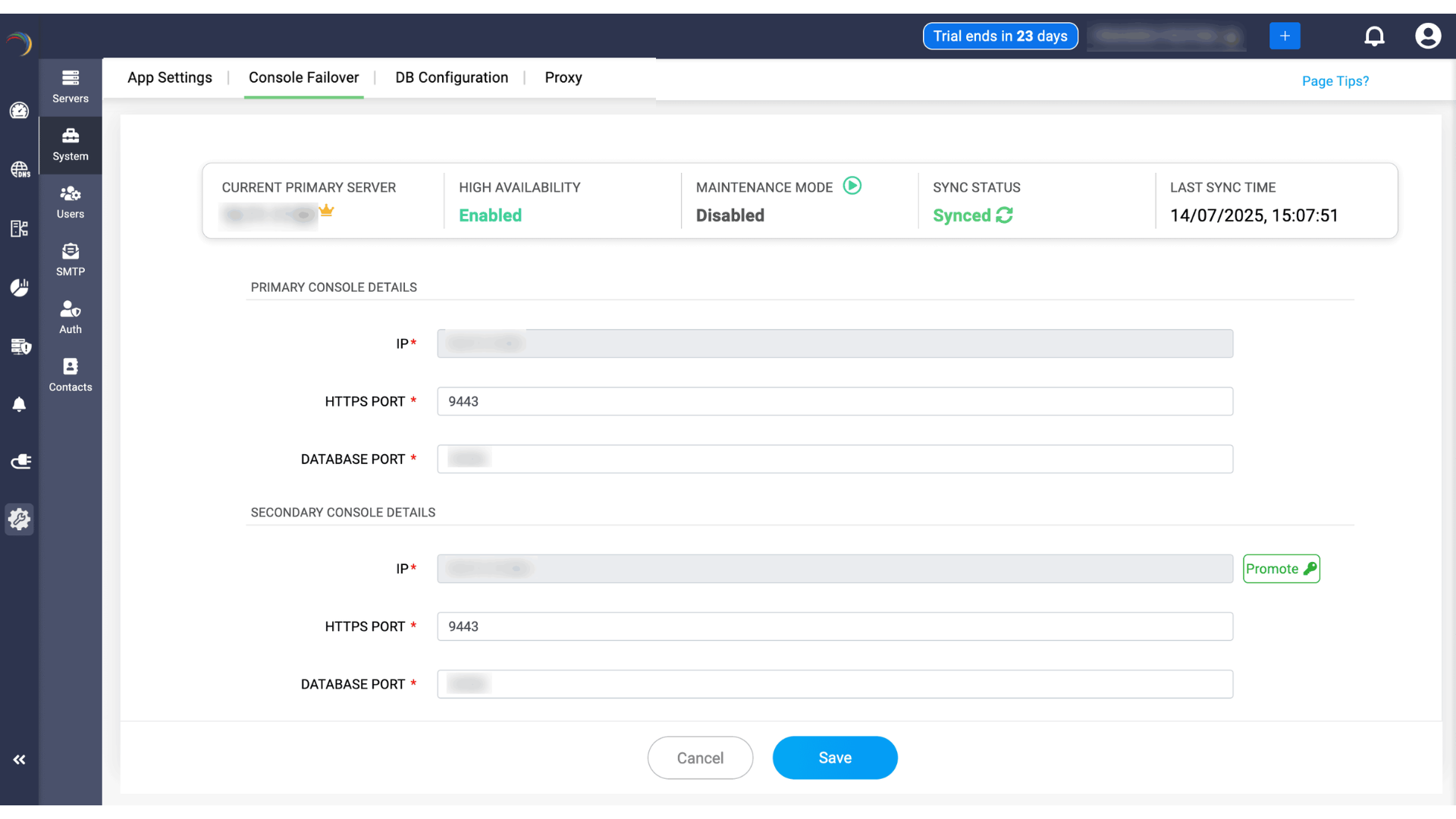
During maintenance mode, service takeover will not occur, but the data syncing continues. As a result, the sync status will display "synced" and also shows the "last synced time."
Promoting servers
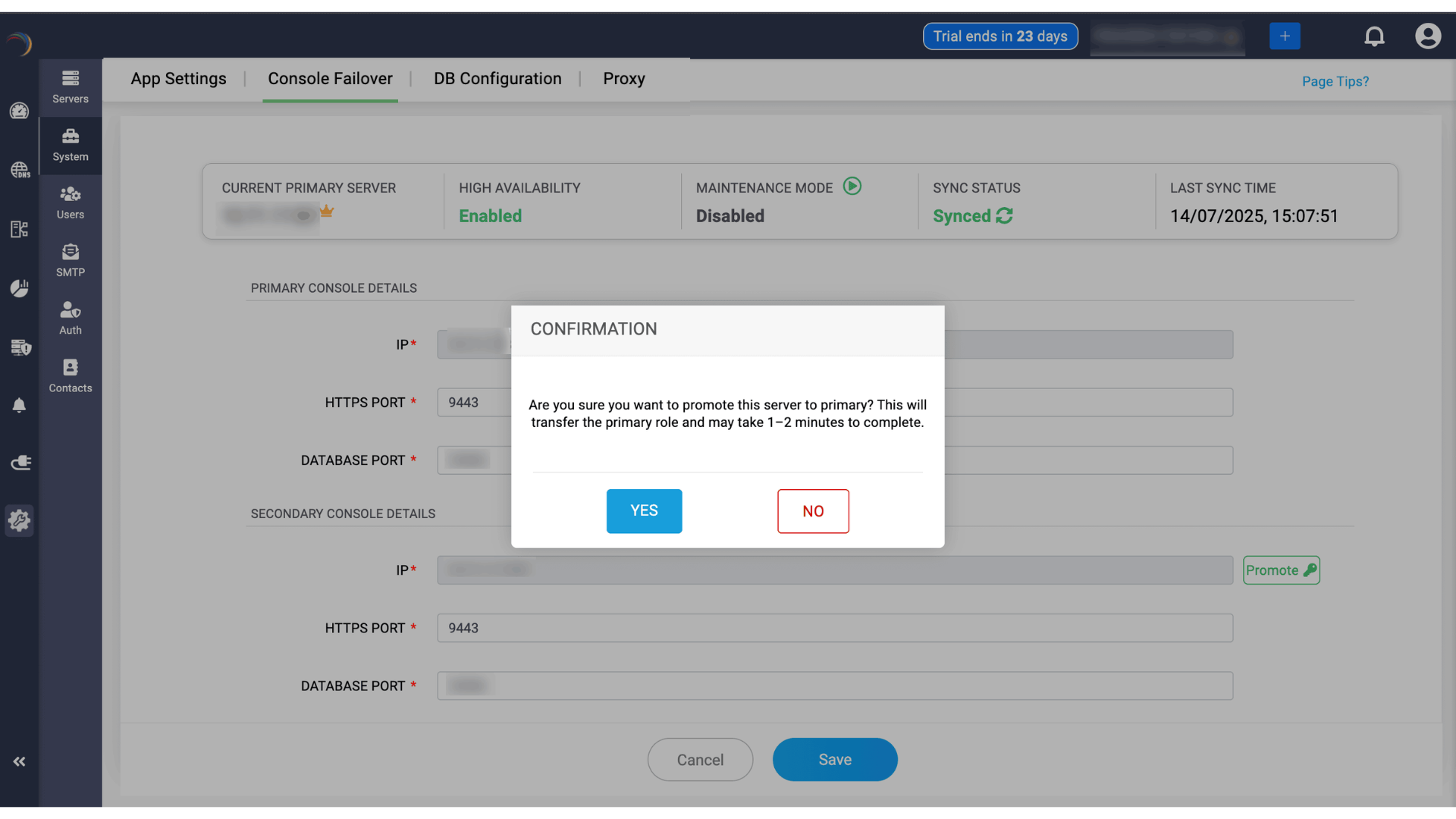
When the current secondary server is up and ready, if the admin wants to promote it as the primary for handling the service, they can be promoted by clicking on the Promote button.
Once you click on Yes in the promotion confirmation dialog box, It will trigger a log-out, you'll have to wait for sometime. The waiting time depends on the size of your database.