High Availability (HA) Configuration for Legacy DNS-DHCP
Table of Contents
DDI Central offers High Availability (HA) support for Linux-based DNS and DHCP services deployed on Linux environments. This configuration ensures service continuity and minimal downtime in case of server failure. Microsoft DNS/DHCP and Windows-based servers are not supported for HA configuration.
Prerequisites
Before proceeding with HA setup:
- Install Keepalived package on both the primary server and the secondary server participating in the HA relationship.Note: If the path to the
keepalived.conffile was not created automatically during installation (i.e., /etc/keepalived/keepalived.conf), you must create this path manually to ensure proper configuration. - Both the servers should reside in the same subnet
What is Keepalived?
keepalived is a Linux service commonly used to provide high availability (HA) for networked services. It does this by monitoring service health and managing a shared Virtual IP (VIP) between two or more servers.
How Keepalived Works
- It keeps one server "active" and another "standby"
- Both servers are configured to monitor each other
- It requires a Virtual IP (VIP). A shared IP address used by clients. It makes sure that only the Primary server holds the VIP at any moment
- If the active server fails, the standby immediately takes over the VIP
- This ensures that clients always reach the service through the same IP—even if the underlying server changes
- VRRP (Virtual Router Redundancy Protocol): A protocol used by keepalived to manage which node owns the VIP. Operates by sending "heartbeat" packets between the HA pair.
How to install and configure HA in DDI Central
- Install the keepalived package on both the primary server and the secondary server:
- Execute the following bash commands on both the Primary and Secondary serverssudo apt-get install keepalived # Debian/Ubuntuyum install keepalived # RHEL/CentOS
- Register both servers and their IP roles in DDI Central. For this, log in to DDI Central. Go to Settings → Servers → HA Configuration → Create HA Configuration.
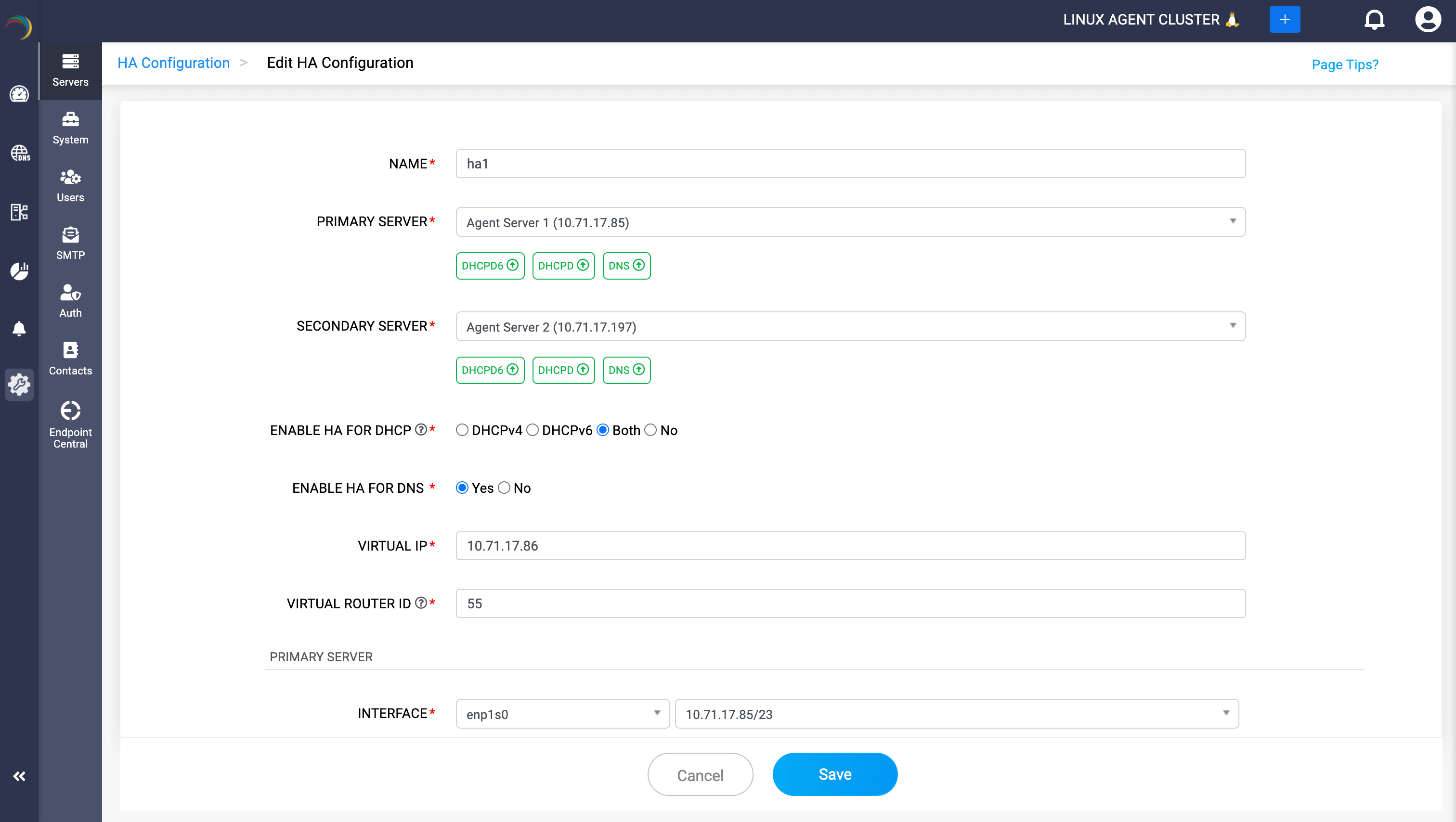
- Fill in the following details to set up the HA Configuration:
- NAME (required): Enter a unique name for this HA setup.
- PRIMARY SERVER (required): Select the DNS or DHCP server that should be active under normal conditions.
- SECONDARY SERVER (required): Select the backup server that will take over if the primary server fails.Note: DDI Central will automatically fetch the services running in both the Primary and the Secondary servers selected above and the status of each service running in those servers.
- ENABLE HA FOR DHCP (required): Choose the DHCP protocol to enable HA for:
- DHCPv4: For IPv4-based DHCP only
- DHCPv6: For IPv6-based DHCP only
- Both: Enable HA for both IPv4 and IPv6 DHCP
- No: if you want to configure DNS HA only
- ENABLE HA FOR DNS (required): Select Yes to enable High Availability for DNS (using keepalived)Note: These fields "ENABLE HA FOR DHCP" and "ENABLE HA FOR DNS" may appear or disappear based on the services running on the servers you enroll for a specific HA configuration setup. Suppose the primary server and the secondary servers have only DHCP services in common, only the ENABLE HA FOR DHCP will appear.
- VIRTUAL IP (required): Enter the Virtual IP address that will be shared between the primary and secondary servers. This is the IP address that clients use to access DNS or DHCP services.Note: The Virtual IP must be in the same subnet as both the primary and secondary servers. Since this is a critical IP, it should be reserved and not assigned to any other host or service within the network. Example: 10.71.17.86
- VIRTUAL ROUTER ID (required): Enter a unique Router ID falling within the range 1—255 for the VRRP instance. This ID identifies the HA pair and must be unique per HA group within the same subnet. Example: 51
- Specify the Primary Server Details in DDI Central Console UI as highlighted in the image below:
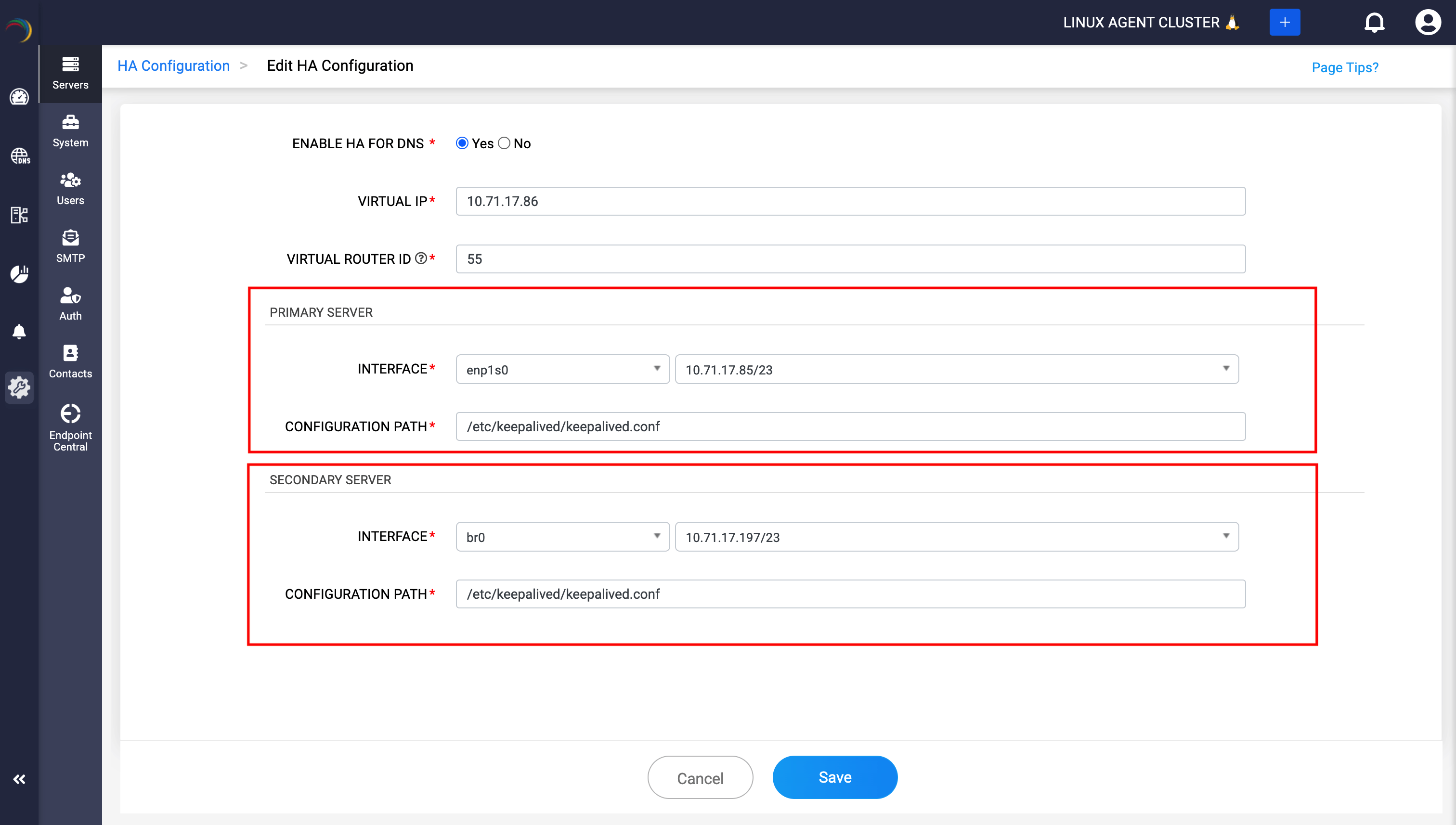
INTERFACE: Select the network interface on the primary server that will bind the VIP. Example: enp1s0
CONFIGURATION PATH: Enter the path to the keepalived configuration file on the primary server.
Note: If the path to thekeepalived.conffile was not created automatically during installation (i.e., /etc/keepalived/keepalived.conf), you must create this path manually to ensure proper configuration. - Specify the Secondary Server Details in DDI Central Console UI as highlighted in the image below:
INTERFACE: Select the corresponding network interface on the backup server that will take over the VIP if the primary fails. Example: br0
CONFIGURATION PATH: Enter the path to the keepalived config file on the secondary server. Example: /etc/keepalived/keepalived.conf
- Click Save. DDI Central will apply the configuration, update keepalived on the selected servers, and begin monitoring their availability.Tip: After configuration, you can test this setup by manually stopping the DHCP or DNS service on the primary server. The Virtual IP should move to the secondary, and service should continue within a few seconds.
Notes:
- VIP failover applies to DNS, DHCPv6, and DHCPv4 in Multicast or Unicast modes. For DHCPv4 in Broadcast mode, DDI Central’s built-in DHCP failover mechanism is used instead.
- Ensure NTP time synchronization between primary and backup servers.
How DNS HA works with keepalived in DDI Central
DDI Central supports High Availability (HA) for Linux DNS servers using keepalived and Virtual IP (VIP)-based failover. This ensures uninterrupted DNS resolution, even if the primary server becomes unavailable.
Mechanism
DNS Clients → Query → Virtual IP (VIP) → Routed to:
- Primary DNS server (under normal conditions)
- Secondary DNS server (if failover occurs)
Example:
- Primary DNS Server: 10.71.17.85
- Secondary DNS Server: 10.71.17.197
- Virtual IP (VIP): 10.71.17.86
- DNS Clients query 10.71.17.86 → handled by the primary
- If 10.71.17.85 fails → VIP moves to 10.71.17.197 → backup DNS takes over
DNS HA Flow in DDI Central
- Startup (Normal State)
- On startup, the Primary server holds the assigned Virtual IP (e.g., 10.71.17.86).
keepalivedis running on both primary and secondary.- DNS service (
named) on the primary listens on the VIP. - Clients send queries to the VIP, which reaches the Primary and gets responses from the primary DNS server.
- Failover (Primary Failure)
keepaliveduses VRRP to send heartbeats between the primary and backup nodes.- If the primary server fails or stops responding:
keepalivedon the secondary detects the failure (missing VRRP heartbeat).- The secondary claims the VIP (now binds 10.71.17.86).
- DNS service on the backup responds to client queries after a few seconds.
- Recovery (Primary Restarts)
- When the primary server comes back online:
- It resumes
keepalivedheartbeat. - VIP shifts back to the primary.
- The primary resumes DNS traffic handling.
Why It's Effective:
- Clients never need to change DNS server IPs—they always use the VIP.
- Failover is automatic and fast.
- No dependency on external load balancer, hardware appliances or any DNS-level redirection required.
- Full visibility and configuration via DDI Central’s UI.
How DHCP HA works with keepalived in DDI Central
DDI Central supports High Availability for ISC-based DHCP servers using two different mechanisms depending on the DHCP protocol version and client communication method:
- keepalived + VIP failover — for DHCPv6 and DHCPv4 in unicast/multicast mode
- Built-in ISC DHCP Failover — for DHCPv4 in broadcast mode
This ensures continuous DHCP service delivery across all client environments when configured correctly.
1: Startup
- On both Primary and Secondary servers:
keepalivedis installed and running.- ISC DHCP service (
dhcpdordhcpd6) is installed and configured. - The Primary server holds the Virtual IP (VIP) (e.g., 10.71.17.86).
- The Secondary server monitors the Primary via VRRP.
Depending on your environment:
If using DHCPv6 or DHCPv4 (unicast/multicast mode):
- Use
keepalivedwith VIP failover. - The client will direct requests to the active VIP.
If using DHCPv4 (broadcast mode):
- Do not implement
keepalived-based HA. - Use DDI Central's built-in DHCP Failover.
- Here, both servers listen for broadcast requests but only co-ordinate lease assignment through an active-passive failover state mechnaism.
2: Client Lease Request (Normal Operation)
Scenario A: DHCPv4 (unicast/multicast) or DHCPv6 (VIP-mode HA)
- Client sends:
- DHCPv4: DHCPDISCOVER to VIP (unicast/multicast)
- DHCPv6: SOLICIT to the VIP
- Primary server:
- Responds with an IP lease
- DHCPv4: DDI Central’s built-in lease sync ensures consistent lease state across primary and secondary servers.
- DHCPv6: DDI Central’s built-in lease sync ensures consistent lease state across primary and secondary servers.
Scenario B: DHCPv4 (broadcast mode using built-in failover)
- Client sends DHCPDISCOVER as a broadcast
- Both Primary and Secondary servers receive the request
- Only the server currently in the “partner-down” or “primary” state will respond
- Lease synchronization is handled via DDI Central's built-in DHCP failover over a dedicated TCP port
This ensures correct lease assignment even though both servers hear the broadcast.
3. Primary Failure
Scenario A: keepalived-based HA (DHCPv4 unicast/multicast or DHCPv6)
- VRRP heartbeats stop
- Secondary server claims the VIP
- DHCP service continues on the backup using the same address
- Clients continue to send requests to the VIP seamlessly
Scenario B: DDI Central's Built-in DHCP failover (DHCPv4 broadcast mode)
- The Secondary detects that the Primary is unreachable
- It enters the “partner-down” state and begins responding to client requests directly
- Leases continue to be issued correctly, based on the last known shared lease database
4. Primary Recovery
Scenario A: keepalived-based HA
- Primary resumes VRRP heartbeats with higher priority
- VIP is reassigned to the Primary (if preempt is enabled)
- DHCPv4: Lease sync re-established over DDI Central's built-in failover protocol
- DHCPv6: No lease sync needed, service resumes over VIP
Scenario B: Built-in ISC DHCP Failover
- Servers reconnect over the failover port (usually 647)
- Lease database is re-synchronized
- Both servers return to normal primary/secondary operation
Notes:
keepalivedensures clients always reach the active "Primary" DHCP server via the same VIP.- ISC DHCP failover handles lease synchronization between peers.
- DDI Central monitors both servers and shows status via the UI.
- This setup ensures seamless failover with no client-side reconfiguration.
Why It’s Effective
DDI Central's dual-mode DHCP HA approach ensures continuous IP lease delivery across any network design — whether clients use broadcast, unicast, or DHCPv6. By intelligently choosing between keepalived-based VIP failover and DDI Central's built-in DHCP failover setup, DDI Central maintains service uptime, prevents IP conflicts, and guarantees lease consistency, even during server failures or reboots.
Guidelines for implementing HA for DHCP Services
When to use HA
- Use HA if you operate DHCPv4 services in Multicast or Unicast mode.
- Use HA if you are deploying DHCPv6 services.
- DHCPv6 does not have a built-in failover mechanism; HA is essential for ensuring service continuity in DHCPv6 environments.
When not to use HA
- Do not use HA if your DHCPv4 services are configured to operate in Broadcast mode.
- In Broadcast mode, DHCP traffic will be received and processed by both Primary and Secondary servers simultaneously, leading to severe lease conflicts, resulting in IP address duplication, network instability, and potential service disruption.
- Instead, for Broadcast-mode DHCPv4 services, use DDI Central's built-in DHCP Failover mechanism for service continuity.
| DHCP Type | Client Mode | Use keepalived VIP HA? | Use DDI Central's Built-in DHCP Failover? |
|---|---|---|---|
| DHCPv4 | Broadcast | ❌ No | ✅ Yes |
| DHCPv4 | Unicast/Multicast | ✅ Yes | ✅ Recommended |
| DHCPv6 | N/A | ✅ Yes (Required) | ❌ Not Available |