Create Data Rules for accurate Sensitive Data Classification
Data rules are essential criteria for identifying sensitive information within datasets. Defining these rules is a critical first step in ensuring comprehensive data security. Data rules provide a foundation for meeting compliance standards like HIPAA, PCI DSS, and GDPR through predefined criteria. Organizations can also create custom data rules tailored to their specific requirements, ensuring compliance and security.
Create Data Rules
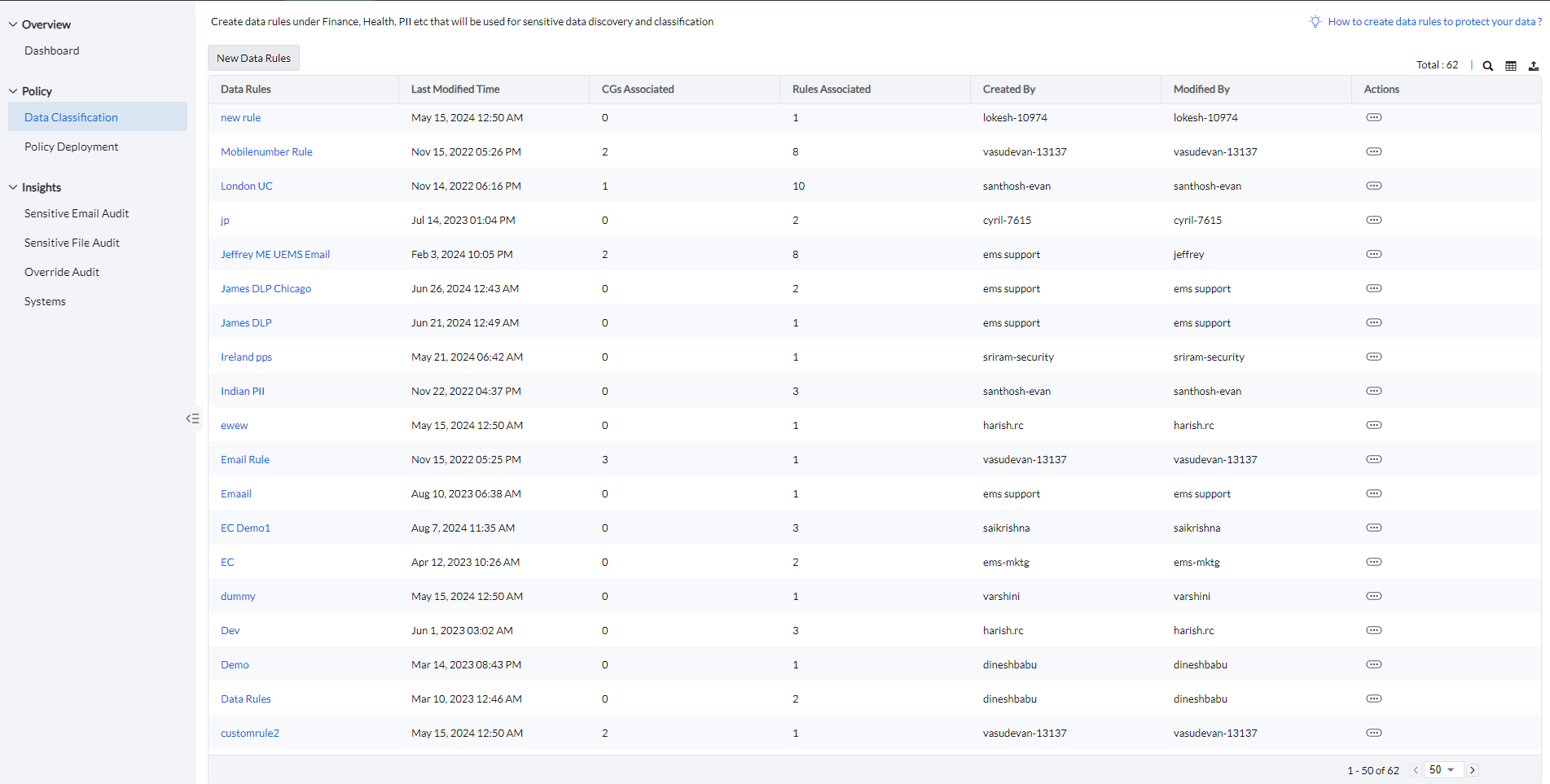
To create a data rule:
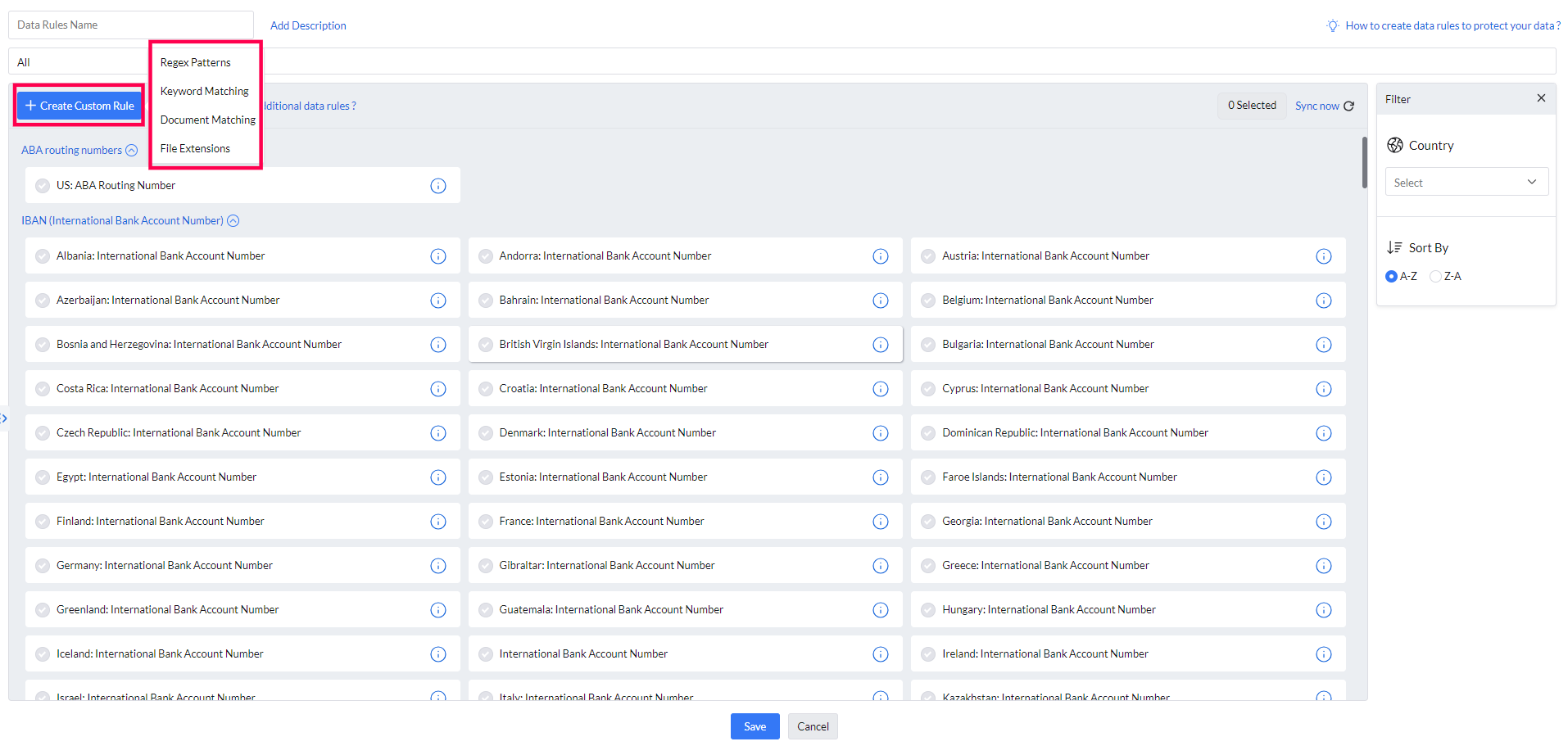
- Navigate to Endpoint DLP → Data Classification → New Data Rules.
- Enter a name for the data rule and optionally provide a description.
Creating Data Rules by Selecting Predefined Criteria
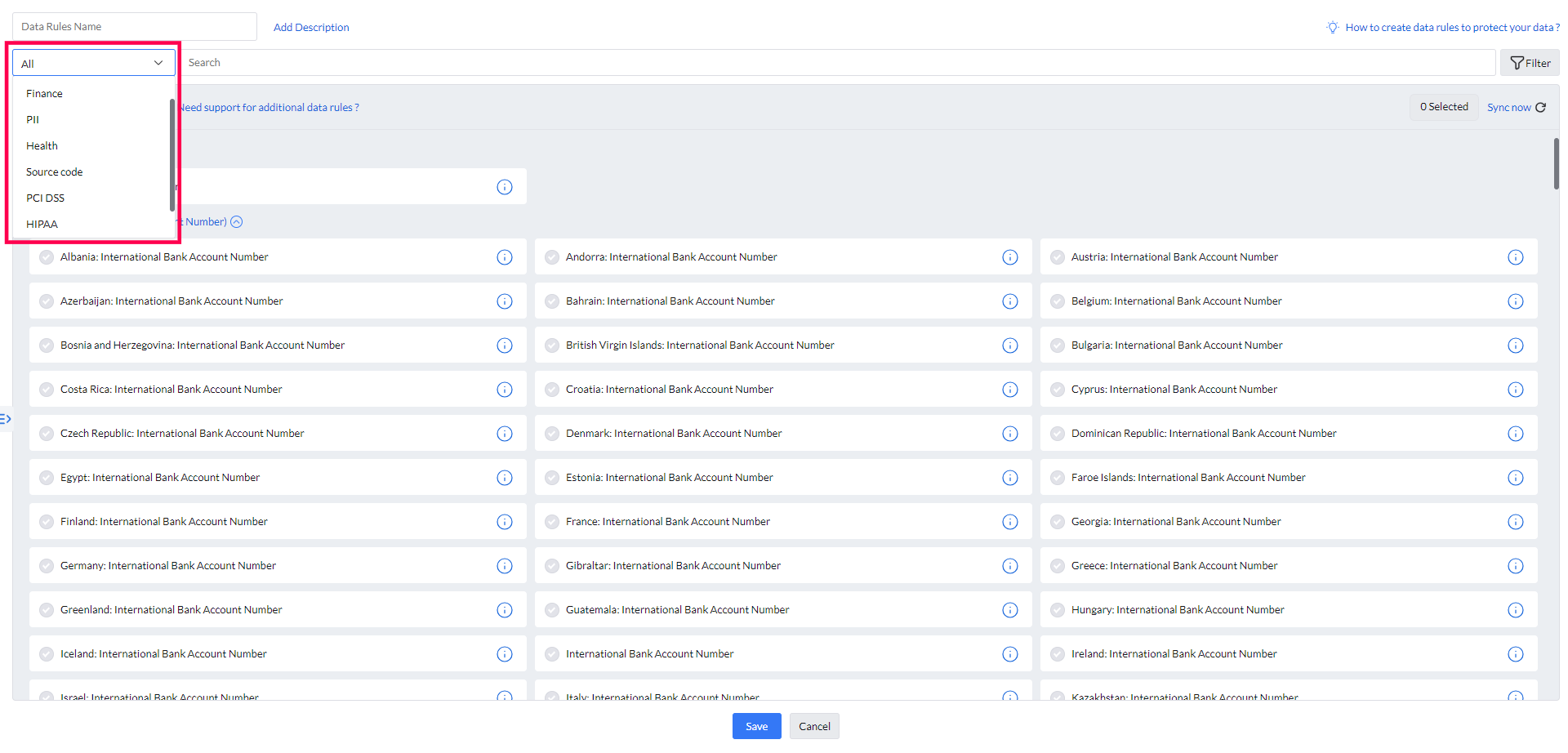
Create data rules by selecting predefined criteria, categorized by Source Code, PII, Health, Finance, PCI DSS, or HIPAA. Toggle between categories or search for specific criteria using the search bar. Learn More.
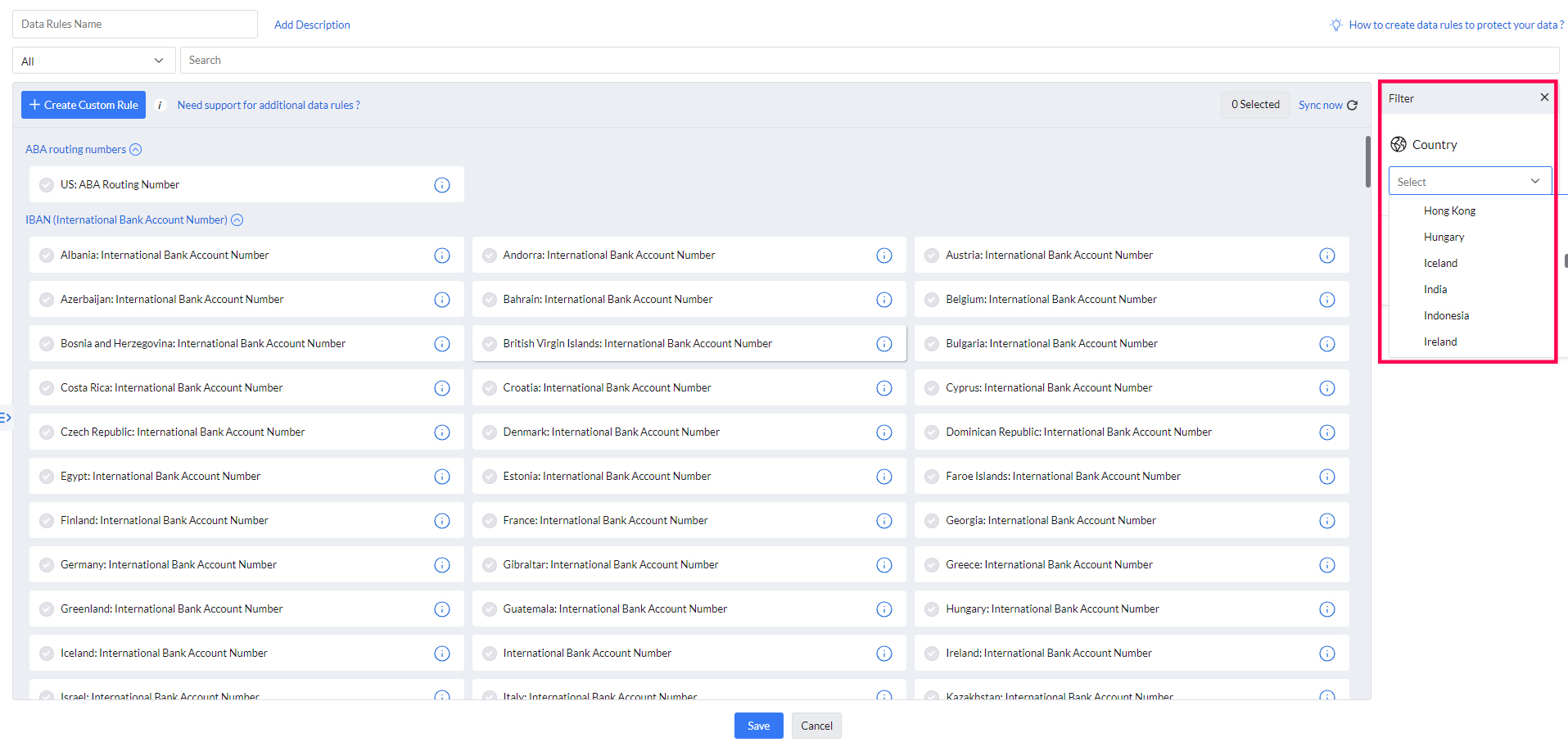
Alternatively, you can filter the data rule list by clicking the filter icon and selecting a country to display country-specific rules.
Click Save to associate the selected criteria with the data rule.
Creating Data Rules Using Custom Criteria
Apart from standard templates, Endpoint DLP Plus allows users to create custom data rules, offering flexibility for tailored data protection. Select the Create Custom Rule option and choose from Regex Patterns, Keyword Matching, Document Matching, and File Extensions.
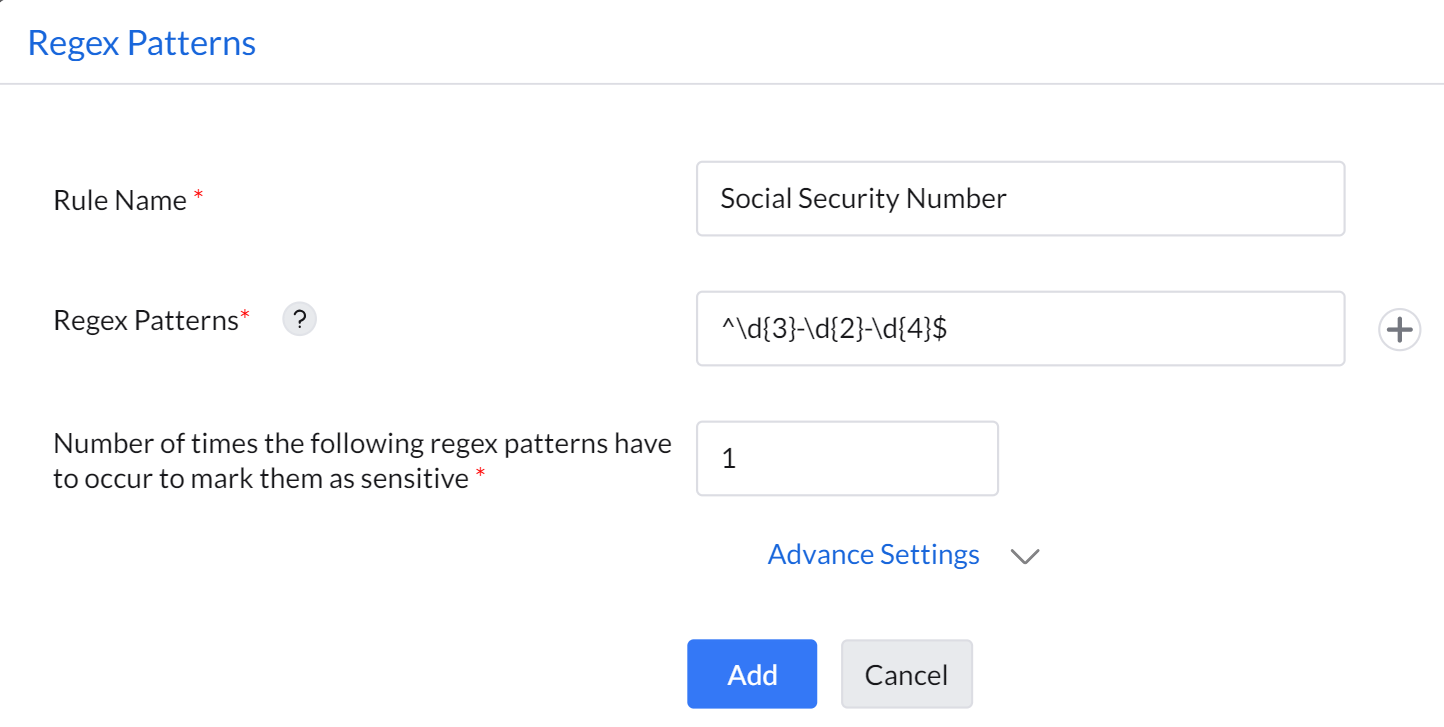
Regex Pattern
Regex (Regular Expression) is used for searching text that matches specific patterns. For example, ^\d{3}-\d{2}-\d{4}$ matches a string that represents a Social Security Number (SSN) format: 123-45-6789.
To create a Regex Pattern rule: add a rule name → enter the Regex pattern → enter the number of pattern occurrences to mark the file as sensitive.
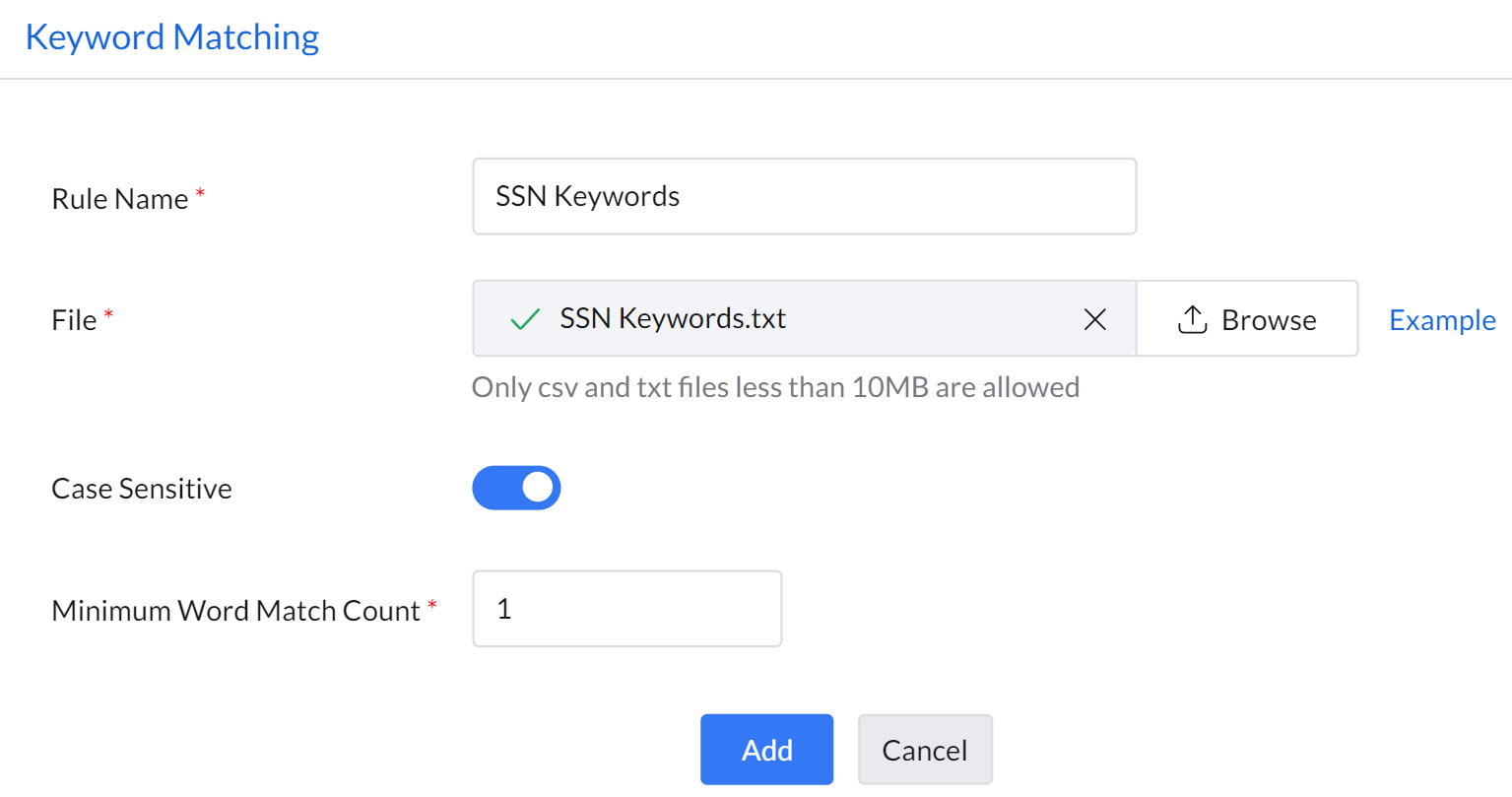
Keyword Matching
Keyword matching scans documents for exact terms and automatically classifies files containing those predefined keywords as sensitive. For example, if you add "Social Security Number" as a keyword, the system will classify any document containing that exact phrase as sensitive.
To create a Keyword Matching rule: add a rule name → attach a TXT or CSV file containing the list of keywords → enter the number of keyword occurrences to mark the file as sensitive. Choose whether the predefined keywords should be case-sensitive or not.
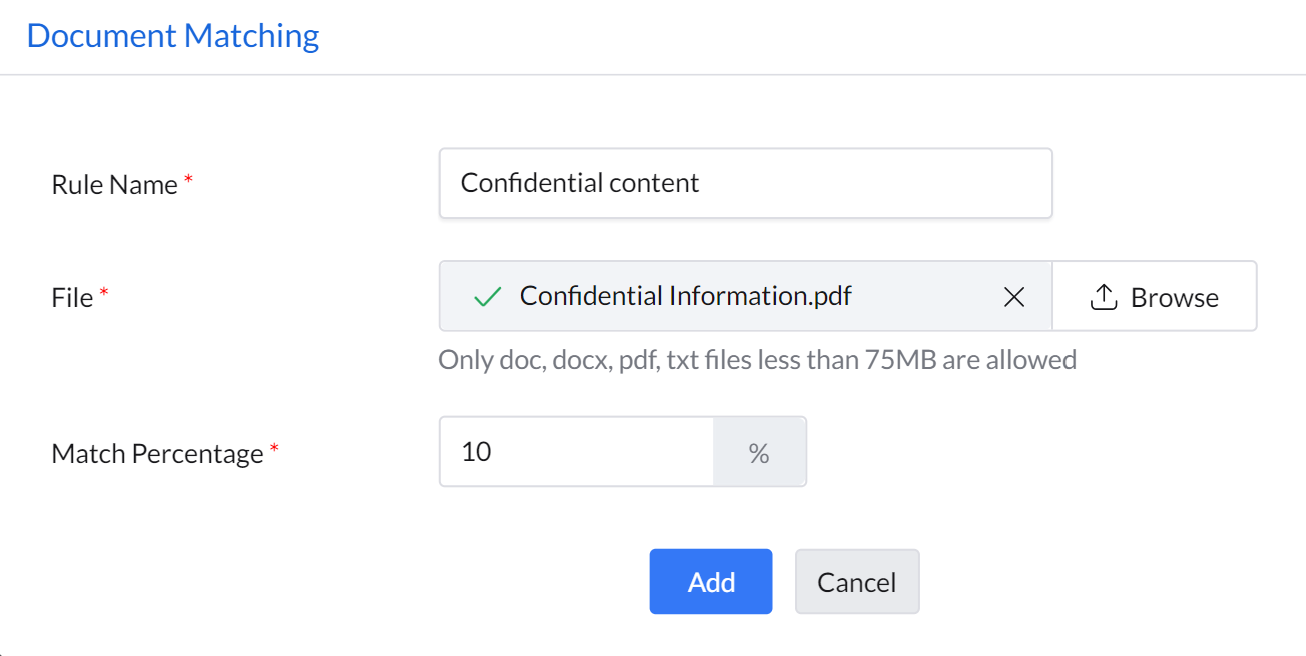
Document Matching
Document matching checks files for content similarity with a source document and classifies them as sensitive based on the chosen match percentage.
To create a Document Matching rule: add a rule name → attach a DOC, DOCX, or PDF file → enter the required match percentage.
File Extensions
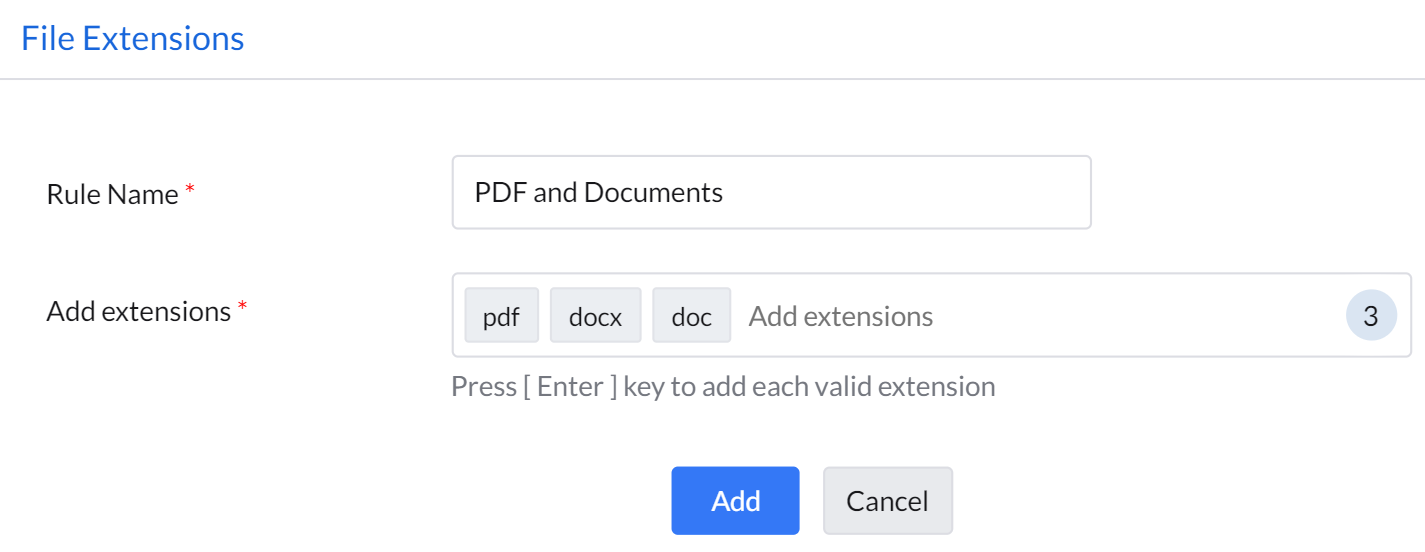
File extensions are used to automatically classify all files of specified file types as sensitive.
To create a File Extensions rule: enter the rule name → add extensions to mark specific file types as sensitive.