Getting Started with Key Manager Plus Cloud
ManageEngine Key Manager Plus Cloud is designed for quick and seamless onboarding so users can begin managing their SSL and PGP keys efficiently from anywhere. This guide will walk you through the initial steps, from logging in to discovering certificates and managing your key vault.
- Logging In and Setting Up Your Organization
- Adding Users
- Discovering SSL Certificates
- Adding SSL and PGP Keys
- Changing Password
1. Logging In and Setting Up Your Organization
Once your organization purchases a Key Manager Plus Cloud license, the login credentials will be shared with the primary administrator via email.
Follow these steps to get started:
- Open the Key Manager Plus Cloud login URL in the web browser.
- On the login page that appears, enter your credentials and complete the authentication.
- On your first login, you will be prompted to create an organization. Provide the required details to complete the setup.
- Once the organization is created, you will be directed to the Key Manager Plus Cloud dashboard.
2. Adding Users
After setting up your organization, you can start adding users who need access to the application by following the steps below:
- In the Key Manager Plus Cloud interface, navigate to Admin >> User Management >> Users.
- On the page that appears, click the Add button and enter the required details in the respective fields.
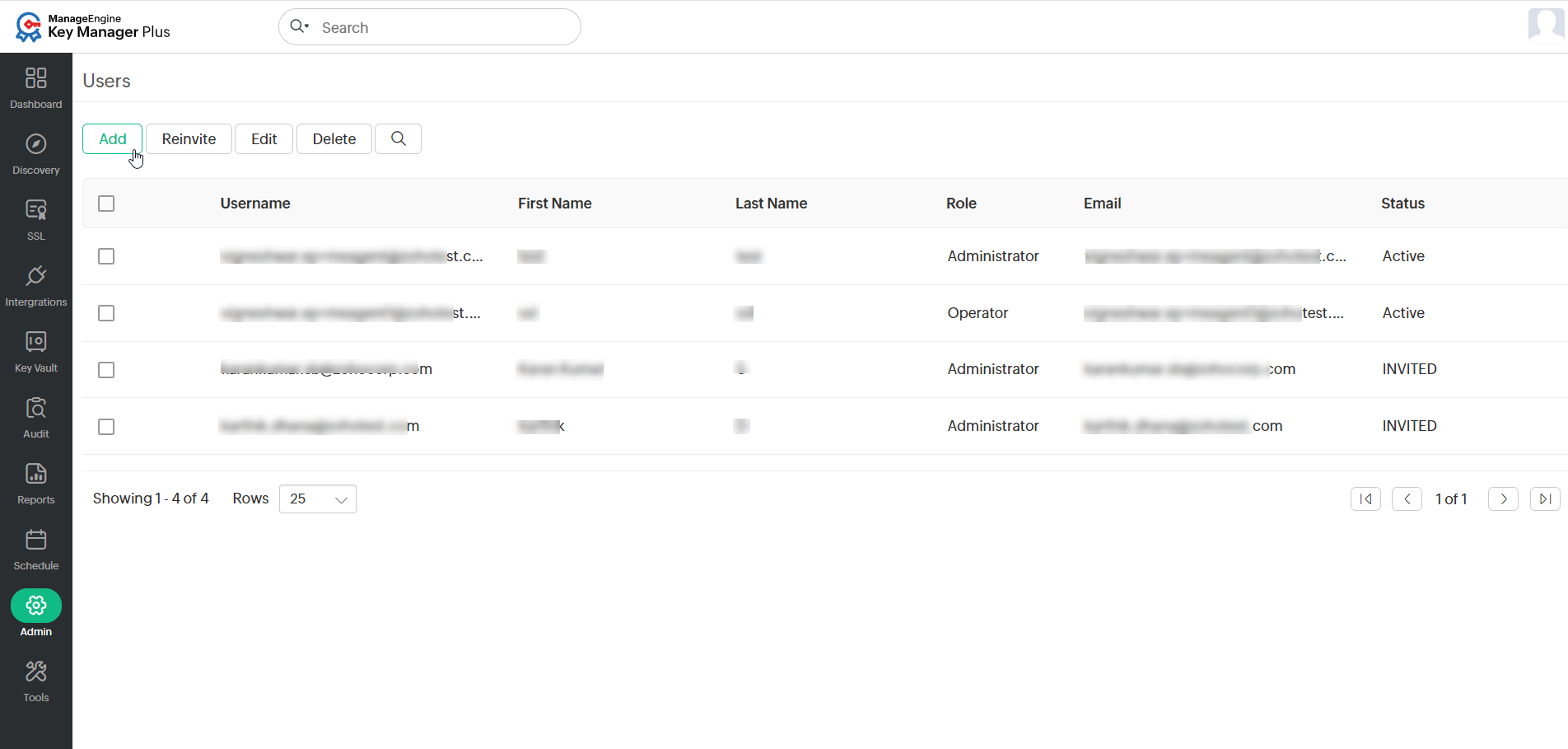
- Click Save to complete the process.
An invitation will be sent to the respective email. Upon accepting the invitation, the user gets added to the organization. For more details about adding or managing users in Key Manager Plus Cloud, refer to this document.
3. Discovering SSL Certificates
Key Manager Plus Cloud allows users to discover the SSL certificates in your network, irrespective of the certificate authority (CA).
To discover certificates manually in Key Manager Plus Cloud,
- Navigate to the Discovery tab and click SSL from the left panel.
- On the SSL Discovery page, select either Hostname / IP Address or From File at the top of the page.
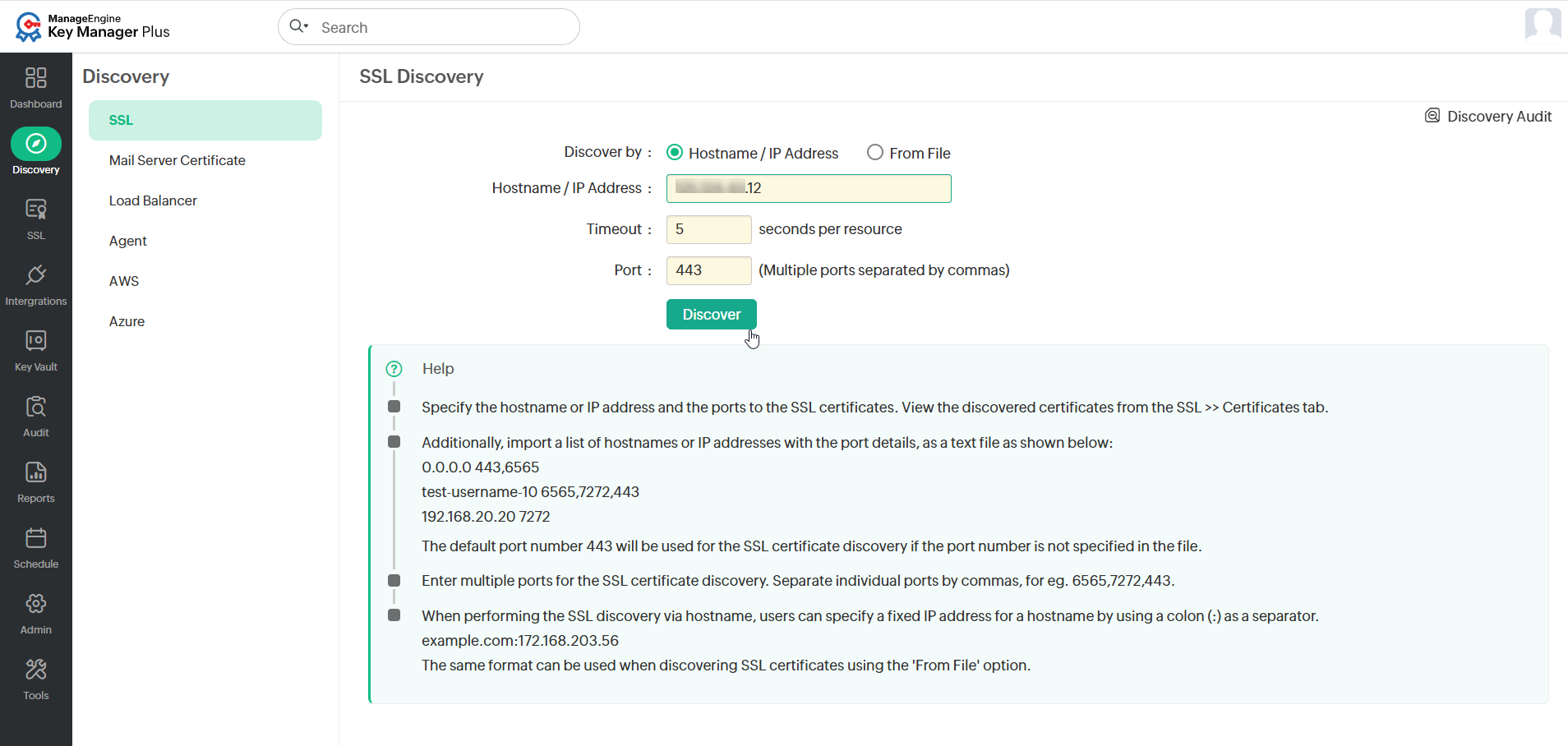
- If you have selected the Hostname / IP Address option, enter the name or IP address, timeout, and port details.
- If you have chosen the From File option and have a list of the servers in which certificates are available in your network saved as a text file, it can be loaded directly, and all these certificates can be discovered.
- Click Discover to complete the process.
For more details about discovering SSL certificates in Key Manager Plus Cloud, refer to this document.
4. Adding SSL and PGP Keys
The Key Vault is a secure, centralized storage area for managing SSL certificates and PGP keys.
To add SSL or PGP keys in the Key Manager Plus Cloud interface,
- Navigate to the Key Vault tab.
- In the Key Vault tab, click Add at the top menu.
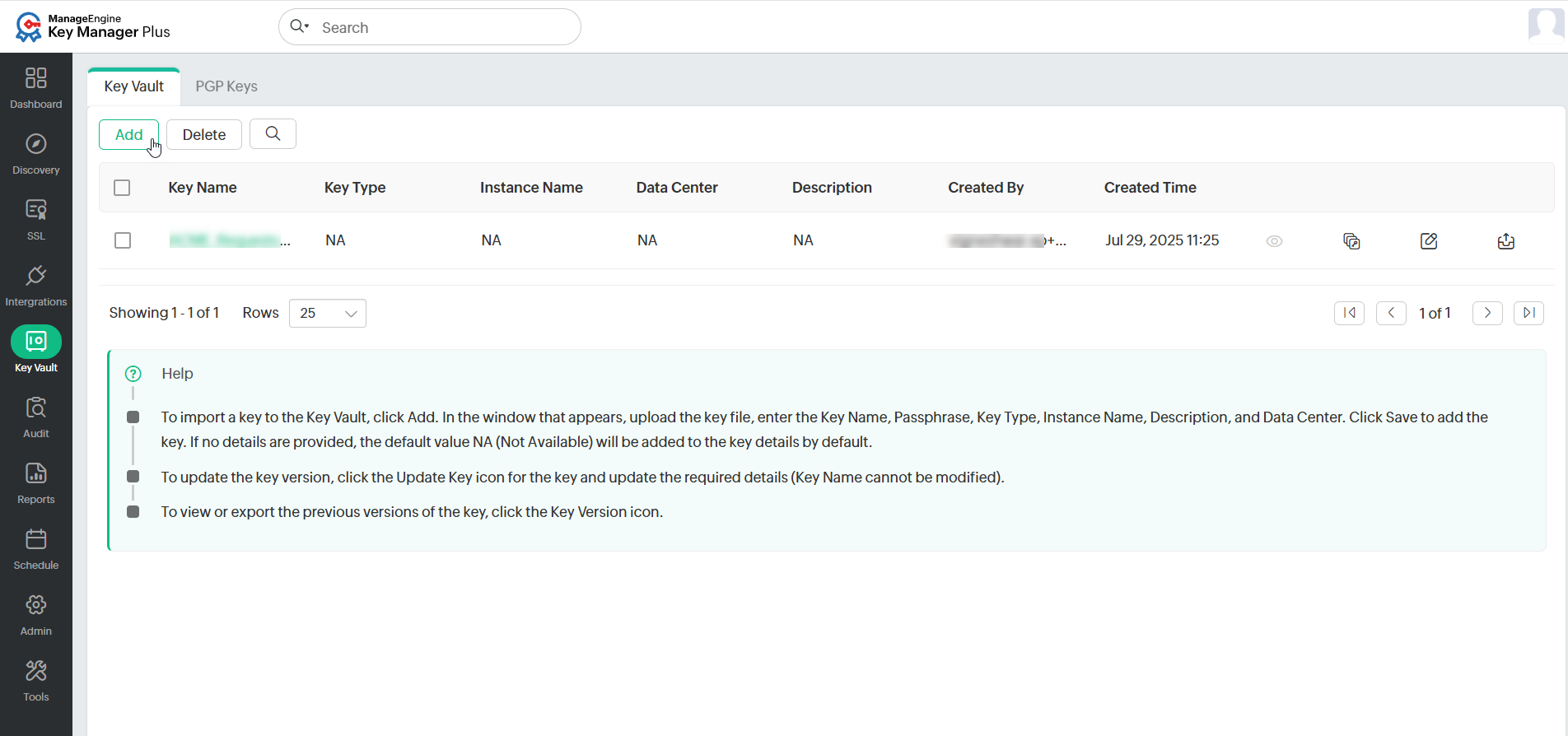
- In the window that appears, enter the required details in the respective fields and click Add.
- Similarly, to add PGP keys, navigate to the PGP Keys tab and click Create to create the PGP keys.
For more details about managing SSL and PGP keys, refer to this document.
5. Changing Password
To change the password of your Key Manager Plus Cloud account, follow the steps below:
- Once you have logged in to Key Manager Plus Cloud, click the Profile icon at the top-right corner of the UI.
- In the right-side panel that appears, click My Account. This will redirect you to the Zoho account sign-in page.
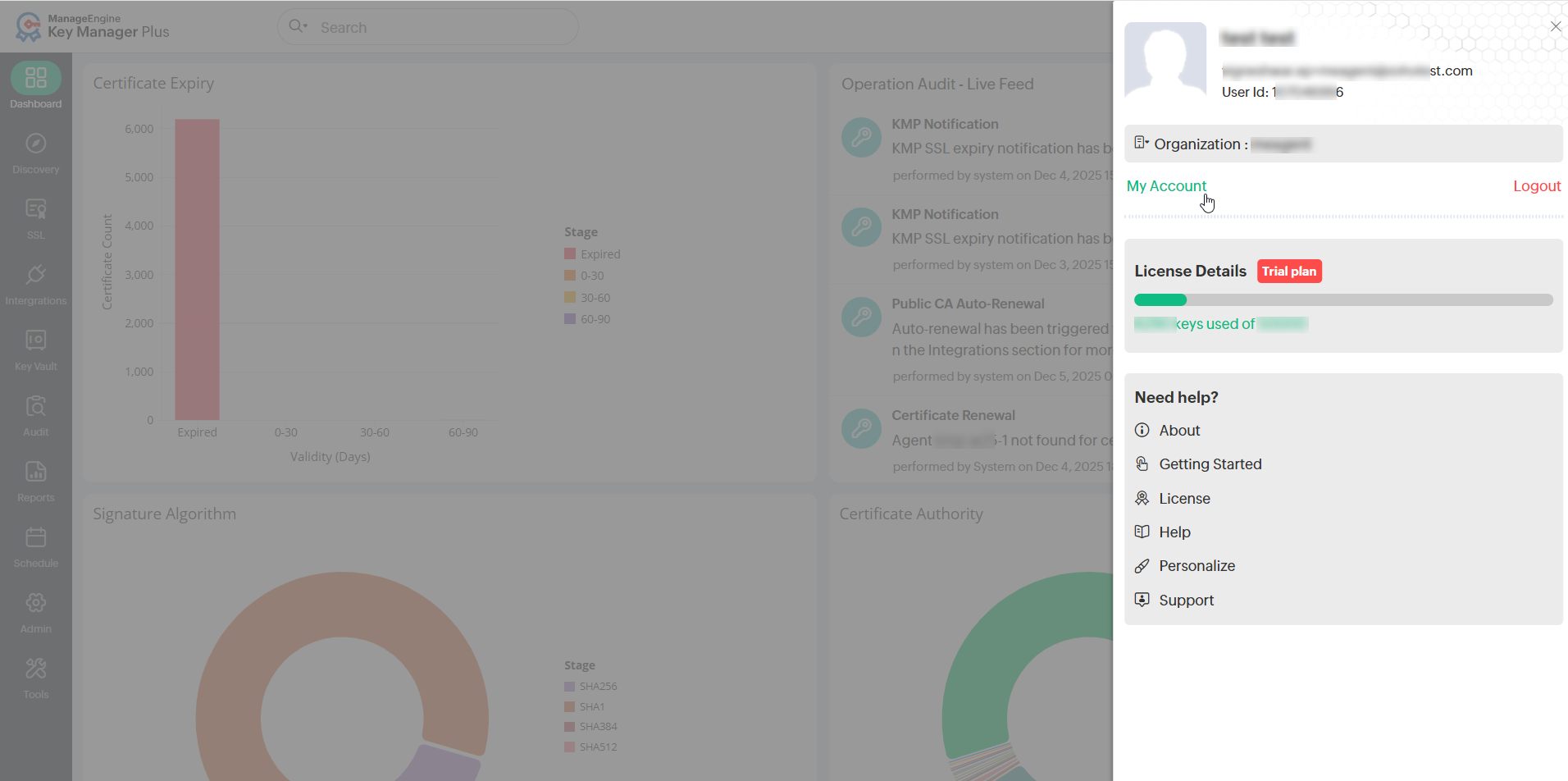
- Enter the password to sign in to your Zoho account. If you have forgotten the login password, click the Forgot Password? link and follow the on-screen instructions to sign in to your account.
- Click Security from the left-side pane.
- Under Security >> Password, click the Change Password button.
- Fill in the Current Password, New Password, and Confirm Password fields.
- Click Change Password to modify your Key Manager Plus Cloud account password.