
Log Receiver
Last updated on:
In this page
Overview
ManageEngine Log360's Log Receiver utility captures and displays real-time syslog packets received on designated ports in network layer. It offers additional visibility into packet flow and server-specific details, including the server name, IP address, and configured ports.
The Log Receiver section contains two default sub-tabs:
Syslog Viewer
The Syslog Viewer tab displays real-time syslog packets that are forwarded to the product's listener ports. To manage Listener ports, refer to this page. By default, the listener ports for syslog collection are 513 (UDP) and 514 (TCP and UDP). If you have configured any additional or custom listener ports, those ports will be displayed in this tab.
- The list displays live packets received at the specified port on your machine in network layer. This does not confirm that the product console has processed or stored these packets.
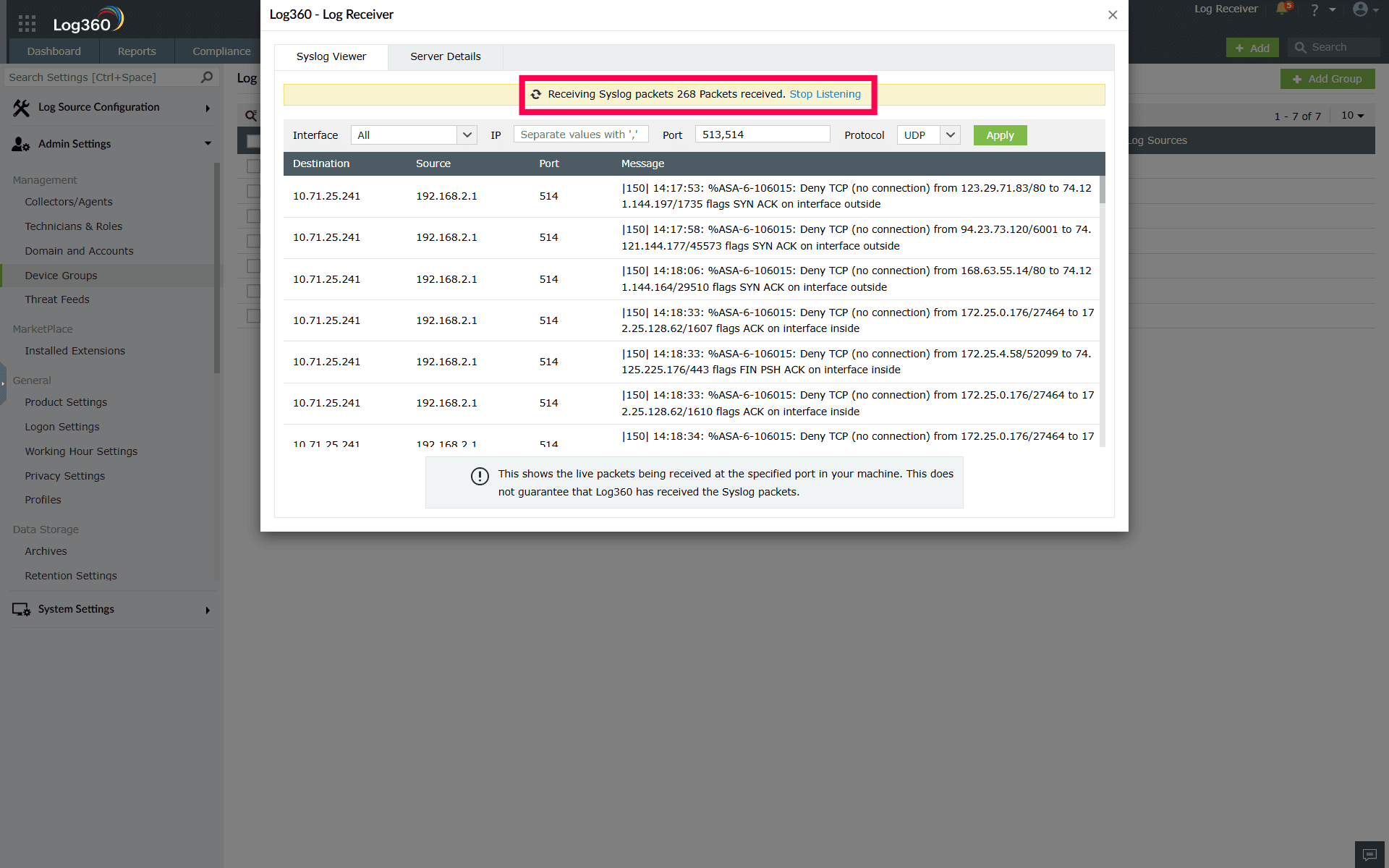
- Log Receiver listens for packets for up to three minutes or until 1000 packets are collected, whichever occurs first. After this limit is reached, you must manually restart the process by clicking Start Listening in the Syslog Viewer tab.
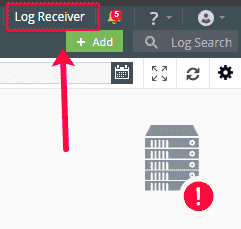
Figure 1: Manually restarting session
Receiving Syslog packets
The viewer displays the number of packets received and the listening status. For example, if you see “268 packets received. Stop Listening", it means that the product has captured 268 packets and is actively listening for more. You may stop or restart packet capture at any time.
Applying filters
You can refine the captured logs using the available configuration fields:
- Interface - Lists all network interfaces on the machine where the product console is installed. Select a specific interface from drop-down to view packets from that interface, or choose All to include all network interfaces.
- IP - To verify whether logs from a specific device are being received on the server machine, enter the device's IP address. For multiple devices, enter comma-separated values. Leave the field blank to include packets from all devices.
- Port - Enter the port numbers from which logs are being forwarded to the product console.
- Protocol - Choose the protocol used to forward packets: UDP or TCP.
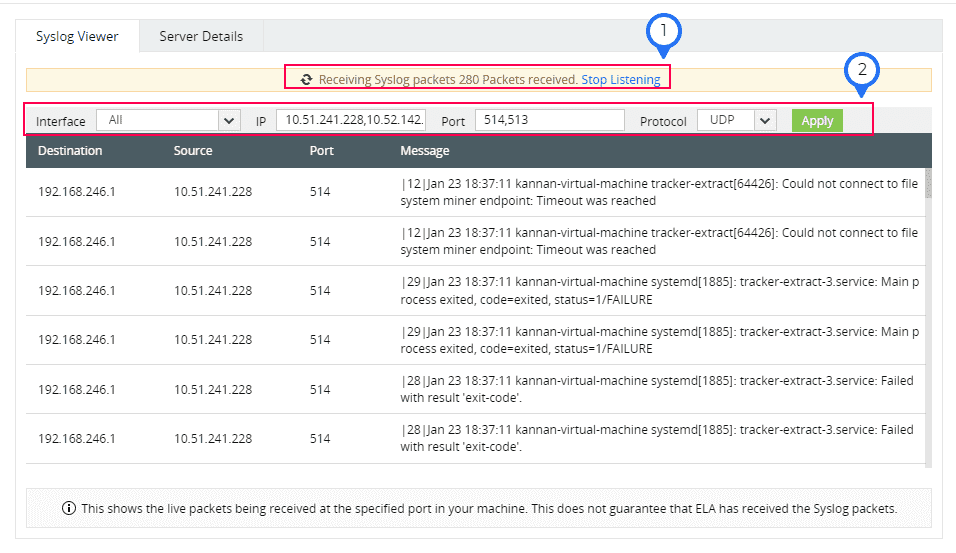
Figure 3: Applying filters
Click Apply to update the viewer based on the selected criteria. Matching packets will be displayed with details such as source IP, destination IP, and port.
Server Details
The Server Details tab provides information about the machine where the product is installed, including the server name, server IP address, application access URL, and the ports configured for log collection. You can click Refresh in the top-right corner to update the information displayed on this tab.
- Server Name - The hostname of the machine where Log360 is installed.
- Server IP Address - The IP address associated with the network adapter used by the product console. If no specific adapter is selected, All Interface is displayed.
NOTE To select a default specific adapter, refer to Connection Settings.
- Application Access URL - The URL used to access the product.
- UDP Ports - UDP ports configured in the product that are in a listening state or have encountered failures.
- TCP Ports - TCP ports configured in the product that are in a listening state or have encountered failures.
- TLS Ports - TLS ports configured in the product that are in a listening state or have encountered failures.
- SNMP Traps Port - SNMP Trap ports configured in the product that are in a listening state or have encountered failures.
- Server Status - Displays the current operational status of the server.
- Flow Rate - Shows the log flow per second over the past hour.
- Received - Indicates the total number of logs received during the previous hour.
- Current Hour Log Rate - Displays the log flow per second for the current hour.
- Total Packets Received - Shows the total number of packets received during the current hour.
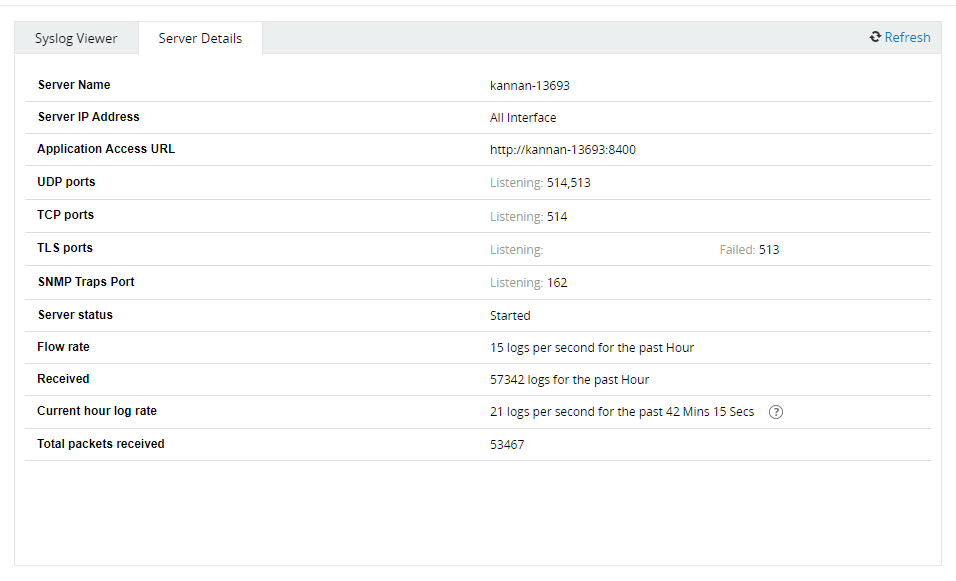
Figure 4: Viewing server details
Read also
This page explained how to use the Log Receiver to view incoming Syslog packets and access server-level details. For more information on related interface components, refer to: