

- Home
- SIEM use cases
- Veeam four-eyes authorization tampering
How to detect the unauthorized disabling of Veeam four-eyes authorization
In this page
What is four-eyes authorization in Veeam solutions?
Four-eyes authorization is a crucial security governance feature that mandates that any high-impact administrative action within the Veeam Backup & Replication console, such as deleting repositories, modifying job configurations, or altering global security settings, must be initiated by one administrator and then approved by a second, independent administrator. Its significance lies in enforcing the organizational change control policy, ensuring that no single compromised credential can lead to catastrophic data destruction or recovery sabotage.
Category:
- External threat
MITRE ATT&CK® mapping
- TA0004 | Privilege escalation
- TA0005 | Defense evasion
Scenario
A security operations team detected that a highly protected Veeam backup repository had been deleted during non-working hours. Backtracking through the incident, the security analyst traced the event to a privileged service account login and discovered the attacker's initial defense evasion move. Veeam four-eyes authorization had been disabled exactly 15 minutes prior. This critical early warning was missed, granting the adversary the friction-free access needed to subsequently modify global VM exclusions and delete critical job configurations before attempting the repository deletion.
Scenario infographic:

What went wrong?
- The core security control was defeated: The attacker successfully disabled four-eyes authorization, defeating the core security principle requiring two distinct credentials for sensitive changes.
- The critical early warning was missed: The security team received no alert when Veeam four-eyes authorization was disabled.
How a SIEM solution helps detect this attack
- Detects control tampering early by monitoring configuration-level events, such as the disablement of four-eyes authorization, and generating real-time alerts before destructive actions occur
- Surfaces suspicious context around normal events by correlating routine configuration changes (such as the disablement of four-eyes authorization) with anomalous conditions (like non-business hours, atypical geographic access, and unusual IP addresses)
- Reconstructs the attack chain by stitching together authentication logs, Veeam solution audit events, and high-risk configuration modifications onto a clear timeline for rapid validation
How to detect the disabling of Veeam four-eyes authorization with Log360
Prerequisites
- Go to the ManageEngine Marketplace.
- Under Log360, select Veeam for Log360 and install the extension.
- Follow the steps provided here to ensure that Veeam solution logs are properly ingested and visible within the Log360 console.
Detecting with Log360
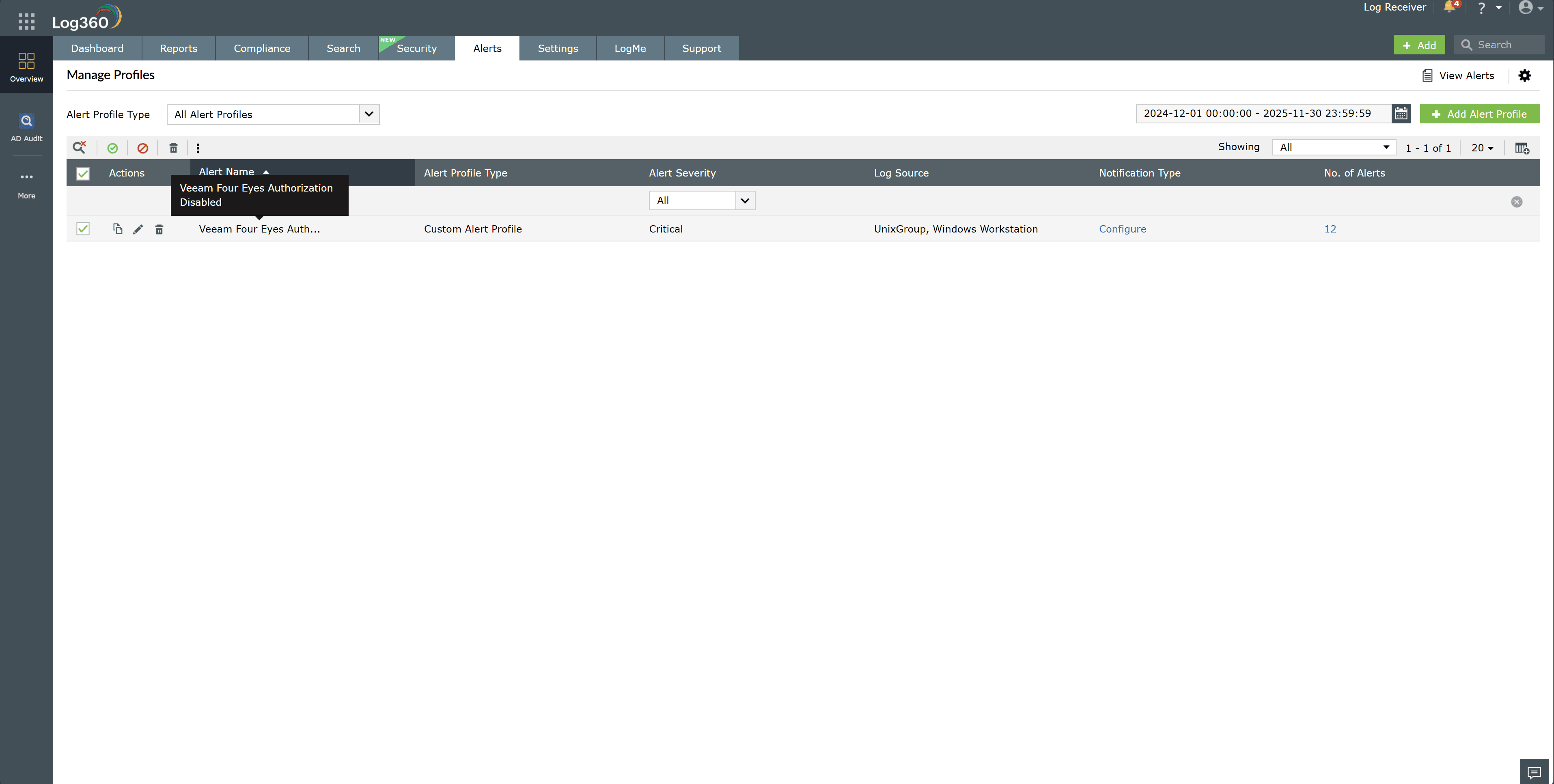
- Enable the Veeam Four Eyes Authorization Disabled alert under Alerts > Manage Alert Profiles.
- Open the alert details to review the timestamp, initiating account, source host, and specific Veeam solution action performed.
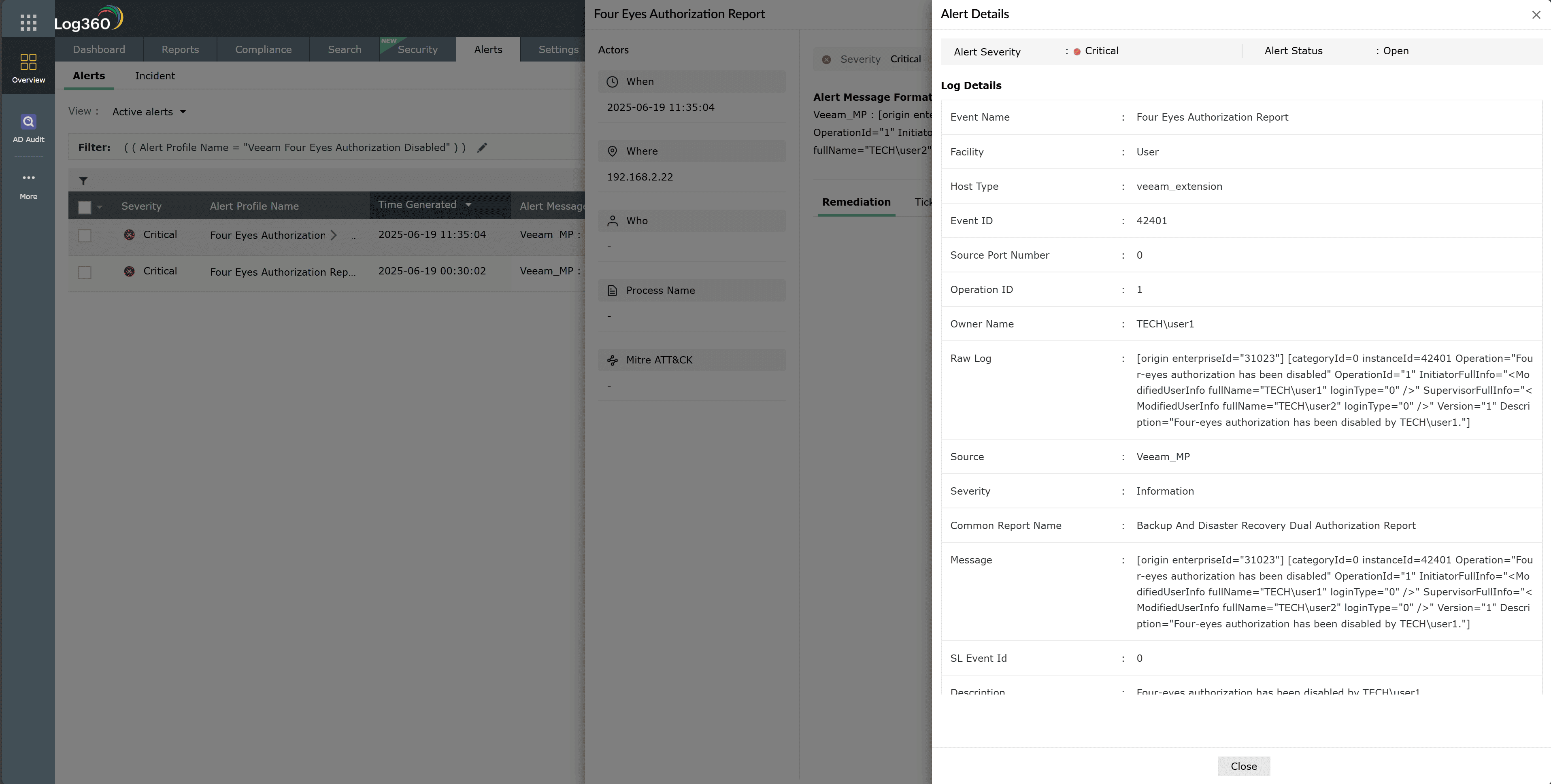
- Click Zia Insights from the alert to obtain recommended remediation steps and contextual guidance.
- Access the Veeam Four Eyes Authorization Report and filter the entries by the identified user to view all related actions taken within the environment.
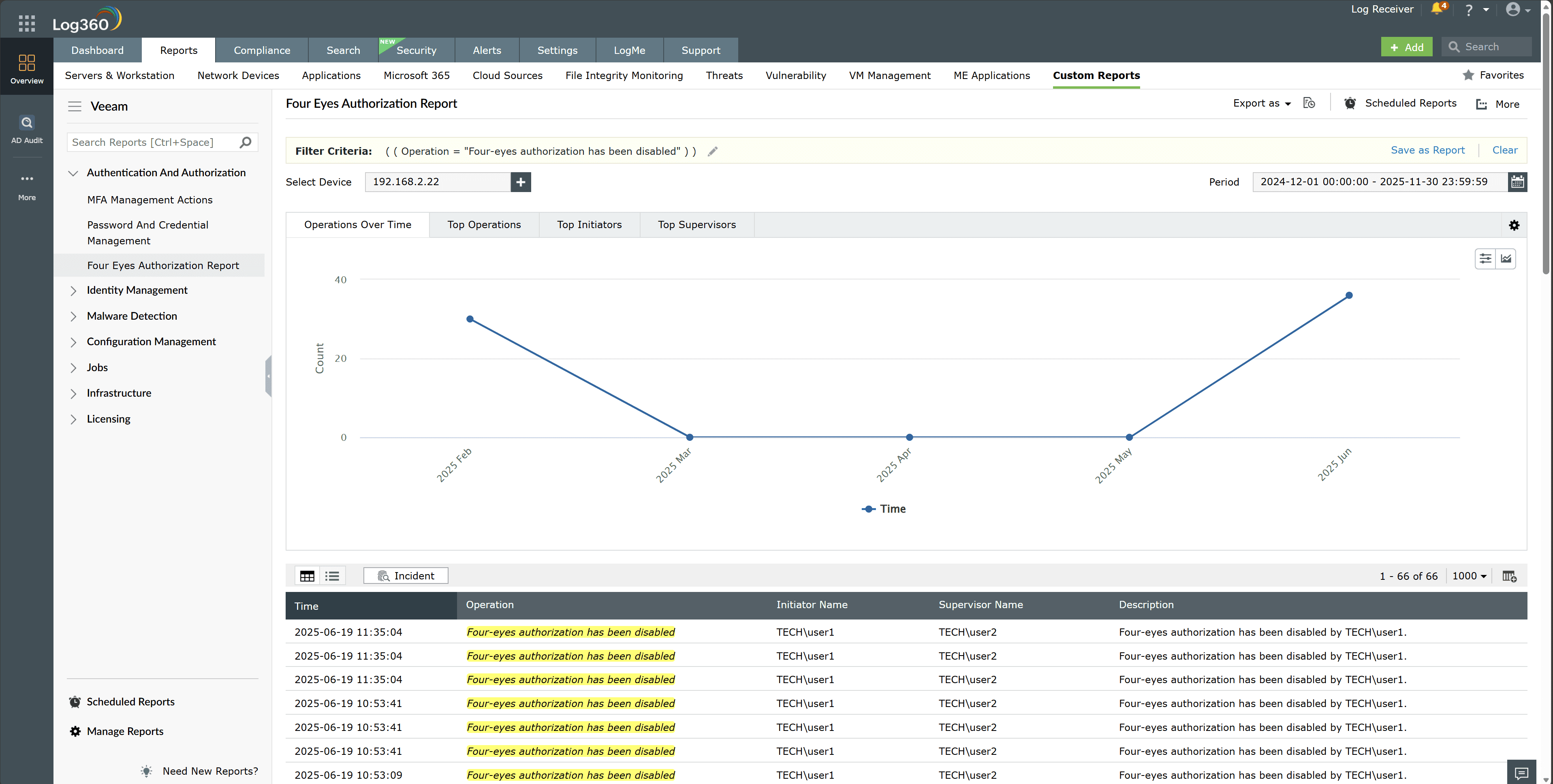
- Correlate these events with authentication logs, privileged access logs, and configuration change records to build a clear activity timeline.


Next steps
- Initiate an immediate incident investigation by validating the authenticity of the account that disabled four-eyes authorization and reviewing all subsequent Veeam solution configuration, job, and repository actions performed by that identity.
- Contain the threat by temporarily disabling or resetting the implicated account, revoking active sessions, and isolating any host used during the suspicious login.