Integrating Zendesk with MDM
The integration of ManageEngine Mobile Device Manager Plus (ME MDM) with Zendesk allows organizations to optimize their device management and support workflows. It empowers Zendesk agents with direct access to MDM features, improving both efficiency and customer service. Help desk technicians can perform a wide range of device management actions directly from the Zendesk console, streamlining the support process. This integration is specifically available for MDM Cloud.
Benefits of Integrating ME MDM with Zendesk
This integration is especially beneficial for organizations aiming to:
- Consolidate IT support and device management in one unified interface.
- Minimize time spent toggling between different platforms.
- Execute essential device management tasks directly from Zendesk tickets.
Integration Procedure
- On the Zendesk Marketplace, search for Mobile Device Manager Plus and install the app.
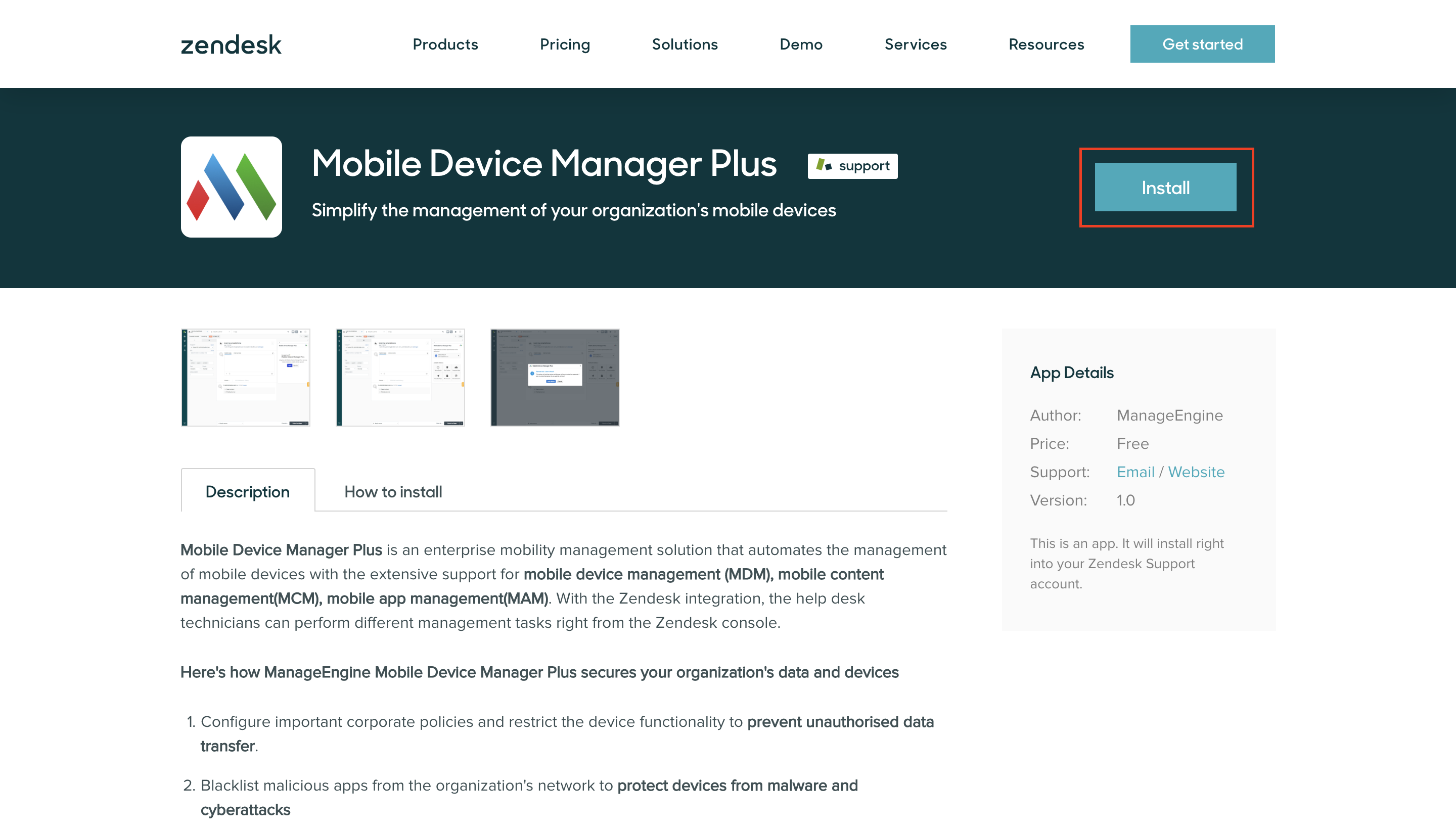
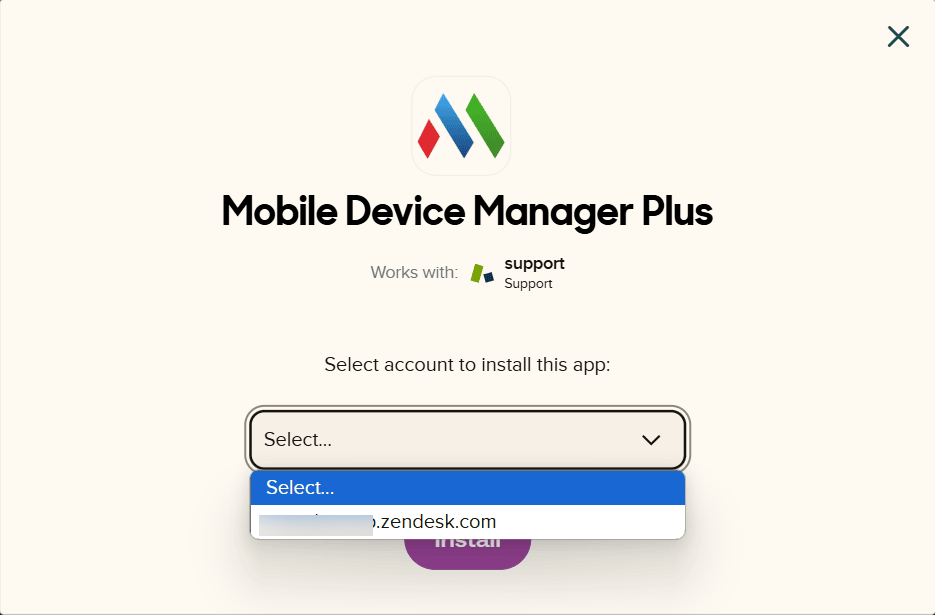
- Select Zendesk instance and click Install.
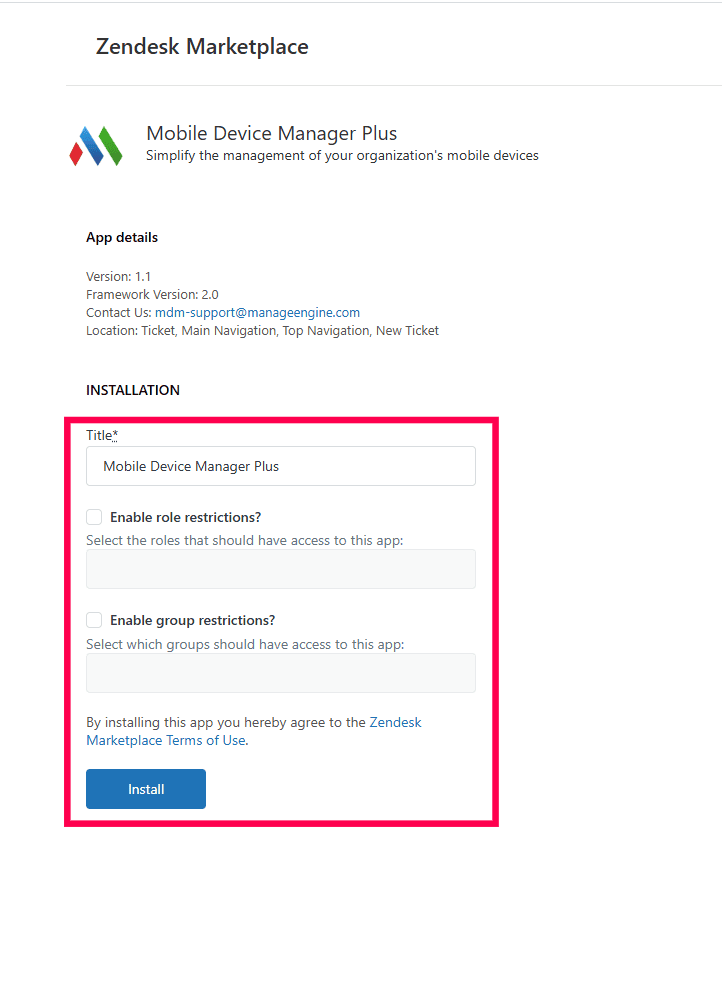
- Click Install.
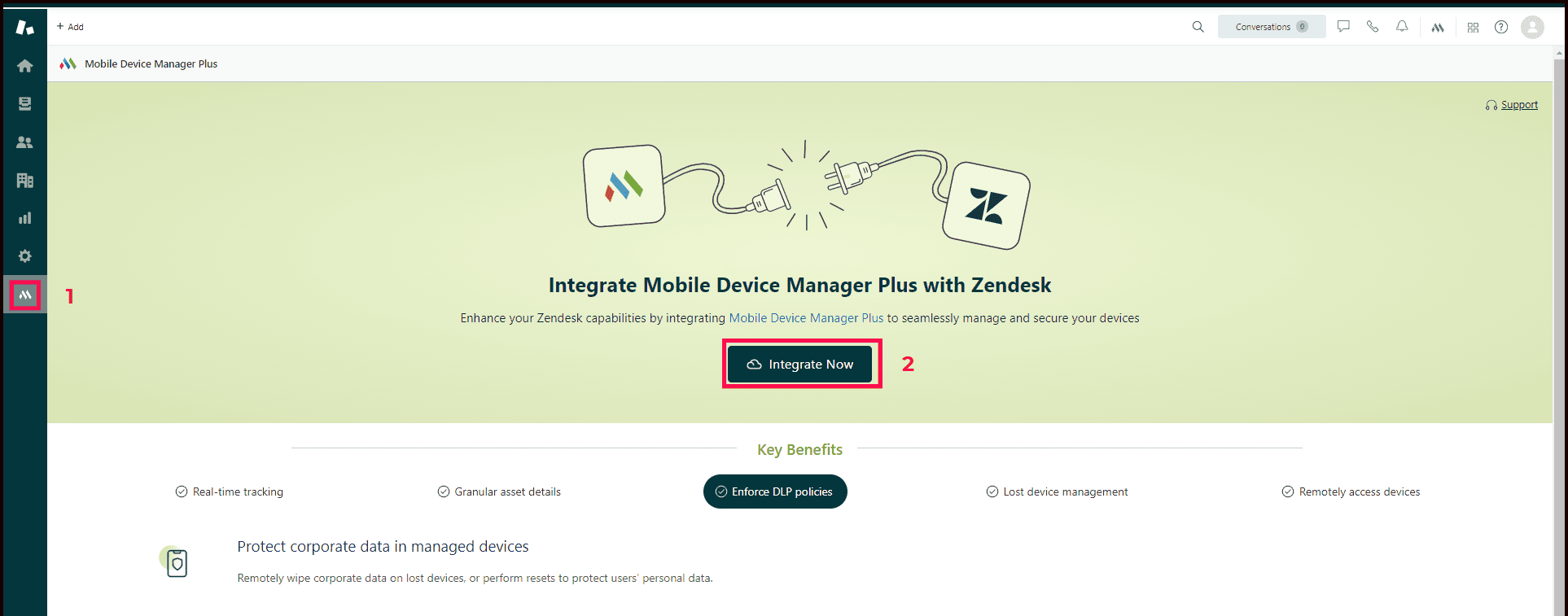
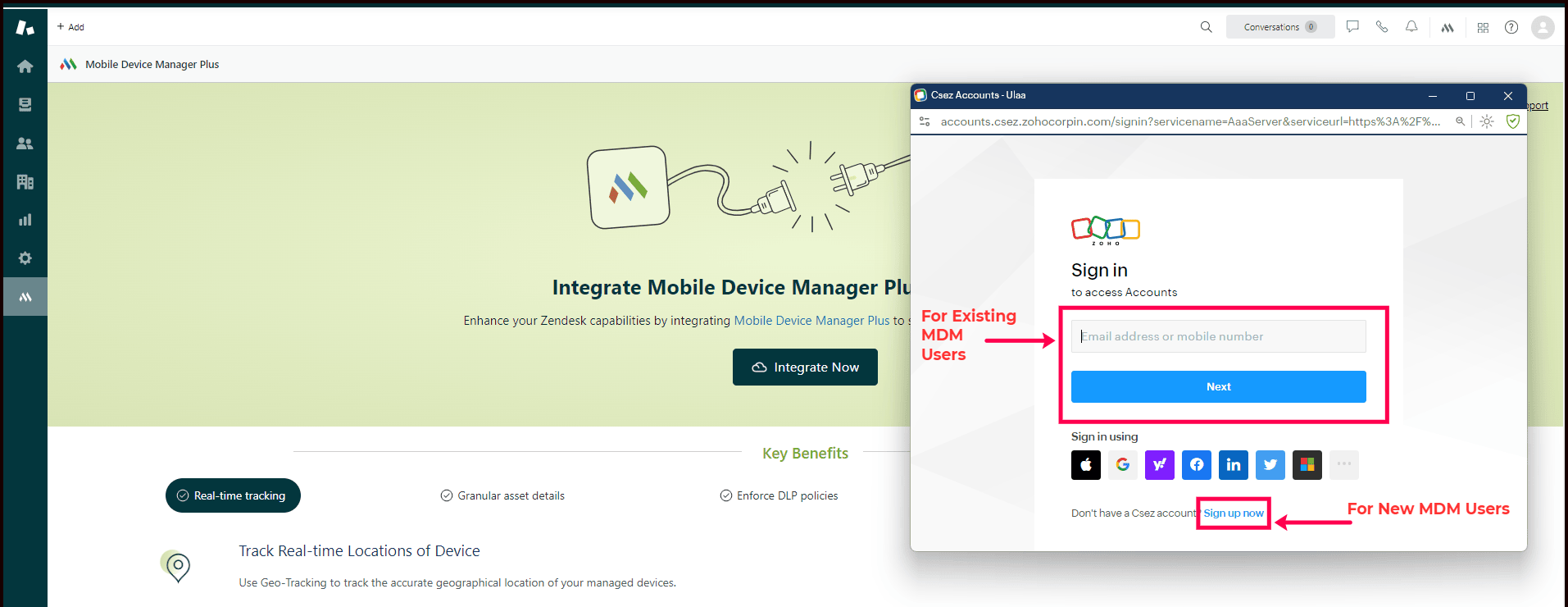
- In the Zendesk Agent Workspace, locate the Mobile Device Manager Plus icon in the left panel and click Integrate Now.
- A pop-up will prompt for account details, where existing users can log in with their credentials, and new users can click Sign Upto create an account.
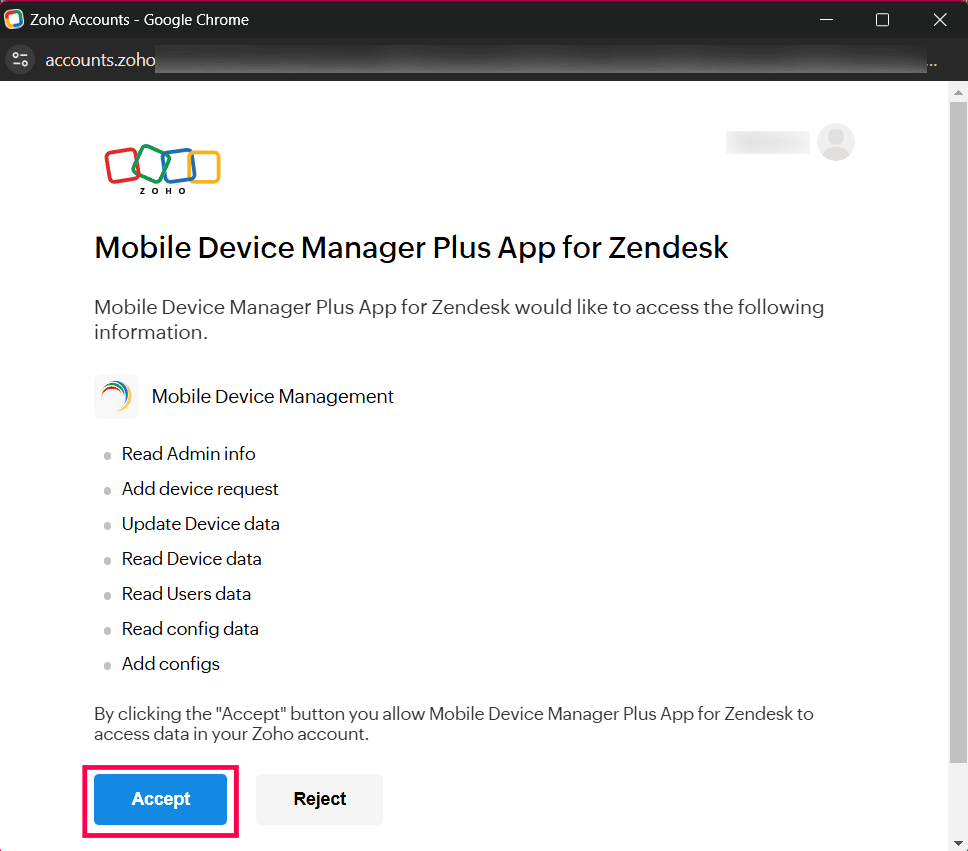
- Once logged in, grant the required permissions for integration by clicking Accept.
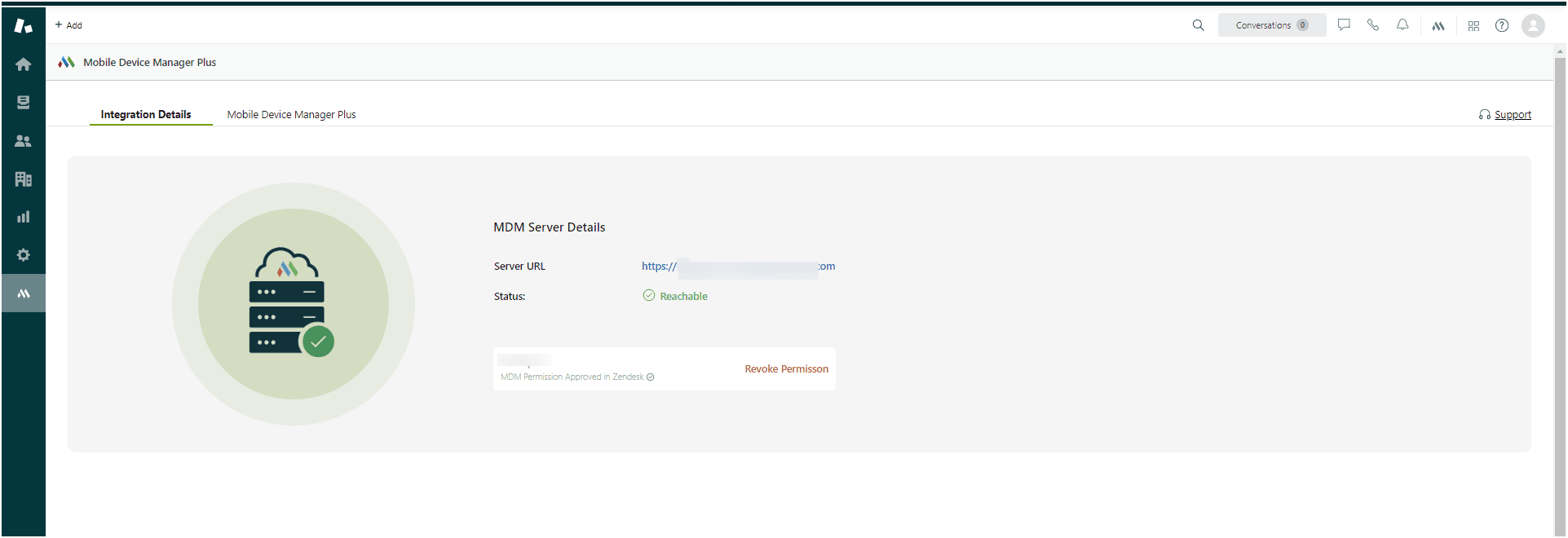
- The ME MDM app is now integrated with Zendesk. Other users in your organization can authenticate themselves and start using the app.
MDM Integration for Agent Login
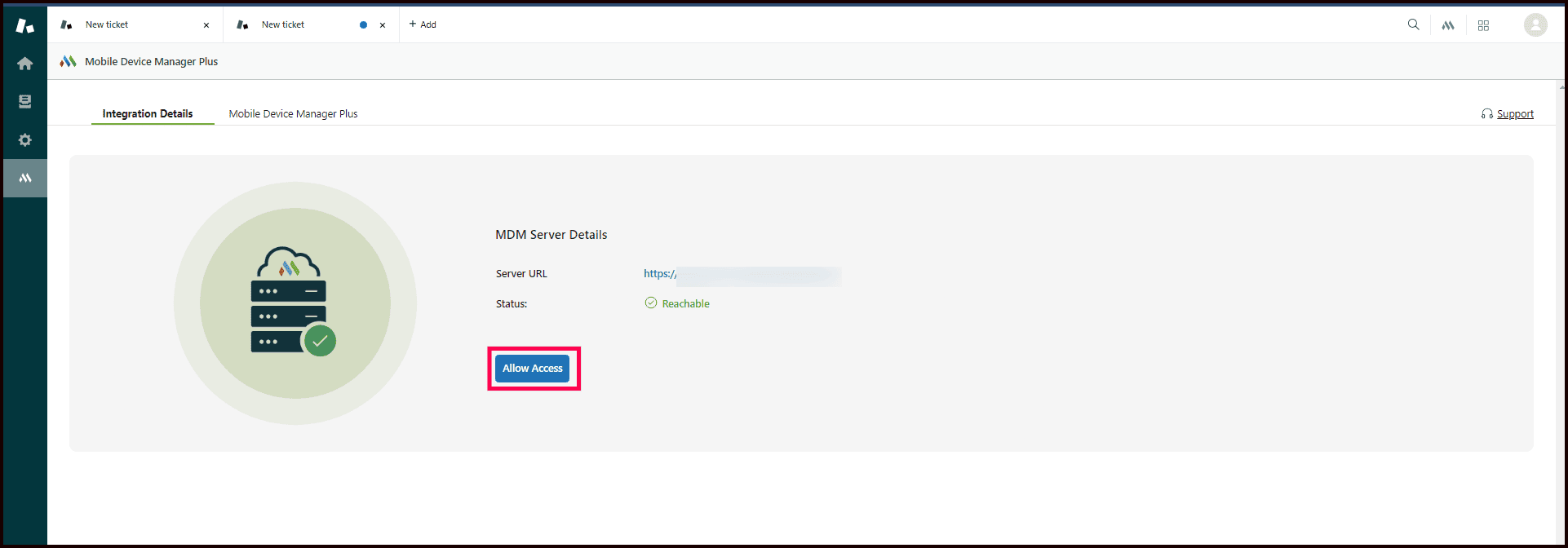
- Log in to the Zendesk Agent Workspace.
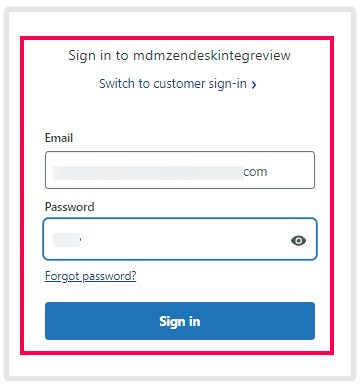
- Click on the Mobile Device Manager Plus icon and select Allow Access.
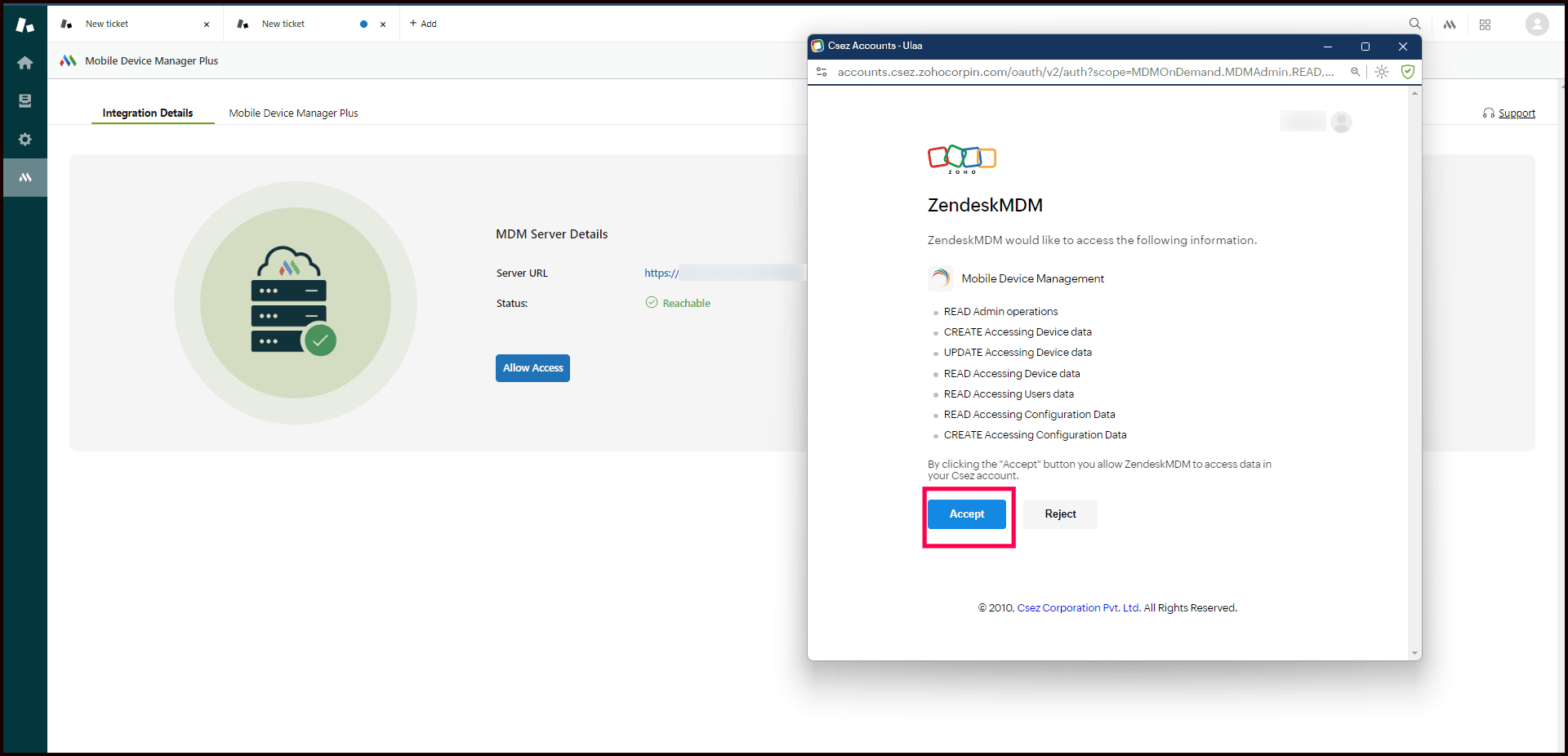
- Grant the required permissions by clicking Accept.
Pin Mobile Device Manager Plus App for Accessing MDM Actions
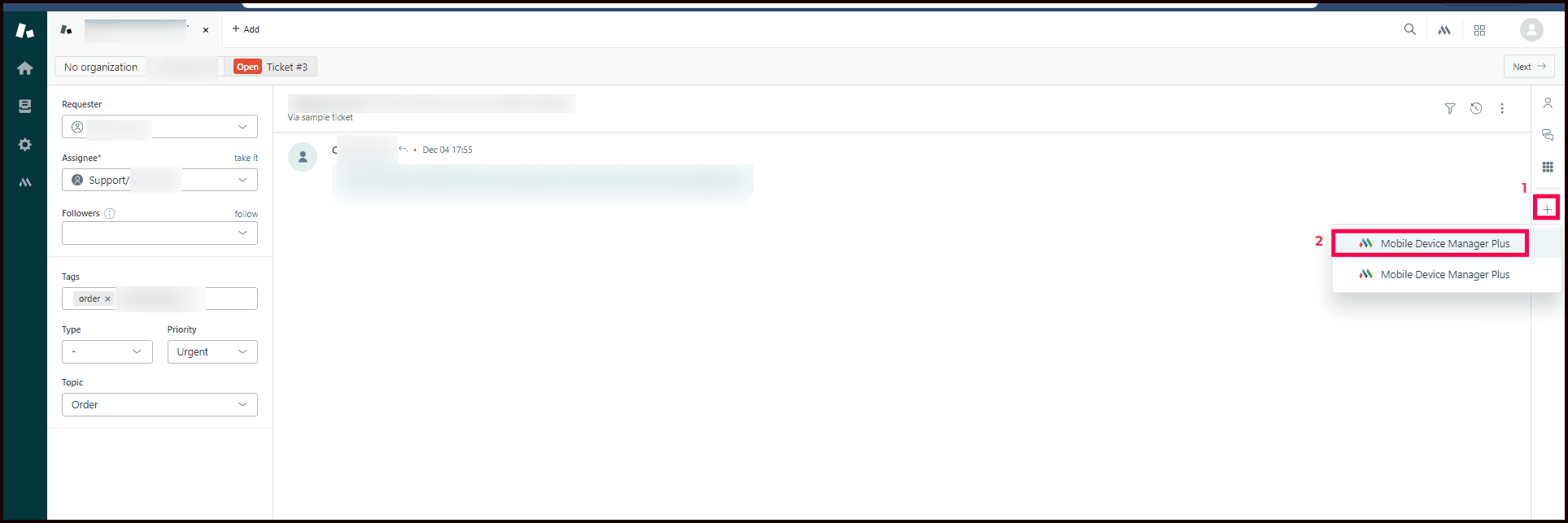
- Open a ticket from the Ticket View. Click on the + icon in the right-side pane and select Mobile Device Manager Plus.
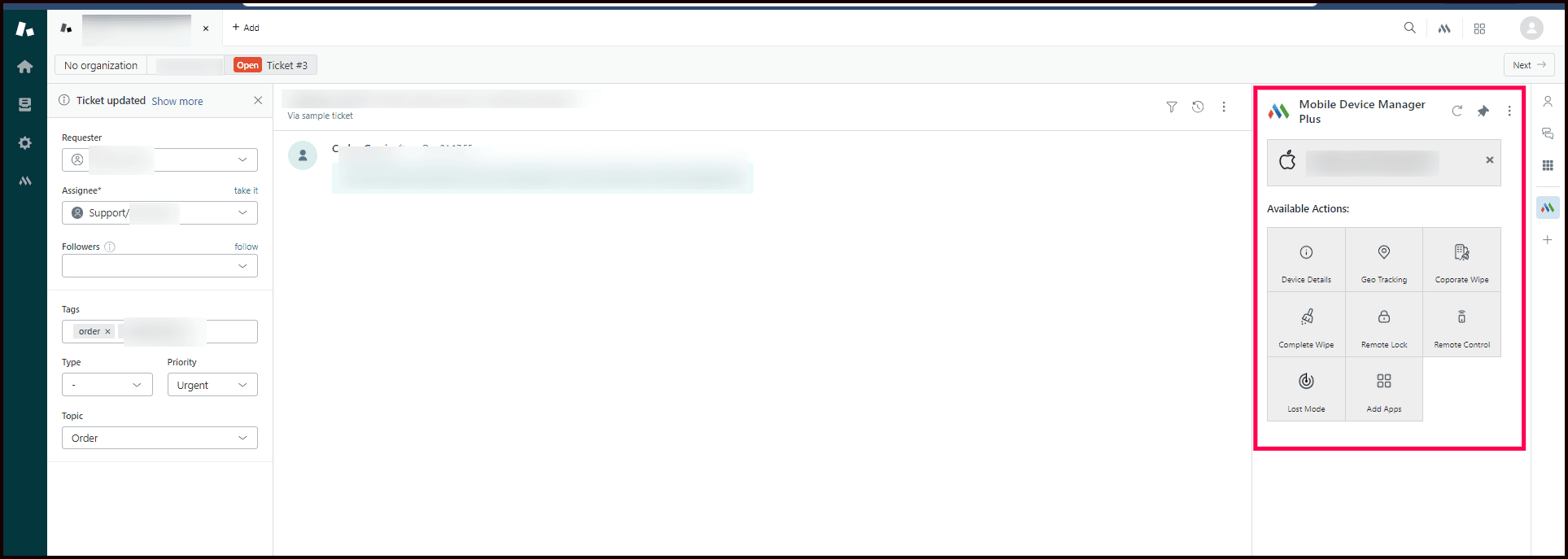
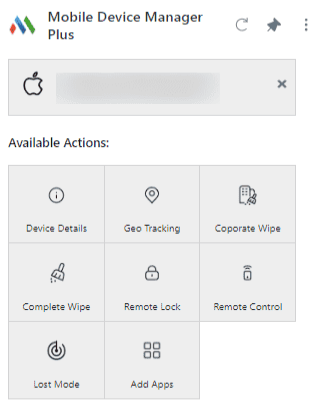
- The ME MDM app will now be pinned, allowing you to view and execute all available MDM Plus actions directly within the ticket.
Actions Available Post-Integration
After successful integration, Zendesk agents can perform the following actions directly:
- View Device Details
- Geo Tracking
- Corporate Wipe
- Complete Wipe
- Remote Lock
- Remote Control
- Lost Mode
- Add Apps
Frequently Asked Questions
- What is the process for initial integration with a non-admin user?
The initial integration after installing the plugin must be done by an MDM Admin user. Once this is completed, other users can integrate with their own accounts.
- Is Zendesk integration supported in MDM Cloud MSP?
We only support Zendesk Integration with Mobile Device Manager Plus and Endpoint Central.
- Why do I receive an error stating the user belongs to a different organization when allowing access?
Only one organization can integrate with a single Zendesk instance. The current MDM user attempting the integration belongs to a different organization than the one used in the initial integration by the MDM Admin.
- Why am I receiving an error stating I do not have the required permissions?
This error occurs because the necessary roles have not been assigned to the user by the MDM Admin. Contact the Admin to have the roles updated.
- Why do I receive an error stating that the command is not applicable for the device?
This error is due to a device privacy policy set in the MDM Console that restricts the action. Update the policy to allow the action.
- Why am I receiving an error stating that the popup is blocked when initiating Remote View?
The browser is blocking popups from Zendesk, which are required to open a new window for the remote view. Update your browser settings to allow popups.
- Why do I receive an error stating that my access has been revoked?
The access generated for Zendesk has been revoked externally. You need to grant access to Zendesk again to continue using the app.