Last updated: November 25, 2026
How to remove or bypass Activation Lock on iPhone, iPad, and Mac using MDM
Activation Lock ties an Apple device to an Apple Account, so a returned company device can't be reset and reused without that account or an organization-level override. This guide shows IT admins how to remove or bypass Activation Lock on supervised, organization-owned iPhones, iPads, and Macs using bypass codes, Apple Business Manager, and Mobile Device Manager Plus.
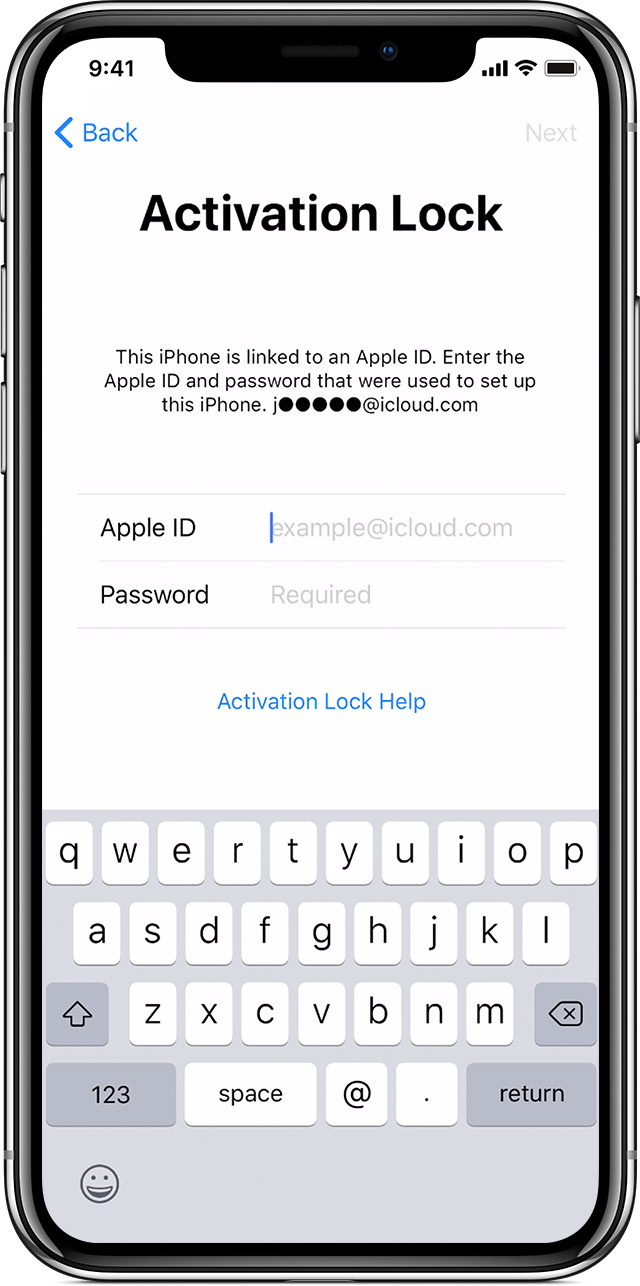
These methods work only on supervised devices that your organization owns and manages. A company iPhone comes back from a former employee, you erase it to hand it to the next person, and Setup Assistant stops at a screen asking for the previous user's Apple Account. Without that account, or an override your organization set up in advance, the device can't be activated.
This guide explains what Activation Lock is, the difference between removing and bypassing it, what you need in place before you start, and the step-by-step process for clearing it with Mobile Device Manager Plus so the device can be reassigned.
This document covers the following:
- What is Activation Lock?
- How Activation Lock gets enabled
- Why corporate devices need Activation Lock removed
- Remove, bypass, and disable: what's the difference?
- Prerequisites
- How to remove or bypass Activation Lock on Apple devices
- What if the device is locked to a former employee's Apple Account?
- How to verify Activation Lock is removed
- Troubleshooting
- Frequently asked questions
What is Activation Lock?
Apple's Activation Lock is a built-in security feature that stops anyone from erasing and reactivating a device without the Apple Account that locked it. It stays in place even after the device is erased, so a lost or stolen device is useless to whoever has it. Activation Lock is sometimes called iCloud Activation Lock, because it's tied to the user's iCloud account.
Activation Lock is available on these devices:
- iPhone
- iPad
- Apple Watch
- Apple Vision Pro
- Mac computers with Apple silicon or the Apple T2 Security Chip
How Activation Lock gets enabled
Turning on Find My turns on Activation Lock. From then on, the device is linked to that Apple Account on Apple's activation servers, and anyone who tries to turn off Find My, erase the device, or reactivate it is asked for the account's password. On a supervised device, Activation Lock is turned off by default, and your MDM decides whether users are allowed to turn it on.
Why corporate devices need Activation Lock removed
Activation Lock protects personal devices well, but it gets in the way on company devices. When an employee turns on Find My with their personal Apple Account and then leaves, the device they return is still linked to that account. Erase it for the next employee, and setup stops at a prompt for the former employee's credentials.
IT can't remove a lock tied to a personal Apple Account without either the user or Apple, unless the organization prepared for it in advance by supervising the device and storing its bypass code in MDM. Turning off Activation Lock entirely isn't the answer either, because then a lost device has no theft protection. The goal is to keep Activation Lock on, but under the organization's control.
The methods in this guide apply only to devices your organization owns and manages.
Remove, bypass, and disable: what's the difference?
| Term | What it means | Who can clear it |
|---|---|---|
| Organization-linked Activation Lock | Activation Lock turned on by your MDM and tied to your organization, not to any user's Apple Account | IT, through the MDM or Apple Business Manager or Apple School Manager |
| Lock tied to a personal Apple Account | Activation Lock turned on by a user through Find My with their own Apple Account | The user. On a supervised device, IT can also clear it with the stored bypass code or through Apple Business Manager |
| Bypass code | A code the MDM stores for a supervised device, which unlocks it without the user's Apple Account | IT, by sending it from the MDM or entering it on the device's Activation Lock screen |
| Removing the MDM profile | Unenrolling the device from management | Doesn't affect Activation Lock. The device stays locked to the Apple Account |
Removing an MDM profile does not remove Activation Lock. Clear the lock first, then unenroll or reassign the device.
Prerequisites
- Supervision: The device must be supervised. Unsupervised devices can't have Activation Lock managed through MDM.
- Apple Business Manager or Apple School Manager: For the most recovery options, the device should be assigned to your MDM server in Apple Business Manager or Apple School Manager.
- MDM Plus enrollment: The device must be enrolled in Mobile Device Manager Plus. Activation Lock management is part of the Professional edition and supports iOS and iPadOS devices.
- APNs certificate: A valid APNs certificate is needed for MDM Plus to reach the device.
- Network access: Your firewall or proxy must allow MDM Plus to reach Apple's Activation Lock service at
https://deviceservices-external.apple.com/deviceservicesworkers/escrowKeyUnlock.
Devices bought through Apple or an authorized reseller and enrolled through Apple Business Manager qualify for every method in this guide. Devices supervised with Apple Configurator also qualify for MDM bypass codes. To also clear them through Apple Business Manager, add them to Apple Business Manager with Apple Configurator, which has to happen before the device is locked.
How to remove or bypass Activation Lock on Apple devices
Supervision doesn't erase an existing lock. It gives your MDM the ability to retrieve a bypass code from the device and to control whether Activation Lock can be turned on at all. A lock that was already tied to a personal Apple Account before the device was supervised stays in place, and the MDM can't clear it.
Device enrollment through Apple Business Manager is now called Automated Device Enrollment. Apple Business Manager is the portal where you assign devices to your MDM server, and Automated Device Enrollment is the process that enrolls and supervises them during setup.
Bypass iCloud Activation Lock on iPhones and iPads
Mobile Device Manager Plus supports two ways to supervise iPhones and iPads so their Activation Lock can be managed:
- Apple Configurator, for devices bought outside Apple's programs
- Apple Business Manager, through Automated Device Enrollment
Once a device is supervised, Activation Lock is turned off by default, and MDM Plus decides whether it's turned off, controlled by the organization, or allowed for users with a stored bypass code.
How to remove iCloud Activation Lock with Mobile Device Manager Plus
- Set how Activation Lock works on your devices. Go to Device Management > Profiles, click Create Profile > iOS, and choose Activation Lock. Choose whether Activation Lock is disabled, organization-managed, or user-managed, then publish the profile and associate it with your devices or groups.
- When a device comes back, wipe or deprovision it from MDM Plus while it's still connected. Activation Lock is cleared as part of the wipe, so the device is ready to set up again.
- If the device was erased outside MDM, or it still shows the Activation Lock screen, retrieve the bypass code. Go to the Inventory tab, select the device, and under Device Summary, click View Bypass Codes.
- On the device's Activation Lock screen, leave the Apple Account field blank and enter the bypass code in the password field. For devices in Apple Business Manager, you can turn off Activation Lock there instead.
- Reassign the device. It enrolls back into MDM Plus during setup and receives the new user's profiles and apps.
For details on each scenario, see Activation Lock management in Mobile Device Manager Plus.
How to bypass MacBook Activation Lock
Activation Lock is available on Macs with Apple silicon or the Apple T2 Security Chip. Older Intel Macs without a T2 chip don't support it. For an organization to manage Activation Lock on a Mac, the Mac must be supervised, which means enrolling it through Automated Device Enrollment from Apple Business Manager or Apple School Manager.
Activation Lock management in Mobile Device Manager Plus covers iOS and iPadOS devices. For an organization-owned Mac, the simplest way to clear the lock is in Apple Business Manager or Apple School Manager, where a user with Manage Device privileges can turn off Activation Lock for devices the organization owns. If you have the Mac's bypass code from your device management service, enter it in Recovery Assistant by selecting Activate with MDM key. ManageEngine Endpoint Central also supports Activation Lock management for Macs.
What if the device is locked to a former employee's Apple Account?
| Situation | What to do |
|---|---|
| Organization-linked lock | Remove it through MDM Plus with the organization bypass code, or turn it off in Apple Business Manager |
| Personal Apple Account, on a supervised device with a stored bypass code | Clear it with the device bypass code from MDM Plus, or turn it off in Apple Business Manager if the device is there |
| Personal Apple Account, with no bypass code and not in Apple Business Manager | Ask the former employee to remove the device from their iCloud account, or contact Apple Support with the original proof of purchase |
| Device not supervised | It can't be removed through MDM. Use Apple Business Manager if the device is there, or ask the former employee or Apple Support |
How to verify Activation Lock is removed
In Mobile Device Manager Plus, check the device's Activation Lock status in its inventory details. After a wipe, you can also check during setup: a device that's still locked shows a message such as "iPhone Locked to Owner" right after the Wi-Fi step. If it moves past that screen to enrollment, the lock is cleared. On a Mac, open System Information, select Hardware, and check Activation Lock Status.
Troubleshooting
- The bypass code isn't available: MDM Plus retrieves the device bypass code during enrollment. Devices enrolled before the feature was available, or where Find My was turned on before enrollment, may not have one. Apple also makes a bypass code unretrievable if MDM doesn't collect it within 15 days. Use Apple Business Manager if the device is there, or re-enroll the device to capture a new code before allowing user-managed Activation Lock.
- The device isn't supervised: MDM can't manage Activation Lock on it. Supervise future devices through Automated Device Enrollment or Apple Configurator.
- The device isn't in Apple Business Manager: You can't use the Apple Business Manager option for it, and a device that's already locked can't be added. Rely on the MDM bypass code, the former user, or Apple Support.
- The device was locked to a personal Apple Account before it was supervised: Neither the MDM nor supervision can clear that lock. Only the user's Apple Account or Apple Support can.
- The clear request fails: Check that your firewall or proxy allows MDM Plus to reach Apple's Activation Lock service URL listed under Prerequisites.
Frequently asked questions
Why do corporate iPhones and MacBooks need Activation Lock removed before reassignment?
Activation Lock ties the device to the previous user's Apple Account through Find My and requires their credentials to erase or reactivate it. Until it's removed, a returned device can't be set up for a new employee.
How can IT bypass Activation Lock on an iPhone or iPad?
Supervise the device through Apple Business Manager or Apple Configurator and enroll it in your MDM. Supervision lets the MDM retrieve a bypass code and control whether Activation Lock can be turned on. IT can then clear the lock by wiping the device from MDM, entering the bypass code on the Activation Lock screen, or turning it off in Apple Business Manager. Supervision doesn't clear a lock that was tied to a personal Apple Account before the device was supervised.
What's required to remove Activation Lock from a MacBook?
The Mac needs Apple silicon or the Apple T2 Security Chip, since older Intel Macs don't support Activation Lock. For organization-managed removal, the Mac should be enrolled through Automated Device Enrollment from Apple Business Manager or Apple School Manager. You can then turn off Activation Lock in Apple Business Manager, or enter the bypass code from your device management service in Recovery Assistant.
What is an Activation Lock bypass code?
It's a code your MDM stores for a supervised device that unlocks Activation Lock without the user's Apple Account. In Mobile Device Manager Plus, you'll find it under Inventory, in the device's Device Summary, by clicking View Bypass Codes. Enter it on the Activation Lock screen by leaving the Apple Account field blank and typing the code in the password field.
Does removing an MDM profile remove Activation Lock?
No. Unenrolling a device doesn't change Activation Lock, and the device stays locked to the Apple Account. Clear Activation Lock first, then unenroll or reassign the device.
What if the employee has left and I can't reach them?
If the device is supervised and MDM has its bypass code, clear the lock from MDM. If the device is in Apple Business Manager, turn off Activation Lock there. If neither applies, contact Apple Support with the original proof of purchase.
How do I check whether Activation Lock is on a managed device?
In Mobile Device Manager Plus, check the device's Activation Lock status in its inventory details. You can also check during setup: a locked device shows a message such as "iPhone Locked to Owner" after the Wi-Fi step. On a Mac, open System Information, select Hardware, and check Activation Lock Status.
Which Macs support Activation Lock?
Macs with Apple silicon and Intel Macs with the Apple T2 Security Chip. Intel Macs without a T2 chip don't support Activation Lock.