# Agent-based device monitoring in OpManager
[](https://www.youtube-nocookie.com/embed/MSmlyF_7m64)
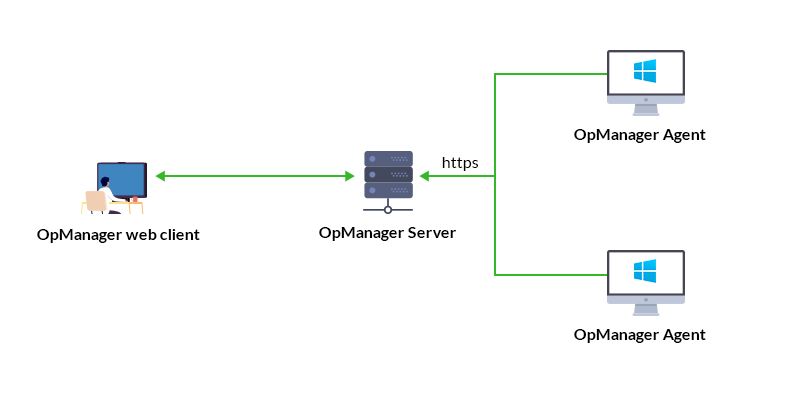
With the introduction of [Agent-based monitoring](https://www.manageengine.com/network-monitoring/help/agent-monitoring.html) in OpManager, users can now install a lightweight piece of software called an "agent" in their network devices such as Windows servers, Unix servers to aid OpManager with monitoring your devices. The agent takes over all polling actions related to that device from OpManager, allowing your OpManager server to function more efficiently. For smooth functioning of OpManager without load configuration changes, it is recommended that the agent be installed on not more than 1000 devices.
- [Types of Agent-based monitoring](https://www.manageengine.com/network-monitoring/help/agent-monitoring.html#types)
- [Advantages of Agent-based monitoring](https://www.manageengine.com/network-monitoring/help/agent-monitoring.html#adv)
- [Prerequisites for Agent-based monitoring](https://www.manageengine.com/network-monitoring/help/agent-monitoring.html#prerequisites)
## Types of Agent-based monitoring
#### 1. Idle Agent
When the OpManager agent is installed on a device that is already being monitored via SNMP/WMI or other protocols in OpManager, the agent is classified as an **Idle Agent**. In this state, the agent remains installed but does not actively participate in any monitoring activities, since the device’s monitoring is already handled through existing methods.
#### 2. Monitoring Agent
When a device is fully monitored using the OpManager agent (without relying on SNMP/WMI), the agent functions as a **Monitoring Agent**. In this mode, all data collection, performance monitoring, and health checks are handled directly by the agent installed on the device.
## Advantages of Agent-based monitoring
- Credentials are not necessary to employ agent monitoring for your network devices (except when deployed from OpManager UI), it is sufficient if you install the agent in your device.
- Even if communication between the monitored device and OpManager server is lost, the device's monitoring data will be temporarily stored in the agent for **upto 6 hours.**
- Even if the IP address of the monitored device changes constantly, data collection will not be affected as long as the OpManager server's IP address remains static.
- Log files can also be monitored using the OpManager agent, allowing users to track, analyze, and troubleshoot issues effectively.
## Prerequisites for Agent-based monitoring
Prior to installing the agent and monitoring your network devices, ensure the necessary prerequisites are met.
- [Common for Windows and Unix](https://www.manageengine.com/network-monitoring/help/agent-monitoring.html#common)
- [For Windows](https://www.manageengine.com/network-monitoring/help/agent-monitoring.html#windows)
- [For Unix](https://www.manageengine.com/network-monitoring/help/agent-monitoring.html#unix)
### Common for Windows and Unix
The prerequisites listed below are applicable for both Windows and Linux devices.
1. **Hardware requirements**
These are the minimum specifications required in the device where the OpManager agent will be installed:
| Parameter | Windows | Linux | FreeBSD | OS X |
|---|---|---|---|---|
| Processor speed | 1.0 GHz | 1.0 GHz | 1.0 GHz | 1.0 GHz |
| RAM | 512 MB | 512 MB | 512 MB | 512 MB |
| Hard disk space | 100 MB | 70 MB | 70 MB | 70 MB |
2. **Supported OS versions:**
The OpManager agent supports all major versions of Microsoft Windows and Unix systems as listed below:
| Windows OS | |
|---|---|
| **Software** | **Versions Supported** |
| Windows OS | Windows 11/ Windows 10/ Windows 8.1/ Windows 8/ Windows 7/ Windows Vista |
| Windows Server OS | Windows Server 2025/ 2022/ 2019/ 2016/ 2012 & 2012 R2/ 2008 & 2008 R2 |
| **Unix OS** | |
| **Linux Distributions** | **Versions Supported** |
| Ubuntu | 14.04 and above (x86_64)
16.04 and above (Armv8 64bit) |
| Debian | Debian 7 "Wheezy", Debian 8 "Jessie", Debian 9 "Stretch" and above |
| Red Hat | 6 and above |
| CentOS | 6 and above |
| CentOS Stream | 8 and above |
| Rocky Linux | 8 and above |
| AlmaLinux | 8 and above |
| SUSE | SUSE 11 and above, SLES 12 and above, open SUSE 15 and above |
| Fedora | Fedora 26 and above (x86_64)
Fedora 27 and above (ARM v8 64bit) |
| Mandriva Linux | 21.1 and above |
| Gentoo Linux | 3.0.31 and above |
| Linux Mint | 6 and above |
| **Cloud/Server & Container-based UNIX** | |
| Oracle Linux | 6.8 and above |
| Amazon Linux | 2 and above |
| CoreOS | 37.20230205.3.0 and above |
| **Other UNIX Systems** | |
| OSX | 10 and above |
| FreeBSD | 9 and above |
| IBM AIX | 6.1, 7.1, and 7.2 |
| Oracle Solaris | 10 and above (x86_64) |
3. **Port requirements**
To ensure smooth functioning of Agent-based monitoring in OpManager, the following ports need to be opened/available in the firewall, with respect to the device being monitored.
| Agent - OpManager server communication | | | |
|---|---|---|---|
| **Port** | **Protocol** | **Direction** | **Description** |
| OpManager webserver port* (https) | TCP | Outbound | Used for communicating with the OpManager Server to transmit data. **(8061 by default)** |
4. **Enabling SSL in OpManager**
To start using Agent-based monitoring mode in OpManager, SSL needs to be enabled to ensure secure communication. [Click here](https://www.manageengine.com/network-monitoring/how-to/enable-https-configuration.html) to read in detail about how you can enable SSL in OpManager.
5. **Communication between the device and OpManager server:**
Before starting the installation process, ensure that the OpManager web client is accessible in the Internet Explorer browser from the end device where you plan to install the agent.
### For Windows:
The following prerequisites are only applicable for Windows devices.
1. **Port requirement for remote agent deployment from the UI (Deploy Agent)**
For remote deployment, Ports 135 and 445 should be kept open and Inbound with respect to the monitored device. Initially, port 135 is used. RPC later switches it to any random port of [TCP Dynamic port range](https://learn.microsoft.com/en-us/troubleshoot/windows-server/networking/default-dynamic-port-range-tcpip-chang). This dynamic port range must also be opened (Inbound).
**NOTE:**
- These ports might also be needed to set an Outbound rule with respect to the OpManager-Installed device. (OpManager probe-installed device, in case of enterprise edition.)
- These ports are used only when the Deploy Agent option is used from the OpManager UI.
- Kindly note that these ports might not be needed post installation. If you do not want to open these ports for deploying the agent remotely, you can use [other deployment options](https://www.manageengine.com/network-monitoring/help/agent-installation.html).
2. **Firewall exceptions for Notification Server**
If Push Mode is going to be enabled in any of the agents, it is necessary that there are no firewall restrictions for the Notification server to run smoothly.
- Ensure that **WebSocket (WSS) protocol related requests are not blocked in the firewall,** for the OpManager server's port (8061 by default, unless changed by the user).
- Ensure **HTTP 1.1 GET requests are allowed** in the firewall.
- Ensure **Content Length** is allowed to be included in the response.
- If Path Resolver has been enabled, then the relative path /NSHandler/ needs to be added in the exception list.
- All type of Websocket frames (except binary type frame) need to be allowed in the response, if Websocket connection monitor has been enabled.
- In your antivirus program, enable **WebSocket handling** option if has been disabled.
3. **Adding exclusions in Endpoint Management Solutions:**
If any Endpoint Management solutions have been employed in your network to manage your client computers, these applications need to be added in the exclusion list to ensure the OpManager agent can run without any issues:
- OpManagerAgent.dll
- MonitoringAgent.exe
- MEAgentHelper.exe
- OpManagerAgentTrayIcon.exe
- OpManagerTroubleShooter.exe
- OpManagerAgentUpgrade.exe
- tracetcp.exe
- FileOPM.vbs
- FolderOPM.vbs
### For Unix:
The following prerequisites are applicable only for Unix devices.
1. To install the agent, the **bash** shell must be available on the system.
2. Ensure that the following commands are supported on your target server/machine to fetch performance metrics:
- top, ps, df
- svmon (for AIX) and vmstat (for AIX and Solaris)
3. Ensure that commands such as **which, useradd, groupadd, awk,** and **unzip** that are used in the installation script are available and supported on your target server/machine.
4. If you are installing the agent on Solaris, AIX, BSD UNIX (FreeBSD), or macOS, ensure that Python version 3 or above is available on the system.
After verifying all the prerequisites, proceed with the installation. For detailed steps and setup guidance, refer to the [installation help page](https://www.manageengine.com/network-monitoring/help/agent-installation.html).
**NOTE:** To switch from agentless monitoring to agent-based mode for an existing device, [follow these steps](https://www.manageengine.com/network-monitoring/how-to/converting-to-agent-based-monitoring.html).