AI Settings
The AI Settings page, available under Settings → General Settings, becomes editable once an AI integration such as Ollama or OpenAI, is configured from Settings → General Settings → Integrations → GenAI.
From this page, administrators have full control over how AI operates across OpManager — determining which features are enabled, which vendor powers each one, and which model handles the task. For example, alarm summaries could run on OpenAI, while script generation uses Ollama.
The following features can be configured independently:
- All Alarms Summary
- Individual Alarm Summary
- Device Group Summary
- Device Summary
- Problem Summary
- Script Generation
- SNMP OIDs for Performance Monitors
If the same vendor and model should apply to all features, enable the Apply to all features checkbox. All listed features will automatically use the selected vendor and model. If left disabled, each feature can be configured independently, with its own Enable/Disable toggle and a Vendor and Model dropdown listing all available models for the integrated vendors (Ollama, DeepSeek, OpenAI).
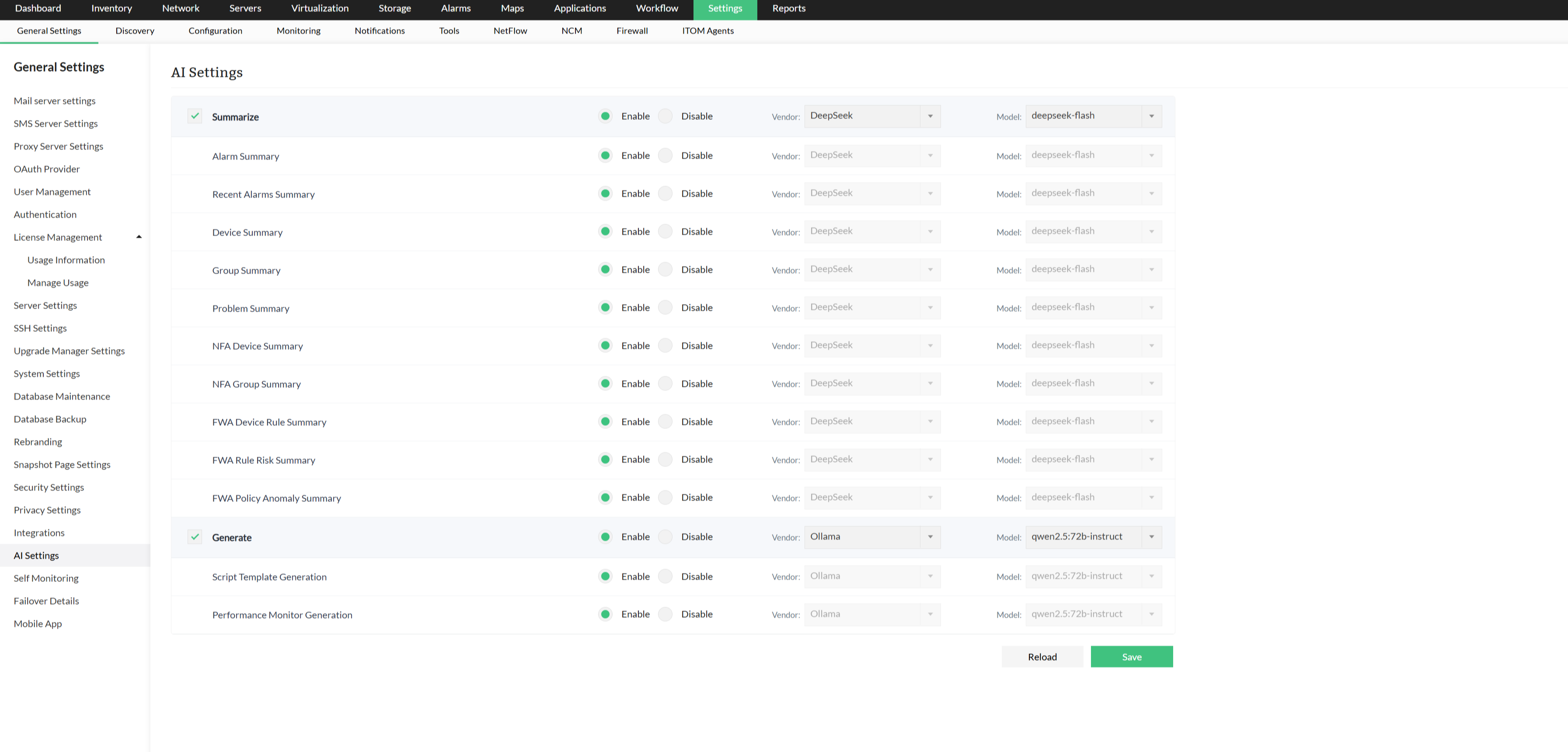
Enable the required features, select a vendor and model for each, and click Save.
AI Settings is also available for OpManager plugins, such as NetFlow Traffic Analyzer and Firewall Analyzer, under the OpManager installations panel. When enabled, these integrations appear alongside the OpManager features on the AI Settings page.
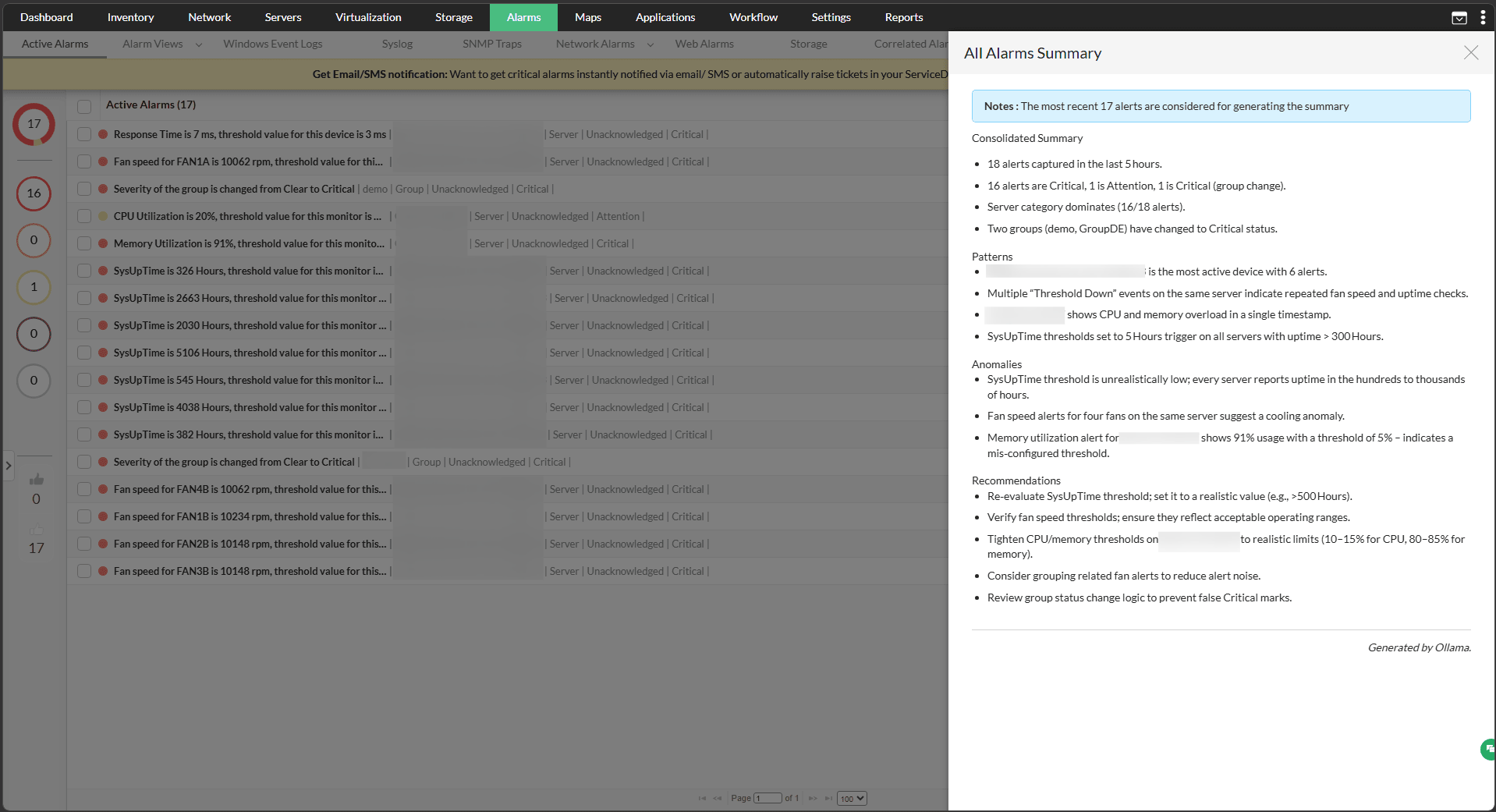
1. All Alarms Summary
- Go to Alarms, and click the Summarize tab at the top-right.
- The summary is generated automatically using the configured vendor and model.
2. Individual Alarm Summary
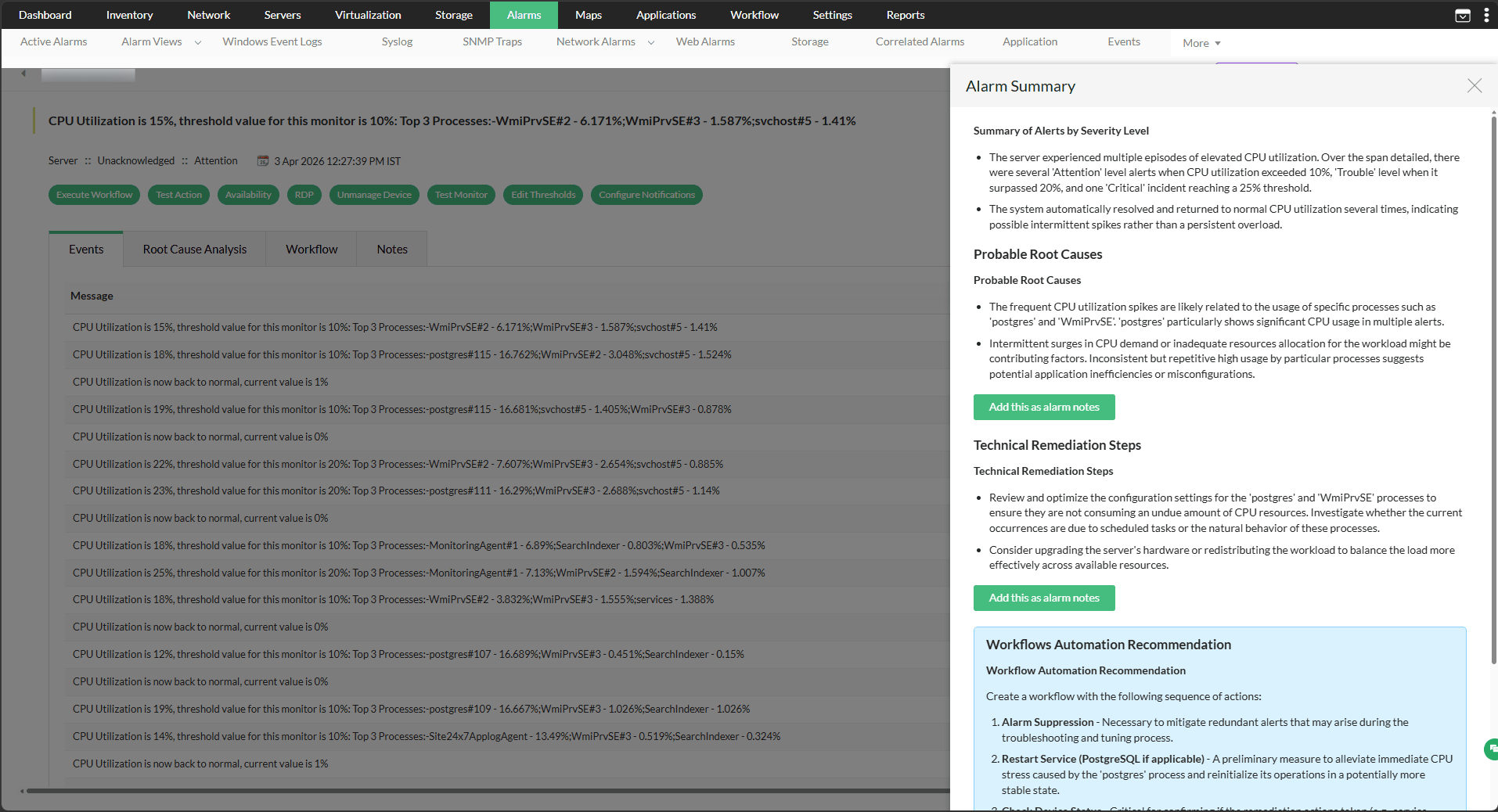
- Go to Alarms, and click any individual alarm.
- Click the Summarize tab to generate a summary.
3. Device Group Summary
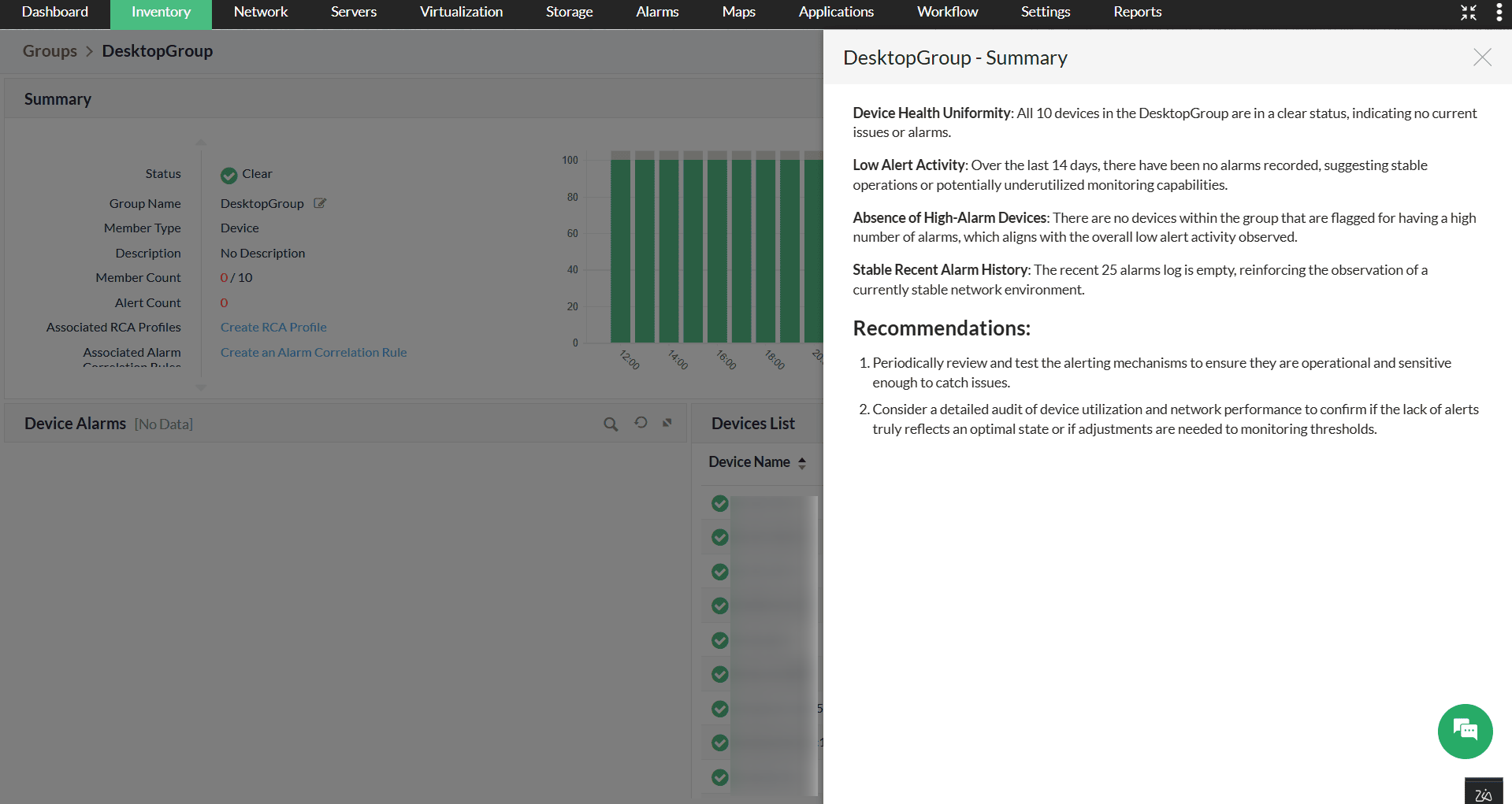
- Go to Settings → Configurations → Groups. You can also navigate to Groups from the inventory.
- Select a device group and click the Summarize tab to generate the summary.
4. Device Summary
Once this feature is enabled, click Summarize on the device snapshot page to view a panel with the device summary, including device details, critical alarms, and recommended actions, generated using the configured vendor and model.
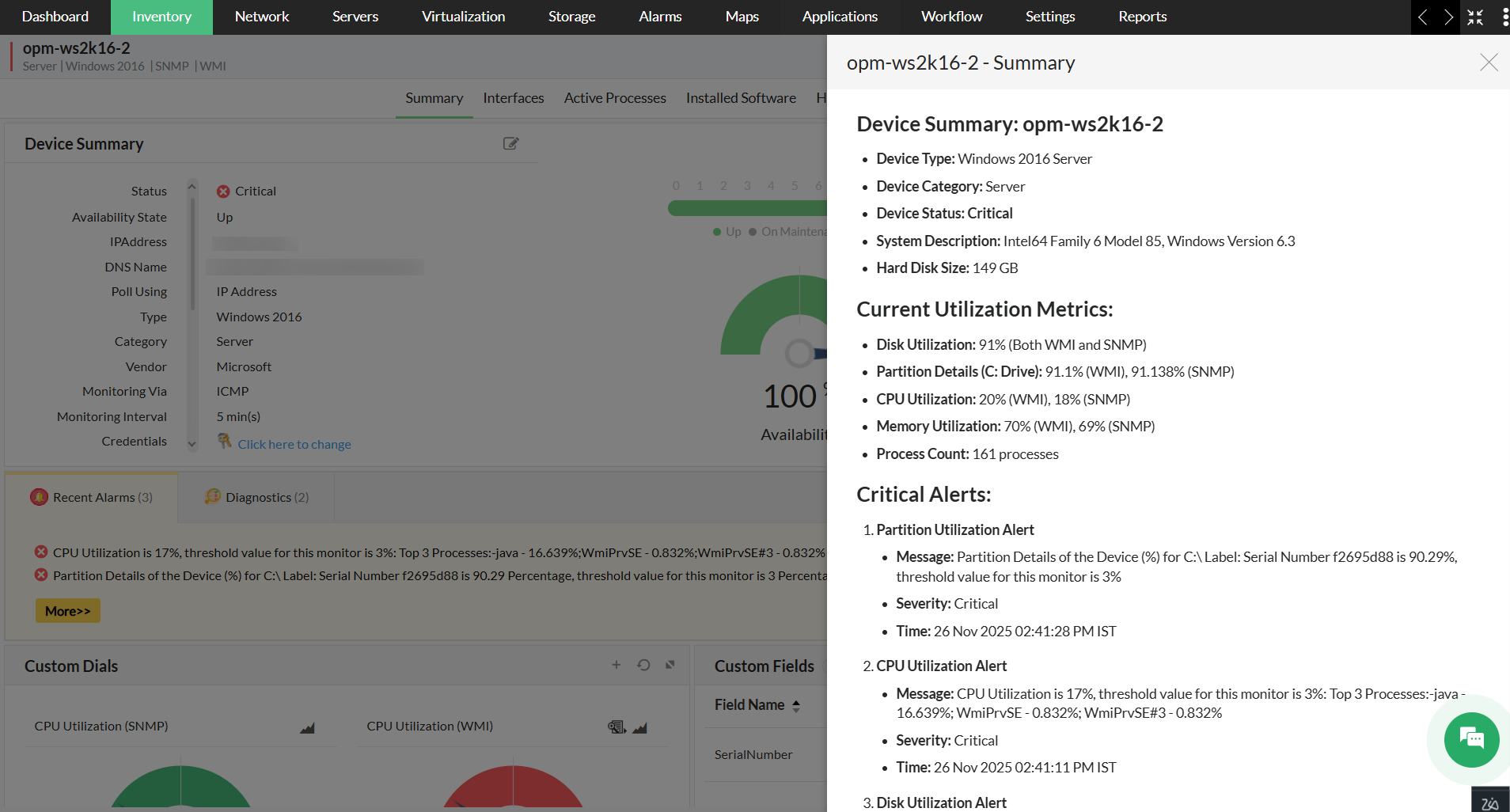
5. Problem Summary
Problem Summary works with Event Correlation, which groups related alarms into a single Problem. Once a Problem is formed, the configured vendor and model can analyze the associated alarms and identify the probable cause with a high or medium confidence level, along with recommended next steps.
- Go to Alarms → Problems, and open a Problem.
- Click Analyse with AI to generate the summary.
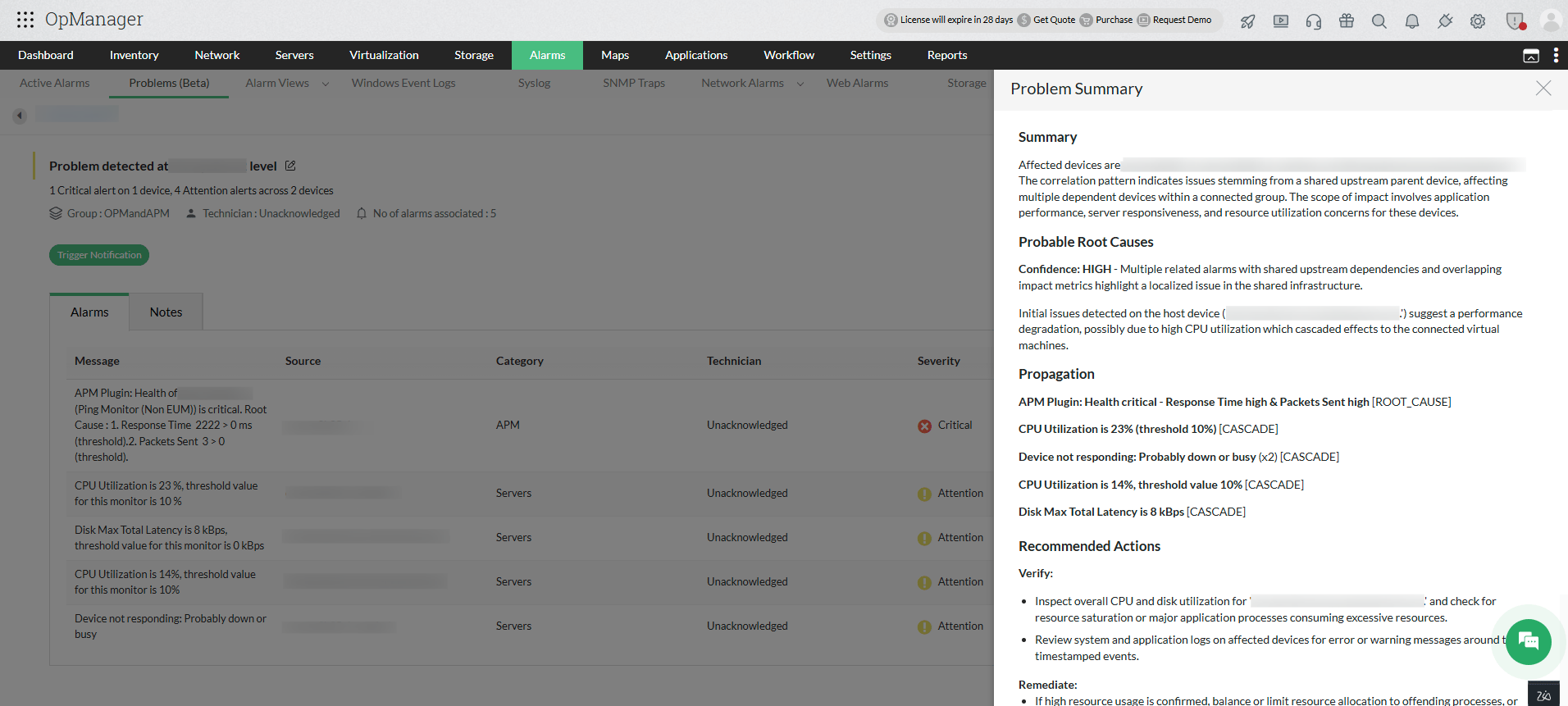
6. Script Generation
- Ensure the toggle for Script Generation is enabled on the AI Settings page.
- Go to Settings → Monitoring → Script Templates.
- Click Add and enter the monitoring details.
- Under Script Details, click Generate with AI.
- Enter the prompt for the required script.
- Click Generate. The script is generated.
- Optionally, use the generated template for monitoring.
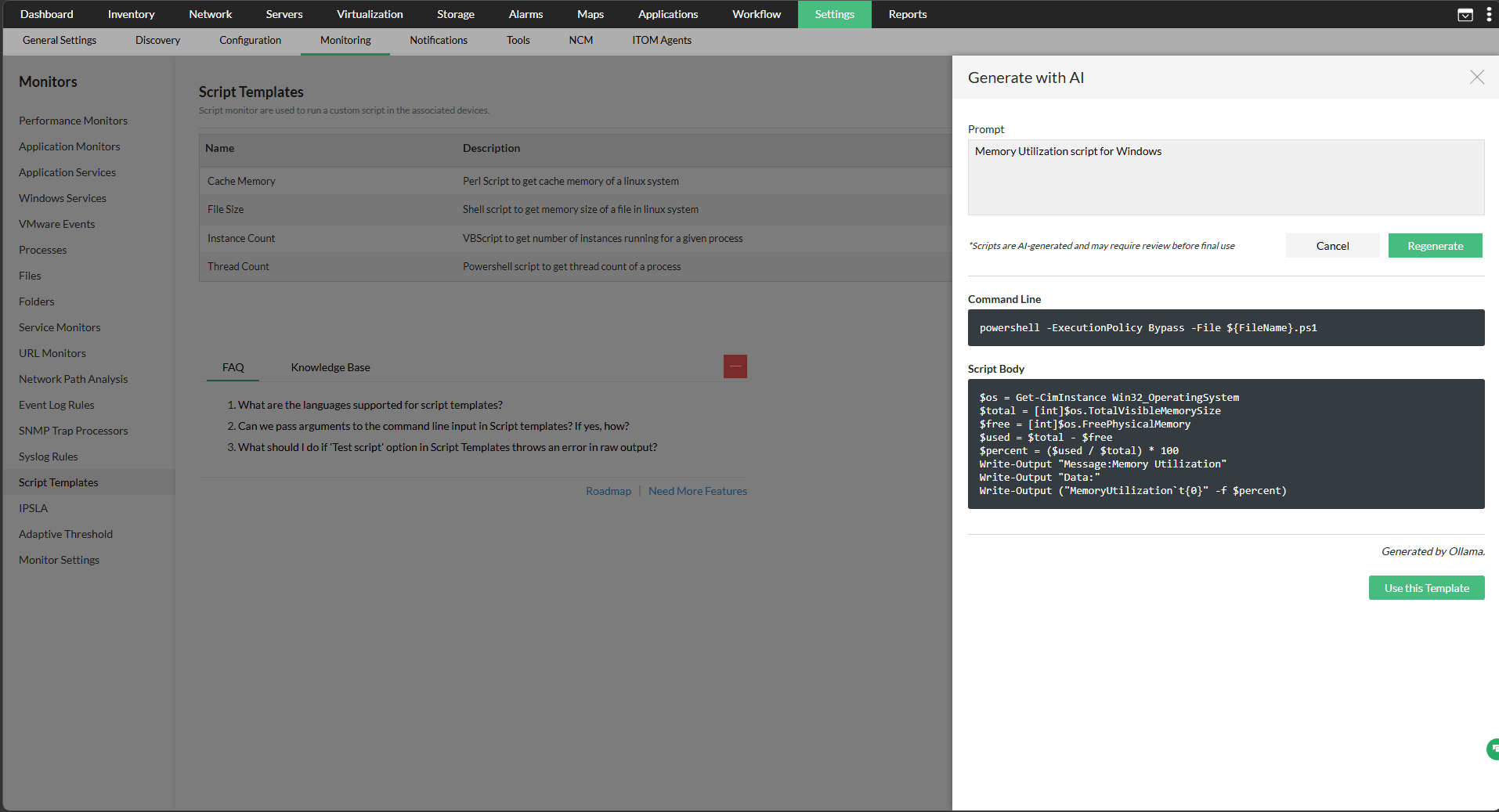
7. SNMP OIDs for Performance Monitors
- Ensure the toggle for Performance Monitor Generation is enabled on the AI Settings page.
- Go to Actions → Add SNMP Monitor and select the target device.
- Click Get OID Details next to the device selection field.
Enter a description of the metric you want to monitor. Include the device type or model if known.
Sample: Interface input error rate on a Cisco Catalyst 9300
- Click Fetch. The OID, MIB name, and a brief description are returned.
- Click Use this OID to populate the formula field.
- Click the Query Device icon to verify the OID returns a valid response from the target device, then save the monitor.
Note: GenAI integrations fetch SNMP OIDs for Performance Monitors is available from OpManager version 12.9.120 onward.
AI Settings brings all AI-driven capabilities in OpManager under one roof, making it easy to manage and scale as more features and integrations are added over time. Learn more about our DeepSeek, Ollama, and OpenAI integrations.
PII Masking
PII (Personally Identifiable Information) refers to data that can be used to identify a specific individual, device, or system. Sensitive device and user data is automatically masked before it's sent to the LLM, and restored in the response once processing is complete. This protects privacy without affecting the quality of the generated output.
The following types of information are masked:
- IP Address
- Host Name
- System Signature
- Serial Number
- Other device and user identifiers
PII Masking helps ensure sensitive network and user data is never exposed to third-party AI vendors, supporting compliance with data privacy requirements while keeping AI-generated summaries and scripts fully readable and unaffected in quality. This process happens automatically and requires no additional configuration. The masked information is restored in the final output, so summaries and generated scripts remain fully readable.