+
Integrate OpManager with ServiceDesk Plus MSP Cloud
OpManager integrates with ServiceDesk Plus MSP Cloud, a cloud-based ITSM solution that simplifies IT operations for Managed Service Providers. With this integration, configuration items in OpManager are seamlessly synced to the CMDB of ServiceDesk Plus MSP Cloud, providing clear visibility into CIs across client networks. You can also automatically log alerts from OpManager as tickets in ServiceDesk Plus MSP Cloud, enabling efficient tracking and management of network issues.
- Pre-requisites for ServiceDesk Plus MSP Cloud Integration
- Configuring ServiceDesk Plus MSP Cloud in OpManager
- Configuring Notifcation Profiles
Pre-requisites for ServiceDesk Plus MSP Cloud Integration
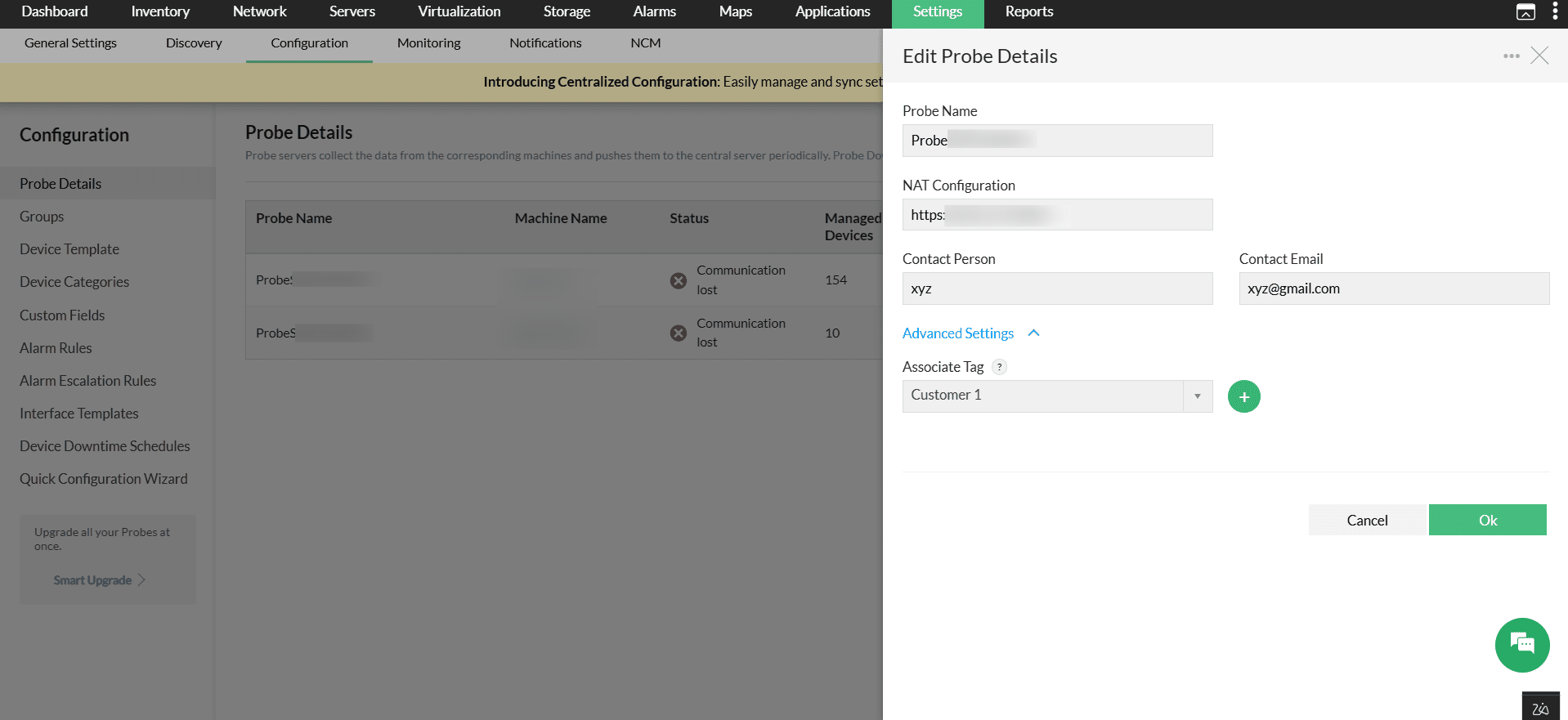
To begin the integration, you have to create a tag and associate it with probes. A tag logically groups one or more probes and represents a customer in an MSP environment.
- In OpManager, go to Settings → Configuration → Probe Details.
- Click a probe to edit its details. Under Advanced Settings, the Associate Tags tab will be available.
- To create a tag (customer), click the (+) button. Once created, the same tag can be selected from the drop-down list and associated with multiple probes.
- Click Ok
Configuring ServiceDesk Plus MSP Cloud in OpManager
After associating tags with the probes, you have to configure ServiceDesk Plus MSP Cloud in OpManager.
- Go to Settings -> General Settings -> Integrations -> Click on 'ServiceDesk Plus MSP Cloud'.
- To set up the integration, a Grant token is required from the SDP MSP Cloud. For that, click on the "Get Grant Token from ServiceDesk Plus Cloud" link.
- Login into your account, read and acknowledge the permissions, then copy the grant token provided on the next page.
- Paste the code in the Grant Token field in OpManager.
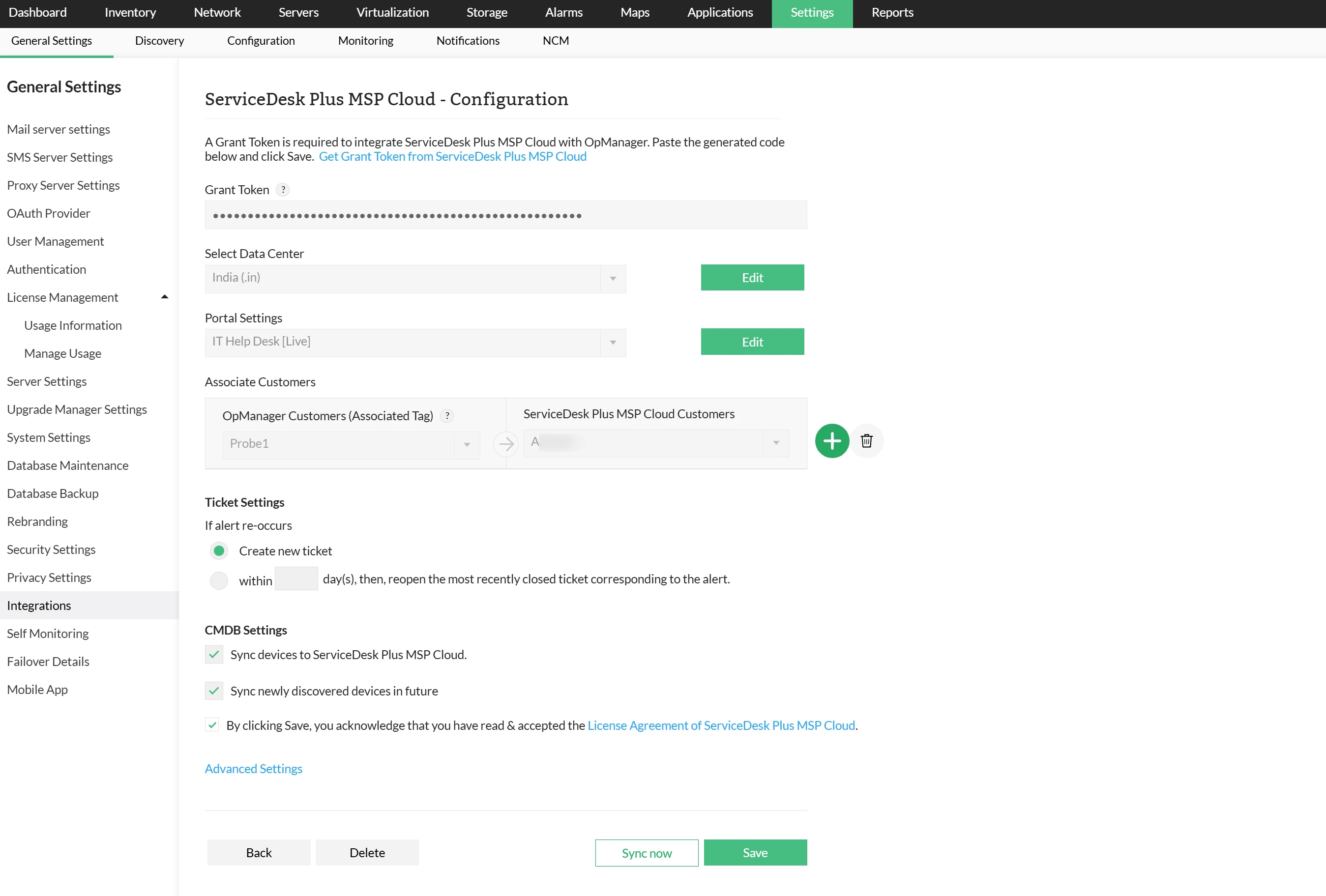
- Select the Data Center where your ServiceDesk Plus MSP Cloud is hosted, then click Authorize.
- Under Portal Settings, select the required portal and click Fetch Customers.
- In Associated Customers, choose the associated tag of the probe as the customer in OpManager and select the corresponding ServiceDesk Plus account to associate it to.
- Once selected, click the plus (+) button to map additional customers.
- Ticket Settings:
- Create a new ticket : Creates a new ticket when an alert re-occurs.
- Reopen the most recently closed ticket corresponding to the alert within the specified number of days.
- CMDB Settings:
- Sync devices to ServiceDesk Plus MSP Cloud: Add existing devices from OpManager to ServiceDesk Plus MSP Cloud.
- Sync newly discovered devices in future: Automatically add newly discovered devices in OpManager to ServiceDesk Plus MSP Cloud.
- In Advanced Settings, exclude categories that are not required to be synced to the CMDB.
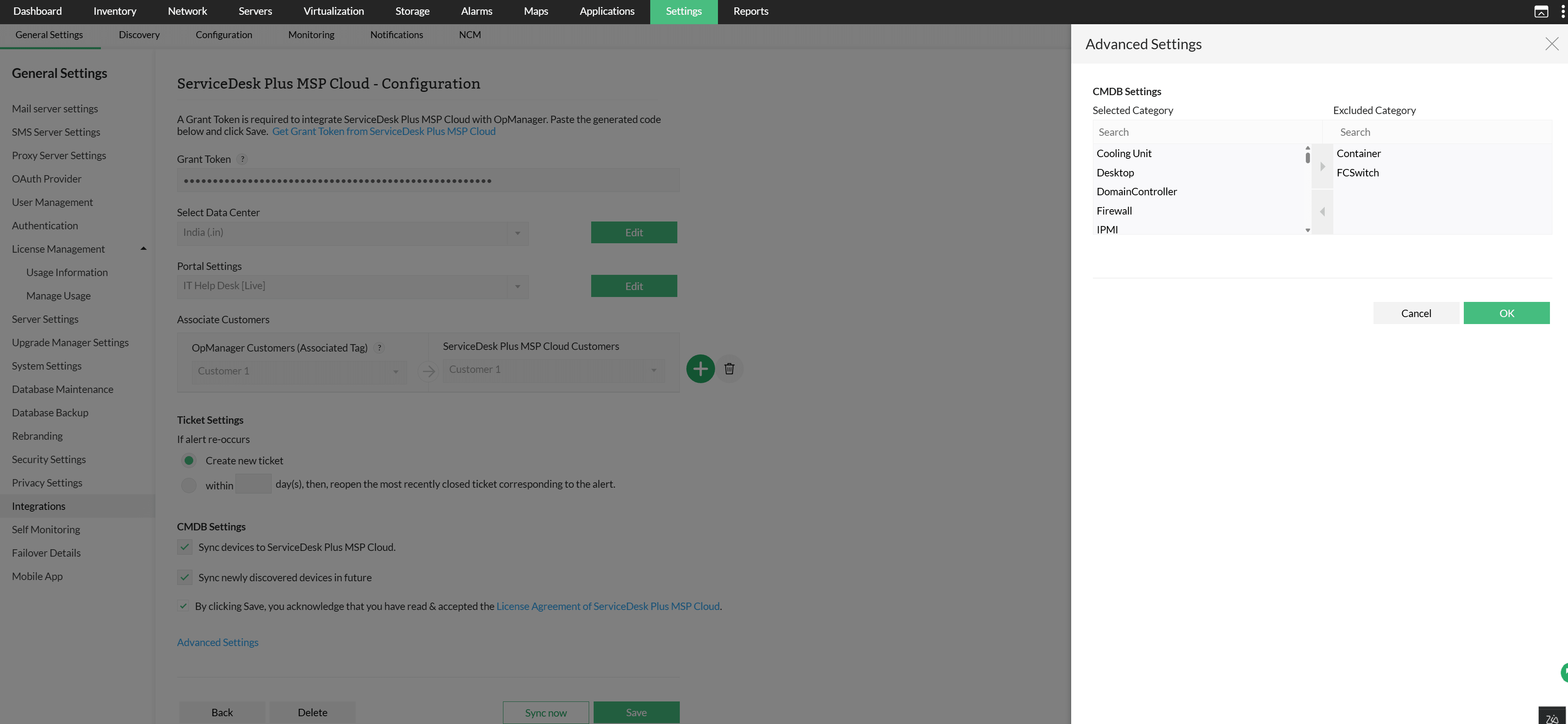
- Read the ServiceDesk Plus MSP Cloud license agreement and click Save.
The integration will be successfully updated and the CIs from Opmanager will get synced in ServiceDesk Plus MSP Cloud.
- Customer mapping is required to sync devices with the ServiceDesk Plus MSP Cloud CMDB.
- This integration is supported in OpManager version 12.8.664 and later.
Configuring Notification Profiles
Once integrated, you can configure notification profiles to push alerts from OpManager to ServiceDesk Plus MSP Cloud and log them as tickets.
- Go to Settings -> Notifications -> Notification Profiles.
- Click on Add option at the top right corner and select the Log a ticket option.
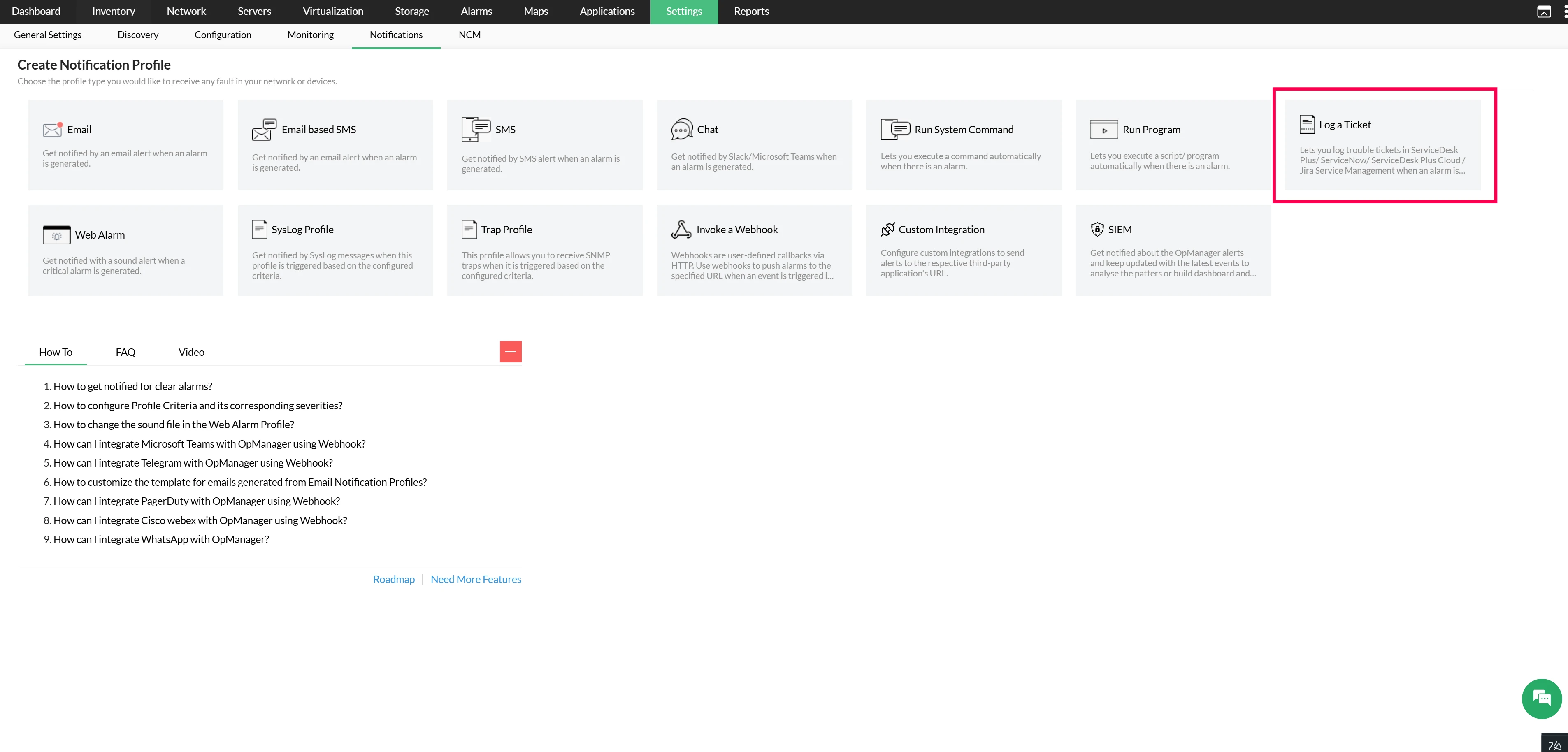
- Now, click on ServiceDesk Plus MSP Cloud tab on the left panel.
- Under Associate Customers, select the OpManager Customers and Template to associate.
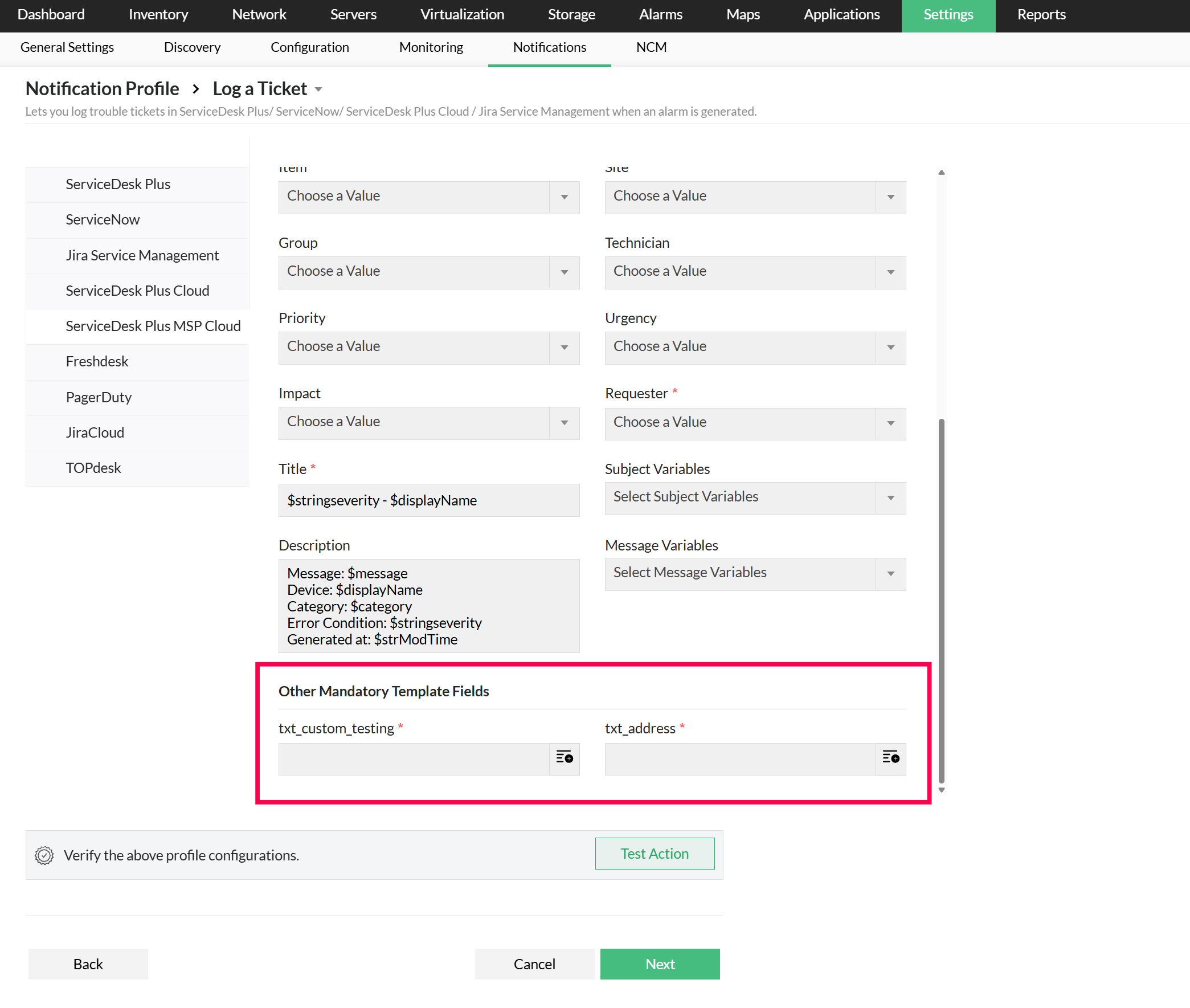
- Under Ticket Details, provide the required parameters, such as Category, Sub Category, Item, Group, Priority, Urgency, etc.
- If the template contains any mandatory fields other than the default fields, they will be listed in the Other Mandatory Template Fields section. You can provide values for these mandatory fields.
- Click on Test Action to verify the profile configuration.
- Click Next to choose a criteria to log the tickets.
- Click here to learn more about choosing criteria, associating devices, applying a time window, etc.
- Enter a name for the notification profile, then click Save.