Report Settings
For version 129118 and above
Under Report Settings in OpManager, users can configure the Business Hour Rule. Each organization will have different working hours/ business hours and by defining this rule, users can filter out reports only for the specified business hours.
Business Hour Rule
The Business Hour Rule feature lets you configure OpManager to filter and display only the reports generated during your organization's business hours. Each organization will have different business hours, and by defining this rule, users can filter out reports only for the specified business hours.
How to configure Business Hour Rules?
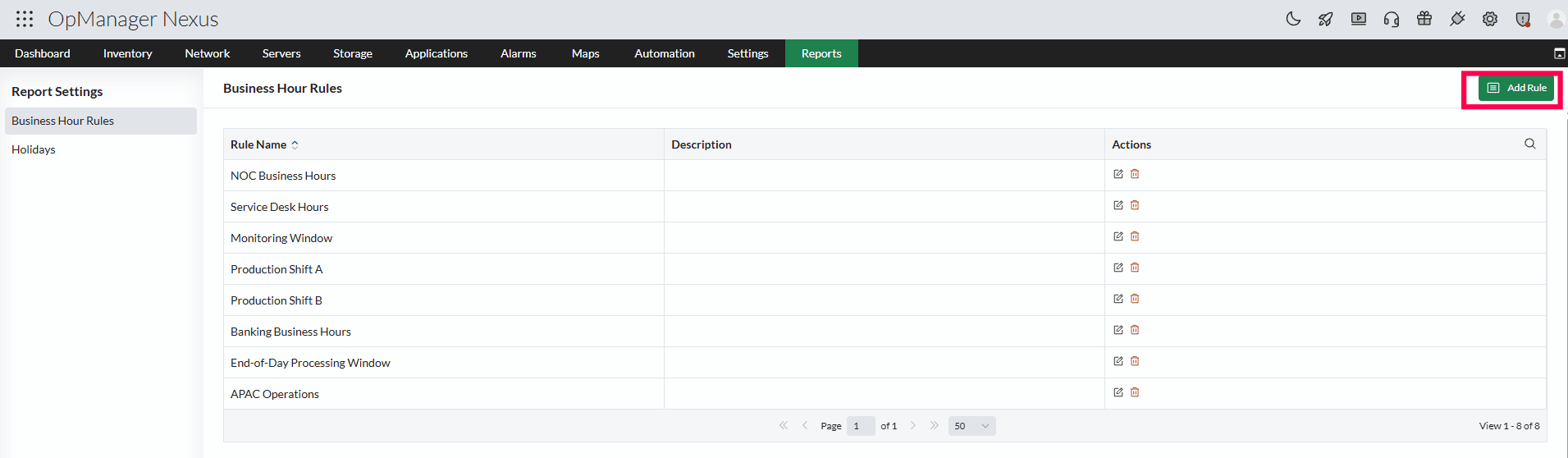
- Navigate to Reports -> Report Settings -> Business Hour Rules.
- Click on Add Rule.
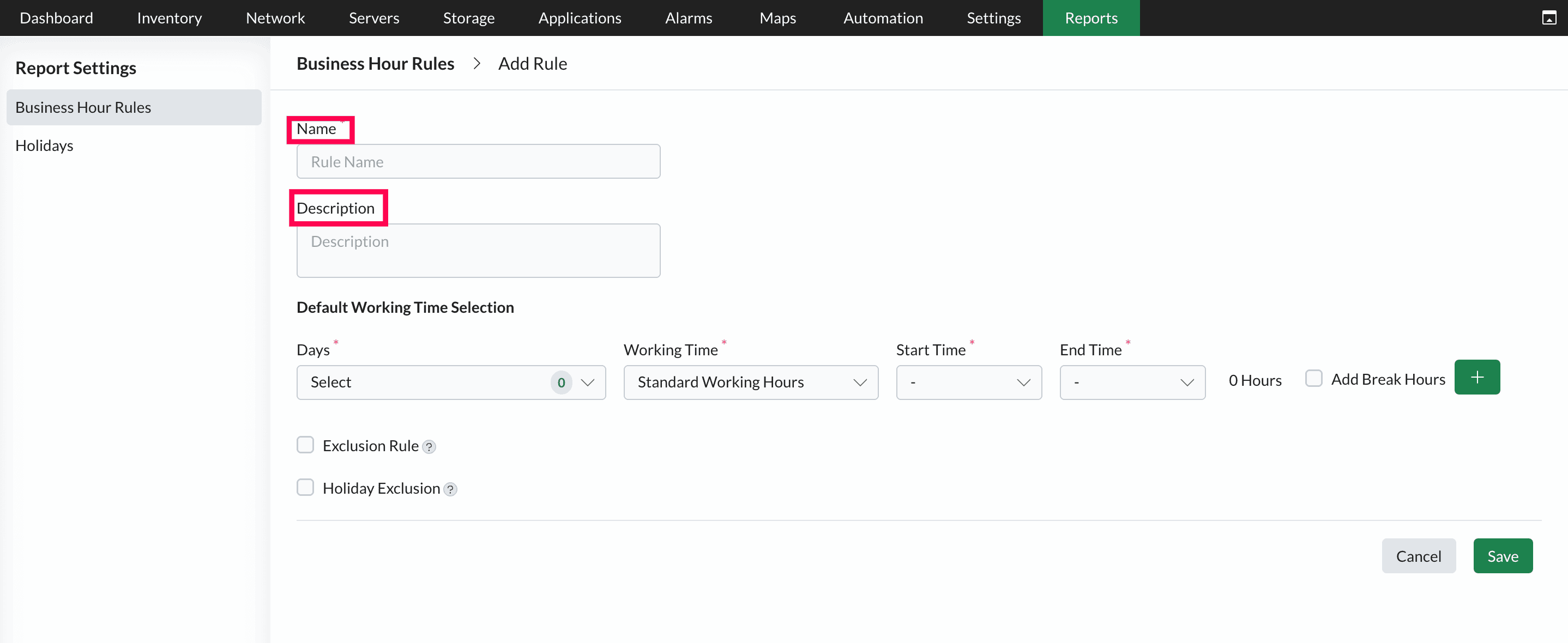
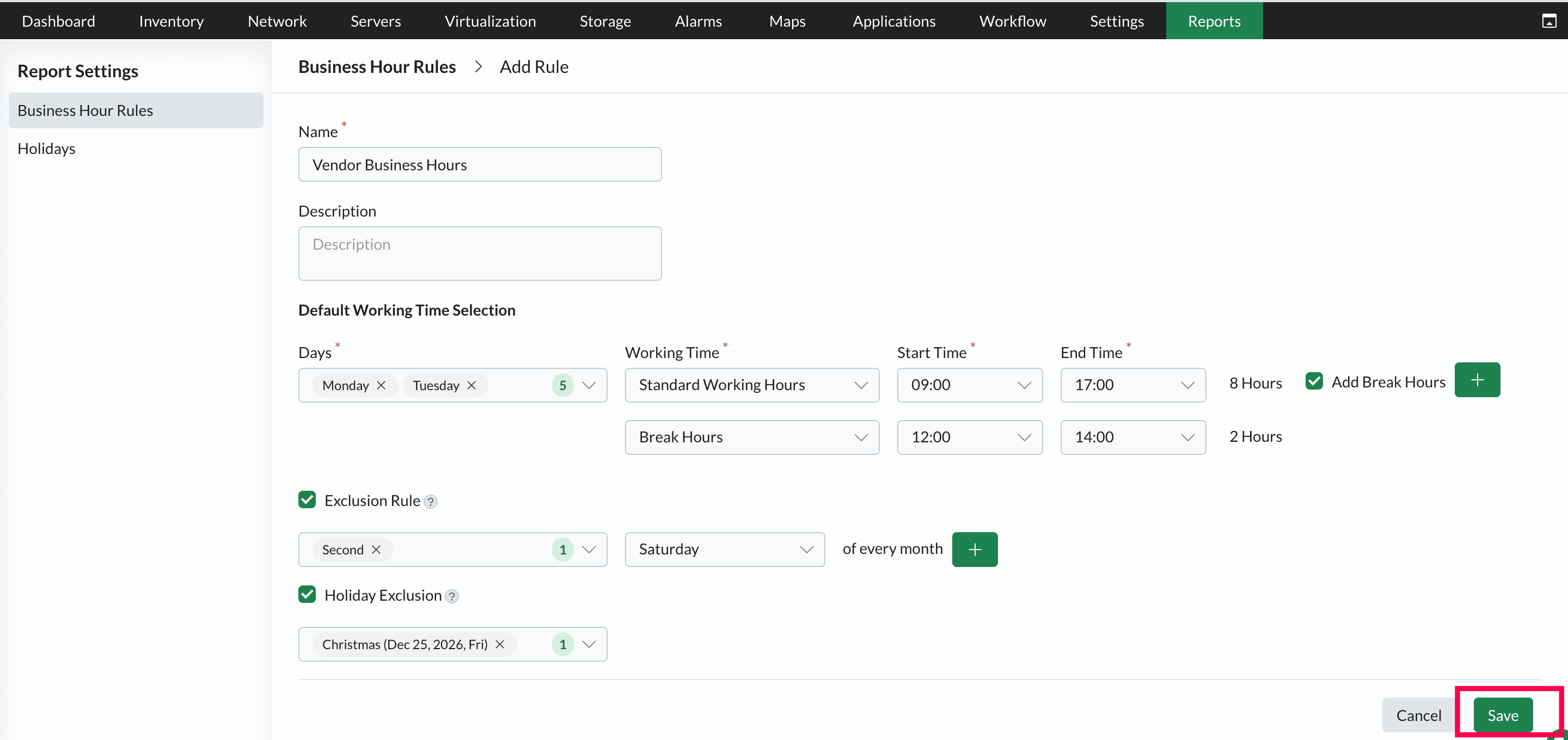
- Provide a Name and Description for the rule.
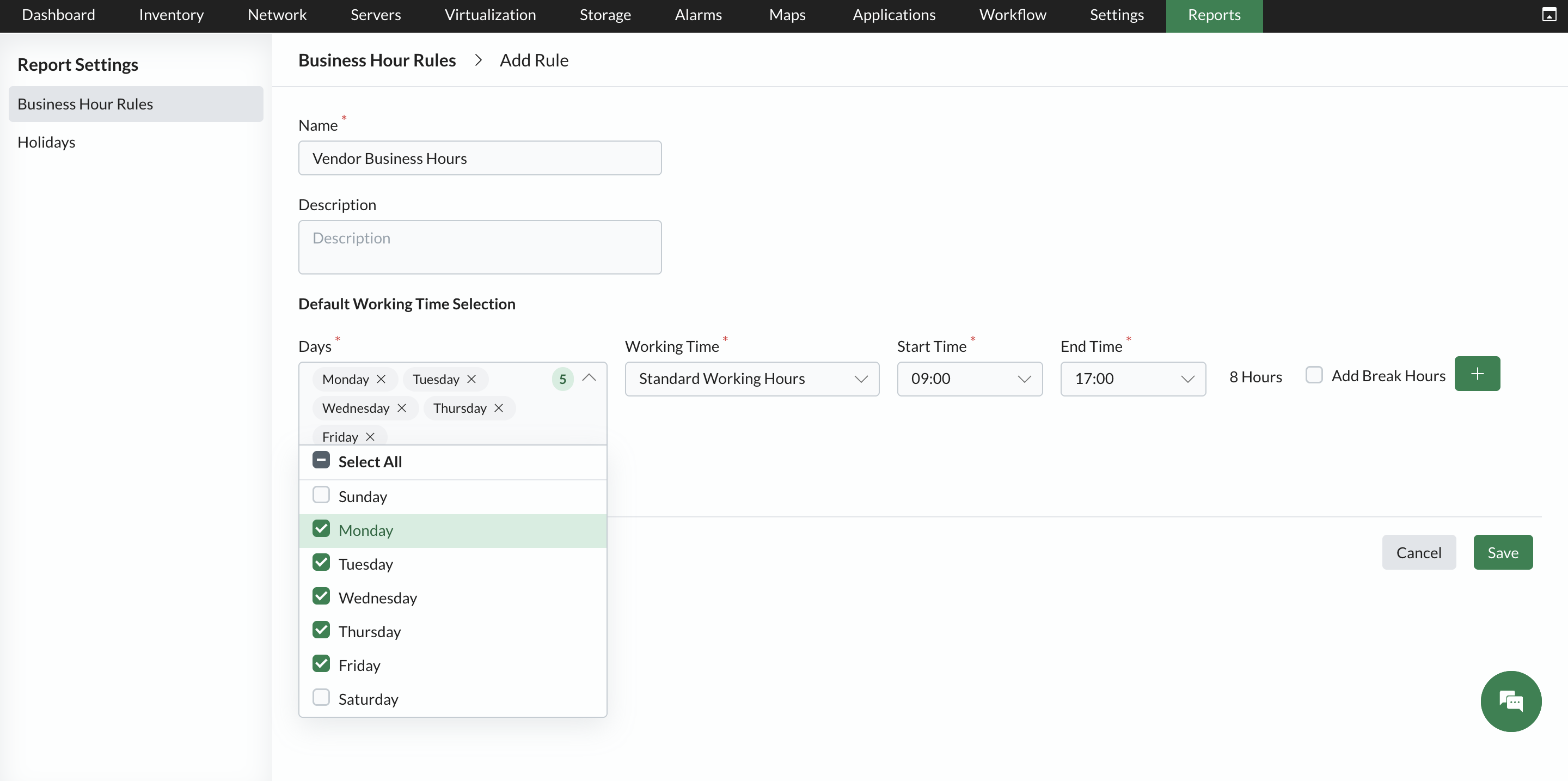
- Under Default Working Time Selection, select the Days using the drop-down, then configure the Working Time by setting the Start Time and End Time.
- Select Add Break hours to exclude periods such as lunch breaks or maintenance windows from the configured business hours. Data collected during break periods will not be included in reports filtered by this rule.
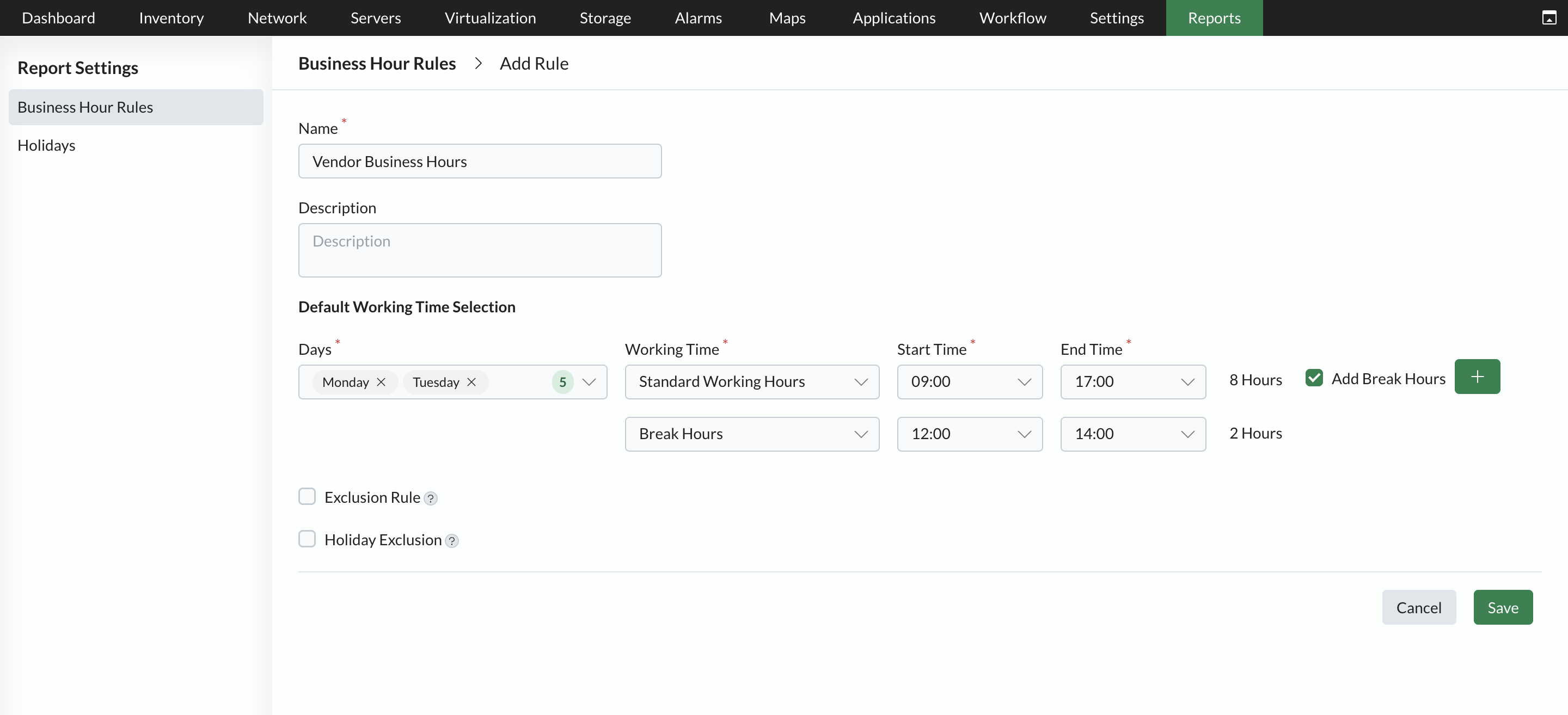
Apply Holiday and Exclusion Rules
Use Exclusion Rules to leave out specific recurring days from the report, such as the first, second, third, fourth, or last Monday, Tuesday, Wednesday, or any other weekday of every month.
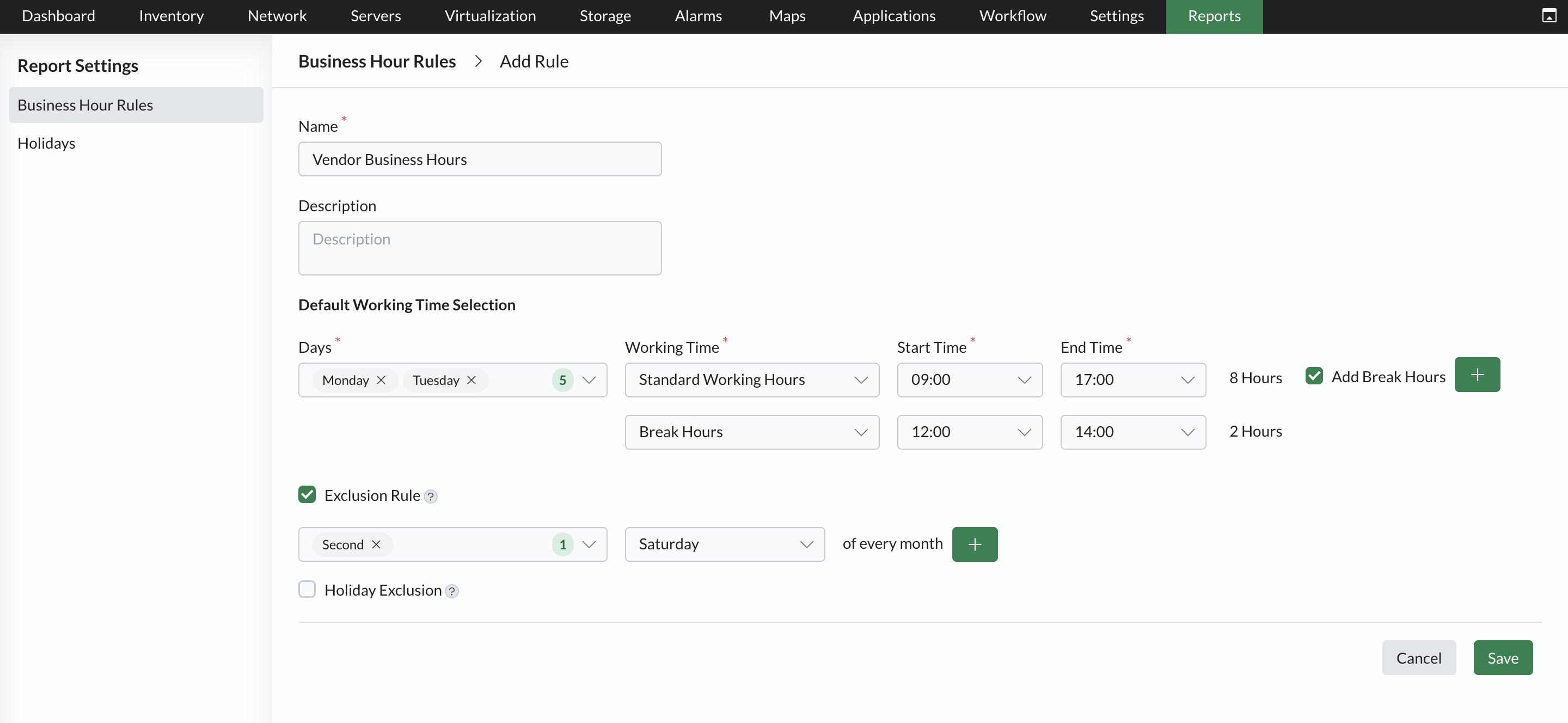
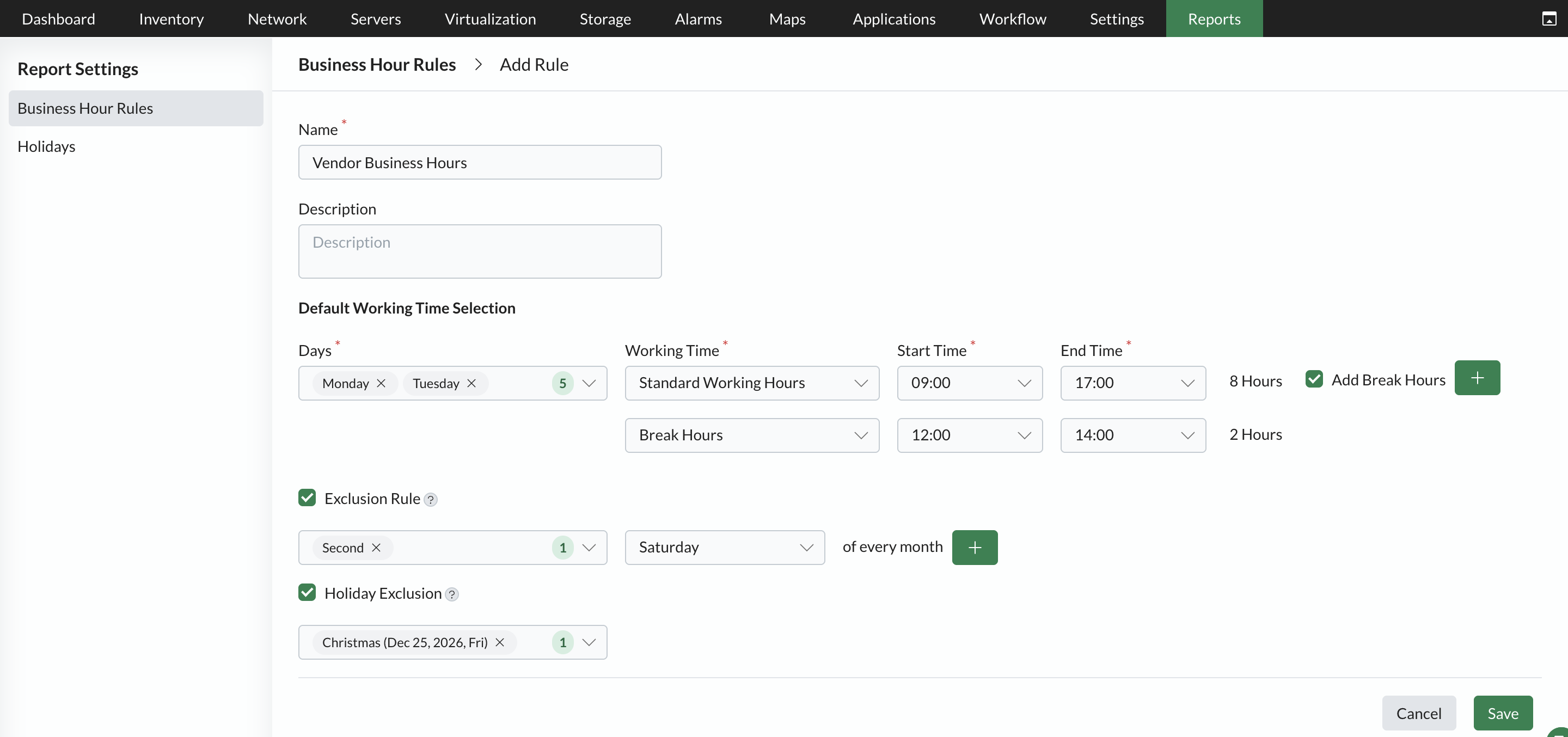
Use Holiday Exclusion to exclude specific holiday dates. Reports filtered by this rule will disregard data collected on the configured holiday dates.
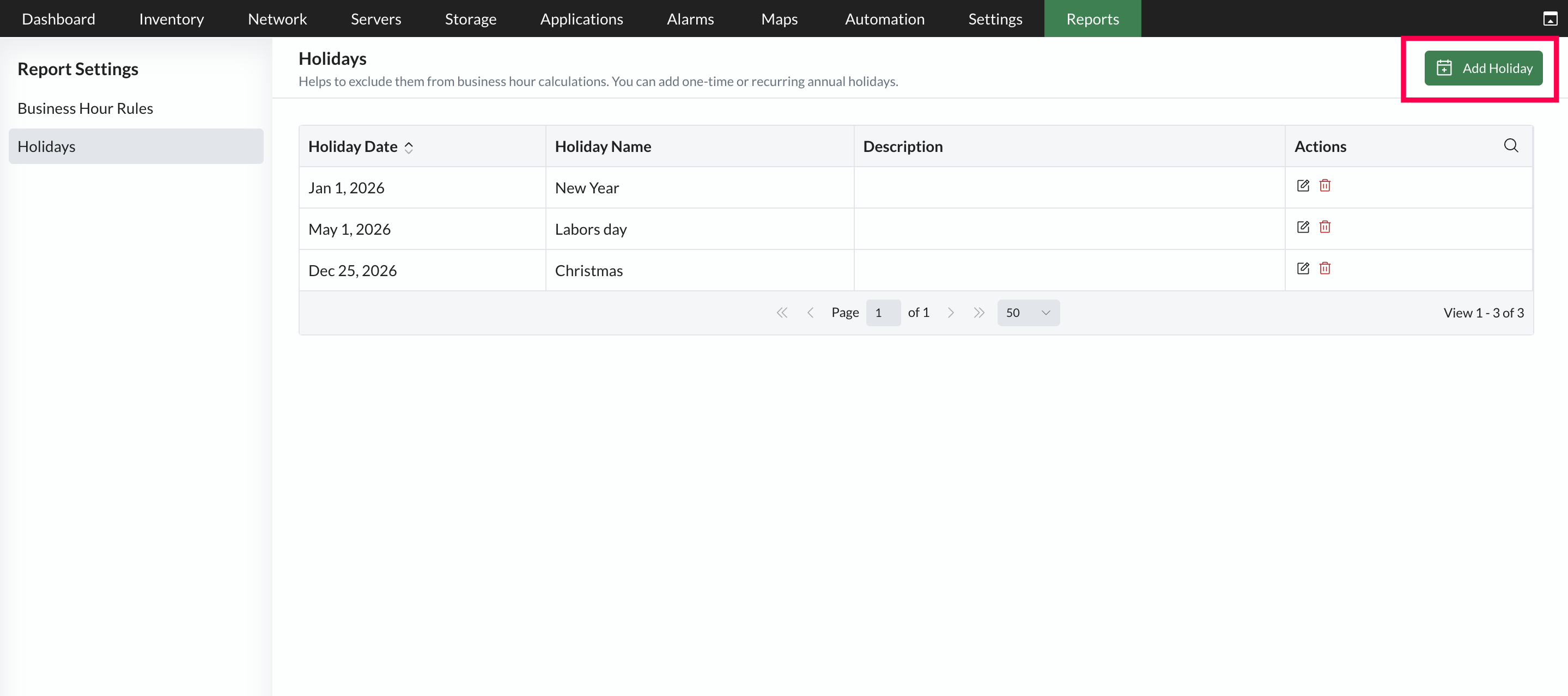
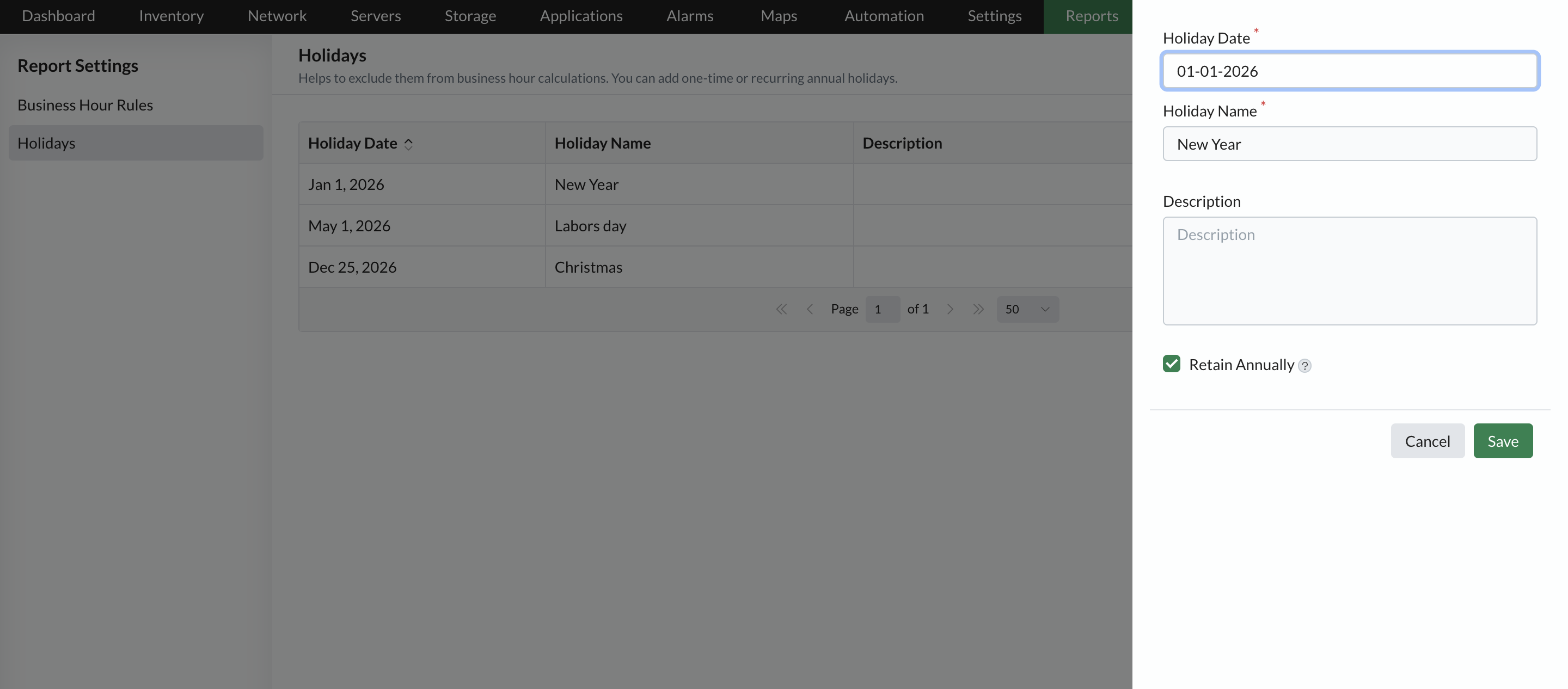
To add a new holiday, select Holidays, click Add Holiday, and choose whether to retain it annually.
Click on Save to configure the Rule. This allows you to apply Business Hour Rules consistently across reports.
For Older versions
Under Report Settings in OpManager, users can configure the Business Hour Rule. Each organization will have different working hours/ business hours and by defining this rule, users can filter out reports only for the specified business hours.
Also, users can specify a different time window each day as per their needs.>/p>
How to configure Business Hour Rule?
- Navigate to Reports -> Report Settings -> Business Hour Rules.
- Click on Add Rule.
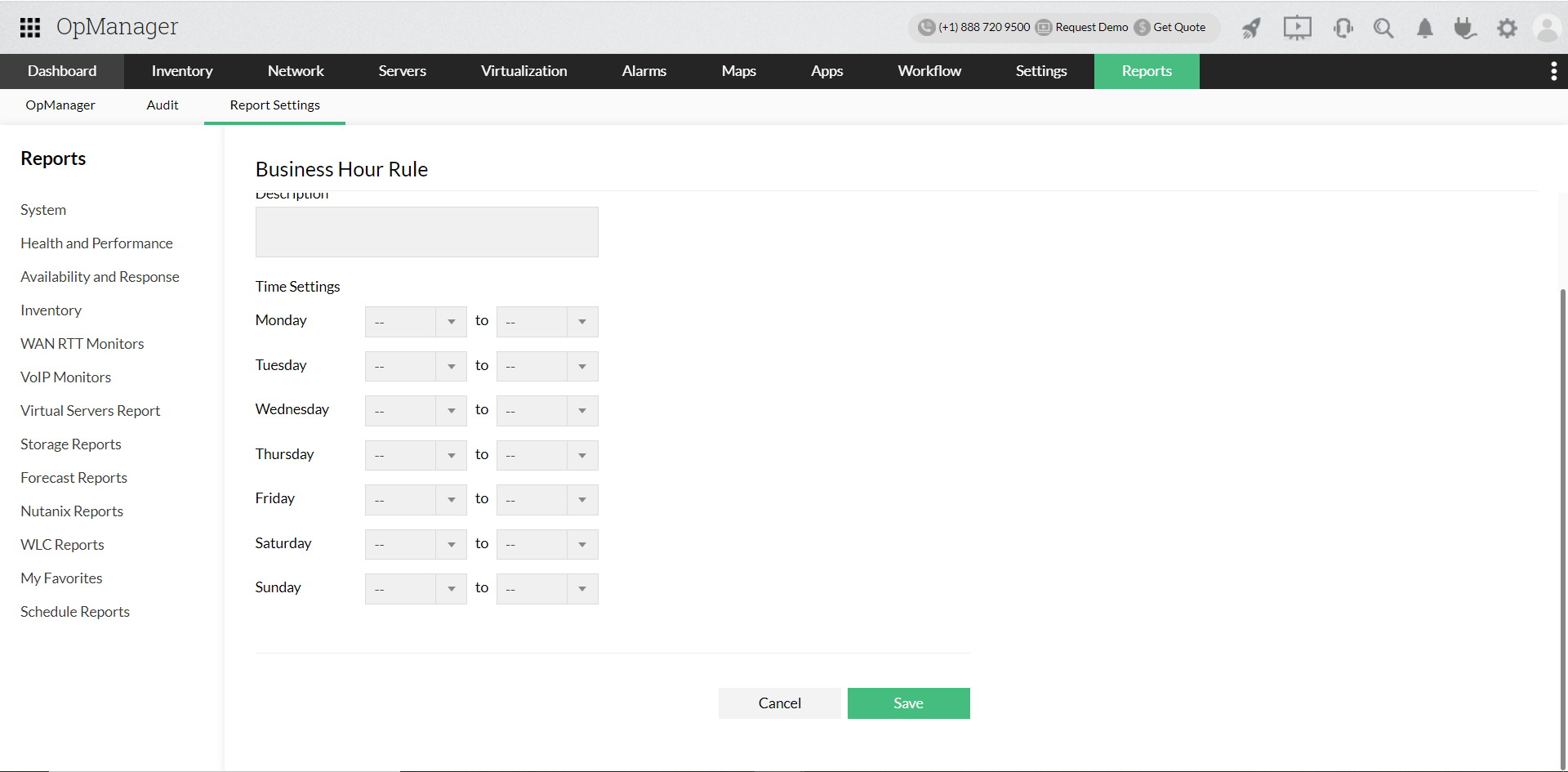
- Provide a Name and Description.
- Select the time duration from the drop down for each day or the particular days which are required.
- Click on Save.
Configuration
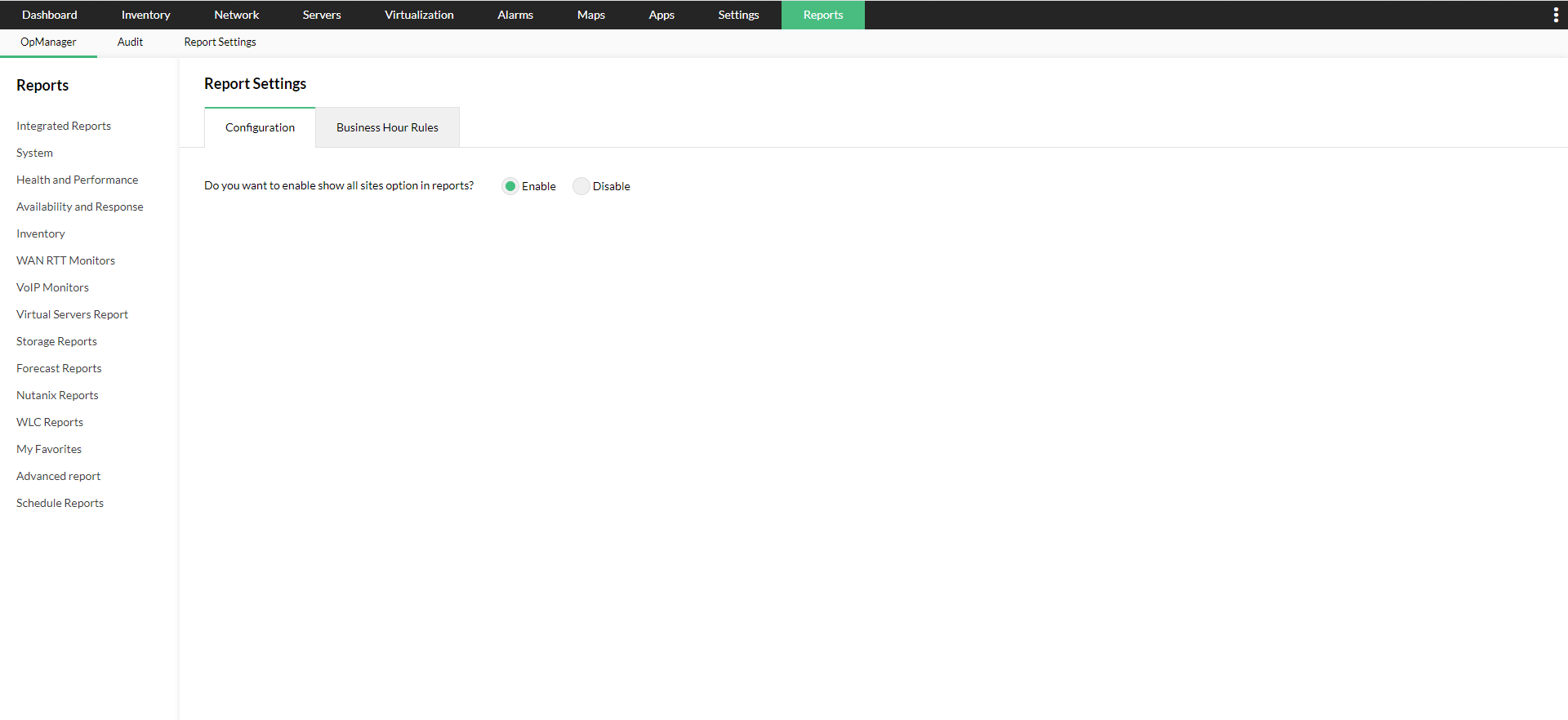
While creating filters for reports from the Central, users can configure to show or hide the All Sites option in the drop down. Choosing the All Sites option lists the data of all the probes connected to the Central.

To enable or disable All Sites option, navigate to Reports --> Report Settings --> Configuration.