How to Disable Windows Automatic Updates
This page explains what Windows Automatic Updates are, why organizations disable them in managed environments, and the exact steps to disable or control them using Patch Manager Plus — including how to verify the policy is applied and how to re-enable updates later.
Introduction
Windows Automatic Updates help keep devices up to date by downloading and installing updates in the background. While this is useful for personal devices, many organizations prefer not to let endpoints update on their own because it can lead to unexpected reboots, unplanned downtime, and inconsistent patch levels across the fleet.
This becomes a bigger concern for production endpoints and remote devices (laptops and off-network systems). If each device updates independently, you lose the ability to control when updates install, which updates go first, and how rollouts are staged. In regulated or change-controlled environments, that lack of control can create operational risk and compliance gaps.
Disabling Windows Automatic Updates does not mean skipping security patching. It means shifting updates into a managed approval-and-deployment process, where you can test, approve, and roll out updates in stages (pilot to full deployment), with clear visibility and reporting.
If your environment relies on Windows Update for certain workflows, avoid leaving updates fully automatic. Instead, configure updates to notify or download only and enforce a controlled installation window. This helps you maintain stability while still staying patch-compliant.
Steps to Disable
Two patches are available to control Windows update behavior across your managed endpoints.
- Deploy patch 105427 to disable Windows Automatic Updates.
- Deploy patch 107895 to disable the Check for updates (manual update) option.
Step 1: Disabling Windows Automatic Updates
Patch 105427 can be used to disable Windows Automatic Updates across all versions of Windows, from Windows XP up to the latest release, inclusive of Server OS editions.
When choosing the deployment target, select All domains to ensure the patch is also installed on machines that join the network in the future.
To confirm the settings have been successfully configured on the agent:
- Navigate to Windows Settings → Windows Update → Advanced Options → Configured Update Policies.
- Review the list of configured policies and confirm the Disable automatic updates policy appears under Policies set on your device.
- If the policy is present, the automatic updates setting has been successfully disabled.
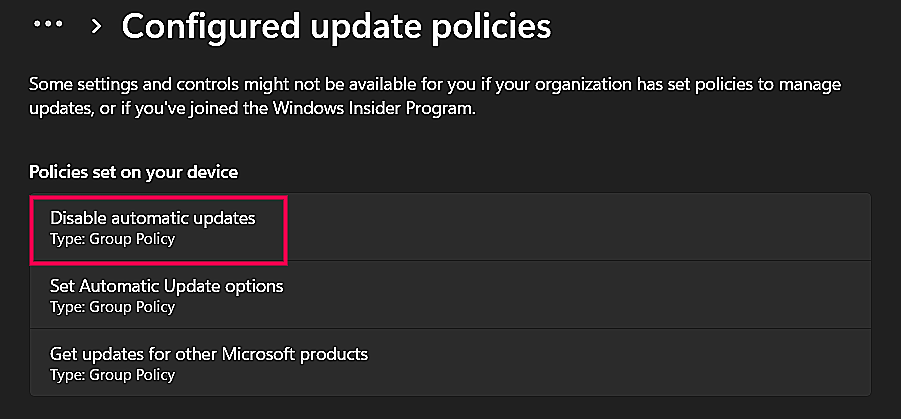
Windows Automatic Updates has now been successfully disabled by deploying a patch, with no manual intervention required.
Step 2: Disabling the Check for Updates Option
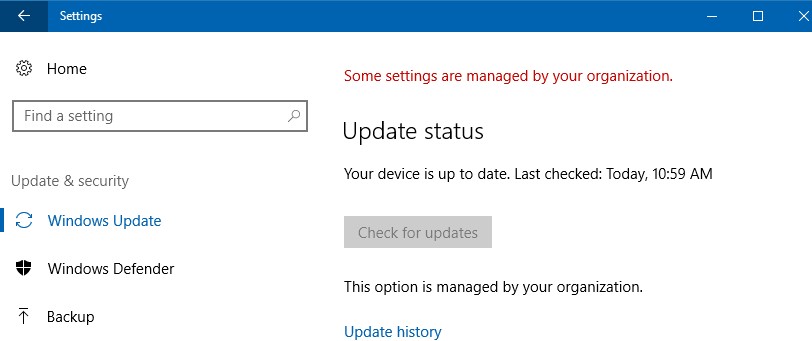
Patch 107895 disables the Check for updates option, preventing users or local administrators from manually triggering updates outside your change window.
- Deploy patch 107895 to disable the Check for updates option.
- When choosing the deployment target, select All domains to ensure the patch is also installed on machines that join the network in the future.
- Verify that the option has been disabled in Settings as shown below.
Frequently Asked Questions
Disabling Windows Automatic Updates means the device will no longer download and install updates automatically in the background. Updates can still be applied through a controlled enterprise patch process.
Many organizations disable automatic updates to avoid unexpected installs, unplanned reboots, and inconsistent patch timing. It helps enforce change control by moving updates into an approval-based rollout.
It can be safe if you still patch regularly using a managed workflow. The risk is not disabling auto-updates, but disabling auto-updates without a replacement patch schedule and compliance tracking.
No. It prevents the endpoint from updating on its own, but security updates can still be deployed through your patch management process after testing and approval.
It reduces unexpected reboots caused by auto-install behavior. You can still decide when to reboot endpoints based on your maintenance window or reboot policy.
Optional. Disabling Check for updates helps prevent users or local administrators from manually triggering updates outside your change window. Use it when you need stricter change control.
On the endpoint, navigate to Settings → Windows Update → Advanced Options → Configured Update Policies and confirm that the applied policy indicates automatic updates are disabled or controlled as intended.
This message appears when update policies are enforced by management tools or Group Policy. It indicates users cannot freely change update settings because the device is following centrally managed configuration.
Yes. Domain GPOs can override local settings. If settings revert or fail to apply, review the effective GPOs applied to the device and resolve any conflicts.
Deploy patch 107896 to re-enable Automatic Updates, or patch 107900 to re-enable the Check for updates option. After re-enabling, verify the endpoint update policy status again under Configured Update Policies.