How to generate API key in Rapid7?
Requirements for generating an API key
- Login to InsightVM portal and navigate to URL: https://insight.rapid7.com/platform#/
- Navigate to the left pane and select Administration ----> User Management. If the User Management tab is not visible, it indicates that the logged-in user does not have Platform Administrator privileges. You can reach out to the platform administrator to obtain the necessary access.
- Under the Users tab, you can see all the users created for Rapid7 vulnerability management, along with their Platform Administrator status and whether their accounts are active.
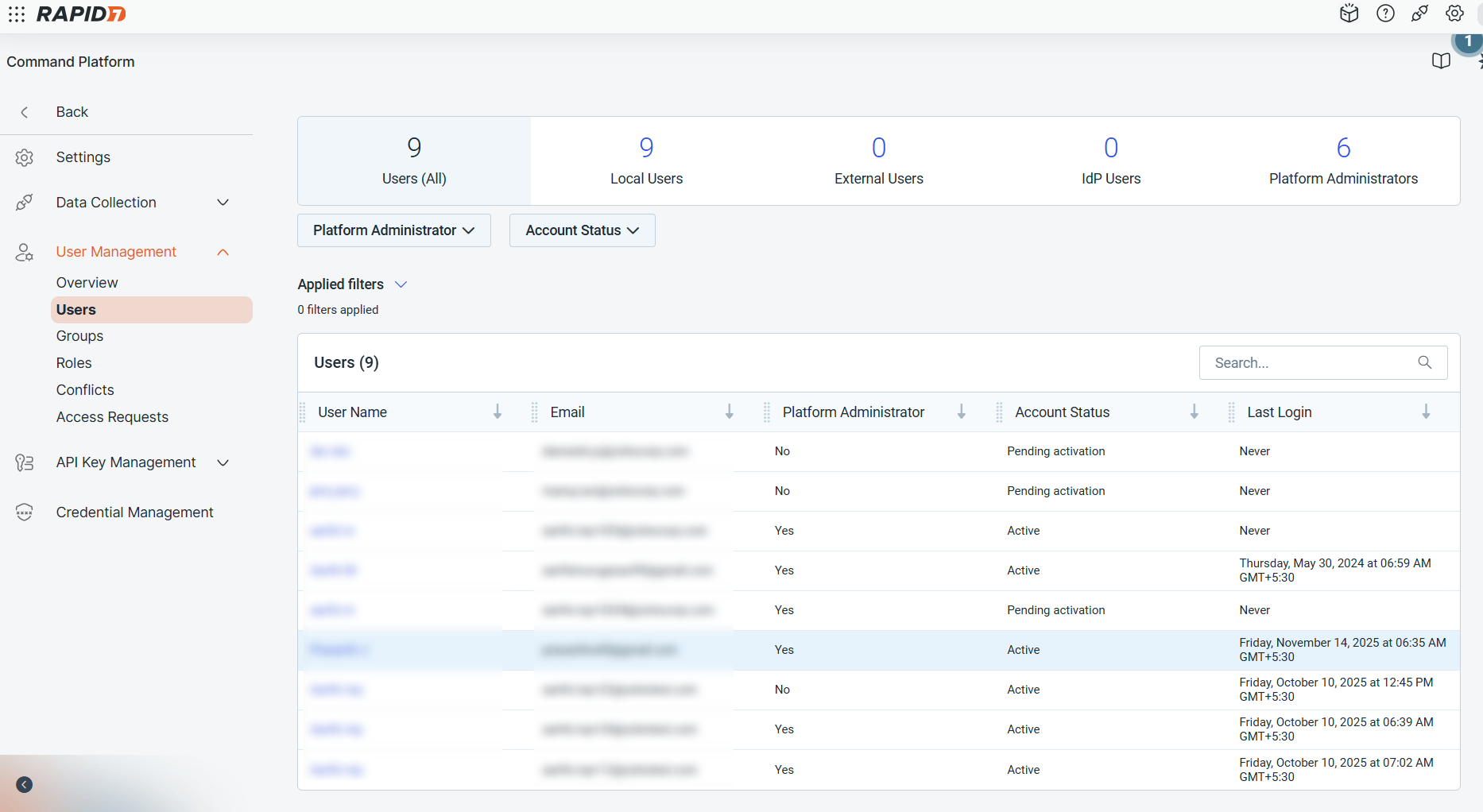
Ensure that the required user holds Platform Administrator access and maintains an Active account.
Platform Administrator Access
If the user does not hold Platform Administrator access, follow the below-mentioned steps for providing access:
- Click on that specific user name; you will be redirected to the page where you can see the user details. Select Edit User Details and enable the checkbox for Make this user a Platform Administrator and click Save User Details.
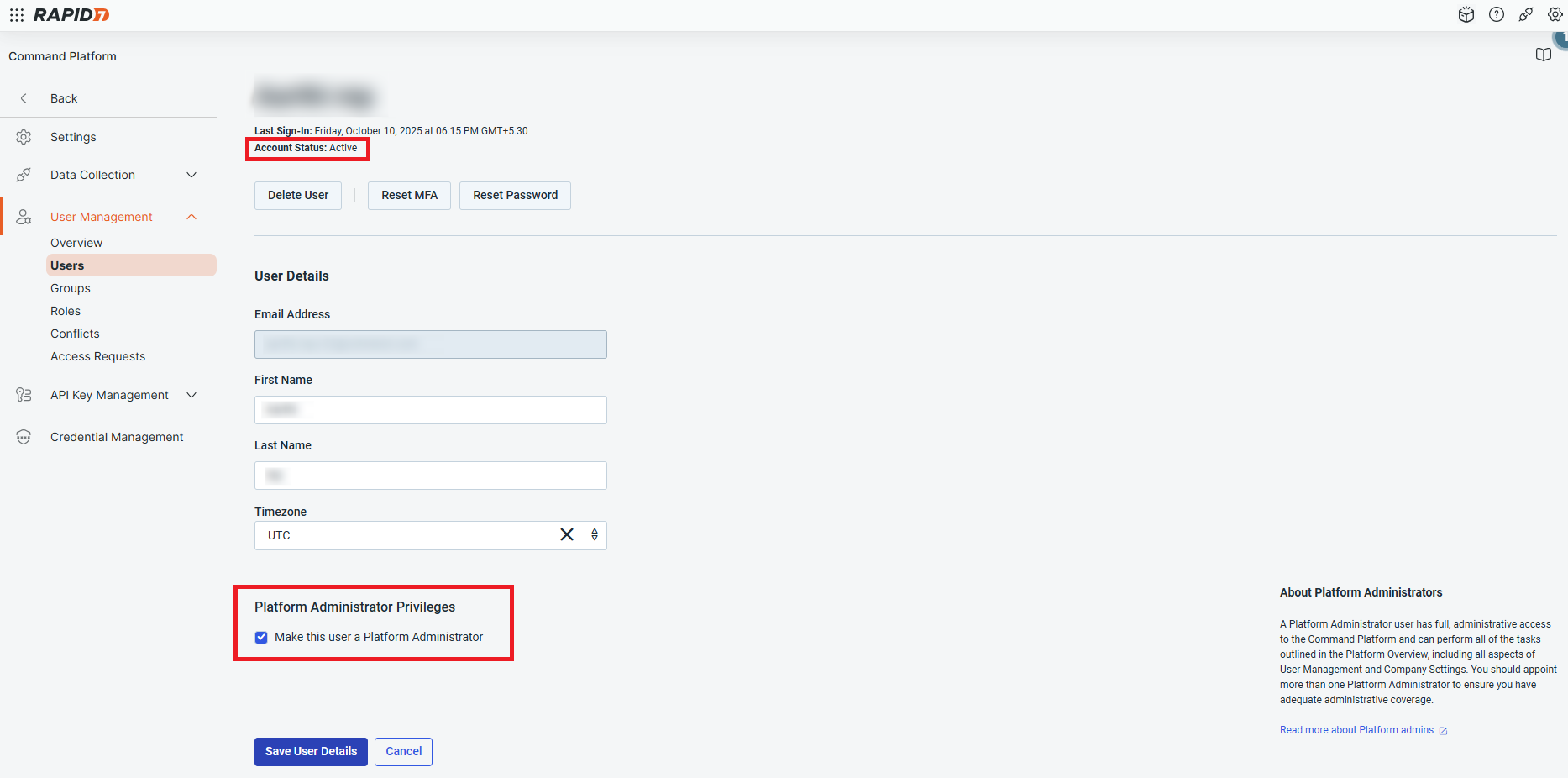
Product Access
- Under the same page you can see the privileges for that specific user under the Individual Privileges section. If you want them to have the InsightVM product access, select Manage Individual Privileges and enable Vulnerability Management and select roles under Add Roles dropdown. The roles that can be selected are:
- Administrator (Shared)
- View and Change (Shared)
- View Only (Shared)
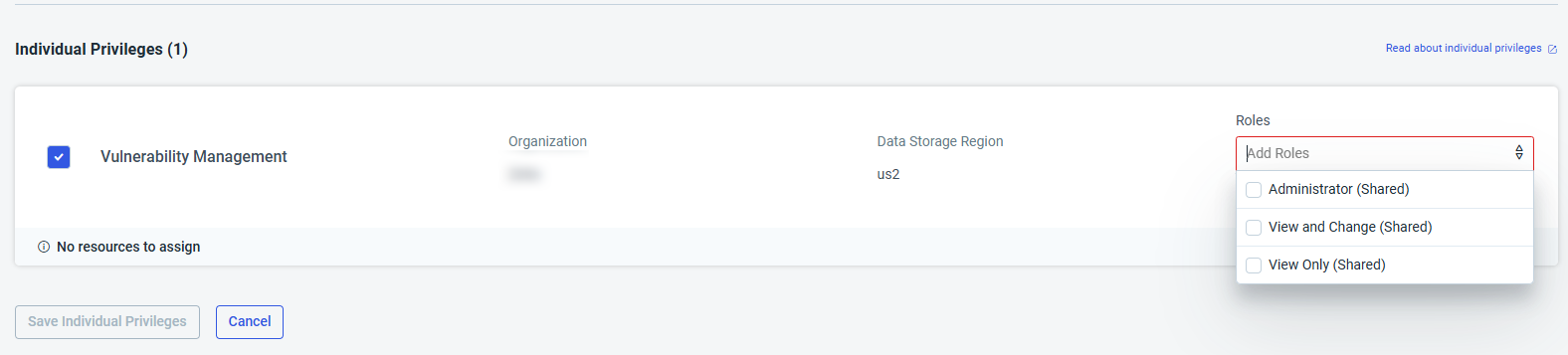
- Only if the Administrator (Shared) is enabled, API key can be generated by that specific user.
- You can also choose roles for a user group. For this, navigate to User Management ----> Groups and click Create New User Group. After creating the User Group, click on that group name and under User Group Privileges, by clicking on Manage User Group Privileges, you can add and modify roles for a group of users.
API key generation
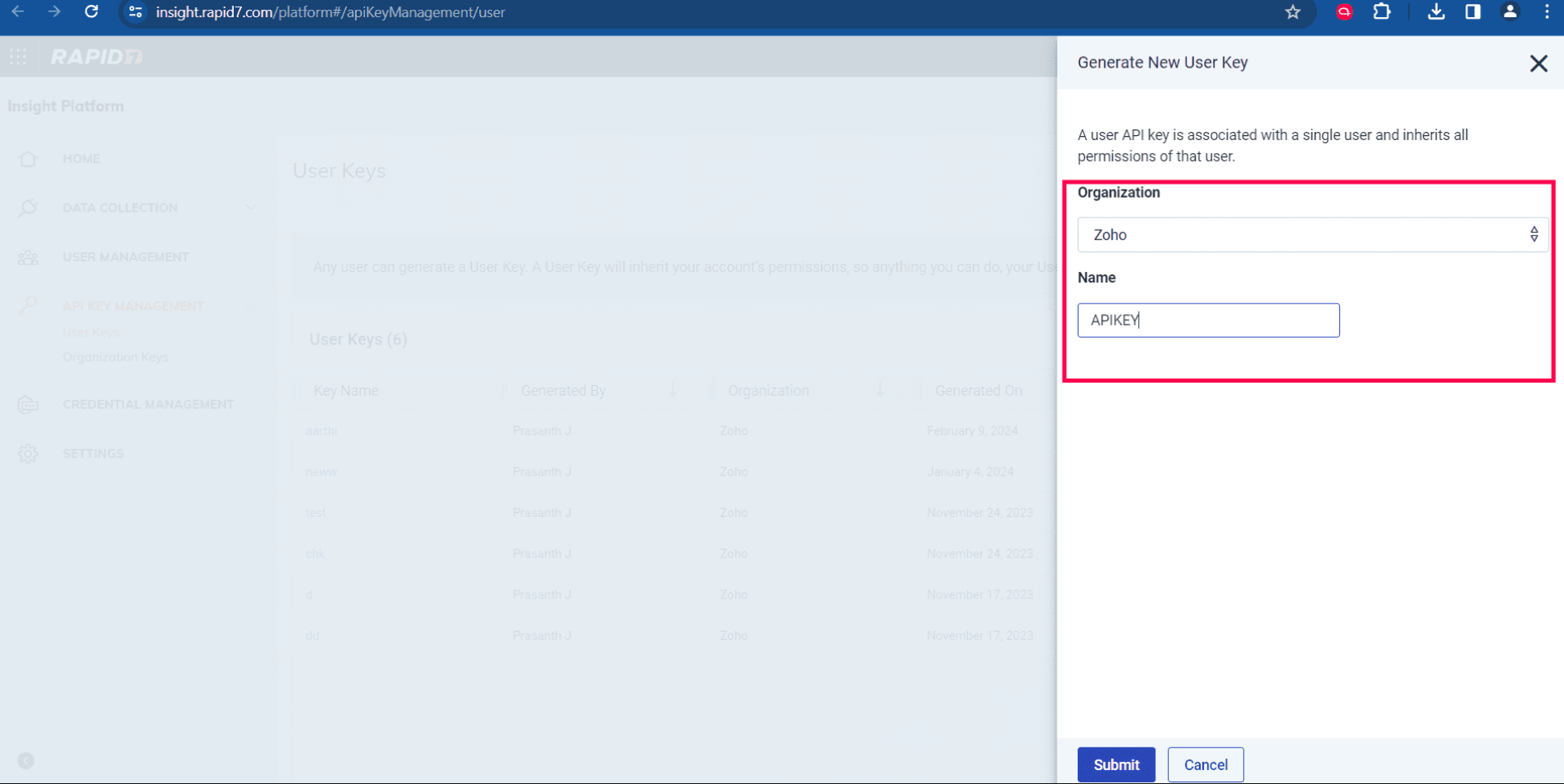
- Navigate to the API Key Management tab, then select User Keys and proceed to Generate New User Key.
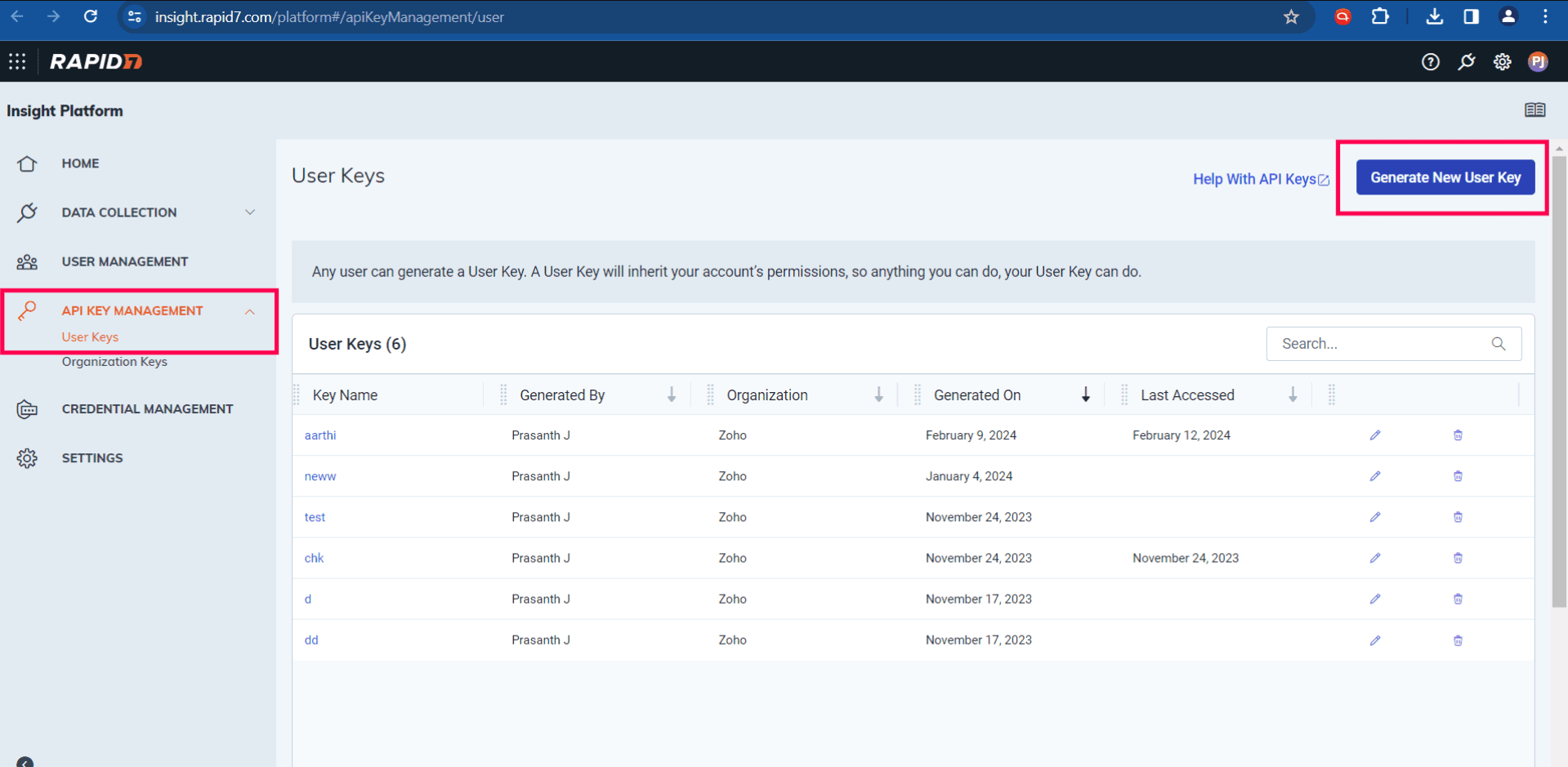
- Select the organization, enter the name and then click Submit.
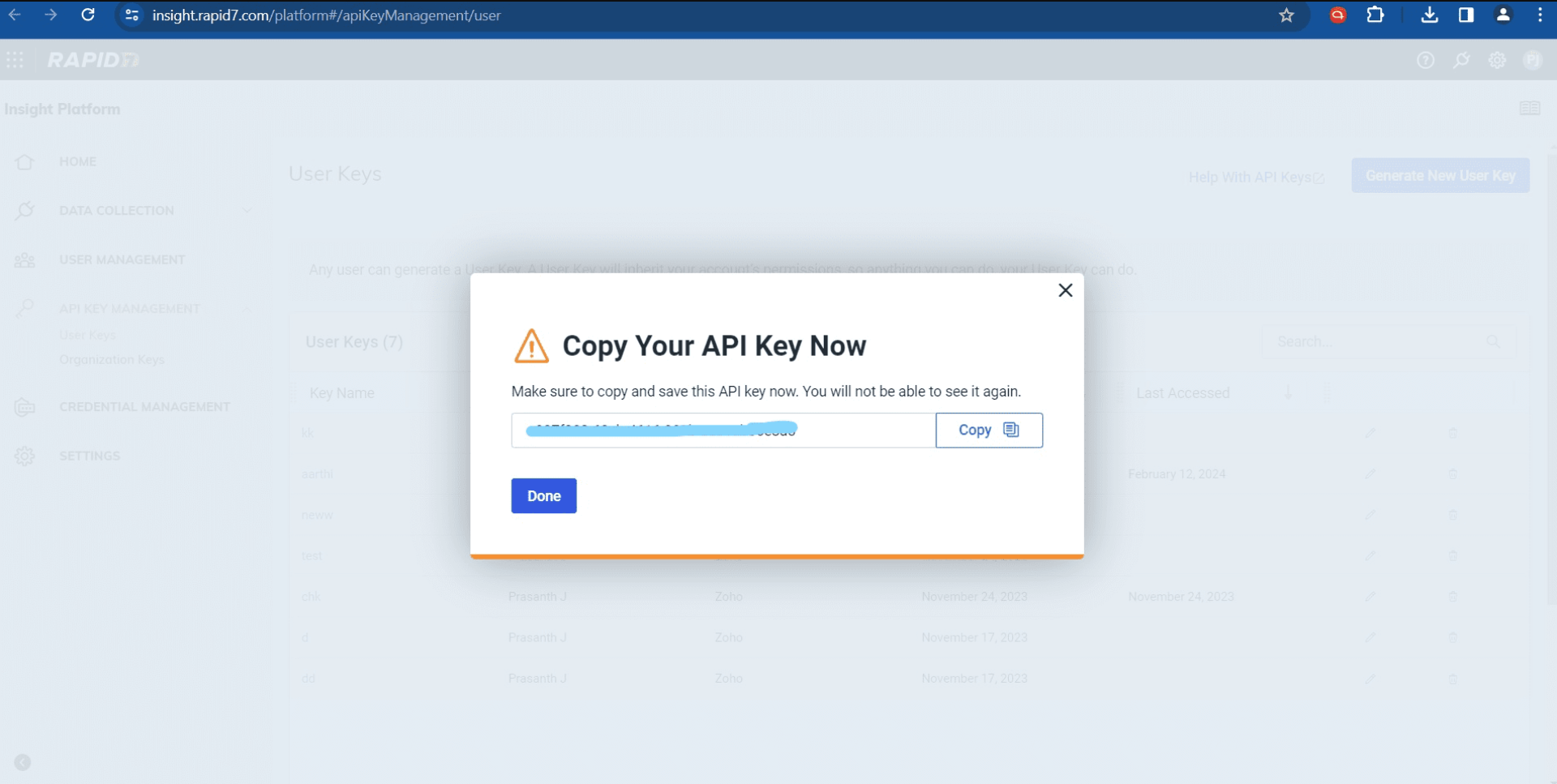
- Copy the API key generated in the popup and proceed to configure it within Patch Manager Plus.
Kindly contact support for any queries.