Active Directory Synchronization Schedules
PAM360 allows you to import users and resources from Active Directory with the option to configure automatic synchronization for specific groups or OUs within an AD domain. This feature ensures that the user database remains up-to-date by regularly querying the Active Directory. To set up synchronization, you should first specify the time interval—ranging from hours to days—at which PAM360 will perform these queries and then provide the domain details to initiate the import.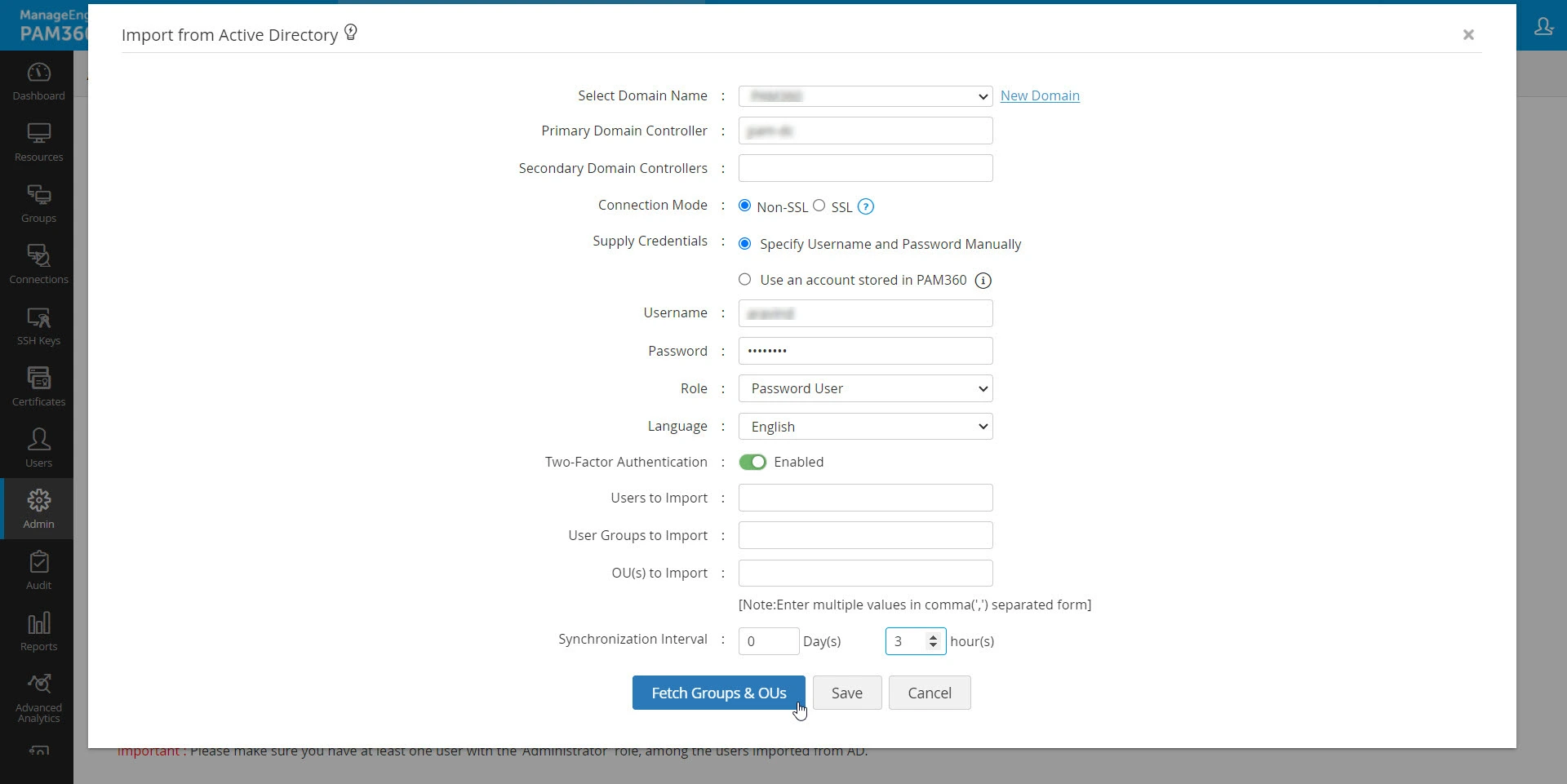
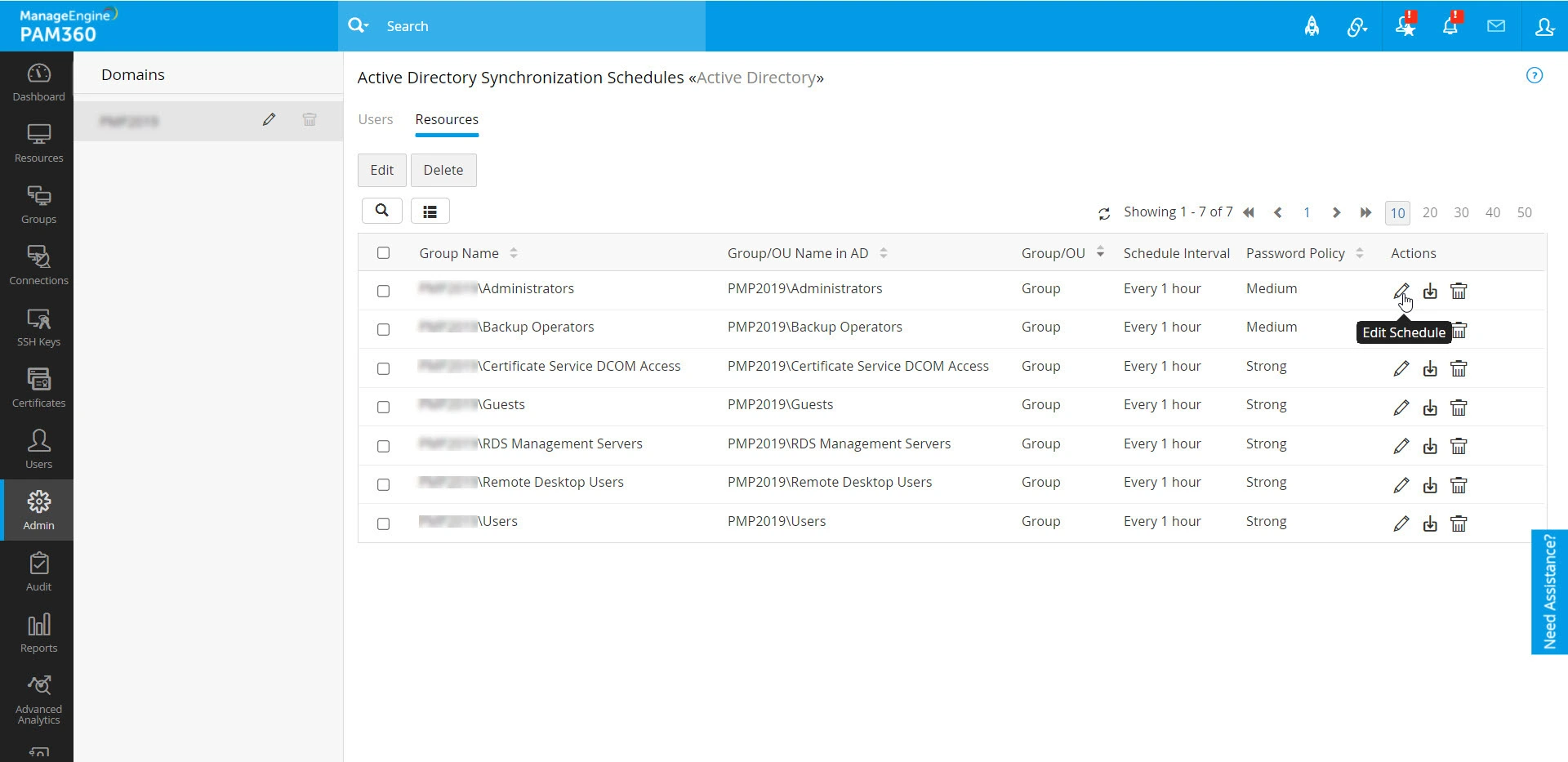
You can manage and view all your synchronization schedules for various AD domains by navigating to Admin >> Authentication >> Active Directory >> View Synchronization Schedules. On the resulting page, all AD domains with configured synchronization will be listed in the sidebar. Additionally, the synchronization schedules for users and resources will be displayed in separate sections, as illustrated in the image below.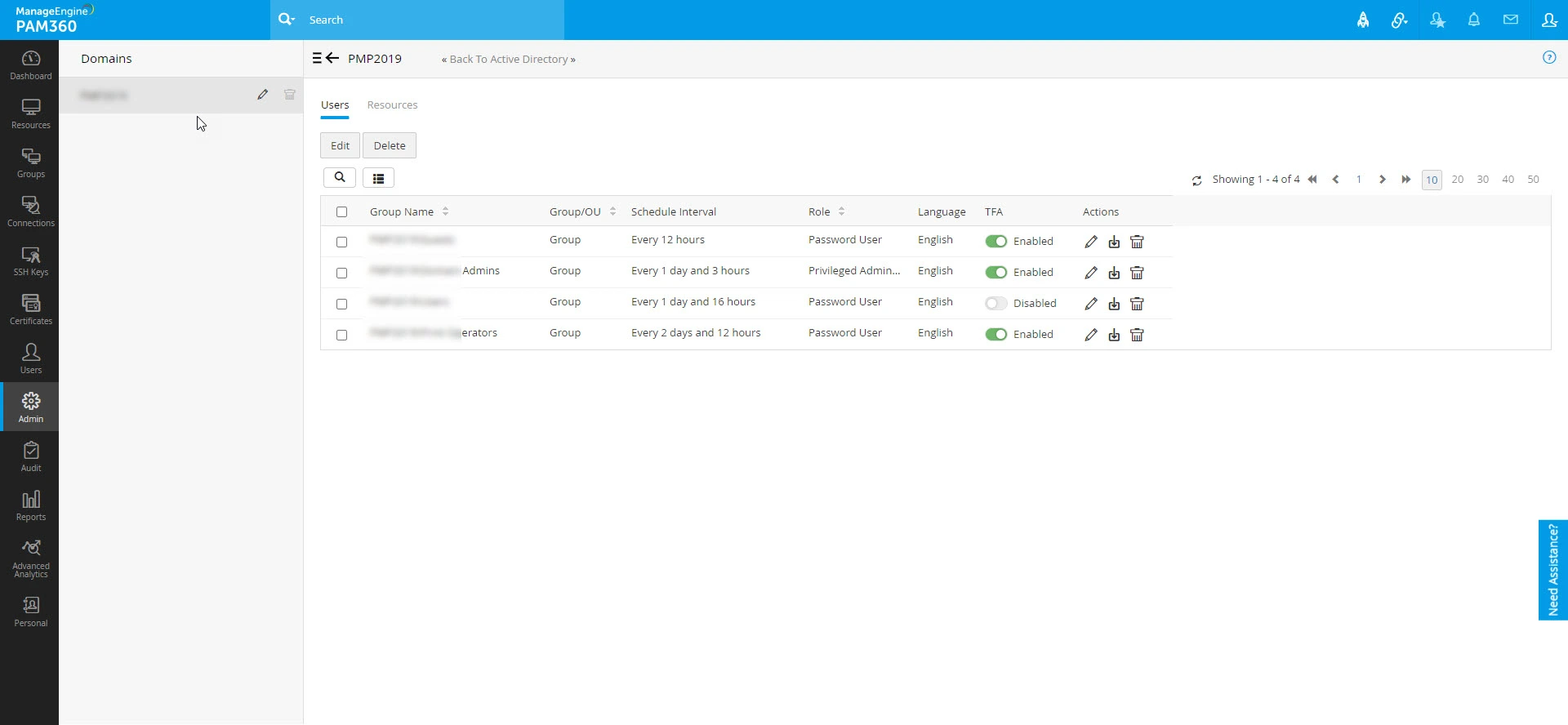
From this page, you can manage the configured domains and the Active Directory synchronization schedules accordingly.
1. Modifying AD Domain Details
To modify the details of an Active Directory (AD) domain in PAM360, first locate the desired domain in the sidebar navigation tab. Click on the Edit icon next to the domain name to open the dialog box where you can make the necessary changes. You can update domain details such as the Domain Name, Primary Domain Controller, Secondary Domain Controller, Connection Mode, and more. Once you have made the changes, click Save to apply them.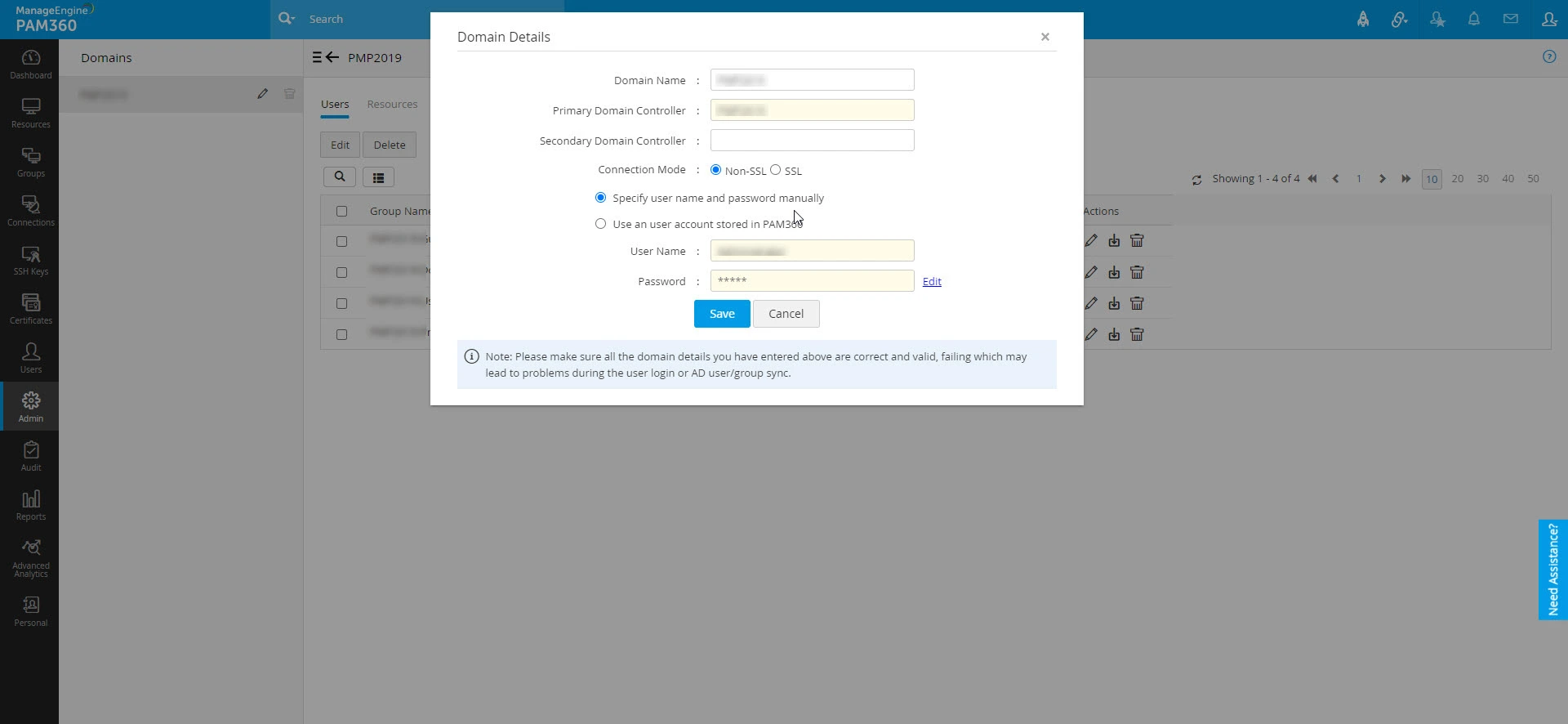
Additional Detail
After modifying the domain details, PAM360 will use the updated information the next time it communicates with the domain for data synchronization.
If you need to delete a domain, locate it in the sidebar navigation tab and click on the Delete icon next to the domain name. Confirm the deletion by clicking OK.
Caution
Deleting a domain will remove all synchronization schedules configured for both user and resource imports from that domain. If you wish to set up user or resource synchronization again, navigate to Admin >> Authentication >> Active Directory >> Import Now or Resources >> Discover Resources.
2. Modifying AD Synchronization Schedules
If you have previously set up a synchronization schedule for an AD domain during user or resource import operations, you can modify these schedules later. You can adjust the sync intervals for individual groups or OUs within that domain, for both user and resource imports.
To modify the sync schedule for a specific group or OU:
- Locate the desired AD domain in the sidebar navigation tab and click on it. PAM360 will display a list of all groups/OUs within that domain for which user synchronization has been scheduled. To modify a resource sync schedule, switch to the Resources section.
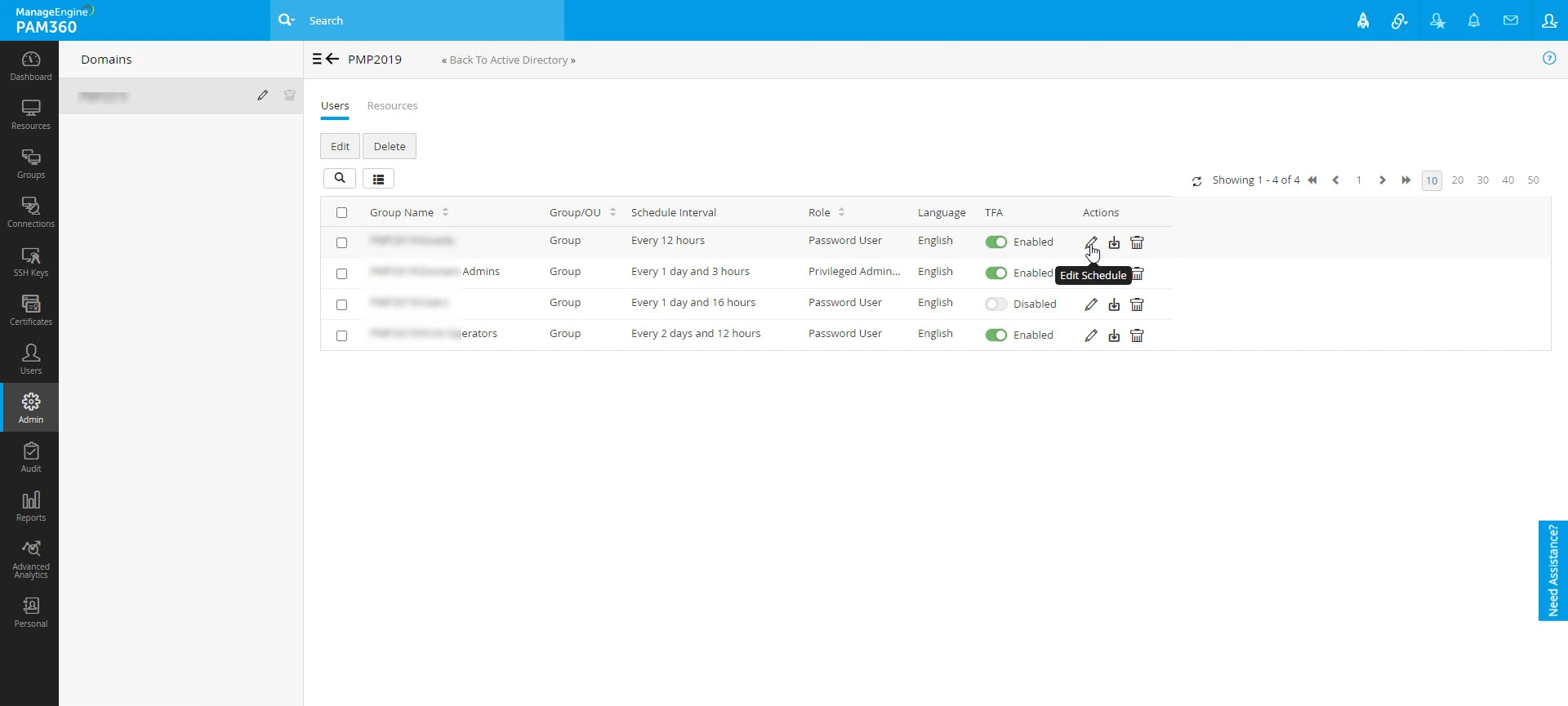
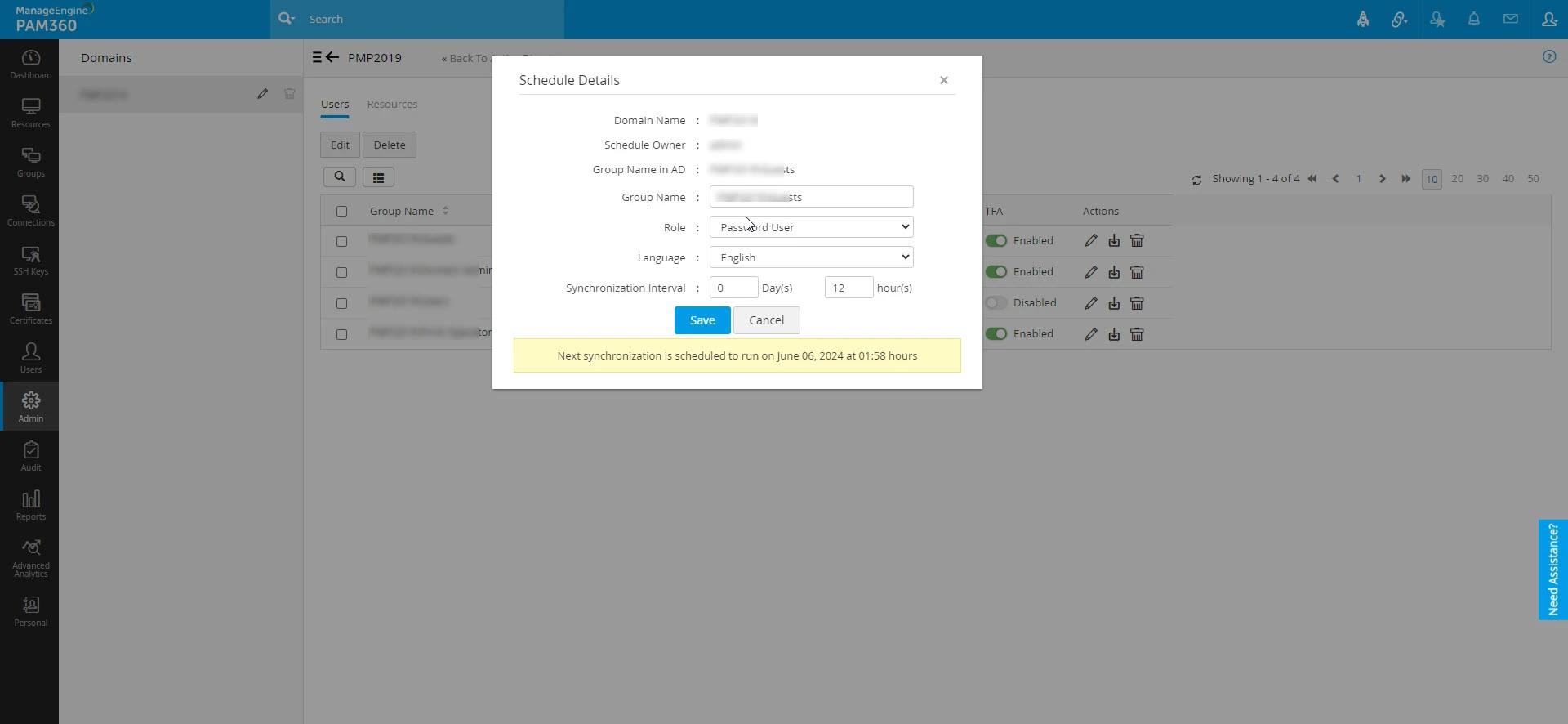
- Find the group or OU you wish to update and click on the Edit Schedule icon under the Actions column. In the dialog box that opens, you can adjust the Synchronization Interval, Role, Language, and other settings as needed. You can also set a custom display name for the group/OU, which will be reflected across all other tabs, such as Users and Resources, where the group/OU is listed. Enter the new display name in the Group Name field within the Schedule Details dialog box and click Save to apply the changes.
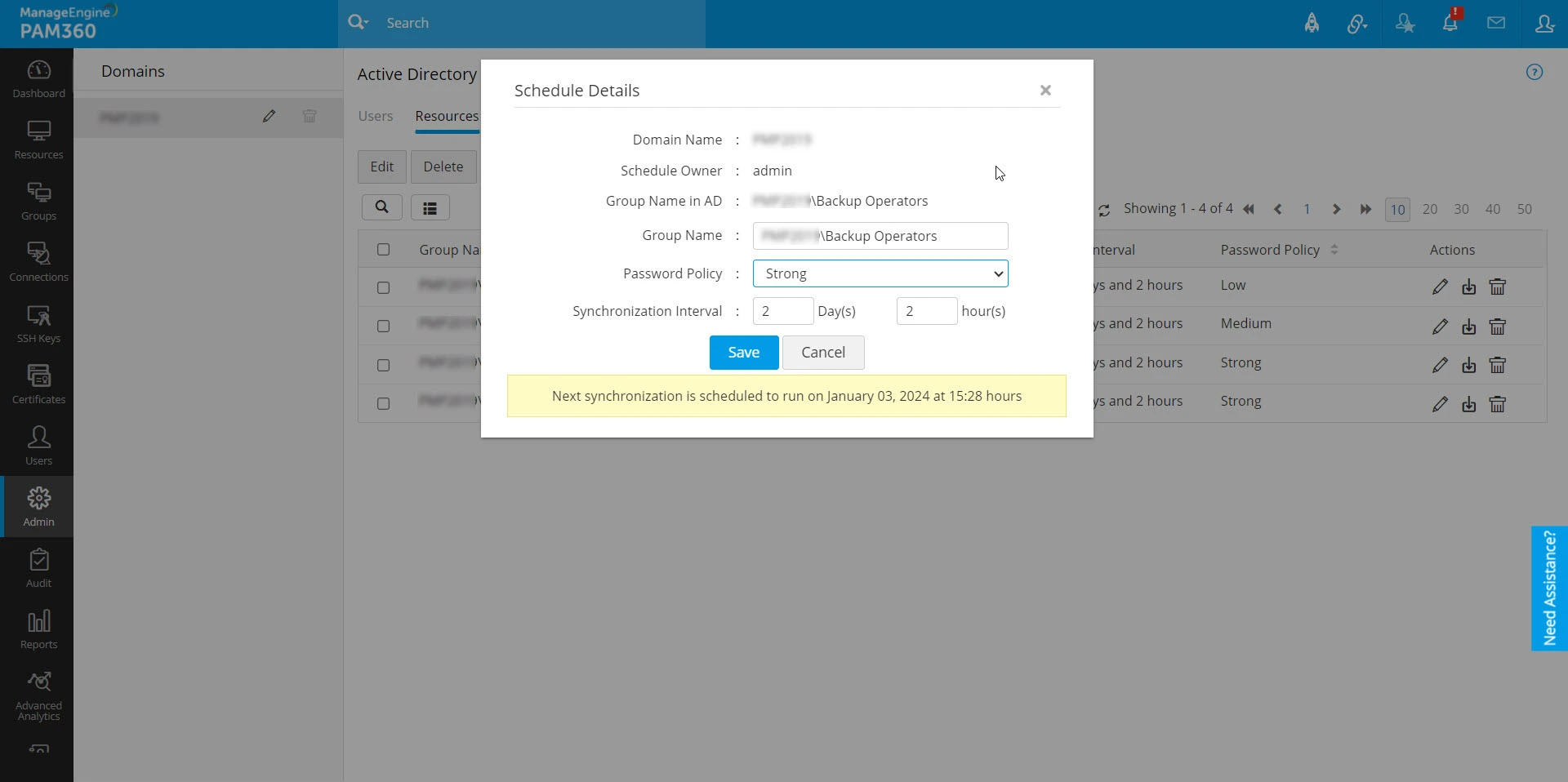
- If you are modifying a resource sync schedule, navigate to the Resources tab and click on the Edit Schedule icon. In the dialog box that opens, you can update the Group Name, Password Policy, and Synchronization Interval. Click Save to apply the changes.
Additional Detail
Setting a custom display name will not overwrite the original name of the group/OU in AD. The original AD name will be retained.
- If you need to delete a schedule, locate it in the schedules list and click on the Delete icon beside the respective schedule. Confirm the deletion by clicking OK.
To modify or delete multiple schedules at once:
- Navigate to the Users or Resources section, depending on where the schedules need to be modified or deleted.
- Select the schedules you wish to update.
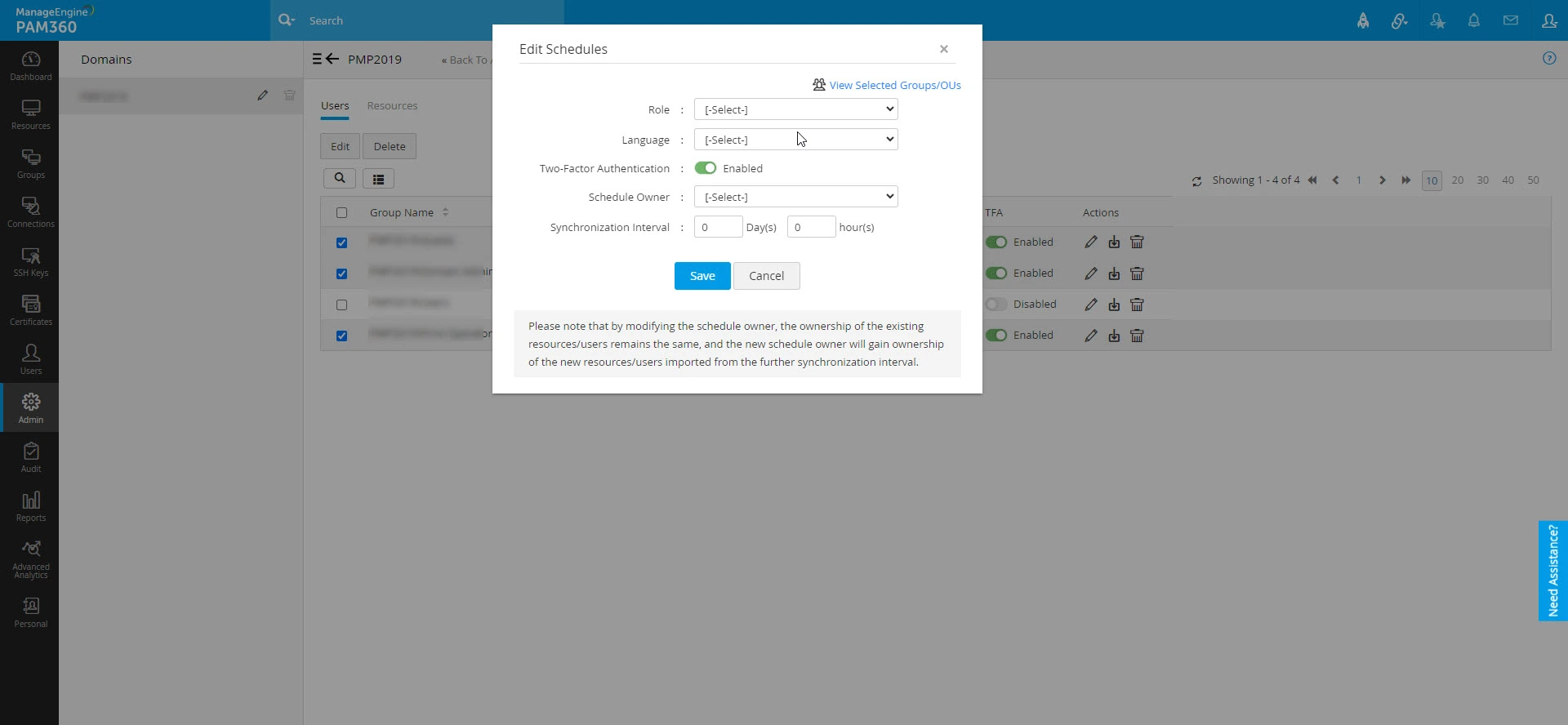
- To change the sync interval for the selected schedules in bulk, click on Edit Schedules located above the schedule list. In the dialog box that opens, you can update settings such as Role, Language, Two-Factor Authentication, Schedule Owner, and Synchronization Interval. You can also view the selected groups or OUs by clicking on View Selected Groups/OUs at the top-right corner.
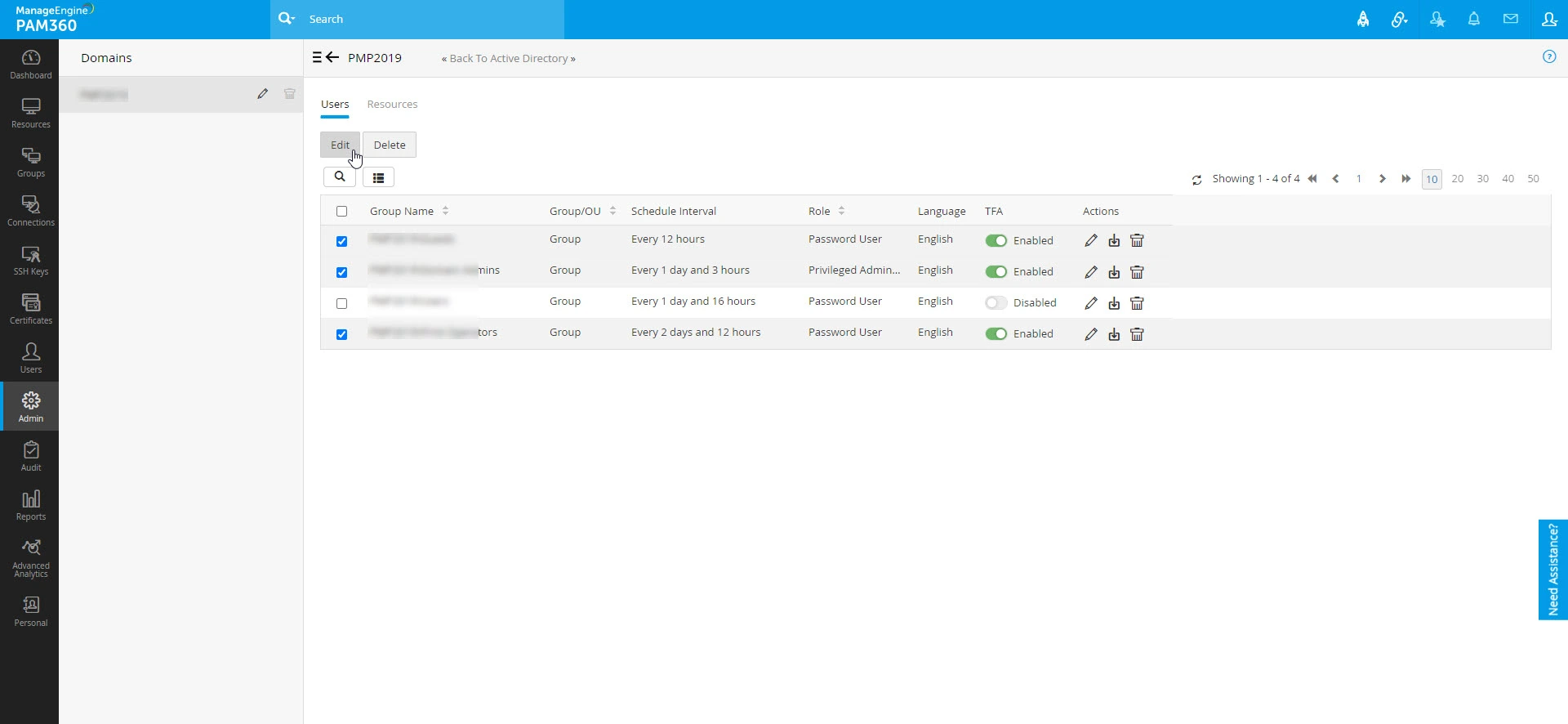
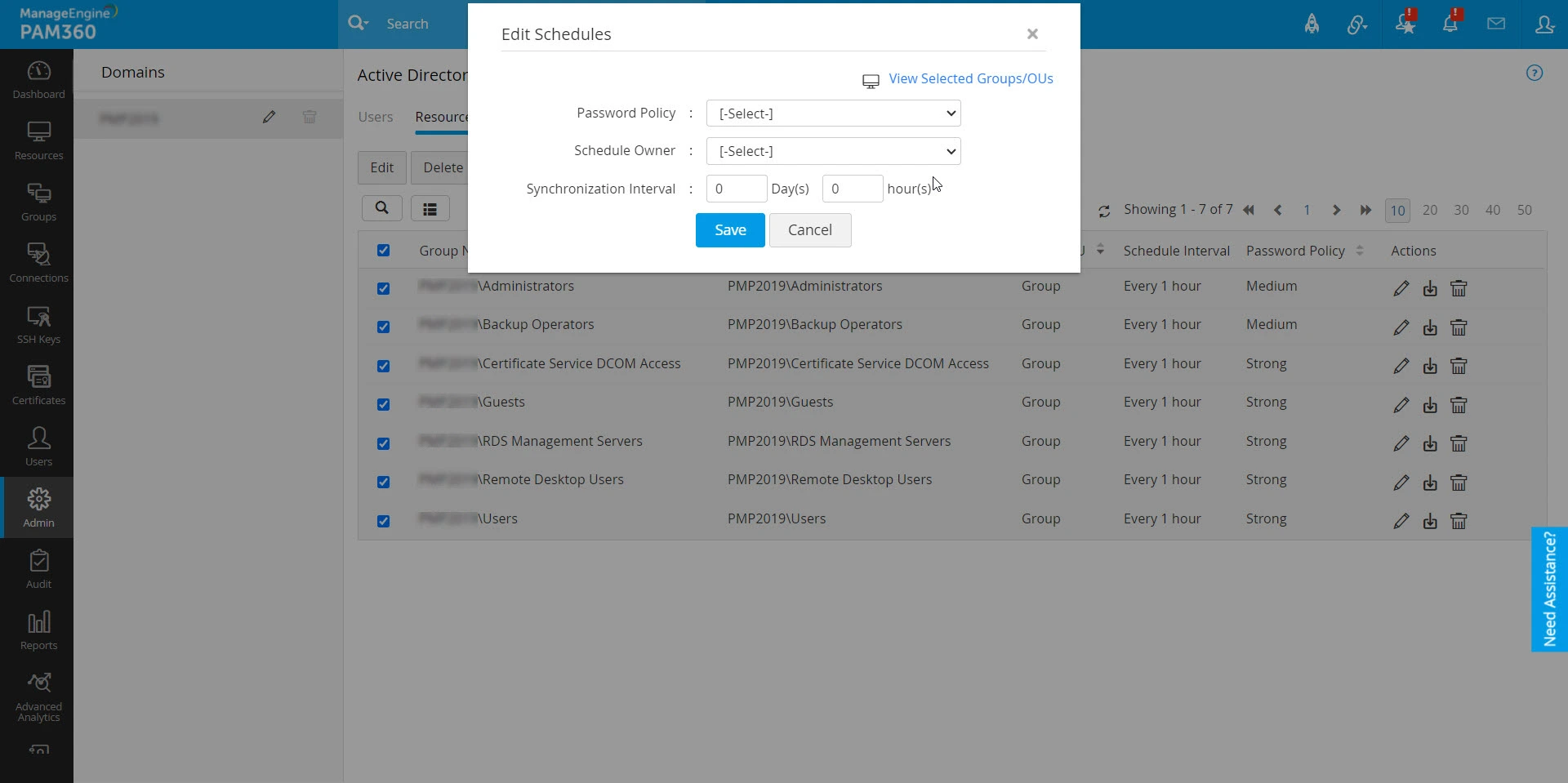
- For resource sync schedules, you can modify the Password Policy, Schedule Owner, and Synchronization Interval. Click Save to apply the changes.
Additional Detail
When you modify the schedule owner, the existing ownership of resources or users remains unchanged. The new schedule owner will only gain ownership of new resources or users imported during future synchronization intervals. Additionally, schedule ownership can only be transferred to users with the Manage Active Directory privilege in their role.
- To delete the selected schedules in bulk, click on Delete Schedules above the schedule list and confirm the deletion by clicking OK.