Import Users from a File
PAM360 offers the flexibility to import users directly from Excel, CSV, TSV, or Text files, streamlining the user management process. For guidance on file formats and sample files, click here. In addition to standard user details such as First Name, Last Name, User Name, Email Address, Department, and Location, you can also control other attributes for specific users by including an additional column labeled Enable/Disable.
Caution
In earlier builds, it was possible to import a .txt file with comma-separated data, and the data would display correctly in Step 2 of the import process. However, starting from build 6400, if your data entries are comma-separated, the file format should be .csv. Files with tab-separated values should be saved with a .txt or .tsv extension for successful importing.
Steps to Import the Users from a File
- Navigate to the Users tab, click the Add User button in the top pane, and select Import From File from the dropdown menu.

- In the pop-up form that appears, specify the file type and file format.
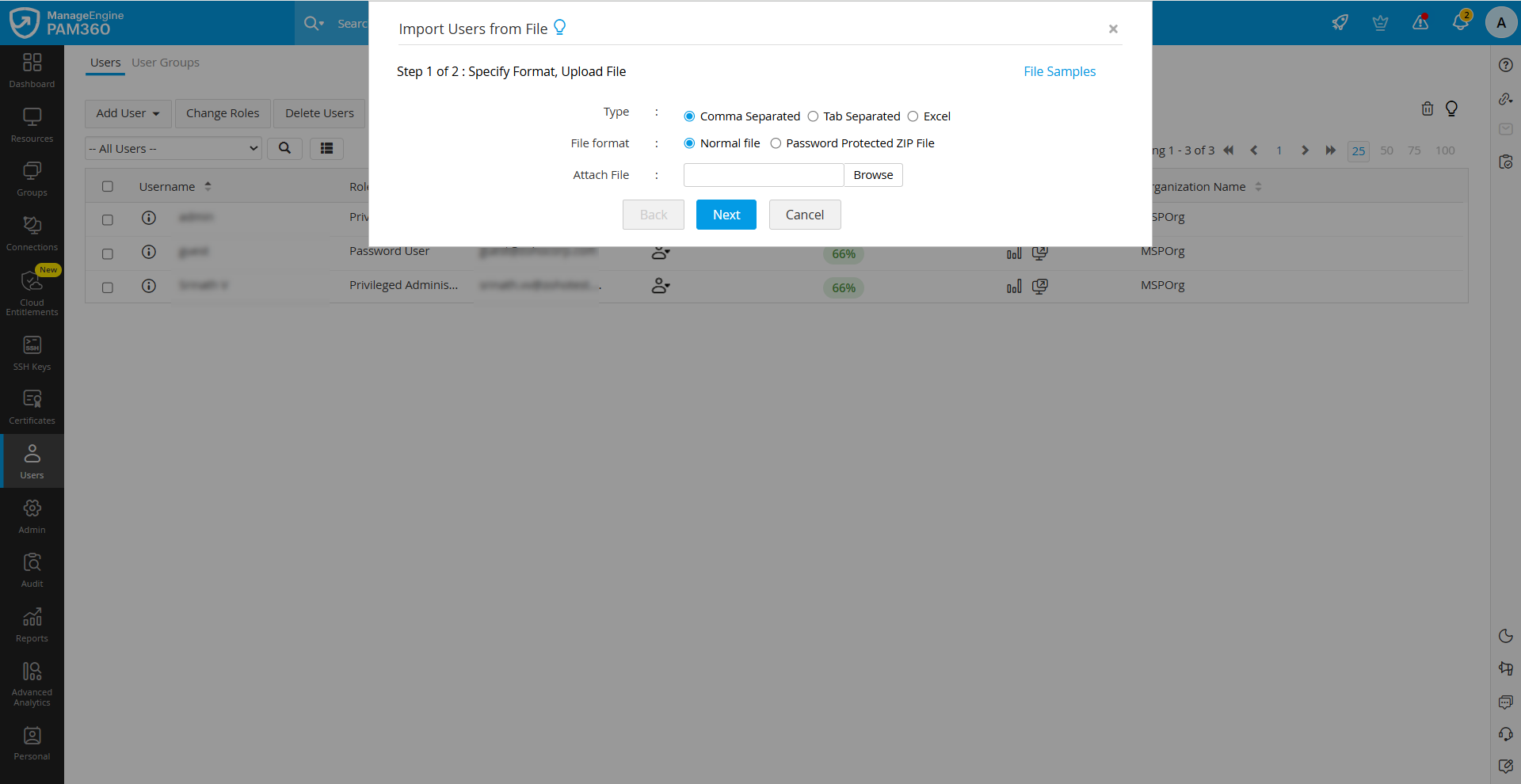
- Click the Browse button beside the Attach File field to locate and upload the file containing user data.
- After uploading the file from your machine, click Next to proceed to the next step. PAM360 will display the user attributes provided in the file along with the user inventory fields based on column names, regardless of the column order in which they were specified in the file. Map the corresponding user attributes specified in the file with the user inventory fields.
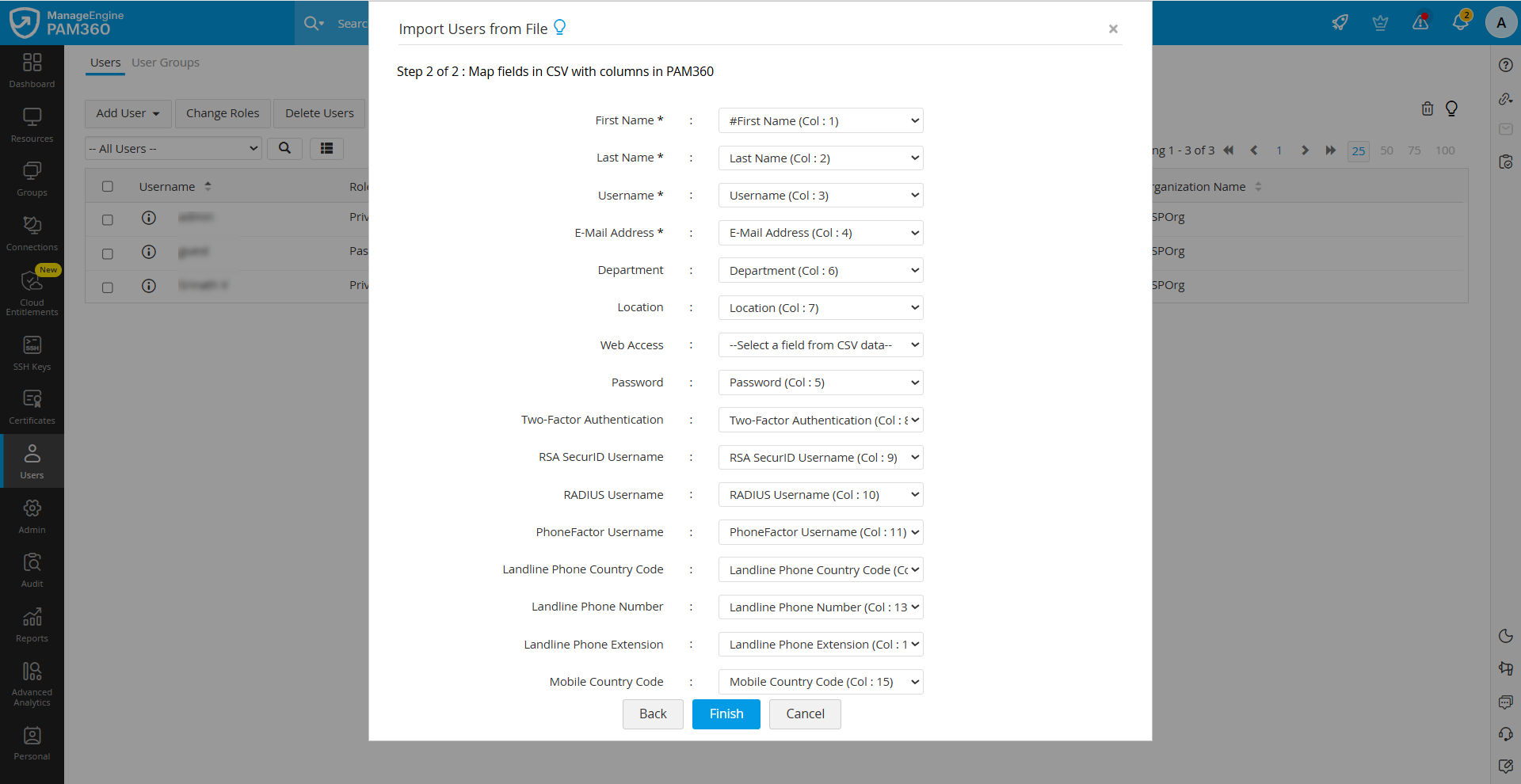
- There are four default fields whose attributes are mandatory and should be present in the file to proceed with the import. If needed, you can manually map the file's attributes to the corresponding PAM360 user fields.
- First Name
- Last Name
- User Name
- Email Address
- The Role and Language Code attributes can be assigned to user accounts during file import. The user language corresponding to the specified language code will be assigned to the user. To configure the desired user language, specify the language codes in the file as displayed below:
Language Code English
en
Deutsch (German)
de
Français (French)
fr
Español (Spanish)
es
Português (Portuguese)
pt
Italiano (Italian)
it
中文 (Chinese - Simplified)
zh_cn
中文繁體 (Chinese - Traditional)
zh_tw
日本語 (Japanese)
ja
Русский (Russian)
ru
Hebrew
iw
Polski (Polish)
pl
Türkçe (Turkish)
tr
Nederlands (Dutch)
nl
- Click Finish to complete the user import process.
The outcome of the import process, whether successful or failed, will be logged as an audit entry. For detailed information, navigate to the User Audit section under the Audit tab.
Additional Details
- If the number of users assigned as administrators during import exceeds the licensed limit, the additional users will automatically be assigned the default role configured under Admin >> Customization >> Roles.
- If you are using a multi-language license, the language code specified for each user in the input file will be assigned to that user. If an invalid language code is specified, the default user language configured under Admin >> Customization >> General Settings >> User Management will be assigned.
Troubleshooting Import Failures: If the reason for an import failure is unclear from the Audit tab, you can set the log level to Debug mode and attempt the import again. Detailed failure traces will be recorded in the serverout0.txt log file located within the <PAM360_Installation_Directory>\logs folder.