Integrating PAM360 with ManageEngine Analytics Plus
ManageEngine PAM360 integrates with ManageEngine Analytics Plus, an on-premises reporting and business intelligence service, to provide comprehensive insights into your privileged account activities. This integration leverages data from PAM360's Resources (detailed record of resources and their usage), User Accounts (list of users, their access levels, and permissions), and Audits (elaborate history of user operations) modules to deliver out-of-the-box analytics. By sourcing data from PAM360 via its API using your login credentials, Analytics Plus automatically generates up-to-date reports, accessible through a unified PAM360-specific dashboard. This allows you to gain a complete overview of your privileged access landscape, drill down into specific details, and extract actionable insights, all within a workspace containing relevant reports and live dashboards. You can also utilize timeline filters to focus your analysis.
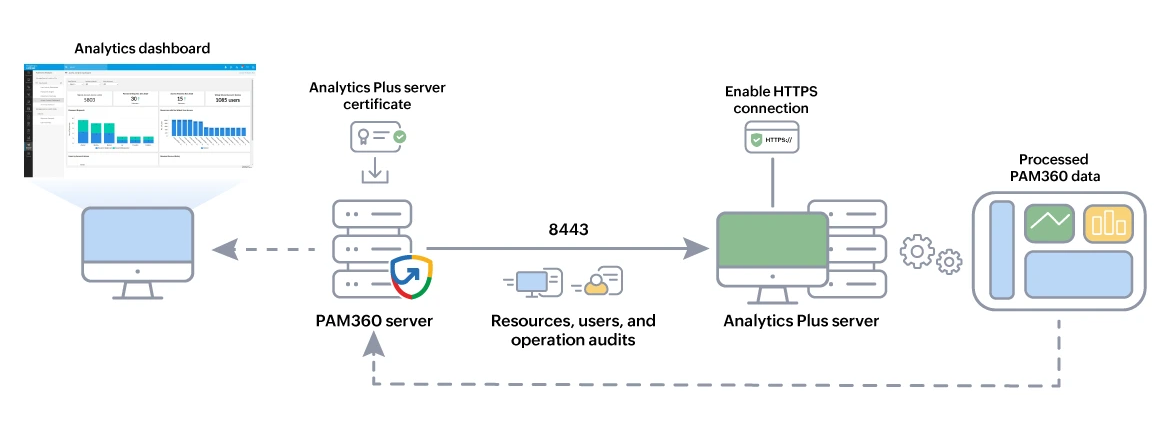
This document discusses the process of integrating PAM360 with ManageEngine Analytics Plus. At the end of this document, you will have learned the following:
- Prerequisites
- Configuring the Analytics Plus Integration
- Viewing the Configuration Details from PAM360
- Viewing the Analytics Plus Dashboards in PAM360
- Troubleshooting Tips
1. Prerequisites
Before commencing the integration, ensure that the following prerequisites are met:
- All the PAM360 and Analytics Plus integration configurations should be performed on the Analytics Plus portal. Ensure you have access to an active Analytics Plus instance.
- PAM360 should be accessible from the server where Analytics Plus is running. To verify connectivity, try launching your PAM360 web-client from the Analytics Plus server.
- The Analytics Plus user account should be mapped to a corresponding user login in PAM360 to enable data access.
- The authentication token generated during integration is specific to your Analytics Plus instance and will be displayed only once. Ensure you copy and securely store the Auth Token, as you should paste it in the required field in the Analytics Plus portal.
- PAM360 and Analytics Plus servers should be running in the same time zone.
- PAM360 supports only HTTPS connections. Therefore, a valid SSL certificate is required to securely connect with the Analytics Plus server. To import the SSL certificate of the host running Analytics Plus into the PAM360 certificate store, follow the steps outlined in Question 11 under the Certificates module. While importing the SSL certificate, ensure that the SSL certificate includes the Subject Alternative Name (SAN) field.
2. Configuring the Analytics Plus Integration
All the configurations related to the PAM360 - Analytics Plus integration can be performed from the Analytics Plus console only. From the PAM360 console, you can view the configuration details and regenerate the AuthToken. Click here for the configuration steps. Once you have finished configuring the integration, you will be able to automatically generate reports with up-to-date data and gain a complete overview of the reports from the PAM360-specific dashboard in Analytics Plus.
3. Viewing the Configuration Details from PAM360
After configuring the integration from the Analytics Plus portal, you can view the configuration details from the PAM360 console. To do so, navigate to Admin >> Integrations >> ManageEngine. In the Integrations | ManageEngine page that appears, you will see the Analytics Plus integration status respectively. Click the Edit button to view the configuration details. In the Analytics Plus Integration dialog box that appears, you will be able to do the following:
- View the configuration details that include:
- AUTH Token: You will see the "Auth Token Available" message in this field. Each time you click the Generate button, the new Auth Token will be shown here.
- Host Name: The DNS name of the machine, where Analytics Plus is hosted.
- Port Number: The port number on which Analytics Plus is listening.
- Click the Generate button to generate a new Auth Token.
- Click Save to save the changes.
You can generate any number of Auth tokens from here. This option comes handy if you have lost the Auth Token that was generated during the initial configuration process. Whenever you generate a new Auth token, click Save for the change to take effect.
4. Viewing the Analytics Plus Dashboards in PAM360
The Advanced Analytics module of PAM360, offered via ManageEngine Analytics Plus, automatically analyzes privileged account activity data to help you identify anomalies in password and user account activities. Once the integration is complete, follow the below steps to view Analytics Plus dashboards in PAM360:
- Navigate to the Advanced Analytics tab.
- Click ManageEngine Analytics Plus from the left pane. Under this, click the required dashboard from the list of dashboards available. You can see the relevant audit data displayed in the dashboard area on the right. Click here to learn about the dashboards offered by Analytics Plus in detail.
5. Troubleshooting Tips
1. What should I do if the Advanced Analytics tab shows no integration details and only the Download Analytics Plus option?
This typically happens during re-authentication with Analytics Plus. If the Advanced Analytics tab in PAM360 displays no integration details and shows only the Download Analytics Plus option, remove the existing Analytics Plus integration, create a new workspace in Analytics Plus, and reconfigure the integration from PAM360.
2. What should I check if the Advanced Analytics tab displays the reports dashboard but no data or charts?
If the reports dashboard appears without any charts or data:
- Ensure the Analytics Plus server and ports are reachable from the machine accessing PAM360.
- Click the Launch Analytics Plus button in the tab to verify that Analytics Plus is reachable and that a valid SSL certificate is installed and trusted.
3. What should I do if the Advanced Analytics tab shows report tabs but with an error message like blocked by an extension or refused to connect?
- Navigate to the <PAM360-Installation-Directory>/logs folder.
- Open the pam0 log file and search for the remotehost entry under the API filter section.
- Try pinging the corresponding value or IP address from the PAM360 installation machine.
- If the server is not reachable using that IP address, determine the correct IP address or DNS name that can be used to successfully reach the Analytics Plus server.
4. Who should I contact if the issue persists despite troubleshooting?
If you continue to face issues with the Advanced Analytics integration, please contact our support team at pam360-support@manageengine.com for further assistance.