Integrating PAM360 with Microsoft Sentinel
For procedures prior to build 8500, refer to this help document.
PAM360, a unified privileged access management product from ManageEngine, integrates with Microsoft Sentinel, a cloud-native security information and event management (SIEM) solution by Microsoft. This is in addition to the already available integrations with the third-party SIEM solutions such as Splunk, ManageEngine EventLog Analyzer, and Sumo Logic.
At the end of this document, you will have learned the following:
- Key Benefits of the Integration
- Configuring a PAM360 Workspace for Microsoft Sentinel
- Configuring PAM360 for Microsoft Sentinel Integration
- Viewing PAM360 logs in Microsoft Sentinel
- Troubleshooting Tips
1. Key Benefits of Integration
PAM360's extensive auditing capabilities include gathering and processing audit logs for resources, passwords, and users in real time. The product allows you to tailor notifications for specific events from the Audit tab. Through the PAM360-Microsoft Sentinel integration, PAM360 sends detailed logs to the SIEM tool as syslog, enabling you to view PAM360 audit trails from the Microsoft Sentinel interface. Apart from the above-mentioned SIEM tools, you can set up any other log management tool to collect audit logs. It is possible to configure multiple log management tools concurrently.
2. Configuring a PAM360 Workspace for Microsoft Sentinel
Caution
- Ensure that the PAM360 server has internet access to send syslogs to Microsoft Sentinel.
- Ensure that your Azure account have the permissions to create a resource group, Log Analytics workspace, Data Collection Endpoint (DCE), and Data Collection Rules (DCRs) in the Azure portal.
- This integration requires a workspace in Microsoft Sentinel. If you do not have one already, create a new workspace for PAM360. Refer to this document for instructions on how to create a new workspace.
Additional Detail
The PAM360 - Microsoft Sentinel integration does not require any Azure agents, so you do not need to download any agents from the Agents management page.
To configure a PAM360 workspace for the Microsoft Sentinel integration, complete the following procedures in the Azure portal:
- Creating a Log Analytics Workspace
- Creating a Data Collection Endpoint (DCE)
- Creating a Data Collection Rule (DCR)
- Registering an Azure Application for Log Ingestion
2.1 Creating a Log Analytics Workspace
A Log Analytics workspace is the basic management unit of Microsoft Sentinel logs. To create a Log Analytics workspace in the Azure portal, follow the steps below:
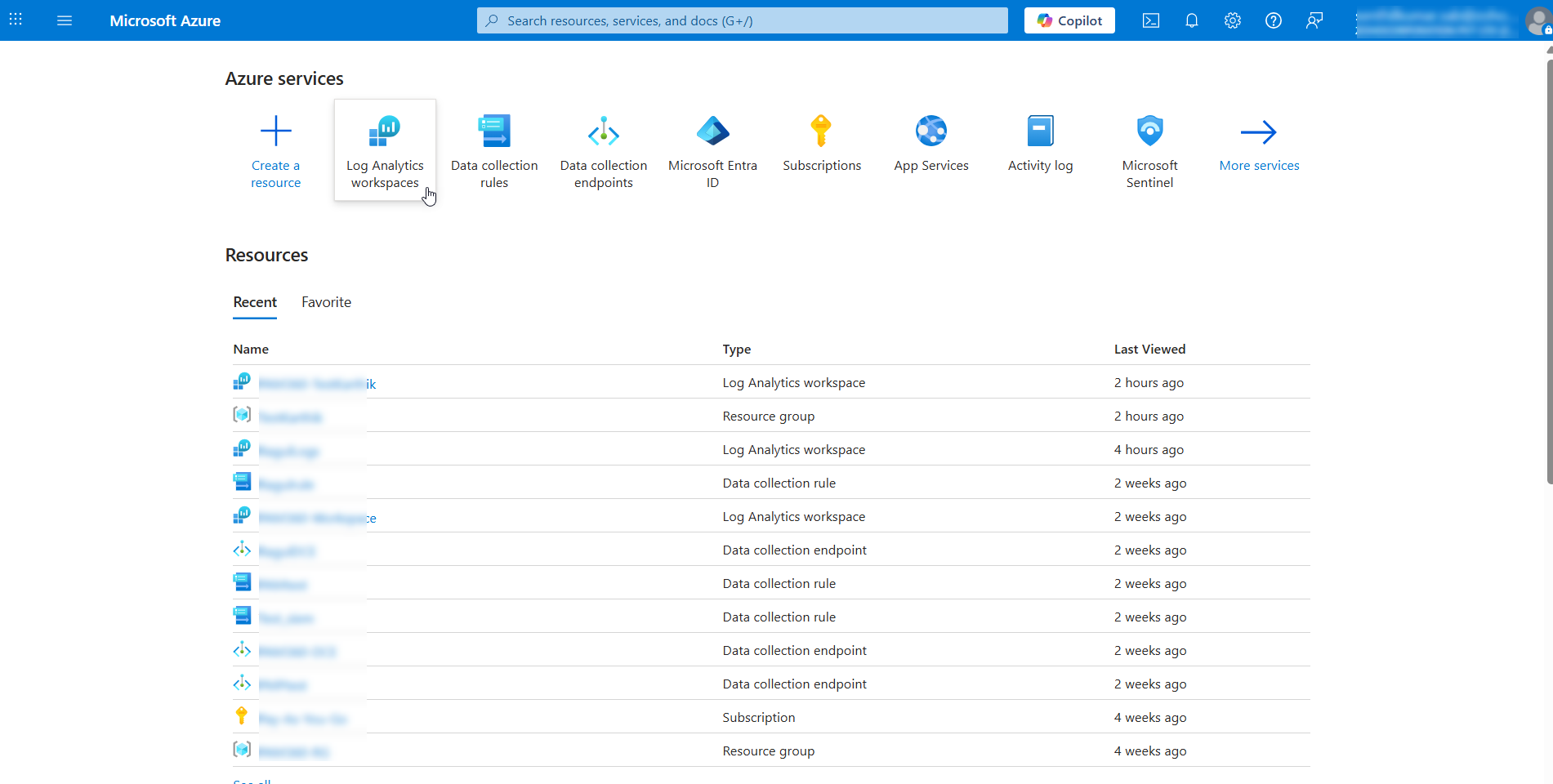
- Log in to your Azure portal and click Log Analytics workspaces under Azure services.
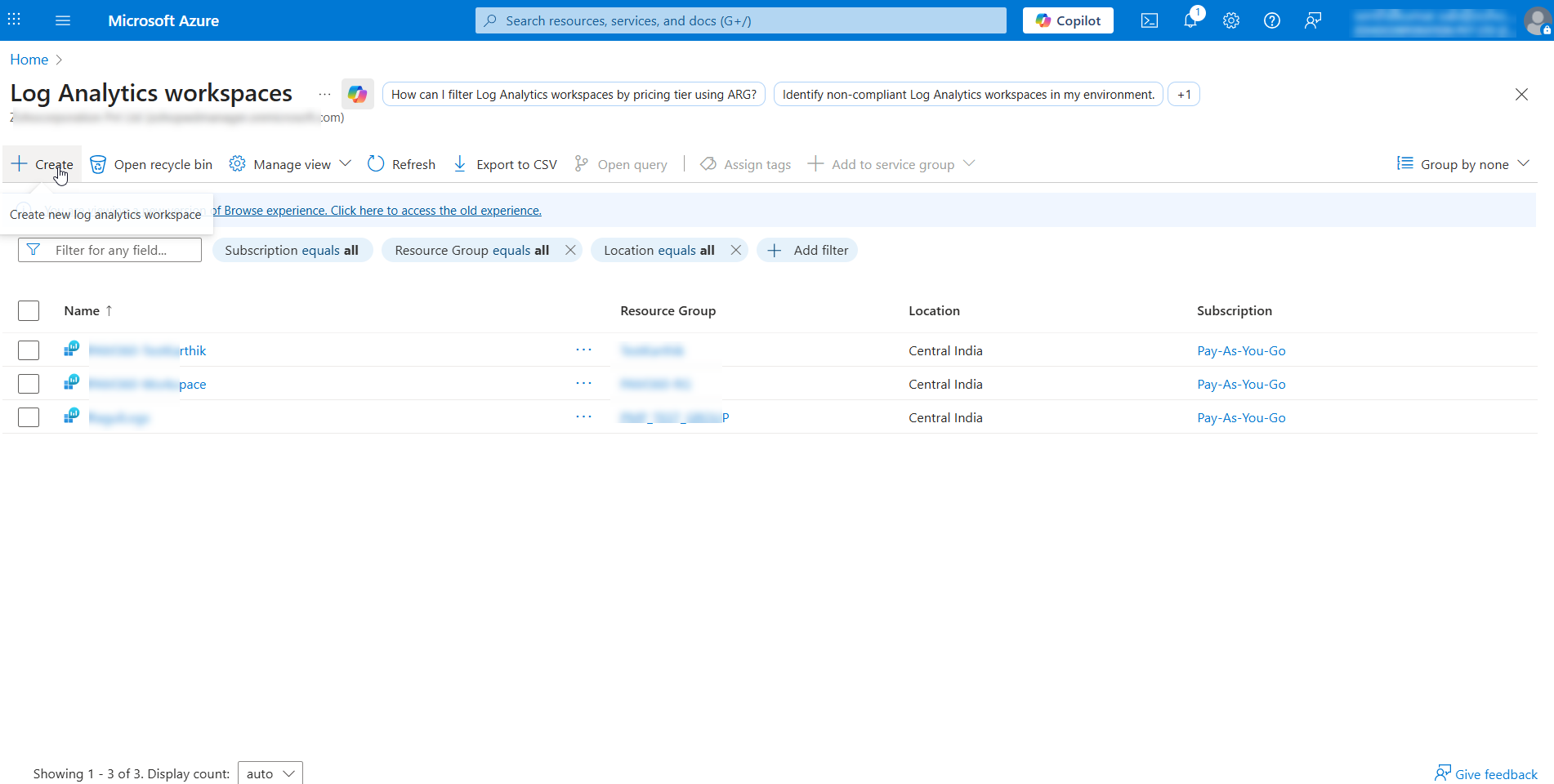
- Click Create in the top pane to create a new Log Analytics workspace for the PAM360-Sentinel integration.
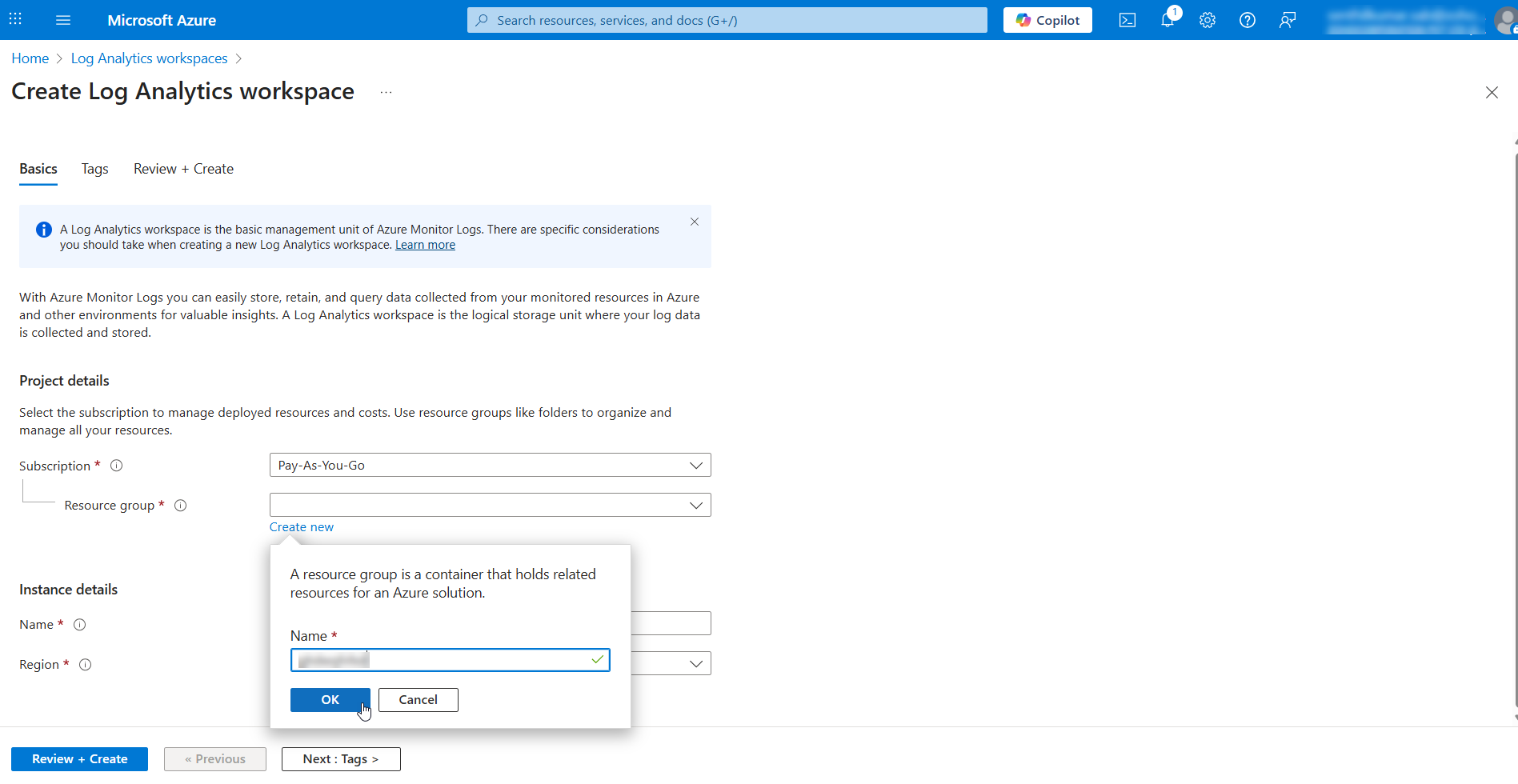
- On the page that appears, select your resource group name from the dropdown or click Create new under the Resource group dropdown. In the pop-up that appears, enter a Name for the new resource group and click OK.
- Under Instance details, enter a workspace name in the Name field and select your Region.
Additional Details
- The workspace name should be between 4 and 63 characters.
- The workspace name can contain only letters, numbers and '-'. The '-' should not be the first or last symbol.
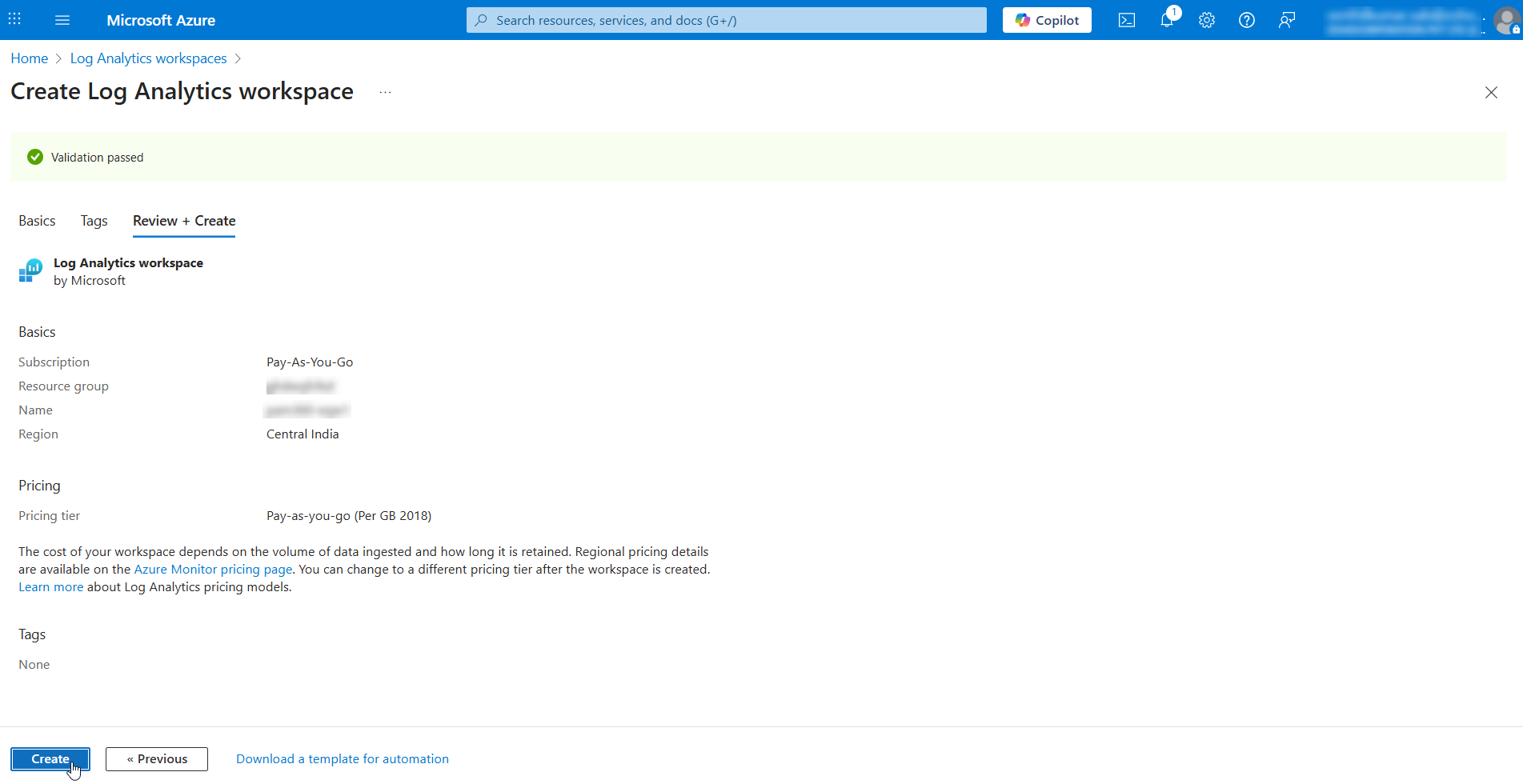
- Click the Review + Create button to validate the workspace details.
- Once the validation is passed, click Create and wait for the deployment to complete.
The newly created workspace can be viewed on the Log Analytics workspaces page. Note down the Custom Log Table name or Stream name of your workspace as you will be needing it when configuring Sentinel integration in PAM360. You can find this name by navigating to your Log Analytics workspace >> Settings >> Tables.
2.2 Creating a Data Collection Endpoint
A Data Collection Endpoint (DCE) defines the secure ingestion endpoint used by Microsoft Sentinel to receive logs from external sources, such as PAM360. Creating a DCE ensures that PAM360 audit logs are securely authenticated, routed, and ingested into the correct Log Analytics workspace through the Logs Ingestion API. To create a DCE in the Azure portal, follow the steps below:
- On the Azure home page, under Azure services, click Data collection endpoints.
- On the page that appears, click Create from the top menu and enter the following details:
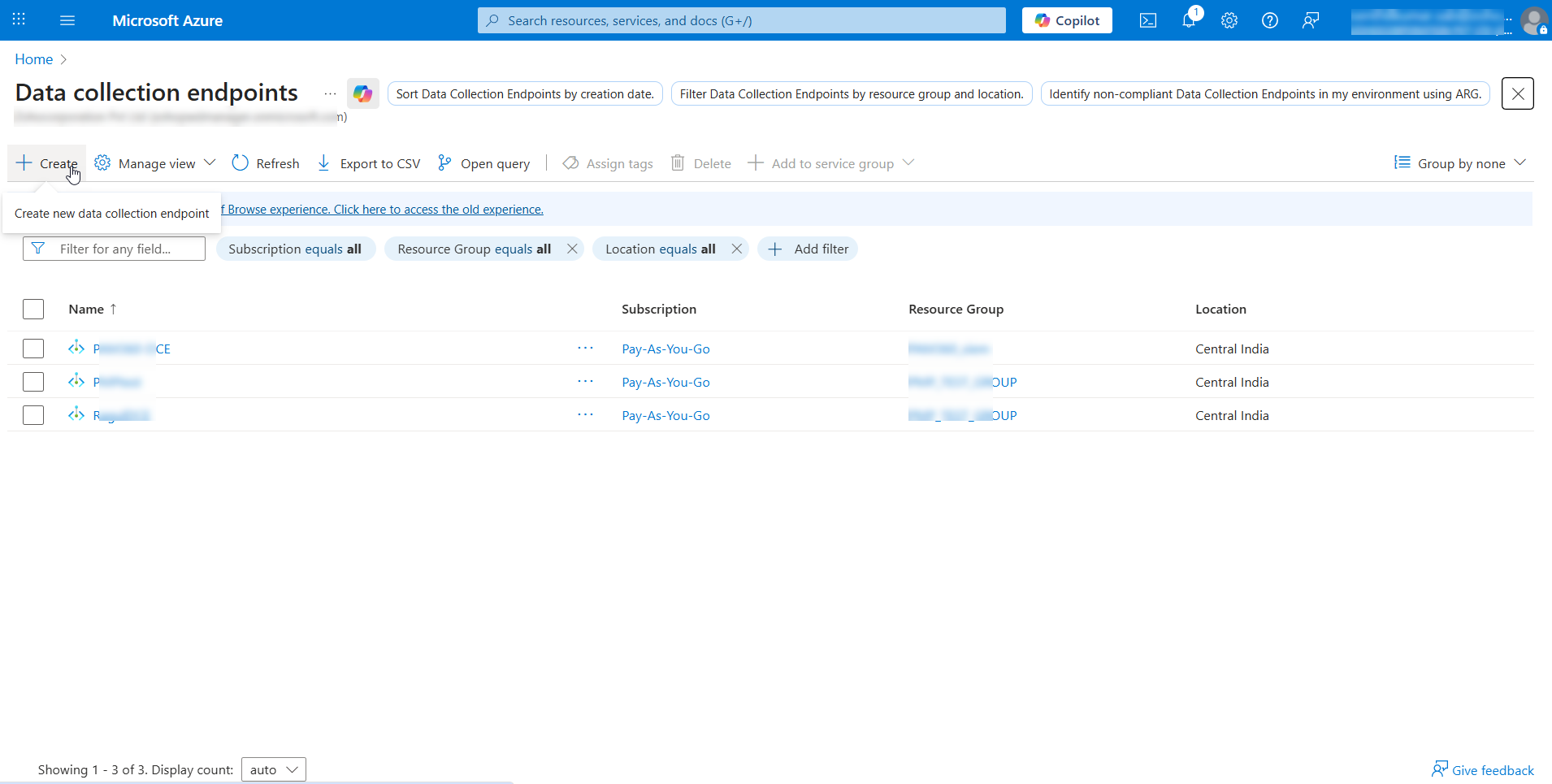
- Endpoint Name - A name for the endpoint to be created.
- Resource Group - Select the existing resource group (created in the previous step) name from the dropdown.
- Region - Select the region of the resource group or workspace managed.

- Click Review + Create >> Create.
The DCE has been created in the Azure portal for the PAM360-Sentinel integration. Now, note down the Logs Ingestion URL of your DCE. This will be used for authentication when integrating Sentinel in PAM360.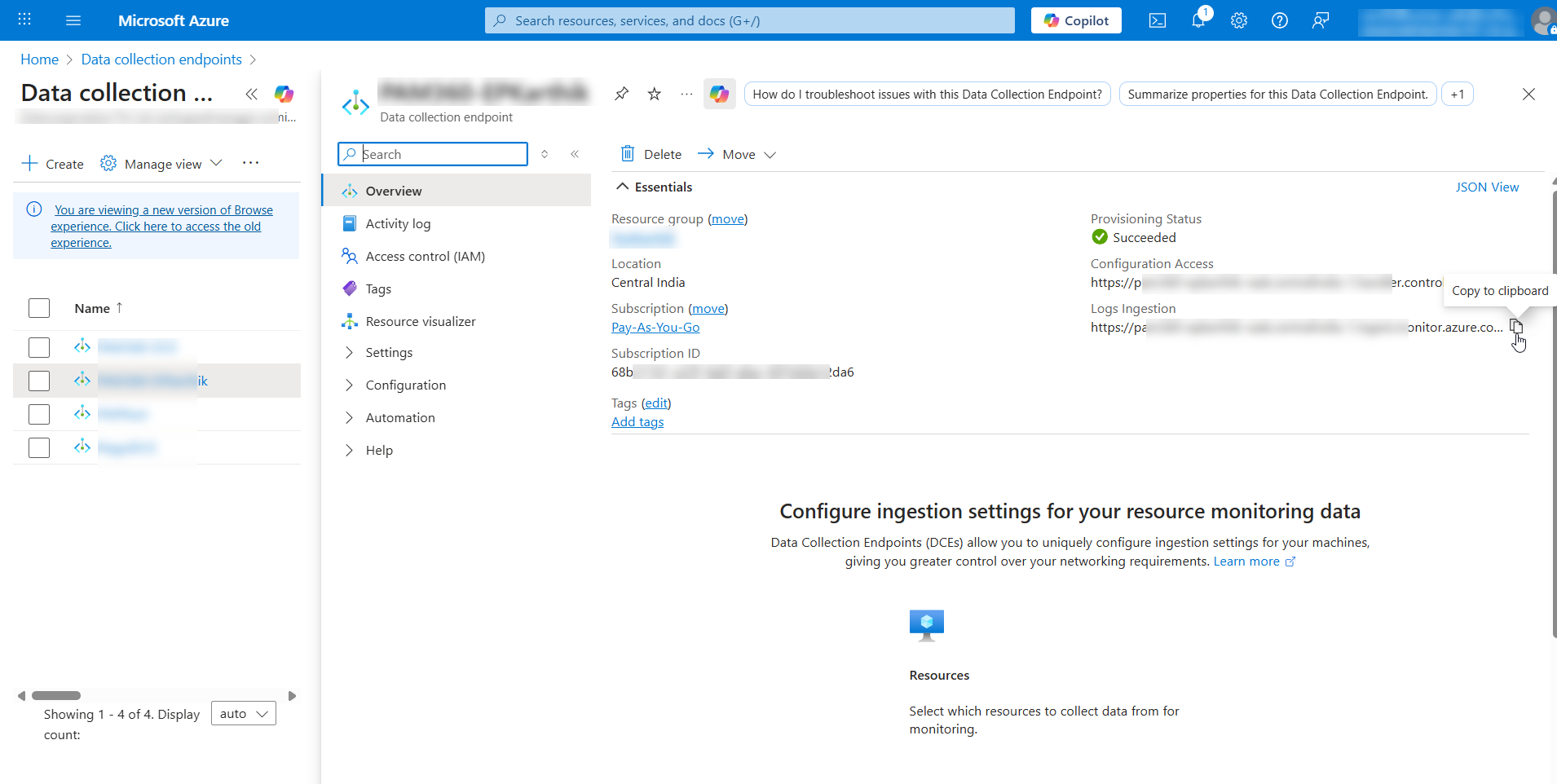
2.3 Creating a Data Collection Rule
A Data Collection Rule (DCR) defines how incoming PAM360 audit logs are processed, mapped, and stored in Microsoft Sentinel. It links the data source with the target Log Analytics table, ensuring logs are ingested in the correct format and location. To create a DCR in the Azure portal, follow the steps below:
- On the Azure home page, under Azure services, click Log Analytics workspace.
- On the page that appears, select your workspace from the list.
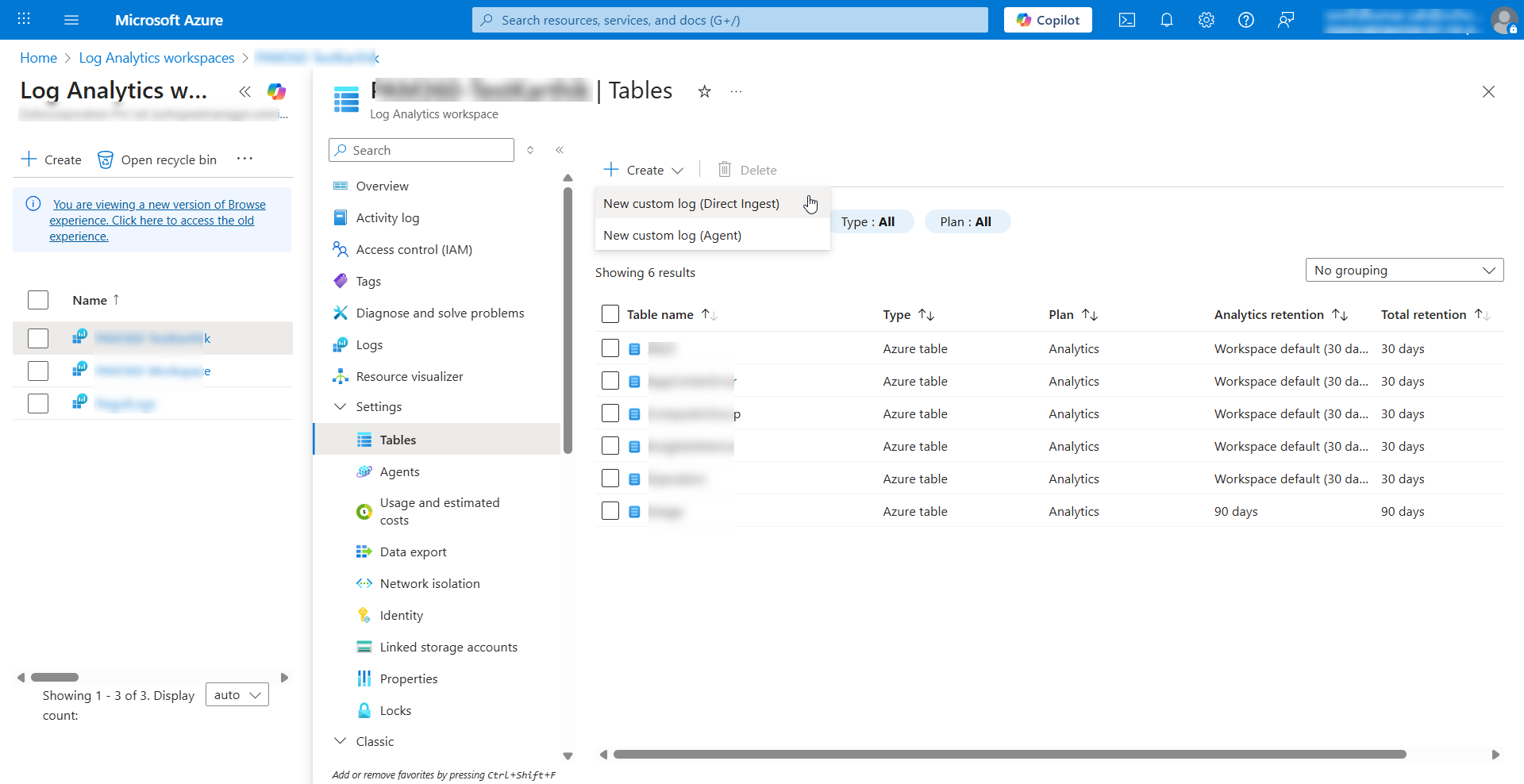
- From the left-side pane, expand Settings and click Tables.
- Click the Create dropdown and select New custom log (Direct Ingest) to create a custom log. This step is crucial because it enables Microsoft Sentinel to accept logs sent directly from PAM360 using the Logs Ingestion API. It also defines the custom table structure and associates it with a data collection rule, allowing PAM360 audit logs to be correctly parsed, stored, and queried within the Log Analytics workspace.
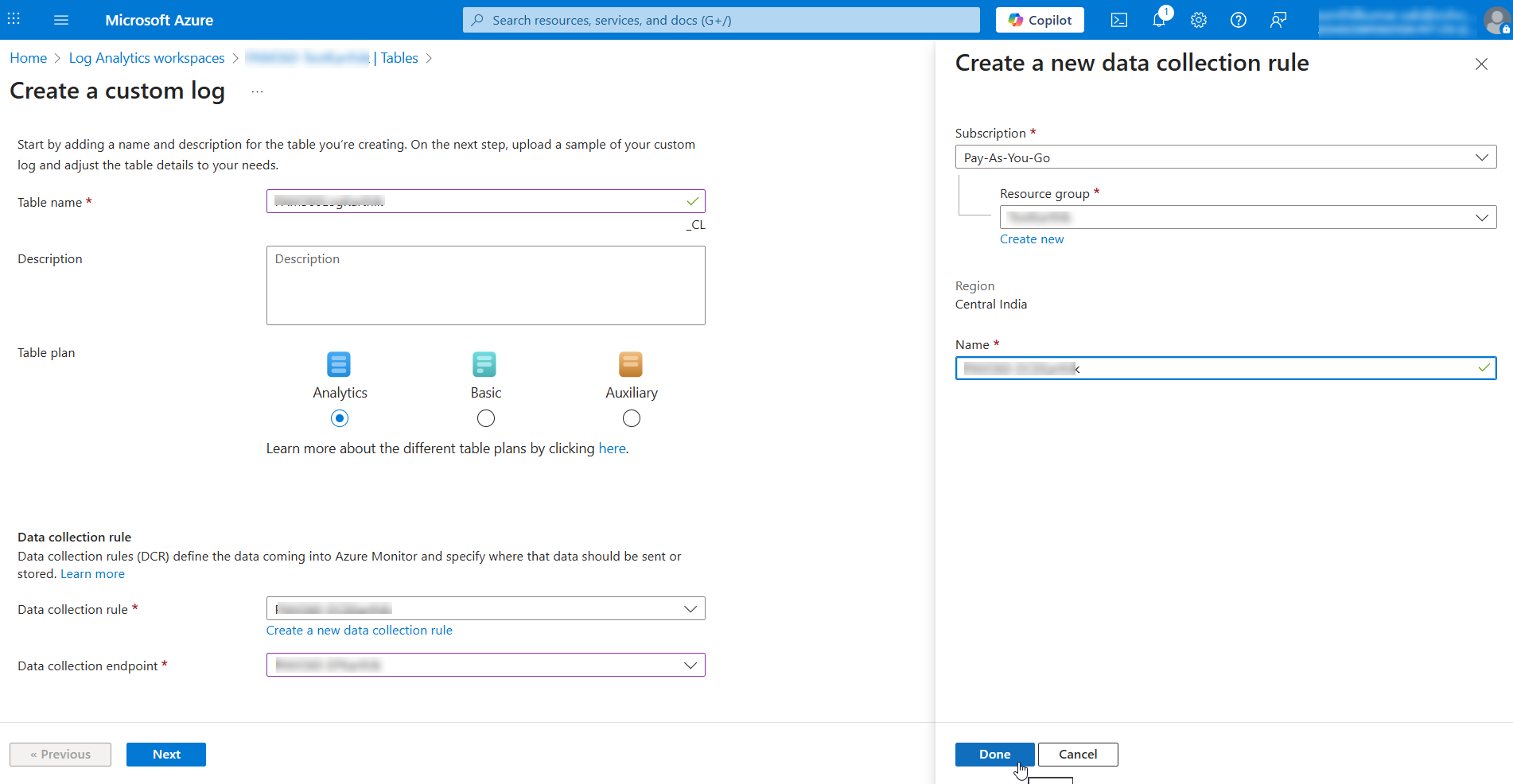
- On the page that appears, enter the Table name and click Create a new data collection rule beneath the Data collection rule dropdown.
- In the window that appears, enter the DCR name and click Done.
- Select the Data collection endpoint from the dropdown and click Next.
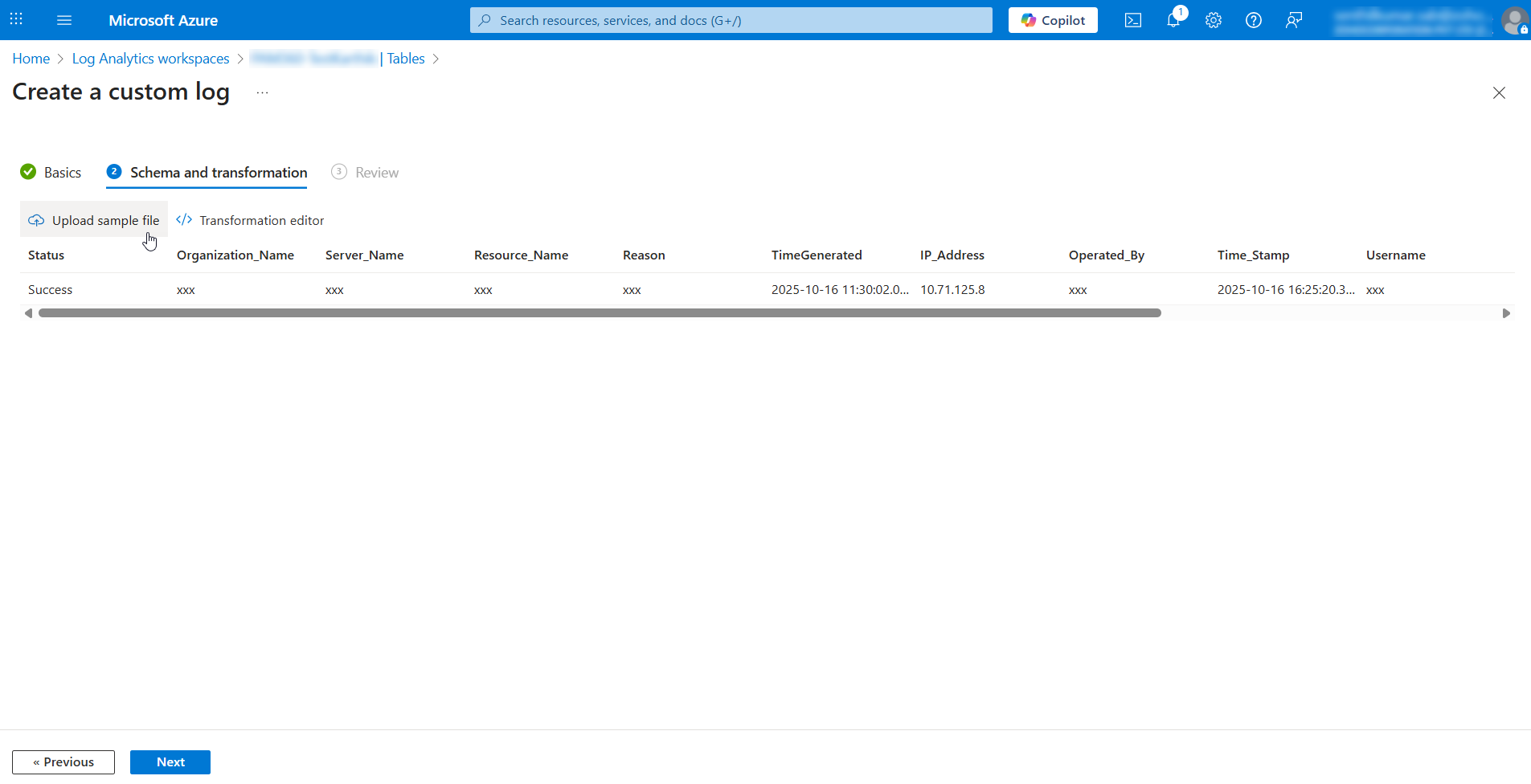
- On the page that appears, upload the sample log file and click Next >> Create. Click here to view the sample log and save it to your machine in the JSON format.
Additional Detail
The sample log file represents the JSON structure of PAM360 audit logs. Uploading this file helps Microsoft Sentinel understand the schema and table format of the incoming data. This ensures that audit logs sent from PAM360 follow the same structure in Azure, allowing the logs to be correctly parsed, stored in the custom table, and queried effectively in the Log Analytics workspace.
The DCR has been created in the Azure portal. Note down the Immutable ID of your DCE. This will be used for authentication when integrating Sentinel in PAM360.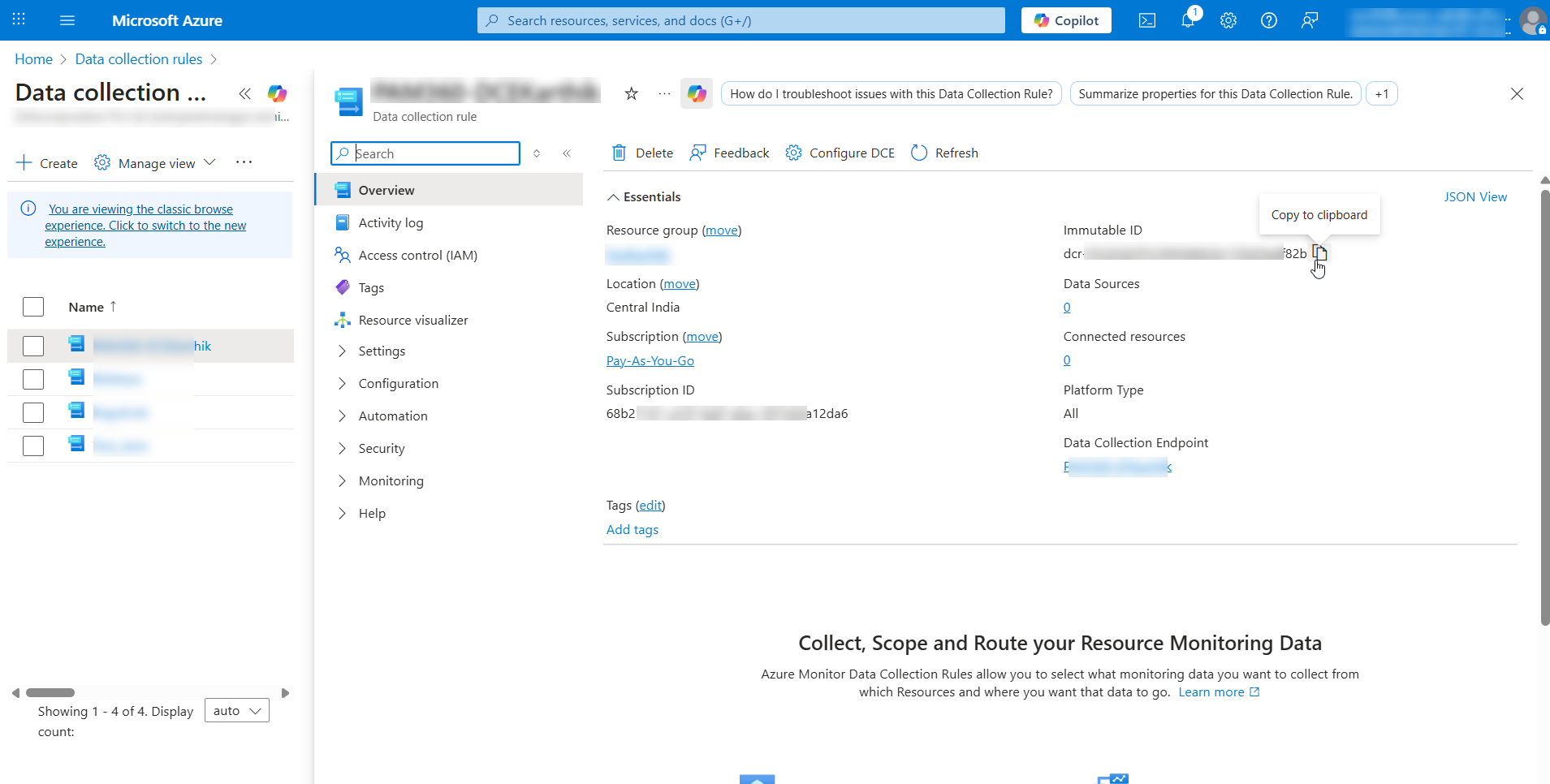
2.3.1 Assigning Roles to the Azure Application
After creating a DCR, follow these steps to assign roles to the Azure application:
- In the Azure portal, navigate to the Data Collection Rule page and select your DCR.
- Click Access control (IAM) from the left pane and click Add >> Add role assignment.
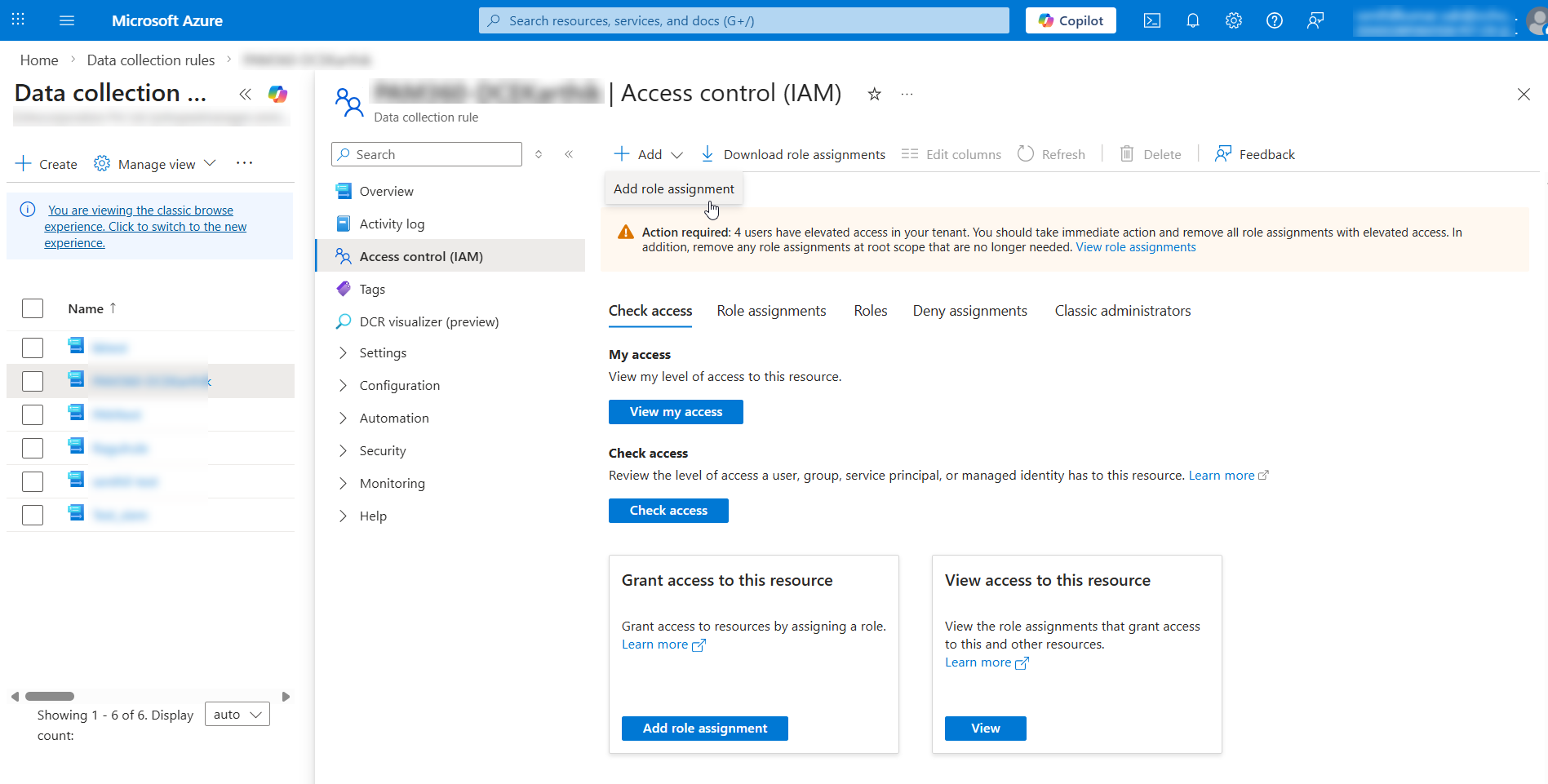
- On the Add role assignment page that appears,
- Select the Contributor or Monitoring Metrics Publisher role from the list and click Next.
Additional Detail
The Contributor or Monitoring Metrics Publisher role is required to grant the Azure application the necessary permissions to ingest logs into the DCR. These roles allow the application to write log data, publish metrics, and interact with ingestion endpoints without providing excessive administrative privileges. Assigning these roles ensures secure and authorized log ingestion from PAM360 into Microsoft Sentinel.

- Ensure that the Assign access to option is set to User, group, or service principal.
- Click Select members next to the Members field.
- In the window that appears on the right-side of the page, search and select your registered Azure application for the Sentinel integration.

- Click Next >> Review + assign. The selected role will be assigned to the Azure application.
- Select the Contributor or Monitoring Metrics Publisher role from the list and click Next.
Now, you have assigned the Azure application the necessary permissions and mapped it with the DCR.
2.4 Registering an Azure Application for Log Ingestion
2.4.1 Creating an Azure Application
- On the Azure home page, under Azure services, click Microsoft Entra ID.
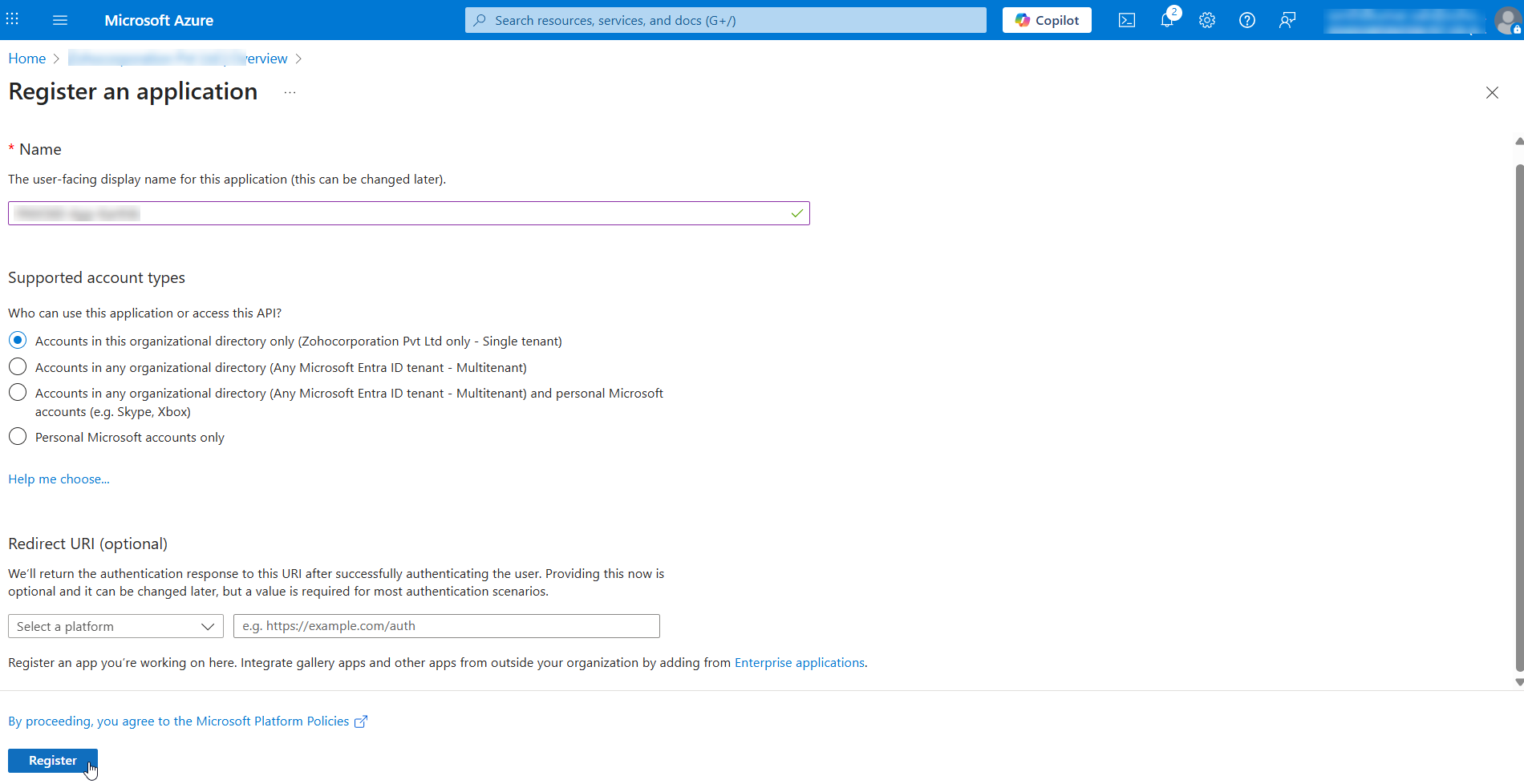
- On the page that appears, click Add >> App registration.
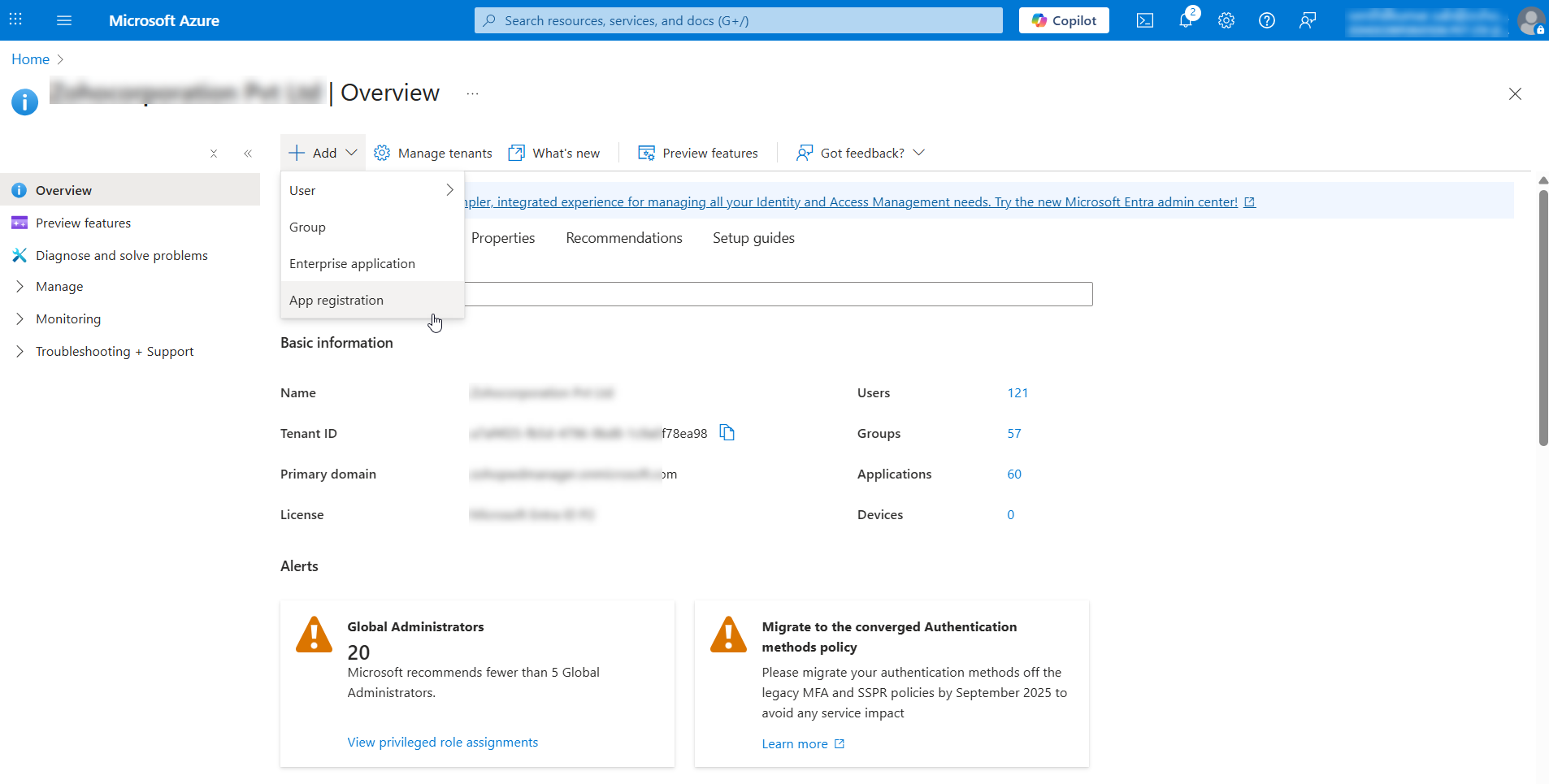
- On the Register an application page,
- Enter a Name for the new application.
- Select the supported account types (optional) and Redirect URI (optional).
- Click Register to create the application.
2.4.2 Creating Client Secret and Assigning Roles
Once the application is created, note down the Application (client) ID and Directory (tenant) ID as these will be required while sending syslog messages from PAM360. Then, proceed to create client secret and assign roles for the registered application by following the steps below:
- Expand Manage from the left-side panel and select Certificates & secrets from the list.
- Under Client secrets, click + New client secret.
- In the window that appears, enter a Description for the client secret and click Add.
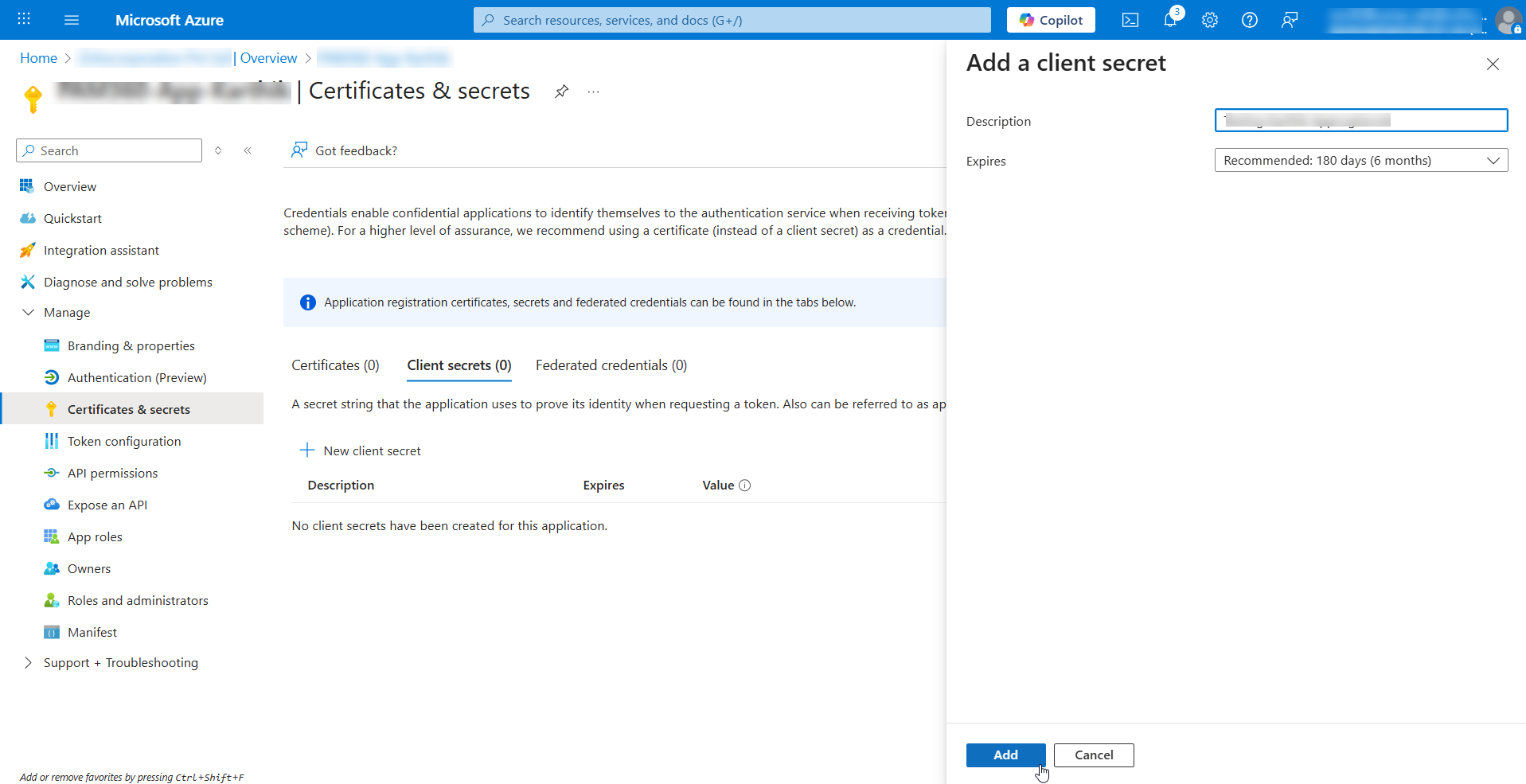
- Once the secret is created, copy its Value from the list as it is required in the future while creating and managing an Azure App resource in PAM360.

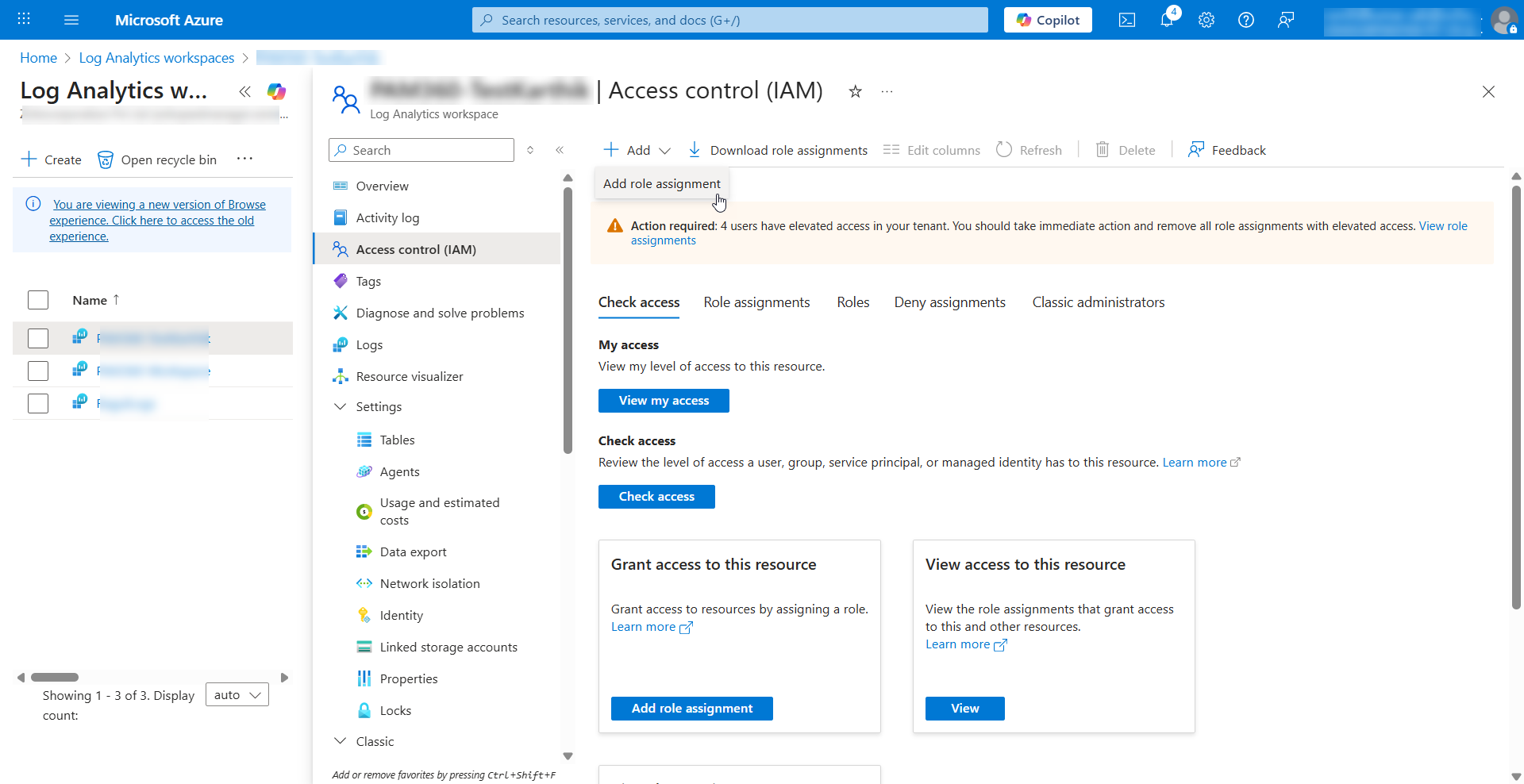
- Now, navigate to the Log Analytics workspace page and select your workspace.
- Click Access control (IAM) from the left pane and click Add >> Add role assignment. Execute the steps in this section to assign the role to the Azure application and map it with the Log Analytics workspace.
You have successfully configured a workspace for PAM360 in the Microsoft Sentinel portal.
3. Configuring PAM360 for Microsoft Sentinel Integration
3.1 Adding the Azure Application as a Resource in PAM360
This section explains how to add your Azure application (registered for log ingestion in the Azure portal) as a resource in PAM360 for the Sentinel integration.
- Navigate to the Resource tab and click Add Resource >> Add Manually.
- In the Add Resource window that appears,
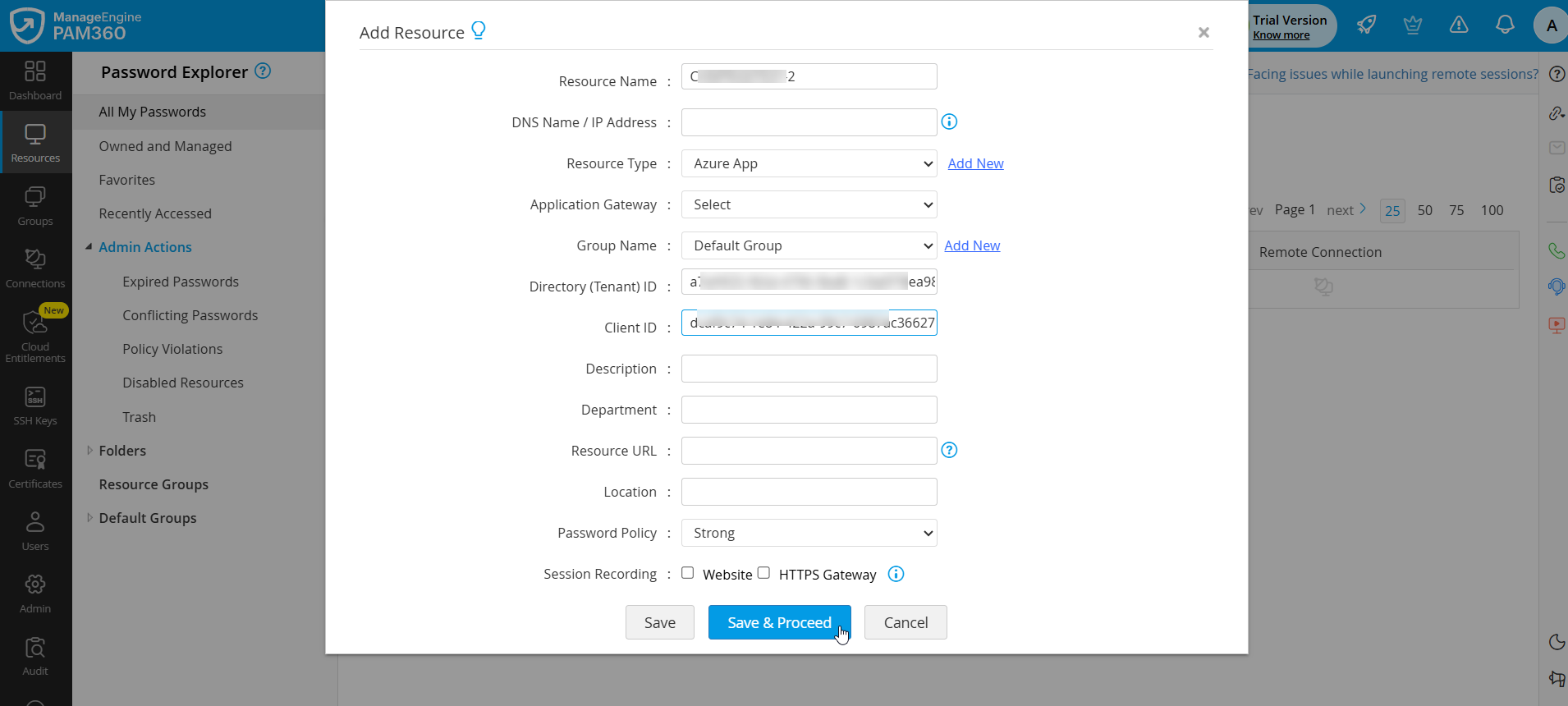
- Enter the Resource Name of your Azure application.
- Select Azure App from the Resource Type dropdown.
- Fill in the Directory (Tenant) ID and Client ID that are copied from the Azure portal while creating an Azure application.
- Click Save & Proceed to add an account and save the client secret.
- In the Add Accounts window that appears,
- Enter the Client Secret Name of your choice.
- Enter the secret value (copied from the Azure portal) in the Secret Value and Confirm Secret Value fields.
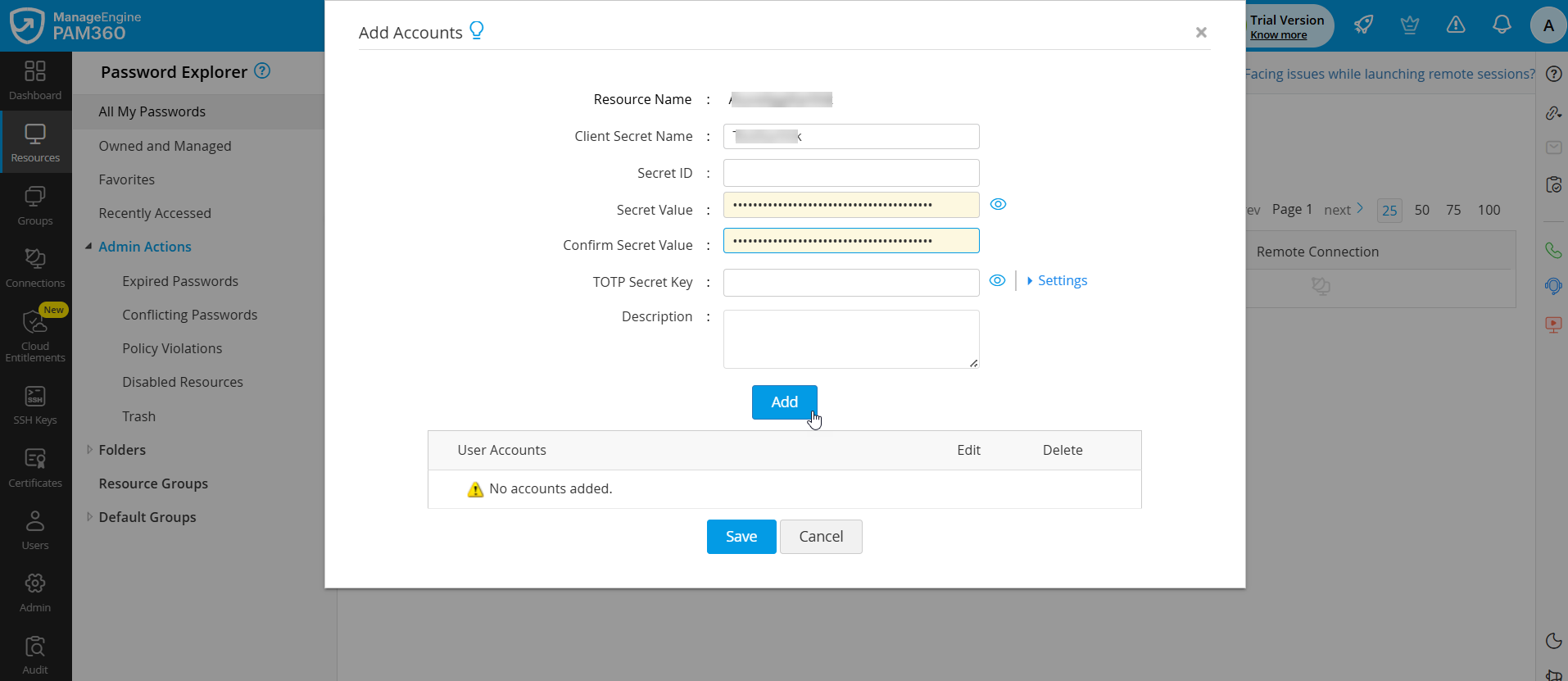
- Click Add >> Save to add the Azure application credentials. This will be used later for authentication when sending syslog messages after the Sentinel integration.
3.2 Enabling Microsoft Sentinel Integration in PAM360
Follow the below steps to complete the Microsoft Sentinel configuration in PAM360:
- Navigate to Admin >> Integrations >> SIEM.
- Under Microsoft Sentinel, click Enable.
- In the dialog box that appears,
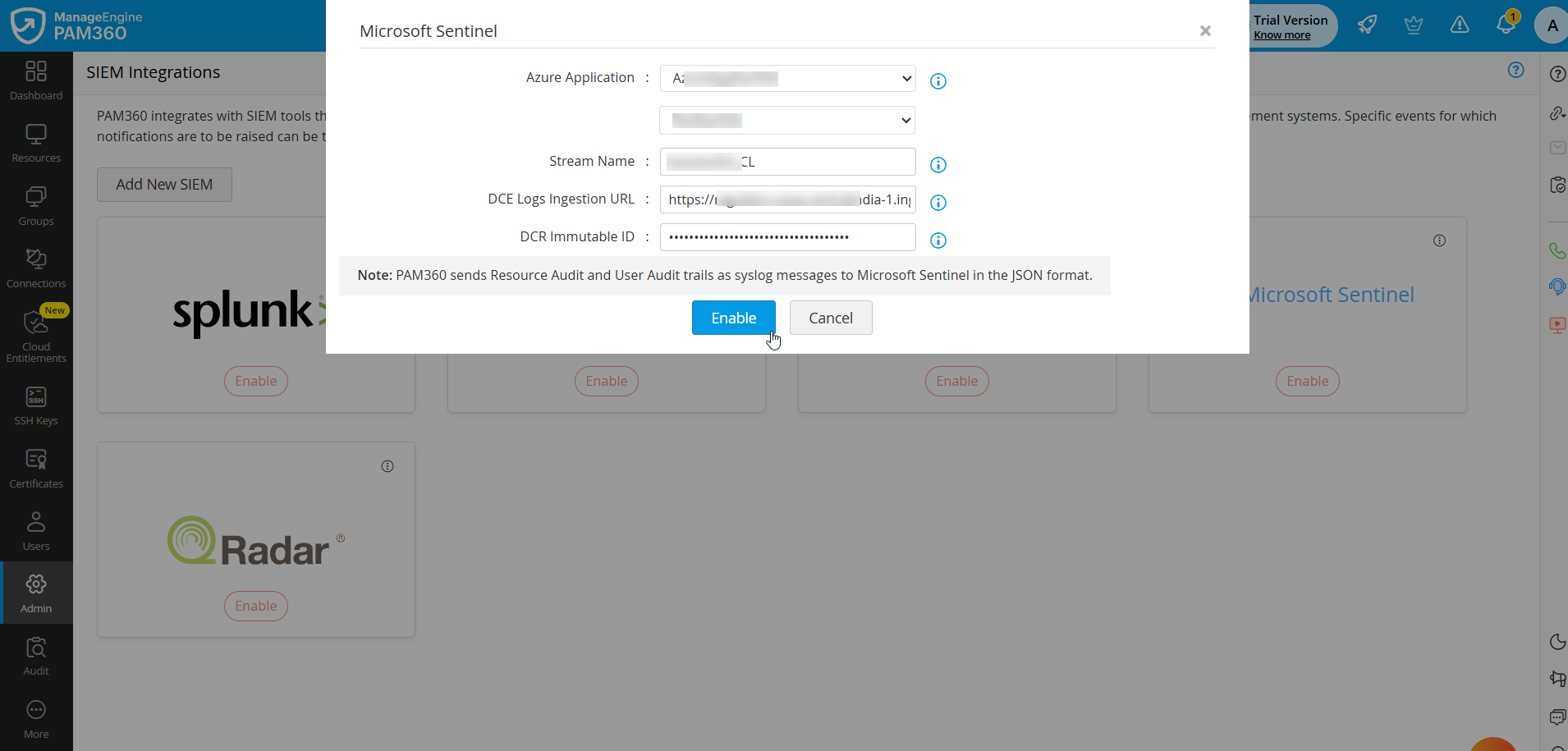
- Select the Azure application resource and the account from the dropdown.
- In the Stream Name field, enter the custom log table name or stream name that is copied from the Azure portal.
- In the DCE Logs Ingestion URL field, enter the logs ingestion URL copied from the Azure portal.
- In the DCE Immutable ID field, enter the immutable ID copied from the Azure portal and click Enable.
- In the confirmation dialog box that appears, click Enable to confirm the integration.
The integration process is now complete. From now on, all audit trails that are captured in PAM360 will be transferred to the Microsoft Sentinel portal.
4. Viewing PAM360 Logs in Microsoft Sentinel
To view the PAM360 logs in Microsoft Sentinel, log in to the Azure portal and follow these steps:
- Under Azure services, select Log Analytics workspace.
- Select your workspace from the list and click Logs.
- Expand the Custom Logs menu and verify if a custom log for PAM360 has been created (for example, PAM360_CL).
- Double click the custom log, the command will appear on the terminal to the right. Add a semicolon to the custom log command: PAM360_CL;
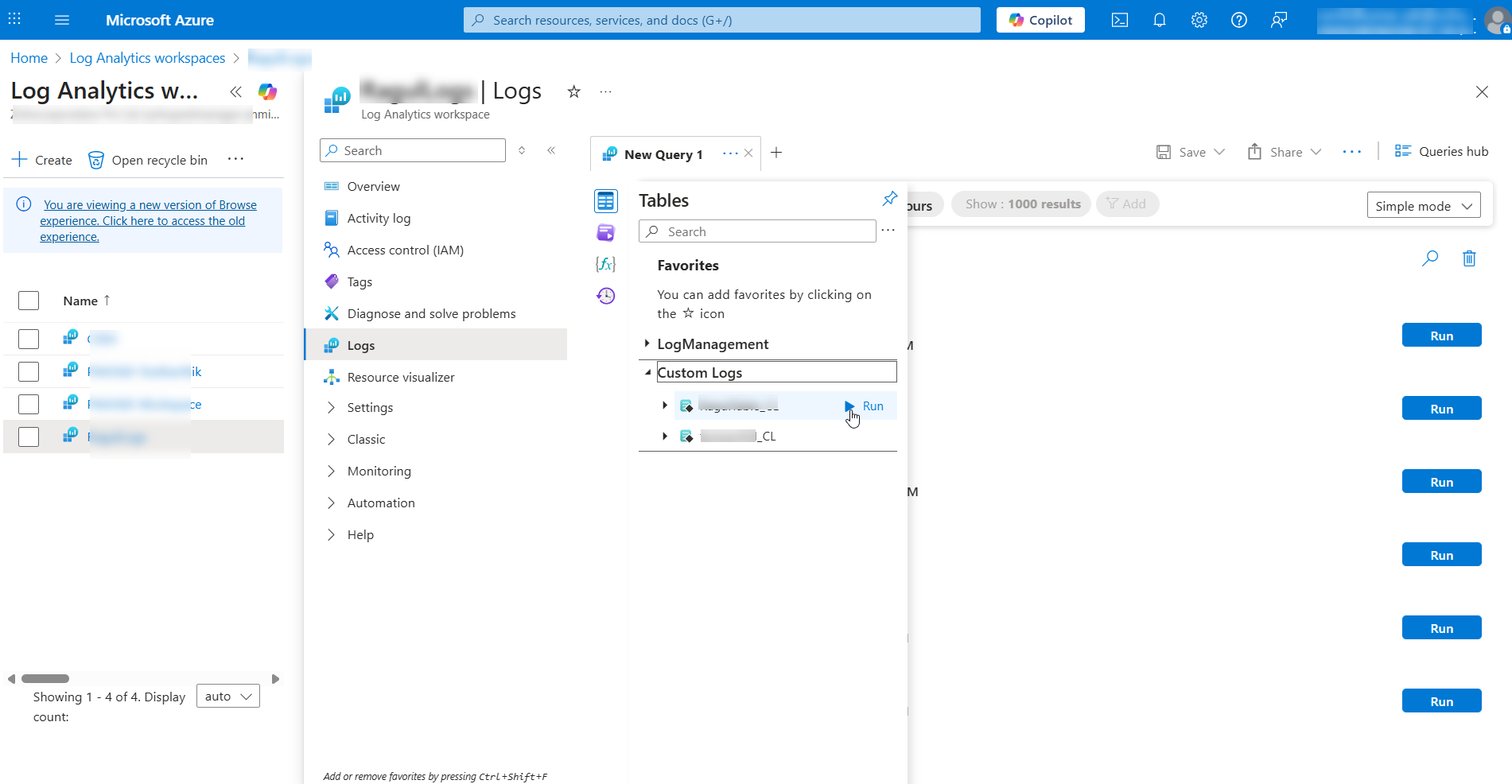
- You can choose the required time range and click the Run option from the top.
- Now, all logs captured from PAM360 in the selected time range will appear below.
- If required, use the Export option to export the logs in the CSV format.
5. Troubleshooting Tips
After configuring the integration, if you are still unable to view the PAM360 logs in the Microsoft Sentinel portal, try the below steps:
- Ensure there is internet connectivity in the machine where the PAM360 server resides.
- Check if the Generate Syslog option is enabled in the PAM360 interface under Configure Audit.
- Ensure that you do not delete the custom logs that are auto-generated in Log Analytics workspace under Settings >> Tables. In case, you have deleted the custom logs, re-configure the integration with a new workspace.