Setting up Two-Factor Authentication - Okta Verify
Two-Factor Authentication (TFA) adds an extra layer of security to your accounts by requiring a second form of verification in addition to your password. Okta Verify offers a seamless and secure way to implement TFA using a software-based authentication token. Once installed on your smartphone or tablet, Okta Verify generates a unique six-digit code every 30 seconds. This eliminates the need to wait for SMS delivery, ensuring quick and reliable access to your PAM360 account. By enabling Okta Verify, you enhance the security of your account against unauthorized access attempts.
Caution
Enable Okta Verify as the TFA and enforce it to the PAM360 users prior configuring it from the Okta interface. Refer here for detailed instructions.
Connecting to PAM360 Web Interface with Okta Verify as TFA
The users for whom TFA is enabled will have to authenticate twice successively. The first level of authentication will be through the usual authentication, i.e., the users have to authenticate through PAM360's local authentication or Active Directory/LDAP authentication, whichever is enabled. Perform the following steps to connect to the PAM360 web interface after enabling Okta Verify TFA:
- On the PAM360 login page, proceed with the first level of authentication and click Login.
- Associating Okta Verify with your PAM360 account: When you are logging in for the first time with Okta Verify as the TFA, you will be prompted to associate it with your PAM360 account. After launching the Okta Verify app in your mobile device or tablet,
- Tap the Add Account or + button and select Other (Google, Facebook, etc.).
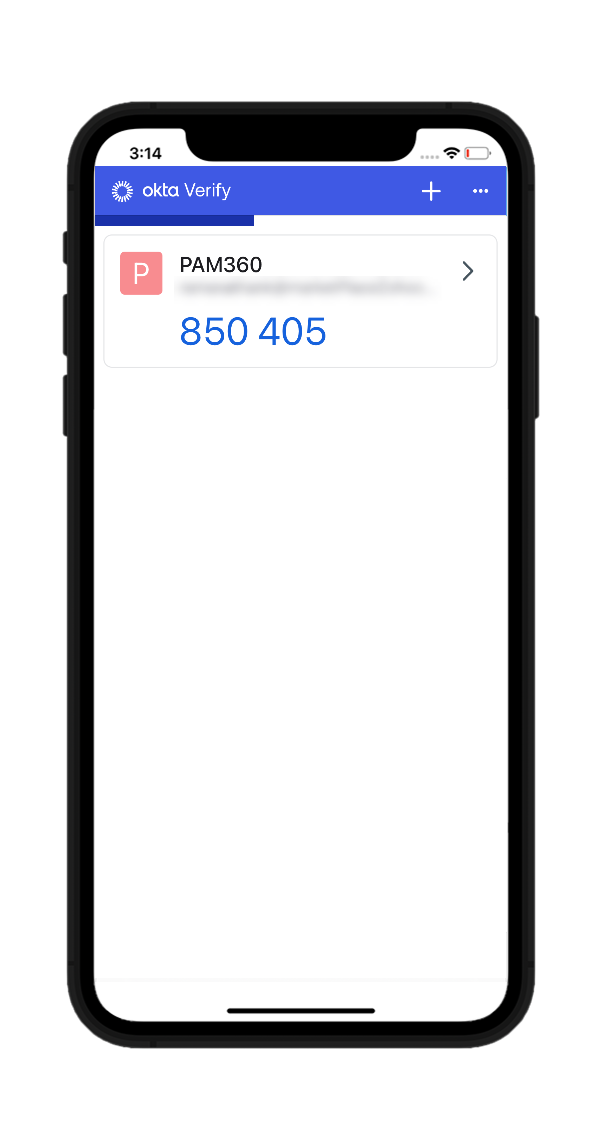

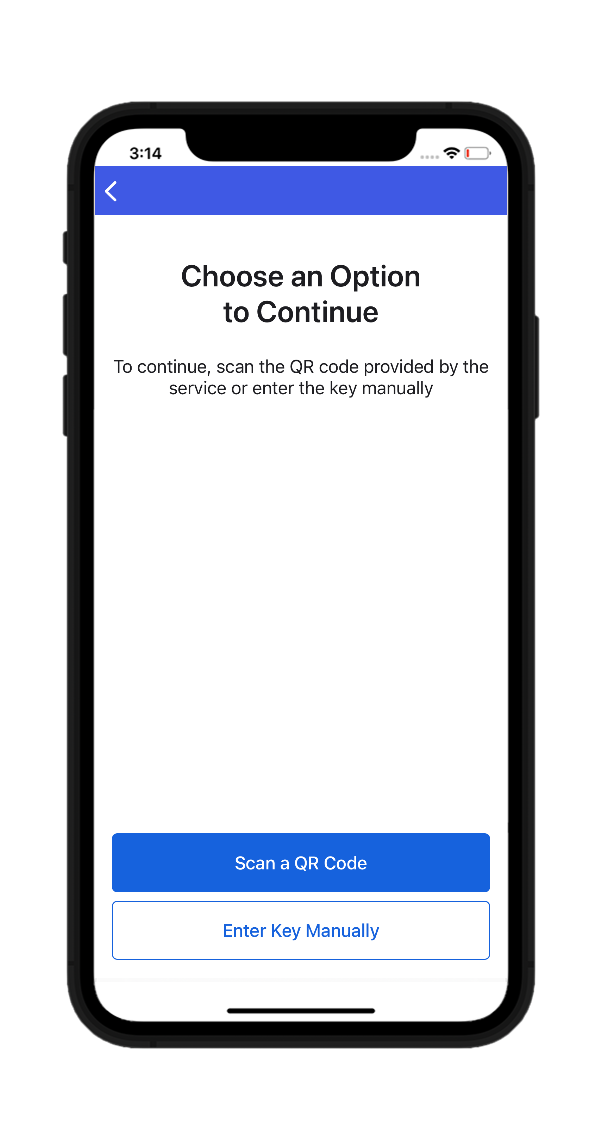
- Here, you can select either Scan a QR Code or Enter Key Manually. Upon selecting the scan QR code option, scan the QR code displayed in the PAM360 GUI.
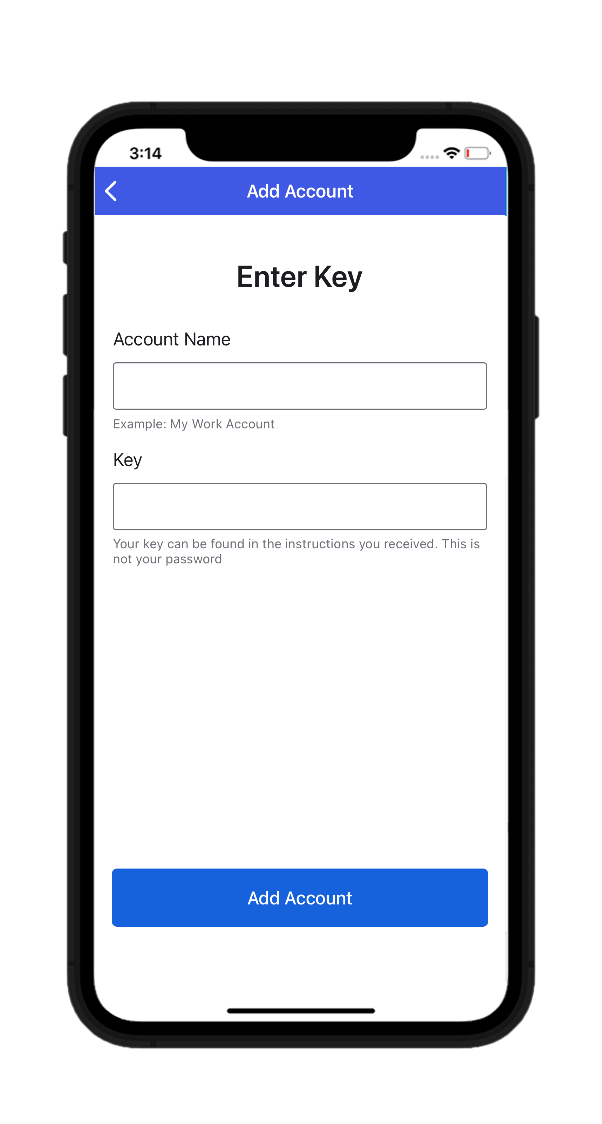
- If you choose to enter the code manually, the GUI will prompt you to enter an account name and a security key.
- Input the Account Name and Key for your PAM360 account in the fields and tap the Add Account button.
- Okta Verify will now start generating codes periodically, that changes every 30 seconds.
- You can enter this code in the text box provided on the PAM360 login page for the second level of authentication.
- Tap the Add Account or + button and select Other (Google, Facebook, etc.).
Additional Detail
If you have lost your TFA registered device or deleted the Okta Verify application, reset the TFA using the applicable method mentioned here.