PAM360 MSP Edition - Getting Started
The MSP Edition of ManageEngine PAM360 is tailored specifically to meet the unique requirements of Managed Service Providers (MSPs). If you are an MSP looking to manage your clients' administrative passwords through a centralized console or offer privileged account management as a service, the PAM360 MSP Edition is the ideal solution. It enables the secure management of privileged accounts across both MSP and client organizations, ensuring that users only access the accounts they own or those shared with them by their respective organizations.
Following the same privileged account entitlement model in the standard version of PAM360, the MSP edition ensures that users can only view the accounts they own or that have been shared with them. As an MSP administrator, you will be able to see the names of the organizations you manage, but you can only access your clients' account data when it has been added by you or explicitly shared with you by the client. Client organization users on the other hand will only have access to their own organization’s data.
This setup ensures a seamless and secure boundary between MSP and client organizations, maintaining strict control over privileged account access.
Additional Detail
The PAM360 MSP Edition currently supports up to 900 client organizations.
This document walks you through the following topics:
- Installing the MSP Edition
- Managing the MSP Organization
- Managing the Client Organizations
- Managing the MSP and Client Organization Access
- Frequently Asked Questions
1. Installing the MSP Edition
To begin, download the ManageEngine_PAM360_MSP.exe file from the provided link.
The installation of the PAM360 MSP Edition follows the same procedure as the standard PAM360 version. For more details, please refer to the installation guide provided in the documentation. If you prefer to perform a silent installation, refer to this help documentation for instructions.
2. Managing the MSP Organization
Similar to the standard PAM360 edition, managing an MSP organization begins with configuring key components, such as the PAM360 encryption key, web server certificate, mail server, and adding users and resources. After the initial setup of the MSP organization, the MSP administrators can create client organizations by assigning another administrator user from the MSP organization as the Account Manager for the respective client. Once designated, the account manager (i.e., MSP administrator) oversees the client organization users, resources, SSH, and SSL and can configure its management settings according to its requirements.
The account manager can seamlessly switch between the MSP and client organization directly from the PAM360 interface. In contrast, other users assigned regular roles can access the PAM360 application using their respective MSP or client organization’s login URL, depending on where they were added as users.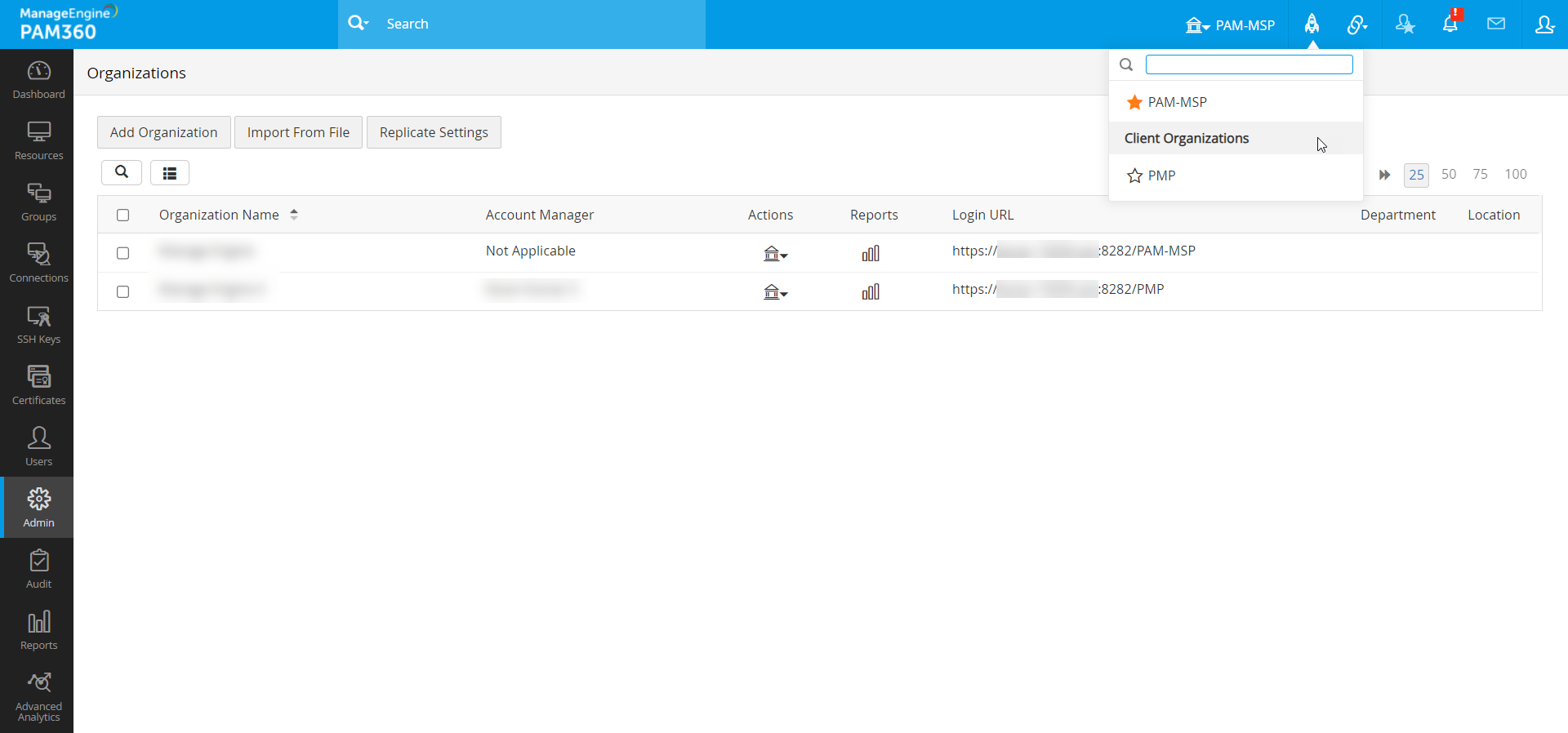
3. Managing the Client Organizations
When managing an MSP organization in PAM360, you can create client organizations as needed. To do this, navigate to Admin >> Organizations >> Organizations. Here, you will register the organizations that will be managed by the MSP. Client organizations can either be added manually one by one or imported in bulk from a file.
3.1 Adding Organizations Manually
- Navigate to Admin >> Organizations >> Organizations and click Add Organization.
- In the dialog box that opens, enter the following details:
- Organization Name: Enter a name for the client organization.
- Display Name: Specify the name of the organization. This name must be a single word containing only alphanumeric characters without spaces. The entered name will appear in the drop-down menu at the top-right of the PAM360 GUI and in the organization's login URL. For example, if you assign 'xyz' as the display name, the login URL for the organization will be `https://:<hostname:8282>/xyz`.
- Account Manager: Designate an MSP organization user with the administrator privilege as the client organization's Account Manager. The Account Manager will act as the primary contact for the client organization and will have privileges to manage users, resources, SSH keys, and SSL certificates on its behalf. Each organization can have only one Account Manager, but the same administrator user can manage multiple client organizations.
- Complete other fields, such as Department and Location, and click Save.

3.2 Importing Organizations from a File
You can also import multiple organizations in bulk using the import wizard. Click here to view sample files and supported file formats. Ensure that each organization entry is on a new line in the file.
Caution
In earlier versions, importing a .txt file with comma-separated values was supported. However, from build 6400 onwards, if entries are comma-separated, the file format should be .csv. Files with tab-separated values should be saved as .txt or .tsv.
To import organizations, navigate to Admin >> Organizations >> Organizations and click Import From File. In the pop-up form that opens,
- Select the File Type and File Format.
- Browse and select the file containing the organization details, then click Next.

- In the next screen, check if the fields are auto-mapped according to the column names in the file. You can manually map fields to corresponding attributes if necessary.
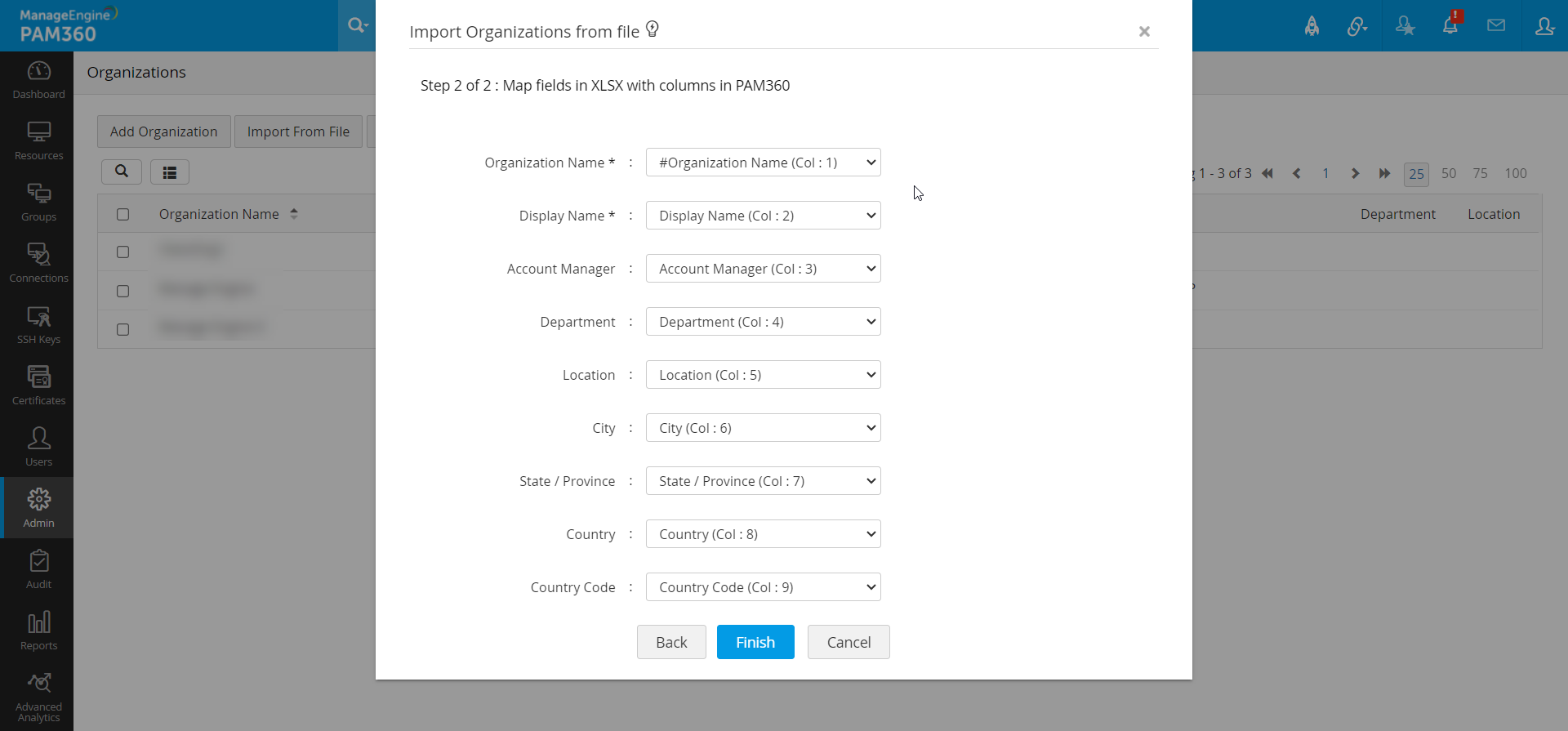
- Click Finish to complete the client organization import process.
Each imported organization's result will be logged as an audit record for future reference.
3.3 Replicating MSP Settings Across Client Organizations
PAM360 allows MSP administrators to replicate MSP resource and user group structures, as well as various settings, across all managed client organizations, streamlining the management process.
To configure this, follow these steps:
- Navigate to Admin >> Organizations >> Organizations >> Replicate Settings Across Client Orgs.
- Select the desired settings and structures to replicate by checking the corresponding checkboxes and click Save to save changes.
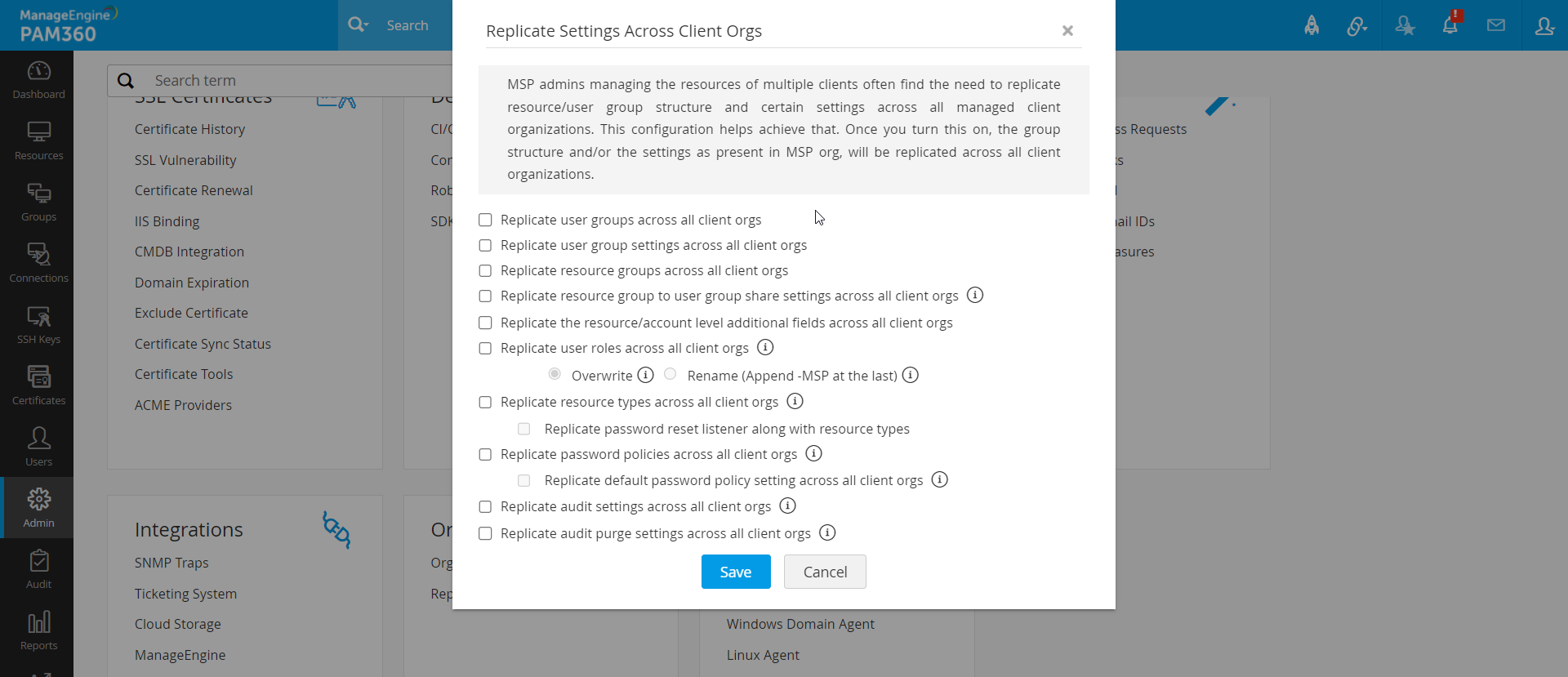
The following settings and structures can be replicated from the MSP organization to all client organizations:
- Replicate user groups across all client orgs - Replicates the user groups of the MSP organization across all client organizations.
- Replicate user group settings across all client orgs - Replicates the user group permission and privileges of MSP organization across all client organizations.
- Replicate resource groups across all client orgs - Replicates the resource groups of the MSP organization across all client organizations.
- Replicate resource group to user group share settings across all client orgs - Replicates the resource group to user group share configuration of MSP organization across all client organizations.
- Replicate the resource/account level additional fields across all client orgs - Replicates the MSP organization's resources' and accounts' additional fields across all client organizations.
- Replicate user roles across all client orgs - Replicates the available user roles of the MSP organization across all client organizations.
- Replicate resource types across all client orgs - Replicates the resource types of MSP organization across all client organizations with the password reset listeners and database properties as required.
- Replicate password policies across all client orgs - Replicates the available password policies of the MSP organization across all client organizations with the default password policy setting as required.
- Replicate audit operation type settings across all client orgs - Replicates the available operation types of the MSP organization across all client organizations.
- Replicate audit purge settings across all client orgs - Replicates the configured audit purge settings of the MSP organization across all client organizations.
- Replicate session recording storage location across client orgs - Enabling this option will allow the replication of the configured session recording storage location for the MSP organization from the Admin >> Organizations page across selected client organizations.
By leveraging this feature, MSP administrators can ensure consistency in structure and policy enforcement across all managed client organizations, saving time and reducing manual configuration efforts.
4. Managing the MSP and Client Organization Access
In addition to assigning an Account Manager, MSP administrators can grant access privileges to other members of the MSP organization for managing or accessing the client organizations. Users with administrator privileges in the MSP organization will receive admin-level access within the client organization, while password administrators or password users will retain their respective permissions based on the roles assigned.
To enhance security, PAM360 requires approval before granting access to manage a client organization. An MSP administrator can initiate an access request for a client organization, but this request must be approved by a different administrator within the MSP. The initiator of the request or the designated recipient cannot approve the request themselves. This ensures that no administrator can unilaterally grant themselves or others access to a client organization without approval from another administrator. As a result, there must be at least three administrators in the MSP organization to complete this process.
PAM360 requires approval before managing a client organization to ensure greater security. An administrator at the MSP can initiate organization access for a client organization, but they need to be approved by some other administrator at the MSP. It is not possible to approve the request by the one who initiates it or the one for whom it is being initiated. This is to ensure that no administrator can acquire manage permission for themselves or grant that privilege to anyone else without the approval of another administrator. This essentially means that the MSP organization should have a minimum of three administrators to carry out this process.
For example, if Admin A wants to grant Admin B access to manage client organization ABC, neither Admin A (the proposer) nor Admin B (the recipient) can approve the request. A third administrator, say Admin C, must approve the request for it to be valid.
4.1 Managing Client Organization Access at the User or User Group Level
- Log in to your MSP account and navigate to the Users or User Groups tab.
- Click the Actions icon next to the desired user or user group and select Manage Organization Access from the dropdown menu.
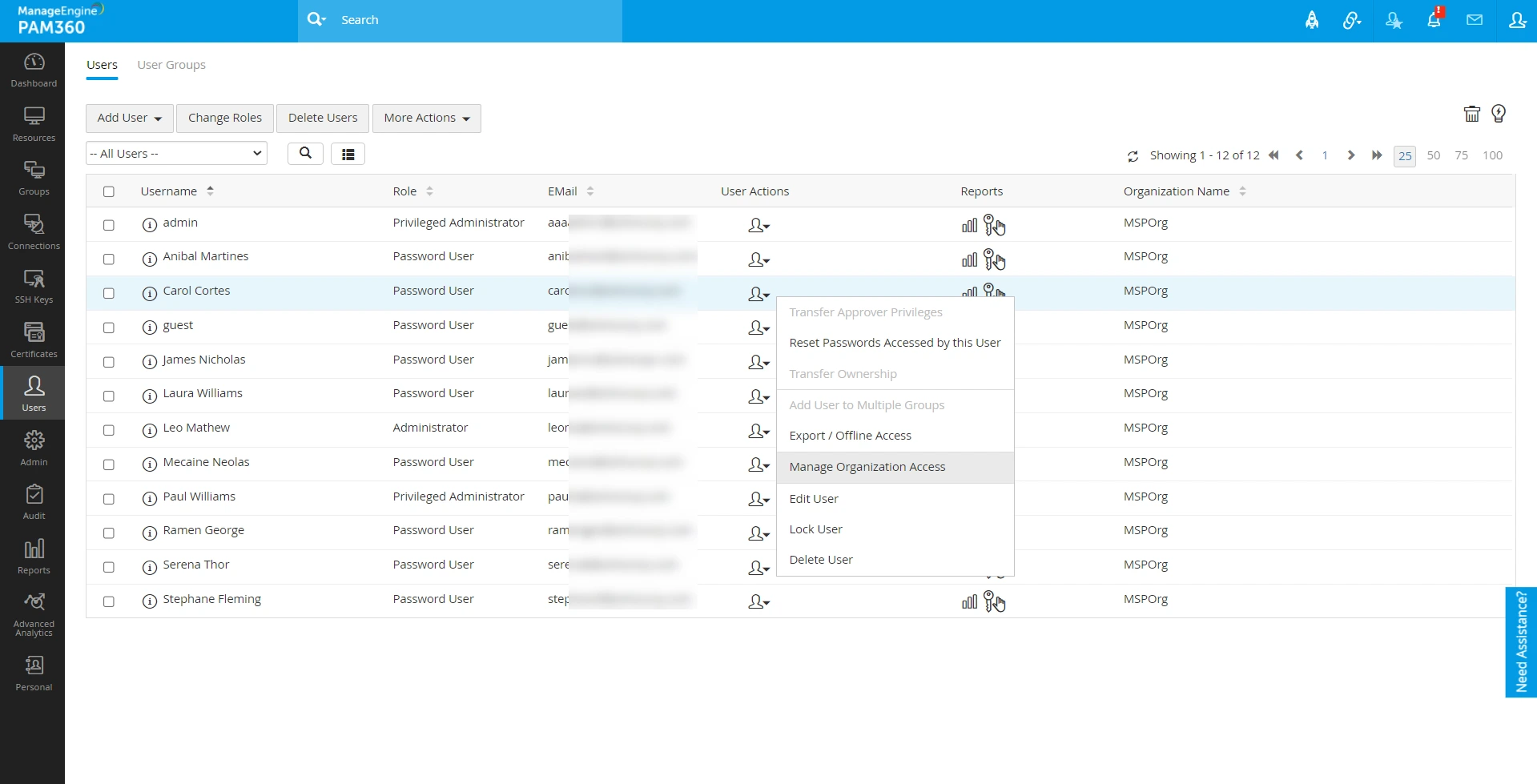
- In the pop-up form that opens, select the required client organizations from the Organization List, move it to Grant Access column using the arrows, select the name of the approver and click Save.
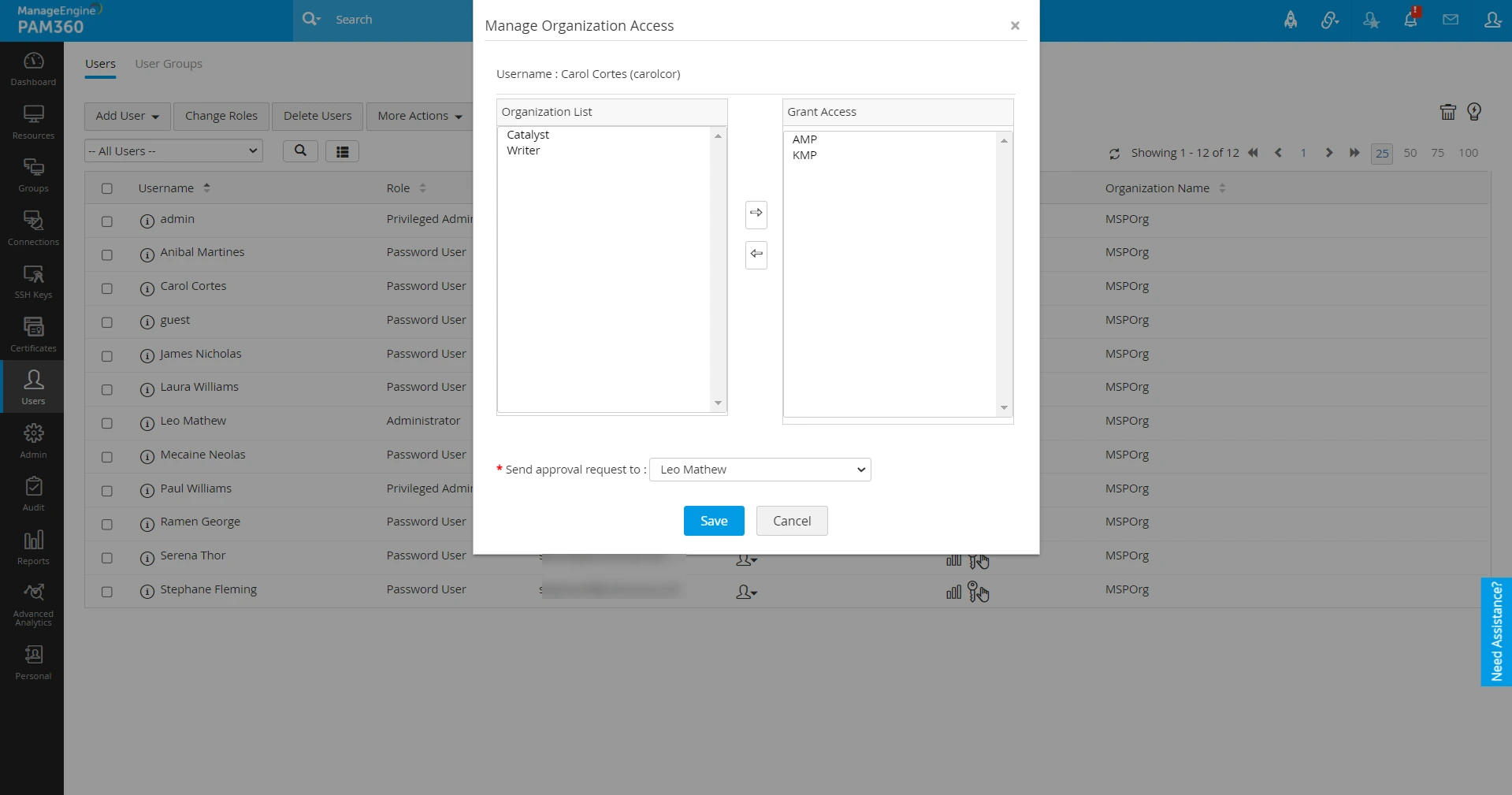
The user will gain access to the client organization once the request is approved by the selected administrator. Alternatively, you can manage access from the Organizations page by clicking the Actions icon next to the desired organization and selecting Manage Organization Access.
The administrator approves the request by navigating to Admin >> Access Requests and selecting User Organization Access or User Group Organization Access. Once the administrator approves the request, the user or user group will gain access to the client organization.
4.2 Additional Operations from the Organizations Page
From the Organizations page, you can perform the following actions by clicking the Actions icon next to the desired organization:
- Manage user access for a client organization
- Manage user group access for a client organization
- Approve user access requests for client organizations
- Approve user group access requests for client organizations.
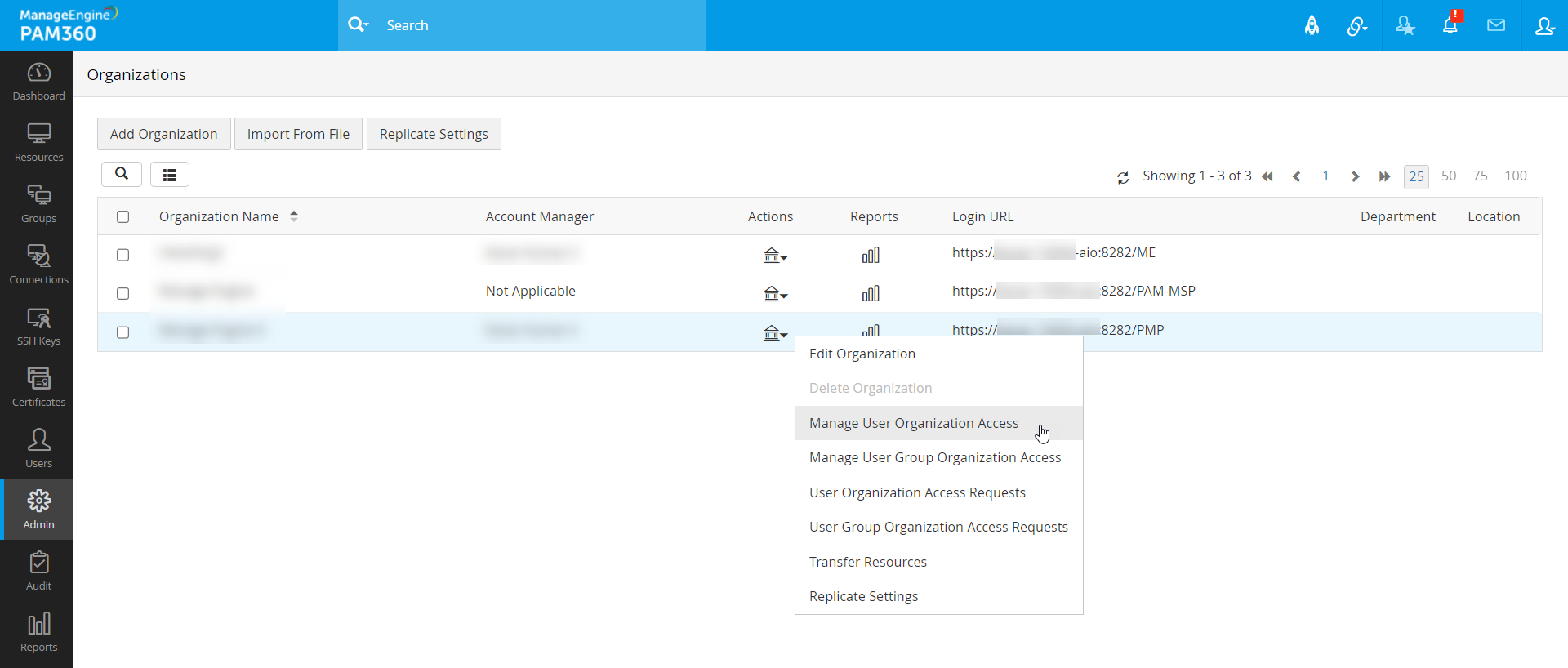
You can also generate reports for client organizations to view details about the users and user groups managed within them. To do this, navigate to Admin >> Organizations >> Organizations and click the Report icon next to the desired client organization. This report will provide a list of users and user groups managed at different levels within the organization.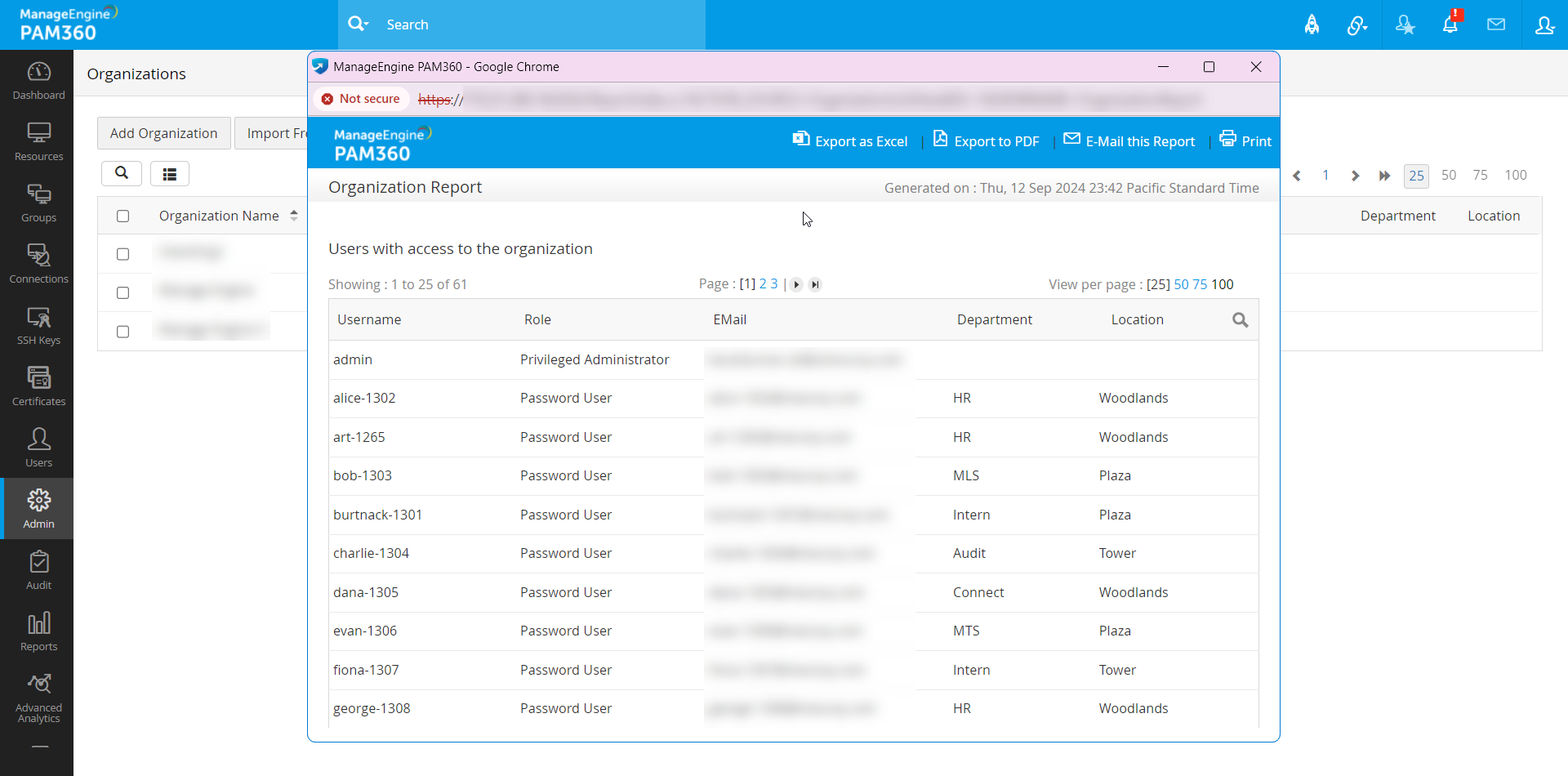
5. Frequently Asked Questions
1. How to manage passwords in the client organization?
Once a client organization is added, a list of the organizations you manage (those for which you have access permissions or where you serve as the Account Manager) will appear in the top navigation bar of the PAM360 interface.
To manage passwords for a client organization:
- Select the desired organization from the list.
- Proceed by adding the necessary resources.
- You can then securely share passwords with your clients as needed.
Alternatively, if you are offering Password Management as a Service, you may request that your clients add and manage their own passwords within the system.
2. How to access specific client organizations?
As an administrator with Client Account Manager permissions, you can access the MSP organization by navigating to the standard URL: `https://<PAM360-Host-Name>:8282/`. From there, select the desired client organization from the top navigation bar in the PAM360 interface.
3. How do your clients access PAM360 application?
Once an organization is created, your clients can connect to their respective organizations and manage passwords by entering the URL in the following format:
`https://<Host-Name>:<Port>/<Organization-Name>`
For example, if the client's organization is named ABC and PAM360 is hosted on 'pam360host', the URL to access their organization would be:
`https://pam360host:8282/abc`
For detailed instructions on performing various password management tasks, please refer to the relevant sections of the help documentation.
4. How to delete a client organization?
To delete a client organization in PAM360, you must be an MSP organization administrator. Additionally, you need one of the following permissions:
- Be the Account Manager of the client organization you wish to delete.
- Have Manage Organization Access privileges for the client organization.
To delete a client organization, follow these steps:
- Navigate to Admin >> Organizations.
- Find the client organization you want to delete, click the Actions icon next to it, and select Delete Organization from the dropdown menu.
- Click OK to confirm the deletion
Please note that deleting a client organization will also remove all associated resources and users.