Privileged Accounts Discovery
The privileged account discovery feature in PAM360 enables administrators to identify and manage all the privileged accounts associated with IT resources in their environment. This help document provides comprehensive guidance on discovering privileged accounts both on demand and through periodic discovery schedules. By following the steps outlined in this document, administrators can gain complete visibility into privileged accounts across their infrastructure, reduce the risks posed by unmanaged or unknown accounts, and seamlessly integrate them into PAM360’s account management and access control workflows.
Caution
- PAM360 supports privileged accounts discovery for only specific resource types. If a device type is not directly supported but closely resembles another supported resource type, the nearest available resource type can be selected while adding the resource. During account discovery, PAM360 will automatically assign a resource type, but administrators should verify and update it if necessary to ensure accurate classification.
- For resources associated with an Application Gateway, both on-demand and periodic account discovery processes will be performed by the Application Gateway server to which the resource is associated. Therefore, ensure that the Application Gateway is active and running for a successful discovery.
- If you are using PAM360 MSP edition and want to enable resource discovery in client organizations, navigate to Admin >> Customization >> General Settings and tick the Enable Discovery in client organization checkbox within the User Management section.
This help document covers the following topics in detail:
1. Prerequisites
- To discover and enumerate privileged accounts, including the local administrator accounts, PAM360 requires valid credentials with sufficient privileges to connect to the target resource and query, enumerate, and fetch its privileged accounts. You can supply the necessary credentials by configuring the remote login credentials for the desired resource whose accounts you wish to discover. Explore this link for detailed steps to configure login credentials for different resource types in PAM360.
- To discover privileged domain accounts in a Windows Domain resource, PAM360 requires a domain administrator account with the necessary privileges to query the domain controller, enumerate the groups in the Active Directory domain, and perform operations such as password resets.
2. Discovering Privileged Accounts
PAM360 allows administrators to discover privileged accounts associated with individual resources or perform bulk discovery across multiple resources simultaneously. During the discovery process, PAM360 connects to the target resources and fetches all the associated privileged accounts. Upon discovery, the accounts are automatically added to their respective resource containers.
- Discovering Privileged Accounts of Individual Resources
- Discovering Privileged Domain Accounts
- Discovering Windows Service Accounts
2.1 Discovering Privileged Accounts of Individual Resources
Follow these steps to discover the privileged accounts associated with a resource:
- Navigate to the Resources tab and click on the desired resource whose accounts you wish to discover.
- In the Account Details window that appears, click the Discover Accounts button in the top pane.
Follow these steps to discover the privileged accounts associated with multiple resources in bulk:
- Navigate to the Resources tab, select the desired resources whose accounts you wish to discover, click the Resource Actions button on the top pane, and select Discover Accounts from the displayed options.
- Alternatively, navigate to the Groups tab, select the resource groups that contain the desired resources whose member accounts you wish to discover, click the Bulk Configuration button on the top pane, and choose Discover Accounts from the displayed options.
- In the Discover Accounts window that appears, choose the desired options and click Save.
- Enable the Randomize Passwords After Discovery checkbox to reset the passwords of privileged accounts post discovery.
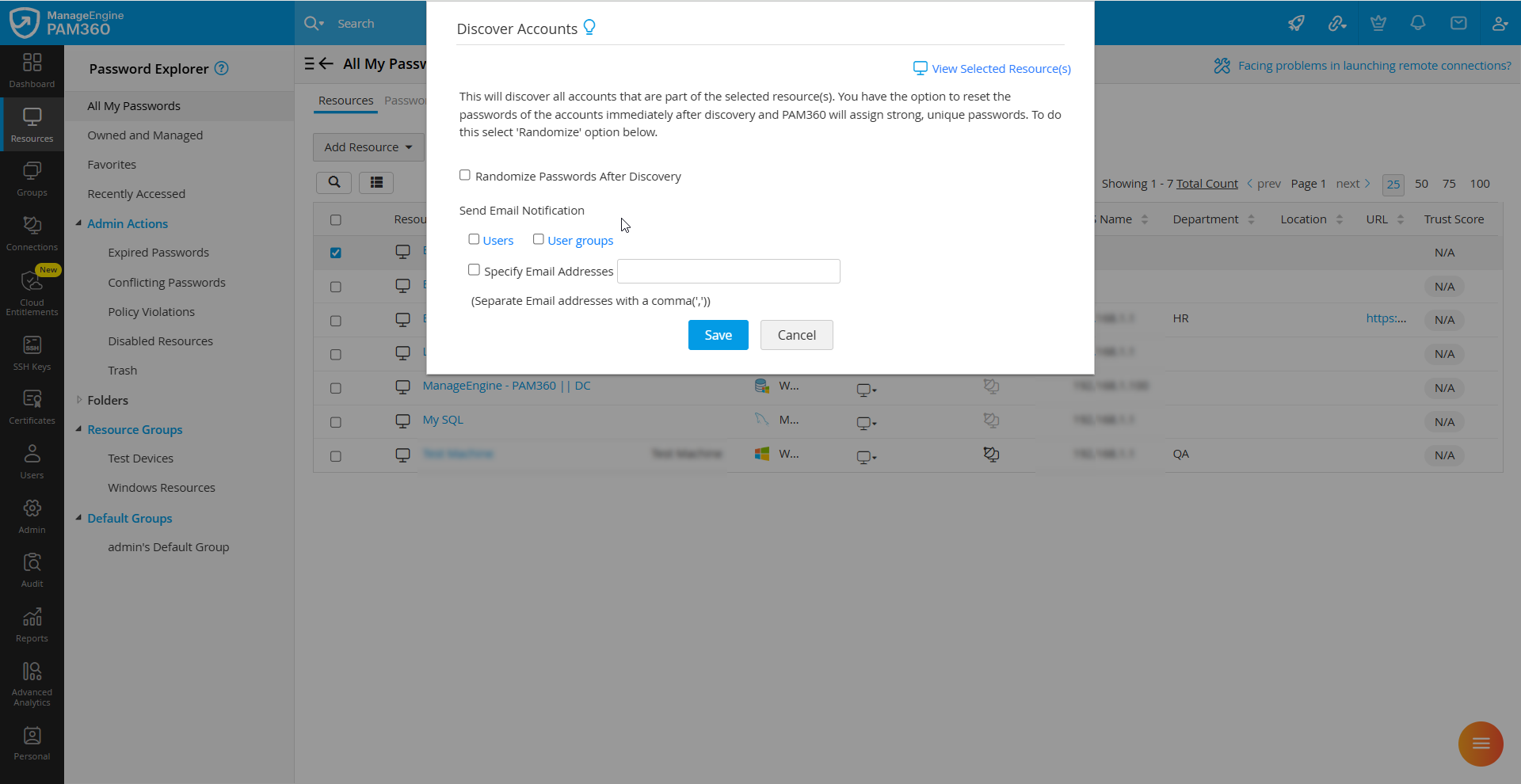
- Choose the desired users to be notified about the discovery task once the accounts are discovered. You can either choose to notify the desired users or user groups in your environment. Click the Users or User Groups button and select the desired users or user groups in your environment that you wish to notify.
- You can also enable the Specify Email Addresses checkbox and enter the email address of the specific users you wish to notify in the given field. You can enter multiple email addresses in the comma-separated format.
2.2 Discovering Privileged Domain Accounts
Best Practice
We recommend managing only the privileged domain accounts, such as the domain administrator accounts and enterprise administrator accounts in your directory service via PAM360, and not the named accounts.
PAM360 supports the discovery and management of privileged domain accounts by connecting to Active Directory using a dedicated account with the required privileges. This account can be a domain admin or a delegated service account with sufficient privileges to query Active Directory, enumerate groups, and perform operations such as password resets.
Follow these steps to discover the privileged domain accounts in your Active Directory domain:
- Navigate to the Resources tab and click on the desired Windows Domain resource whose domain accounts you wish to discover.
- In the Account Details window, click the Discover Domain Accounts button in the top pane.
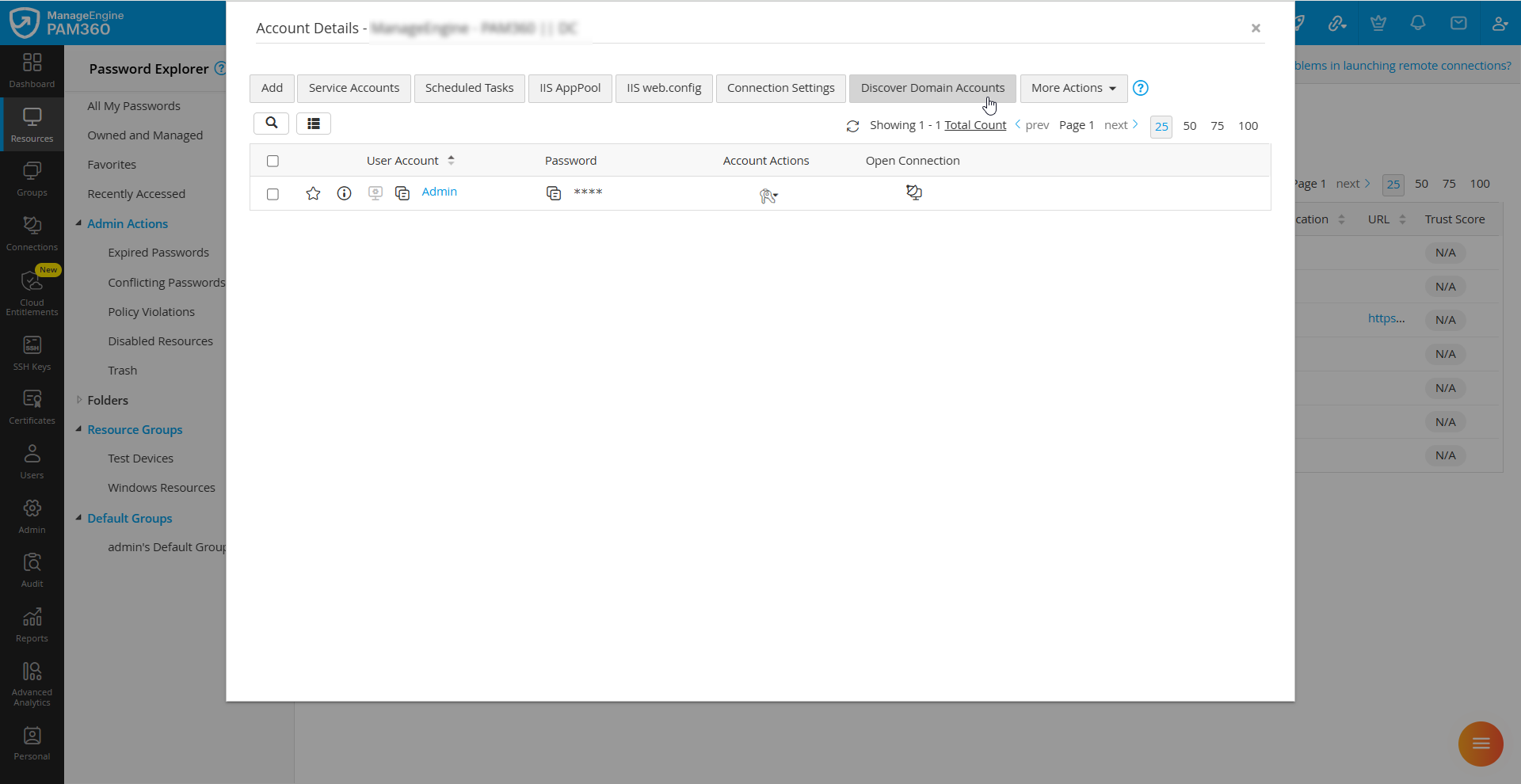
- In the Discover Domain Accounts window that appears, verify the domain name and the domain controller. These values are auto-populated by PAM360.
- PAM360 requires a valid domain account credential with the necessary permissions to perform account discovery and password reset operations. Select the desired resource and account from the Resource Name and Account Name fields. This account can be a member account of the same Windows Domain resource or another Windows Domain resource in your environment that has a trusted connection with the selected Windows Domain resource.
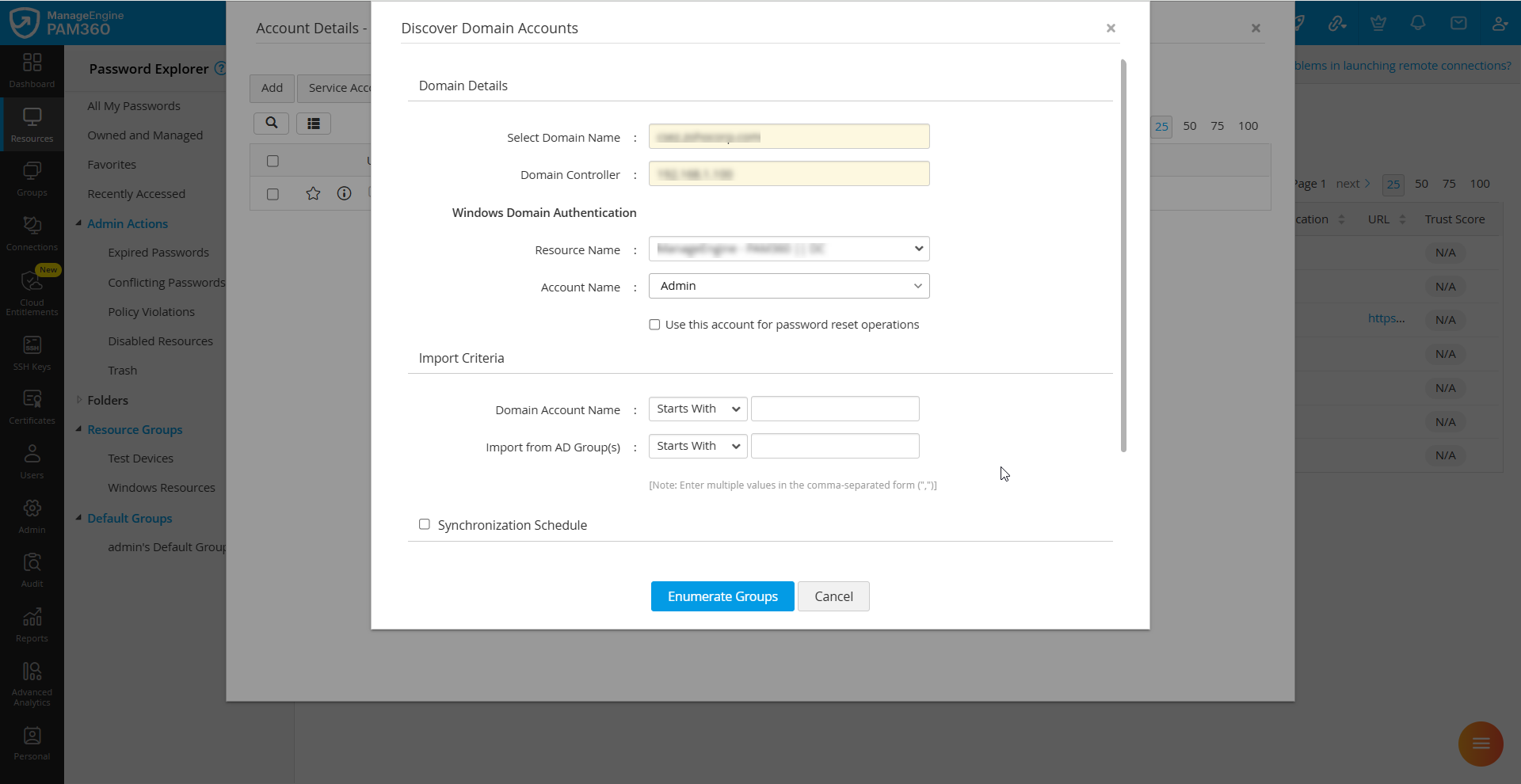
- Enable the Use this account for password reset operations checkbox if you wish to use the selected domain account to execute the password reset operations for the discovered domain accounts. Ensure the selected domain account has the necessary privileges to execute password reset operations within the Windows Domain.
- To import specific domain accounts by defining criteria based on the account name and the AD group, specify criteria under the Import Criteria section. You can enter multiple values in these fields in the comma-separated format.
Additional Details
- You can filter the search efficiently based on criteria using modifiers such as contains, equals, not equals, starts with, ends with, and RegEx (Regular Expression).
- Only the domain accounts of the current Active Directory domain will be fetched during the import process.
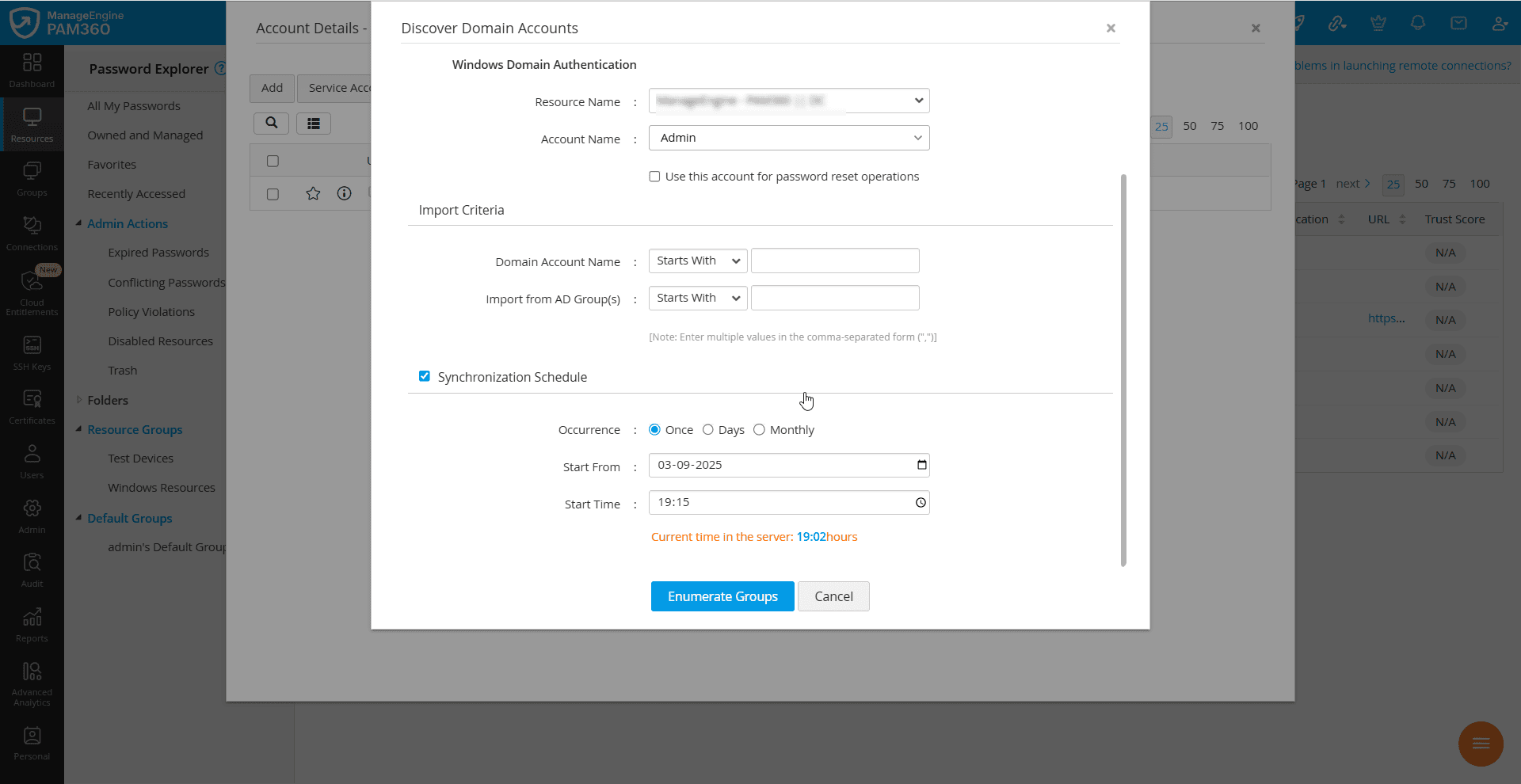
- PAM360 can periodically query the AD to keep the resources in sync. The new domain accounts added to the AD are automatically added to PAM360's inventory to keep the resources database in sync. If you wish to add a synchronization schedule to discover the newly added domain accounts, enable the Synchronization Schedule checkbox, and enter the following details:
- Occurrence - Choose how often the schedule should run. Select Once to execute the task only once, Days to repeat it every few days, or Monthly to run it once every month.
- Start From - Specify the date on which the task should begin or the date on which it should be executed, depending on the schedule occurrence.
- Start Time - Specify the time at which the task should be executed on the selected date.
- If you selected Days as the occurrence, enter the number of days after which the task should repeat in the Interval Day(s) field. The schedule will repeat once every specified number of days.
- If you selected Monthly, you should specify the date on which the schedule should be executed every month. The task will run on the selected date every month.
- If you have specified criteria to import domain accounts, click the Import button to import them into PAM360's inventory. All the domain accounts matching the criteria will be imported from the AD domain.
- If you did not specify criteria, click the Enumerate Groups button to fetch all the groups from your Active Directory domain. From the enumerated groups, select the desired Active Directory groups that contain the required privileged domain accounts and click Import.
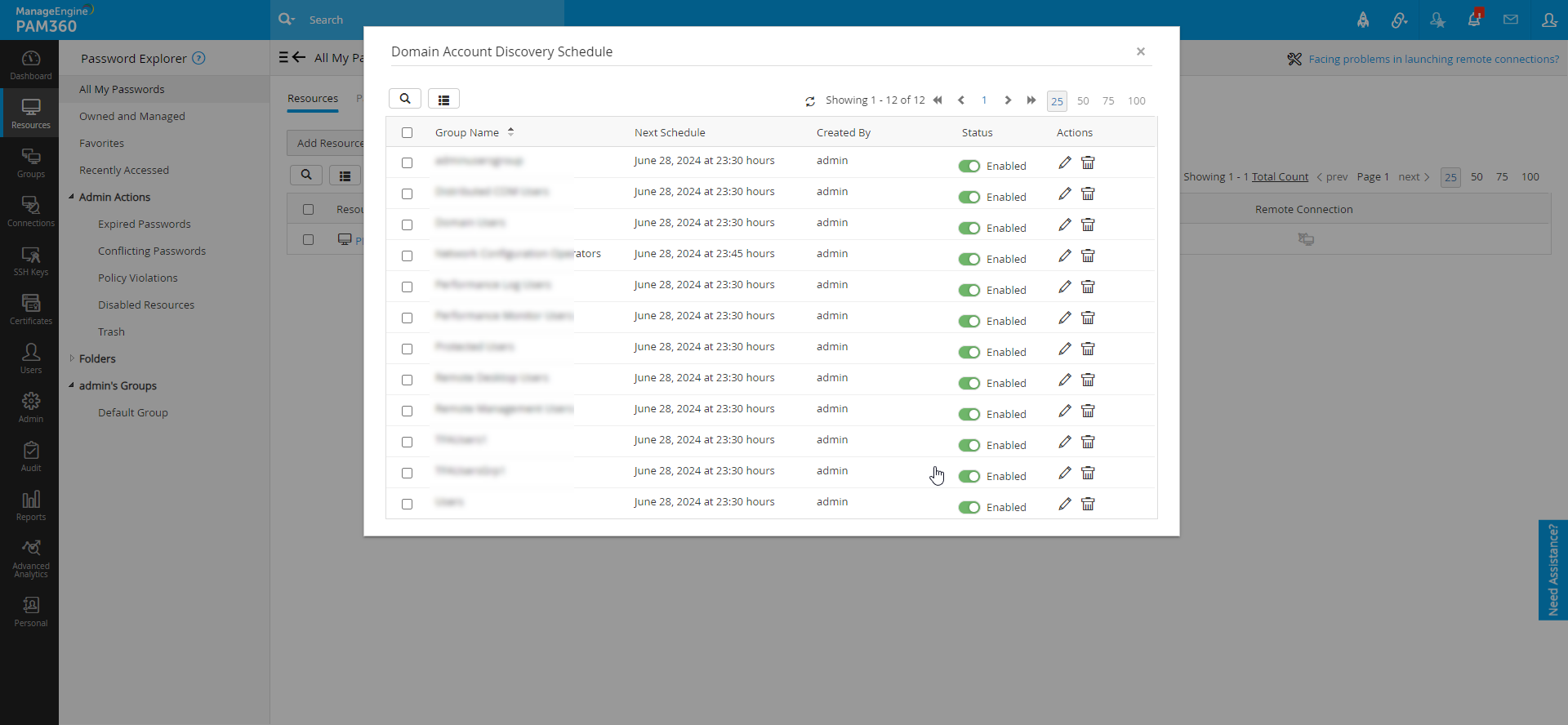
- The domain account discovery schedules can be viewed for specific Windows Domain resources from Resource Actions >> Domain Account Discovery Schedule. In the Domain Account Discovery Schedule page, you can edit, enable, disable, and delete schedules for the specific groups from which the domain accounts are scheduled to be imported. Also, you can perform the same from Admin >> Manage >> Scheduled Tasks >> User Created Schedules.
2.2.i Limitations in Discovering Privileged Domain Accounts
- Domain account discovery is not supported if privileged domain accounts or Active Directory groups contain a comma (,) in their names.
- Privileged domain accounts appended with the domain controller name cannot be discovered.
- Privileged domain accounts within nested Active Directory groups cannot be discovered automatically. However, such groups can still be imported by selecting them individually during the discovery process.
2.3 Discovering Windows Service Accounts
While discovering Windows Domain accounts, PAM360 automatically identifies and imports the service accounts associated with services running on domain member servers, ensuring that administrators gain visibility into all the accounts tied to the domain environment. The discovery process works as follows:
- During the discovery process, PAM360 creates a Windows Domain resource with the domain name. For example, if the domain name is PAM360, the resource name created will be PAM360 - Domain Controller.
- PAM360 queries the Active Directory and fetches all the available Windows member servers within the groups.
- PAM360 then retrieves the local accounts and service accounts associated with those member servers.
Upon discovery, the service accounts are associated with a resource group that contains the resources to which they belong. The resource group name will be in the format DomainName_MemberServerGroup. For instance, if the domain name is PAM360, the resource group created will be PAM360_MemberServerGroup. If a resource group with the same name exists already, the resources will be added to the existing group.
3. Periodic Discovery of Privileged Accounts
Follow these steps to add a periodic discovery schedule at the resource group level:
- Navigate to the Groups tab and click the Actions button beside the resource group that contains the desired resources whose member accounts you wish to discover periodically.
- In the Periodic Account Discovery pop-up that appears, enter the following details:
- Select how often the schedule should run from the given options: Once, Days, Monthly, Never. Select Once to execute the task only once, Days to repeat it every few days, Monthly to run it once every month, or Never to disable the existing schedule.
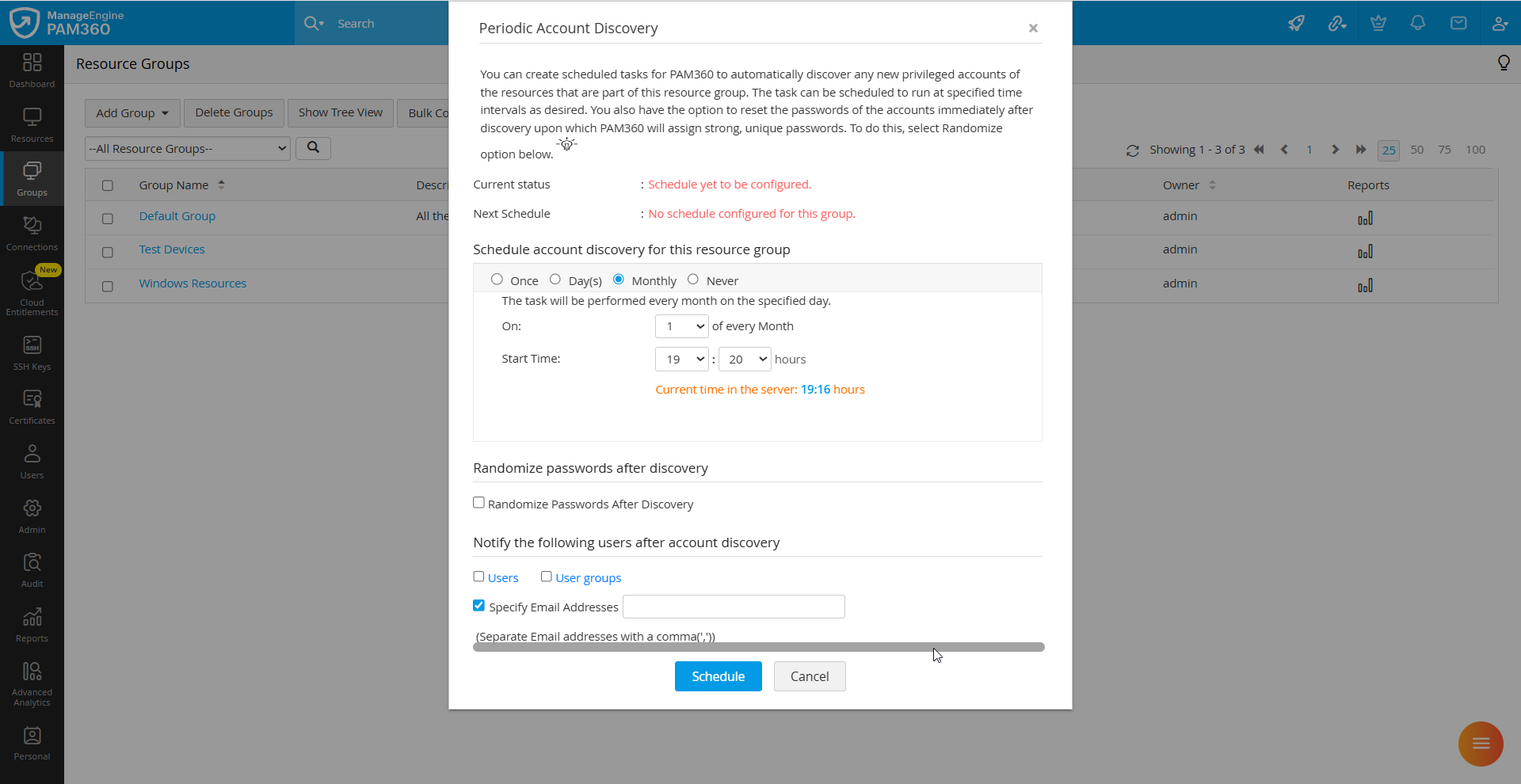
- If you select Once, specify the time at which the discovery task should be executed. If you choose Now, the discovery task will be executed immediately, and all the privileged accounts will be discovered from the specified domain. If you select Later, specify the desired date and time at which the discovery task should be executed.
- If you choose the occurrence as Day(s), enter the number of days after which the task should repeat, the schedule start date, and the start time in the given fields.
- If you choose the occurrence as Monthly, select the date on which the schedule should be executed every month and the start time in the given fields. The task will run on the selected date and time each month.
- If you choose the occurrence as Never, any configured discovery schedule will be disabled.
- Enable the Randomize Passwords After Discovery checkbox if you wish to reset passwords after discovery.
- Additionally, you can choose the desired users to be notified about the discovery task once the accounts are discovered. Click the Users or User Groups button and select the desired users or user groups in your environment whom you wish to notify.
- You can also enable the Specify Email Addresses checkbox and enter the email address of the specific users you wish to notify in the given field. You can enter multiple email addresses in the comma-separated format.
- After entering the required details, click the Schedule button to configure the periodic account discovery schedule.