SSH Proxy for PAM360 Remote Connect Connections
PAM360 Remote Connect is a native desktop application that allows users to launch secure remote sessions to target systems using credentials managed in PAM360. By default, the Remote Connect application establishes a direct connection from the user’s machine to the target endpoint. While effective, this approach may not align with strict security policies that require network isolation between end-user devices and critical systems. To avoid direct communication between the PAM360 Remote Connect application and the target endpoints during remote sessions for enhanced security, configure the SSH proxy available in PAM360 for the PAM360 Remote Connect application. When configured, all remote connect requests are routed through a designated proxy resource managed within PAM360, ensuring better network control, reduced attack surface, and improved compliance with organizational security standards.
This document outlines the roles required, prerequisites, and SSH proxy configuration within the PAM360 web interface. Read further to know more about them in detail.
1. Roles and Permissions
By default, users assigned to the Privilege Administrator, Cloud Administrator, or Administrator roles can configure the SSH Proxy for PAM360 Remote Connect. In addition to these predefined roles, users with a custom role that has the Configure SSH Proxy privilege enabled are also allowed to perform SSH Proxy configuration.
2. Prerequisites
Below are the prerequisites for the SSH proxy to work seamlessly to attain a secure remote connection:
- The endpoint that will act as the proxy between the PAM360 Remote Connect and the target machine should be added as a resource in PAM360.
- The user machine installed with the PAM360 Remote Connect should be able to communicate with the PAM360 server.
- Similarly, the PAM360 server should be able to communicate with the resource configured as a proxy, and the proxy resource must be able to communicate with the target endpoints.
- While configuring Windows resource as an SSH proxy, ensure that the OpenSSH Server runs as a service on the Windows resource. This requirement does not apply to Linux resources, as they have OpenSSH Server running by default.
- To establish a successful connection between the machines running the Remote Connect application and the PAM360 server configured with SSH Proxy for Remote Connect, ensure that the TCP ports 50100 to 50300 are open as outbound ports on the PAM360 server. Remote Connect uses one TCP port per active session. Based on the expected number of concurrent Remote Connect sessions, administrators should allow the required number of ports within this range. For example, if 20 concurrent sessions are expected, at least 20 ports in this range should be permitted. If you require a customized port range, please contact our support team for assistance.
3. Configuring SSH Proxy for PAM360 Remote Connect Connections
Best Practice
To bind the necessary ports to PAM360's IP address or FQDN instead of the default 'localhost', we recommend you to add the system property sshtunnel.tunnelapi.bindaddress=<PAM360 Installed Server's IP or FQDN> to the system_properties.conf file, which is located in the PAM360 installation directory's conf folder.
To configure the SSH proxy for PAM360 Remote Connect from the PAM360 web interface, follow these steps:
- Log in to PAM360 and navigate to Admin >> PAM360 Gateways >> SSH Proxy - Remote Connect.
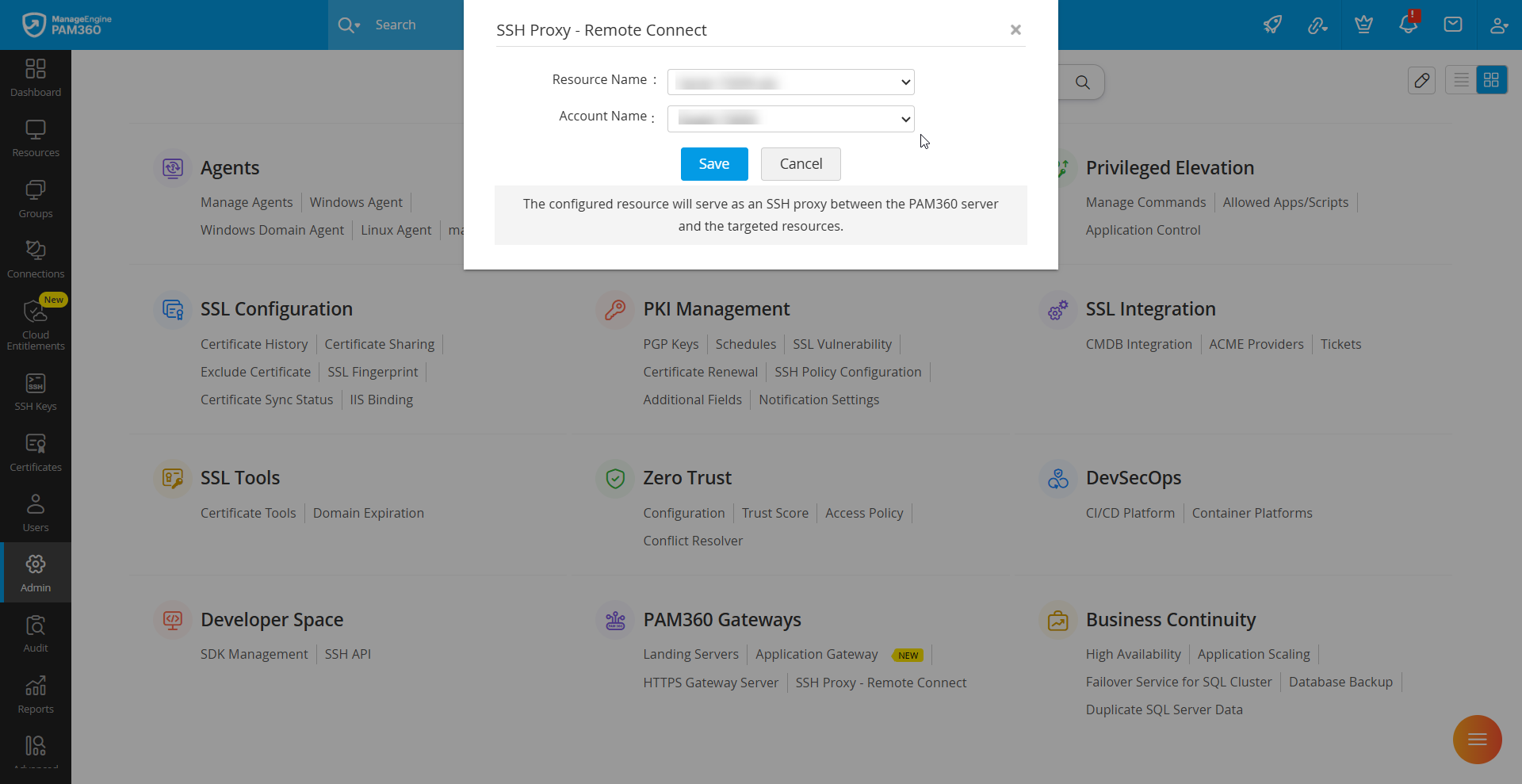
- In the pop-up that opens, select the resource that acts as an SSH proxy in the Resource Name dropdown.
Additional Details
Users can set the PAM360 installed server/resource as the SSH proxy resource. However, the Windows Domain Server cannot be set as an SSH proxy.
- Select a account from the Account Name dropdown, which is used to access the above-selected resource.
- Click Save to make the selected resource act as an SSH proxy between the PAM360 server and the target endpoints.
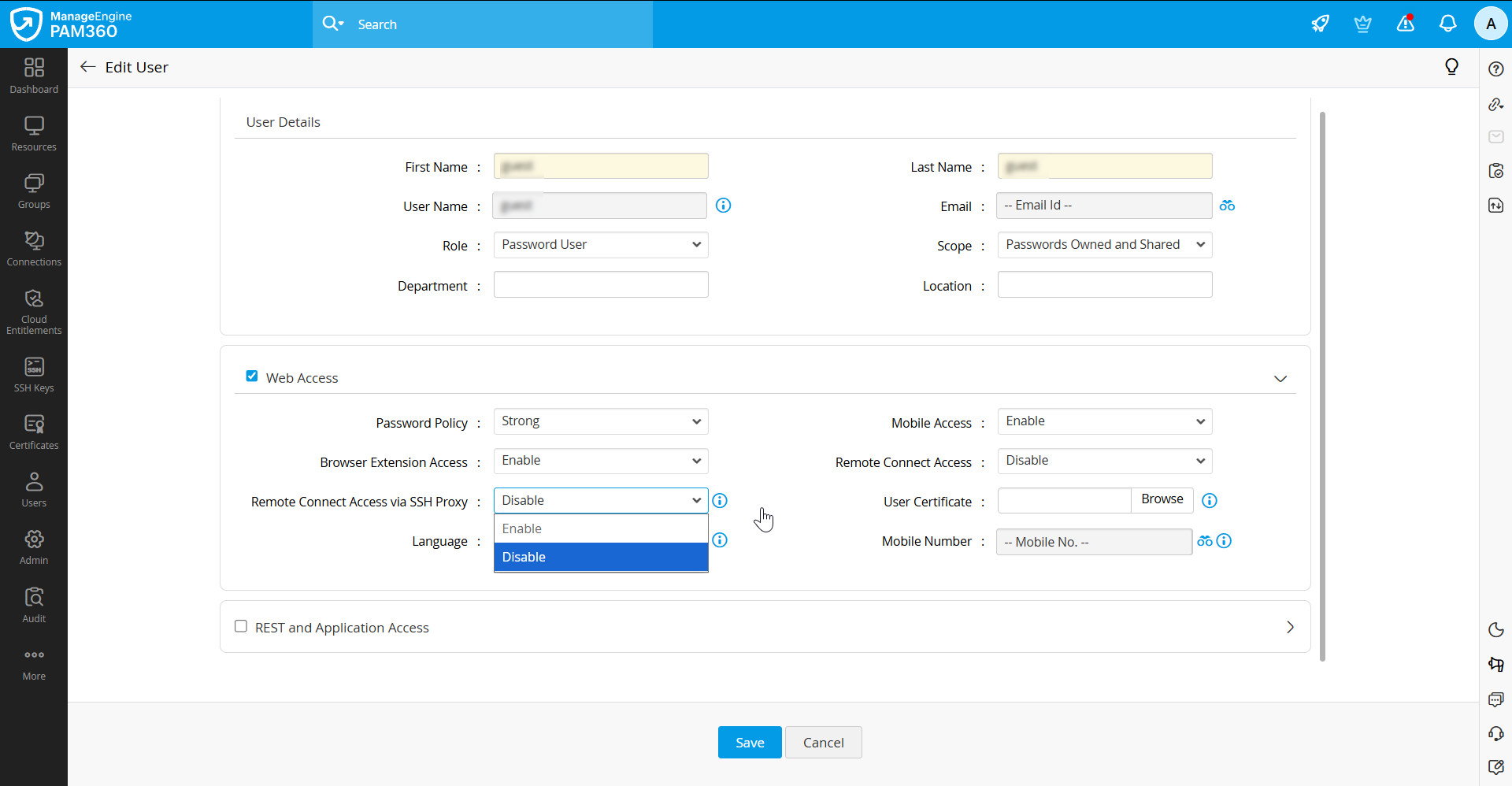
Administrators can manage SSH proxy access for individual users using the Remote Connect Access via SSH Proxy option in the Edit User window. When enabled, remote connections initiated by the user through the PAM360 Remote Connect application are routed through the configured SSH proxy. When disabled, Remote Connect establishes direct connections to the target resources.
If the configured SSH proxy becomes unavailable, remote connections initiated by users with SSH proxy access enabled will fail. PAM360 Remote Connect does not automatically establish direct connections to the target resources. To allow direct connections for that user, administrators can disable the Remote Connect Access via SSH Proxy option in the Edit User window.
Refer to this section to enable or disable Remote Connect access via SSH proxy for a user.