
Event-driven automation use cases
Event-driven automation runs a sequence of actions automatically the moment a management action is completed, extending the work beyond Active Directory to Exchange, Microsoft 365, Google Workspace, and any external application with an API. Unlike scheduled automation, which runs at a set time against a report, an event-driven automation is triggered by an action such as a user being created, modified, disabled, or deleted and responds to it immediately. The use cases below cover common scenarios suited to event-driven automation, and the configuration that makes each one specific.
Here is a list of use cases explained in this doc:
- Provision a new user across connected applications
- Disable an account and withdraw the access behind it
- Offboard a departing user permanently
- Keep an external database in step with directory changes
Use case 1: Provision a new user across connected applications
A new joiner needs more than a directory account. They need a record in the identity management tool, a payroll entry, and whatever access the ITSM tool grants on their behalf, and each of those is raised by hand today, often by a different person. The account exists before the access does, so the first day is spent waiting. Because the applications concerned expose APIs rather than directory interfaces, no directory action alone can reach them. An automation triggered by the creation of the account calls each application as soon as the account exists, and tells the people expecting the new joiner that provisioning is under way.
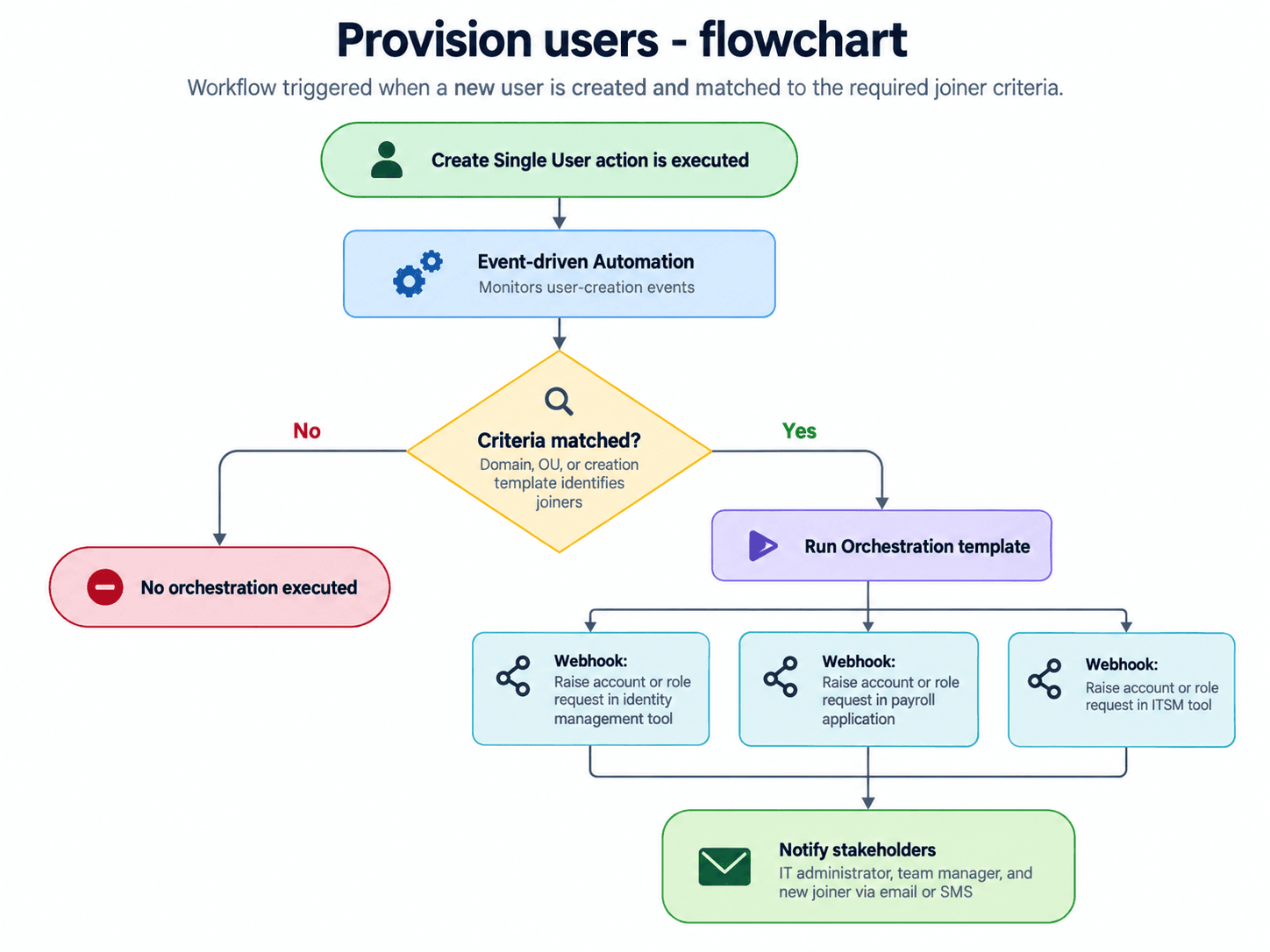
Criteria: When the Create Single User action is executed, narrowed to the domain, OU, or creation template that identifies the joiners this applies to.
Orchestration template:
- A webhook block for each application the sequence calls, raising the account or role request in the identity management tool, the payroll application, and the ITSM tool.
- A notification block informing the IT administrator, the team manager, and the new joiner, by email or SMS.
Use case 2: Disable an account and withdraw the access behind it
An account is disabled for a leave of absence, a suspension, or a departure that has not yet been confirmed. Disabling stops the sign-in, and nothing else. The mailbox still receives, the group memberships still confer rights, and the permissions granted in other applications remain exactly as they were, so the account is only partly closed. Reversing that manually means working through several applications in turn, and steps are missed under time pressure. An automation triggered by the disable action withdraws the access that sits behind the account and records that it has been done.
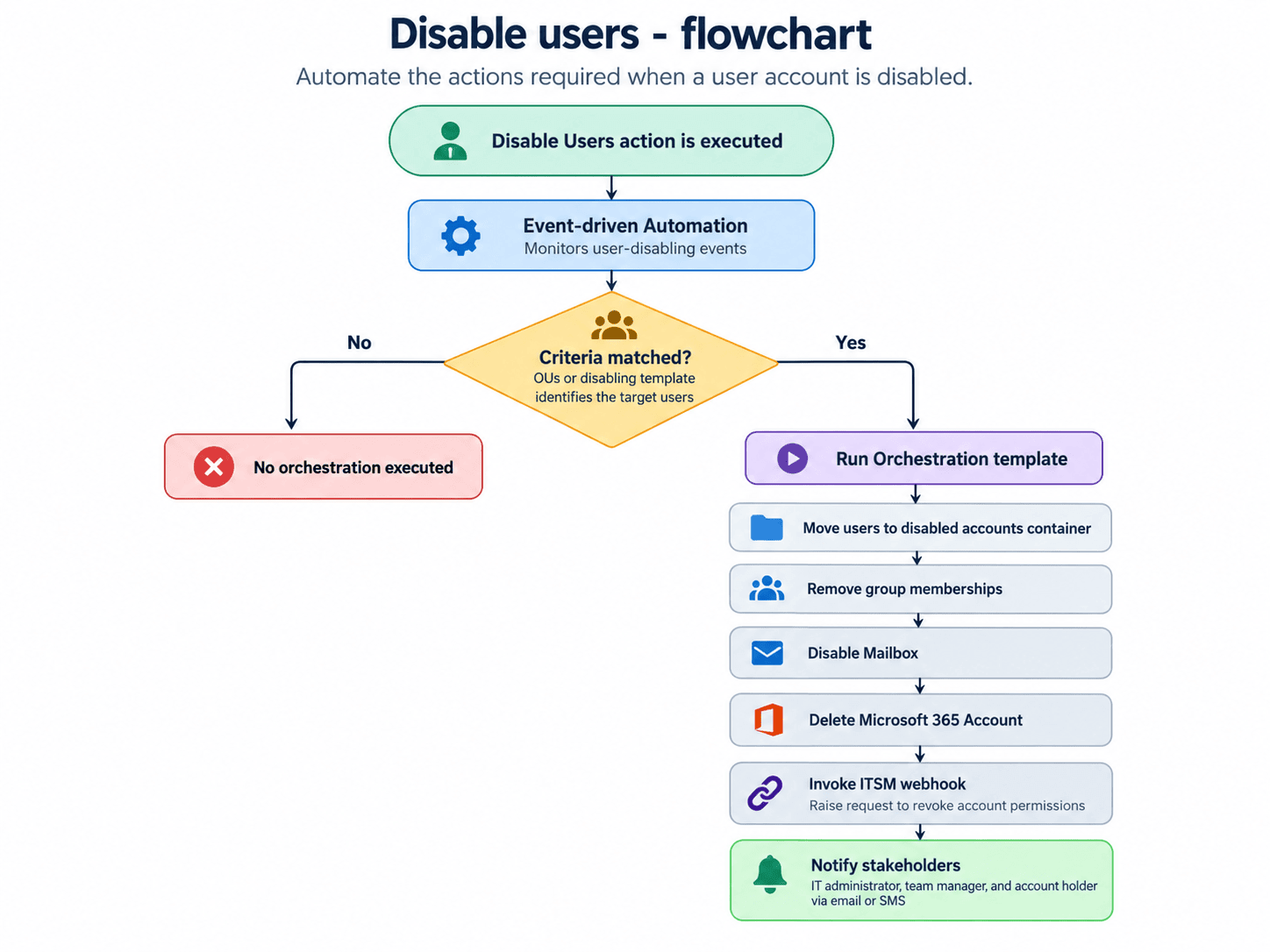
Criteria: When the Disable Users action is executed, narrowed to the OUs or the disabling template used for this purpose.
Orchestration template:
- Move users to container, set to the container held for disabled accounts, and a block removing the account's group memberships (AD actions).
- Disable Mailbox (Exchange actions).
- Delete Microsoft 365 Account (cloud actions).
- A webhook block raising a request in the ITSM tool to revoke the account's permissions.
- A notification block informing the IT administrator, the team manager, and the account holder, by email or SMS.
Use case 3: Offboard a departing user permanently
Offboarding differs from interim disabling in that it is permanent and is held to a higher standard, because lingering access for someone who has left the organization is both a security exposure and a compliance failure. Carried out manually across Microsoft 365, Google Workspace, Exchange, and the ITSM tool, the work spans several systems and often runs on for weeks, leaving access in place long after the person has gone. An automation triggered by the deprovisioning action carries out the full sequence consistently for every leaver.
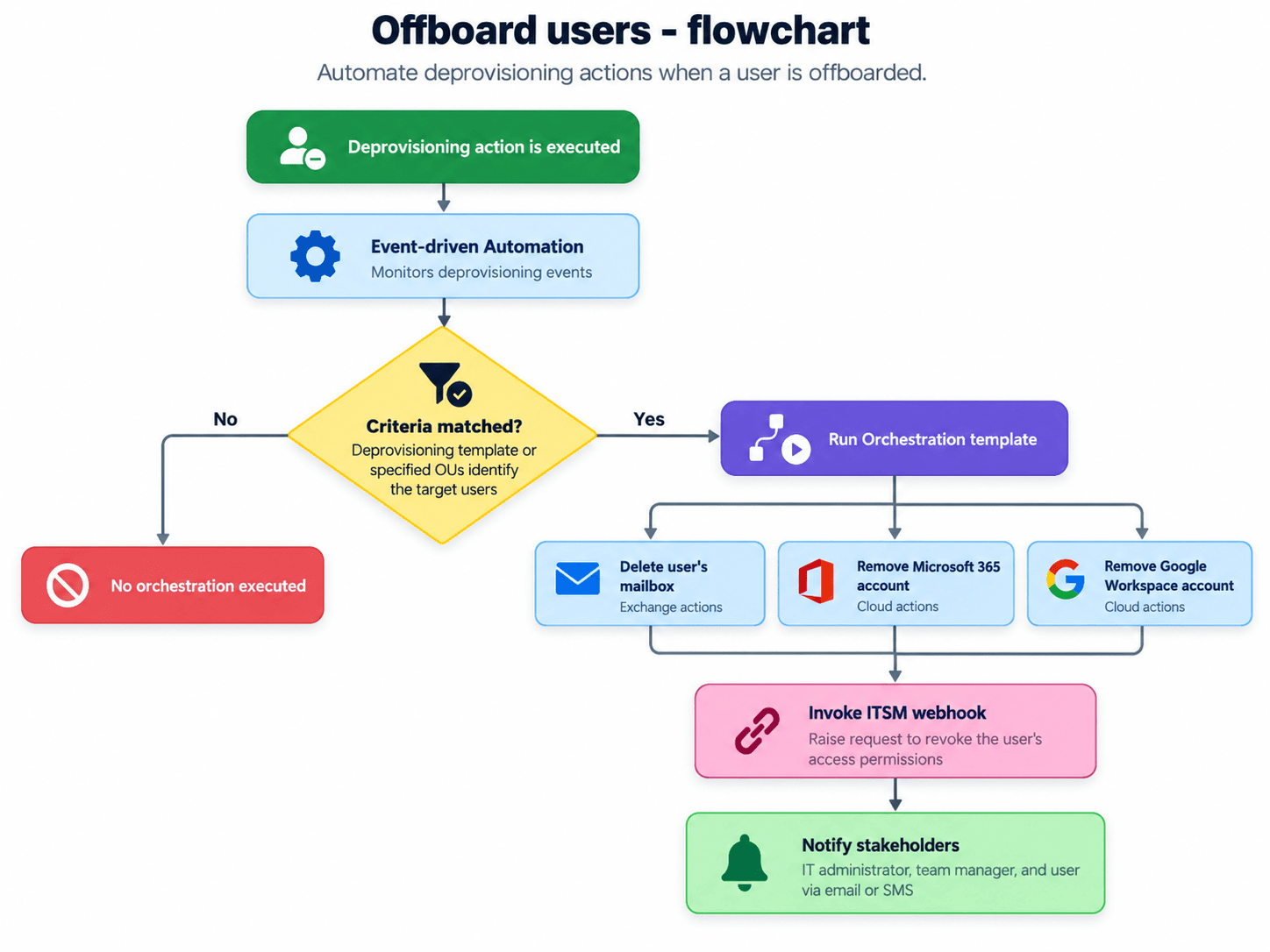
Criteria: When the deprovisioning action is executed, narrowed to the deprovisioning template or the specific OUs you want the sequence limited to.
Orchestration template:
- A block deleting the user's mailbox (Exchange actions).
- A block removing the Microsoft 365 account (cloud actions).
- A block removing the Google Workspace account (cloud actions).
- A webhook block raising a request in the ITSM tool to revoke the user's access permissions.
- A notification block informing the IT administrator, the team manager, and the user, by email or SMS.
Use case 4: Keep an external database in step with directory changes
Some of the systems that depend on directory data hold it in a database of their own rather than reading it from the directory. A reporting store, a badge system, or an in-house application keeps its own table of people, and that table stays correct only if someone updates it every time an account is created, changed, or removed. Left to a periodic export, it drifts, and the systems reading it act on stale records. A custom script block lets an automation write to the database as part of the same sequence that made the directory change, so the external record is updated at the moment the directory record is. Microsoft SQL Server, Oracle, and PostgreSQL are supported, and insert, update, and delete are each handled by a script of their own.
Complete the following before a script block can run:
- Where the database is Oracle, copy Oracle.DataAccess.dll from *{Oracle-Home}\ODP.NET\bin\4* into <InstallationDirectory>\ADManager Plus\bin.
- Where the database is PostgreSQL, download and install the PostgreSQL ODBC driver.
- Download the scripts for the database in use, and move them into the <InstallationDirectory>\ADManager Plus\Scripts folder.
Criteria: When the Create Single User, Create Bulk Users, modification, or deletion action is executed, narrowed to the domain or OU whose records the database holds.
Orchestration template: A Custom Script block for the operation, with PowerShell selected in Script Type, the script for that operation named in Script Path, and the values the script expects entered in Arguments, separated by commas.
The arguments differ by database and by operation. The table below lists them in the order each script expects.
| Database | Insert | Update | Delete |
|---|---|---|---|
| Microsoft SQL Server | Server Name, Database Name, Port Number, Authentication Type, Table Name, Column Names, Column Values, User Name, Password | Server Name, Database Name, Port Number, Authentication Type, Table Name, Column Names, Column Values, Where Query, User Name, Password | Server Name, Database Name, Port Number, Authentication Type, Table Name, Where Query, User Name, Password |
| Oracle | Host ID, Port Number, Service Name, User Name, Password, DBA Privilege, Table Name, Column Names, Column Values | Host ID, Port Number, Service Name, User Name, Password, DBA Privilege, Table Name, Column Names, Column Values, Where Query | Host ID, Port Number, Service Name, User Name, Password, DBA Privilege, Table Name, Where Query |
| PostgreSQL | Driver Name, Server, Port Number, Database, User Name, Password, Table Name, Column Names, Column Values | Driver Name, Server, Port Number, Database, User Name, Password, Table Name, Column Names, Column Values, Where Query | Driver Name, Server, Port Number, Database, User Name, Password, Table Name, Where Query |
When entering the arguments, note the following:
- The script takes all the column names as one argument, and all the values as another. Use the pipe character between entries, and keep both lists in the same order, so the first value belongs to the first column. For example, employeeID|telephoneNumber as the column names, and %employeeID%|%telephoneNumber% as the column values.
- Write each column value as a macro rather than a fixed value, so every run writes the values of the account the automation acted on. %employeeID%, %telephoneNumber%, and %sAMAccountName% are examples.