Centralized Azure monitoring: Elevate your cloud strategy with ManageEngine Applications Manager
Category: Azure monitoring
Published on: September 2, 2025
6 minutes

Running workloads on Microsoft Azure gives businesses the scale and agility they need; but it also brings complexity. Between VMs, databases, storage accounts, serverless apps, and more, monitoring quickly becomes fragmented if you’re relying on multiple tools or manual checks. That’s where centralized Azure monitoring makes all the difference.
ManageEngine Applications Manager steps in as a unified performance monitoring solution that puts every layer of your Azure environment along with the rest of your IT stack into one view. With it, you don’t just track performance; you gain the insights, context, and control needed to optimize costs, prevent outages, and keep applications running smoothly.
Why centralized monitoring matters in Azure
Azure is built for scale, flexibility, and speed. But the very same features that make it powerful also make it complex to manage. You’re not just dealing with a single resource; you’re juggling dozens of services, often spread across multiple subscriptions, regions, and resource groups. Each service generates its own set of metrics and logs. Without a central hub, all of this data sits in silos.
The result? Delays in detecting issues, slow troubleshooting, unnecessary cloud spend, and a reactive IT culture. Centralized Azure monitoring changes the game by unifying everything into one place. It allows you to:
- Connect the dots across services: Instead of treating VMs, storage, and databases as separate entities, centralized monitoring helps you see how they impact one another.
- Proactively address problems: With anomaly detection and automated alerts. You don’t wait for users to complain; your team gets ahead of issues before they cause outages.
- Simplify management: One dashboard replaces multiple tools and consoles, giving IT teams clarity instead of chaos.
- Support business outcomes: Faster troubleshooting, optimized performance, and controlled costs mean IT is enabling the business to move forward with confidence.
In short, centralized monitoring isn’t just a technical upgrade; it’s a shift from firefighting to foresight, from fragmented visibility to complete control.
Getting started with Applications Manager
Deploying Applications Manager is simple. Install it on a dedicated server, walk through the setup wizard, and you’re ready to connect it to Azure. The web-based console makes configuration straightforward, even for large environments.
Once you’ve set up Applications Manager, the real value begins with connecting it to your Azure subscription. This integration is where centralized Azure monitoring takes shape; turning scattered metrics and logs into actionable insights.
Step 1: Establishing a secure connection
Before Applications Manager can pull data, you’ll need to create an Azure Service Principal through Azure Active Directory. Think of this as a secure “identity” that Applications Manager uses to communicate with Azure. Assign it the Reader role at the subscription or resource group level; enough to gather performance data without compromising security.
Applications Manager will require the following details to authenticate:
- Tenant ID (the directory your subscription belongs to)
- Client ID (the Service Principal’s application ID)
- Client Secret (the password generated for secure access)
Providing these in the Applications Manager console establishes a safe, authenticated link to your Azure account.
Step 2: Adding your Azure account in Applications Manager
Inside Applications Manager, navigate to Cloud Apps and then Microsoft Azure. Enter the Service Principal credentials. Once validated, Applications Manager connects directly to your subscription and is ready to start pulling in data.

Step 3: Resource discovery
Applications Manager automatically scans your subscription and identifies supported Azure resources. This includes:
- Virtual Machines (with CPU, memory, and disk metrics)
- App Services & Web Apps
- SQL Databases & Elastic Pools
- Storage Accounts (capacity and throughput)
- Networking components like Load Balancers and Virtual Networks
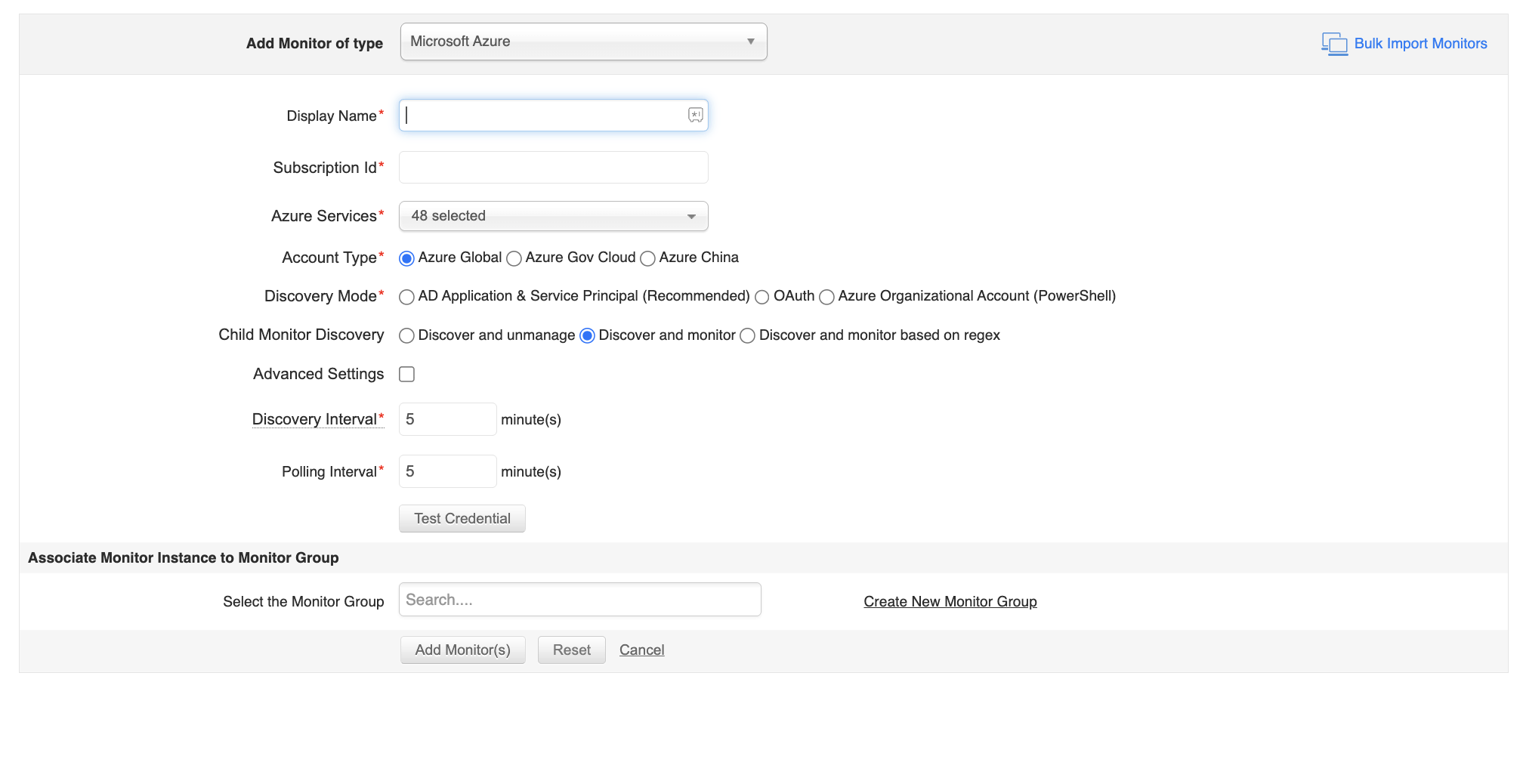
You can choose to onboard specific resources or entire resource groups depending on your monitoring goals. This flexibility ensures you’re not flooded with unnecessary data but still cover what’s most critical.
Step 4: Apply and customize monitoring templates
Each discovered resource type comes with default monitoring templates for preconfigured metrics such as CPU utilization for VMs, DTU usage for SQL Databases, or latency for storage accounts. While these defaults provide a strong baseline, you can refine them to match your environment:
- Set custom thresholds: For example, trigger alerts if a SQL Database exceeds 80% DTU usage for more than 5 minutes.
- Adjust polling intervals: Collect critical metrics more frequently while reducing frequency for less important services.
- Group monitors: Organize related resources (like all production VMs or a specific app’s backend components) for easier analysis.
Step 5: Build customized dashboards
Applications Manager’s dashboards are highly customizable. With drag-and-drop widgets, you can create views that highlight the most critical Azure metrics for your operations team. Examples include:
- A VM health dashboard showing CPU, memory, and disk usage across production servers.
- A database performance dashboard for real-time monitoring of query throughput, slow transactions, and availability.
- A cost and utilization dashboard to keep tabs on underutilized resources.
Dashboards provide a live, at-a-glance understanding of your Azure health, making it easier to spot issues before they escalate.
Step 6: Alerts and automation
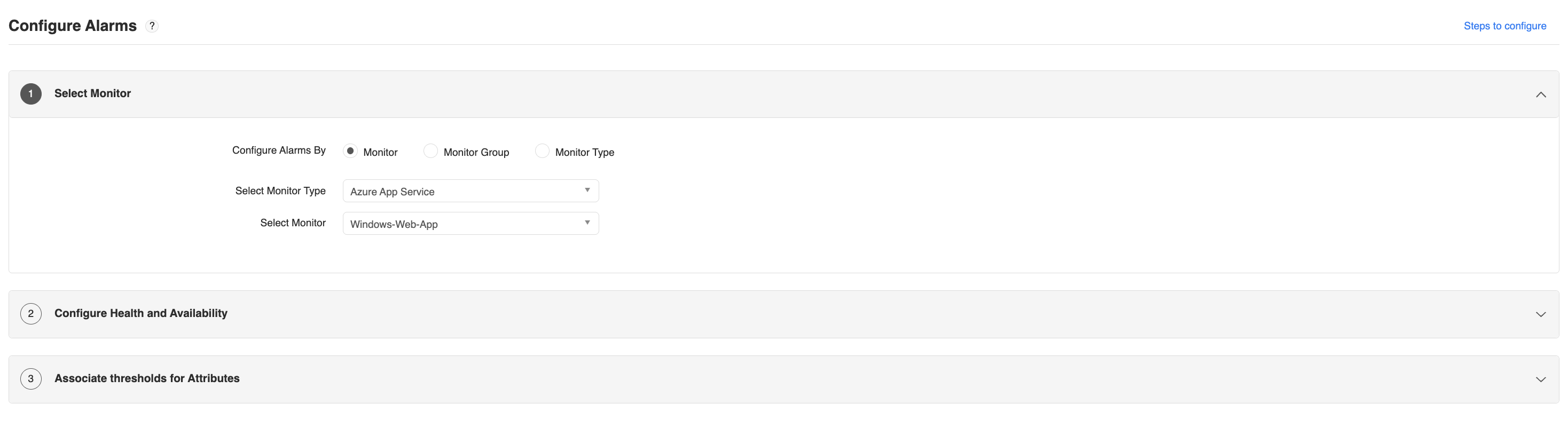
Finally, configure alert rules and escalation chains. Alerts can be delivered via email, SMS, or integrated into ITSM tools for ticketing. Beyond notifications, you can also automate corrective actions. For example, restarting a VM or executing a custom script when thresholds are breached.
Best practices to maximize Azure cloud performance
Getting Applications Manager up and running is just the first step. To unlock the value of centralized Microsoft Azure monitoring, you need a strategy that goes beyond default dashboards and alerts. Here are some practices that can help you build resilience and efficiency:
Prioritize critical workloads:
Start by focusing on Azure resources that directly impact your customers or revenue. For example, an e-commerce site’s App Service or a financial app’s SQL Database deserves tighter alert thresholds than a development VM.
Fine-tune alerts for action, not noise:
Too many false alarms desensitize teams. Define meaningful thresholds that reflect business impact, like CPU spikes that persist for more than 5 minutes or storage nearing capacity.
Optimize Applications Manager itself:
The monitoring tool is your command center; ensure it has enough resources and a tuned database to handle large Azure footprints. Regular housekeeping improves speed and reliability.
Use integrations to close the loop:
Don’t stop at detection. Connect Applications Manager with ITSM systems like ServiceDesk Plus so critical Azure alerts automatically create tickets, ensuring accountability and faster resolution.
Leverage historical data for planning:
Use reports to identify long-term usage patterns, seasonal spikes, and areas of consistent over-provisioning. This data guides capacity planning and architecture decisions.
Continuously evolve the monitoring scope:
Azure environments are never static. As new services come online and old ones retire, periodically review and update your monitoring setup to stay aligned with reality.
Following these practices ensures that centralized monitoring helps you act on it, improve efficiency, and align your cloud monitoring strategy with business goals.
Troubleshooting Tips
Even with a robust setup, you may run into blind spots and performance hiccups. Common ones include:
- Connection errors: Recheck your Service Principal credentials and network connectivity.
- Missing metrics: Verify the resource is supported and correctly added; re-discovery often fixes gaps.
- Alerts not firing: Confirm thresholds, notification settings, and test the alert workflow.
- Performance lag: Optimize the Applications Manager server and tune data collection intervals.
Summing Up
Centralized Azure monitoring isn’t just about visibility—it’s about control. With ManageEngine Applications Manager, you gain the ability to run your cloud smarter: keeping performance steady, costs optimized, and your teams one step ahead of issues.