Enterprise Edition
Overview
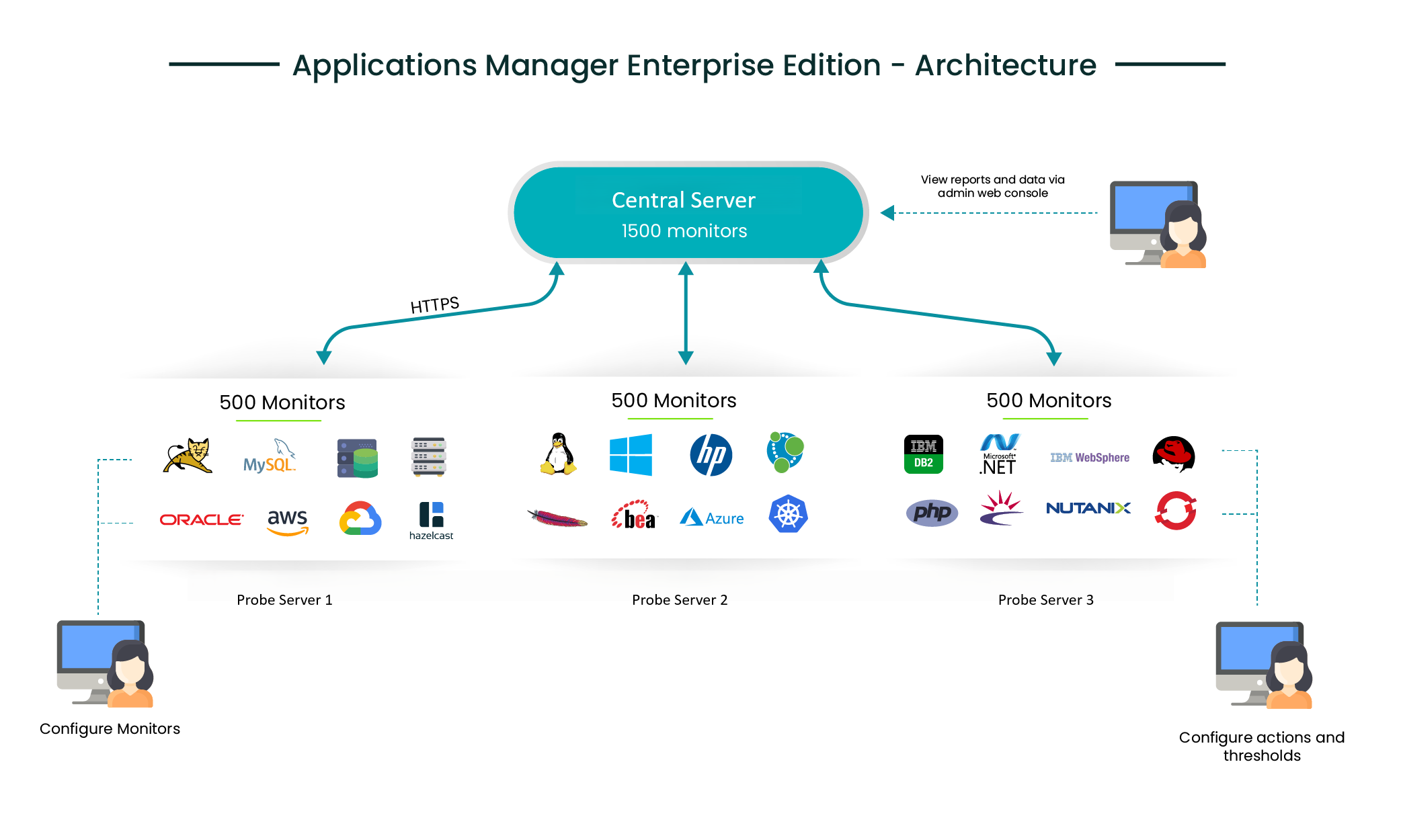
ManageEngine Applications Manager - Enterprise Edition allows you to monitor more number of servers and applications in a distributed setup. You can configure independent Applications Manager installations to monitor resources and then collectively view the data from all these independent Applications Manager installations (Probe server) from a single installation (Central server).
Enterprise Edition - Working
As a first step, Central server has to be started. When a Probe server starts, it contacts the Central server for registering itself (based on the Central Host/ SSL Port provided during installation). The Central server assigns a unique ID to this Probe Server called the "Server ID". Each Probe Server is identified by its Server ID. Every 5 minutes, the Central server contacts the Probe Servers that are registered to it and fetches the required data from each of the Probe Servers. You can view all the data from the Probe Servers in the Central server console itself.
Installation and Setup
To learn how to install Applications Manager Enterprise Edition setup, refer here.
Converting the Professional Edition to Enterprise Edition
If you are using Applications Manager as a standalone server (Professional) and want to convert it into a distributed setup (Enterprise Edition) without losing the Configuration Information, you will have to do the following steps:
- Perform a fresh installation of Central server of Applications Manager and start the same.
- Now, in the existing standalone Applications Manager setup, click on link Convert standalone server into Probe Server under the Settings tab → Global Settings. (You can convert only one standalone server to Probe server. You can add more Probe servers through fresh installations.)
- You will have a popup requesting details of the Central server Host and Central server SSL port. Provide the details to complete the conversion from Standalone server to Probe server.
- You can verify under the Settings tab → Support if the type of Server is Probe server.
Note : It is possible to convert a Standalone installation to a Probe server only if there are no other Probe servers already added to the Central server i.e., only if you are just installing a new Central server. If you already have a Enterprise Setup (Central server/Probe server), you cannot convert a Standalone Server to be a part of the setup. It is not possible to change from Central server type to a Standalone setup or vice versa without reinstalling the product.
Warnings :
- It is not possible to revert from Probe server back to Standalone setup although it will still be functioning without any problems.
- We do not recommend moving a Probe server from one Central server to another.
Browse through the following sections to learn more about Enterprise Edition:
- Central servers
- Probe servers
- Single Sign-On (SSO)
- Admin Activities
- Easy Upgrade
- Failover Support Using MSSQL as Backend DB Server
- Failover Support Using PostgreSQL as Backend DB Server
Note: Visit Enterprise Edition FAQ for details on when to, how to set up Enterprise Edition.