Working with the recorder extension

Start a new recording:
Click on the ( ) icon on the top left to start a new recording. If a recording is in progress, you will be asked for confirmation to discard the recording and start a new one.
Open an existing recording:
Click on the ( ) icon on the top left to open an existing recording. This will open a selection window for choosing a Selenium script.
Save the current recording locally:
Click on the ( ) icon on the top left to save an on-going recording locally. This will open a window for choosing the location to save the recording as a selenium script of the format .SIDE.
Cancel a recording:
At any time, you can click on the ( ) icon on the top left to cancel the recording.
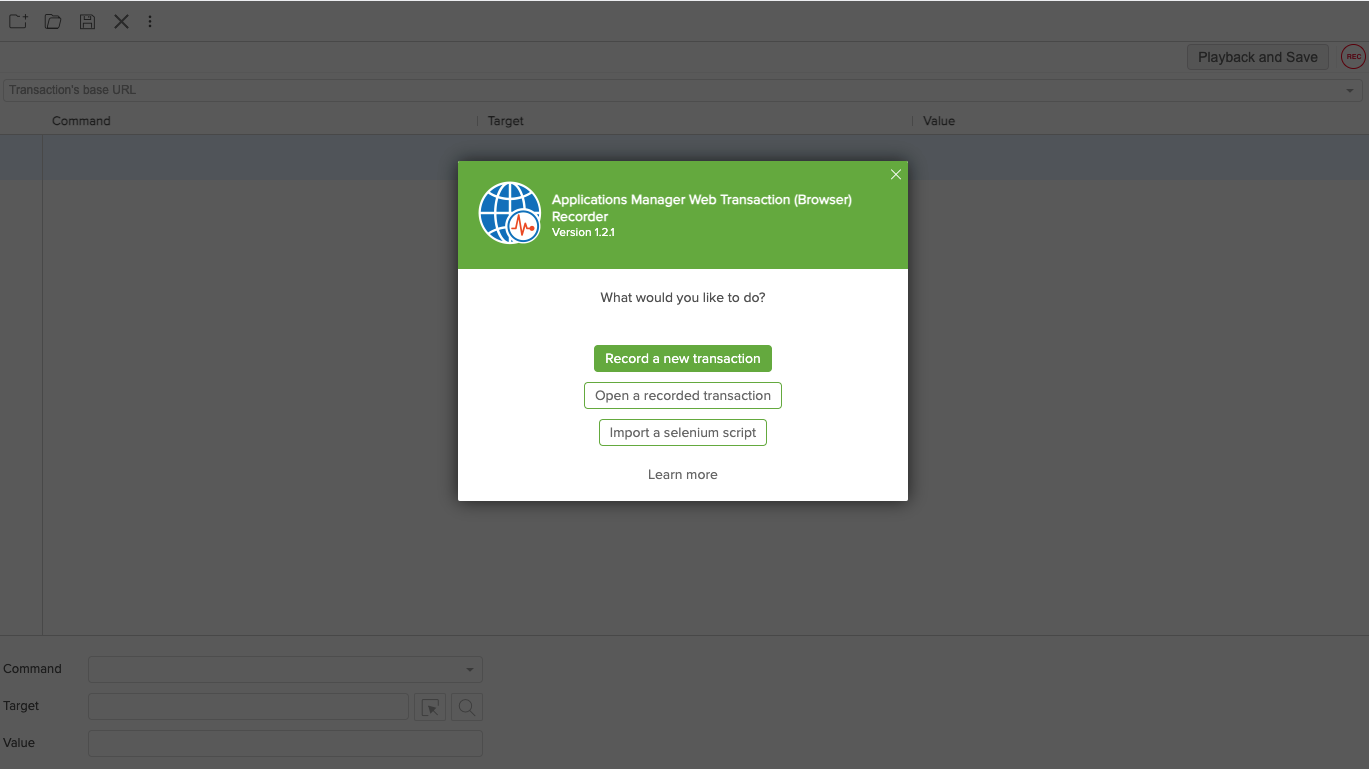
Open a recorded transaction
This option allows you to open a recorded transaction if you have previously used this extension to create a recording and have saved it locally. When you choose this option, you can:
- Select the recording you want to load from your files.
- Review the steps of the selected recording as they appear in the recording window.
- Click on Playback and Save to continue with the monitor creation process.
Import a Selenium Script
This option allows you to import an existing Selenium script. When you choose this option, you can:
- Select the Selenium script you want to load from your files.
- View the steps of the selected script displayed in the recording window.
- Click on Playback and Save to continue with the monitor creation process.