Virtual IP address failover for Applications Manager
Overview
Failover is an alternative monitoring mechanism that facilitates switching to a secondary/backup server when the primary server becomes unavailable. Configuring Applications Manager’s dual server failover system ensures constant availability so you can monitor all your business-critical applications without any interruptions. Learn more.
A Virtual IP address for failover is a shared IP address used by primary and secondary servers that belong to the same subnet. The virtual IP points to the secondary/backup server in case the primary server goes down. This way, the user can access both the primary and secondary/backup servers using a single IP address.
Note: The APM plugin does not support Virtual IP configuration. Since OpManager does, ensure it is disabled in the APM plugin.
How it works
- If the primary Applications Manager server is up and working, a Virtual IP address will be assigned to it.
- In case the primary Applications Manager server goes down, the Virtual IP address will be dissociated from it and will instead be assigned to the secondary/backup server which will then take over the primary server’s function.
- This way the end user will always be able to access the application via a single IP address.
Prerequisites
The following are the prerequisites that need to be implemented before configuring the VIP Failover mode:
- Virtual IP Address and Hostname:
- Virtual IP address: A shared IP address for both primary and secondary servers on the same subnet. It points to the active server when the other is down.
- Virtual Host Name (optional): The hostname for the Virtual IP address. It should resolve to the corresponding Virtual IP address and vice versa.
- Hardware and software requirements:
- Install the same edition of Applications Manager on both servers.
- Ensure both servers use the same port and protocol (http/https).
- Network requirements:
- Both the primary and secondary servers must have static IPv4 addresses.
- The Virtual IP must also be static and in IPv4 format.
- Both servers should be able to determine each other's IP addresses and hostnames.
- The IP and Virtual IP addresses of both servers must belong to the same subnet.
- Both servers should have high-speed connectivity and sufficient bandwidth.
- Ensure the incoming traffic flow, including EUM, RUM, APM insight agents, and SNMP traps, is configured to use the VIP as the destination.
- Firewall Configuration:
- Once the VIP is operational, traffic and polling can be initiated using either the Virtual IP (VIP) address or the Primary/Secondary IP address.
- Include the VIP address in all firewall requests alongside the Primary/Secondary IP address.
- Time Zone and Hardware Configurations (Optional):
- Recommended but not mandatory for both primary and secondary APM installed machines to be in the same time zone.
- Having identical hardware is advisable but not strictly required for the primary and secondary APM servers.
- Prerequisites for Linux build: In Linux, the addition of a Virtual IP Address requires SUDO permission. Follow the steps given below in both the primary and secondary servers.
- Edit the sudo configuration file using the command:
sudo visudo
- Add the following line to the end of the file:
<USERNAME> ALL= NOPASSWD:/usr/sbin/ip
Here, <USERNAME> refers to the username of the machine.
For example:
Note: The above steps are not required if the setup has been installed with ROOT user privilege. Ensure to implement the prerequisites correctly, or else the setup might not start/stop properly.
- Edit the sudo configuration file using the command:
Configure Virtual IP address for Failover
- To configure the Virtual IP address for Failover in Applications Manager go to Settings → Server Settings → High Availability Settings.
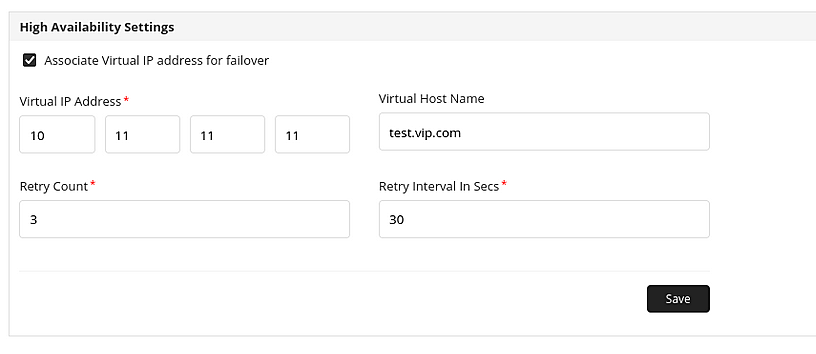
- Fill in the following details to associate Virtual IP for the Failover option:
- Virtual IP address: The IP address that does not belong to a physical network interface. The IP and the Virtual IP addresses of both servers must belong to the same subnet.
- Virtual Hostname (optional): The hostname of the Virtual IP address. The hostname must recognize the corresponding Virtual IP address and vice versa.
- Retry Count: The number of failed association attempts that must be made before initiating the failover mode.
- Retry Interval in secs: Time interval required to reattempt connecting to the associated Virtual IP address.
- Next, follow the steps mentioned below for the changes to take effect:
- Stop the backup / secondary server first (if running). Next, stop the primary server.
- Now start the primary server. Once it's up and running, proceed to start the secondary server.
- Once the product has been started successfully it can be accessed via https://<vip>:<port>.
Note: The VIP URL can be updated in both Windows and Linux startup print with https://<vip>:<port>. However, in case the Virtual IP address addition process is not complete before the product starts up, it will not be updated.