Automate Patch Deployment
To create an Automate Patch Deployment (APD) Task, go to Threats & Patches → Deployment → Automate Patch Deployment.
Under this section, click on Automate Task and select the Operating System where you want to create an APD task. You can create separate tasks for Windows, Mac and Linux based computer groups according to your choice.
Automated Third-party Patch Deployment applies to:
- Windows
- macOS
- Linux
Automated Deployment for Antivirus Updates and Feature Pack Deployment applies to:
- Windows
If an existing APD task already includes Feature Pack updates, the product creates a separate configuration for those updates. The original task continues to deploy its other selected update types. A banner in the original task links to the new Feature Pack task, which retains the original schedule, targets, and exclusions. Keep both tasks active to continue deploying both Feature Packs and the other selected updates. To stop including Feature Pack updates, navigate to Threats & Patches → Settings → Patch Database Settings → Windows → Microsoft Updates and clear Feature Packs.
Select Applications
APD selects updates by update type, severity and application criteria. It does not maintain a handpicked list of KBs. To deploy only specified KBs, select those updates in Manual Deployment. Approval does not include an Optional Update when the task excludes that update type.
Selecting Windows as the task platform does not restrict the task to Windows OS updates: Microsoft application updates can also be included. To target Windows OS entries and omit Office or Microsoft 365, use Patch Specific Applications. Alternatively, use Patch All Applications Except where available. Verify the selected applications and update categories before saving the task.
If a platform’s Third Party Updates section is unavailable, first verify the task platform and the corresponding selections in Patch Database Settings. Section and control availability can depend on the product build, edition and permissions; do not disable Microsoft Updates globally to exclude one application.
Approval alone does not make a patch eligible for an APD task. The patch's update type and severity must also be selected in the task. For example, an approved patch classified as Optional Updates is not deployed when Optional Updates is excluded from the APD criteria.
Preview cumulative updates
Why are Microsoft Preview cumulative updates deployed when Preview Updates is disabled but Optional Updates is enabled?
Preview cumulative updates are classified as Optional Updates. An Automated Patch Deployment task that includes Optional Updates can deploy them even when Preview Updates is not selected on its own.
Once you have chosen the Operating System, select the applications to patch using this APD task in the Select Applications section.
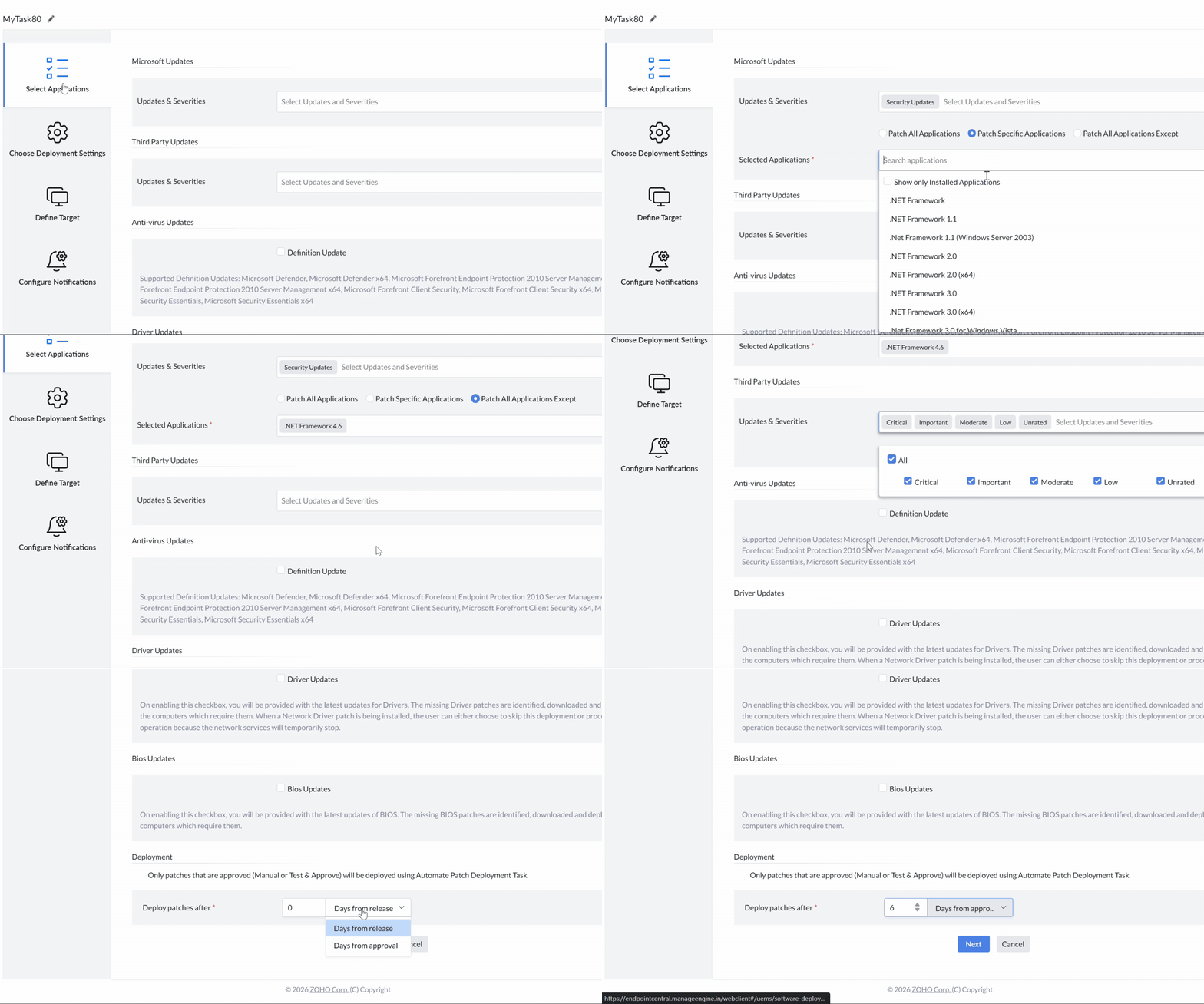
You can choose to automate Microsoft Updates based on Updates and Severities. Select every update type and severity that the task must deploy, including categories such as Security Updates, Optional Updates, and Feature Packs when applicable. An approved patch is not deployed when its update type or severity is excluded from the APD task.
After selecting them, choose
Patch All Applications to automate the patching of all applications whenever patches with that severity and update type are released.
Patch Specific Applications to automate the patching of specific applications whenever patches with that severity and update type are released. Select those particular applications under Selected Applications section.
Patch All Applications Except to exclude specified applications and automate the patching of all other applications whenever patches with that severity and update type are released. Select the applications to exclude under the Selected Applications section. Microsoft Security Updates include Office 365 Click-to-Run. To keep Office in a separate task, choose Patch All Applications Except and exclude the Office 365 applications.
Application exclusion scope
How do I stop every version of an application from being patched automatically?
Patch All Applications Except applies to every version of each selected application. A different edition is a separate entry and is excluded only when that entry is selected.
Targeting Windows cumulative updates
Windows cumulative updates are not a separate category in an Automated Patch Deployment task. They fall under Security Updates.
- Under Microsoft Updates, choose the Security Updates patch type and the required severities.
- Choose Patch Specific Applications.
- In the Selected Applications area, select the Windows operating system version that this task should cover. For Windows 11, select Windows 11 in that same application list.
- If deployments must be split across groups of computers, create two APD tasks with the same application selection and different targets.
Third Party Updates: You can choose to automate Third Party Updates based on Updates and Severities
Similar to Microsoft Updates, you can also choose to Patch All Applications,Patch Specific Applications and Patch All Applications Except in this section.
Anti-Virus Updates: By enabling the checkbox present besides Definition Updates, you can choose to automate the anti-virus definition updates. Before creating the APD task, enable Definition Updates under Threats & Patches → Settings → Patch Database Settings → Windows → Microsoft Updates. For the Patch Database configuration, see Patch Database Settings.
Supported Definition Updates include: Microsoft Defender, Microsoft Defender x64, McAfee Endpoint Security, Microsoft Forefront Endpoint Protection 2010 Server Management, Microsoft Forefront Endpoint Protection 2010 Server Management x64, Microsoft Forefront Client Security, Microsoft Forefront Client Security x64, Microsoft Security Essentials, Microsoft Security Essentials x64.
Driver Updates:To automate updating the device drivers, enable Driver Updates checkbox. To know the supported drivers for patching, refer to this page.
BIOS Updates: In a Windows APD task, select BIOS Updates, where available, to include applicable approved BIOS updates. Driver Updates and BIOS Updates are independent selections. Selecting drivers does not include BIOS updates. Leave BIOS Updates cleared in tasks that must exclude firmware updates. Create separate tasks when the updates need different targets or deployment policies. Follow BIOS prerequisites and credential mapping.
Enable the required categories in Patch Database Settings. If BIOS Updates is unavailable, verify those settings and the edition requirements. Provide Support > Upgrade Details to Support to confirm the supported upgrade path if the option remains unavailable. Use Manual Deployment for applicable BIOS updates while the automated option is unavailable. Approval does not override task criteria, applicability or the assigned policy.
Deployment: Under this section, choose the specified number of days post their approval (only supported for Windows Operating Systems) or release after which you want to deploy these patches automatically under Deploy patches after section. Only patches that are approved manually or using the Test & Approve feature will be deployed.
Use the approval-date basis to wait after approval for testing and monitoring, or the release-date basis to wait after the vendor releases the patch. A delay of 0 days does not bypass patch approval.
Deploy approved patches
When Test & Approve is used, patches that pass pilot deployment and reach Approved status are eligible for the APD task. The task deploys eligible approved patches to its defined targets by using the selected deployment policy.
If all applicable patches are unapproved or excluded by the task's update-type, severity, application, or aging criteria, the task can show Patching Completed without installing a patch. If the endpoint already has the same or a newer application version, that application does not appear in the task's patch details or exported summary.
Before approving a large rollout, go to Threats & Patches → Patches → Missing Patches and enable the Size column from the Columns selector. Patch size is not displayed in the APD task itself. Use the size to plan staged deployments or Distribution Server capacity.
After configuring all the settings, click on Next.
Choose Deployment Settings
Once you have selected the applications, configure the deployment settings under this section.
APD downloads follow each agent's 90-minute refresh cycle, so targets do not all download at the same time. A 50-machine limit applies to on-demand Deploy Immediately in a manual deployment task, not to APD. A newly approved patch appears in the APD task after the next scan, typically within about 90 minutes. If the latest version of an application is already installed on a computer, that application is not listed for that computer. APD lists only the latest missing patch for an application; older superseded patches are not listed.
Automated deployment retry count
Automated Patch Deployment uses the default retry count of three. The retry count cannot be changed in the UI. Submit a feature request if a configurable retry count is required.
Retry opportunities depend on the task's remaining retries, configured triggers, computer availability, and deployment window. A retry count does not guarantee a fixed sequence of scheduled deployment, refresh, and startup attempts, or a retry on every calendar day.
A retry requires a configured trigger, remaining retries, and an available endpoint. The deployment policy's window still applies to normal startup and refresh deployment. Review the recorded failure, task execution history, and deployment window and retry settings when an attempt is delayed or a failed update is not retried as expected.
For a startup retry, the agent evaluates the configured startup trigger when the computer starts. A restart, or a shutdown followed by a subsequent power-on, can provide that startup opportunity. Shutting down alone does not perform the retry. The computer must become available, and the retry must still meet the configured trigger, remaining-retry, and deployment-window conditions.
See Deployment window behavior for startup and refresh conditions.
After resolving the cause of a Retry attempts exhausted failure, such as restoring Distribution Server communication, open the APD task, click Modify, make no other changes, and save or deploy the task. This resets the retry process; the patch is downloaded again and deployment resumes in the next deployment window.
Saving an APD task, even without changing its settings, can reset its displayed deployment status and counts. The counts are updated as target computers report their status during the next deployment window.
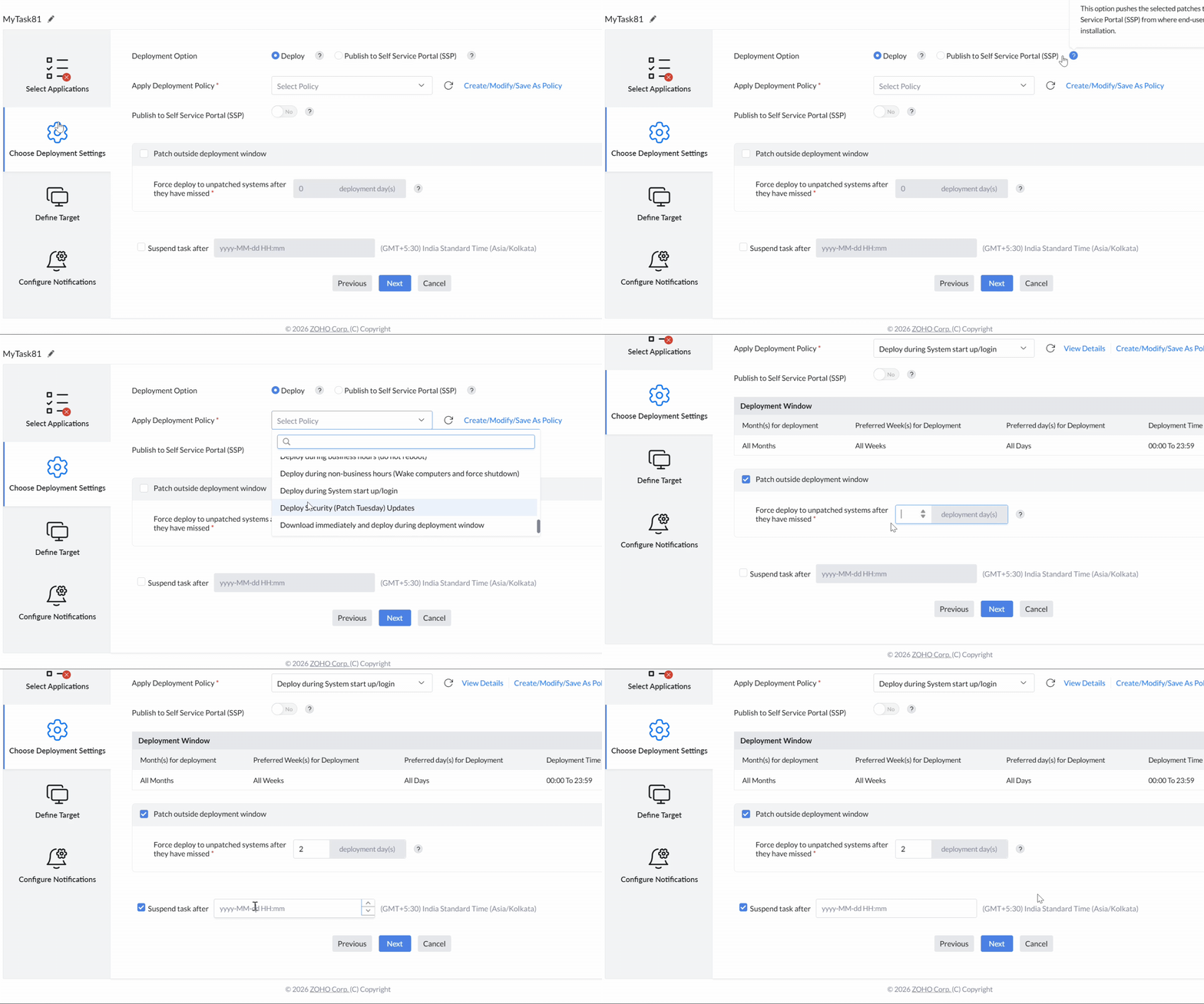
Under Deployment Option, choose Deploy if you want to automate deploying the patches as per a Deployment Policy.
But in large organizations, patching critical servers is crucial, but limited maintenance windows can lead to downtime and productivity loss. You cannot configure a Deployment Policy accordingly. In situations like this, Choose Publish to Self Service Portal (SSP) . The Self Service Portal simplifies patch deployment by letting admins publish updates for users and server owners to install as needed. For servers requiring continuous uptime, you need to schedule patching during planned downtime, for minimizing disruptions. To learn more about Self Service Portal, refer to this page.
If you have selected Deploy,
Choose a customized Deployment Policy as per your enterprise requirements under Apply Deployment Policy option. To learn more about configuring Deployment Policies, refer to this page.
After choosing the deployment policy, select yes or no for Publish to Self Service Portal (SSP). If yes, patches can be scheduled for deployment and pushed to SSP simultaneously, offering flexibility in installation.
After choosing the Deployment Policy, you can also see the Preferred Week(s) for Deployment, Preferred day(s) for Deployment and Deployment Window listed in the table as per the selected policy. Deployment windows are evaluated using each target computer's local system time.
To change an existing task, use Modify and review its assigned deployment policy. Change the permitted window or outside-window behavior in the governing deployment policy. Save the policy and verify that the task uses it. Use task assessment to review deployment and replication results. Current installed counts alone do not prove installation outside the window.
For Patch Tuesday-based policies, Patch Tuesday week runs from Patch Tuesday through the following Monday. The first week after Patch Tuesday is the next Tuesday-through-Monday period. Review this definition before concluding that an installation occurred outside its configured week.
Use the Deploy Anytime at the Earliest policy when a deployment should run at the next eligible opportunity instead of waiting for a narrow weekly window.
The Deploy patches after aging criterion includes only missing patches old enough to meet the configured number of days from approval or vendor release. Until a patch meets that criterion, Deployment Details can show no rows even though the Summary still counts the task's target computers under Patching Completed.
Approved patch during a defer period
Does an approved patch still deploy when an older patch is in a defer period?
Automated Patch Deployment deploys the latest approved patch. A defer period on an older patch does not hold that newer approved patch.
A user can repeatedly skip application patching during the deployment window to continue critical business work. Enable Patch outside deployment window when those domain computers must be brought up to date after a grace period. You can set a specified number of days under this option as a grace period, after which force deployment will be initiated for systems that missed patching in the deployment schedule.
The value is the number of missed deployment days after which patches can be installed outside the scheduled window. Set the number of days so the grace period ends before the next monthly window.
If you wish to suspend this APD task after a specific period, enable the checkbox in Suspend After and specify the date and time. This is useful when existing automated patching of server machines needs to be stopped due to changes in scheduled downtime. In such cases, this APD task can be suspended, and you can create a new APD task based on the new server downtime.
After configuring all the settings, click on Next.
Define Target
To scan after agent installation, open Admin → Agent settings → General Settings and enable Perform Patch Scanning under the actions after installation. This scan identifies missing patches; it does not immediately install them. Ensure that a new computer matches the task's actual targets and exclusions, completes its patch scan, and meets the assigned deployment policy. Last boot time is not the computer's registration time.
Review all deployment tasks that target the computer. Publishing an update through one task does not exclude that computer from another APD task. Apply the required target exclusions to each relevant task, and check the installation source when an unexpected update is installed.
See Installed Patches audit fields to review the deployment source.
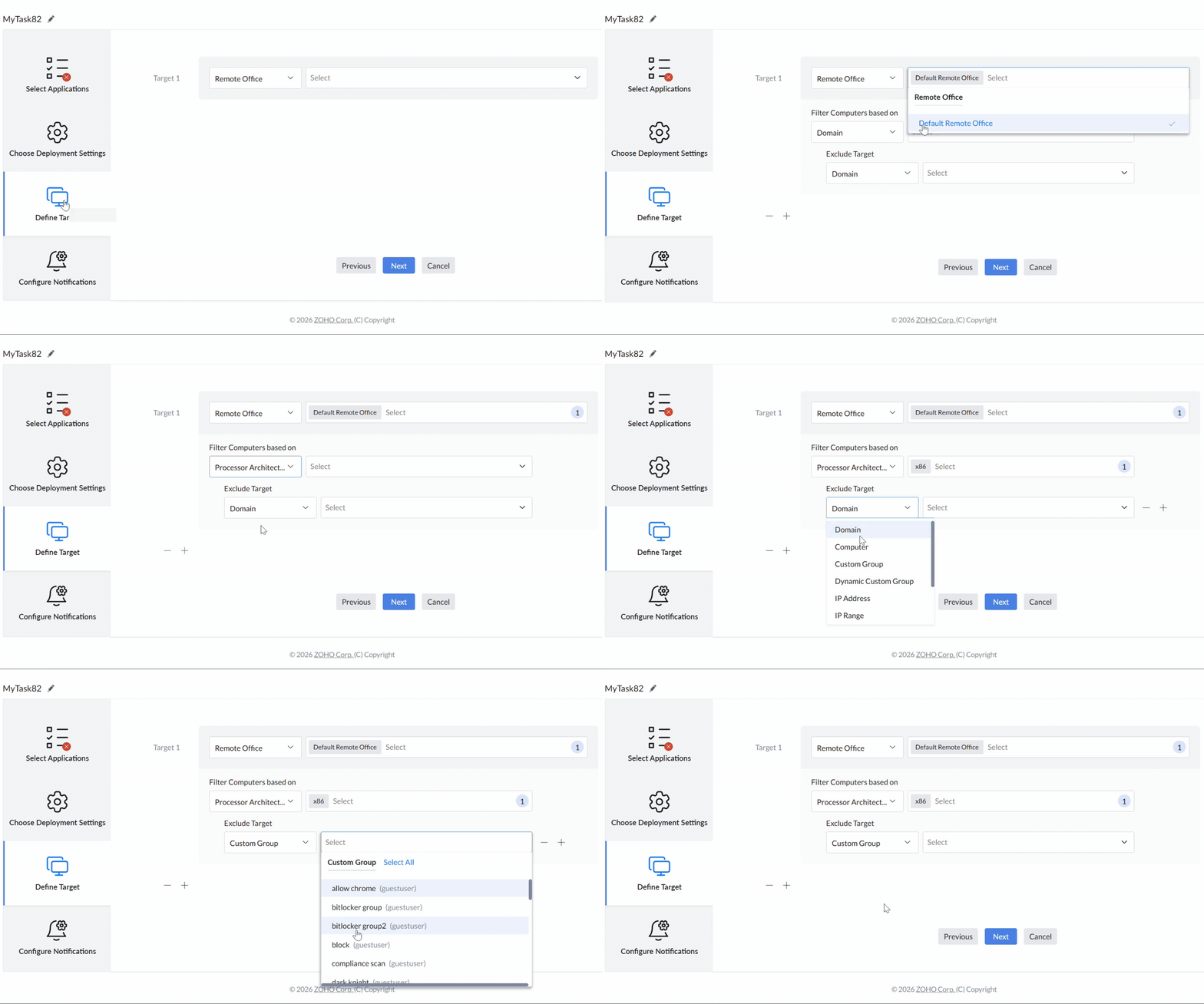
After choosing the deployment settings, select the appropriate target type under Define Target. Static groups appear under Custom Group, while dynamic groups appear under the separate Dynamic Custom Group selector. A group does not appear when it is searched under the wrong target type. To learn more about Defining Targets, refer to this page.
After choosing the targets, click on Next to configure notifications about this APD task.
After removing or changing a group, review the remaining target type, domain or organizational unit, inclusion rules and exclusions before saving. A remaining broader target can include computers that the removed group previously restricted. Check the affected computers before the next deployment. For application-based exclusions, see Decline Patch.
Excluded operating systems
Why does a deployment show no data for the selected servers?
A computer whose operating system is in the task's excluded operating-system list is not a target. The task can show no data.
One task for several offices
Can one Automated Patch Deployment task cover several remote offices?
The application selection is stored in the task. Target more than one remote office or device group from that same task instead of copying the task for each office.
Configure Notifications
For a patch-level report by Remote Office, open Detailed View and apply the required Deployed Using and Remote Office criteria. Export the retained results. Use the APD task Summary for task progress and pending targets. A Remote Office health summary does not establish that one APD task has completed.
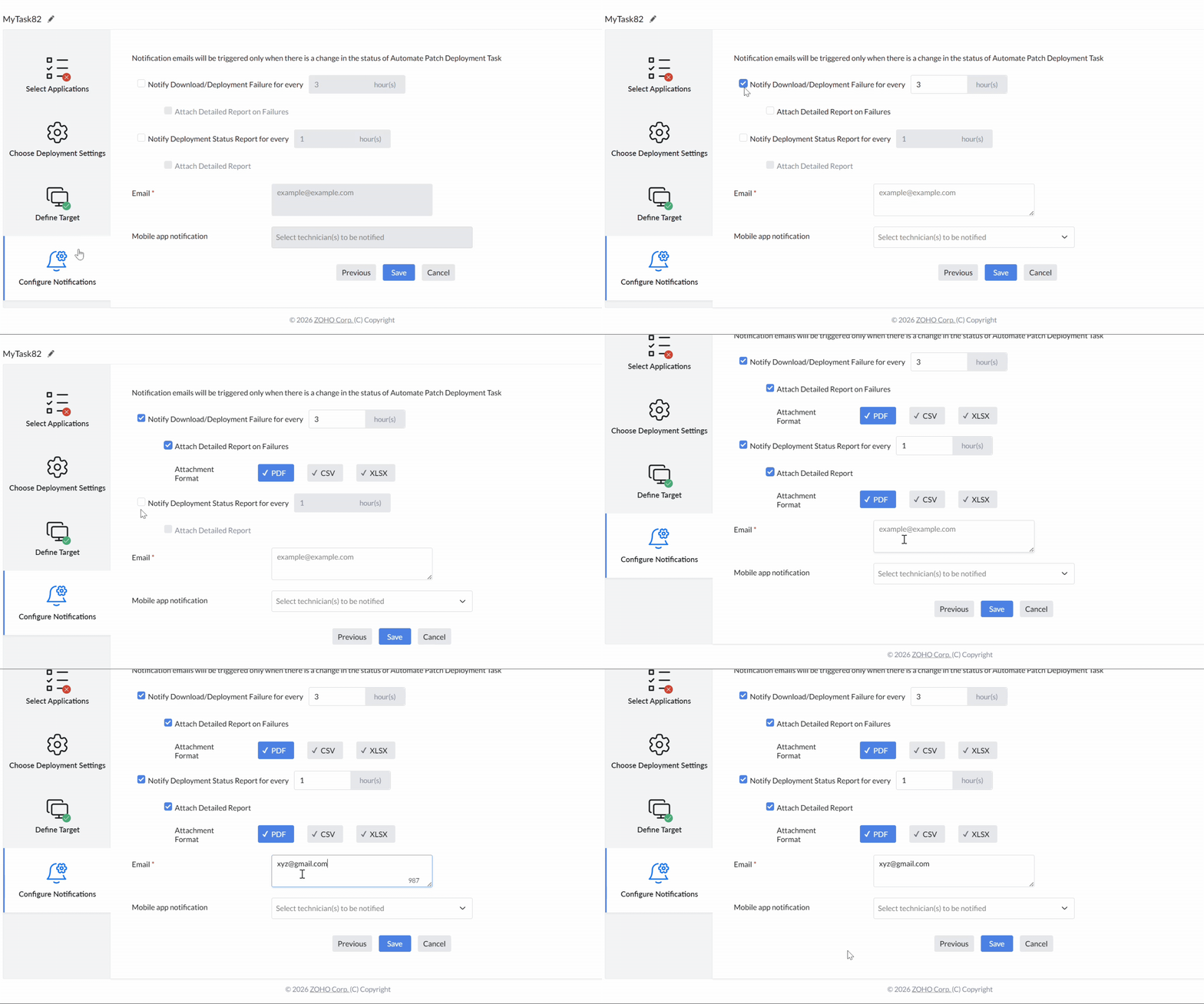
To receive the email notifications for:
- Download/Deployment failures, enable the checkbox in Notify Download/Deployment Failure for every and mention the frequency of notification in hours.
- Deployment Status Report, enable the checkbox in Notify Deployment Status Report for every and mention the frequency of notification in hours.
If you wish to receive a detailed report, enable Attach Report for the required notification and choose PDF, CSV, or XLSX under Attachment Format.
Mention the email to receive notifications under E-mail section.
The interval is change-triggered: at an interval boundary, APD sends a notification only when the task's deployment status differs from the previous check. The current interface does not provide a notification triggered solely by task completion.
If the mail-server test succeeds but APD emails stop, check spam or other folders, export the APD task Summary as a PDF from Assessing Automate Patch Deployment Tasks, and collect Central Server logs for analysis.
If you have configured the Mobile App and wish to receive notifications in your mobile, enable the checkbox for the option: Enable notification via Mobile App.
Having configured the notification settings for this APD task, click on Save. The APD task is created. It automatically deploys patches for the selected applications to the target computers under your chosen policy. Periodic activity notifications are sent to the specified email address.
Last deployment time shown as -- means the APD task has not started. Installed-patch counts are the current status of the computers, not live deployment outside the window.
There is no consolidated calendar that lists the next deployment window for every APD task. Open each task's Summary or System View to review its deployment policy, window, and current status.