Creation of BitLocker Policy
Build and configure a BitLocker encryption policy, from authentication type to recovery key rotation.
Adhere to the BitLocker encryption prerequisites before deploying an encryption policy.
Before configuring the policy, verify that BitLocker Management is available under your license and that your role permits the required action. See BitLocker licensing and access prerequisites. A visible configuration guide does not establish your subscription entitlement.
Overview
What a BitLocker policy controls
One policy module covers encryption scope, authentication, algorithms, and recovery keys.
The BitLocker Management module
BitLocker Management module lets you build tailored encryption policies for the devices on your network. A policy can apply full drive, OS drive, or used-space encryption according to the device requirements.
It supports both devices with a TPM and devices without one, gives granular control over the encryption algorithm, and offers separate options for Windows 10 and later versus Windows 8.1 and earlier.
Setup
Creating the policy
Name the policy and choose whether it encrypts or decrypts.
Perform encryption or decryption
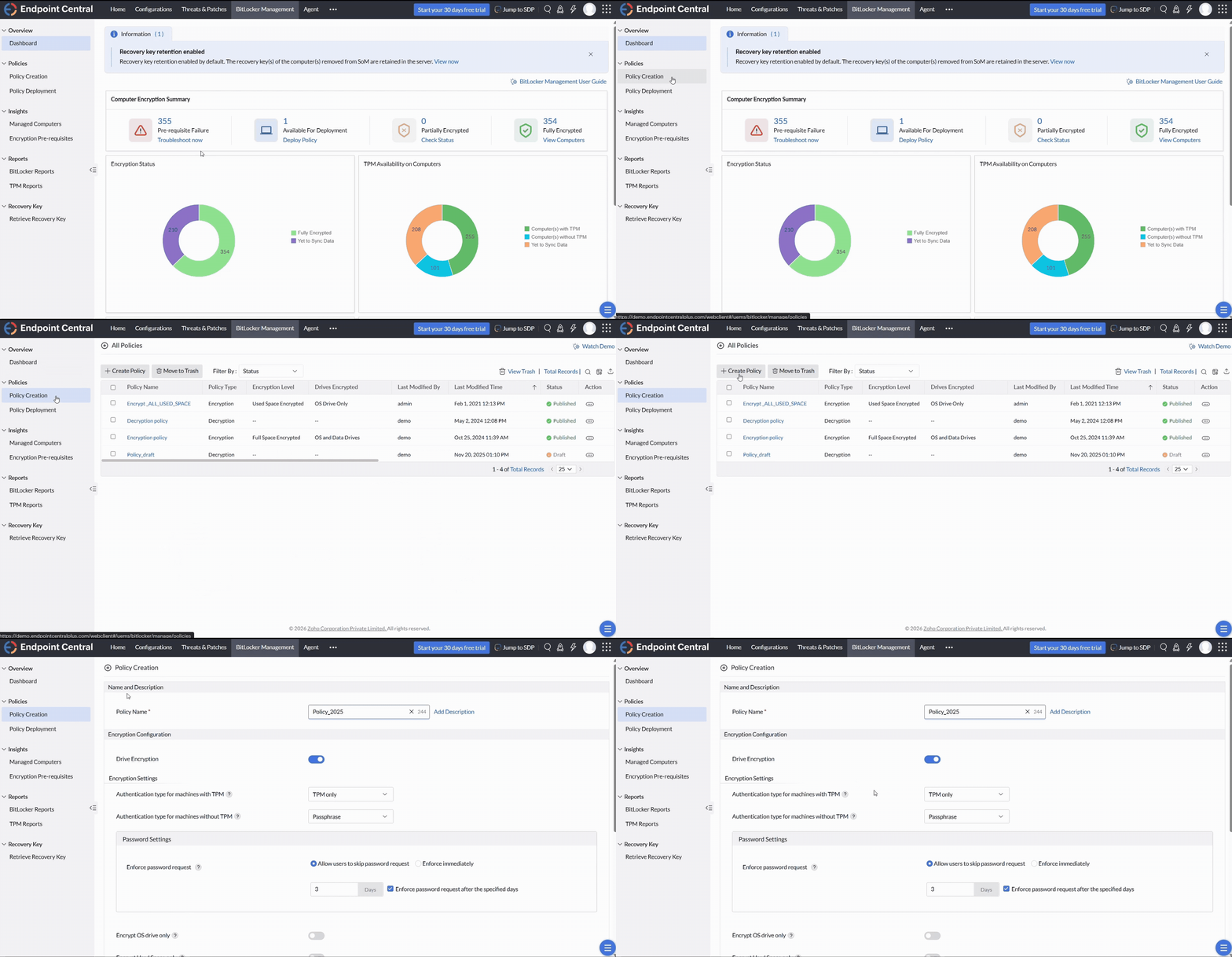
- Go to the BitLocker Management module in the Endpoint Central console → Policy Creation → Create Policy.
- Enter a name for the policy, and an optional description.
- Toggle Drive Encryption: on applies encryption when the policy deploys, off applies decryption.
Authentication
Choosing how devices authenticate
TPM-equipped and non-TPM devices use different authentication paths.
Authentication for machines with TPM
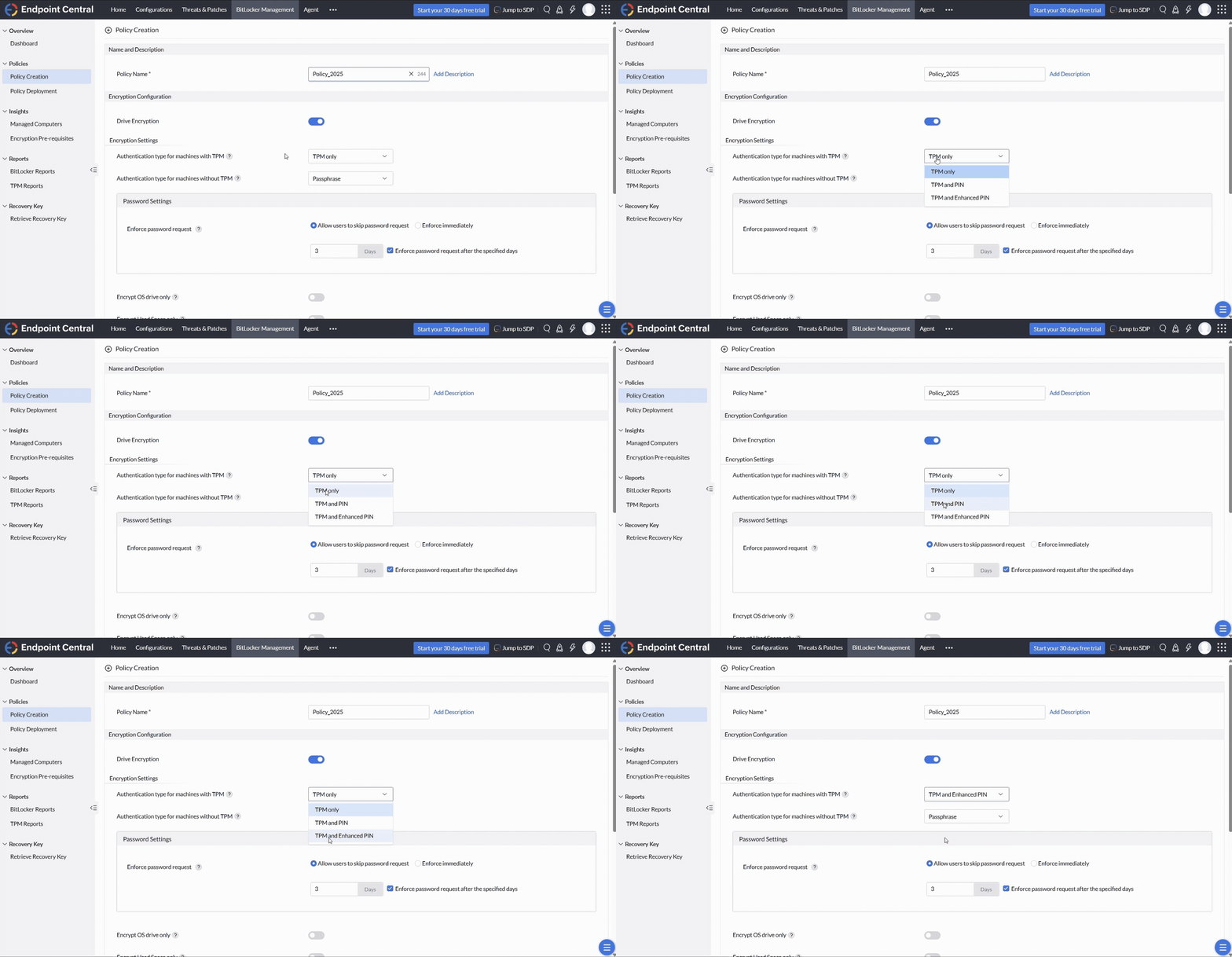
- TPM only — the drive unlocks via TPM authentication with no user input required.
- TPM and PIN — TPM authentication is followed by a PIN entered at boot. The PIN must be of 6—20 digits with no continuous sequence of 3+ digits and no repetitive 2-digit sequence. It will be prompted pre-boot at every startup.
- TPM and Enhanced PIN — TPM authentication is followed by an Enhanced PIN entered at boot. The Enhanced PIN must be of 6—20 characters, including 1 uppercase, 1 lowercase, 1 digit, and 1 special character, with no continuous sequence of 3+ characters and no repetitive 2-character sequence. It will be prompted pre-boot at every startup.
Authentication for machines without TPM
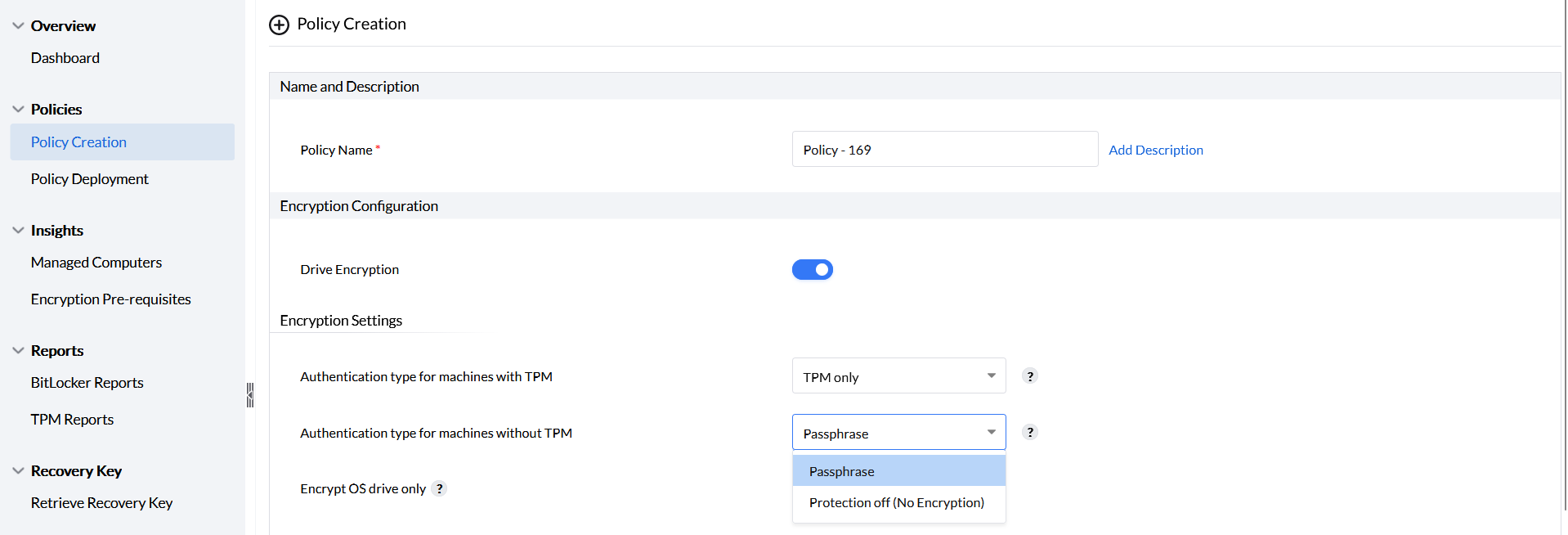
For non-TPM devices, select Passphrase to require a user-created passphrase, or Protection off (No Encryption) to leave that class of device without encryption under this policy. The agent’s initial password-creation dialog appears in the Windows user session. It is separate from the Windows preboot unlock prompt.
The passphrase must contain 8—255 characters, including 1 uppercase letter, 1 lowercase letter, 1 digit and 1 special character. It must not contain a continuous sequence of 3 or more characters or a repetitive 2-character sequence. For more details, refer here.
Configure one TPM authentication choice and the non-TPM choice in the same policy for a mixed fleet. A TPM-only device unlocks without a user PIN; TPM+PIN and passphrase protectors require their configured Windows unlock method. Each user creates the requested credential; this policy form has no fleet-wide common PIN field.
If non-TPM devices remain decrypted, check the non-TPM selection and completed password setup. See BitLocker encryption troubleshooting.
IT admins cannot configure one static PIN/passphrase for all machines. Each end user sets their own PIN/passphrase during the initial setup prompt. If the policy is configured to 'Allow users to skip password request', users can defer PIN setup temporarily.
After setup, standard users can change an OS-drive PIN or password when Windows policy permits it and they can provide the current credential. The Windows policy Disallow standard users from changing the PIN or password can block this action. Forgetting the credential is a separate recovery/reset workflow. An Endpoint Central tray reset option can also depend on device settings; do not assume it appears on every computer. See Microsoft’s PIN/password policy reference.
Scope
Choosing what gets encrypted
Combine one of three encryption scopes with the authentication settings above.
Complete encryption of drives
To encrypt every drive and all space on them, enable Drive Encryption only, and leave Encrypt OS drive only and Encrypt used space only disabled.
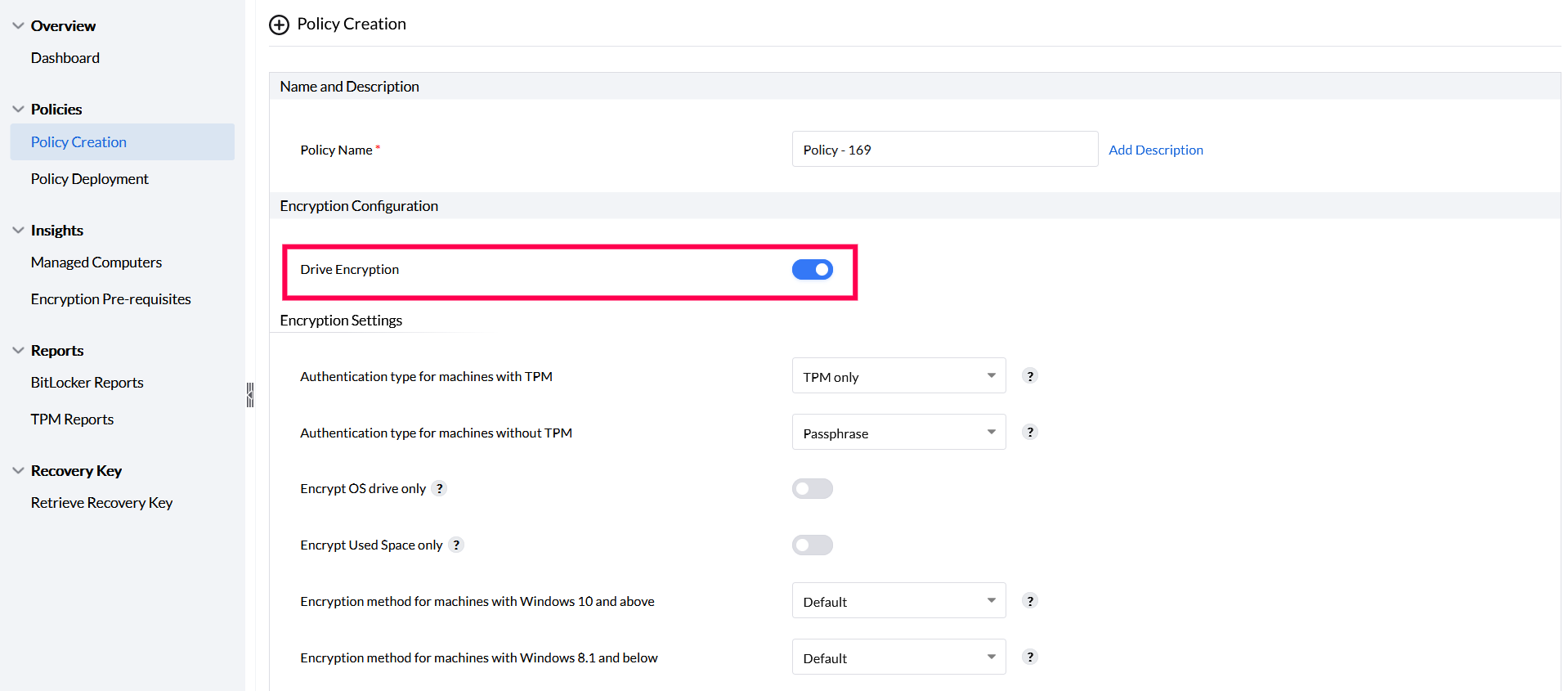
The PIN or passphrase choice applies to the OS-drive authentication path. The managed data-drive path uses a numerical recovery-password protector and an external-key protector for automatic unlock. Keep recovery passwords available and verify Auto Unlock per drive; do not expect a separate user-chosen data-drive passphrase from this setting.
Encryption of the OS drive only
Enable Encrypt OS drive only to encrypt just the operating system drive, leaving all other data drives decrypted.
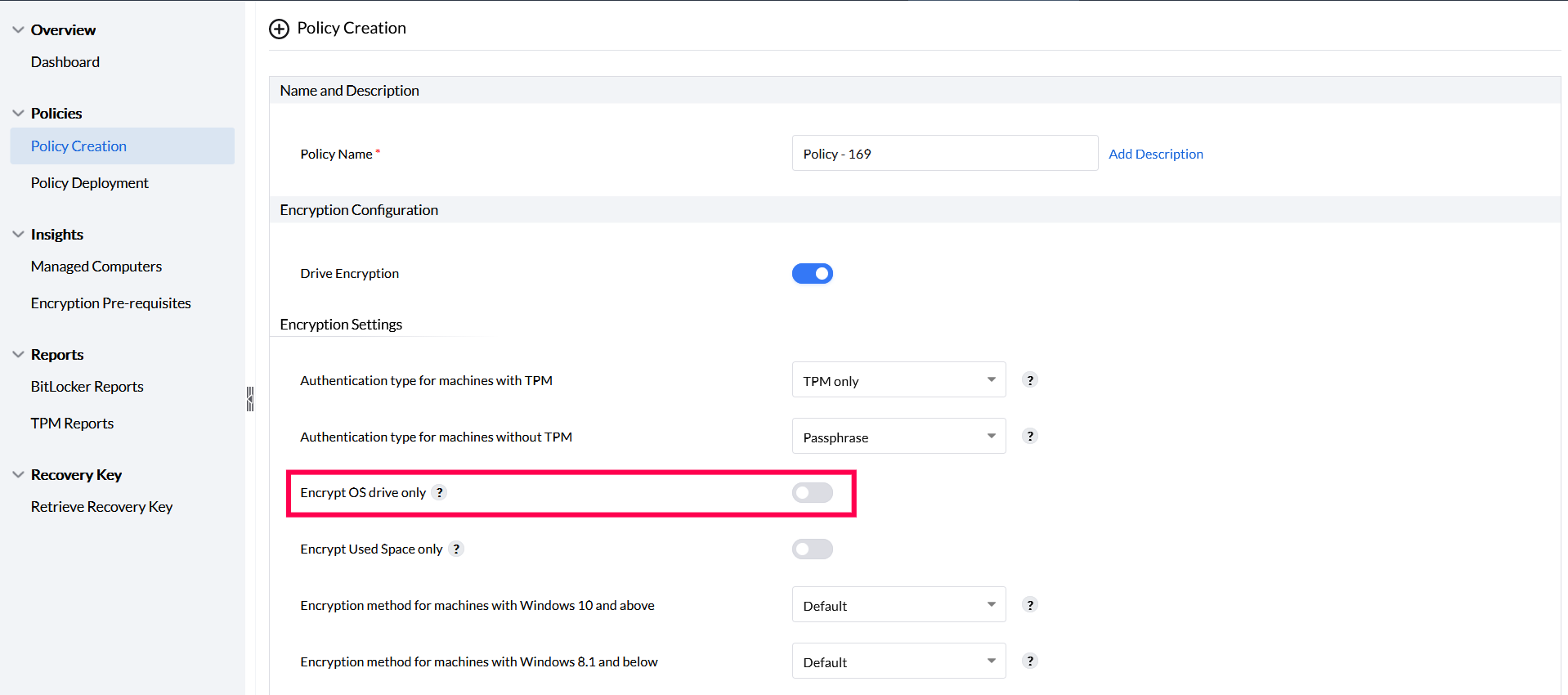
Encryption of used space only
Enable Encrypt used space only to encrypt just the used space on a drive, leaving free space decrypted.
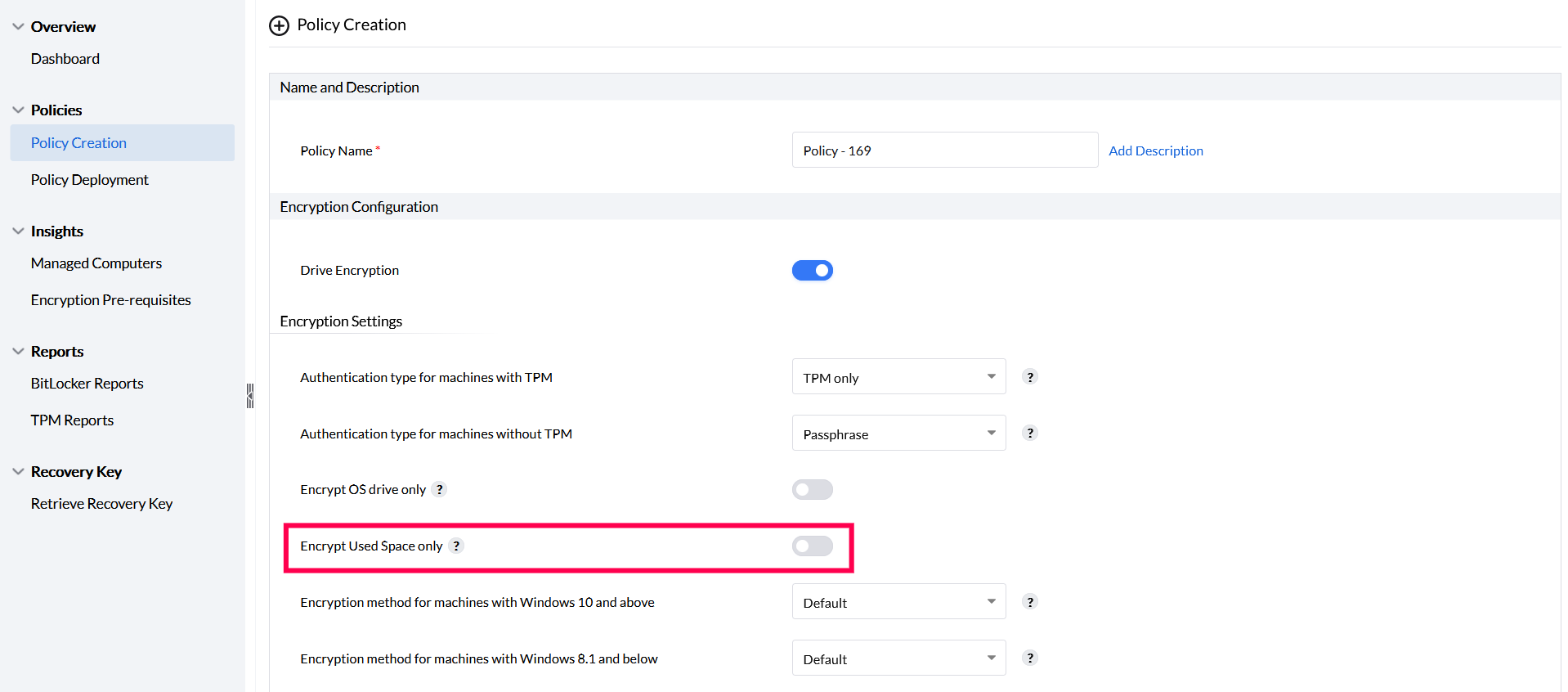
To interpret drive lock/protection fields and review policy conflicts, see How BitLocker Management works and its policy conflict precedence section.
BitLocker Management does NOT support selecting or excluding individual data drives. The only scope options available are:
- Default (all drives): All drives on the system are encrypted
- OS Drive Only: Only the system/boot drive is encrypted
- Used Space Only: Only the portions of drives that contain data are encrypted (vs. full space)
You CANNOT configure BitLocker to encrypt only specific data drives (e.g., E: and F:) while leaving others unencrypted (e.g., D:).
The policy selects OS-drive-only or the supported set of internal drives. Used-space-only controls how much of each selected drive is encrypted; it does not select individual drive letters. The policy does not provide a per-data-drive include/exclude list. Creating separate computer groups does not add that selector. Review a separately supported solution with support if you need different treatment for individual data volumes.
Algorithms
Choosing an encryption algorithm
The available algorithms depend on the Windows version, and Microsoft's default is the safe choice for most devices.
Algorithms for Windows 10 and above
Windows 10 and later devices can use AES_128, AES_256, XTS_AES_128, or XTS_AES_256.
XTS_AES_128 and XTS_AES_256 identify the 128-bit and 256-bit AES variants used with XTS. Select the algorithm required by your organization’s security policy and supported Windows configuration. Changing the method of an encrypted drive can require decryption and re-encryption.
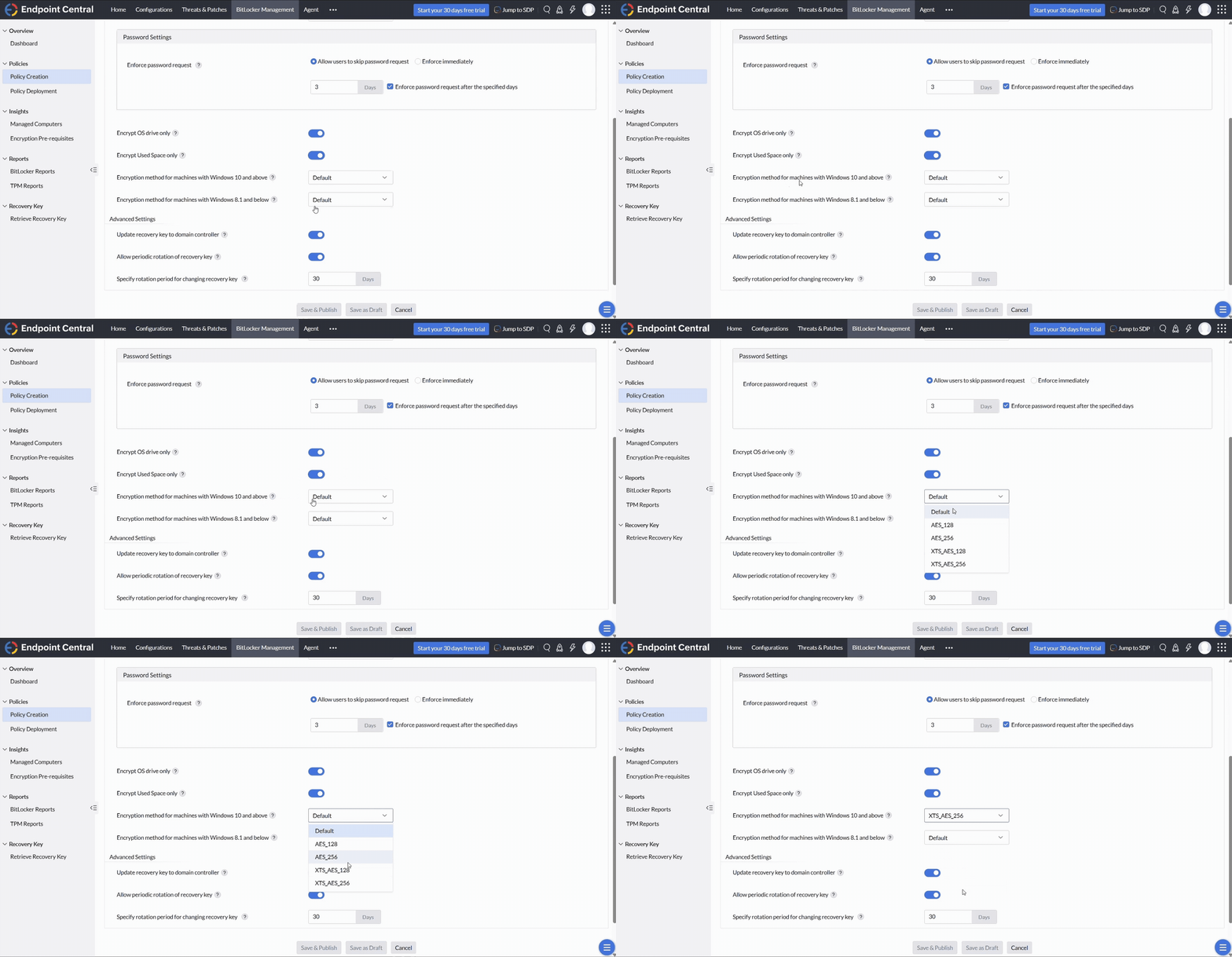
Algorithms for Windows 8.1 and below
Windows 8.1 and earlier devices can use AES_128 or AES_256. As with Windows 10 and later, Microsoft's default gives the best performance, and stronger options exist for compliance but can slow the device.
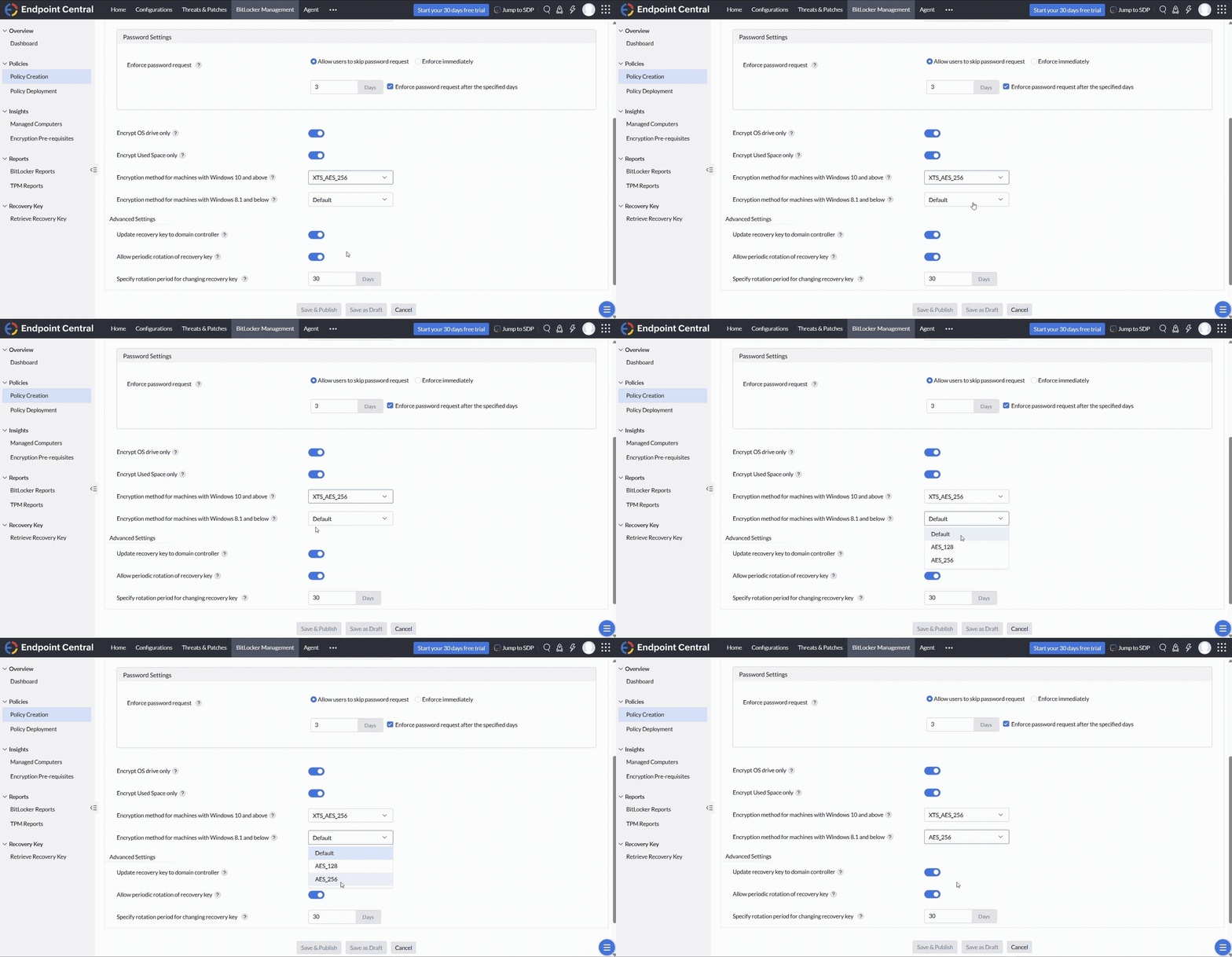
The default algorithm is based on any previously configured Group Policy Object (GPO), or otherwise on the encryption method associated with the system's OS.
Passwords
Password prompt settings
Control whether users can defer setting a BitLocker password.
Allow users to skip the password request
This setting lets an administrator define a period during which a user can click Cancel to skip the password prompt.
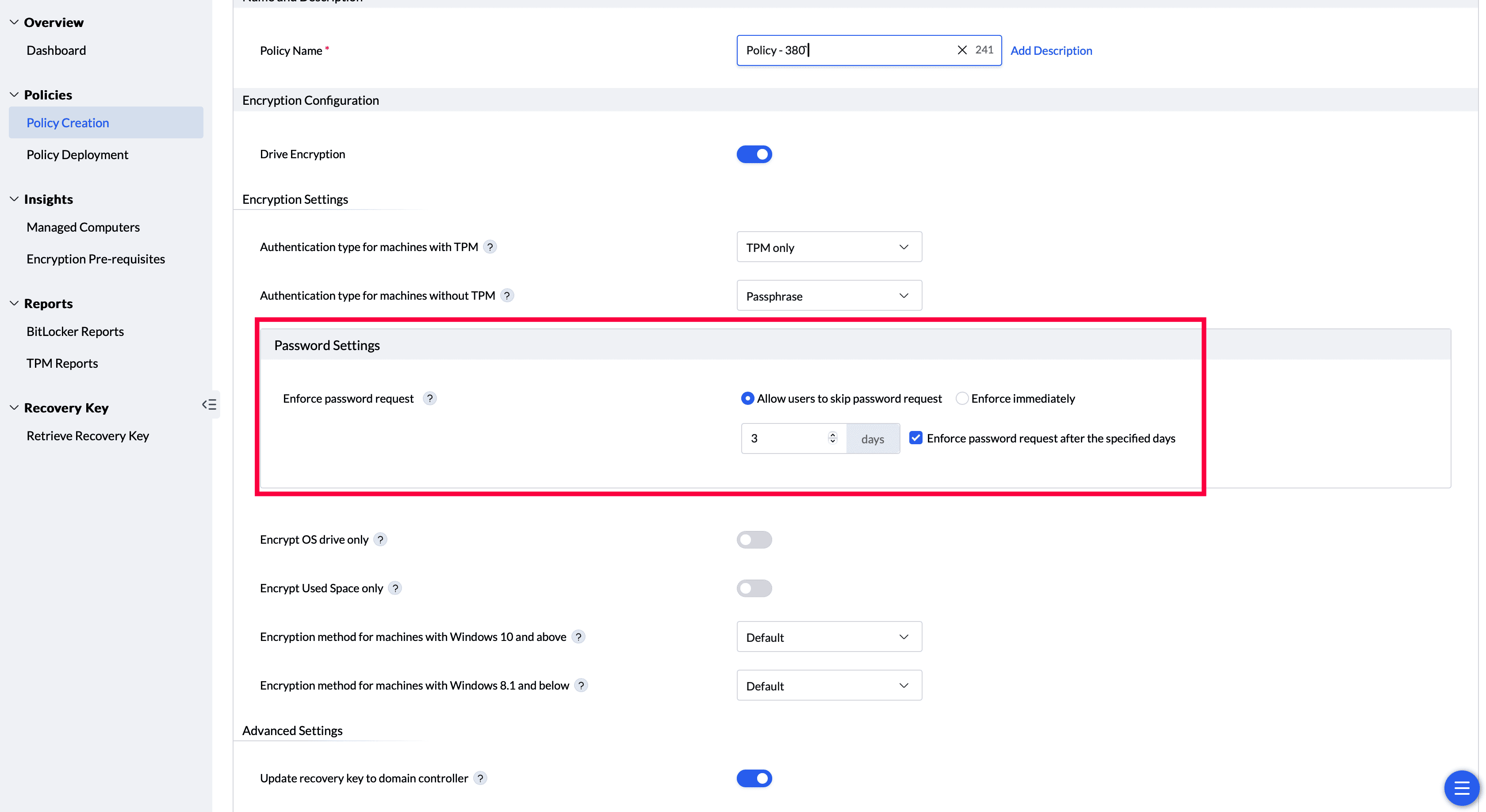
Once that window passes, the Cancel button is disabled and the user must create a BitLocker password, so password setup is required before the applicable encryption can proceed.
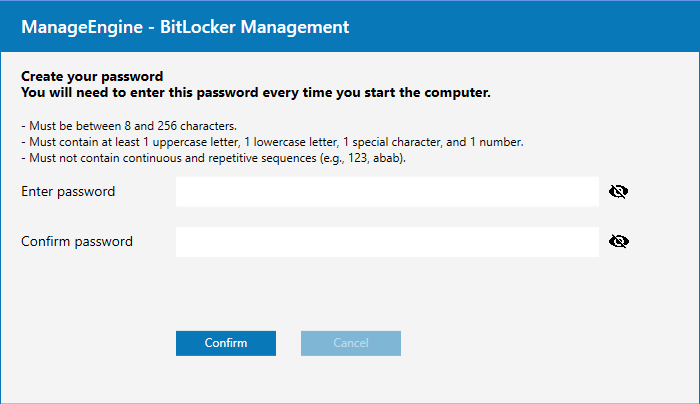
Enforce immediately
This setting requires the user to set a password immediately. The Create Password window can't be canceled or closed until they do.
If TPM devices are set to TPM only and non-TPM devices are set to Protection off, the password setting won't appear, since no authentication is configured in that case.
Initial PIN/passphrase setup deferral is separate from the reset prompt after a recovery-key startup. The reset path also checks the active password-based policy, OS-drive protection and recovery-event history. See password/PIN reset prompt diagnostics. The initial skip-window length alone does not establish exactly when that separate reset prompt reappears.
Reset confirmation after a recovery-key startup
The reset confirmation uses the recovery event and the user’s response. It is separate from the initial PIN or passphrase setup grace period. The device must still meet the active password-based policy and OS-drive protection checks.
- Closing the confirmation without selecting the option to stop showing it leaves the reset request eligible for a later applicable check.
- Selecting the option to stop showing the confirmation and then closing it suppresses further confirmation for that recorded recovery event.
- A successful reset also marks that recorded event as handled.
- A newer recovery-key startup event is evaluated separately. Suppressing one event does not suppress all future recovery events.
- If the confirmation closes automatically after its timeout, the agent treats it as a deferred reset.
These choices do not define a fixed re-prompt interval or guarantee a prompt at every Windows login. If prompting appears inconsistent, record the recovery-startup time, the response selected and the agent refresh diagnostics. See reset prompt diagnostics.
Recovery
Advanced settings for recovery keys
Control where recovery keys are stored and how often they rotate.
Recovery key storage and rotation
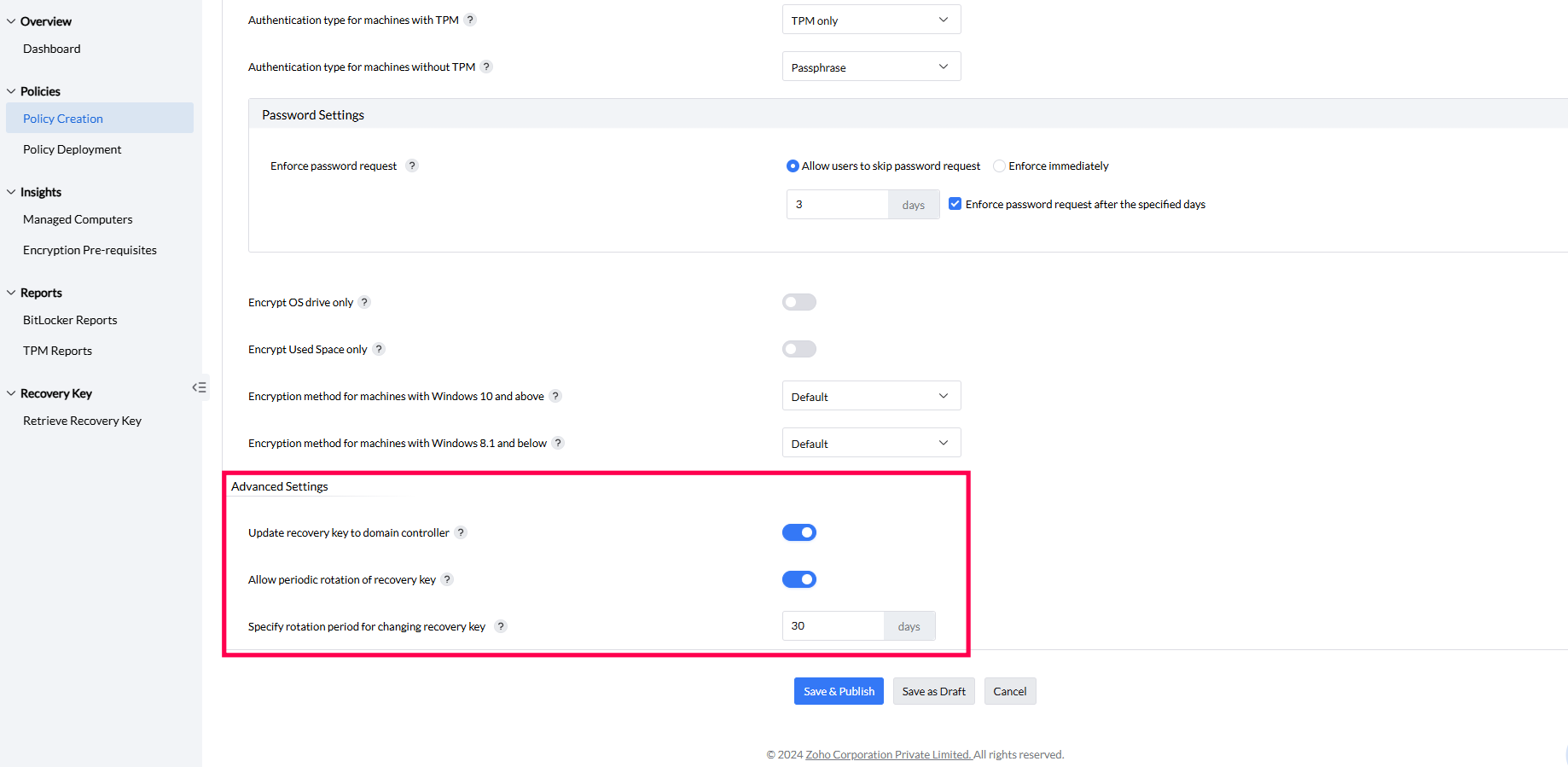
- Update recovery key to domain controller — keeps a consolidated list of recovery keys in Active Directory; if disabled, keys live only on the product server.
- Allow periodic rotation of the recovery key — replaces old recovery keys with new ones automatically after a set number of days.
To reset recovery keys that have already been used, modify the deployed policy, enable rotation, and set the rotation period — for example, seven days generates new recovery keys every seven days starting from when the modification takes effect.
Saving
Saving the policy
After you configure the settings, save the policy as a draft or publish it directly. Published and drafted policies both appear in the policy list under the Policy Creation tab.
The created policy can be deployed through Policy Deployment for the endpoints to be encrypted.